How to Manage Your Account Settings
Overview
Account is where you manage how you sign in to Cohart and keep your account secure — separate from your public profile.
- Who it’s for — every Cohart account holder: artist, gallery, buyer, or admin.
- Where to find it — the sidebar More menu, as Account.
- What you can do — review your sign-in methods, change your password, and deactivate or delete your account.
- Good to know — signed up with Google or Apple and never set a website password? Use Forgot Password? from a signed-out session to create one first.
Changing your password signs you out on every device, deactivating hides your profile until you log back in, and deleting permanently removes your content and disables sign-in.
Before you start
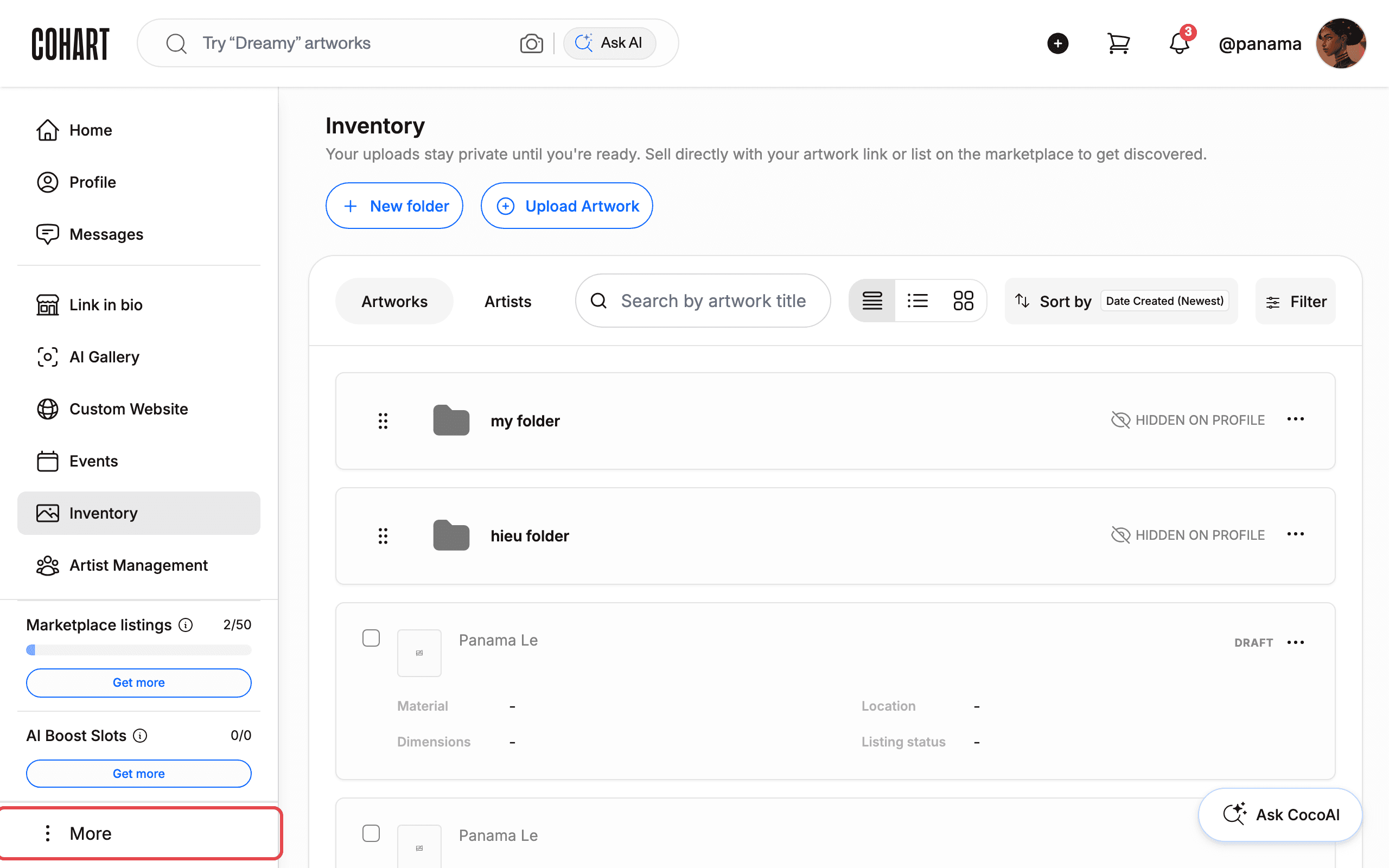
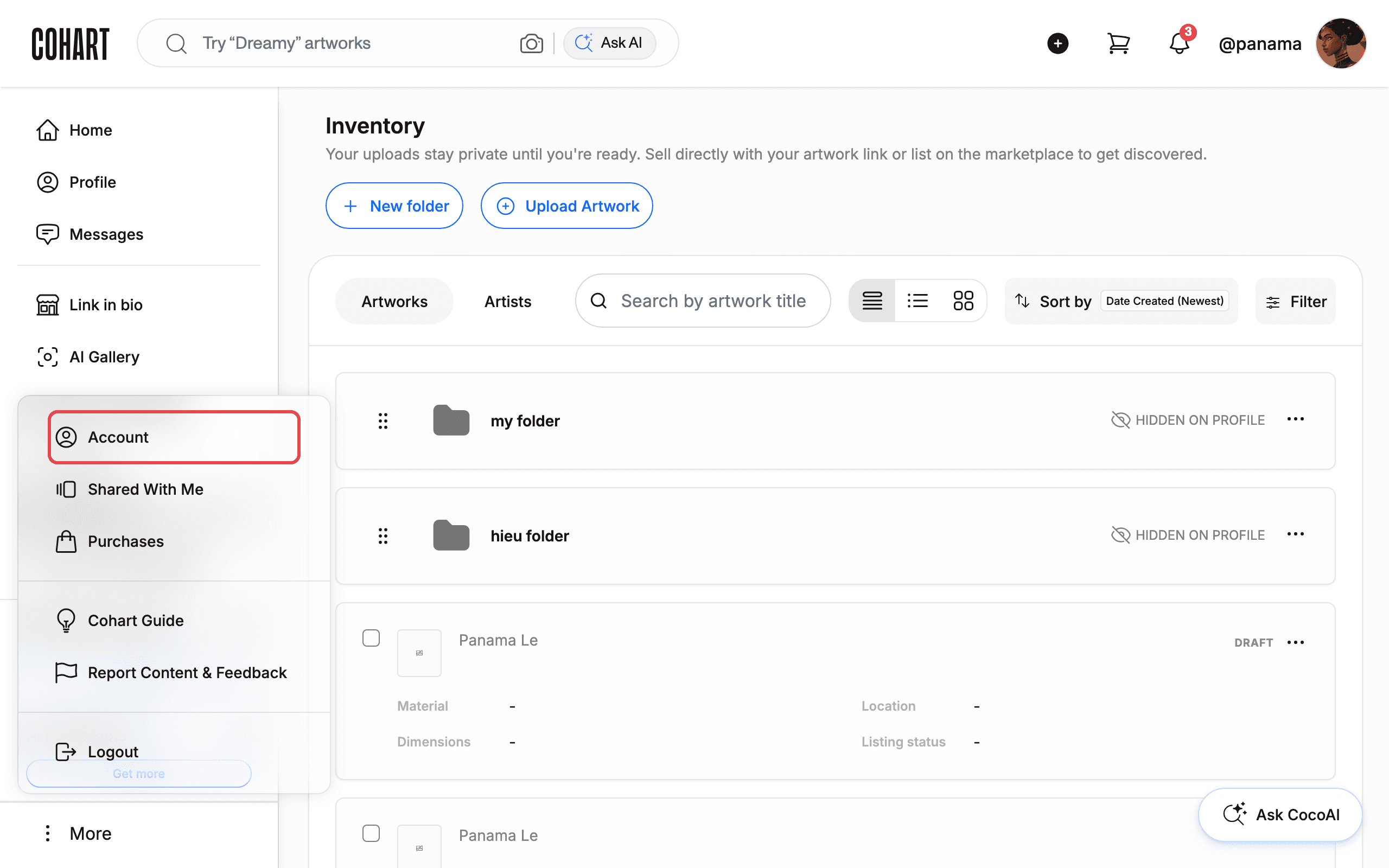
- A Cohart account of any type, signed in. Open the page from the sidebar via More → Account (the menu also holds Shared With Me, Purchases, Cohart Guide, Report Content & Feedback, and Logout).
- Your current password, if you want to set a new one. All three fields — Current Password, New Password, Confirm New Password — must be filled before Change password enables, and the new password must have at least 6 characters, no leading or trailing space, and be different from the current one.
- Never set a website password? For example you joined in the mobile app or sign in with Google or Apple. Use Forgot Password? from a signed-out session to set one up first (see How to Log In to Cohart for the reset flow).
- Delete and deactivate differ sharply. Deactivating is temporary and reversible by logging back in, while deleting is permanent, removes your profile and content, and disables sign-in. Accounts with active subscriptions must cancel them inside the delete dialog before the deactivate/delete choice appears.
Steps
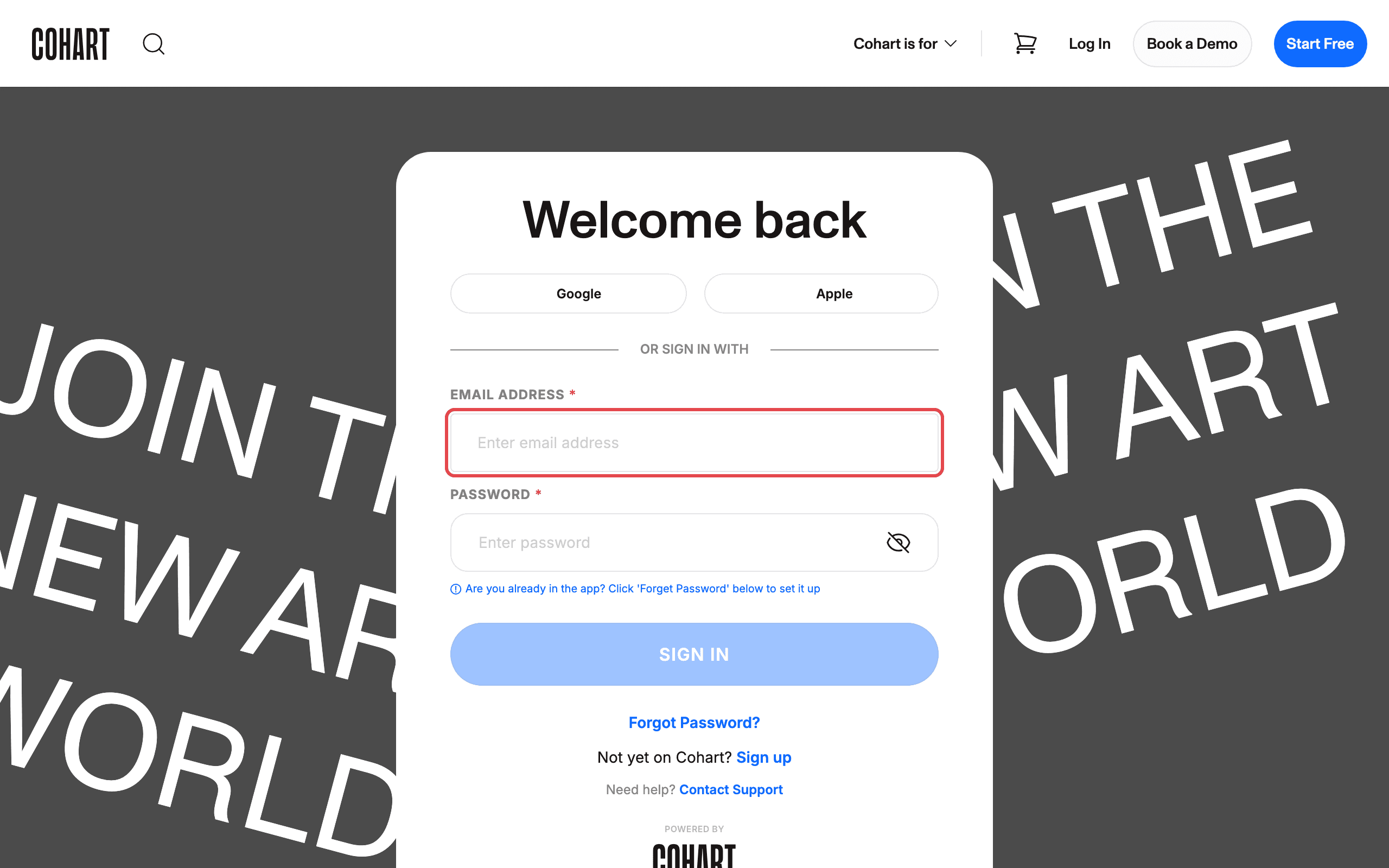
1. Sign in to Cohart
Sign in with your email address and password, or use Google or Apple.
2. Open the More menu
After signing in, scroll to the bottom of the left sidebar and click More.
3. Click Account
In the menu that opens, click Account. The menu also offers Shared With Me, Purchases, Cohart Guide, Report Content & Feedback, and Logout, and it closes after you navigate.
4. Review the Account page
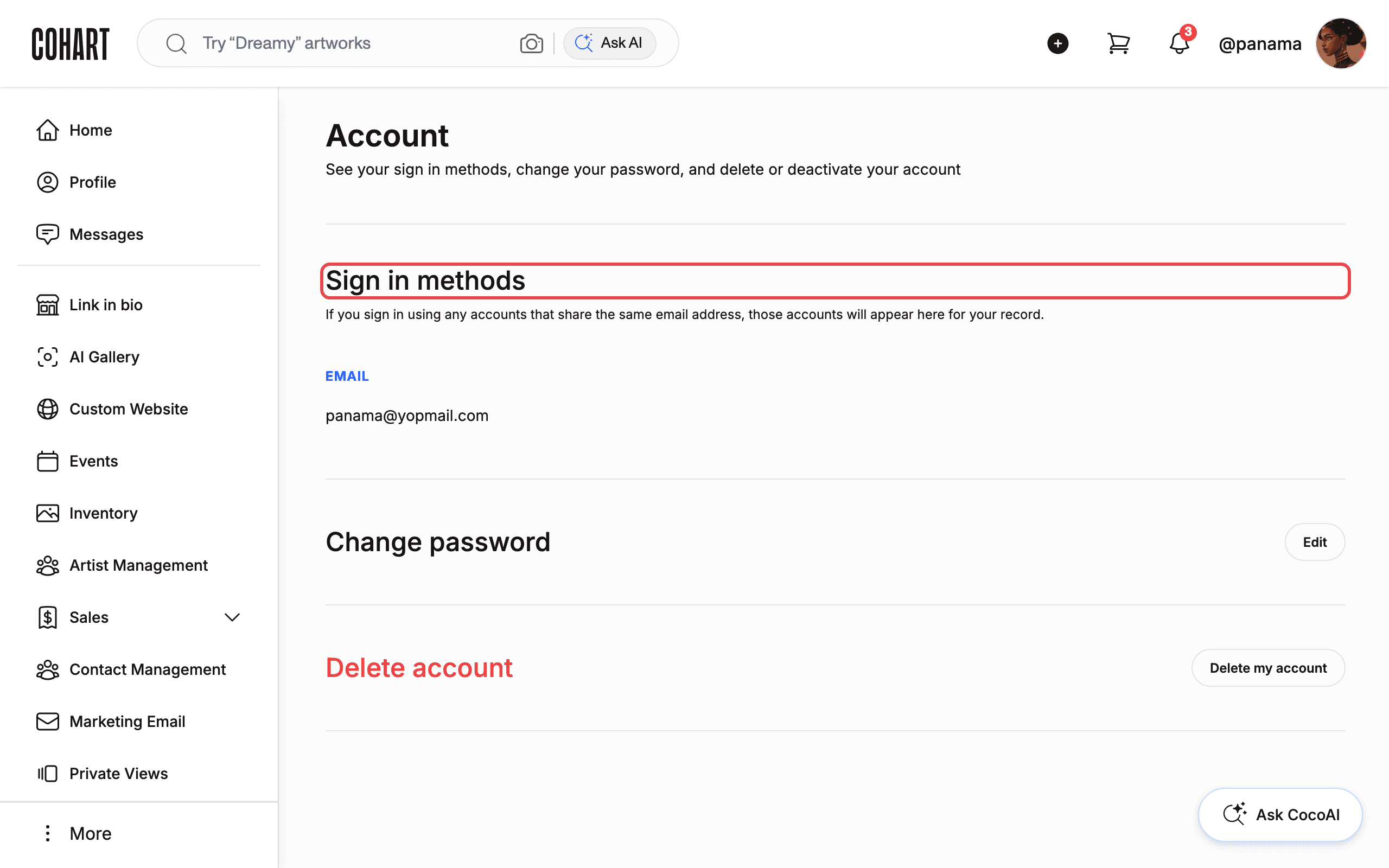
The page reads: “See your sign in methods, change your password, and delete or deactivate your account.”
- EMAIL — your sign-in email address.
- Social Sign In — any Google or Apple sign-in you also use, listed below EMAIL.
Under Sign in methods the page notes: “If you sign in using any accounts that share the same email address, those accounts will appear here for your record.”
5. Open the password form (or create a password you never set)
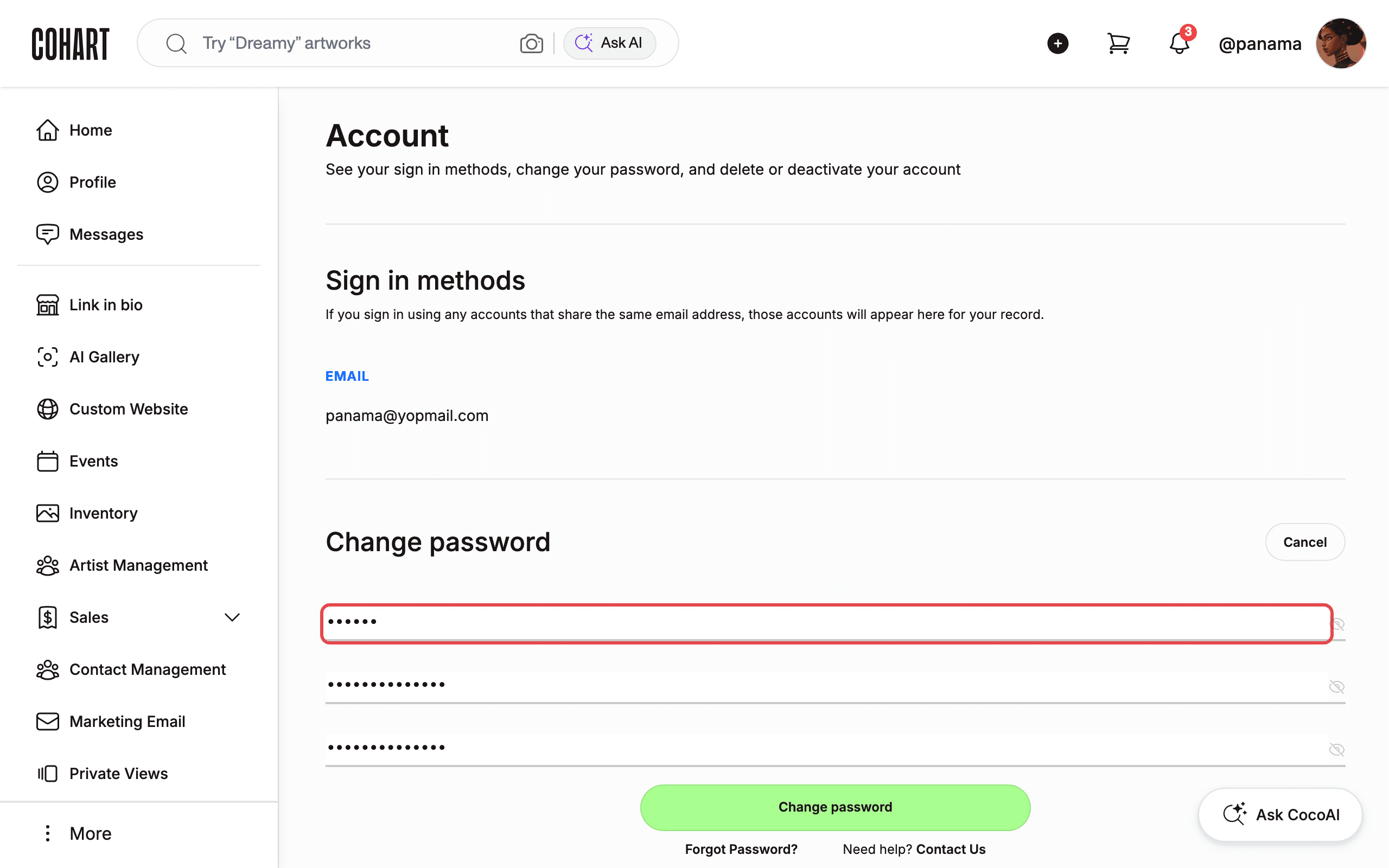
Next to Change password, click Edit, then fill in Current Password, New Password, and Confirm New Password (the screenshot shows the fields filled with sample values).
- Change password stays disabled until all three fields are filled.
- Your new password must be at least 6 characters, cannot start or end with a space, must differ from your current password, and must match Confirm New Password.
- Forgot your current password? Click Forgot Password?. For help, click Contact Us under Need help?.
6. Confirm the password change
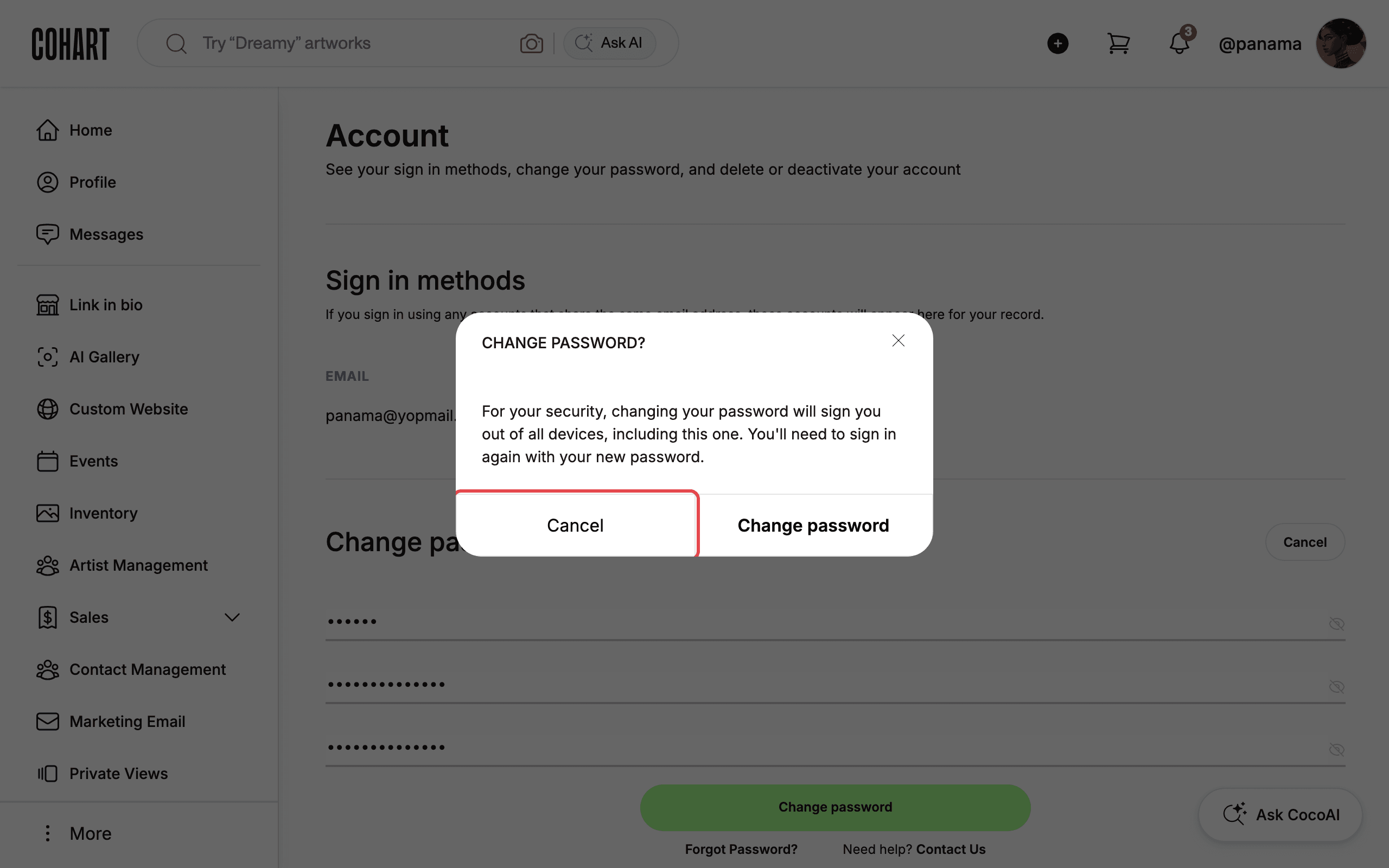
Click Change password. Cohart checks your current password, then opens a CHANGE PASSWORD? dialog: “For your security, changing your password will sign you out of all devices, including this one. You’ll need to sign in again with your new password.”
Click Change password in the dialog to apply the change — you are signed out on every device, returned to the login page, and Cohart emails you a confirmation. Click Cancel to back out and keep your current password.
7. Close the password form without saving
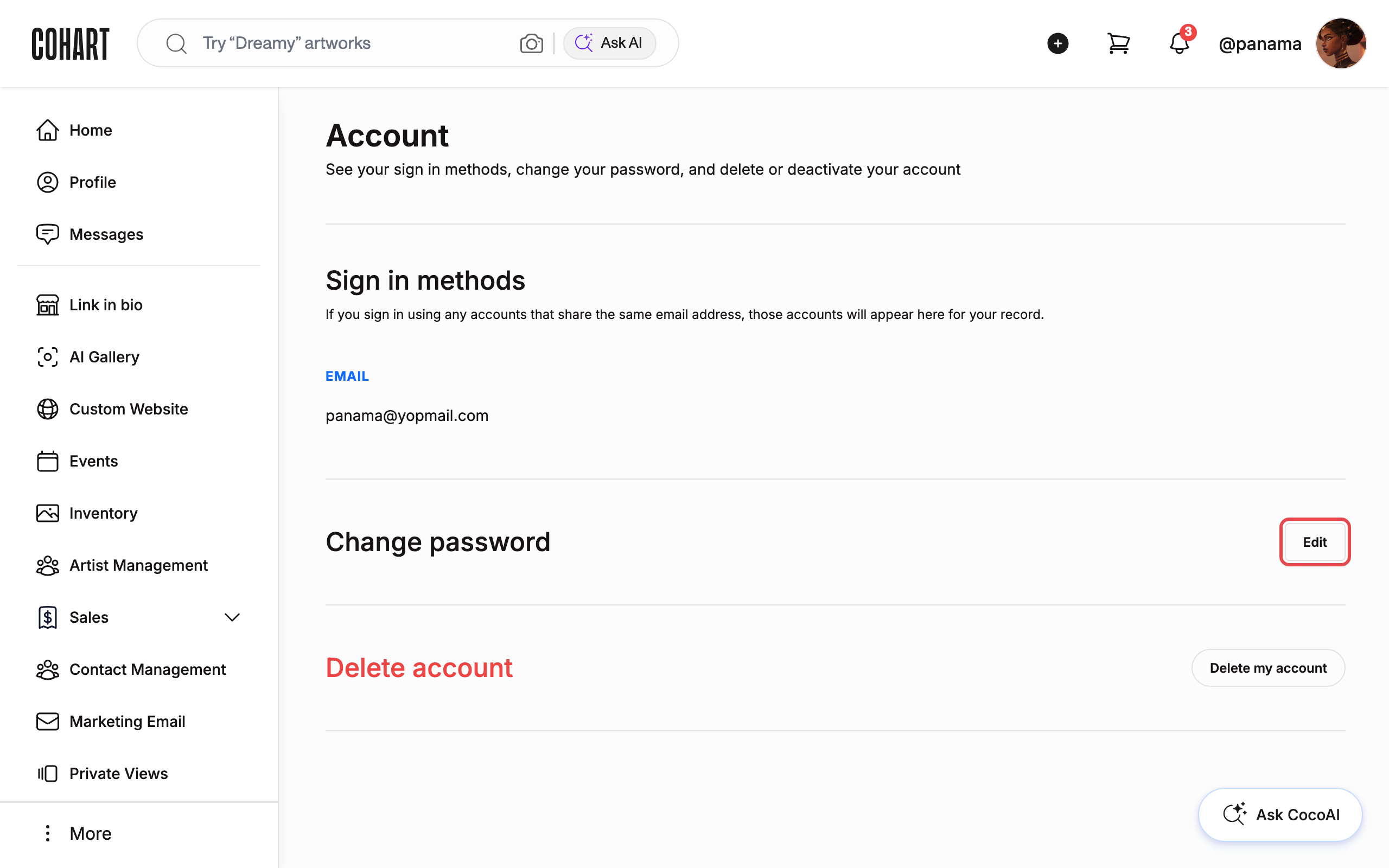
Back out of the confirmation dialog, then click Cancel next to the Change password heading. The form closes, the Edit button returns, and nothing is changed.
8. Read the delete options
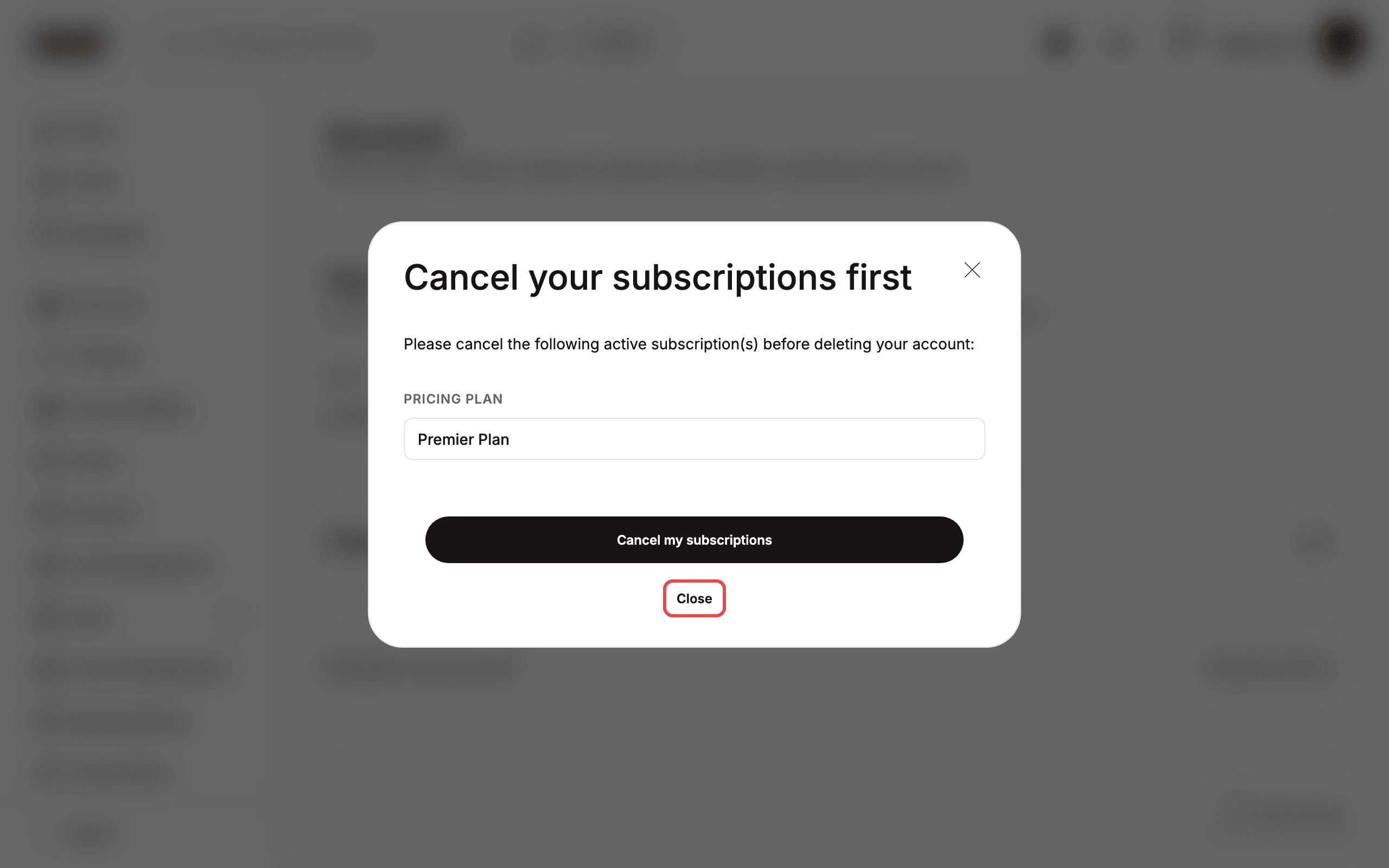
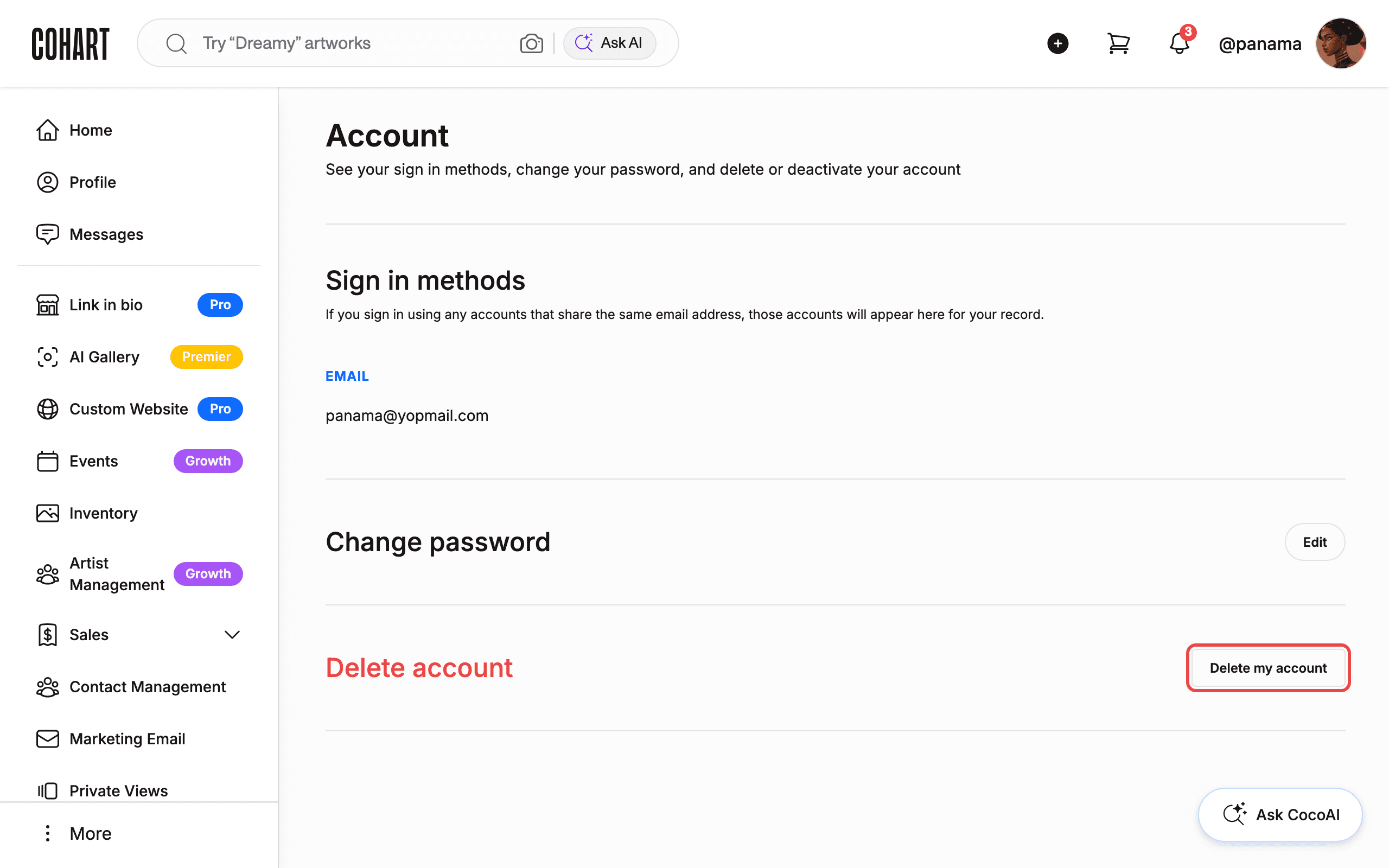
Next to Delete account, click Delete my account. What opens depends on your account:
- With an active subscription — the dialog is titled Cancel your subscriptions first and lists what is active under PRICING PLAN and OTHER SUBSCRIPTIONS, with Cancel my subscriptions and Close. Cancel my subscriptions cancels every listed subscription — only use it if you intend to leave. The deactivate/delete choice appears only after those subscriptions are cancelled.
- Without an active subscription — the dialog is titled Deactivate your account instead of deleting? and explains the difference: Deactivating your account is temporary (“Your profile, content, comments and applauds will be hidden until you enable it by logging back in”), while Deleting your account is permanent (“Your profile, photos, videos, comments, likes and followers will be permanently deleted”), with Deactivate Account and Delete Account buttons.
Either path then asks you to re-enter your password on a second screen before anything is submitted. Accounts without a password sign-in skip that field.
9. See the final delete confirmation
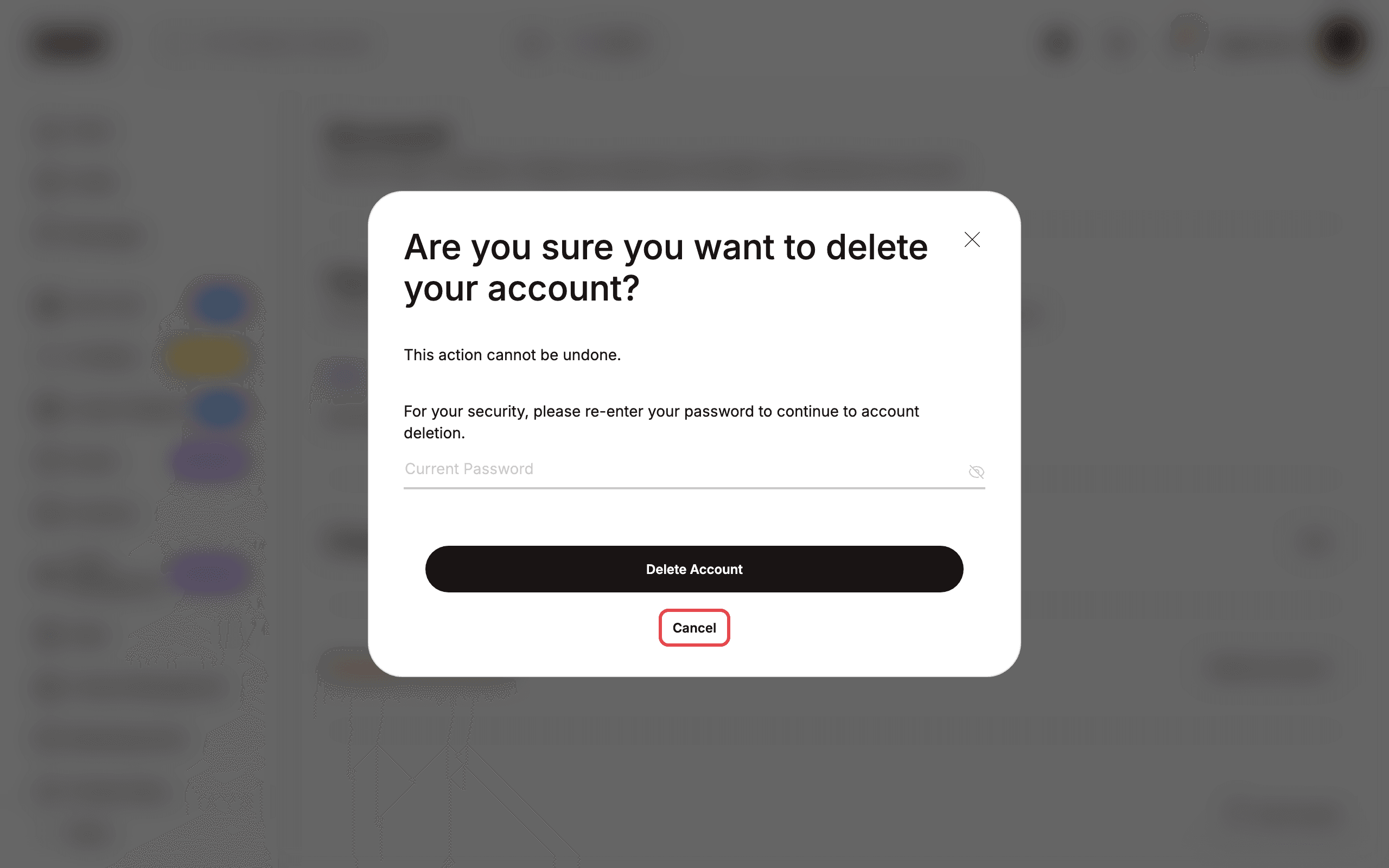
Choosing Delete Account opens the last screen: “Are you sure you want to delete your account?” with “This action cannot be undone.” and a Current Password field. Nothing is deleted until you submit this form, so click Cancel to return.
10. Close the dialog
Click Cancel on the confirmation screen, or the X, Close, or Escape on the earlier dialog. The dialog closes and nothing changes unless you complete the confirmation and submit.
11. Find profile editing
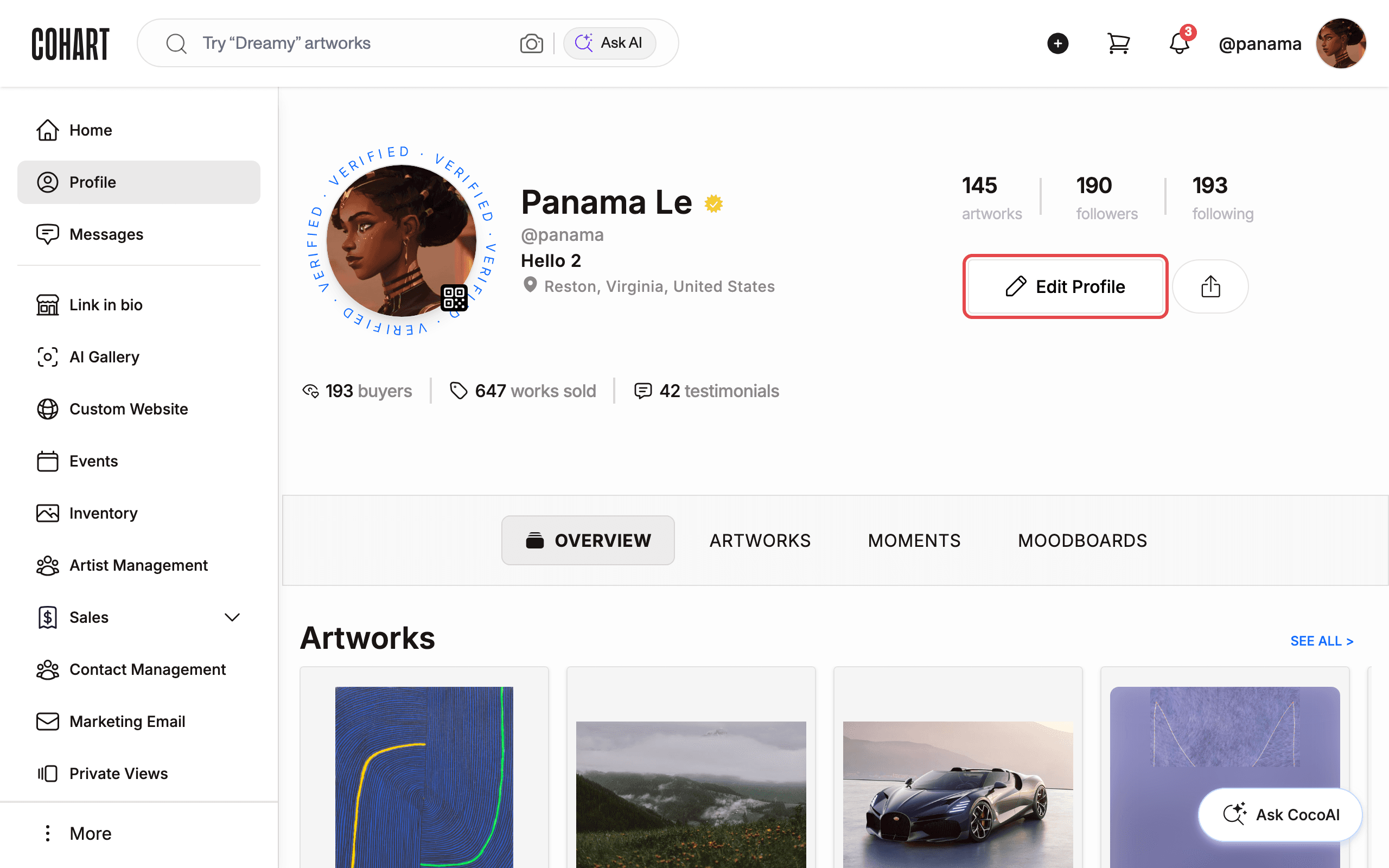
Profile info (name, bio, photo) is edited from your public profile, not the Account page. In the left sidebar, click Profile, then click Edit Profile next to your name.
12. Open the Edit Profile page
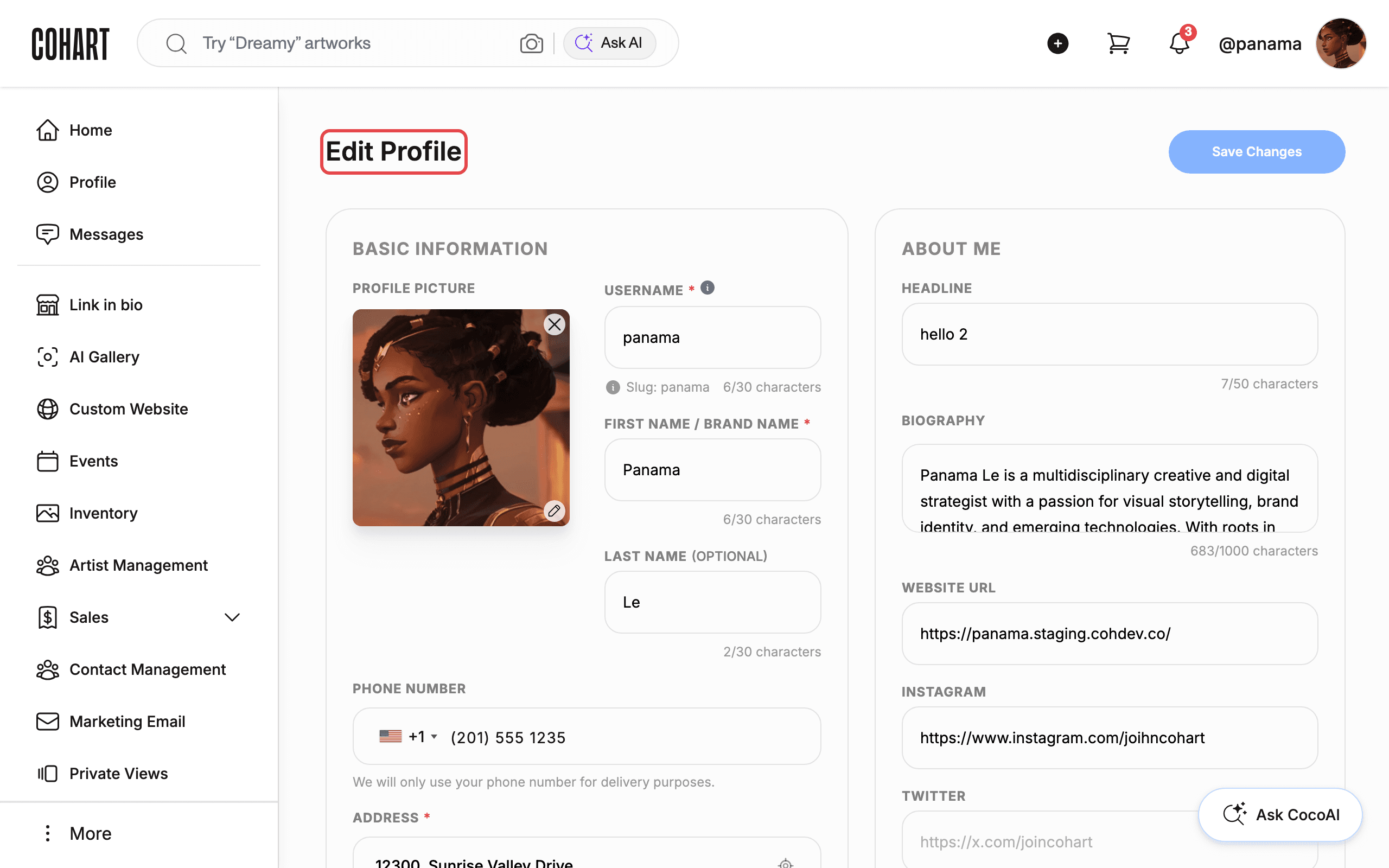
Edit Profile opens a full editing page headed Edit Profile.
- BASIC INFORMATION — profile picture, username, first/last name, phone, address.
- SALES TAX, ARTISTIC DIRECTION, WHAT INSPIRES ME, and MY CONNECTION TO THE ART WORLD.
- ABOUT ME — headline, biography, and links.
- BANK DETAILS.
Changes are applied only when you click Save Changes.
Tips
- Deactivate is reversible, delete is not. Deactivating hides your profile and content until you log back in — logging in reactivates the account. Deleting permanently removes your profile and content and disables sign-in.
- Password changes sign you out everywhere. Every session, including the current one, is revoked, and a confirmation email follows. Sign back in with the new password.
- Password rules: at least 6 characters, no leading or trailing space, different from your current password, and matching the confirmation field.
- Google or Apple sign-in added? Those methods appear under Social Sign In in Sign in methods; EMAIL lists your password sign-in.
- Never set a website password? The login page notes: “Are you already in the app? Click ‘Forget Password’ below to set it up”. Use Forgot Password? from a signed-out session to create one, then return here.
- A cookie consent banner may appear when you first open the site. Click Reject all or Accept all to dismiss it before signing in.
Troubleshooting
- The Change password button looks pale green and disabled → Current Password, New Password, and Confirm New Password are not all filled yet → fill all three; the button enables only when the form is complete.
- The new-password fields show a red hint → the new password breaks a rule (shorter than 6 characters, starts or ends with a space, matches the current password, or the confirmation doesn’t match) → fix the field as the hint describes.
- Clicking Change password shows “Your current password was entered incorrectly. Please try again.” → the Current Password value doesn’t match your sign-in password → re-enter it, or use Forgot Password? to reset.
- The delete dialog is titled Cancel your subscriptions first instead of offering the delete choice → the account has active subscriptions, listed under PRICING PLAN / OTHER SUBSCRIPTIONS → click Cancel my subscriptions in the dialog to cancel them, or Close to keep everything and come back later.
- The delete confirmation asks for your password and warns “This action cannot be undone.” → every delete or deactivate ends with a password confirmation → click Cancel unless you truly want to delete.