How to List Artworks in the Marketplace
This guide shows you how to make your artwork visible on the Cohart marketplace (Discover page) from your artist inventory, and how to buy extra visibility slots if you run out.
Before you start
- You need an artist or gallery account with published, unsold artworks in your Inventory.
- Marketplace visibility works on slots: each slot lets one artwork appear on the Cohart Discover page. Slots cost USD 0.05 per artwork per month and renew automatically.
Steps
1. Sign in to your account
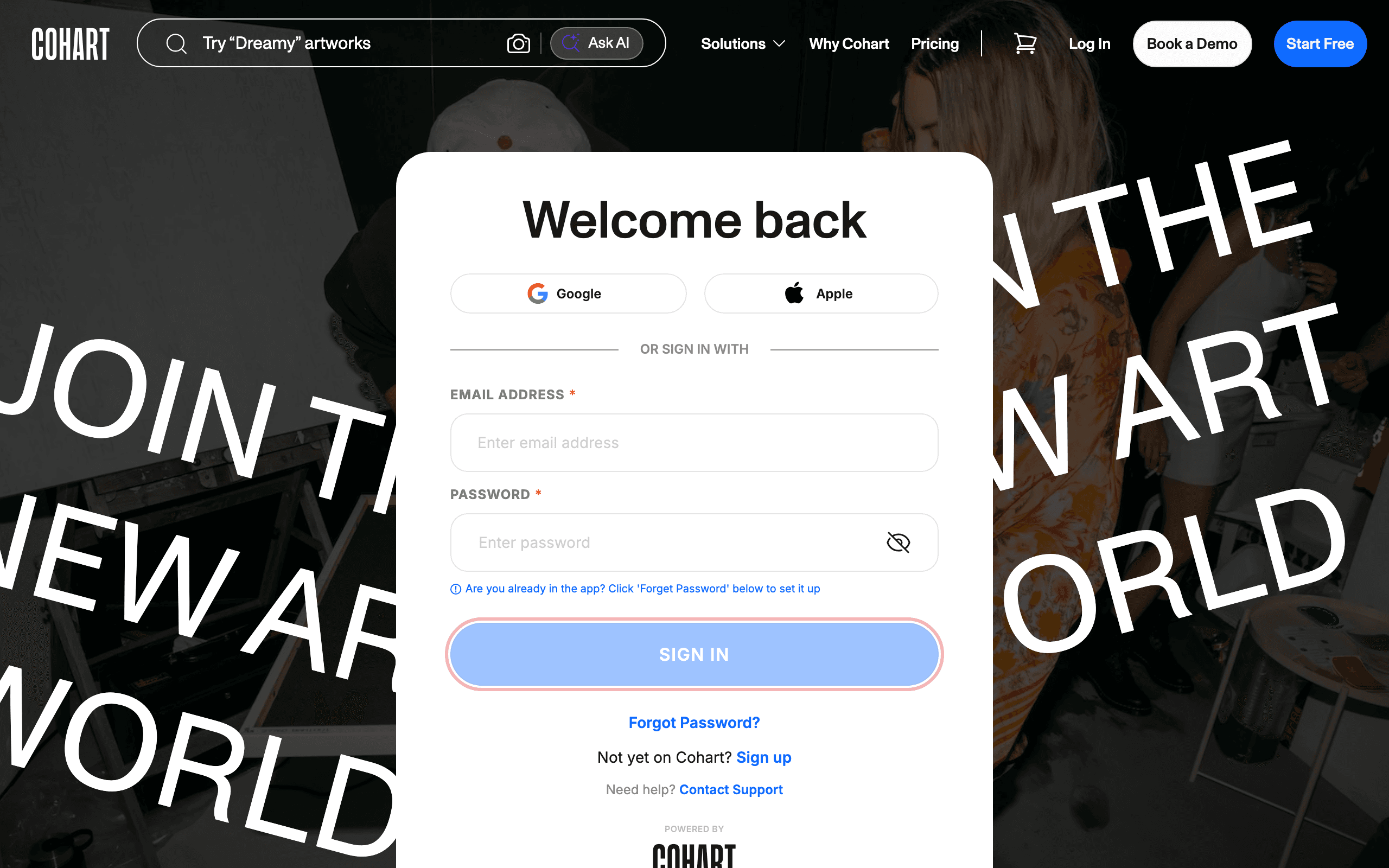
Go to the Cohart sign-in page and enter your email address and password, then click SIGN IN.
You can also sign in with Google or Apple instead of a password. If you forget your password, use the Forgot Password? link.
2. Open Manage Plan
In the sidebar on the left, click Manage Plan.
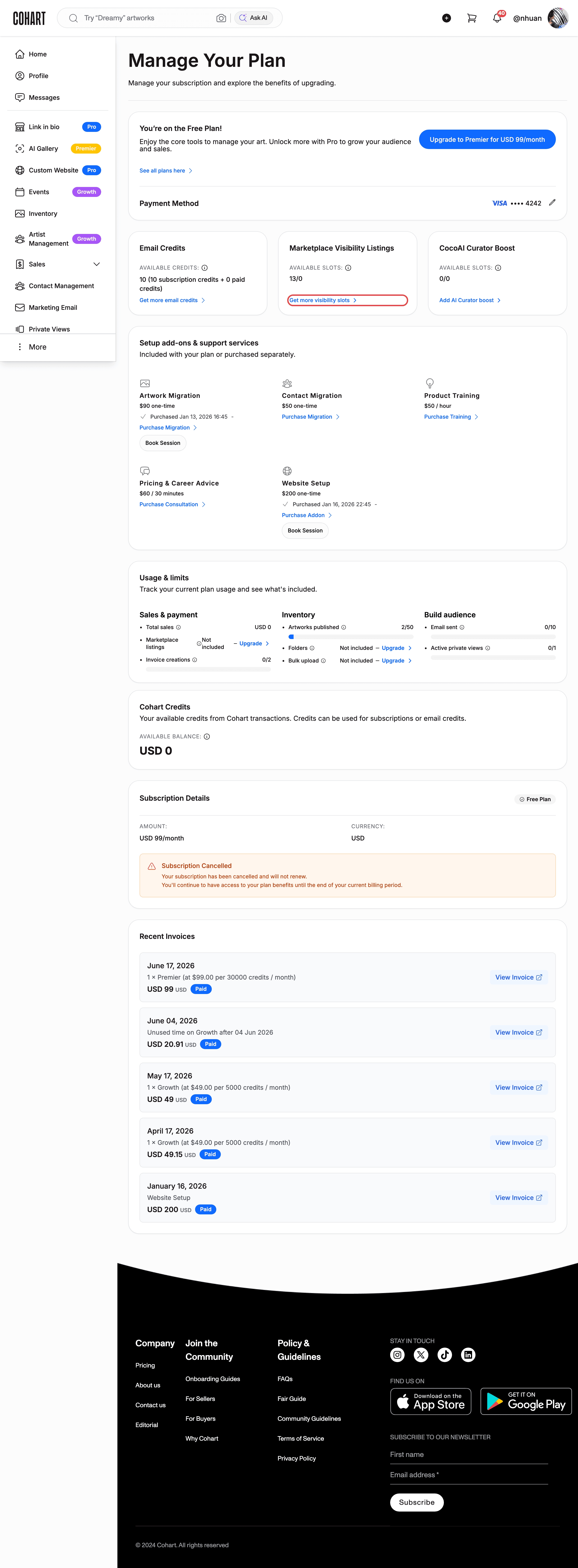
The Marketplace Visibility Listings section shows your current AVAILABLE SLOTS (for example “20/0”).
3. Buy more visibility slots (optional)
If you need more slots, click Get more visibility slots.
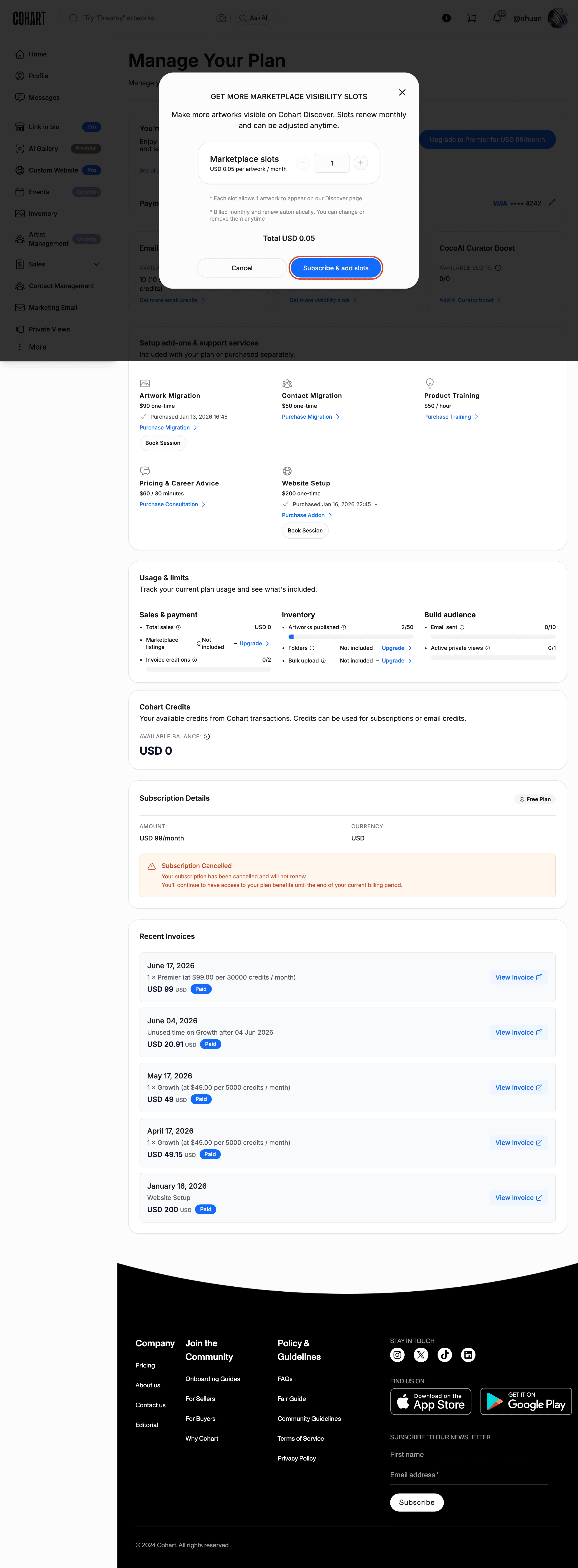
A GET MORE MARKETPLACE VISIBILITY SLOTS dialog opens:
- Marketplace slots are priced at USD 0.05 per artwork / month.
- Use the Decrease value and Increase value stepper buttons to choose how many slots you want (the default is 1). The Total USD amount updates as you change the quantity.
- Review the footnotes: each slot allows 1 artwork to appear on the Discover page; slots are billed monthly and renew automatically, and you can change or remove them anytime.
- Click Subscribe & add slots to purchase, or Cancel to close the dialog.
Tip: Buying slots starts a recurring monthly charge, so review the total carefully before subscribing.
4. Open your Inventory
Click Inventory in the sidebar, or open staging.cohdev.co/artist/inventory (on the live site, your artist dashboard → Inventory).
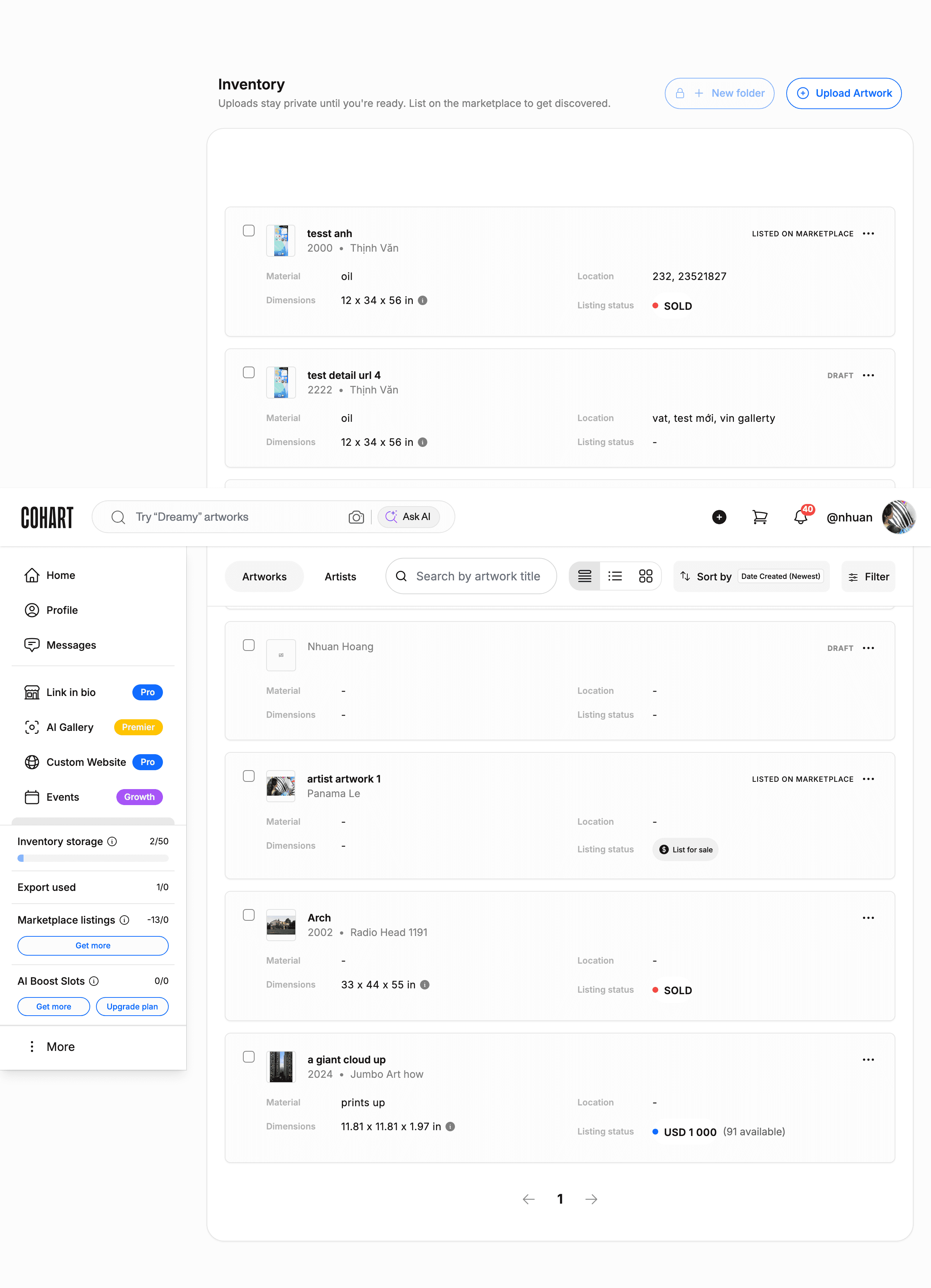
Your uploaded artworks are listed as cards showing Material, Dimensions, Location, and Listing status. Each card has a three-dot menu button (⋯) on the right.
5. Open the artwork’s menu
Click the three-dot menu button on the artwork you want to list, then click List on marketplace.
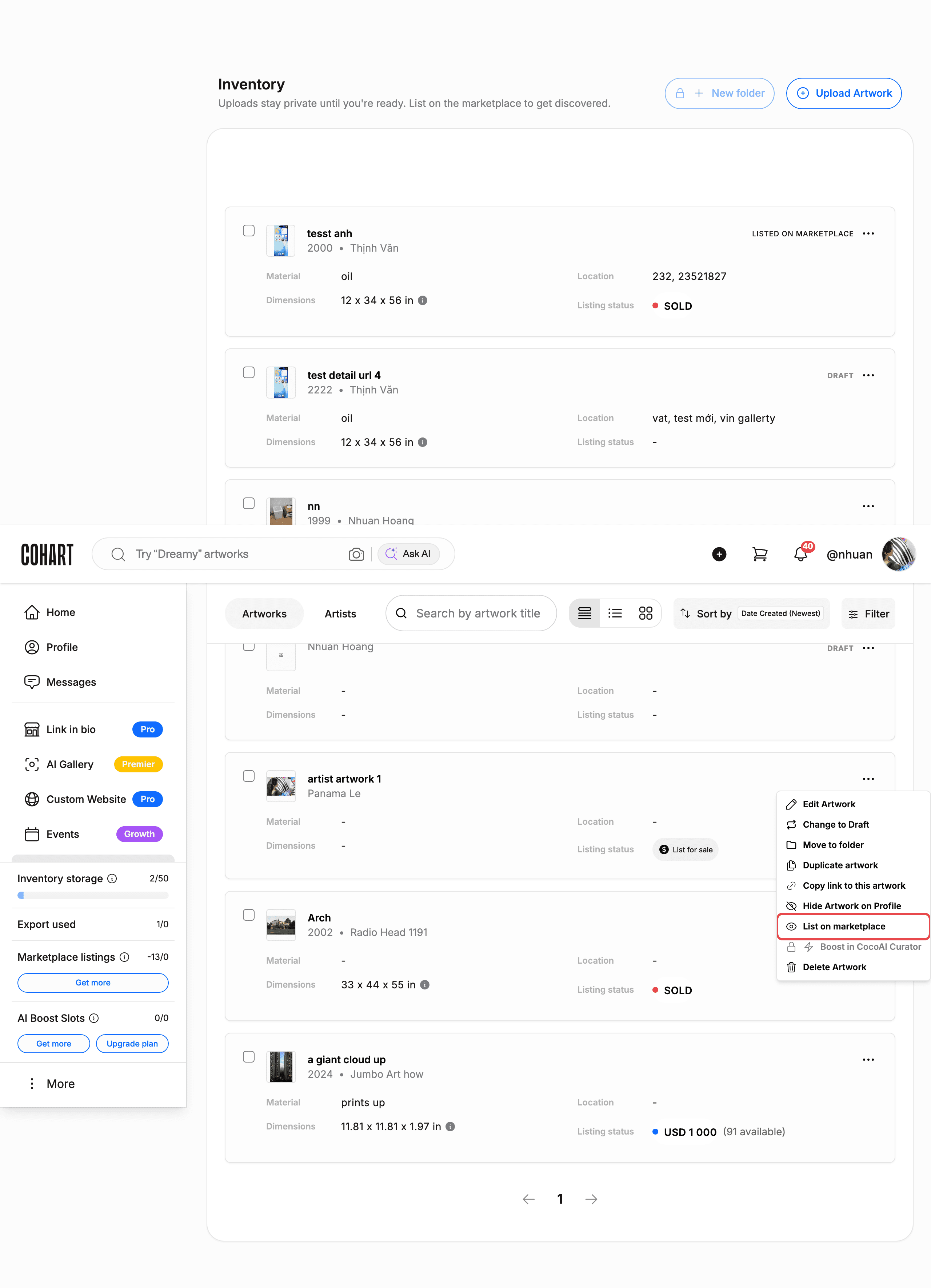
The menu on an available artwork also offers Edit Artwork, Change to Draft, Move to folder, Duplicate artwork, Copy link to this artwork, Hide Artwork on Profile, Boost in CocoAI Curator, and Delete Artwork.
6. Confirm the listing
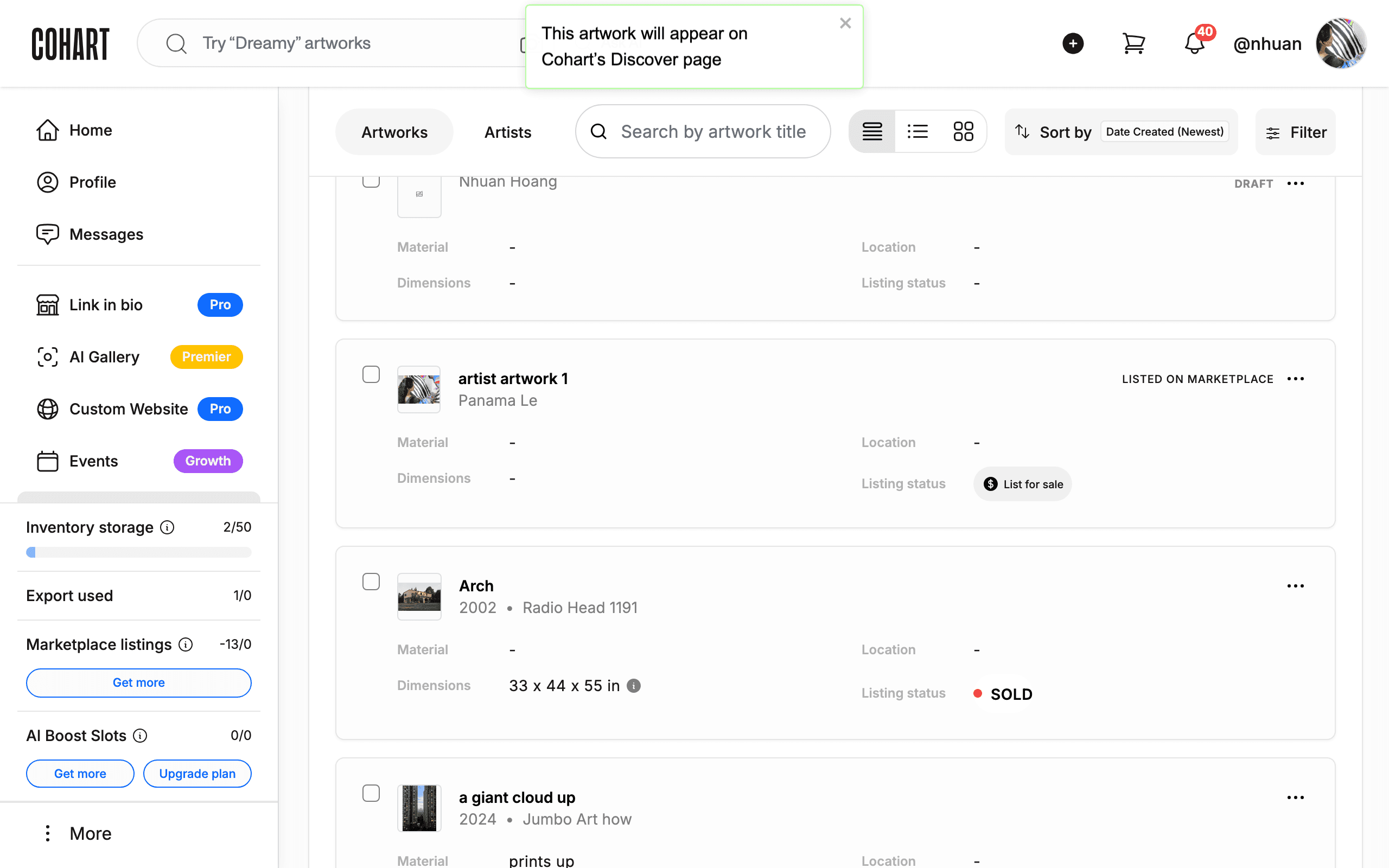
Listing happens instantly — there is no price form or confirmation dialog. A toast appears at the top of the screen: “This artwork will appear on Cohart’s Discover page”.
7. Check the result
The artwork card now shows the LISTED ON MARKETPLACE badge.
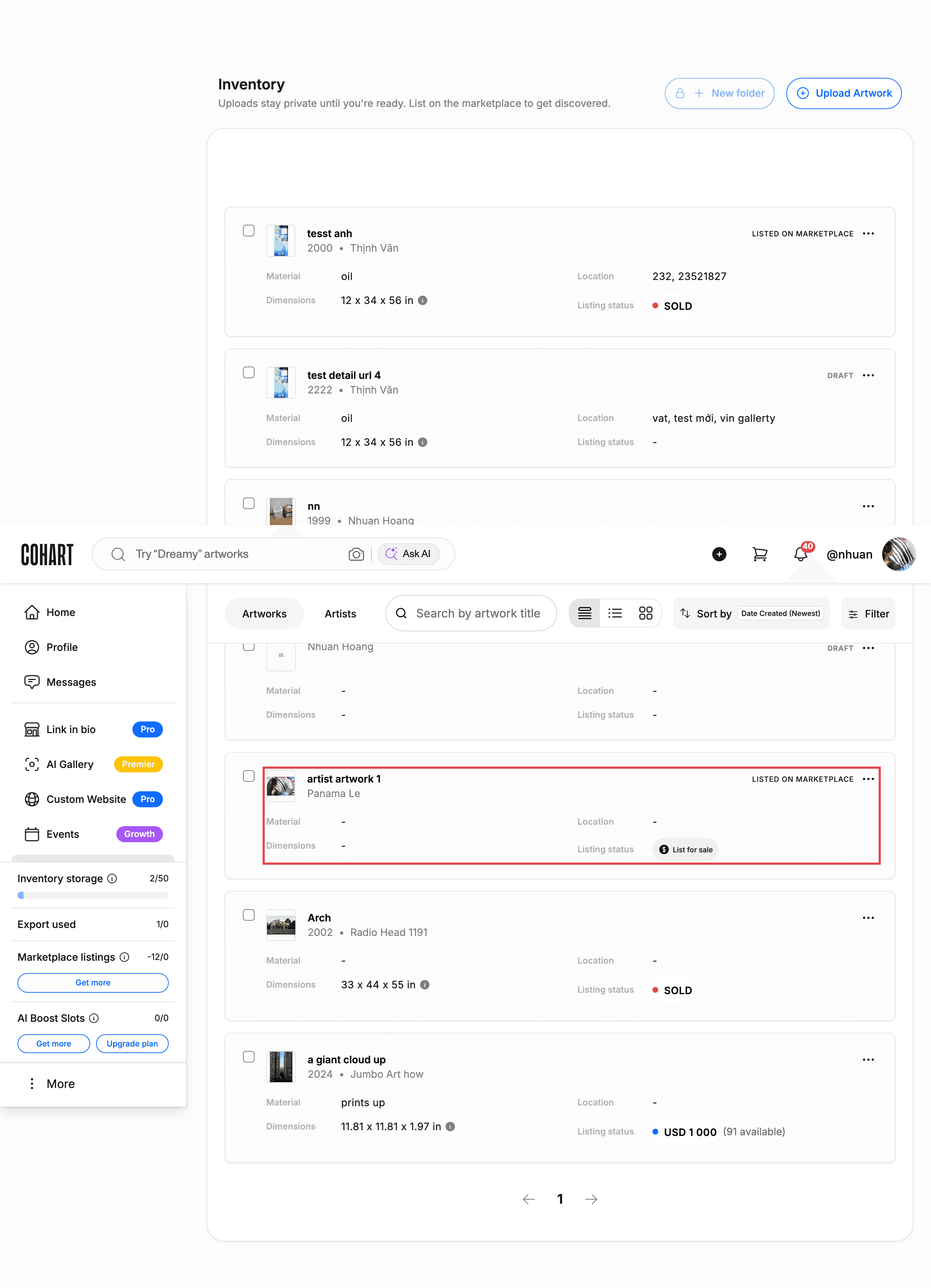
Your artwork is now visible on the Cohart marketplace. To stop showing it, reopen the three-dot menu and click Unlist on marketplace.
Alternative paths
- Buy slots from Inventory: the sidebar on the Inventory page shows Marketplace listings with a Get more button — it opens the same purchase dialog as Get more visibility slots on the Manage Plan page.
- List directly from the card: available artworks show a List for sale control in their Listing status row. In our test, clicking it did not open a dialog — use the three-dot menu → List on marketplace instead.
- Social sign-in: use Google or Apple buttons on the sign-in page instead of email/password.
Tips & troubleshooting
- “List on marketplace” is missing from the menu: this option only appears on published, unsold artworks. Artworks with a DRAFT badge (their menu shows only Hide/Share/Delete/Authenticate/Re-sell/Provenance/Set up insurance/Request appraisal) cannot be listed from the menu — publish the artwork first.
- Already listed: the menu shows Unlist on marketplace instead of List on marketplace once an artwork is on the marketplace.
- Slots still show after listing: the AVAILABLE SLOTS counter on the Manage Plan page did not visibly change after listing an artwork in our test — check your count on the Manage Plan page before assuming you need more slots.
- Sold artworks: artworks with a SOLD listing status cannot be re-listed from the menu (use Re-sell if applicable).
Screenshots are regenerated automatically from the live site. Last captured: August 14, 2026.