How to Set Up Your Custom Website
You will sign in, open Custom Website, edit your site config, change your theme, and visit your live URL.
1. Sign in to Cohart
Go to the login page. Enter your EMAIL ADDRESS and PASSWORD. Click SIGN IN.
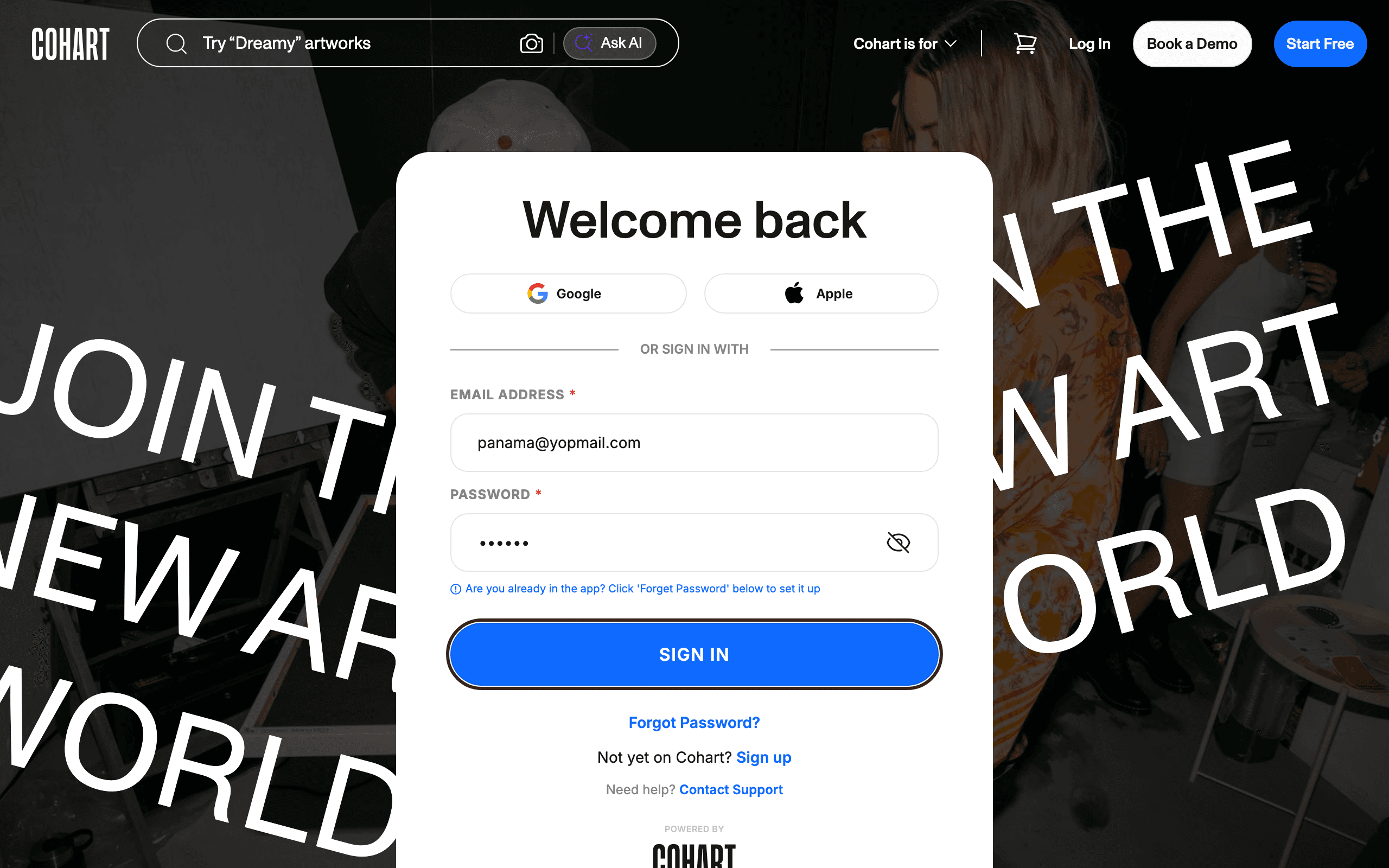
You can also sign in with Google or Apple under Welcome back and OR SIGN IN WITH. If you need help, use Forgot Password?, Sign up, or Contact Support.
2. Open Custom Website
In the left sidebar, click Custom Website.
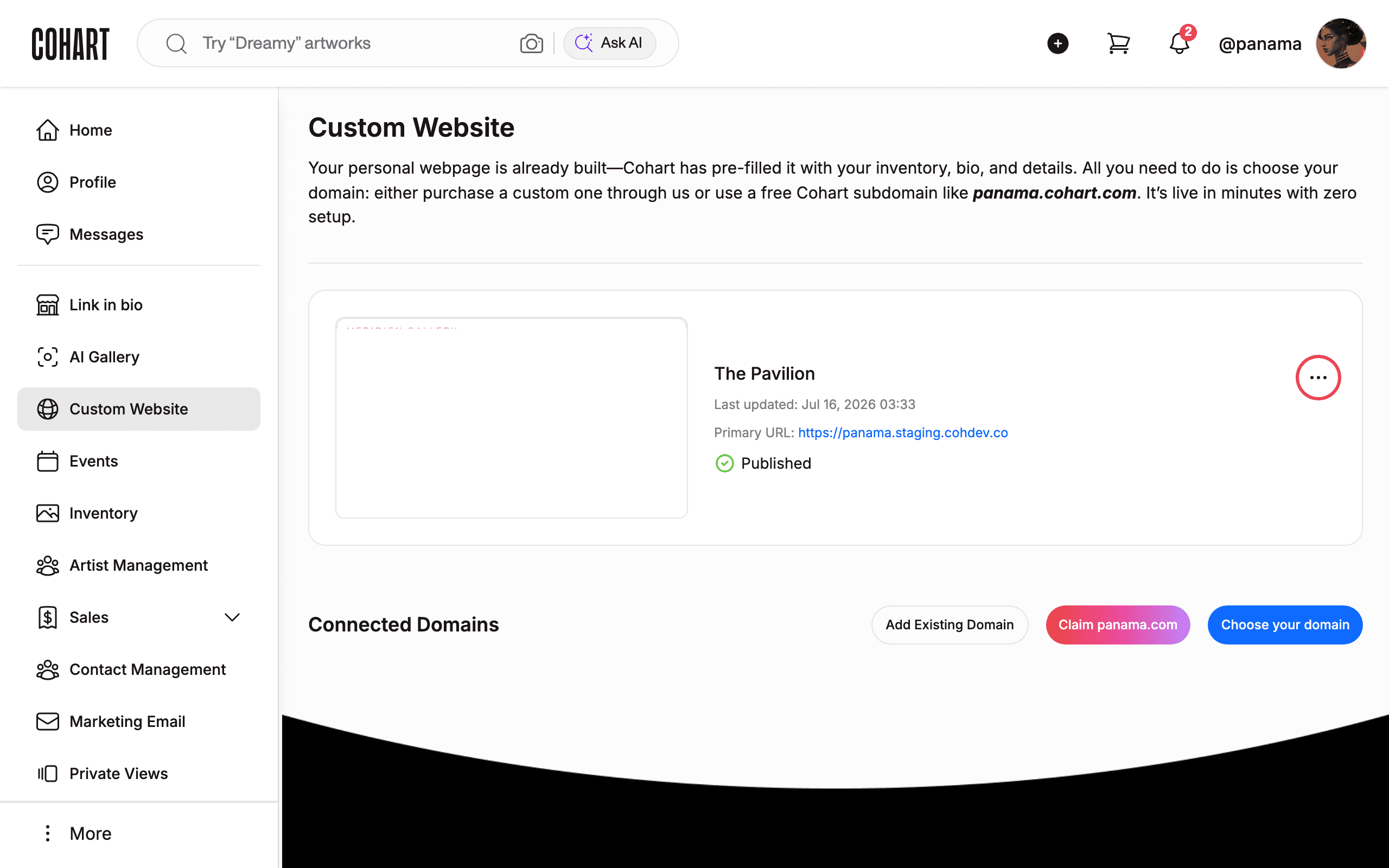
You will see the heading Custom Website and your site card The Pavilion with Last updated: Jul 16, 2026 03:33, Primary URL: https://panama.staging.cohdev.co , and status Published. Below, find Connected Domains with Add Existing Domain, Claim panama.com, and Choose your domain.
3. Open the site menu
Click the three-dot menu on the right of The Pavilion card. Click Edit site to edit config, or Change theme to restyle.
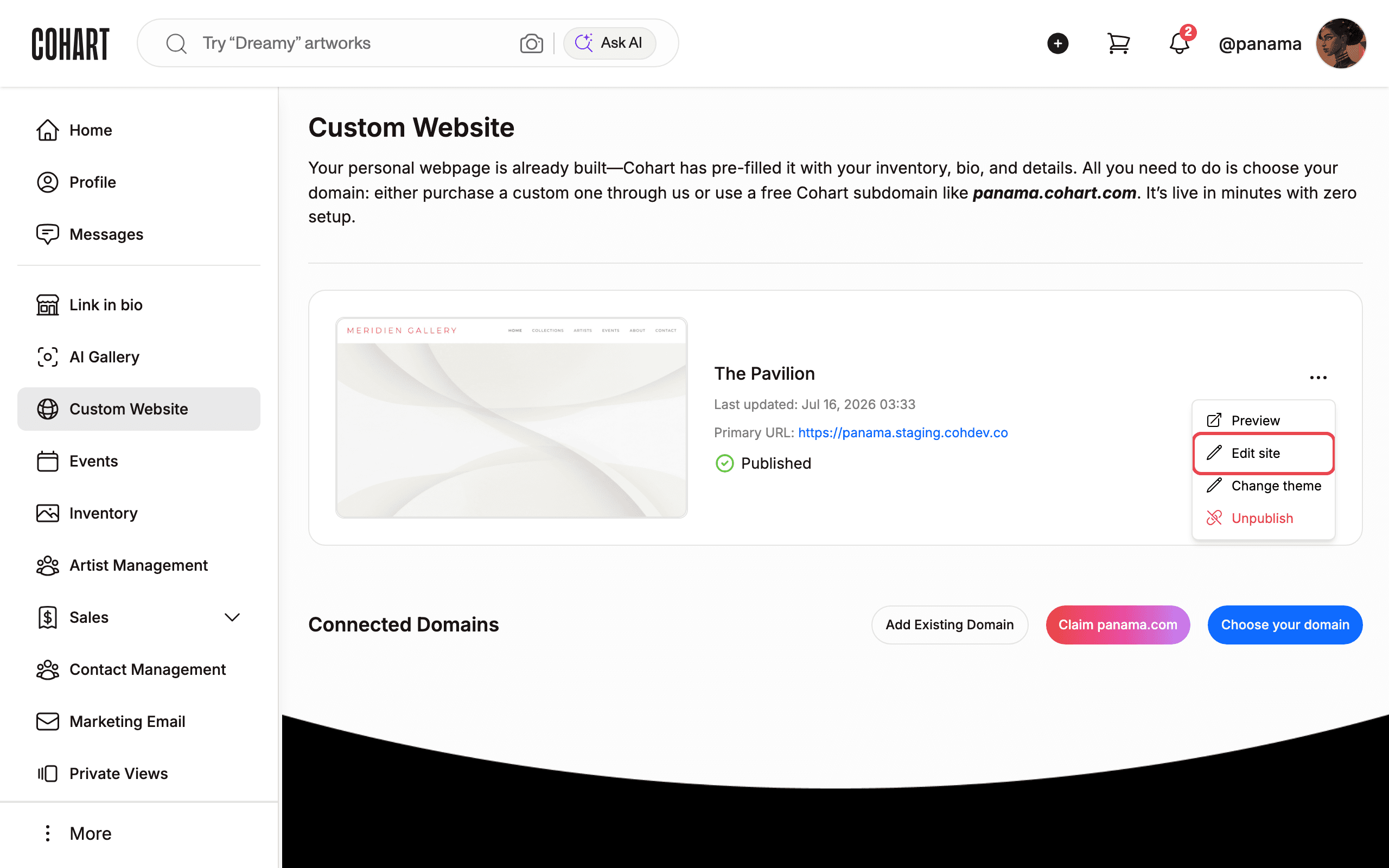
The menu offers Preview, Edit site, Change theme, and Unpublish. Do not click Unpublish unless you want to take your site offline.
4. Edit your site config
After you click Edit site, a new tab opens with header Preview Theme. On the right, find CUSTOMIZE YOUR WEBSITE. Update your branding here.
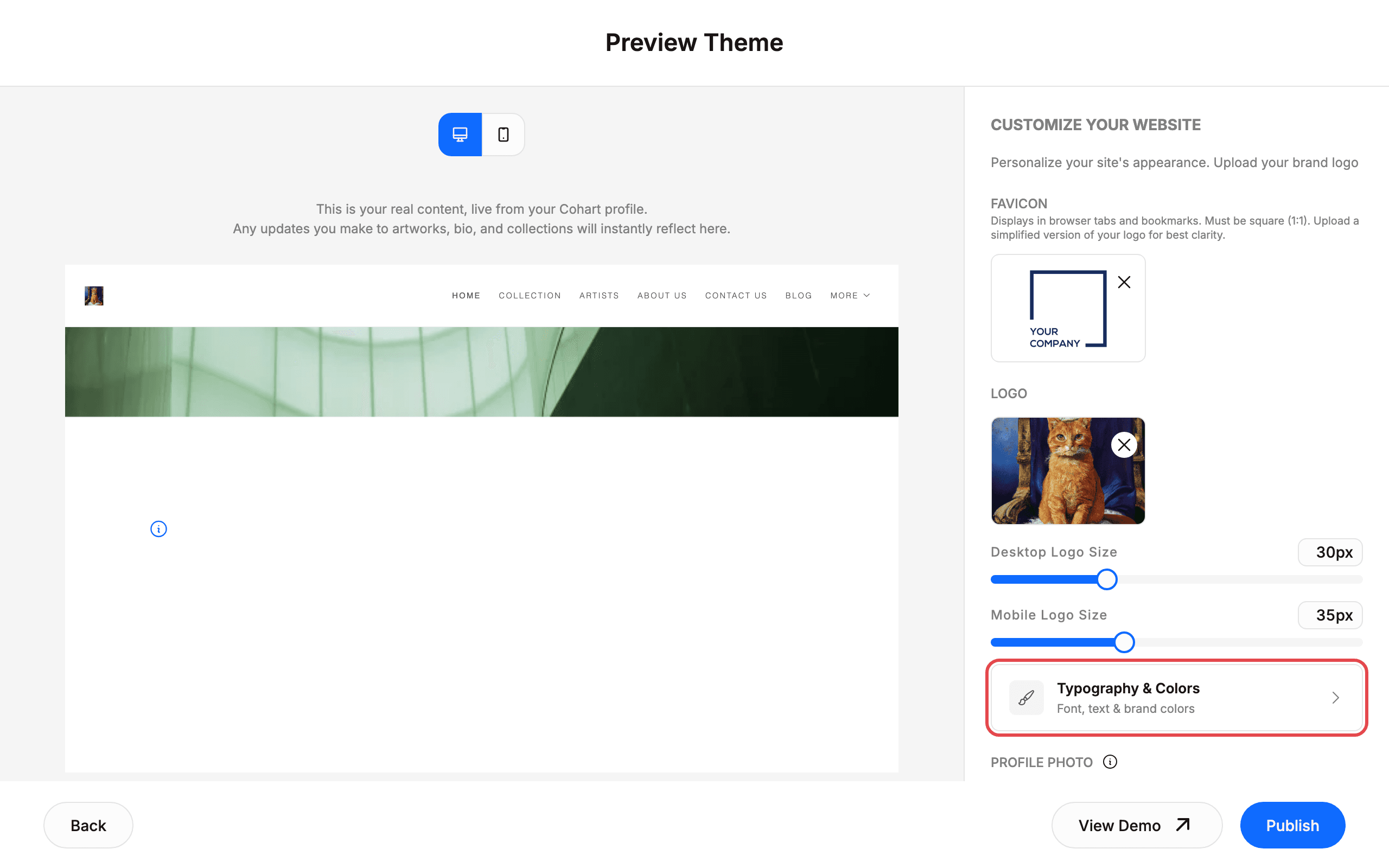
You can update FAVICON (must be square 1:1), LOGO with Desktop Logo Size (30px) and Mobile Logo Size (35px) sliders, Typography & Colors for Font, text & brand colors, PROFILE PHOTO via Upload file, and ADDRESS and ADDRESS 2. The left side shows This is your real content, live from your Cohart profile. Any updates you make to artworks, bio, and collections will instantly reflect here. Use the desktop/mobile toggle at the top to check both layouts. Use Back to return without publishing.
5. Manage pages and publish
Scroll the right panel to MANAGE PAGES & NAVIGATION. Click Add a page to add a page. Check your pages list, then publish.
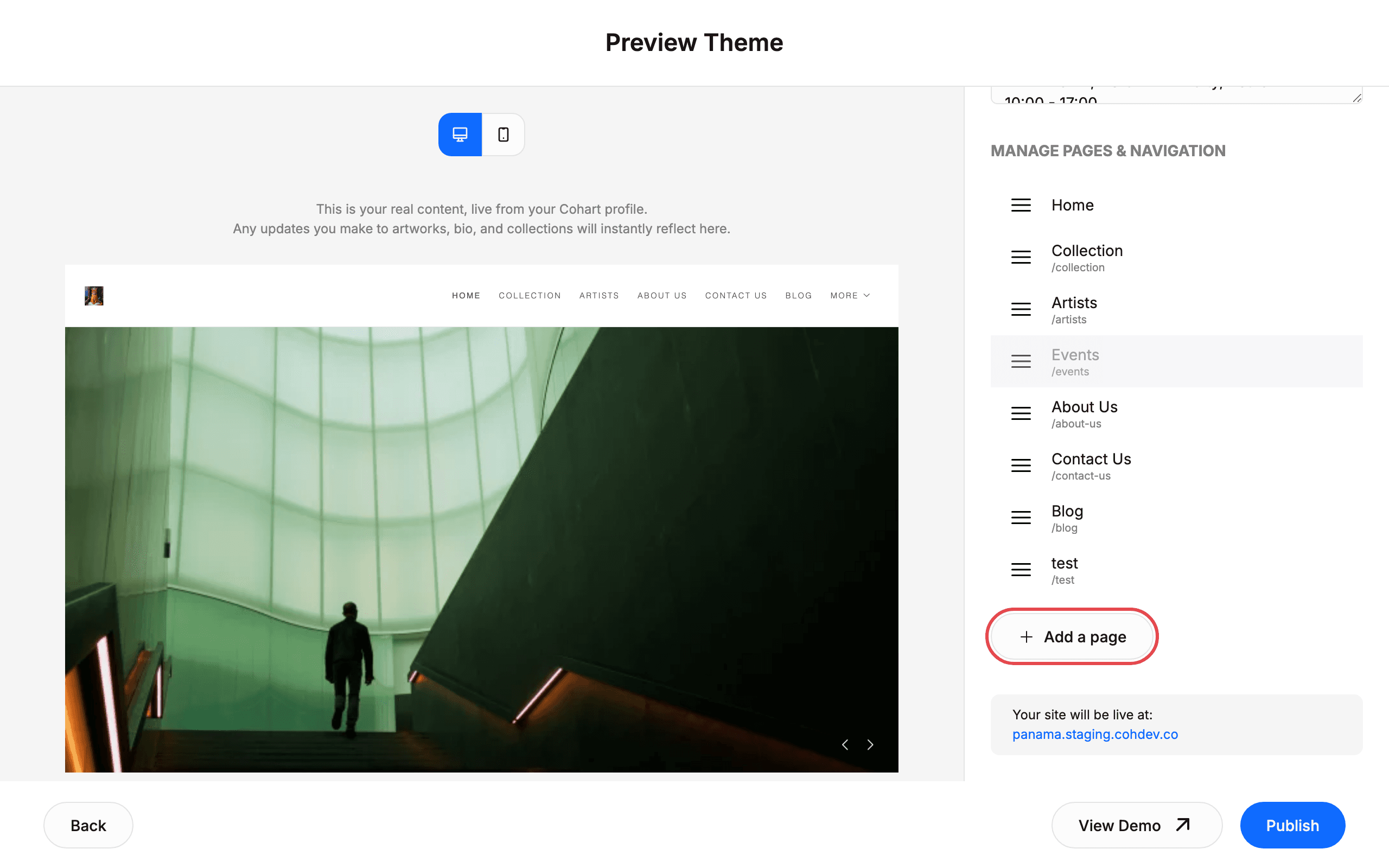
The list shows Home, Collection /collection, Artists /artists, Events /events, About Us /about-us, Contact Us /contact-us, Blog /blog, and test /test. Below, see Your site will be live at: panama.staging.cohdev.co. Click View Demo to preview, then click Publish to apply your changes. Click Back to return to Custom Website without publishing.
6. Change your theme
Back on Custom Website, open the three-dot menu again and click Change theme. In the Select theme dialog, click a theme card, then click Save changes.
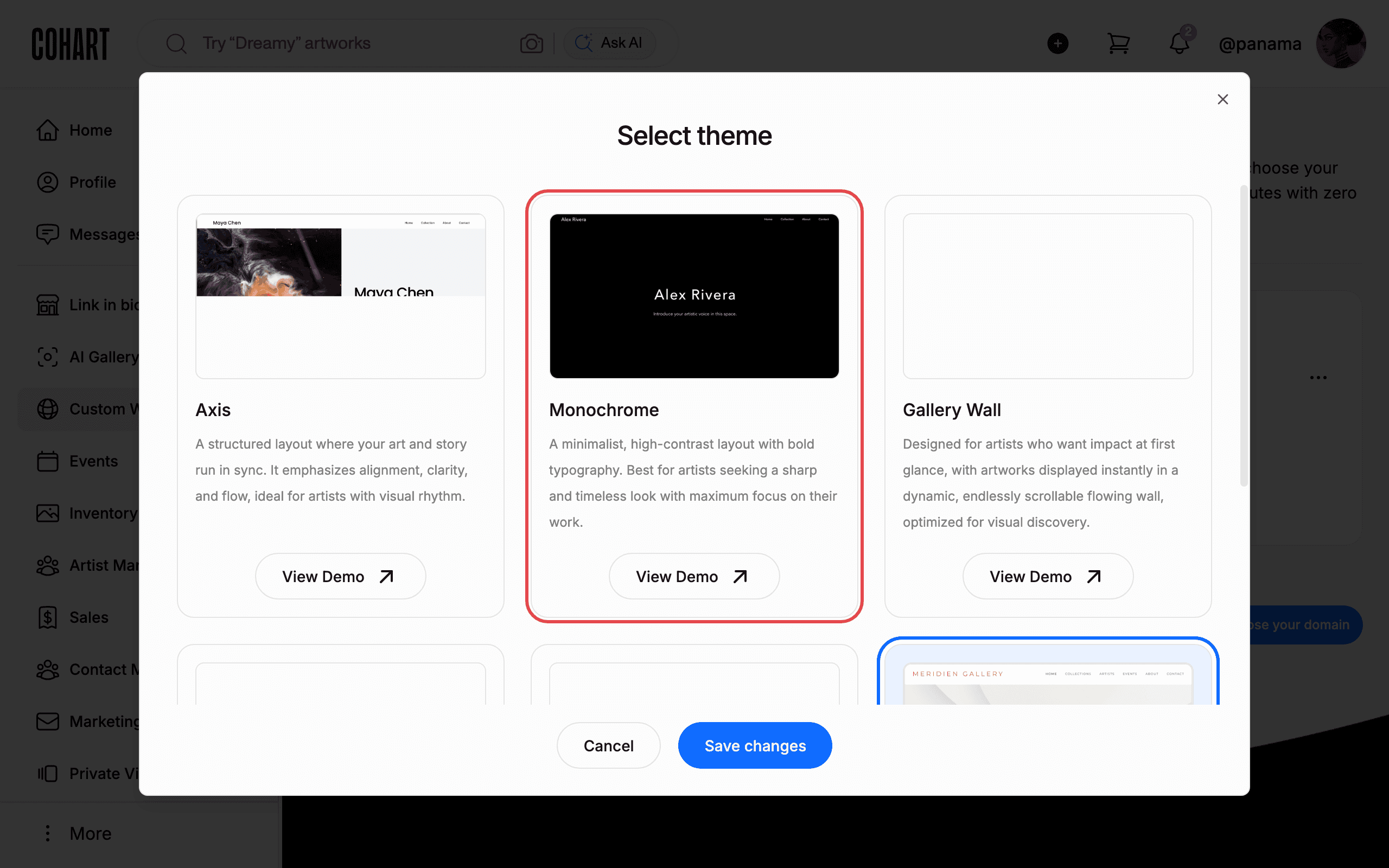
Themes include Axis, Monochrome, Gallery Wall, The Minimalist, The Classic, and The Pavilion. Each card has a View Demo link. For example, Monochrome is described as a minimalist, high-contrast layout with bold typography. Click View Demo to open a demo in a new tab. Click Cancel to close without saving, or Save changes to apply. Use Close (X) to dismiss.
7. Visit your live site
Back on Custom Website, click your Primary URL: https://panama.staging.cohdev.co link to open your live site.
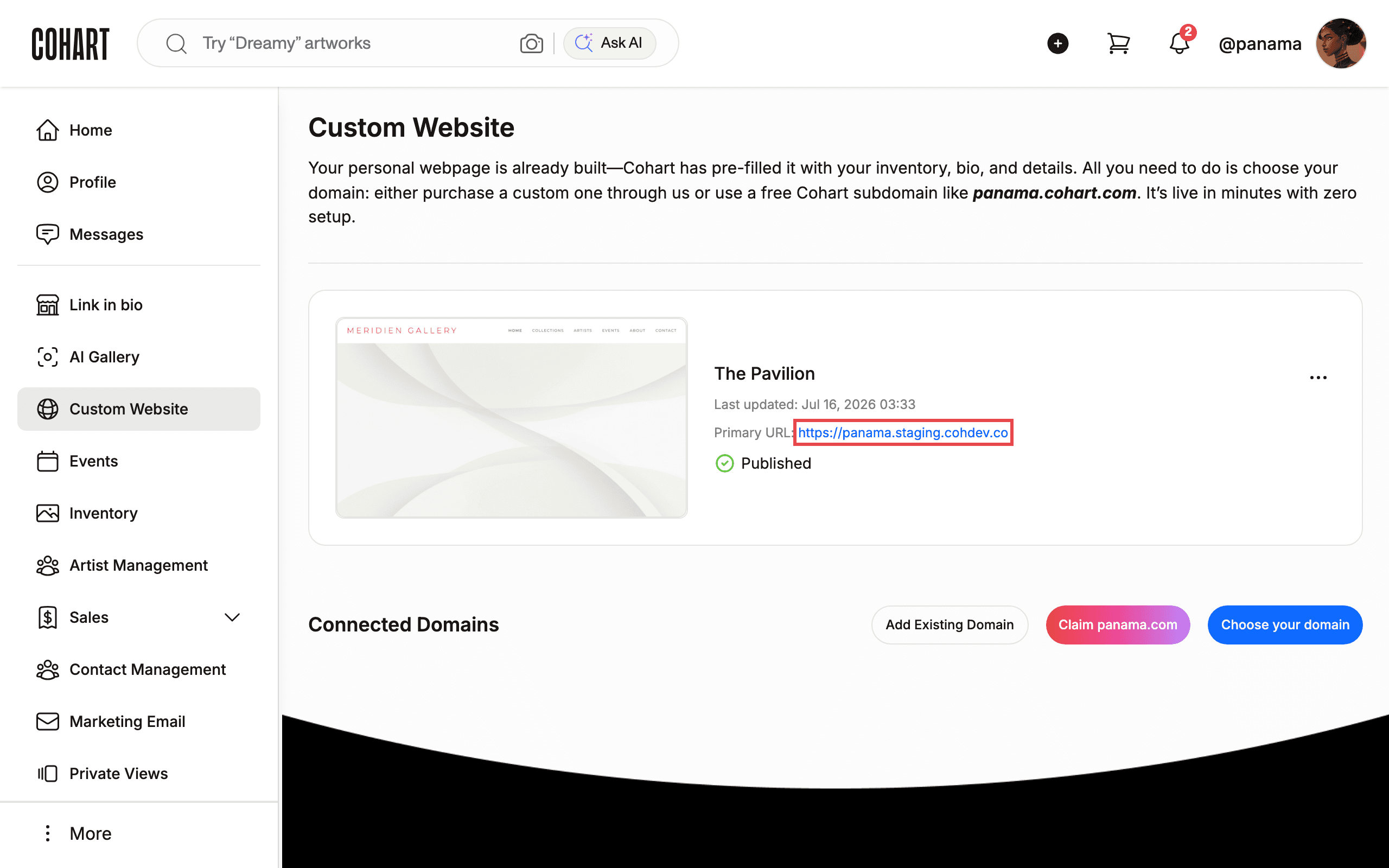
Confirm the card still shows Published. Use Add Existing Domain, Claim panama.com, or Choose your domain under Connected Domains if you want a custom domain.
Tips and troubleshooting
- Wait for previews to load. The Preview Theme iframe and Select theme cards can show blank white for several seconds before images appear. Wait for navigation labels like HOME, COLLECTION, ARTISTS to appear.
- Check Last updated and Published on The Pavilion card to confirm your last publish worked.
- Respect upload rules. FAVICON must be square (1:1). PROFILE PHOTO shows Supported formats: PNG, JPG. Max: 2MB.
- Avoid accidental changes. The capture script never clicks Publish, Save changes, Claim panama.com, or Unpublish. Click Cancel, Back, or Close if you only want to look.
- Find domain help. The edit page links here to support for connecting a URL, and shows Connect your URL and Your site will be live at: with your subdomain.
- Sidebar has two copies. The page contains a hidden mobile menu and a visible desktop sidebar. If a Custom Website click misses, browse directly to
/user-custom-website.
Screenshots are regenerated automatically from the live site. Last captured: September 3, 2026.