How to bulk upload contacts
This guide shows you how to import many contacts at once by uploading a CSV file to Contact Management.
Before you start
- A CSV file with your contacts. Cohart accepts columns such as
First Name,Last Name,Email,Phone Number, andNote. - Not sure about the format? In the upload dialog you can click download CSV template to get a ready-made file to fill in.
Steps
1. Sign in to Cohart
Go to the sign-in page , enter your EMAIL ADDRESS and PASSWORD, then click SIGN IN.
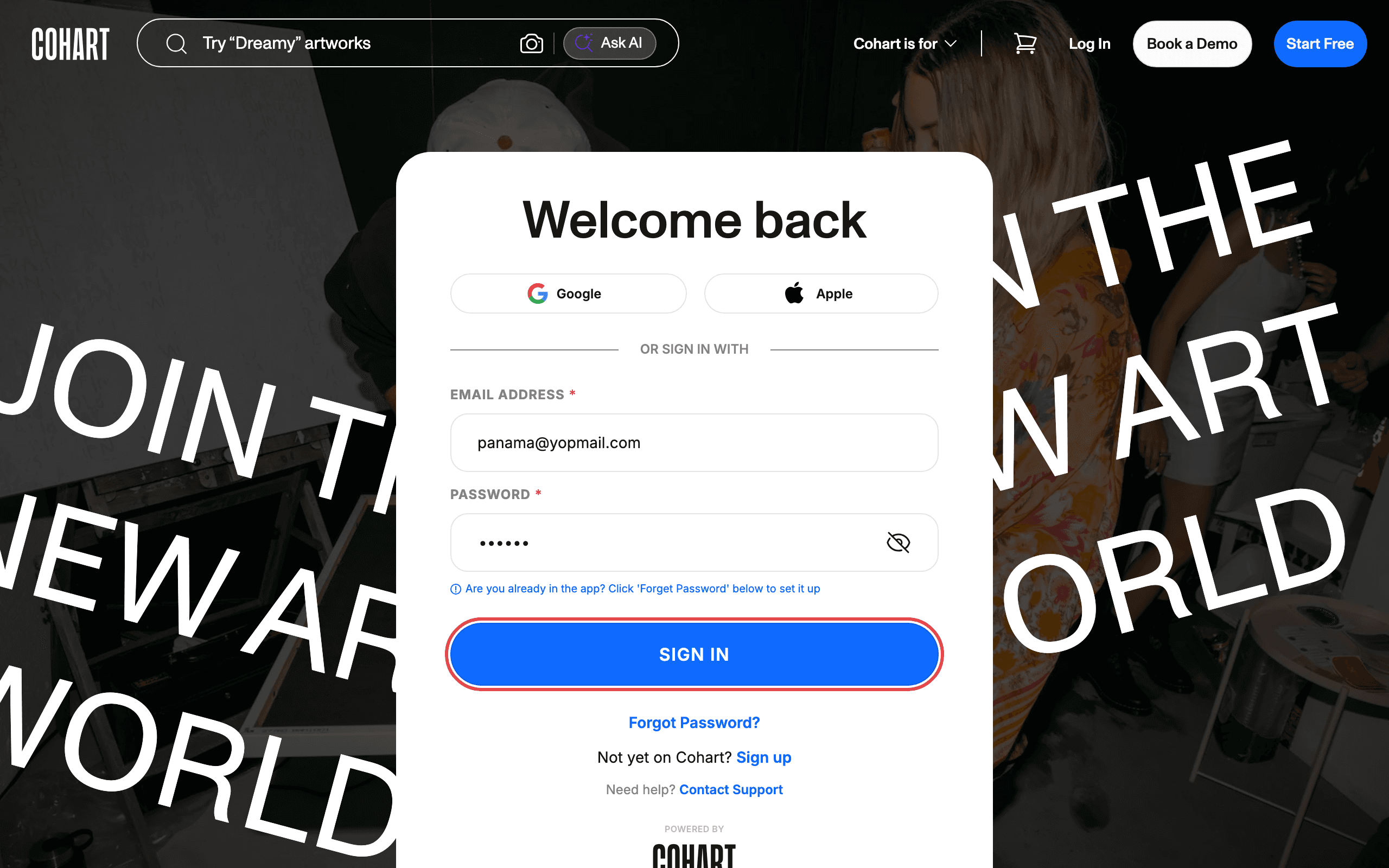
Alternative paths: you can also click Google or Apple to sign in with those accounts. If you forgot your password, click Forgot Password?. If you don’t have an account yet, click Sign up.
2. Open Contact Management
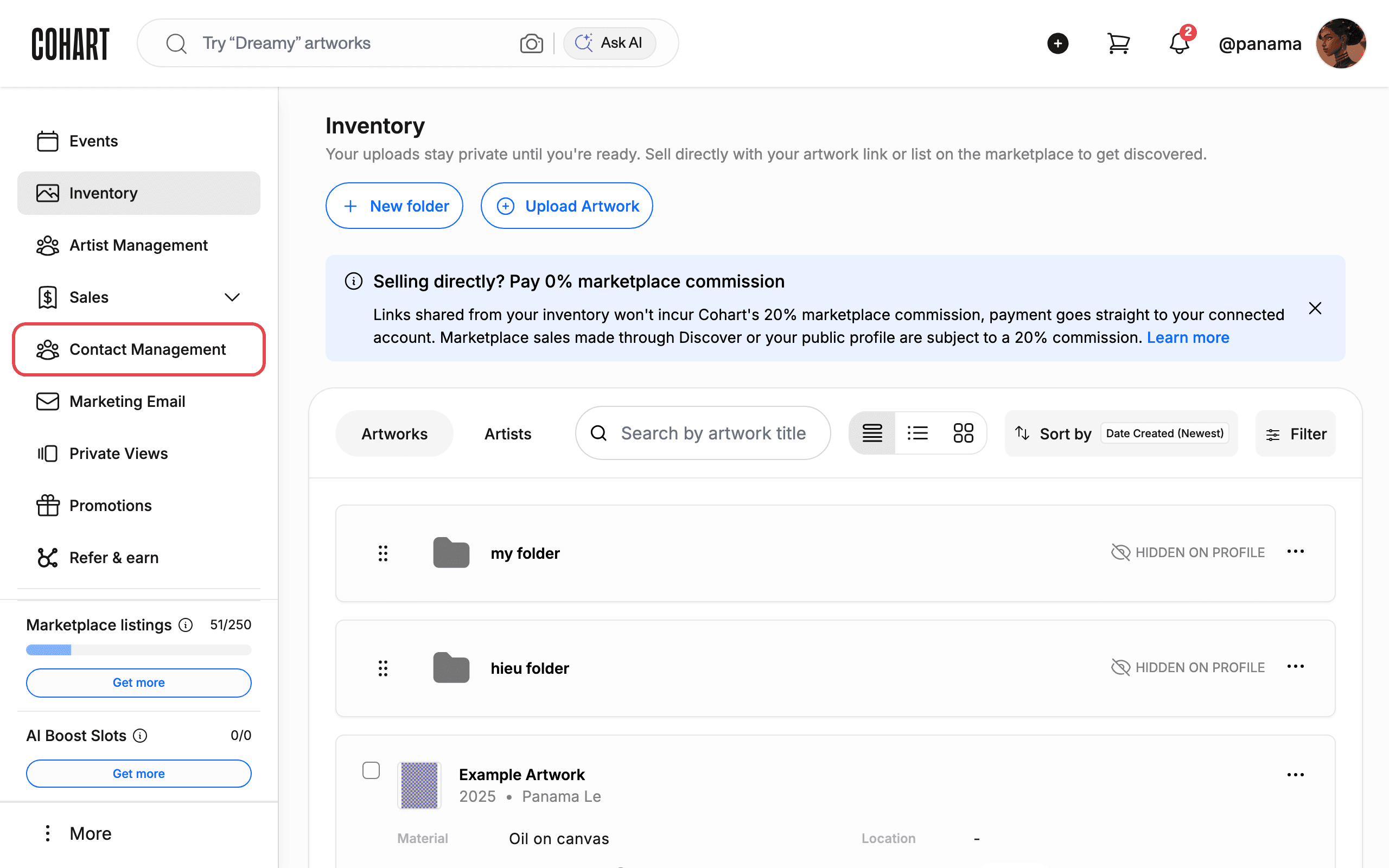
In the left sidebar, click Contact Management.
3. Click Bulk upload
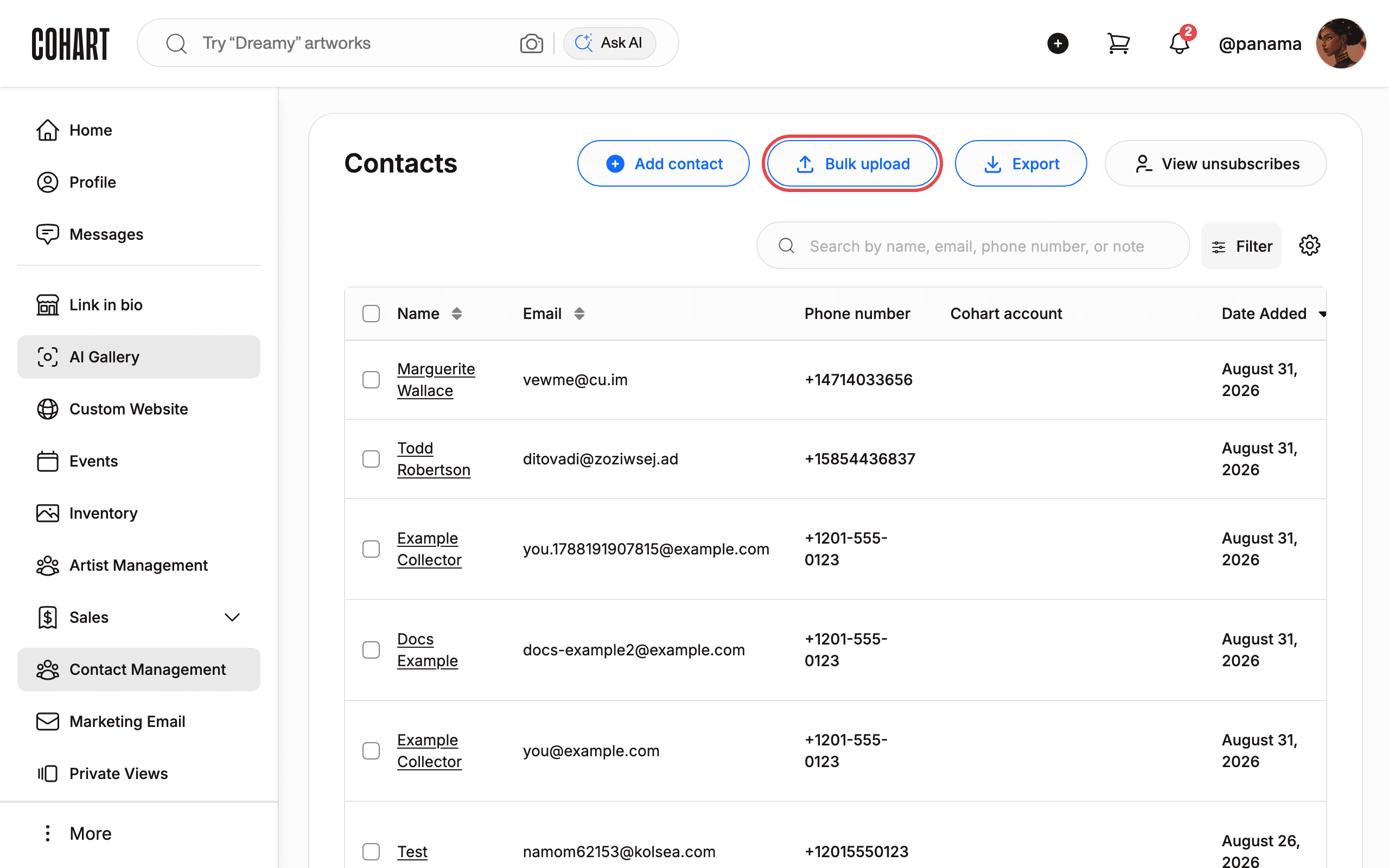
On the Contacts page, click Bulk upload (next to Add contact and Export).
4. Check the CSV delimiter
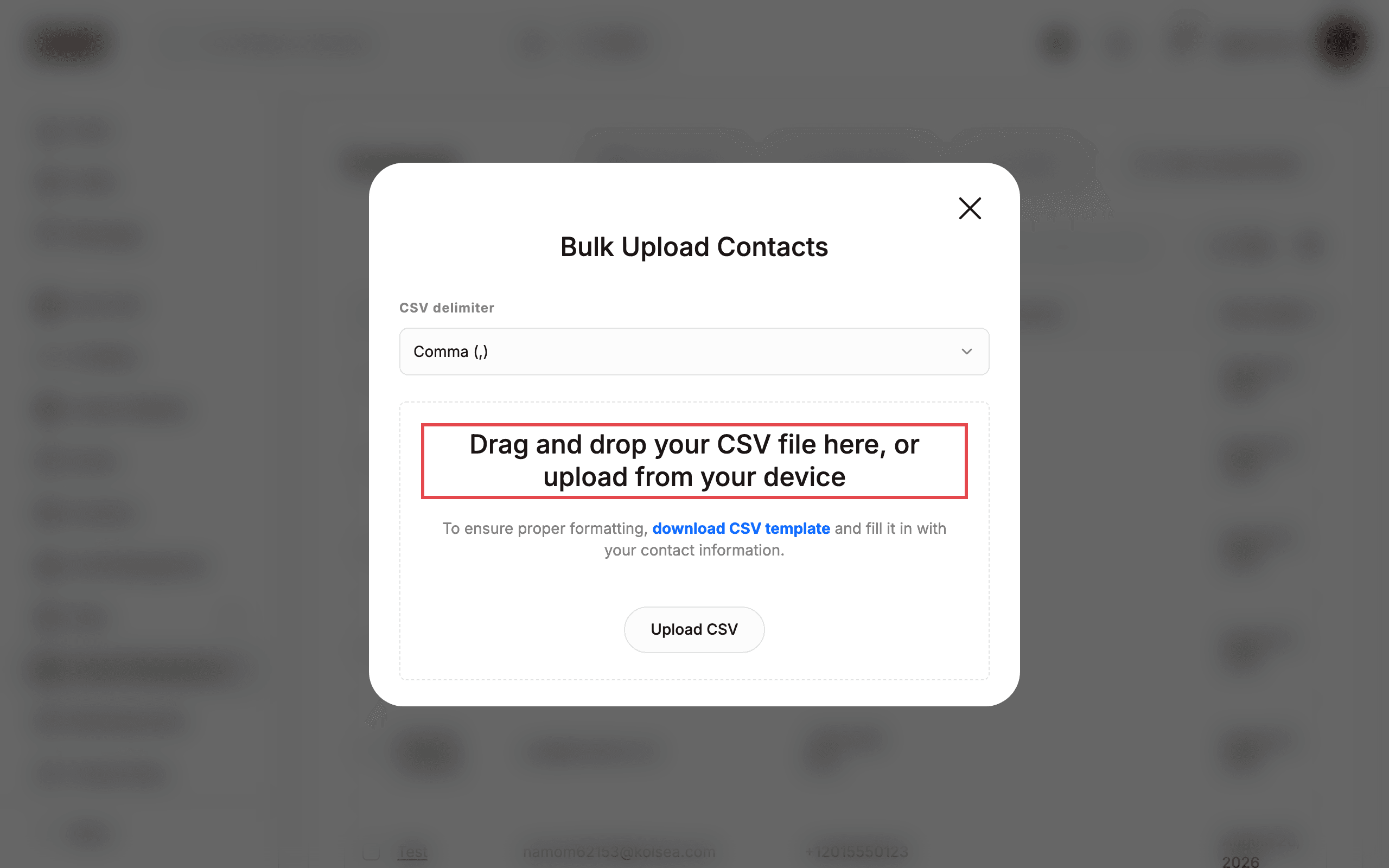
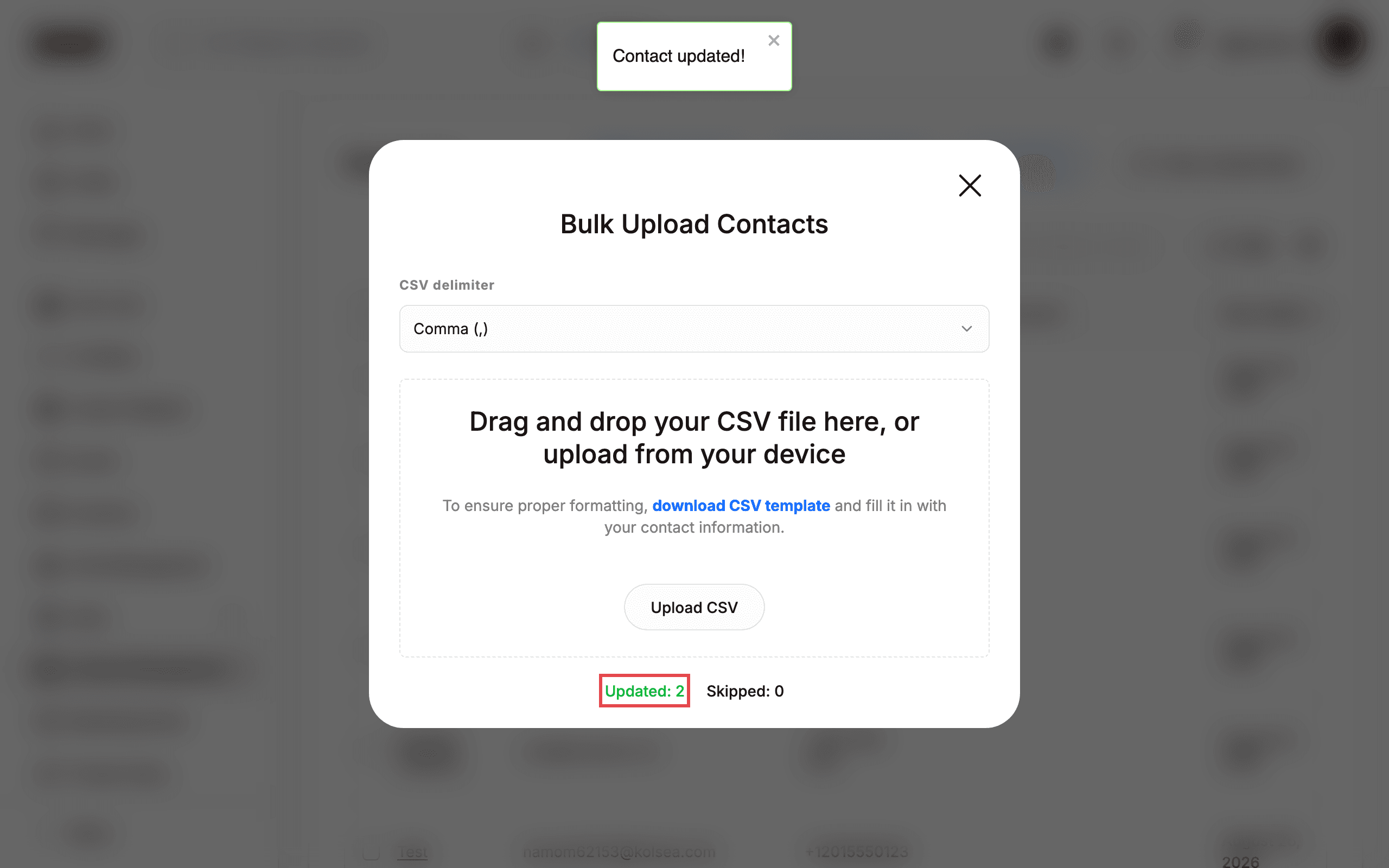
The Bulk Upload Contacts dialog opens. The CSV delimiter is set to Comma (,) by default. If your file separates values with semicolons, open the dropdown and pick Semicolon (;).
5. Upload your CSV file
Drag and drop your CSV file into the drop zone, or click Upload CSV and pick the file from your device. The upload starts as soon as the file is selected — there is no separate confirm button.
When it finishes, the dialog shows the result: Updated: 2 means two contacts were created or updated, Skipped: 0 means no rows had problems.
6. Check your contacts
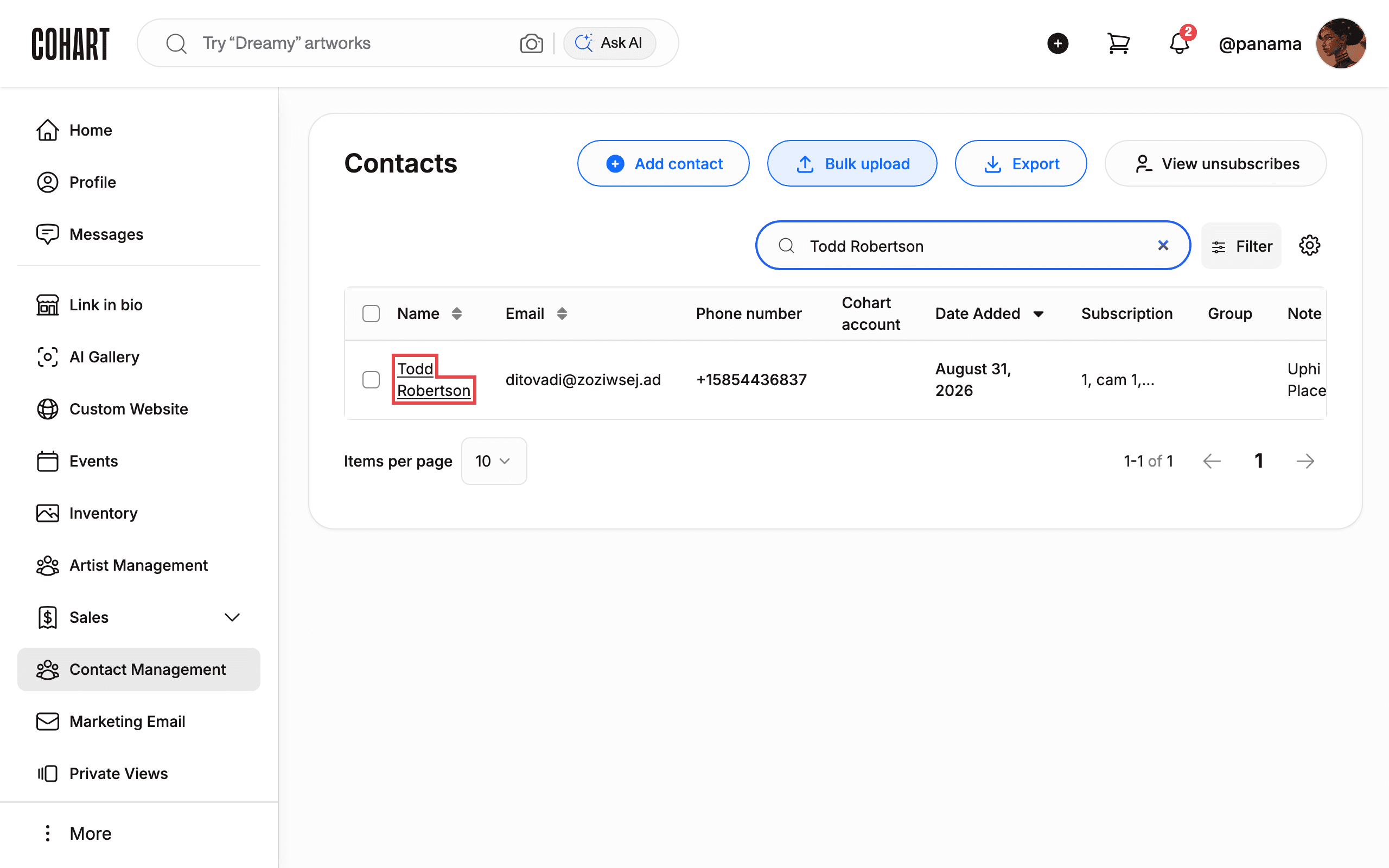
Close the dialog (click X in the top-right corner of the dialog or press Escape). Your imported contacts now appear in the Contacts list. Use the search box (“Search by name, email, phone number, or note”) to find one quickly.
Tips and troubleshooting
- Re-uploading is safe. If a contact with the same email already exists, Cohart updates it instead of creating a duplicate. In testing, uploading the same file twice reported “Updated: 2 / Skipped: 0” both times.
- File type. The upload only accepts
.csvfiles. - Delimiters. The dialog only offers Comma (,) and Semicolon (;). If your file uses another separator (for example a tab), re-save it with one of the supported delimiters first.
- Phone formatting. Phone numbers are normalized on import — for example,
(585) 443-6837is stored as+15854436837. - Skipped rows. If the summary shows “Skipped” with a number greater than 0, check those rows in your CSV (usually a missing email or malformed data) and fix them before uploading again.
- Success toast. After an import you may see a “Contact updated!” confirmation at the bottom of the screen.
- Other contact tools. On the same page you can use Add contact to create a single contact, Export to download your contacts, View unsubscribes to see who opted out of emails, and Filter to narrow the list.
Screenshots are regenerated automatically from the live site. Last captured: 2026-08-31.