How to use Messages to communicate with other users
You will sign in, open Messages, find a conversation, and send a reply.
1. Sign in to your account
- Go to the login page.
- Enter your email in EMAIL ADDRESS and your password in PASSWORD.
- Click SIGN IN.
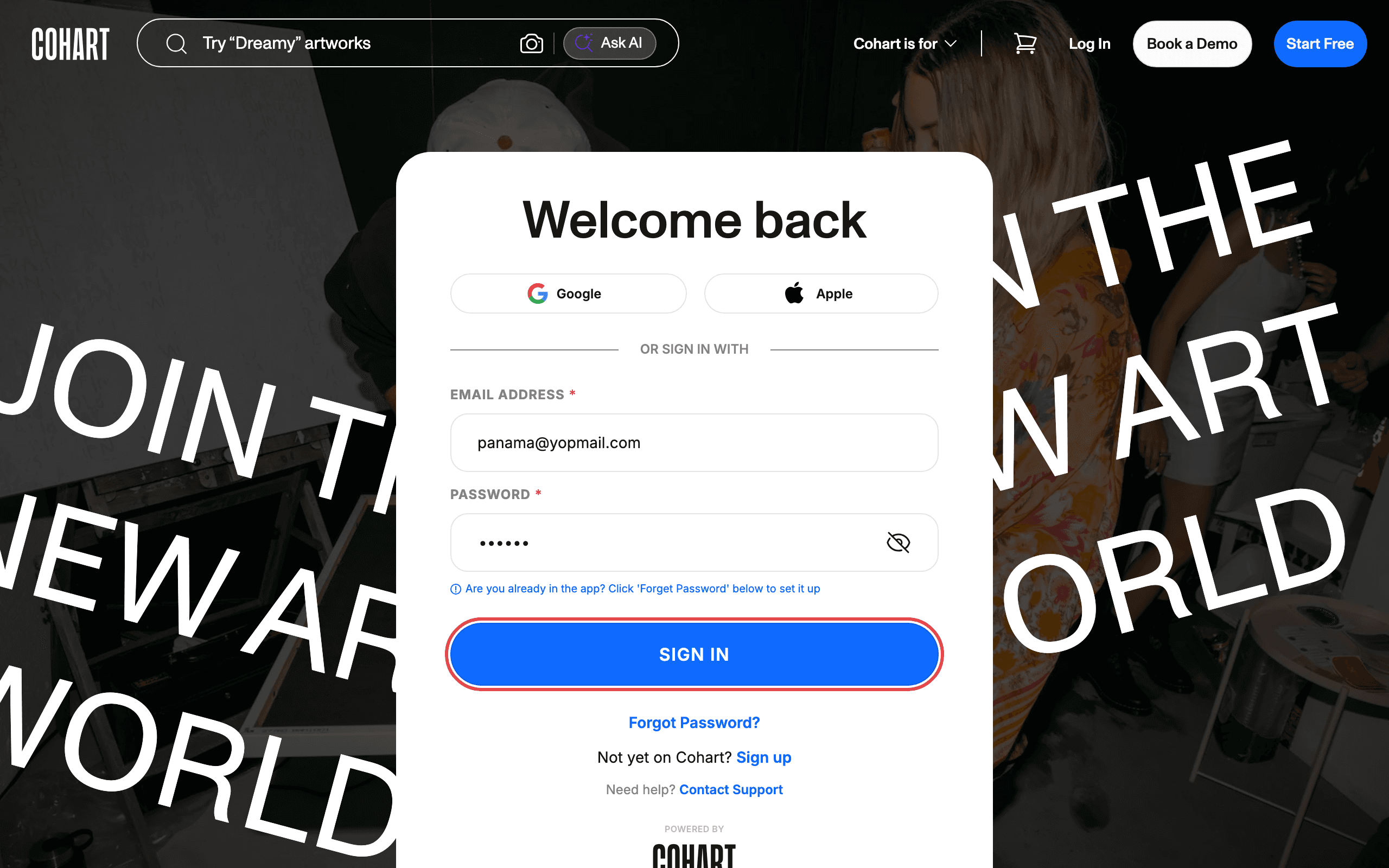
You can also sign in with Google or Apple using the buttons above the email field. If you forget your password, click Forgot Password?. If you do not have an account yet, click Sign up. If you need help, click Contact Support.
2. Open Messages from the sidebar
- After signing in, you land on Inventory.
- In the left sidebar, click Messages.
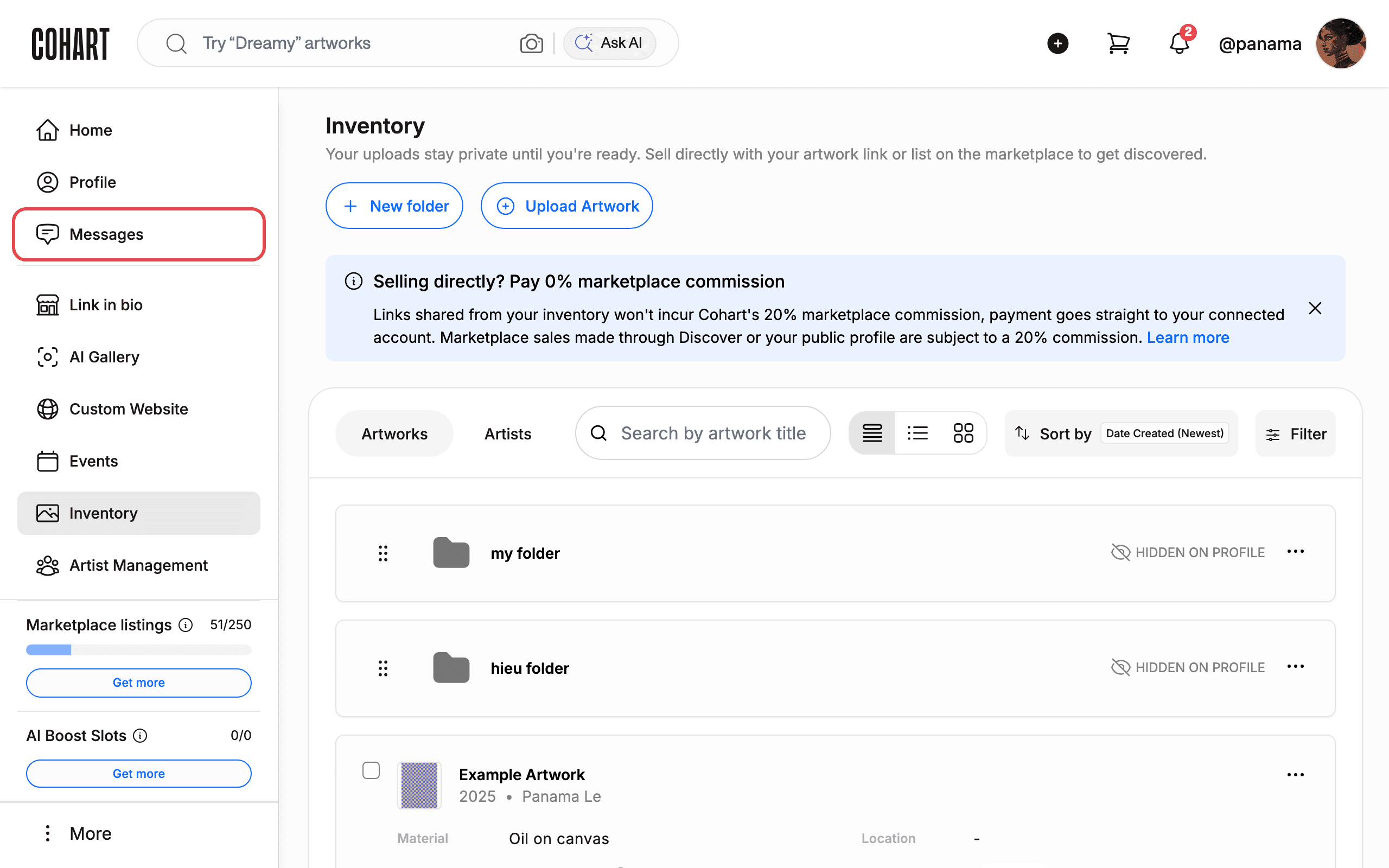
A red number badge on Messages shows how many unread conversations you have.
3. Browse your conversation list
- Read the Messages list in the middle column.
- Each row shows the person’s name, a preview of the latest message, and how long ago it arrived (for example 15d or 1mo).
- Rows marked INQUIRY are artwork questions. Rows marked OFFER are price offers.
- A preview starting with You: means you sent the last message.
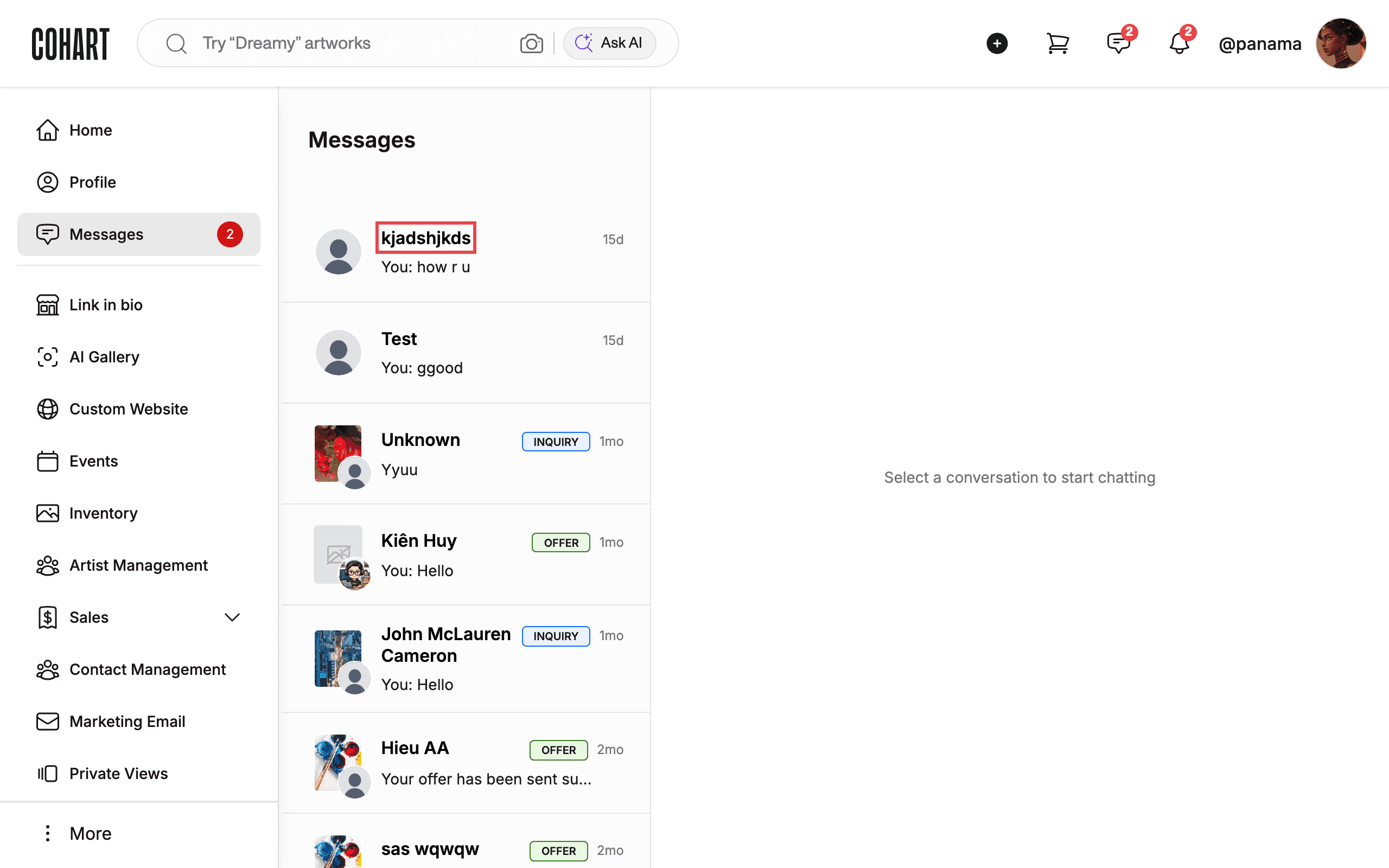
If you have not opened a chat yet, the right panel says Select a conversation to start chatting.
4. Open a conversation to read the thread
- Click a conversation in the list.
- Read the messages on the right. Each message shows its time (for example 16:00), and your sent messages show a blue checkmark.
- Note the safety notice at the top: keep messaging and complete transactions on Cohart to stay protected, since purchases made outside the platform are not covered by the Buyer and Seller Guarantee.
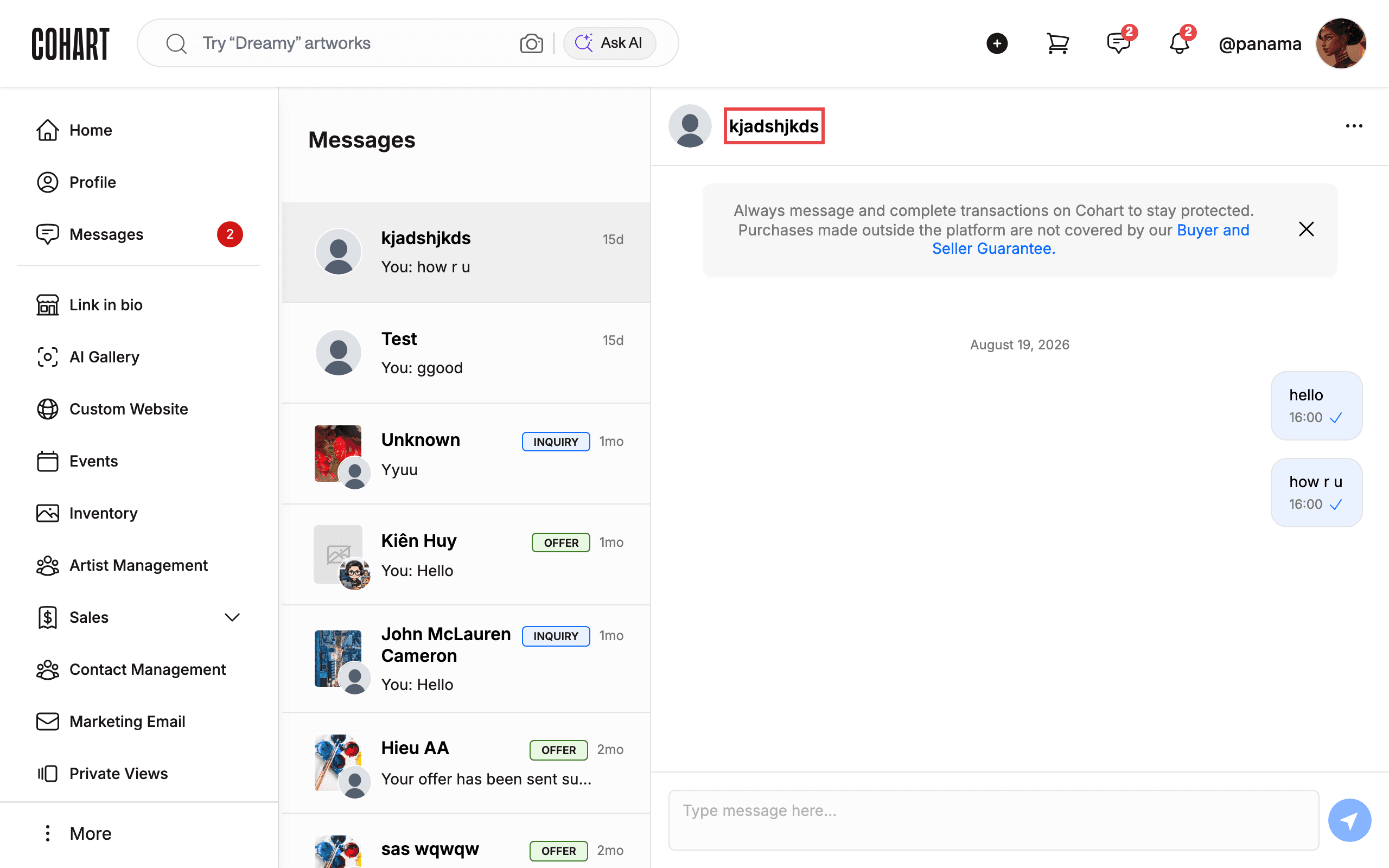
Click the person’s name at the top of the thread to open their profile.
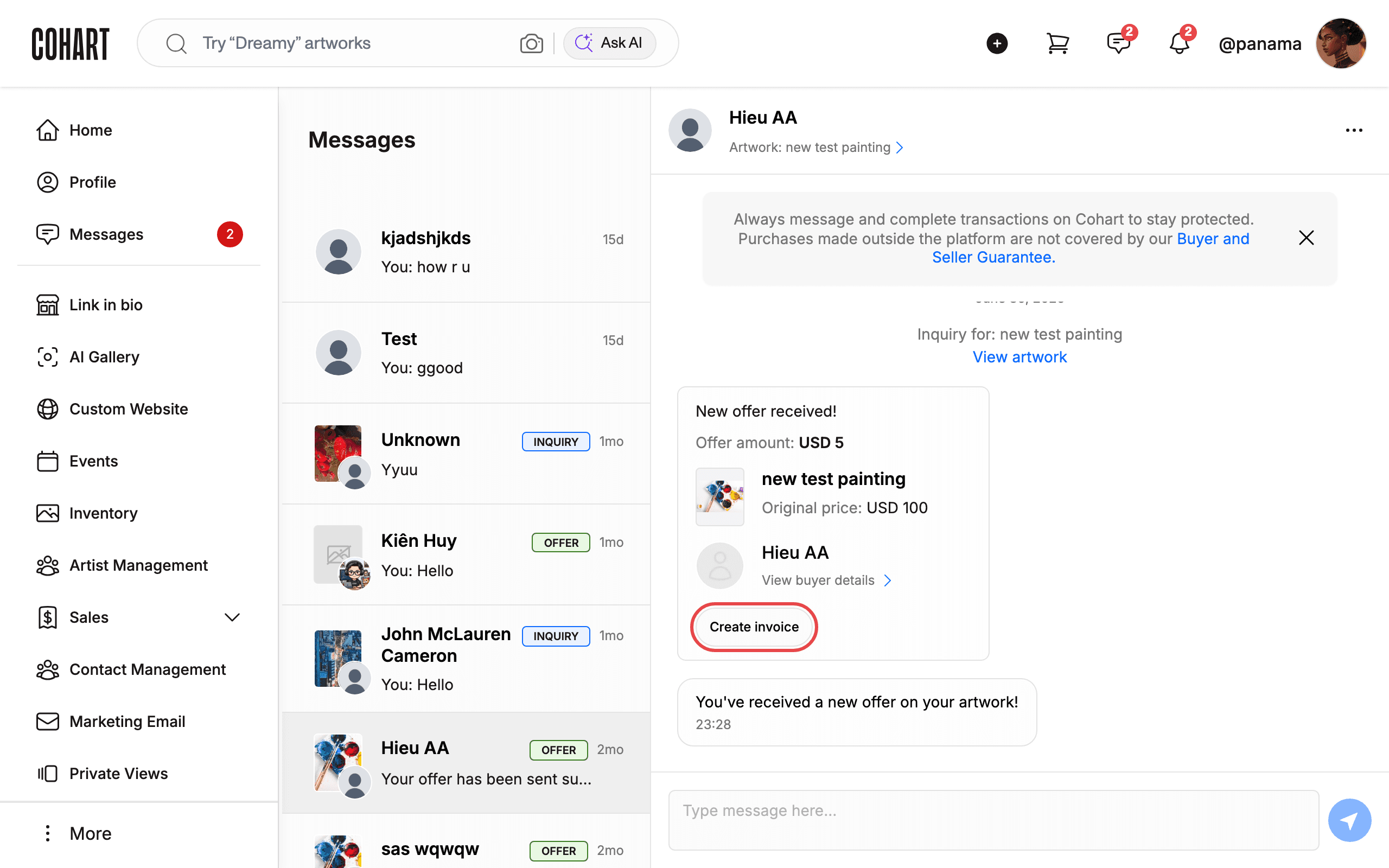
5. Review artwork, offer, and buyer details
- Open a conversation tagged OFFER or INQUIRY.
- Under the contact name, check the Artwork: line to see which piece the chat is about.
- Read the Inquiry for: section and click View artwork to open the artwork page.
- For offers, read the New offer received! card: it shows the Offer amount: next to the artwork’s Original price:.
- Click View buyer details to learn more about the buyer.
- To bill the buyer, click Create invoice.
6. Type a reply and send it
- Click inside the Type message here… box at the bottom of the thread.
- Type your message.
- Click the blue round send button to the right of the box.
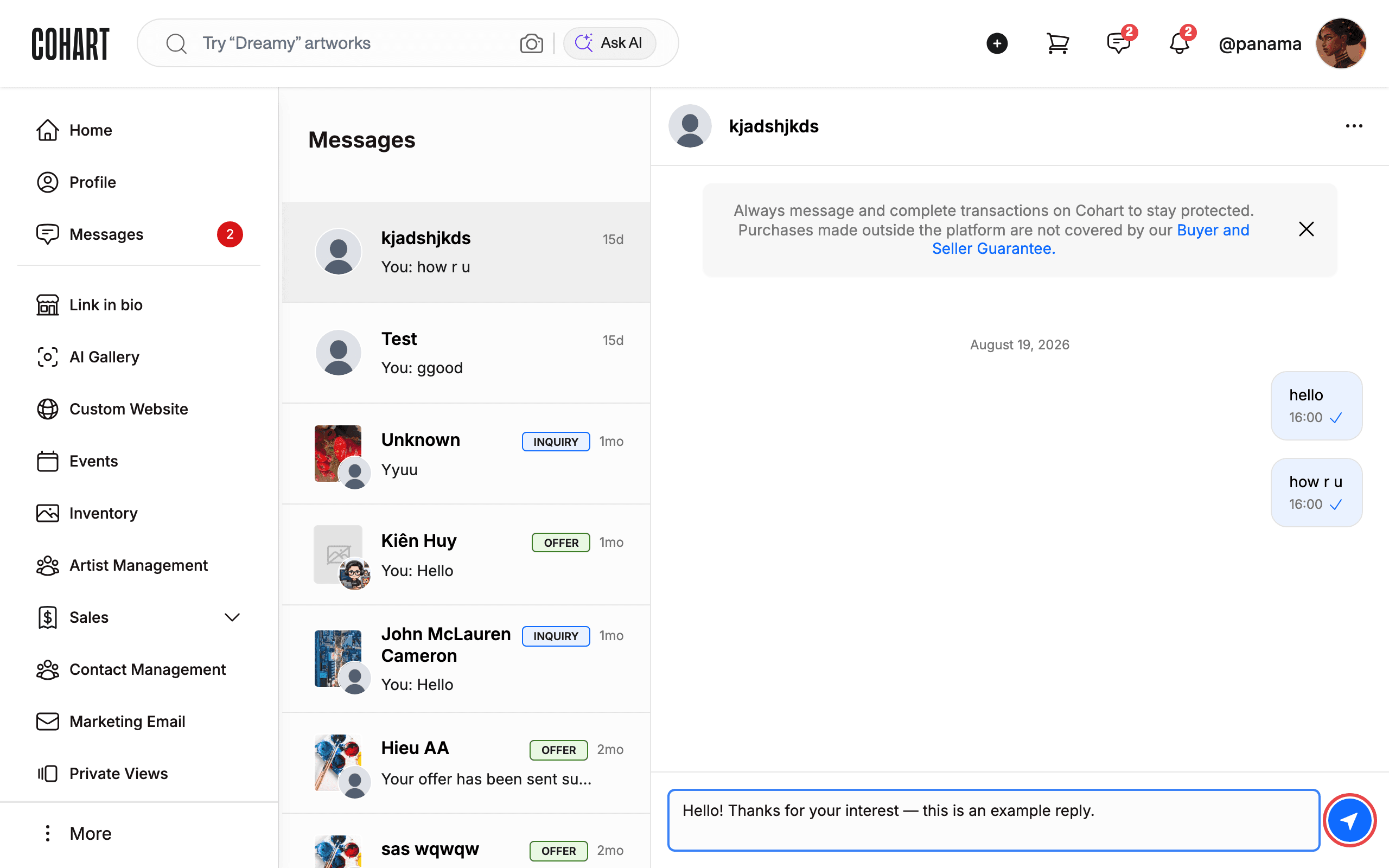
Your message appears in the thread with its sending time.
Tips and troubleshooting
- Conversations start themselves. There is no compose or “new message” button in Messages. New chats appear when someone sends an inquiry, makes an offer, or messages you through your custom website (these rows are labeled Message from custom website visitor).
- Keep deals on Cohart. The banner in every thread reminds you that off-platform purchases are not covered by the Buyer and Seller Guarantee.
- Messages page looks empty at first. The list takes a few seconds to load after you click Messages. If the right panel says Select a conversation to start chatting, click any row to load its thread.
- After signing in you land on Inventory. This is normal. Open Messages in the sidebar whenever you need it.
- The send button has no text label. It is the blue circle with a paper-plane icon next to Type message here….
Screenshots are regenerated automatically from the live site. Last captured: 2026-09-03.