How to Add a Sale Record
Record a sale of one of your artworks so it appears on your Cohart dashboard and profile.
Steps
1. Sign in to your account
Go to the Cohart login page at https://staging.cohdev.co/auth/login. Enter your Email Address* and Password*, then click Sign In.
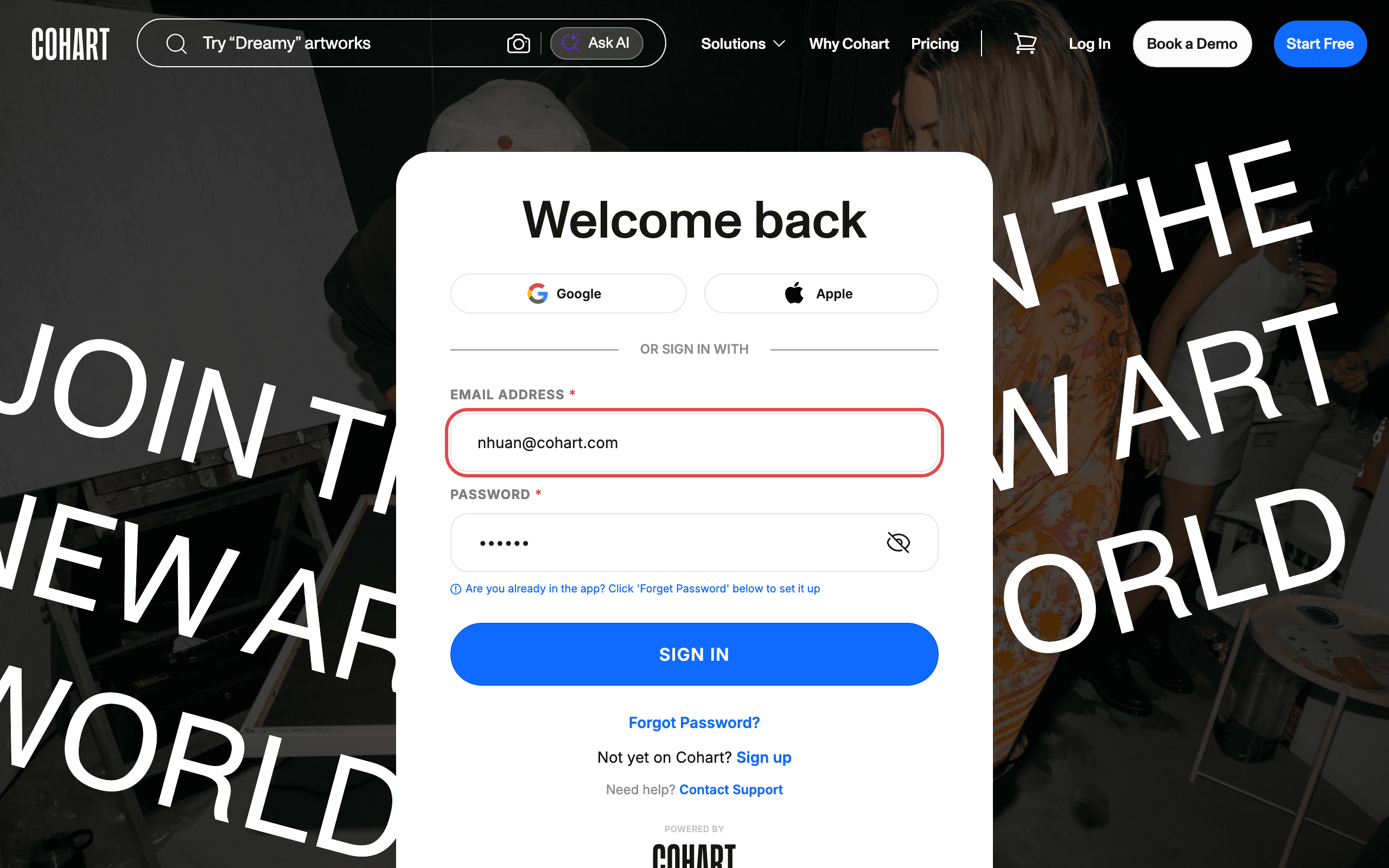
You can also sign in with Google or Apple. If you do not have an account, click Sign up. If you forgot your password, click Forgot Password?.
2. Open the Sales menu and go to Sales Record
In the left sidebar, click Sales to expand the menu, then click Sales Record.
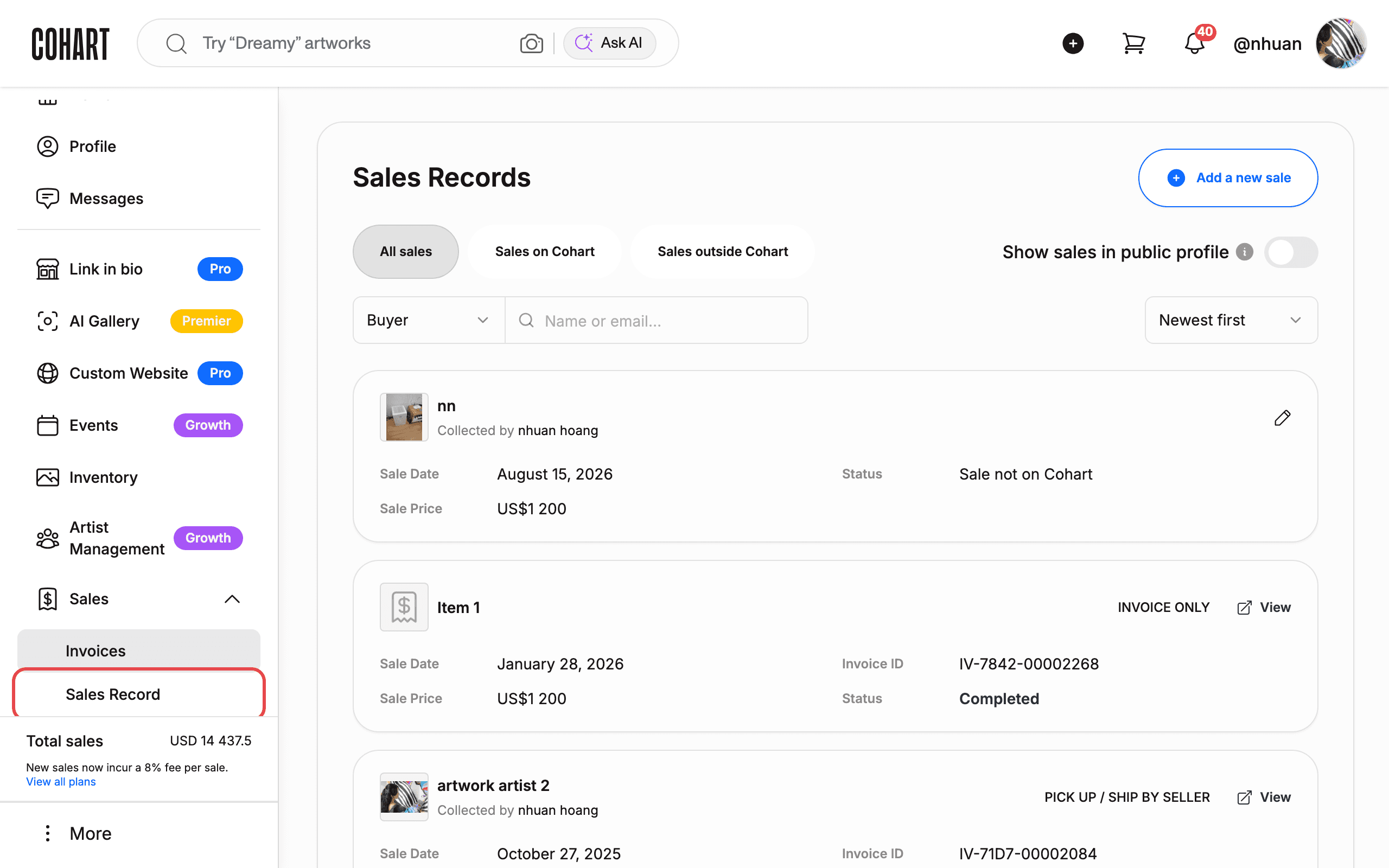
The Sales menu also contains Invoices, Shipping, Transactions, and Testimonials.
3. Click Add a new sale
On the Sales Records page, click Add a new sale.
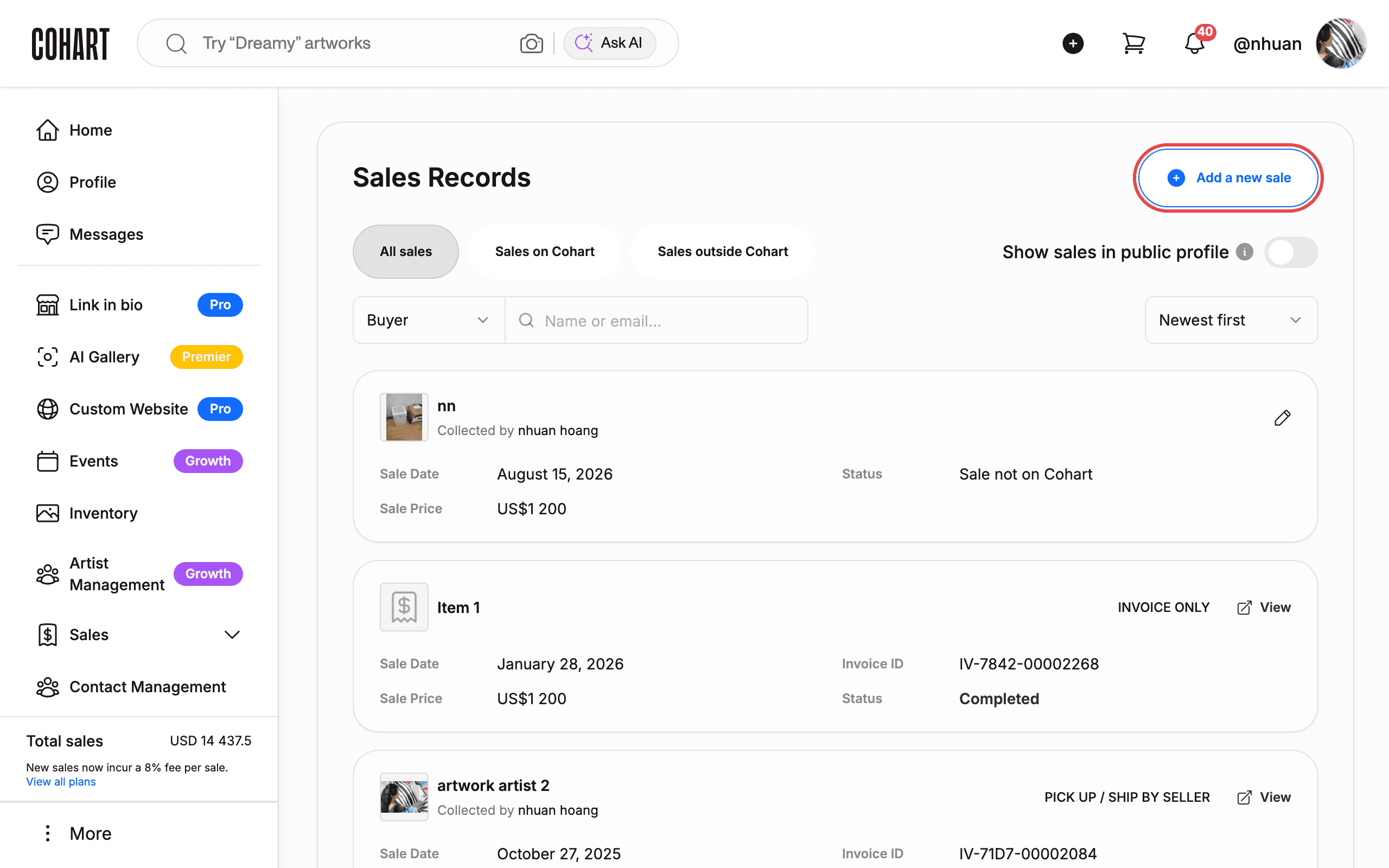
The page shows your existing records. Use the tabs All sales, Sales on Cohart, and Sales outside Cohart to filter them, and the Name or email… search field to find a record by buyer. The Show sales in public profile toggle controls whether your sales appear on your public profile. Records are sorted by Newest first.
4. Choose whether the artwork is already on Cohart
A dialog asks Is this artwork already on Cohart? Choose Yes, select artwork.
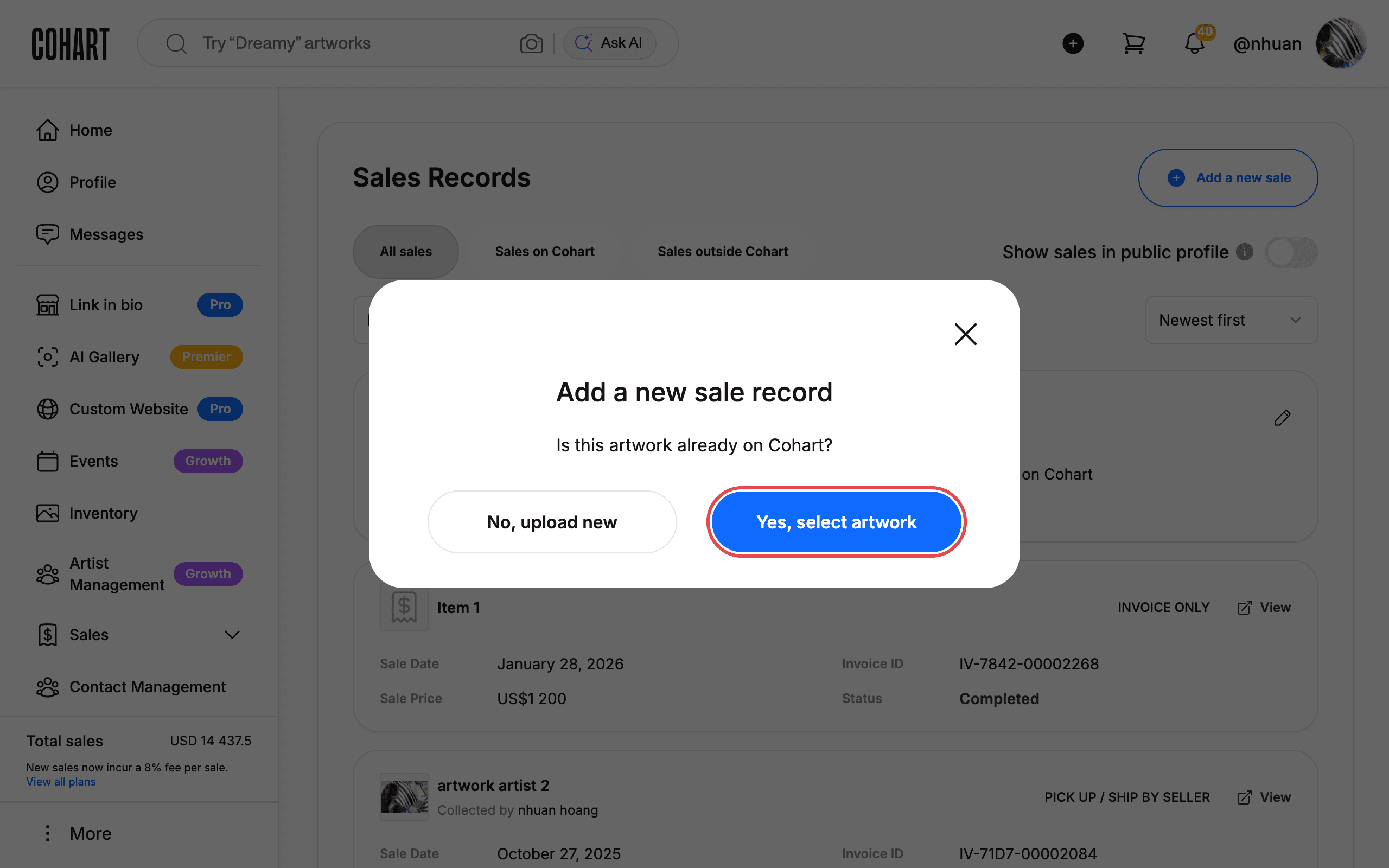
If the artwork is not on Cohart yet, choose No, upload new instead. This opens the Upload Artwork wizard in a new tab, where you can add the artwork and mark it Sold as part of the upload.
5. Tick the artwork you sold and click Continue
Select the artwork you sold from your inventory, then click Continue.
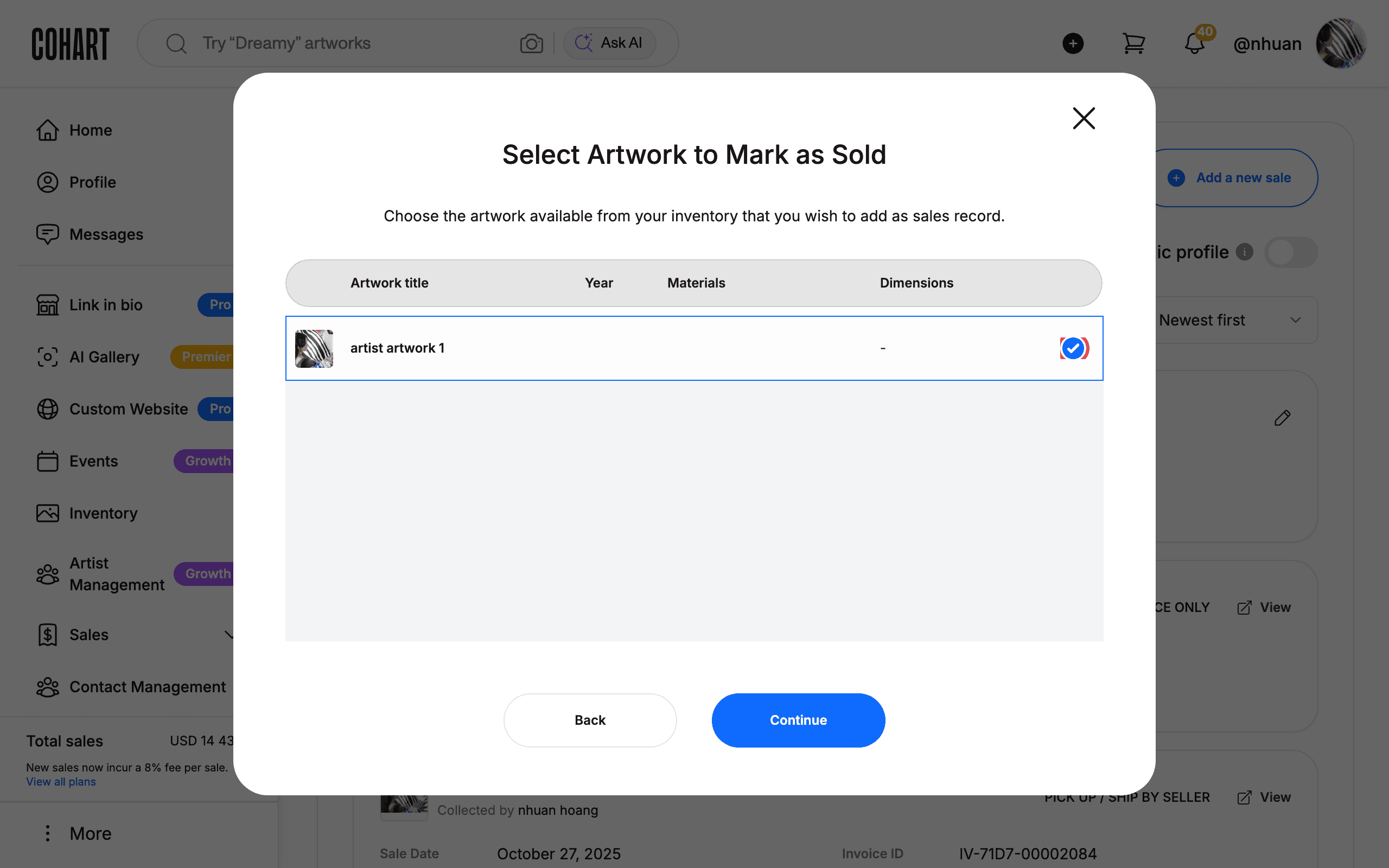
The dialog shows each artwork’s title, year, materials, and dimensions.
6. Add the sale details: buyer and sold price
Enter the buyer’s name in the Search Buyer field and pick the matching account from the list, or click invite them! if the buyer is not on Cohart yet. Then enter the SOLD PRICE* using the currency shown (🇺🇸 USD).
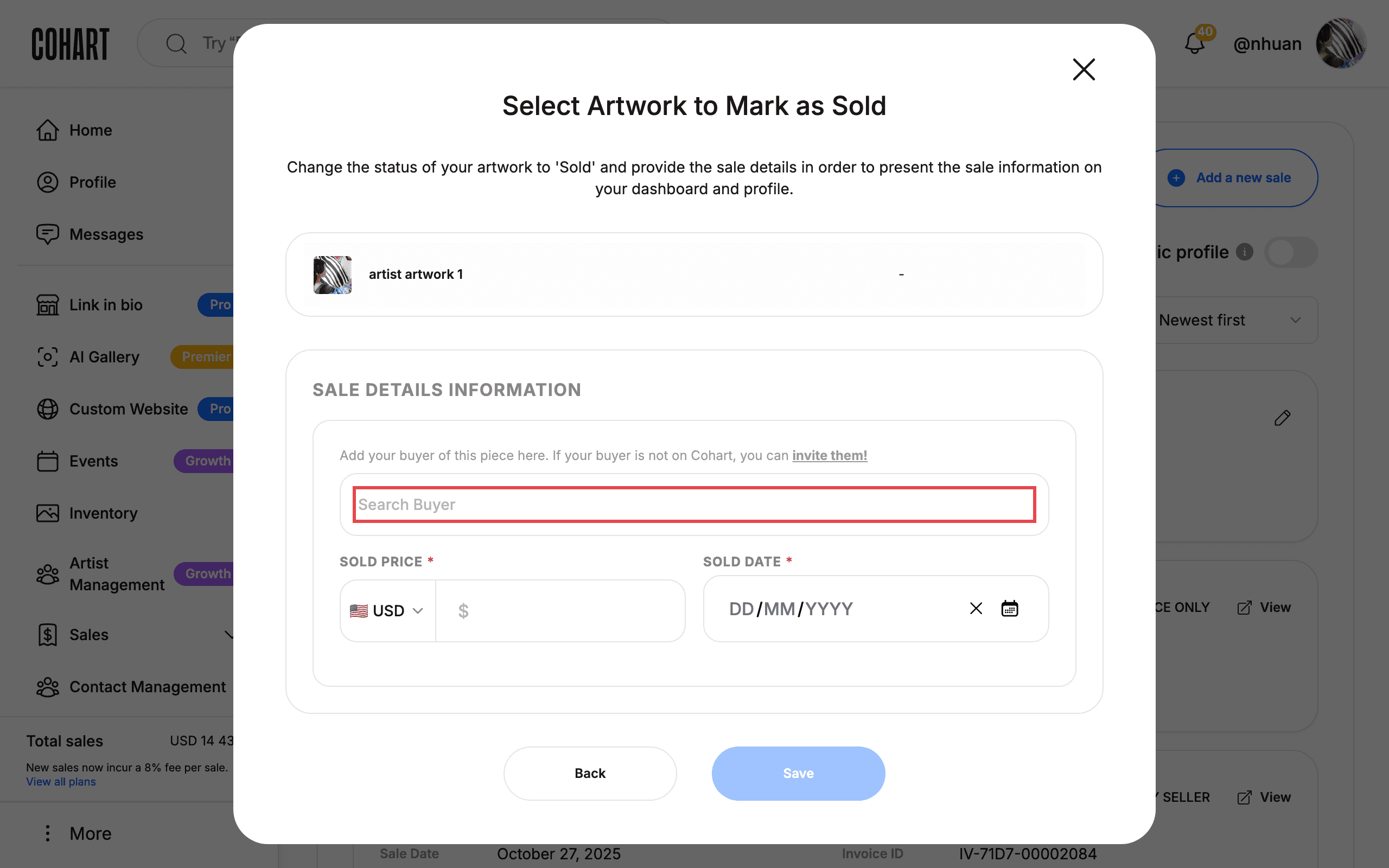
The price currency defaults to USD; the currency selector is next to the price field.
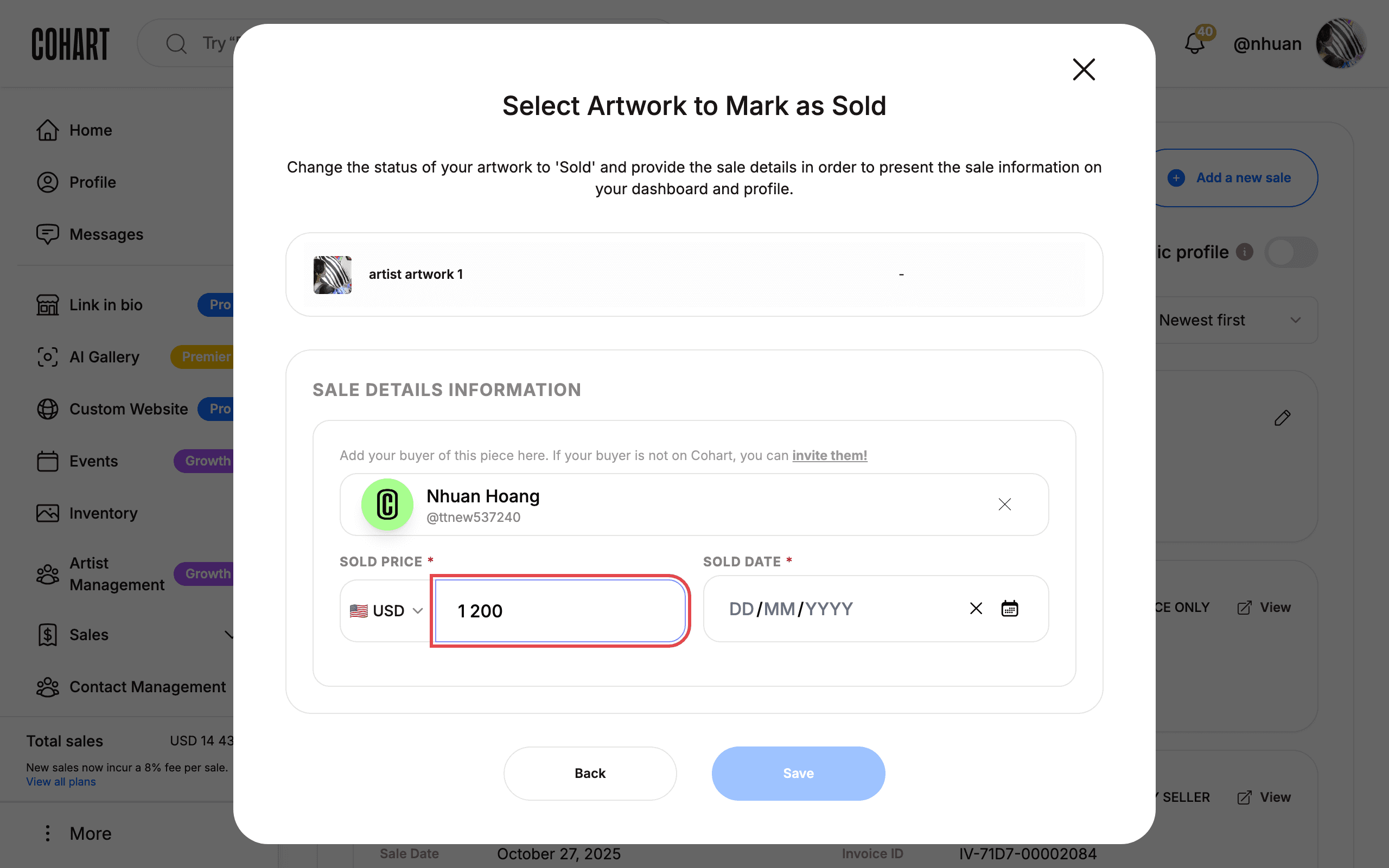
7. Enter the sold date and click Save
Enter the SOLD DATE* — type into the DD / MM / YYYY fields or pick a day in the calendar — then click Save.
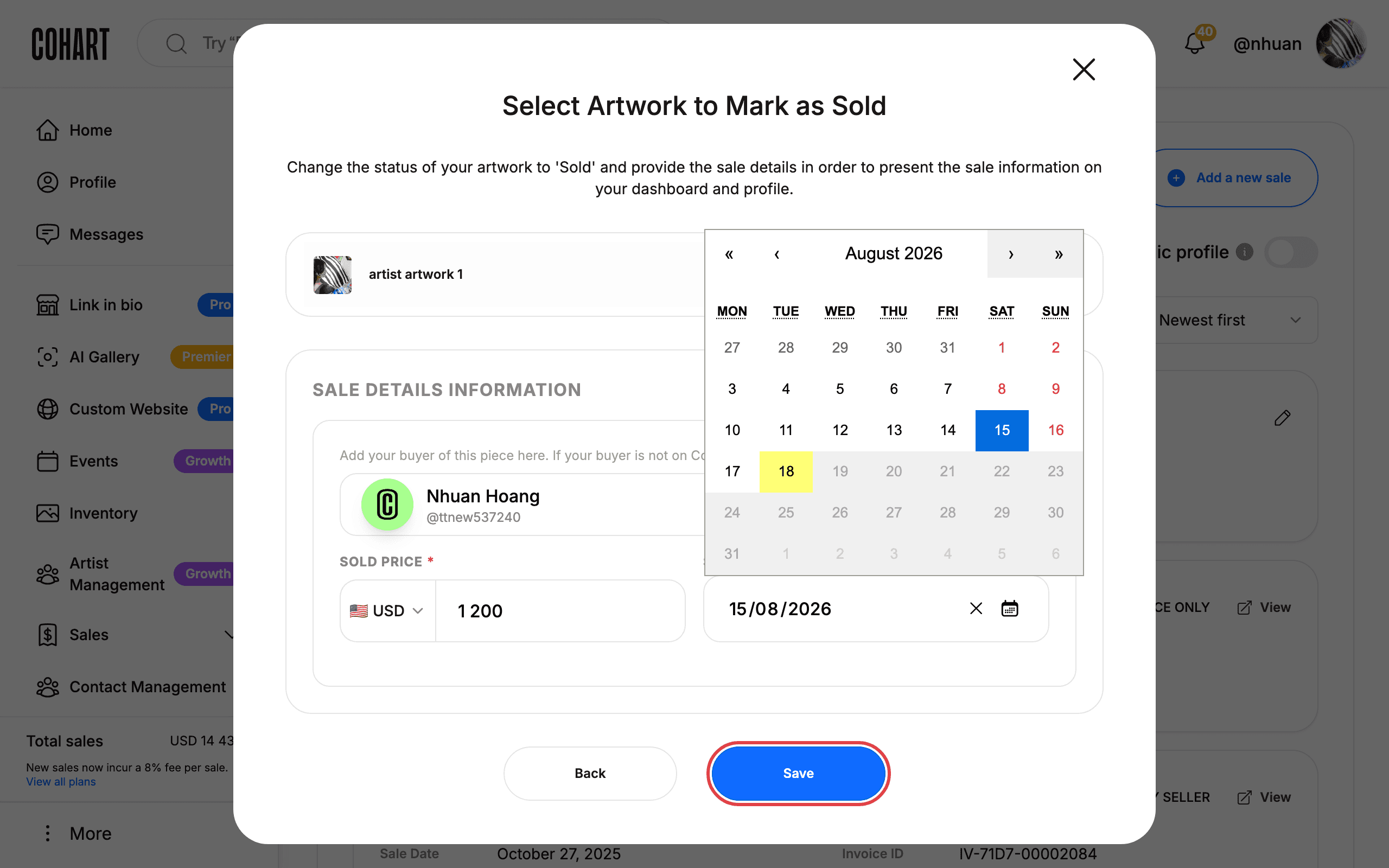
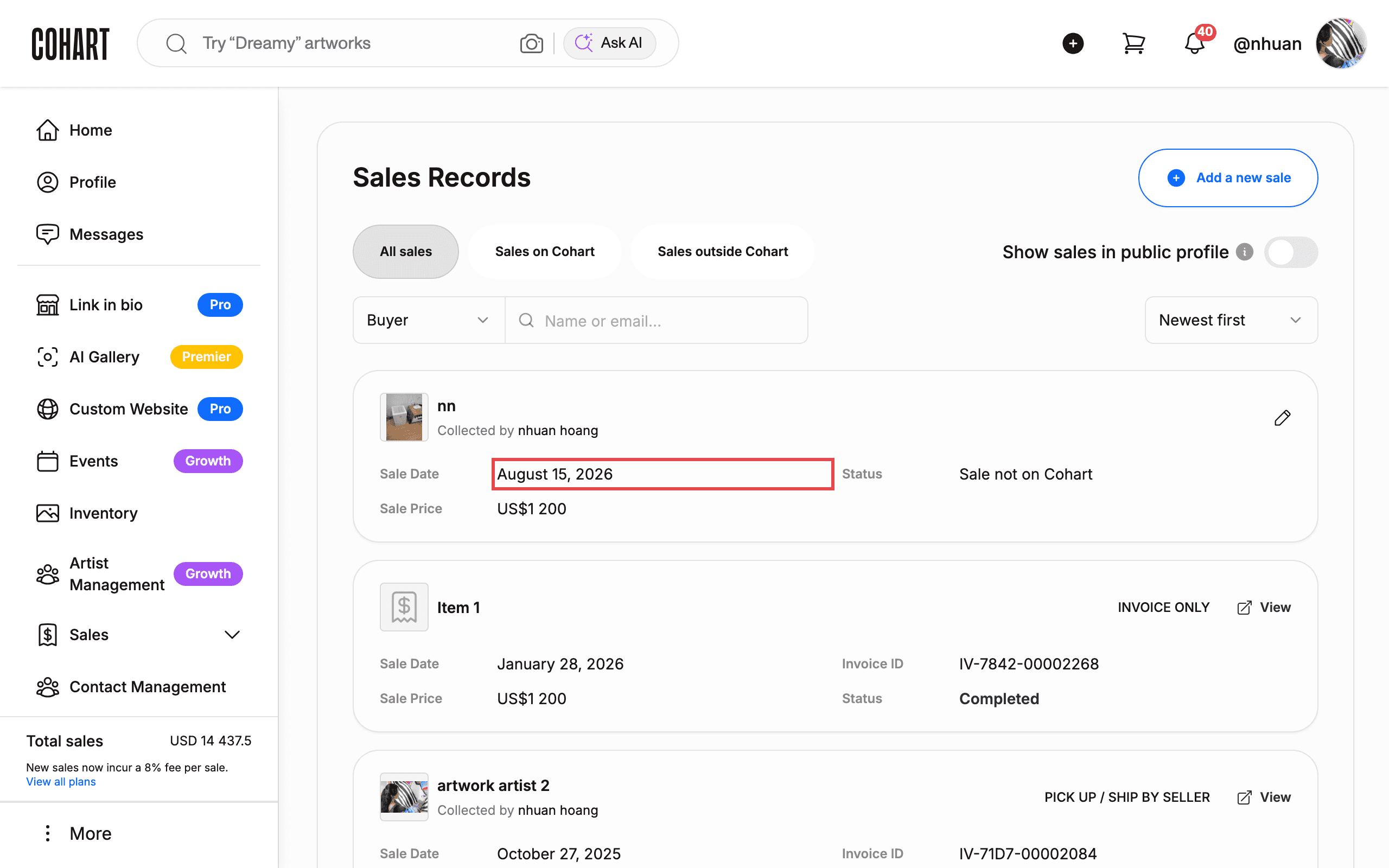
8. Check that the sale record was added
The dialog closes and the new record appears at the top of the list, showing the buyer, Sale Date, Sale Price, and Status.
Tips
- Your artwork’s status in Inventory changes to Sold as soon as you save the record.
- If the buyer is not on Cohart, type their name in Search Buyer and choose the Not on Cohart result, or click invite them! to send them an invitation.
- A note on the Sales Records page says New sales now incur a 8% fee per sale — check the View all plans link before recording a sale.
- The Total sales figure at the top of the page updates as you add records.
Troubleshooting
- No artwork appears in the selection dialog. Add the artwork to your Inventory first. If the piece is not on Cohart, choose No, upload new instead of Yes, select artwork — but make sure your browser allows pop-up windows, because the upload wizard opens in a new tab.
- The Save button does nothing. SOLD PRICE and SOLD DATE are marked with * and are required.
- The buyer search shows no results. The buyer must have a Cohart account (or be invited via invite them!).
Screenshots are regenerated automatically from the live site. Last captured: August 18, 2026.