How to Collect and Manage Subscribers
Overview
Subscribers are visitors who opt in to hear from you by email, whether or not they have a Cohart account — collecting them is how you turn Link in Bio visitors into a mailing list you can keep in touch with.
- What it is — a public email opt-in on your Link in Bio and profile, plus the Contact Management tools that store, group, and let people leave that list.
- Who it’s for — artists and galleries who want to grow an audience beyond their existing collectors and buyers.
- What it affects — your public profile (where the opt-in form appears), and your Contacts list in Contact Management (where every subscriber lands).
- What you end up with — a growing subscriber list you can segment into groups for email campaigns, built either from new opt-ins or from a bulk-uploaded list you already have from another provider.
Steps
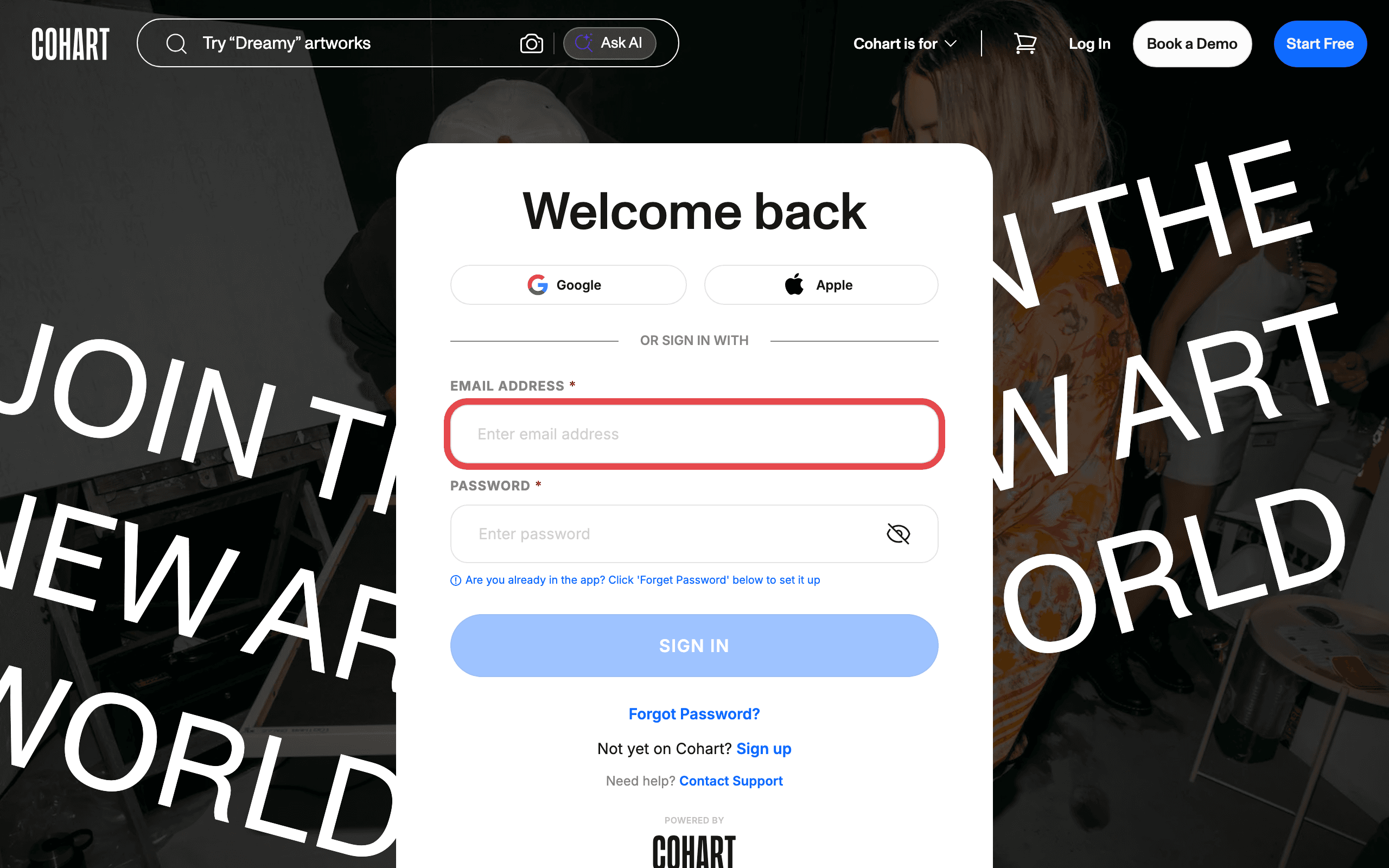
1. Sign in to Cohart
Sign in with your email address and password, or use Google or Apple.
2. Share your Link in Bio
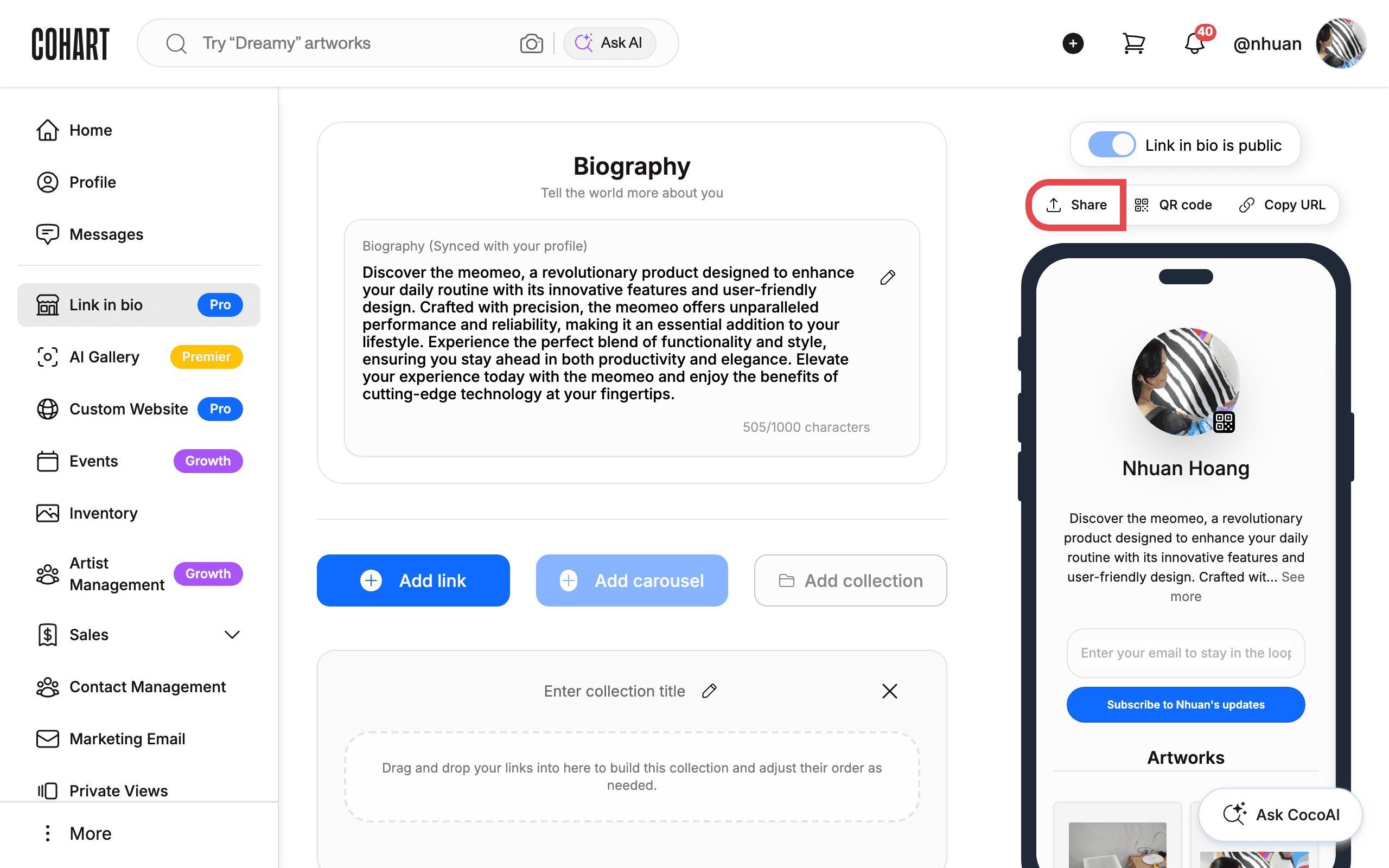
After signing in, open Link in bio from the left-hand navigation to edit and share it. Click Share to open the share options (which also include QR code and Copy URL), and share the link on your social profiles or through other messaging platforms so visitors can find your page.
3. Let visitors subscribe from your public profile
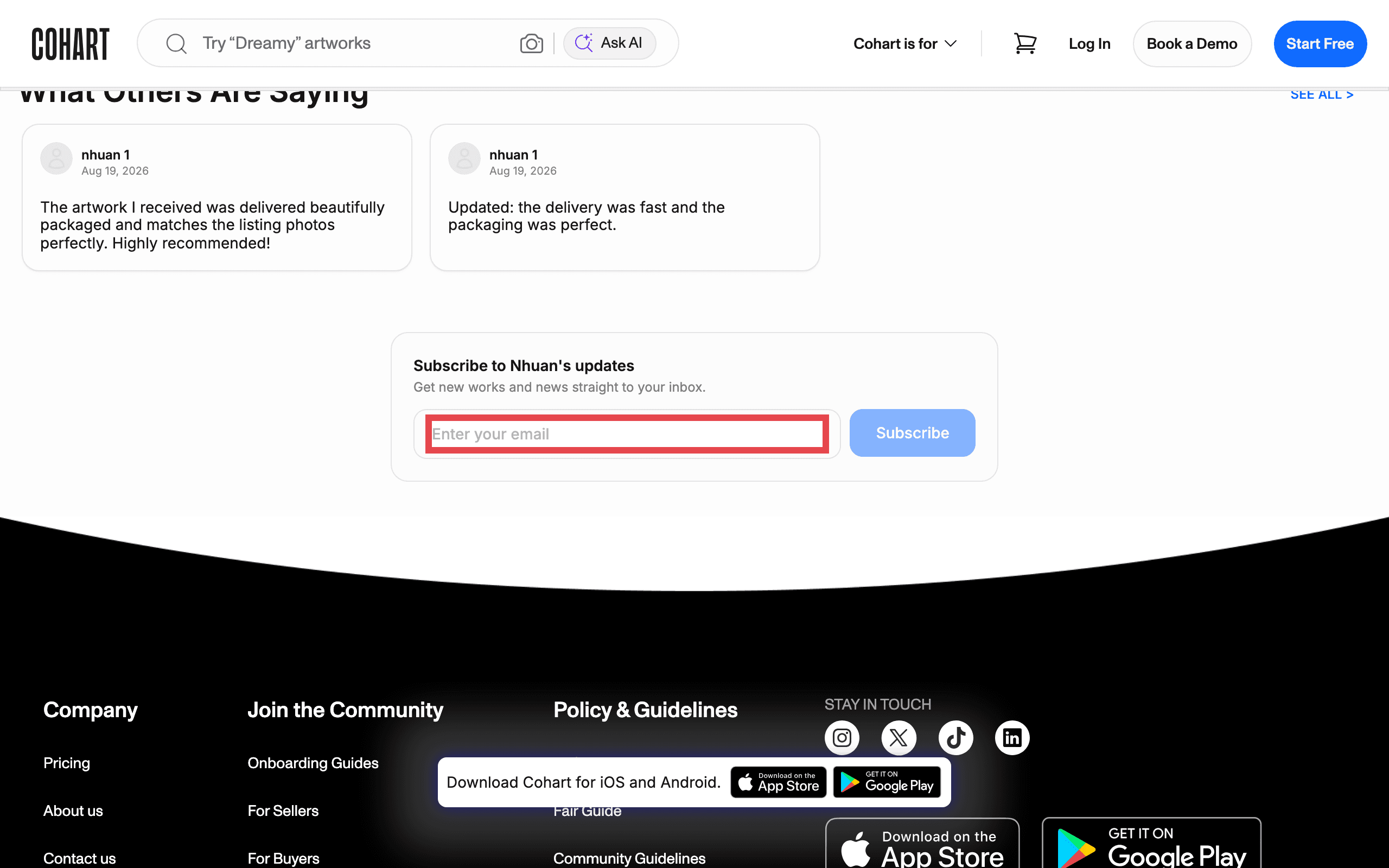
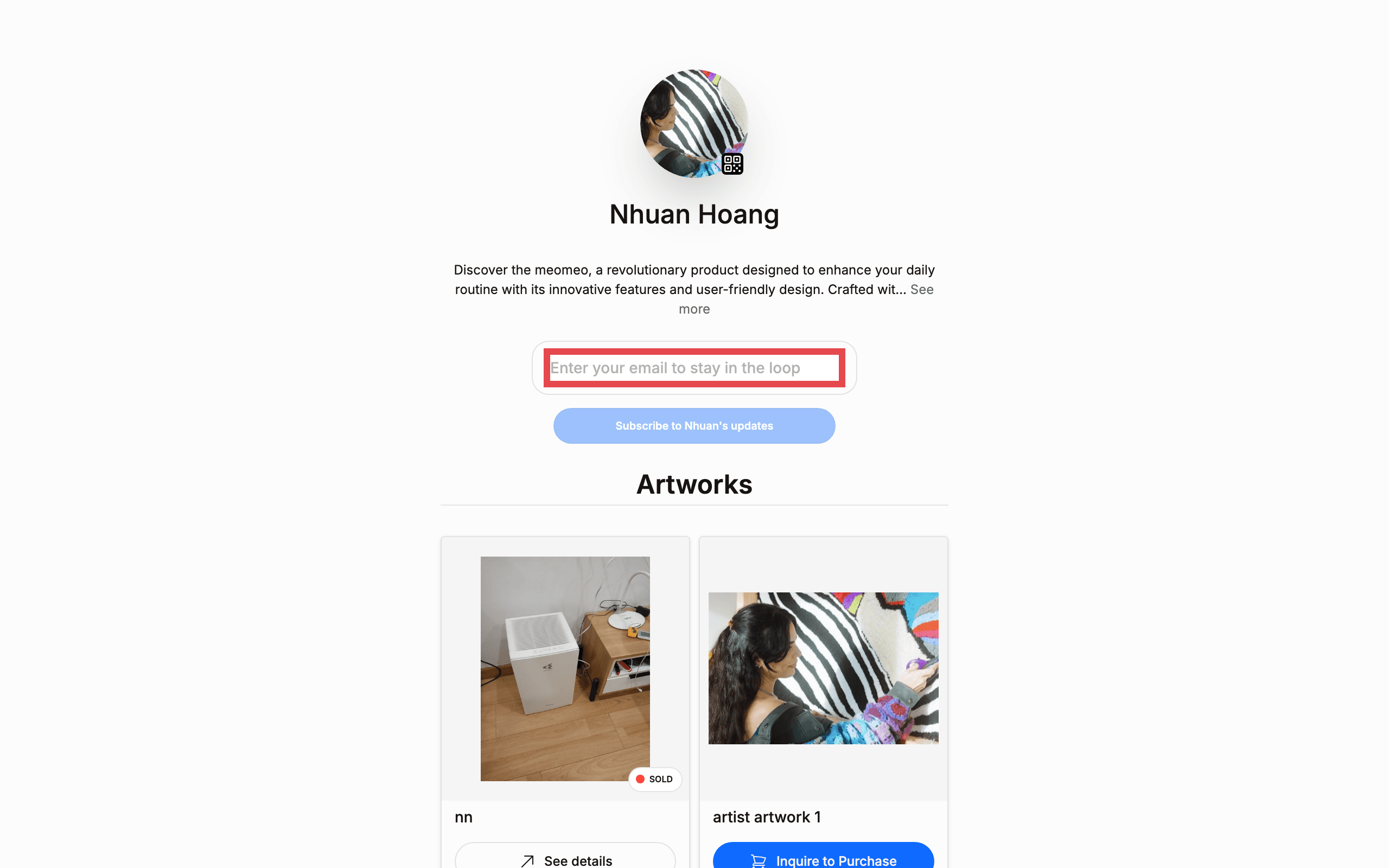
When someone visits your public profile or Link in Bio, they can subscribe without needing a Cohart account. They fill in their First name and Email address, then click Subscribe. Anyone can subscribe just by their email — a Cohart account is not required. Visitors can also subscribe from your Link in Bio page directly, at www.cohart.com/[your username], where the same email opt-in appears near the top of the page.
4. Find your subscribers in Contact Management
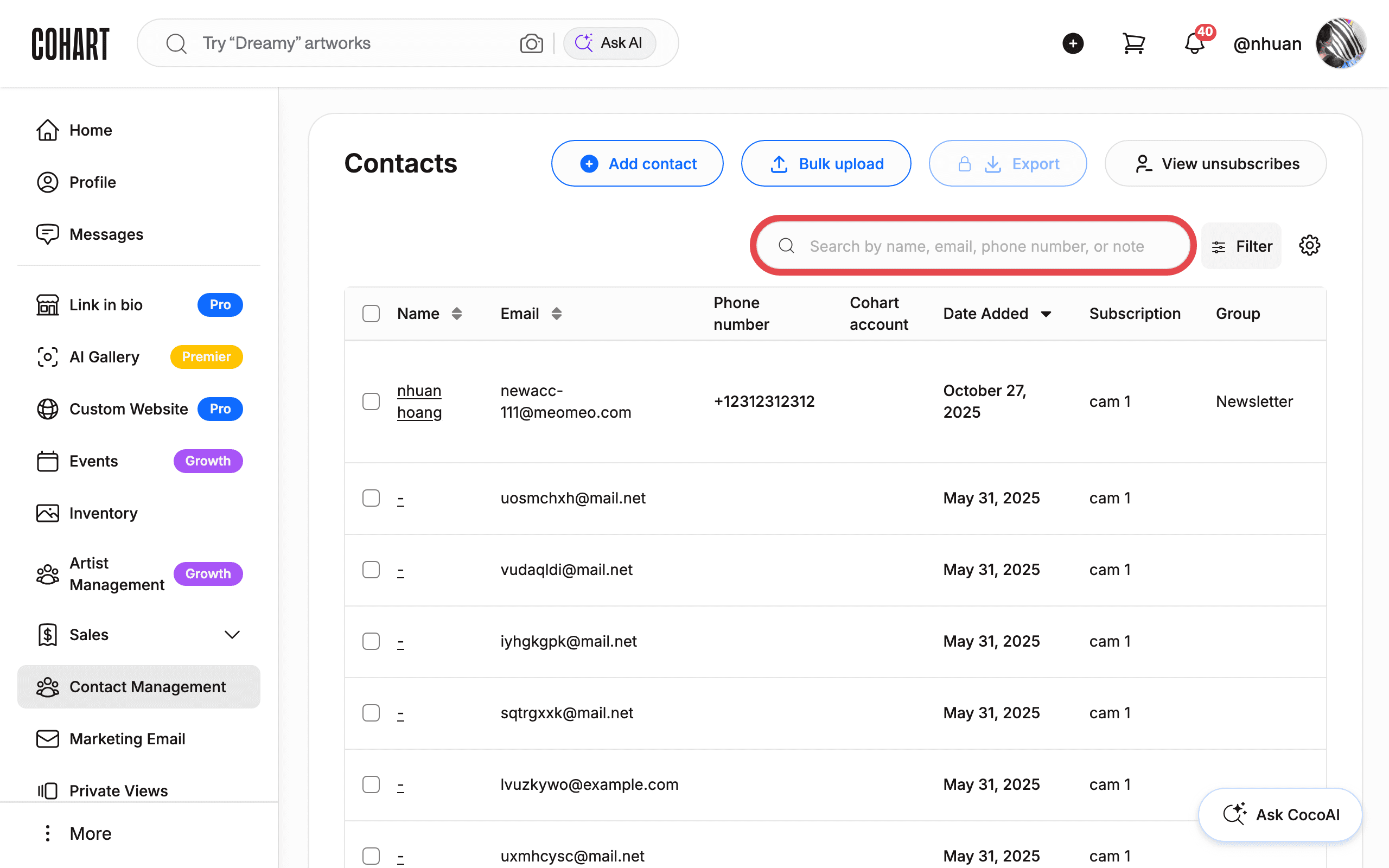
Open Contact Management from the left-hand navigation. Every subscriber’s email address appears here as a contact, alongside contacts you added yourself. Use Search by name, email, phone number, or note to find a specific one, or Filter to narrow the list. If a subscriber’s email is already linked to an existing contact or Cohart account, they are not added as a duplicate. From here you can add details to a contact (name, phone number, note) and add them to groups for specific updates — see How to Manage and Export Your Contacts.
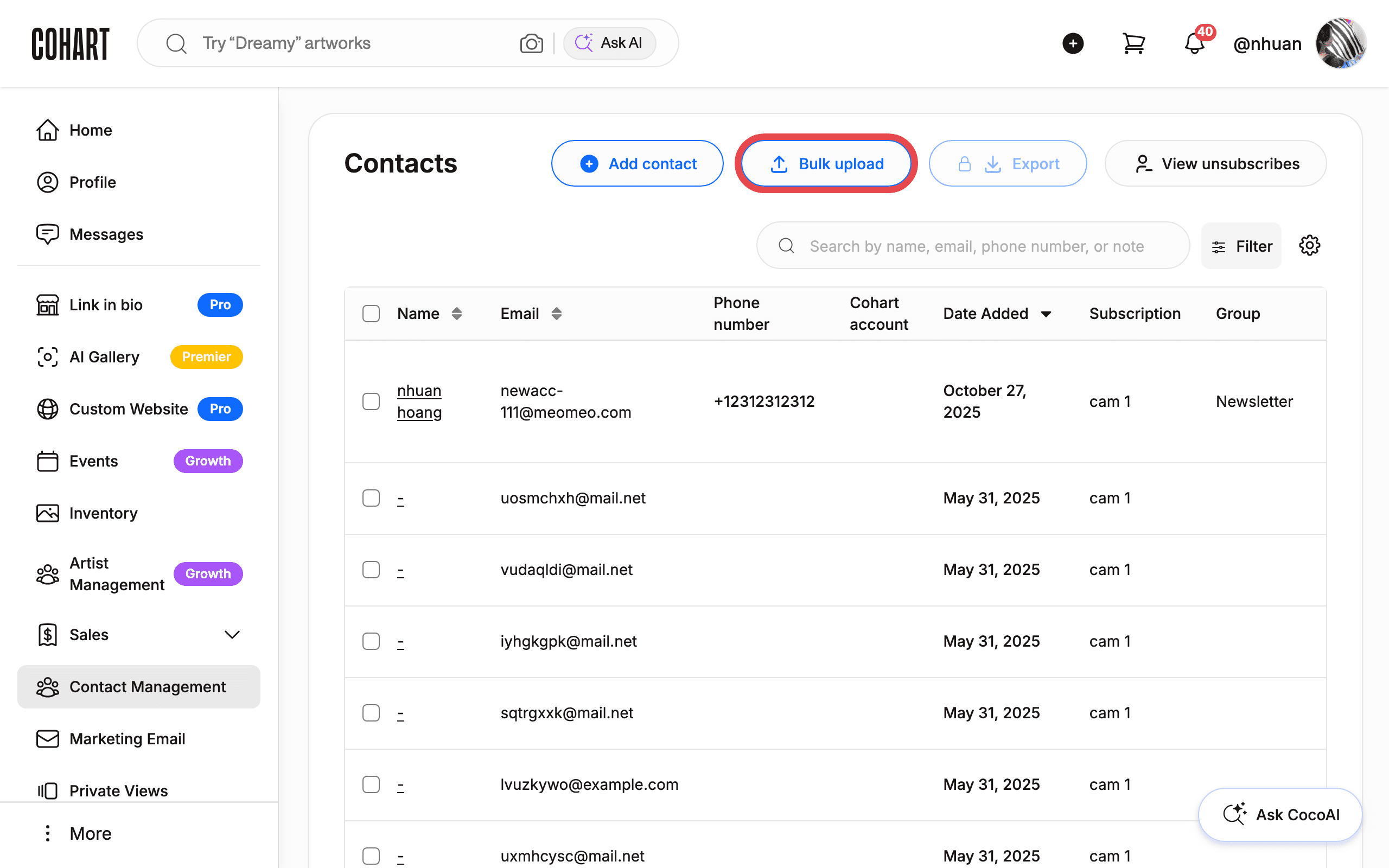
5. Bulk upload an existing subscriber list
If you already have a subscriber list from another email provider, bring it in with Bulk upload on the Contact Management page. This is the same bulk-upload flow used for any contact list — download the CSV template, fill it in with your subscribers, and upload it back in. See How to Bulk Upload Contacts from a CSV File for the full template and upload steps.
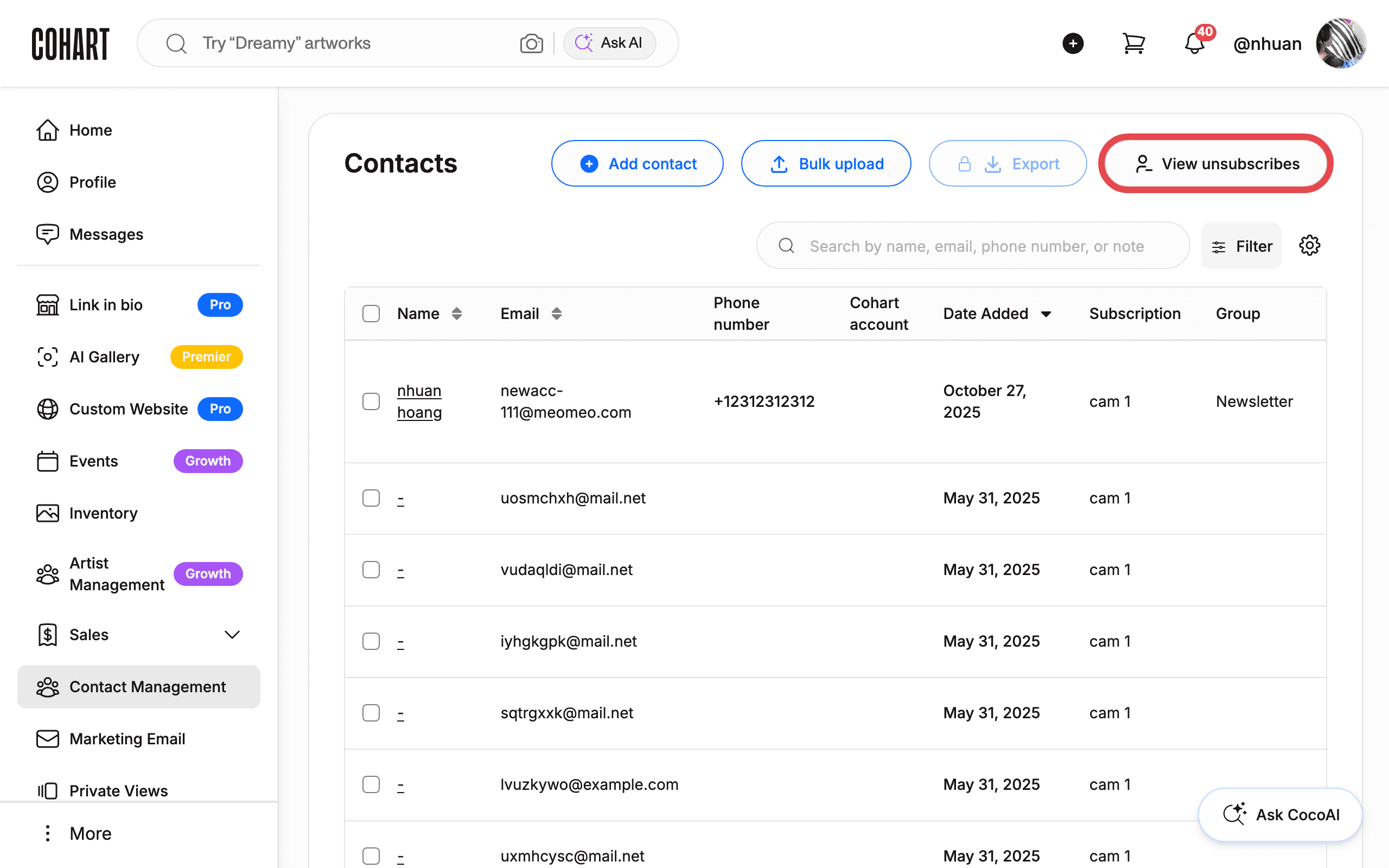
6. Check who has unsubscribed
Click View unsubscribes on the Contact Management page to see who has opted out of your emails. See How to View Unsubscribes for how to read and filter that report.
Tips
- Subscribing is free for anyone, with or without a Cohart account.
- A subscriber can unsubscribe only from the specific emails you send them — they can’t remove themselves from your Contact Management space. If they ask to be fully removed, you can delete their contact record yourself.
- Group your subscribers after they land in Contact Management so you can target campaigns to just that segment instead of your whole list.
Troubleshooting
- A subscriber’s email doesn’t appear as a new contact → the email is already linked to an existing contact or Cohart account → check Contact Management first, since Cohart avoids creating a duplicate record.
- You can’t find a subscriber’s record → use Search by name, email, phone number, or note, or Filter, on the Contact Management page rather than scrolling the full list.
- A subscriber says they keep getting emails after unsubscribing from one message → unsubscribing applies to that specific email, not your whole contact list → remove them from Contact Management directly if they want no further contact.