How to Manage Sales Tax on Your Sales
Overview
Sales Tax on Cohart is the U.S. sales tax charged on a sale, calculated automatically at checkout or invoice time and either collected and remitted by Cohart or left to you to handle yourself. Cohart is registered to manage sales tax in all U.S. states, so the feature exists to save you from tracking state, county, and city rates yourself on transactions that run through the platform.
- Who it’s for — artists and galleries who sell through the Cohart marketplace, Tap to Pay, Quick Sell, or invoices.
- What it controls — how the tax rate is calculated for a sale (by the buyer’s shipping address, by your profile’s default rate, or by a zip code you enter at the point of sale), and whether Cohart or you are responsible for collecting and remitting that tax.
- Where the effects appear — the checkout and invoice tax line the buyer sees, your Edit Profile page, and the invoice or Quick Sell screen for in-person sales.
- What you end up with — a default sales tax rate configured for Pickup and in-person sales, the ability to review or override the rate on any individual invoice, and a clear choice between letting Cohart manage tax or opting out and handling it yourself.
- Sales tax is separate from Cohart’s processing fees and from income tax, VAT, and customs duties, which are covered later in this guide.
Before you start
- You need a seller account on Cohart with at least one sale type in mind (marketplace listing, Tap to Pay, Quick Sell, or invoice) — sales tax settings live in your profile and on the invoice/checkout screens themselves.
- Know which sale type you’re setting up. Ship sales calculate tax from the buyer’s address automatically; Pickup, Quick Sell, and Invoice Only sales use a rate you control, either from your profile default or entered at the point of sale.
- Have a local zip code ready if you plan to set a Pickup default rate or complete an in-person/invoice sale, since the rate is calculated from a zip code.
- Decide who will file the tax before you opt out of Cohart-managed sales tax — opting out means Cohart will not refund sales tax on that transaction and you take on filing and remitting it yourself. Any sales tax still collected on that sale is paid out to you.
Steps
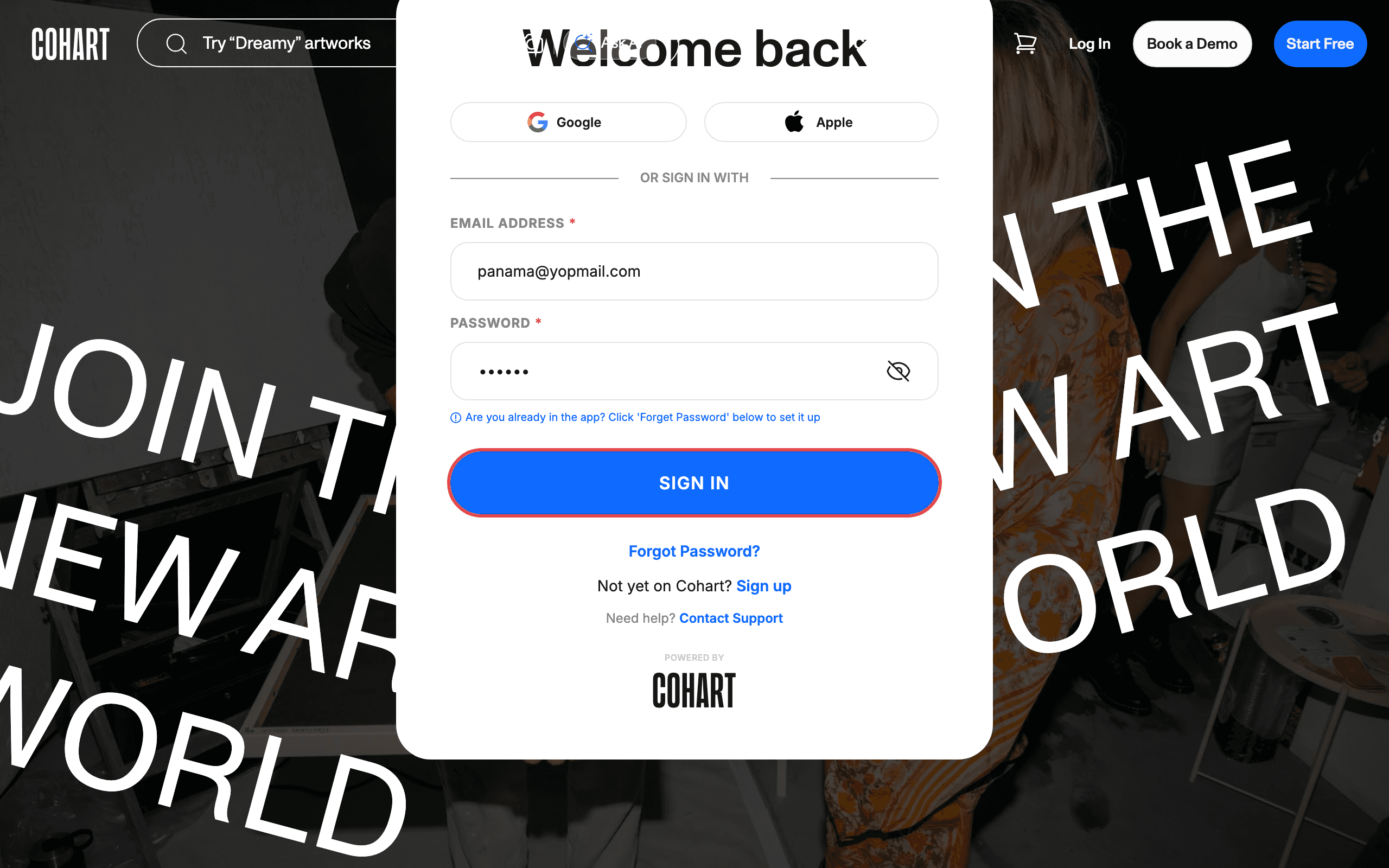
1. Sign in to Cohart
Sign in with your email address and password, or use Google or Apple.
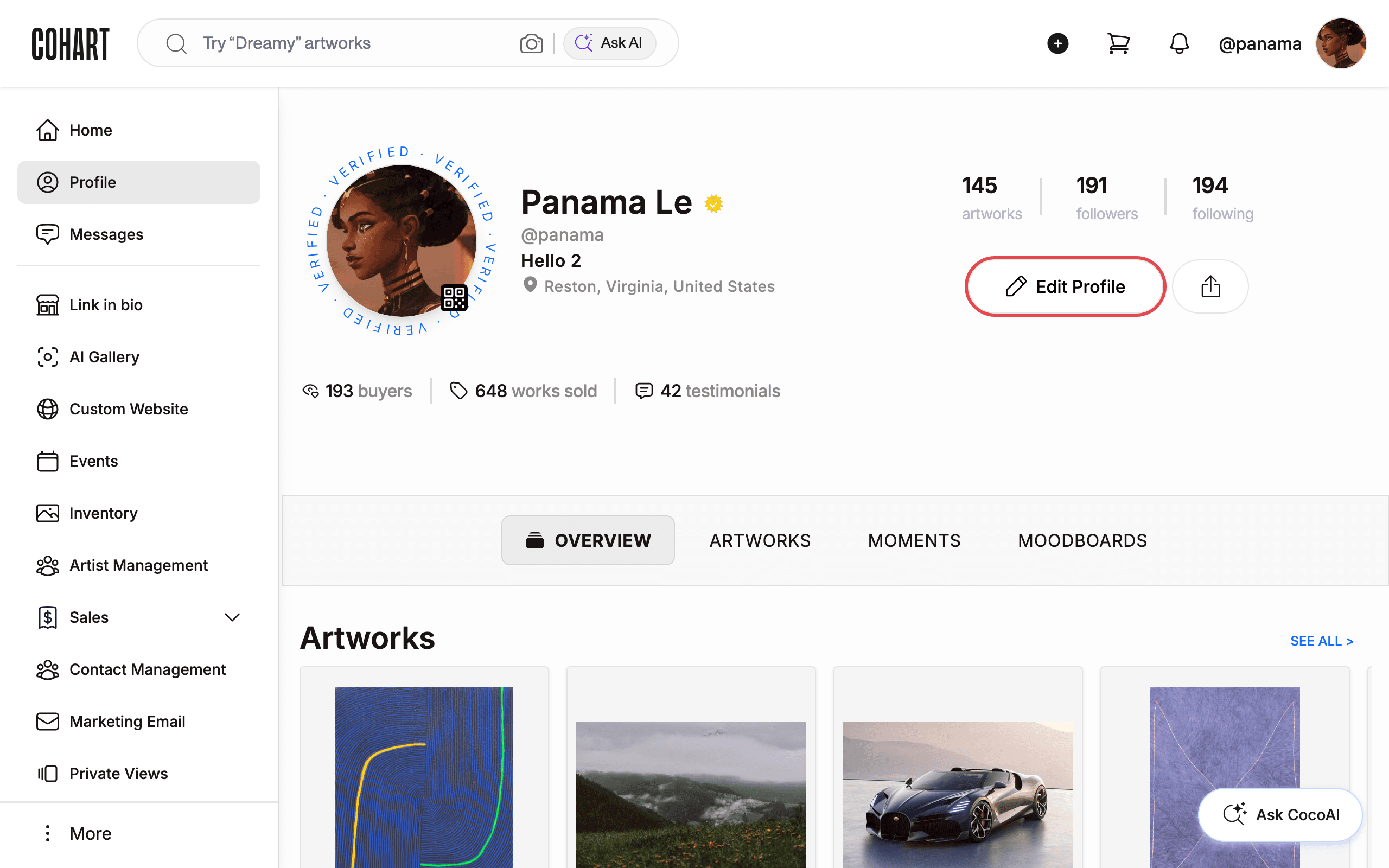
2. Open Edit Profile from your profile page
Go to your profile and click Edit Profile.
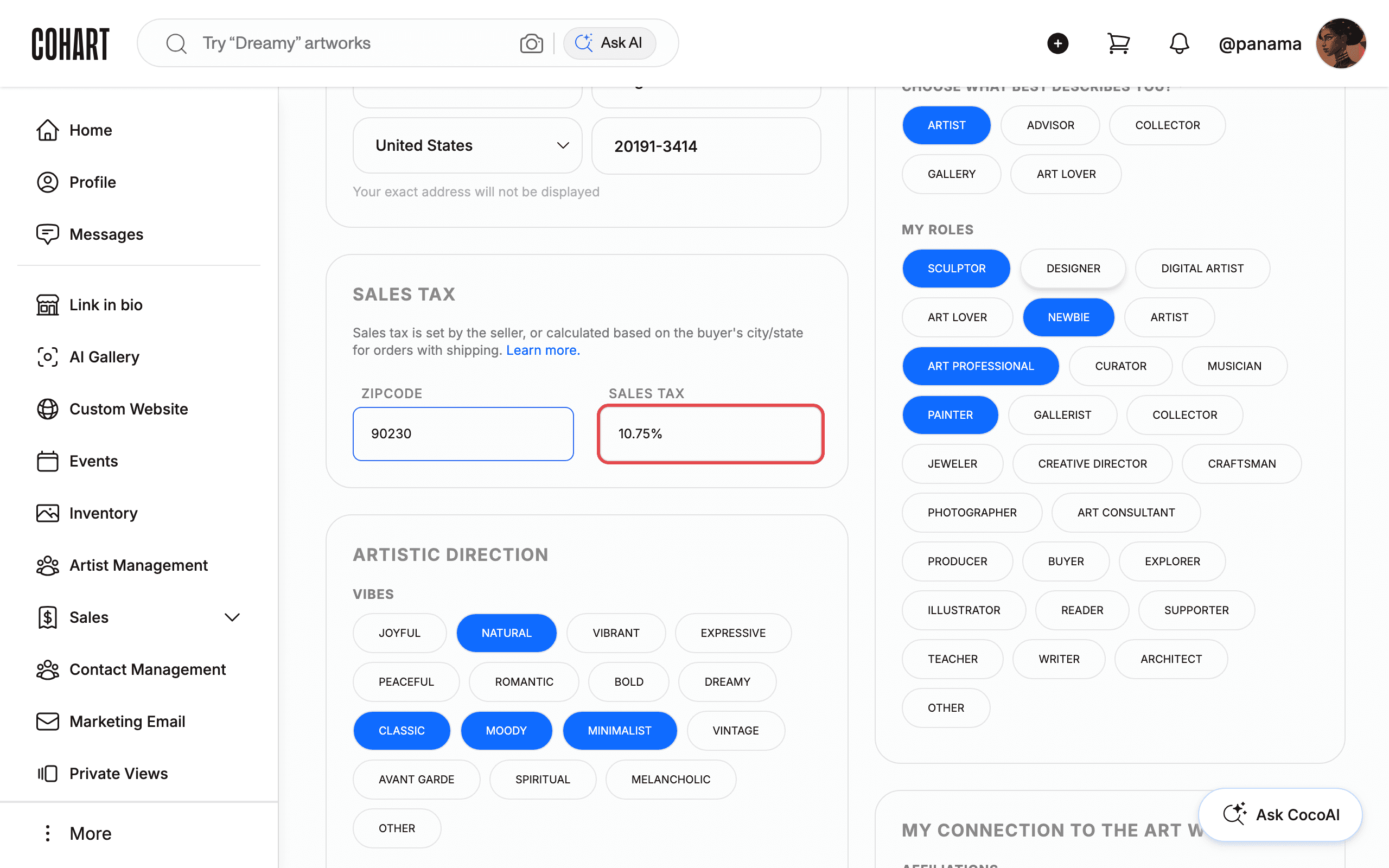
3. Set your default Sales Tax rate for Pickup and in-person sales
Scroll to the Sales Tax section. Enter the local Zipcode where you sell from to automatically calculate a rate — for example, a Los Angeles-area zip code produces a rate in the 10% range. This section notes: “Sales tax is set by the seller, or calculated based on the buyer’s city/state for orders with shipping.”
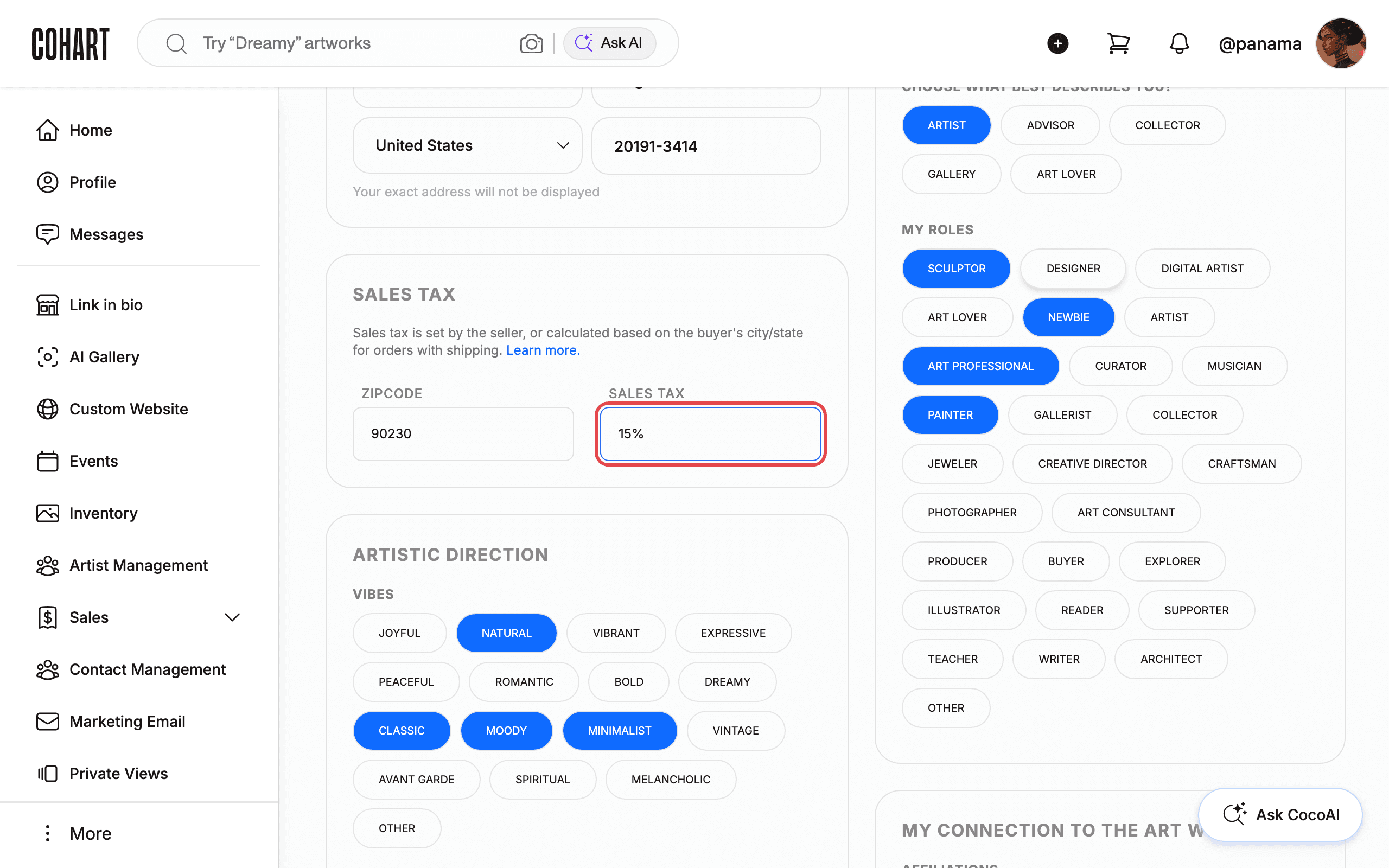
4. Override the rate manually if you prefer a different default
The Sales Tax field next to Zipcode accepts a manual value, so you can type a different percentage instead of the calculated one. This becomes the default rate for all your non-Ship sales — Pickup/Drop-off at Buy Now checkout and Invoice Only payments — until you change it again. Ship sales never use this rate; they always calculate tax from the buyer’s shipping address once it’s filled in.
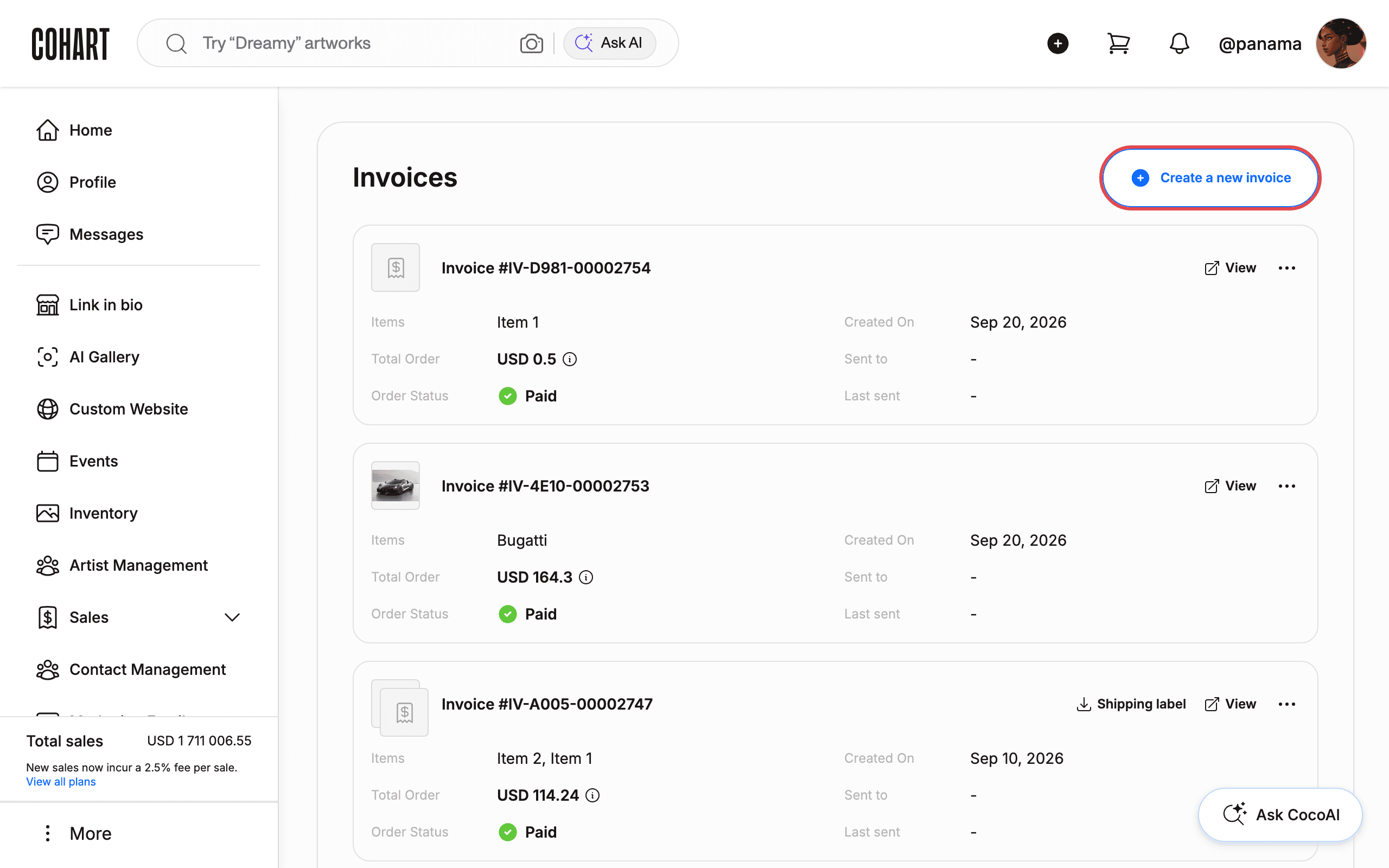
5. Open Sales > Invoices and start a new invoice
Open Sales in the sidebar, go to Invoices, and click Create a new invoice. The same Tax section appears here and in the Quick Sell flow in the Business App for any in-person sale.
6. Enter the local zip code in the Tax section
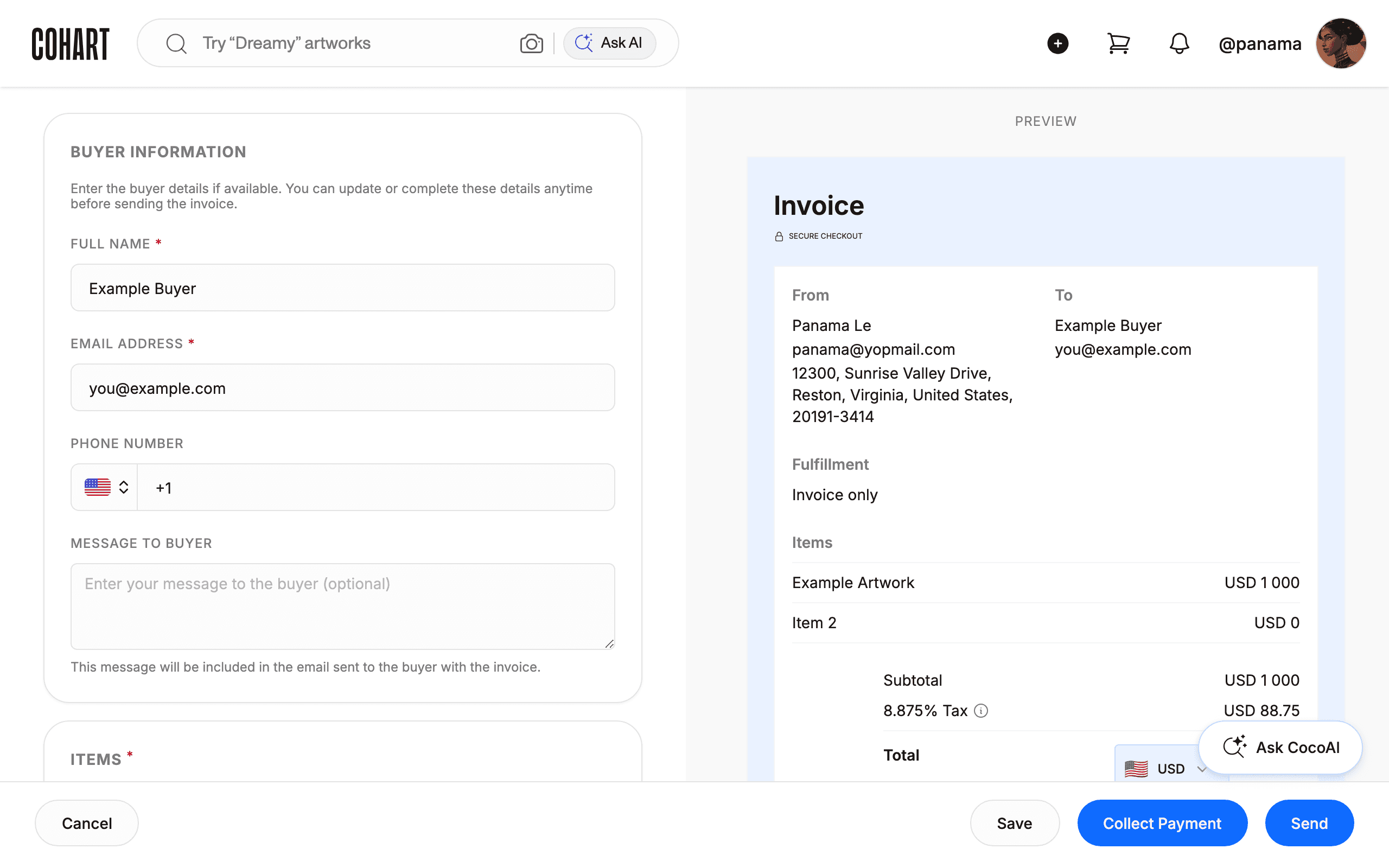
Fill in the buyer’s information and add at least one item, then choose a Fulfillment method. For Invoice Only or in-person sales, scroll to Tax and enter the Zip Code for where the sale is taking place. Cohart looks up the sales tax rate for that zip code automatically and fills in the Sales Tax percentage — if you already set a default rate in your profile, it pre-fills here and you can adjust it for this invoice only, without affecting future invoices or online sales.
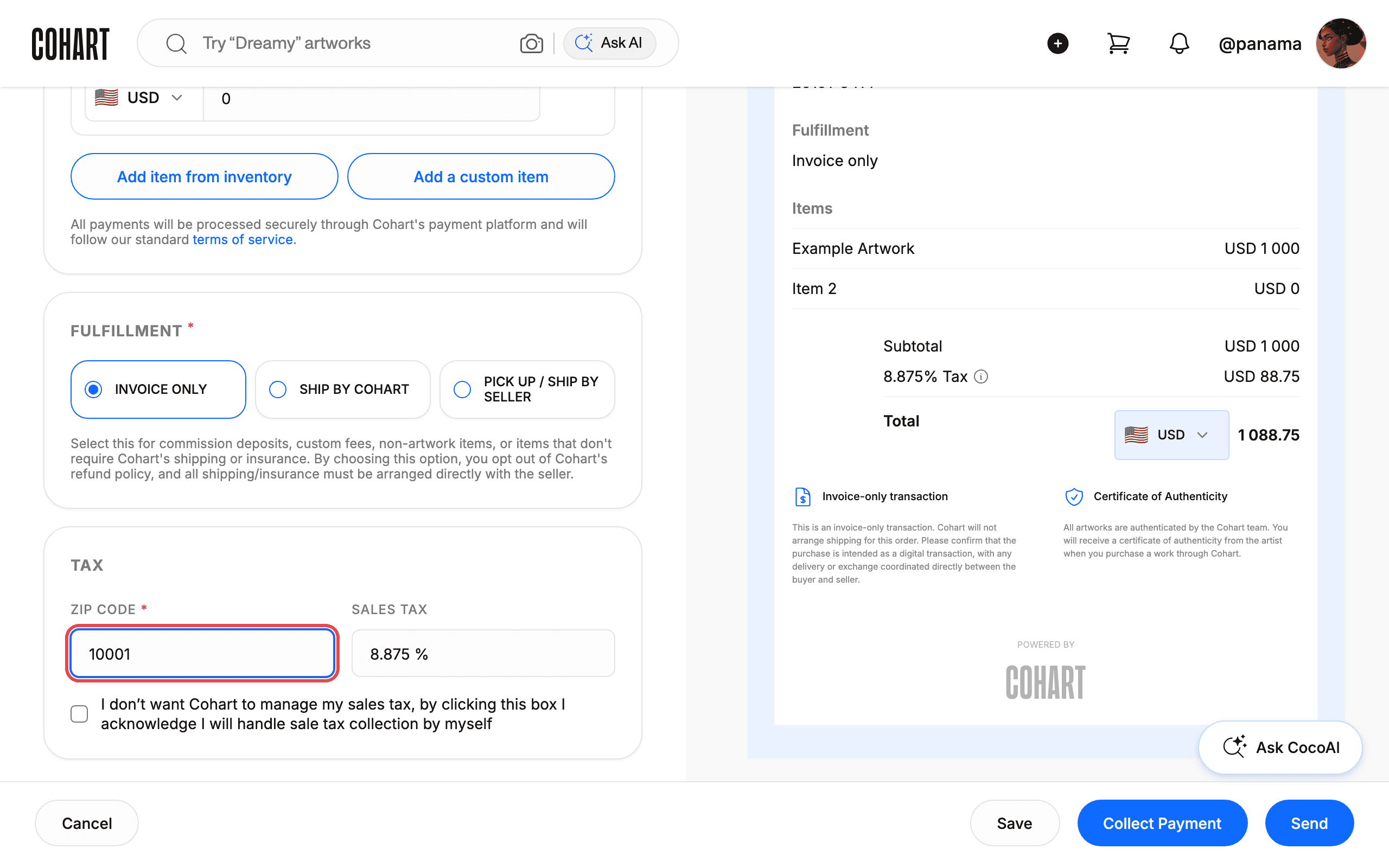
7. Review the live preview showing the tax line
Check the invoice preview on the right. It breaks out the Subtotal, the calculated tax line (shown as a percentage, e.g. “8.875% Tax”), and the Total the buyer will pay. The tax amount is added on top of the item price or order subtotal and shown clearly to the buyer — your payout is based on the pre-tax price when Cohart manages the tax.
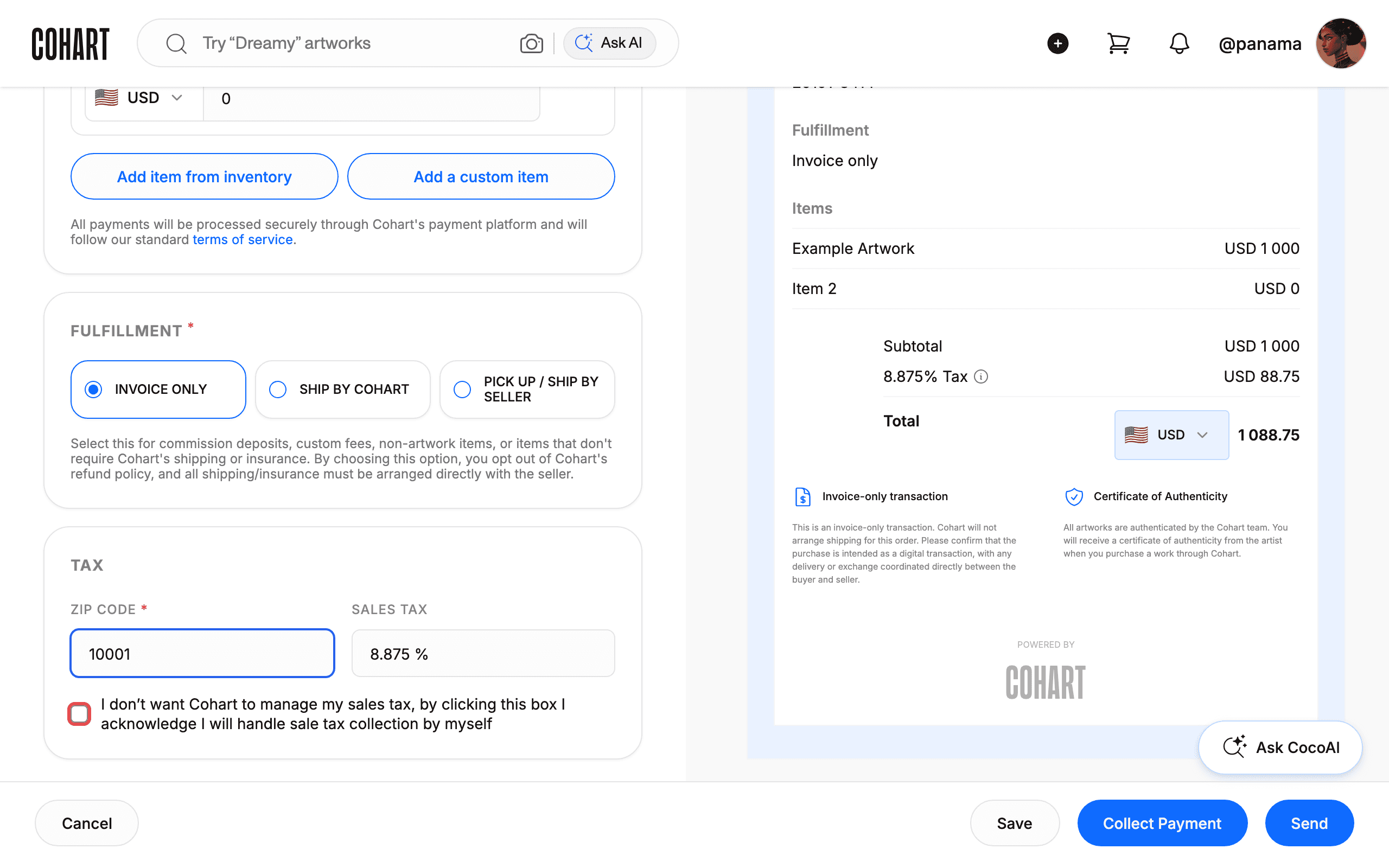
8. Opt out of Cohart-managed sales tax if you want to handle it yourself
If you’d rather manage sales tax on this sale yourself, check “I don’t want Cohart to manage my sales tax, by clicking this box I acknowledge I will handle sale tax collection by myself.” By checking this box you acknowledge that you are responsible for reporting and filing that tax, and Cohart will not refund sales tax if you select this option.
Checking the box doesn’t stop tax from being charged. If you still enter a zip code or a sales tax rate, Cohart still collects that sales tax from the buyer at payment, and the tax amount goes to you along with the sale — Cohart doesn’t keep it or file it. You remain responsible for filing and remitting that tax to your state. If you don’t want any tax charged on the sale, leave the zip code and sales tax rate empty.
Tips
- Worked example. An order of $1,000 with a $50 discount has a $950 subtotal. At an 8.625% rate, tax is $81.94 (rounded), making the total $1,031.94 before any shipping fee.
- Selling outside the U.S.? U.S. sales tax only applies when a sale happens in the U.S. or the artwork is delivered there. If your sale happens entirely outside the U.S., select the option to manage your own sales tax at checkout, or use zip code 00000 for a QR code or Buy Now checkout, so U.S. sales tax isn’t added.
- Unset a profile rate for Pickup sales and it falls back to the buyer. If you don’t set a Sales Tax rate in your profile for online Pickup sales, the buyer’s entered zip code (or the zip code at the point of sale) determines the rate instead.
- Keep your own record of collected tax, especially for invoice sales where you adjust the rate — it’s useful for your own reporting even though Cohart handles the filing for its own processed sales.
- Sales tax, income tax, VAT, and customs duties are four different things. Sales tax is paid by the buyer at checkout on the purchase price, and Cohart collects and remits it where applicable. Income tax is based on your earnings and stays your responsibility — Cohart issues a 1099 annually so you can report that income. Customs duties may apply when artwork ships across international borders, assessed by the destination country. VAT applies in many non-U.S. countries at different stages of a sale; Cohart currently manages U.S. sales tax only, so VAT obligations depend on your country and sale structure.
- A qualified tax advisor is your best resource for anything beyond this guide — Cohart can’t give personal tax advice, since obligations vary by country and business setup.
- See How to Get Paid: Seller Payouts on Cohart for how sales tax interacts with when and how much you get paid.
Troubleshooting
- The tax line looks like it’s missing from a Buy Now or Discover sale → for marketplace sales, Cohart always manages sales tax automatically and the buyer sees it at checkout → no action needed; you receive the price excluding tax, and Cohart handles collection and remittance.
- A POS, Tap-to-Pay, Quick Sell, or invoice sale shows the full payment (including tax) landing in your connected account → you (or a previous invoice) selected the opt-out checkbox, so Cohart collected the tax you entered but passed it to you instead of filing it → you’re responsible for filing and remitting that tax yourself; leave the box unchecked on future sales if you want Cohart to manage it again.
- The rate seems wrong for a Pickup or in-person sale → the rate comes from your profile default or the zip code entered at the point of sale, not from your own location automatically → open Edit Profile > Sales Tax and confirm the zip code and rate, or correct the zip code on the specific invoice.
- You’re selling in person off-platform (cash, Venmo, a personal card reader) → Cohart only processes tax for payments it processes, so off-platform payments are your own responsibility to collect and remit, and you may need a temporary seller’s permit — check your event’s exhibitor materials, and note that Tap to Pay sales are processed by Cohart and are covered.
- You received a sales tax notice or late fee → Cohart-processed sales are filed under Cohart, so you don’t file those specific transactions separately, but a sales tax account you registered yourself in a state may still require a zero return or account closure → the notice is typically about that separate filing, not your Cohart-processed sales; reach out to Cohart support if you’re unsure which sales a notice covers.
- You’re not sure whether you need a seller’s permit → sales processed through Cohart don’t need one, since Cohart collects and files on your behalf, but off-platform sales may require a temporary permit, and requirements vary by fair or event → check your specific exhibitor materials.
- A buyer asks for an invoice for their own records → you don’t need to send a separate invoice for Cohart-processed sales, but you can download your transaction history or generate an invoice addressed to Cohart from your dashboard → share that if the buyer needs documentation.