How to Buy an Artwork on Cohart
Overview
Each seller chooses how their artwork can be bought, so the buttons on an artwork page change from one listing to the next. Priced works that are available for checkout show Add to Cart and Purchase; other works show Make an Offer or Inquire to Purchase instead. By the end you will have either an artwork in checkout or an offer or inquiry sent to the seller.
- Who it’s for — collectors and anyone buying artwork on Cohart.
- Add to Cart — saves the artwork to My Cart so you can check out several works together; the button changes to In Cart.
- Purchase — opens the Checkout page for that one artwork straight away.
- Make an Offer — sends the seller the price you would pay; it is not a final charge.
- Inquire to Purchase — sends the seller a message about the work; no payment is taken.
Before you start
- The seller decides which options you see. An artwork shows Add to Cart and Purchase only when the seller has listed it for checkout with a price and it is still available. Otherwise you see Make an Offer, Inquire to Purchase, or both, depending on what the seller allows.
- You need a signed-in account to add an artwork to your cart, make an offer, or check out.
- Have your contact details and shipping address ready. Checkout, offers, and inquiries all ask for your name, phone number, and email address.
Steps
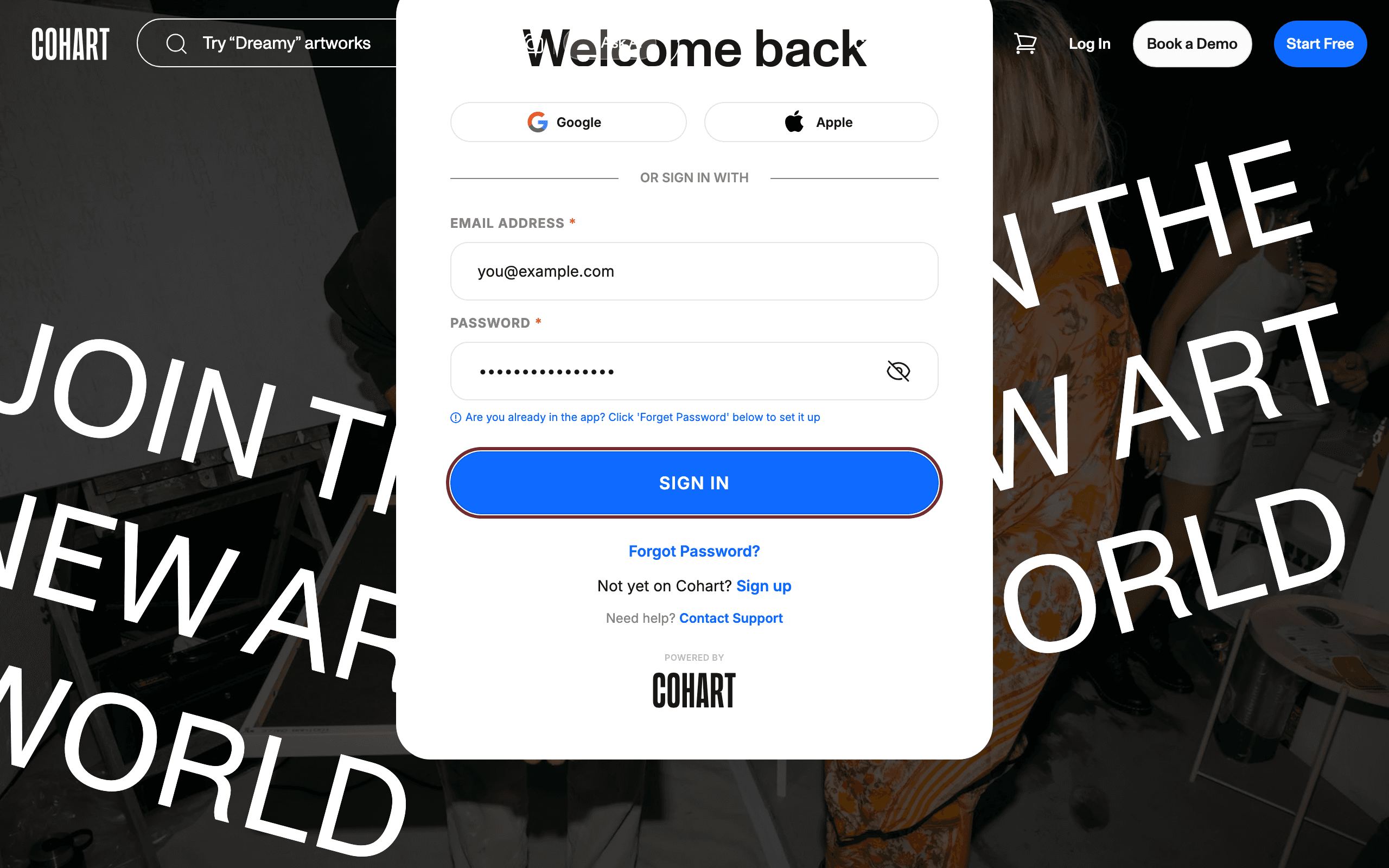
1. Sign in to Cohart
Sign in with your email address and password, or use Google or Apple.
2. Open the artwork and check how it’s sold
Open the artwork’s page from Discover, an artist’s storefront, or a link the seller shared. Look at the buttons under the price: this artwork shows Add to Cart and Purchase because the seller listed it for checkout with a price.
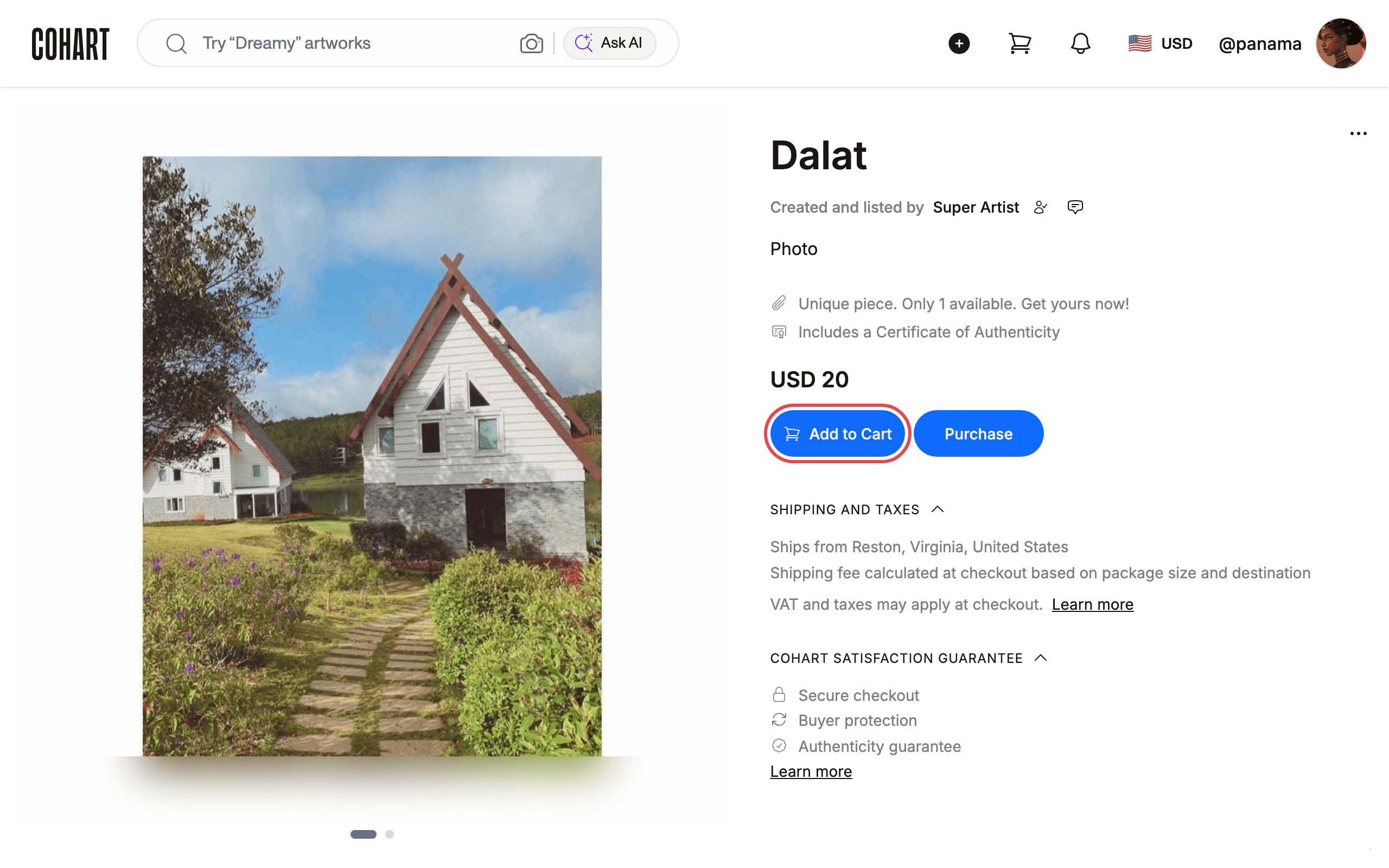
3. Add the artwork to your cart
Click Add to Cart. The button becomes In Cart and the artwork is saved in your cart. Repeat on other artwork pages to add more works before you check out.
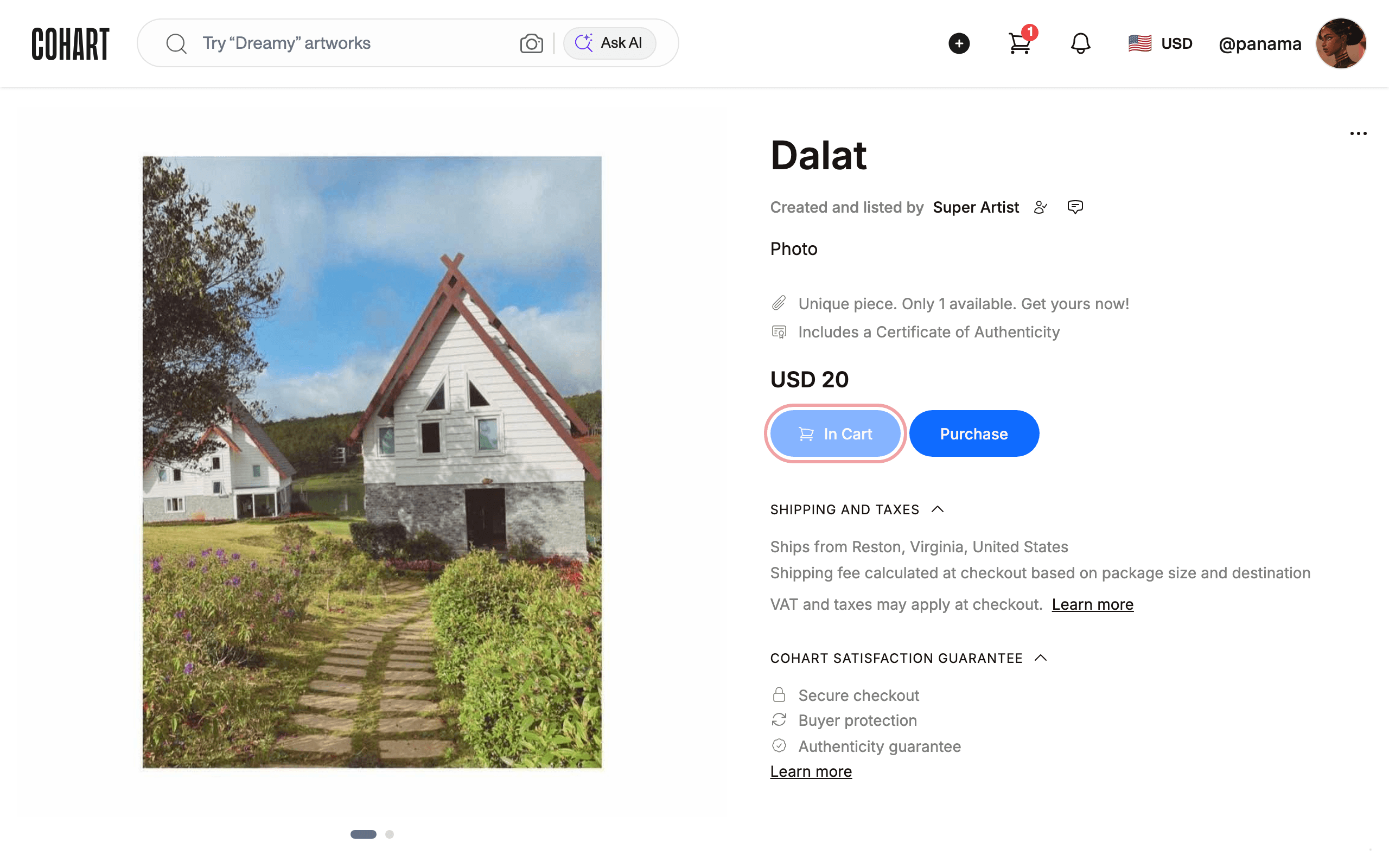
4. Open My Cart from the header
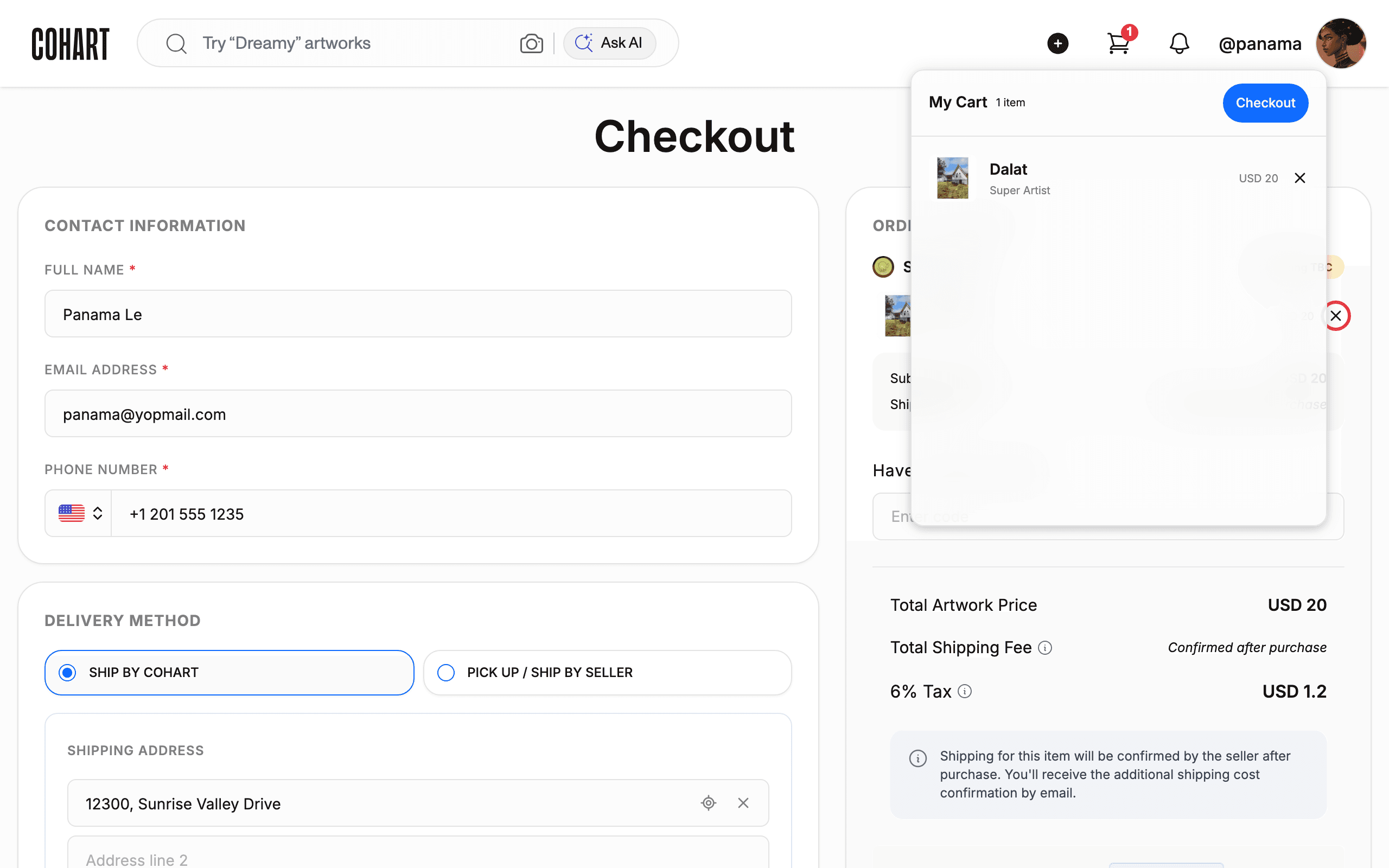
Point at the cart icon in the top navigation to open My Cart. It lists every artwork you’ve added, each with its price and a remove (X) button. If the cart is empty, it shows Your cart is empty.
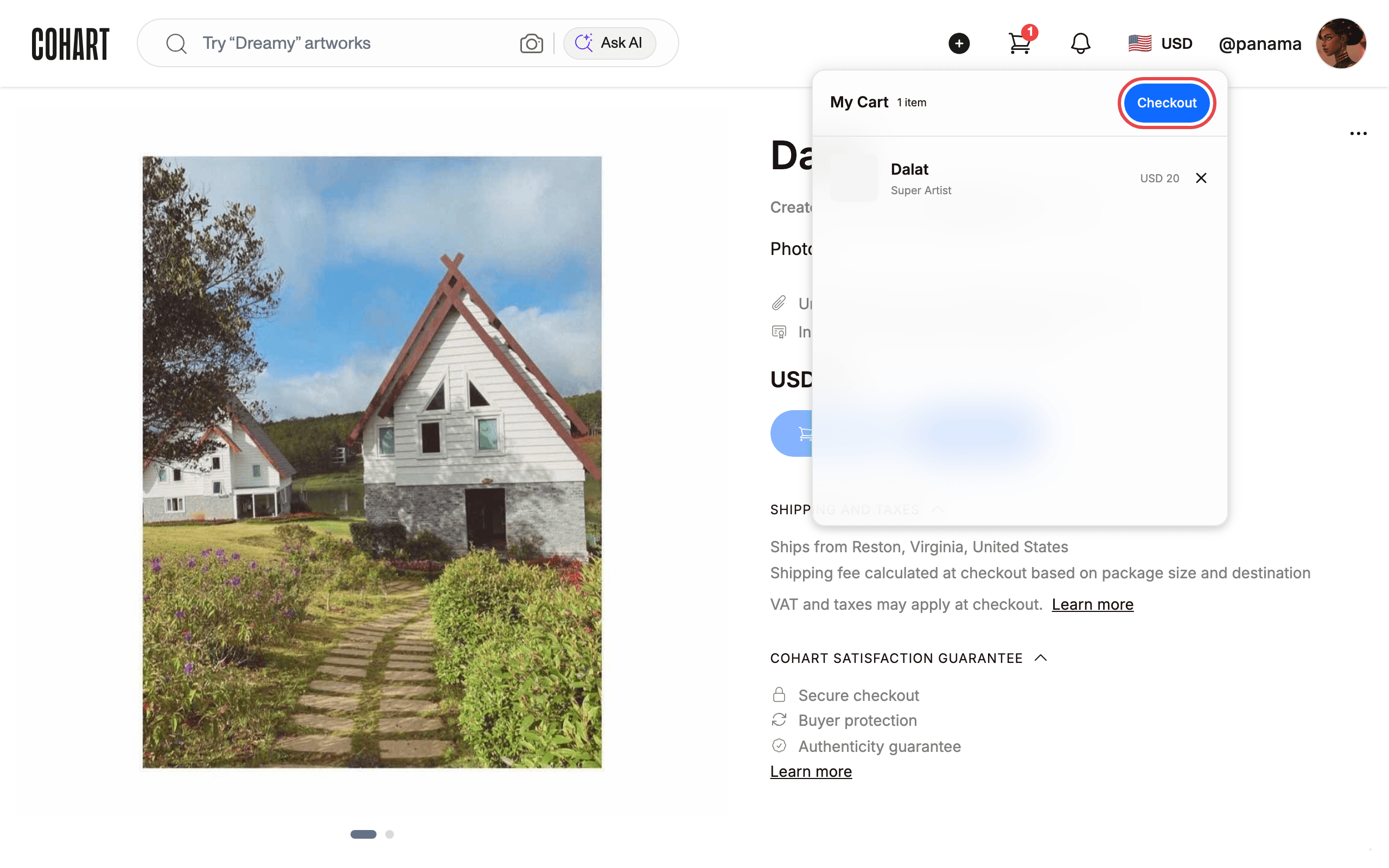
5. Click Checkout and fill in your details
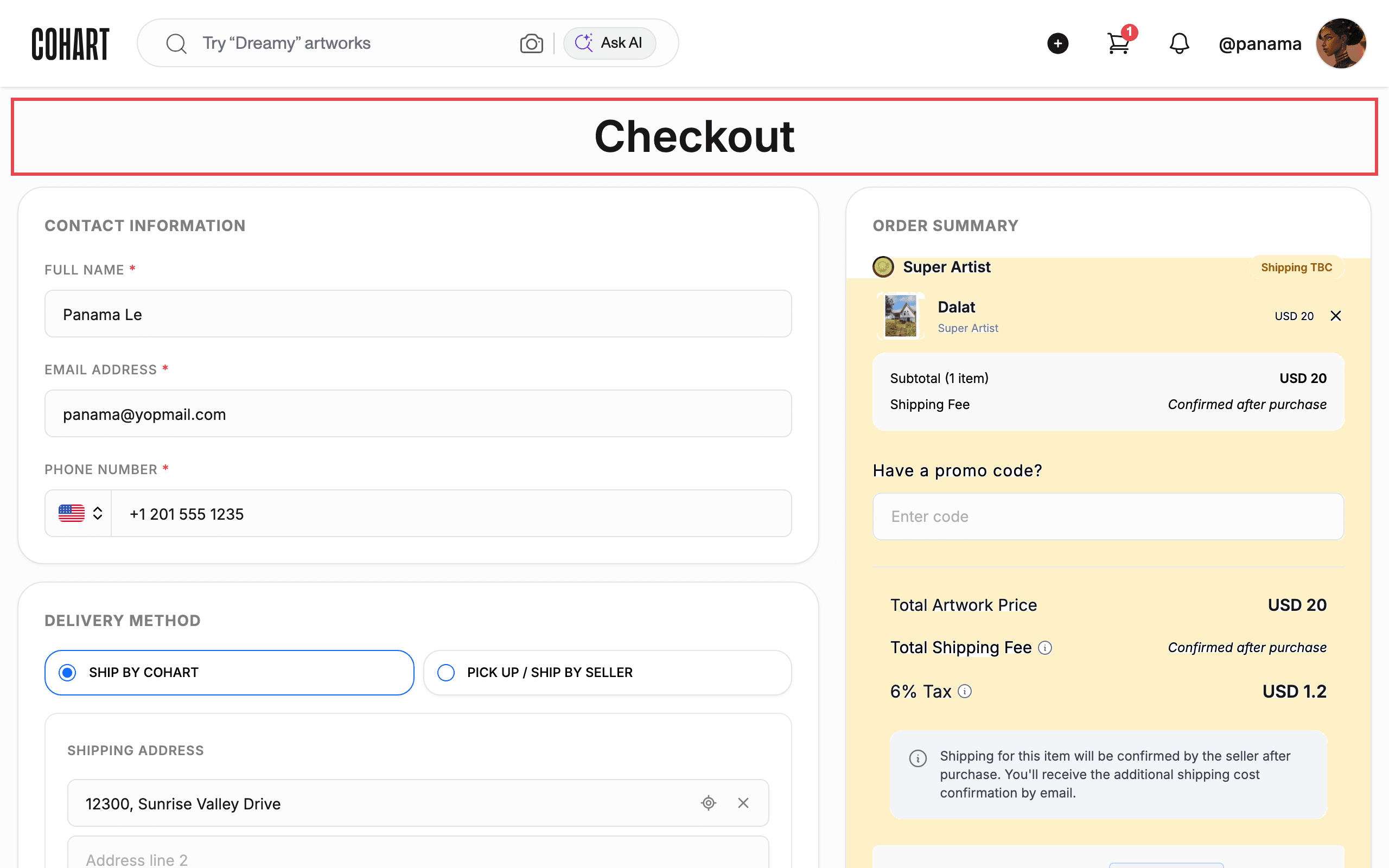
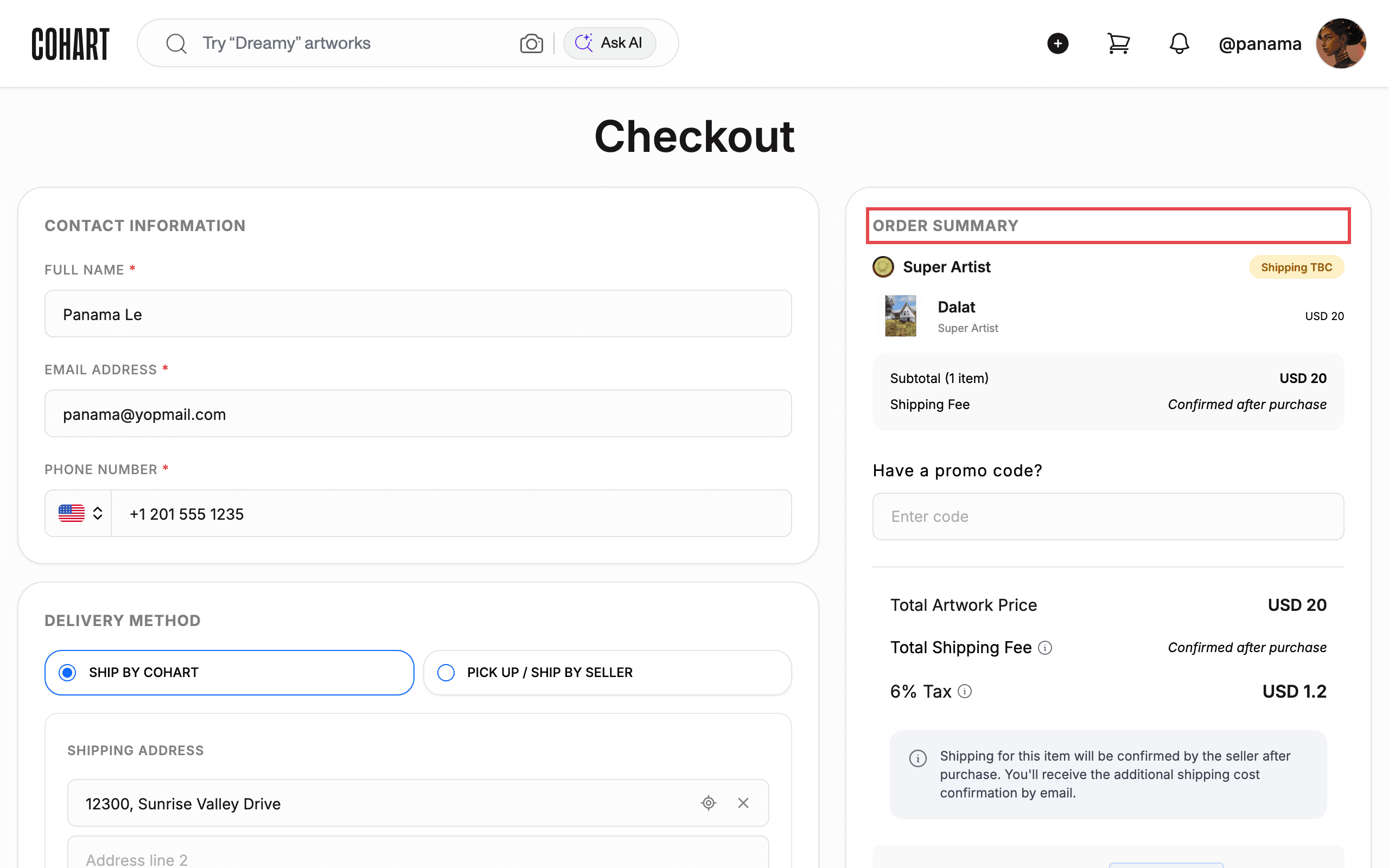
Click Checkout in My Cart to open the Checkout page. Fill in CONTACT INFORMATION — FULL NAME, EMAIL ADDRESS, and PHONE NUMBER are all required. Under DELIVERY METHOD, choose SHIP BY COHART and enter your SHIPPING ADDRESS, or choose PICK UP / SHIP BY SELLER.
6. Review the order summary and pay
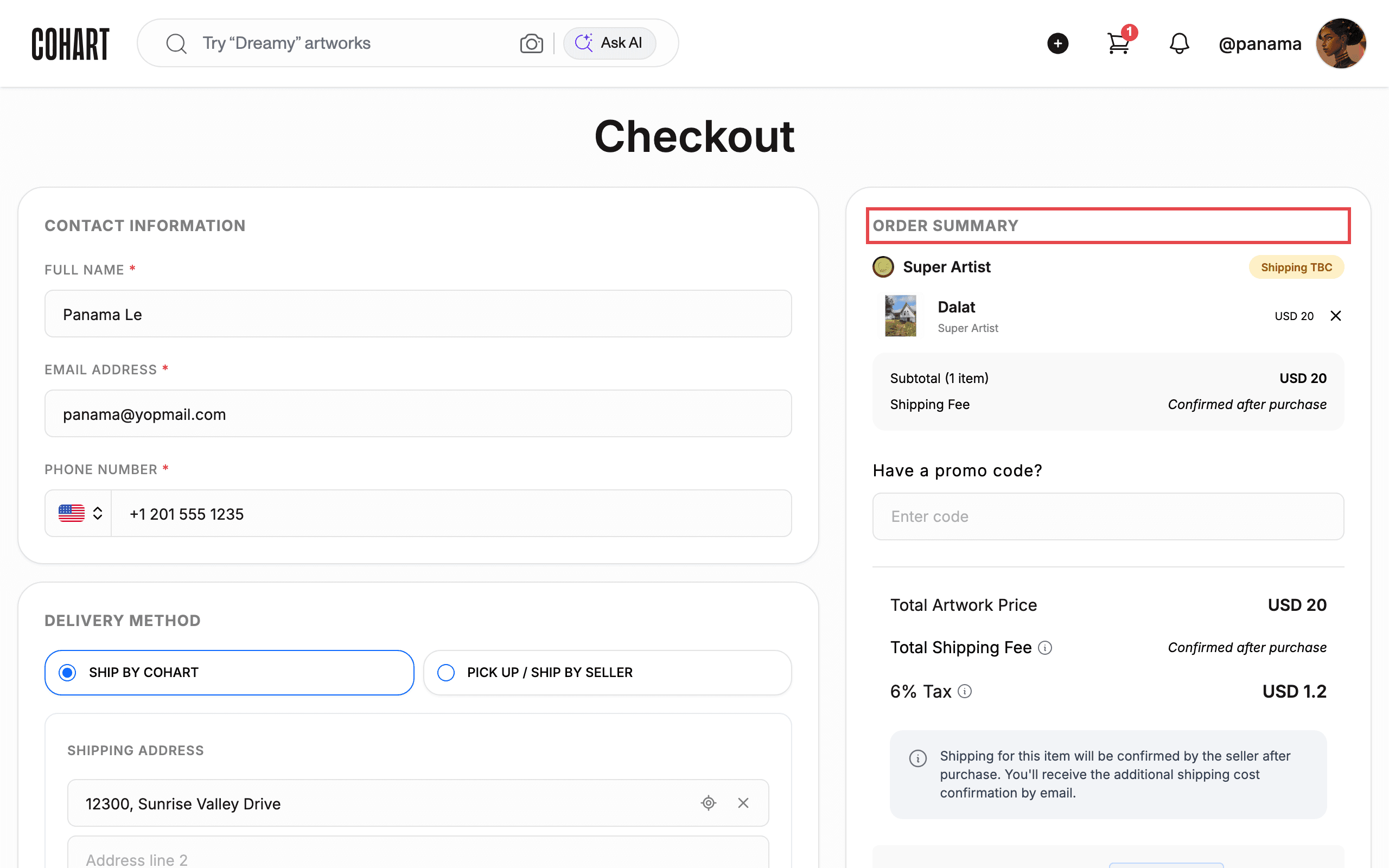
Check the ORDER SUMMARY on the right: each artwork, the Subtotal, Have a promo code?, Total Artwork Price, Total Shipping Fee (it can read Confirmed after purchase when the seller confirms shipping later), any tax, and the Total. Then complete the payment to place your order.
7. Remove an artwork from your cart
To take a work out before you pay, click the X next to it — in My Cart (point at the header cart icon) or in the ORDER SUMMARY on the Checkout page.
8. Buy one artwork directly with Purchase
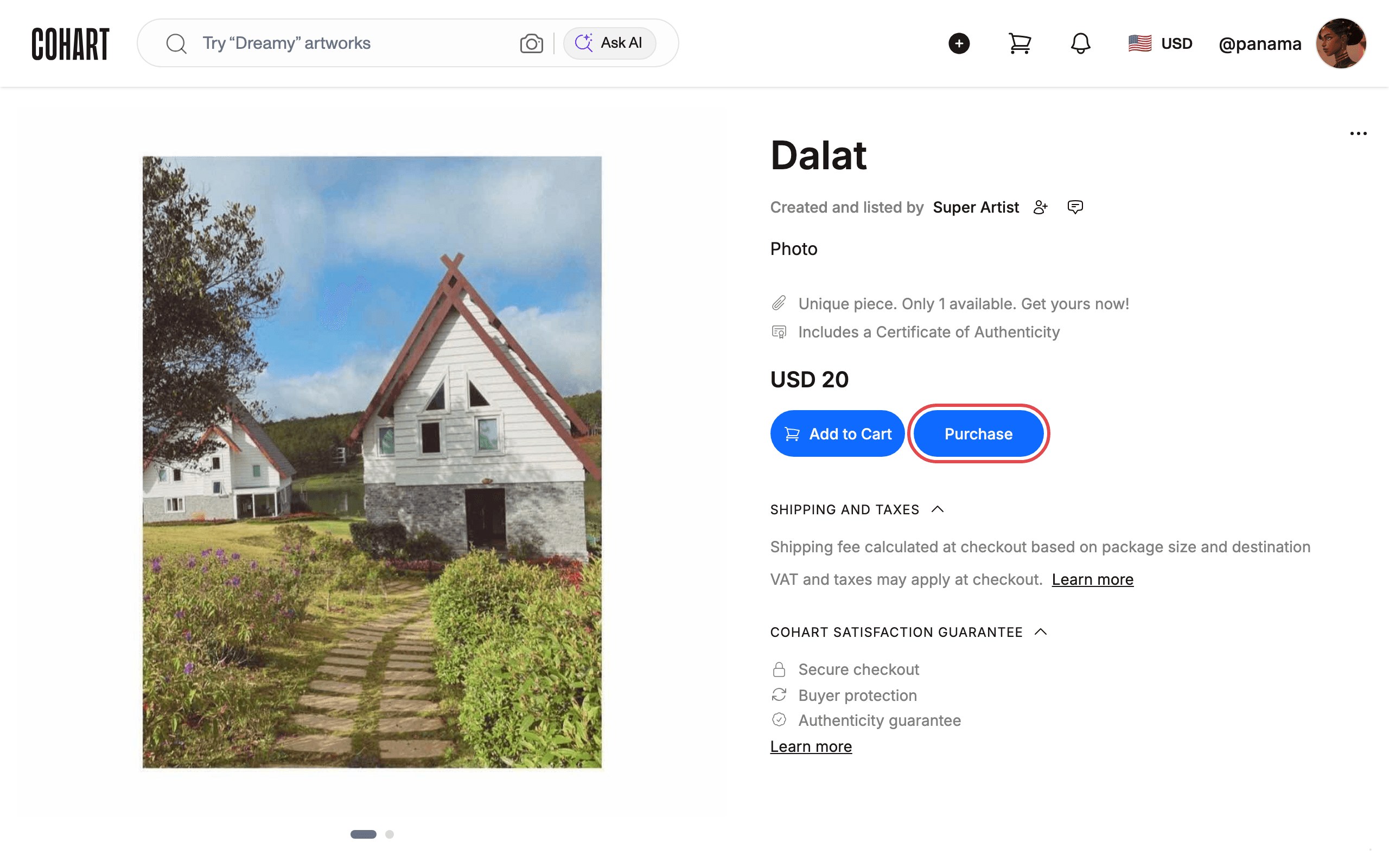
To buy a single work without using the cart, click Purchase on its artwork page.
9. Complete checkout for that artwork
Purchase opens the Checkout page for that artwork. Fill in CONTACT INFORMATION and DELIVERY METHOD, review the ORDER SUMMARY, and complete the payment — the same as steps 5 and 6.
10. Make an offer instead
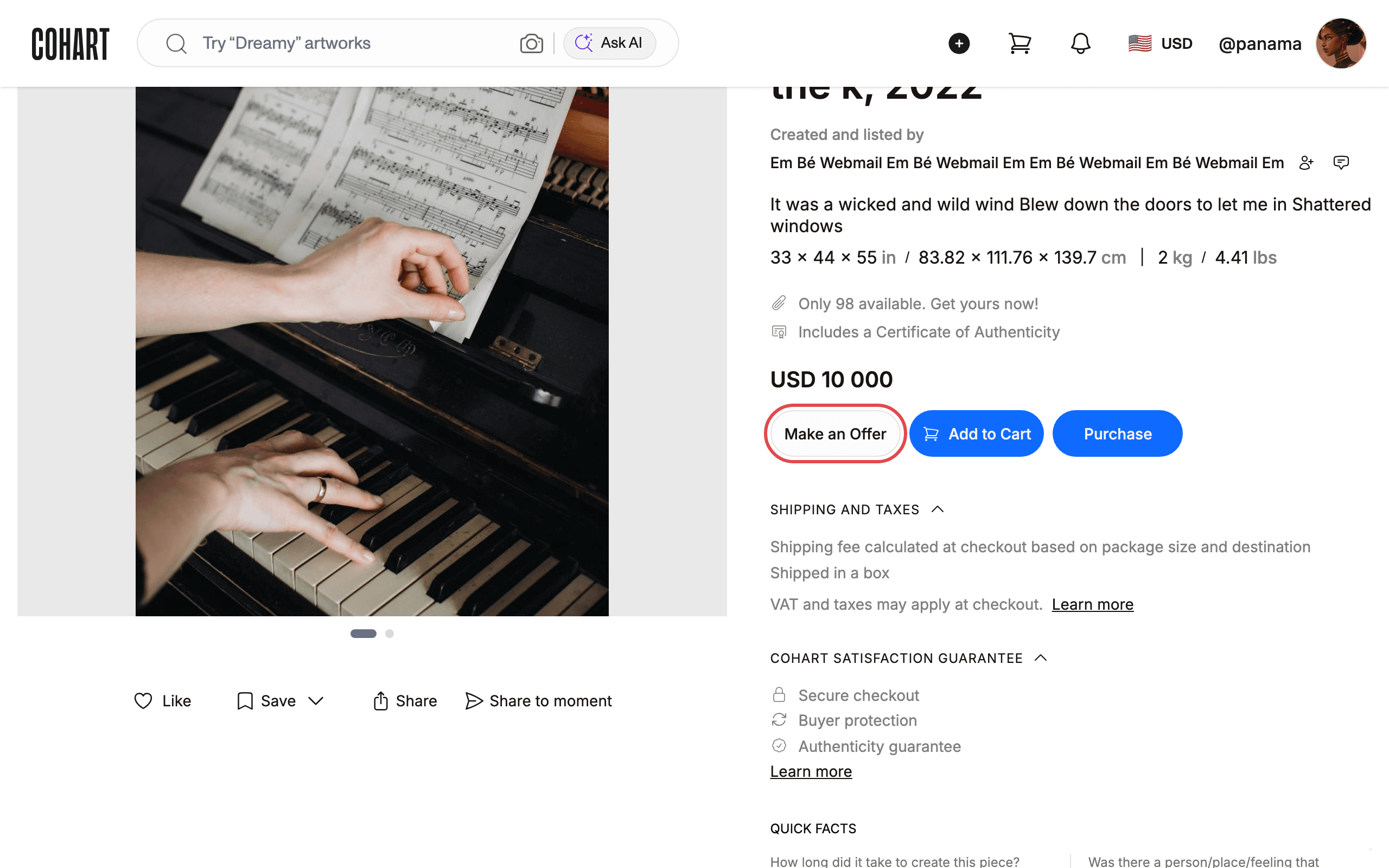
On an artwork that accepts offers, click Make an Offer. The same page may also show Add to Cart and Purchase if the seller accepts both offers and direct checkout.
11. Send your offer
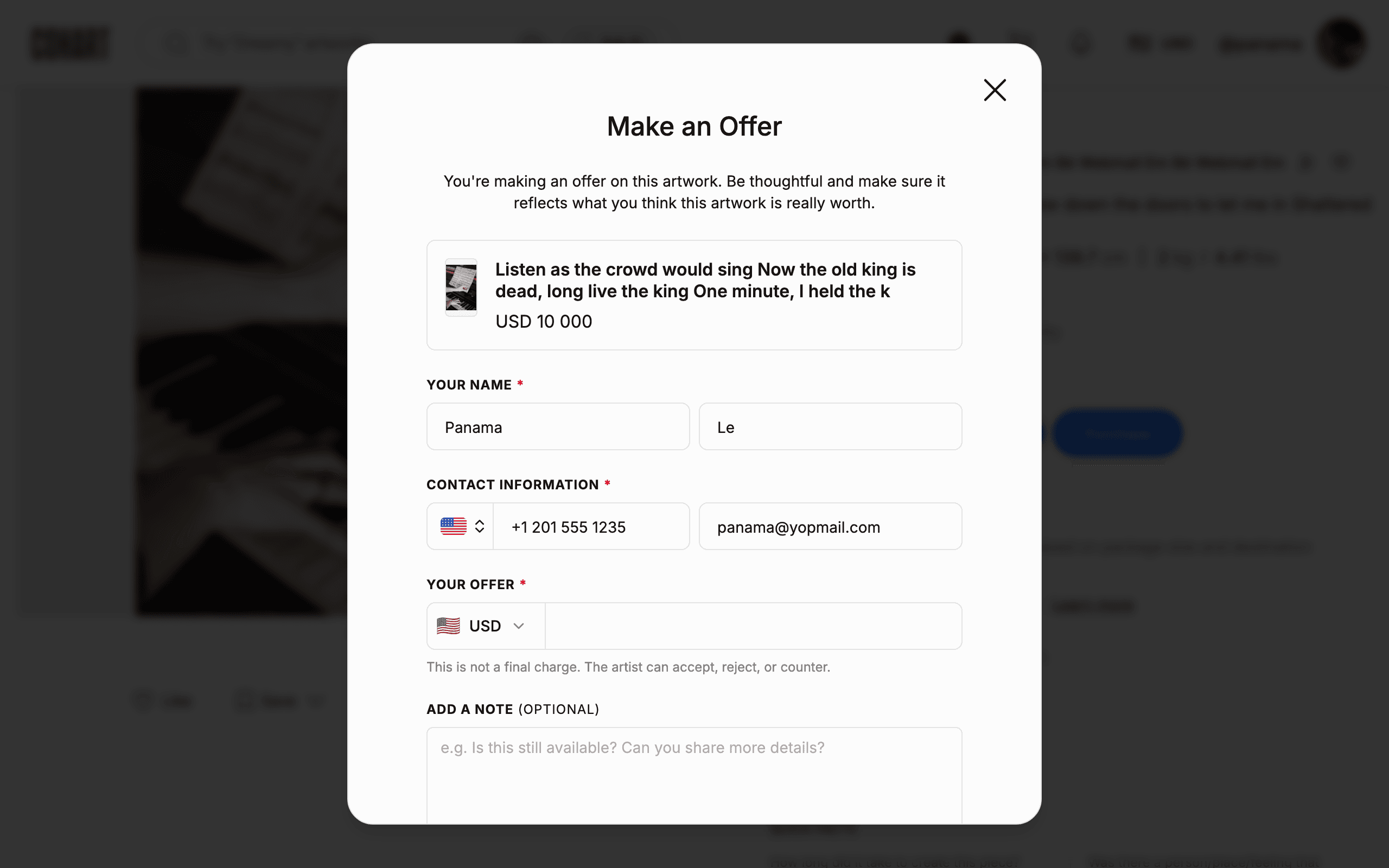
The Make an Offer dialog shows the artwork and its listed price. Fill in YOUR NAME and CONTACT INFORMATION (phone number and email address), then enter your price under YOUR OFFER and pick the currency. You can add a message under ADD A NOTE (OPTIONAL). Tick I agree to Cohart’s terms and conditions. and click Send offer, or Cancel to close. The offer is not a final charge — the seller can accept, decline, or counter it. Your offer goes to the seller’s Cohart inbox, and you can message the seller directly from there while you wait for a response.
12. Inquire to purchase instead
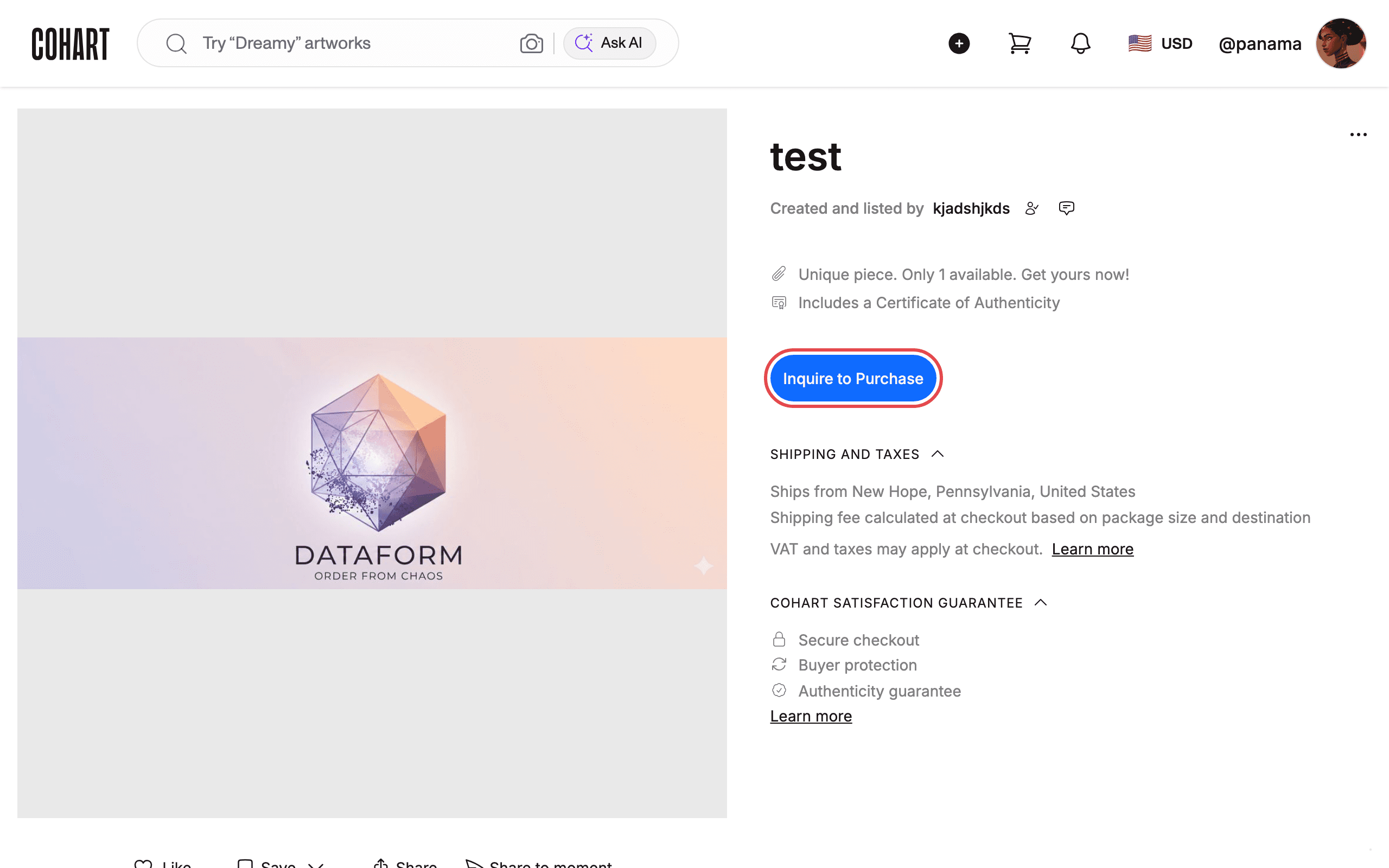
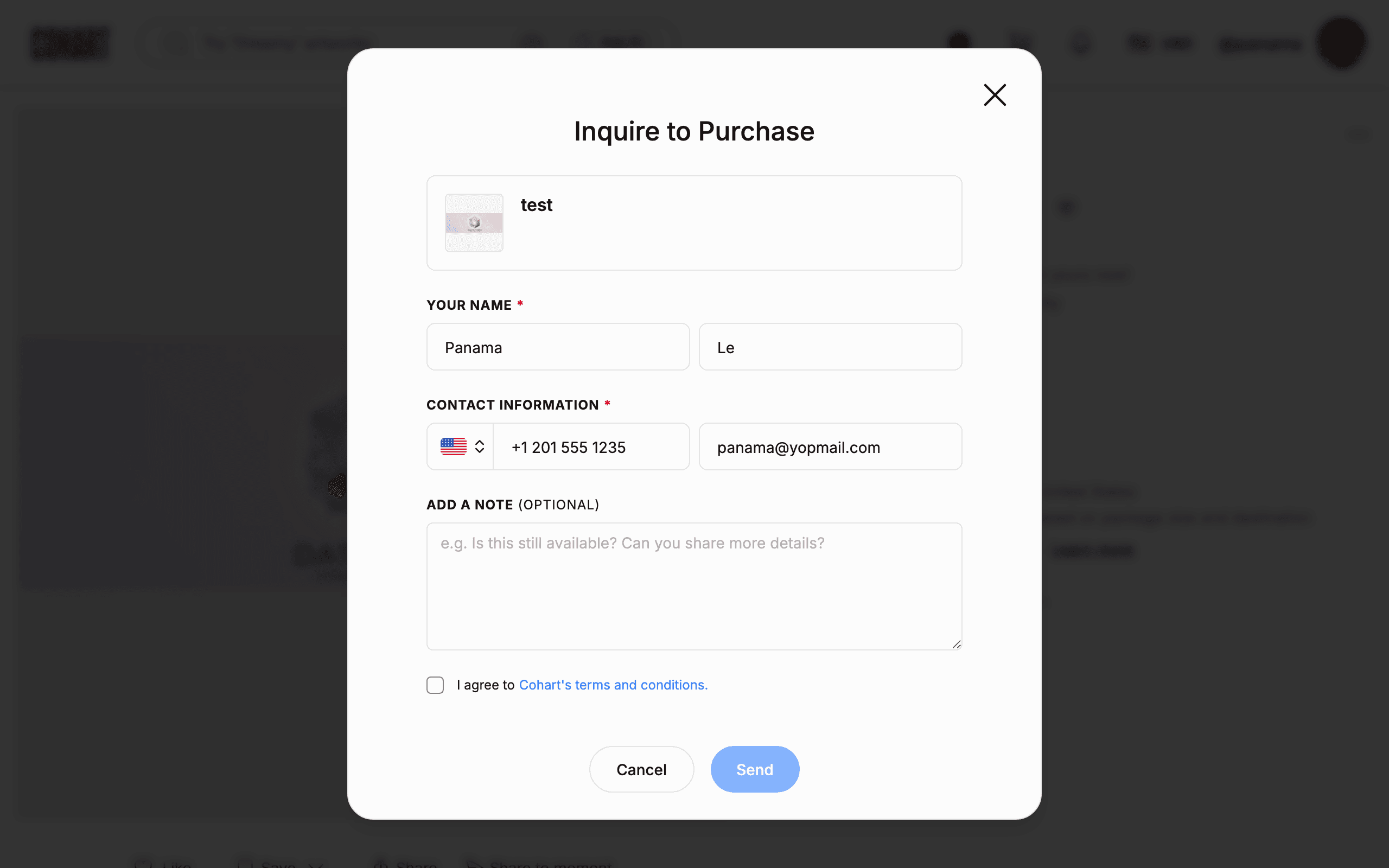
On an artwork that isn’t set up for checkout, click Inquire to Purchase to ask the seller about buying it.
13. Send your inquiry
The Inquire to Purchase dialog shows the artwork. Fill in YOUR NAME and CONTACT INFORMATION (phone number and email address), and write your question under ADD A NOTE (OPTIONAL) — for example, “Is this still available? Can you share more details?”. Tick I agree to Cohart’s terms and conditions. and click Send, or Cancel to close. No payment is taken. Your inquiry goes to the seller’s Cohart inbox, where the seller can confirm the artwork’s availability and share any details you asked for.
Tips
- No Add to Cart button? The seller has chosen to sell that work by offer or inquiry only. Use Make an Offer or Inquire to Purchase instead.
- Shipping fee can show as “Confirmed after purchase.” Some sellers confirm the exact shipping cost only after you buy.
- Enter a promo code before you pay. Use Have a promo code? in the ORDER SUMMARY, then check the Total again.
- Send stays disabled until you tick the terms box. Tick I agree to Cohart’s terms and conditions. in the offer or inquiry dialog first.
- Keep offers within a reasonable range. Sellers commonly expect offers within roughly 15-30% below the listed price — a much lower offer is less likely to be accepted.
- You can cancel an offer or inquiry at any time by telling the seller directly in your conversation, or by contacting Cohart. Sending an inquiry never obligates you to buy.
- Paying after your offer is accepted is not instant. You get to choose when to complete the purchase, but sellers generally don’t hold artwork without a completed sale, so a piece you’re slow to pay for could sell to someone else.
Troubleshooting
- My Cart shows “Your cart is empty.” → nothing has been added yet, or everything was removed → go back to an artwork page and click Add to Cart.
- The Checkout page shows “Your cart is empty.” right after you clicked Checkout → the cart hasn’t finished loading → refresh the page; if the cart is still empty, add the artwork again.
- Checkout won’t move past contact information → FULL NAME, EMAIL ADDRESS, and PHONE NUMBER are required, along with a delivery method → complete every required field.
- You need help with an order you already paid for → contact the Cohart team at support@cohart.com with the artwork and order details.
- No Make an Offer button on an artwork you expected to negotiate on → the seller hasn’t turned on offers for that piece → use Inquire to Purchase instead to ask about the price directly.
- Not sure whether your offer was accepted → check your email for a confirmation notice, or check your conversation with the seller in your Cohart inbox → if the offer was declined or countered, the seller’s response arrives the same way and you can accept, counter again, or let it drop.