How to Join an Event (RSVP) on Cohart
Join an event on Cohart to let organizers know you plan to attend. This guide walks you through signing in, finding events, and confirming your RSVP.
Step 1: Sign in to your account
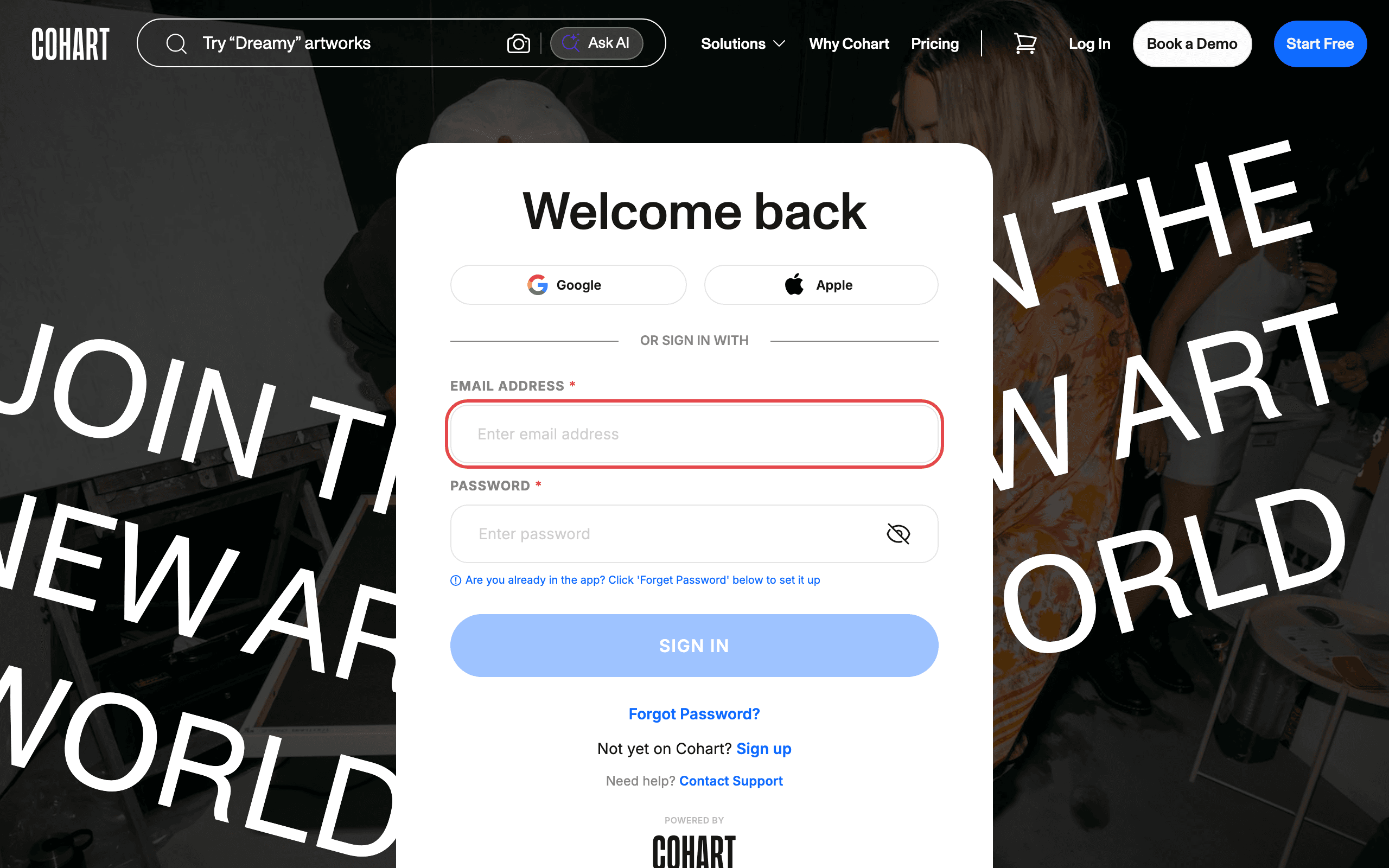
Open your browser and go to cohart.com/auth/login . Enter your email address and password, then click Sign In.
Alternative sign-in options: You can also sign in with Google or Apple using the buttons on the login page.
Step 2: Navigate to the Events page
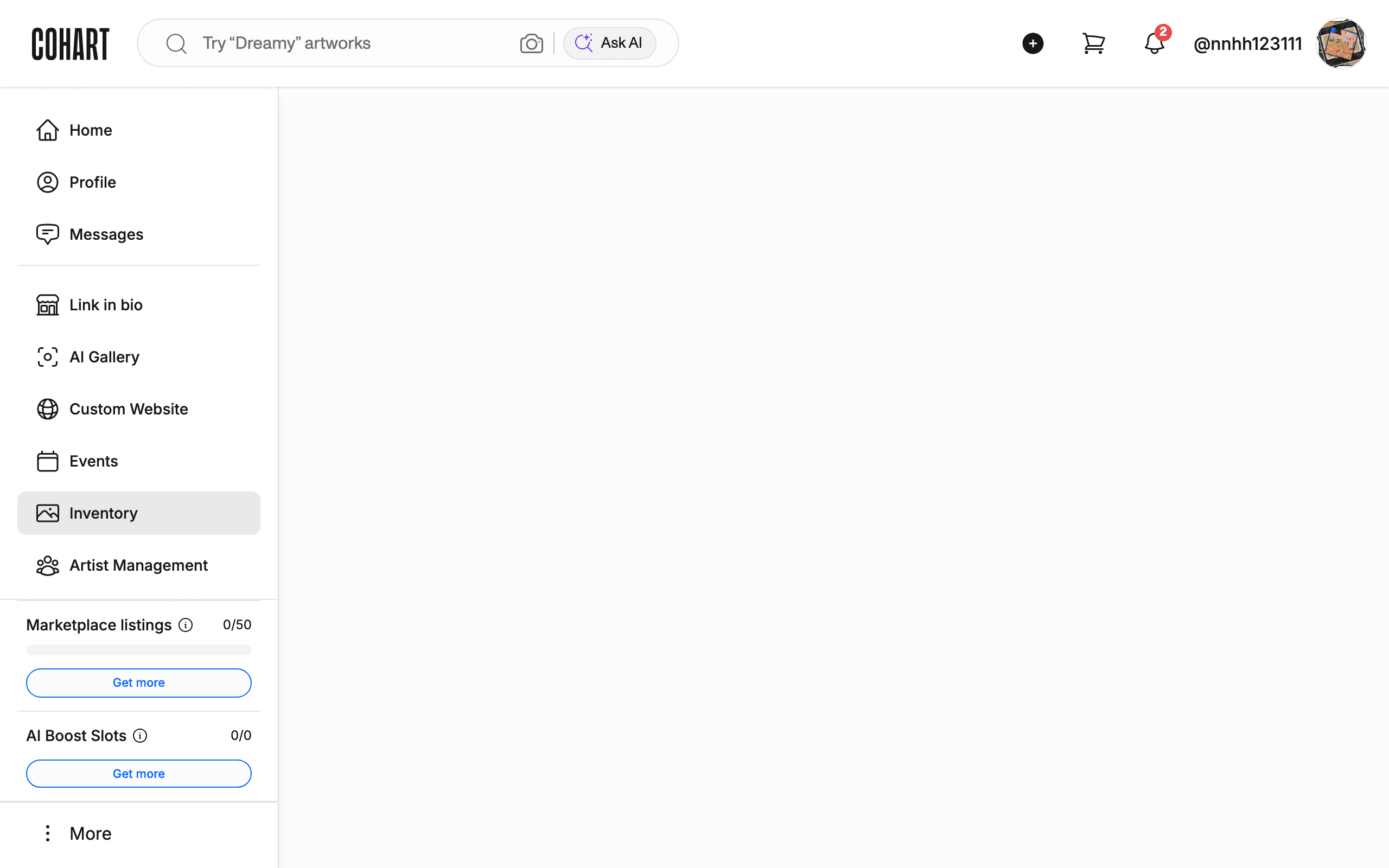
After signing in, you land on your dashboard. Click Events in the left sidebar to open the Events page.
Step 3: Browse available events
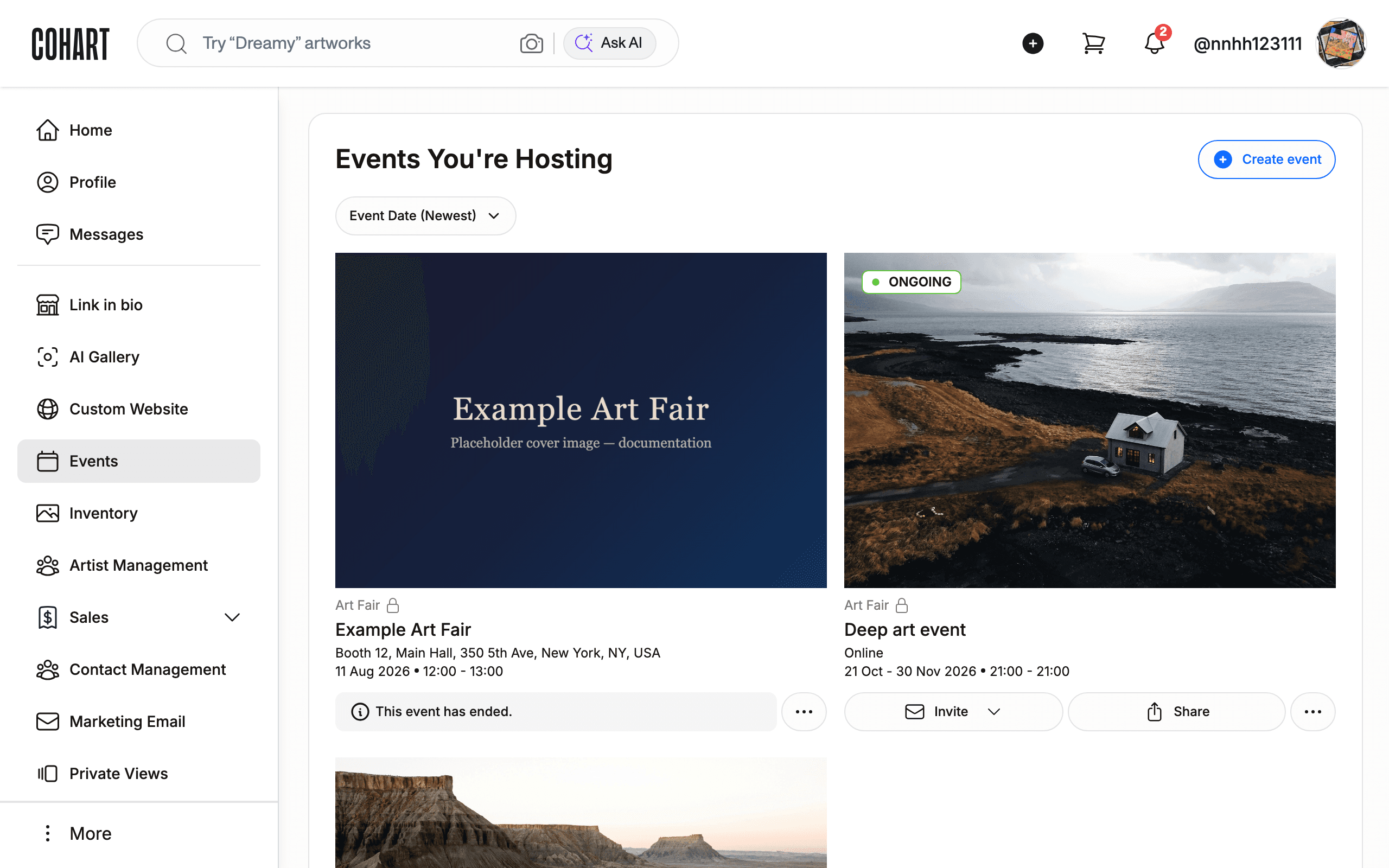
The Events page shows all available events in a card layout. Use the Upcoming events or All events filter to narrow the list. You can also sort by Event Date (Newest) or filter by Event Type. Use the search field to find events by title, location, artist, or gallery name.
Step 4: RSVP to an event
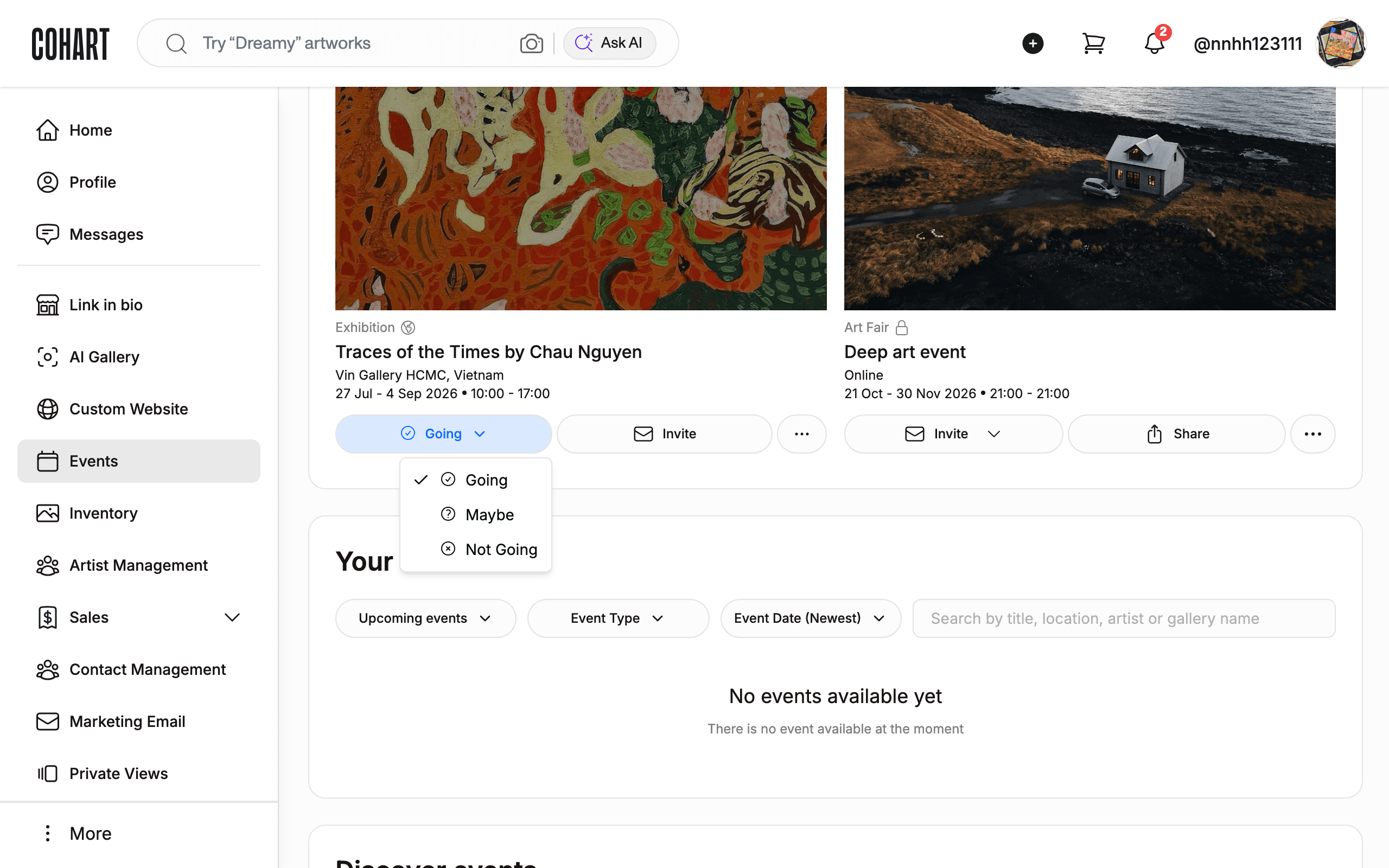
On each event card, you will see RSVP buttons:
- Going — confirms you plan to attend
- Maybe — marks you as interested but not confirmed
- Invite — invite someone else to the event
- Share — share the event with others
Click Going to confirm your attendance.
Step 5: Confirmation
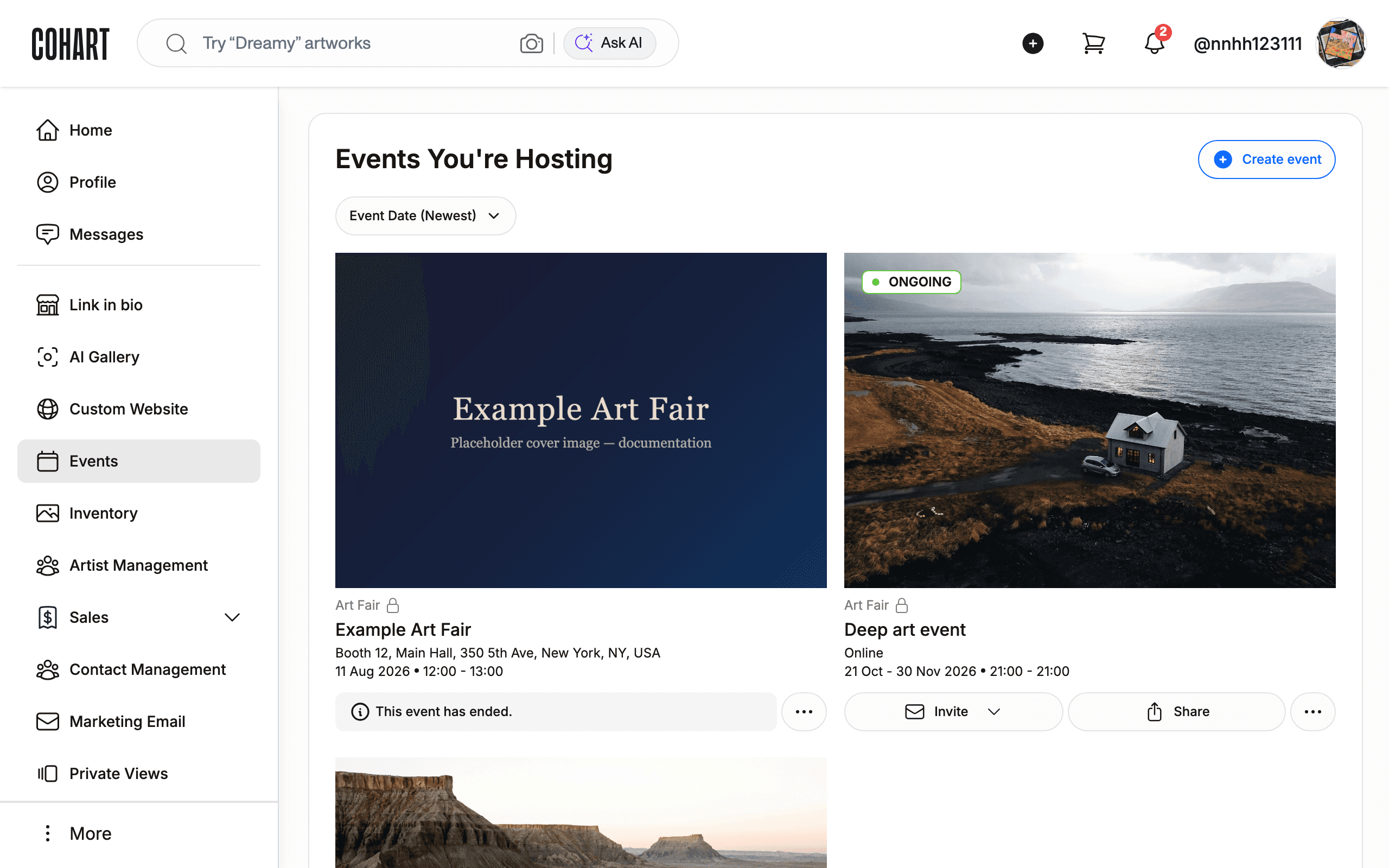
After clicking Going, your RSVP is recorded immediately. The button state updates to reflect your selection. You can change your RSVP at any time by clicking Maybe or clicking Going again to cancel.
Step 6: View event details (optional)
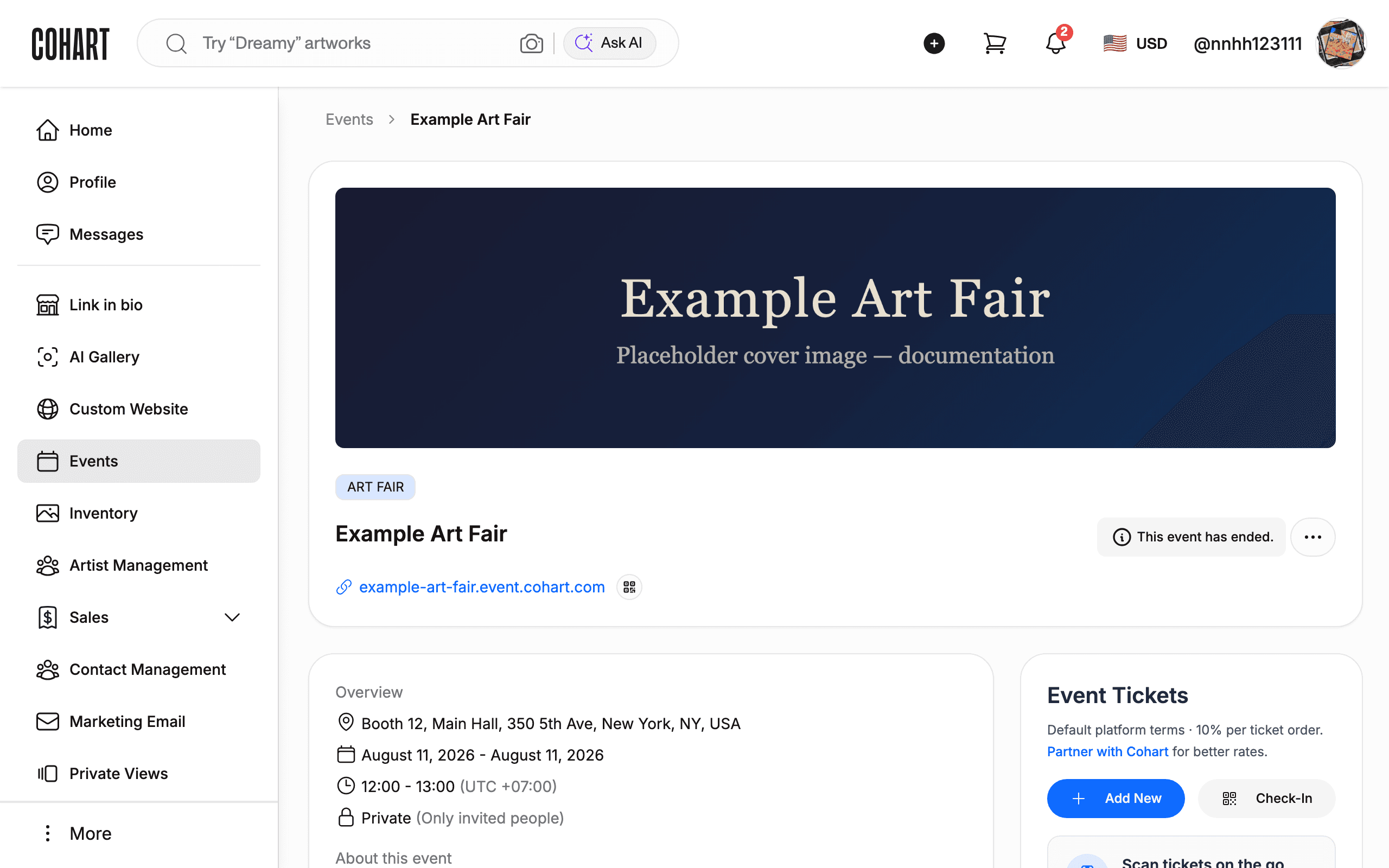
Click on an event card to open the event detail page. Here you can see full event information, including:
- Exhibitors — list of participating exhibitors
- Artworks — artworks featured at the event
- Feed — event updates and posts
- Map & Directory — venue map and attendee directory
- Sponsors — event sponsors
- Check-In — check in when you arrive at the event
Tips
- Forgot password? On the login page, click Forgot Password? to reset your password via email.
- No account yet? Click Sign up on the login page to create a new account.
- Change your RSVP: You can switch between Going and Maybe at any time from the event listing.
- Search events: Use the search bar with keywords like the event title, location, artist name, or gallery name to find specific events quickly.
- Create your own event: If you are an organizer, click Create event at the top of the Events page to set up a new event.
Screenshots are regenerated automatically from the live site. Last captured: August 12, 2026.