How to Choose a Payment Option at Checkout
Overview
Cohart checkout accepts several ways to pay so you can complete an art purchase however suits you best. Every option runs through Stripe, a widely used payment processor, so your card and billing details are encrypted in transit and never stored on Cohart’s own servers.
- Who it’s for — anyone checking out on Cohart, signed in or as a guest.
- What it covers — the Payment Method section of checkout, where you pick between paying by card and paying with Klarna.
- What it affects — only how you pay; it does not change the artwork price, shipping fee, or tax shown in the order summary.
- What you end up with — a completed order, or a Klarna plan set up for the same purchase.
Before you start
- Fill in contact information and a delivery method first. The Payment Method section only loads after FULL NAME, EMAIL ADDRESS, PHONE NUMBER, and a delivery method (SHIP BY COHART or PICK UP / SHIP BY SELLER) are complete.
- Have your card or Klarna details ready. For a card, you’ll need the card number, expiration date, security code, and billing country. For Klarna, you complete the rest of the setup on Klarna’s own site after you submit.
Steps
1. Sign in to Cohart
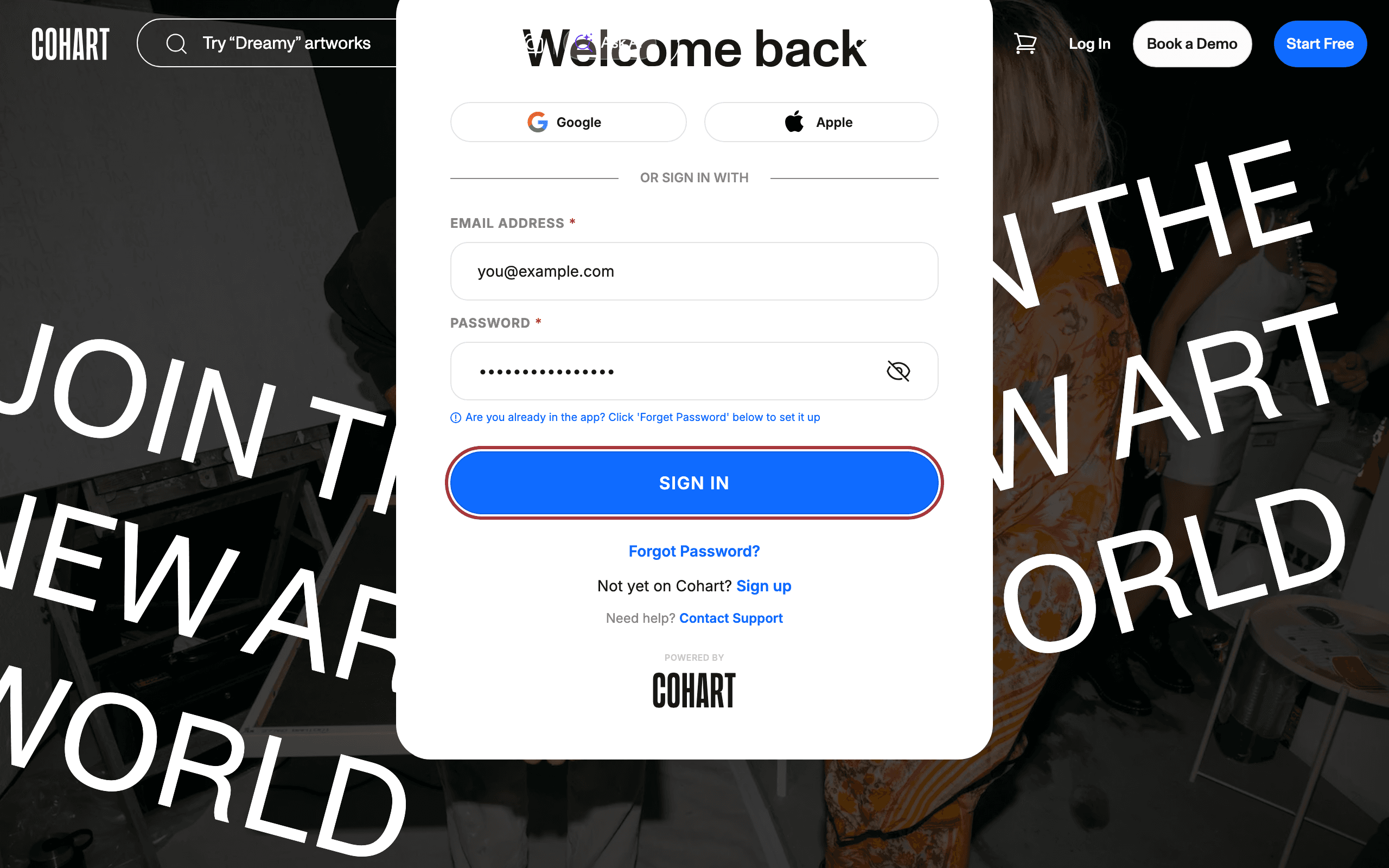
Sign in with your email address and password, or use Google or Apple. You can also check out as a guest without signing in.
2. Reach the Payment Method section
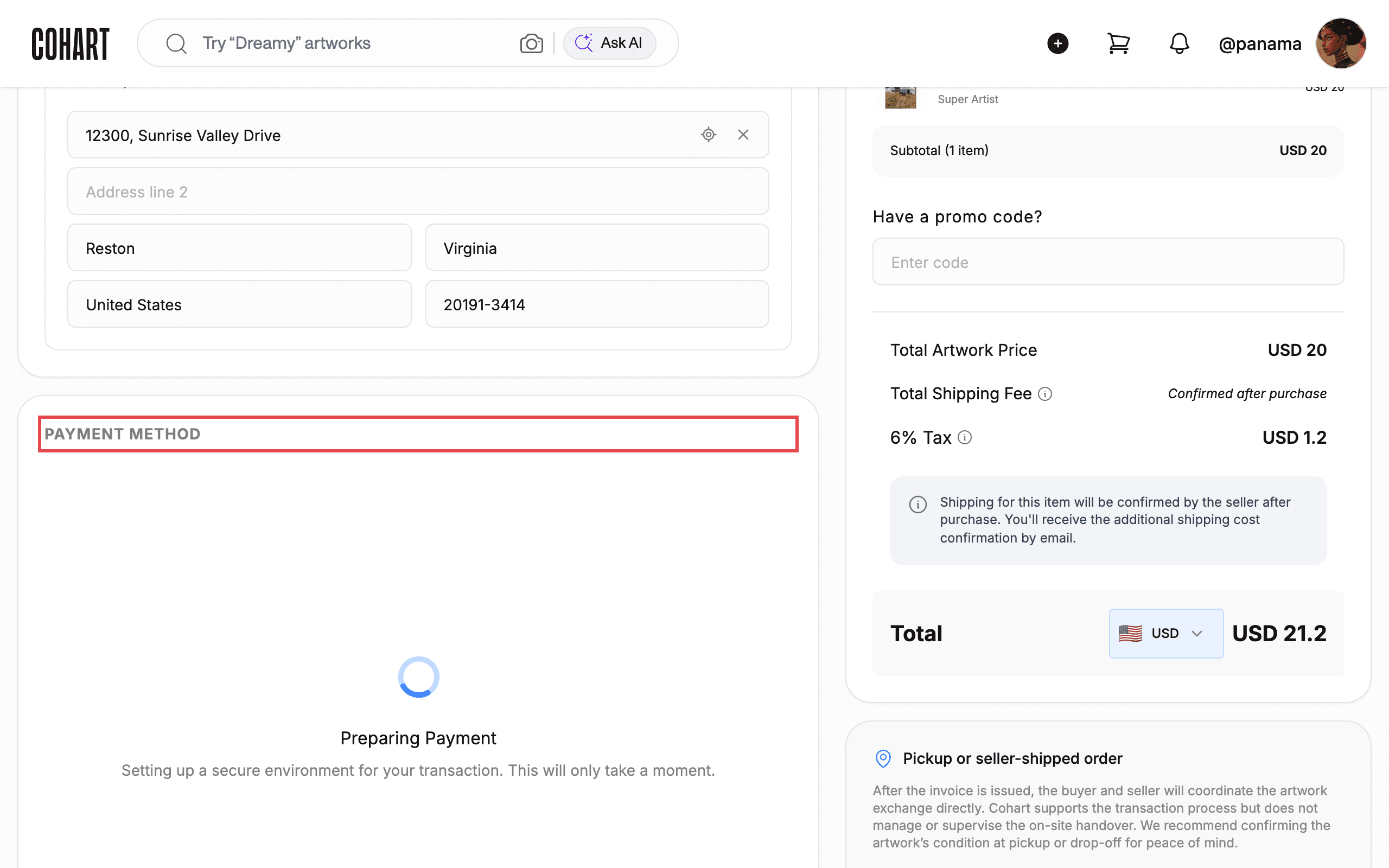
Open an artwork and click Purchase or Add to Cart → Checkout. Fill in CONTACT INFORMATION and choose a DELIVERY METHOD. Once both are complete, the PAYMENT METHOD section loads below them.
3. Pay by card
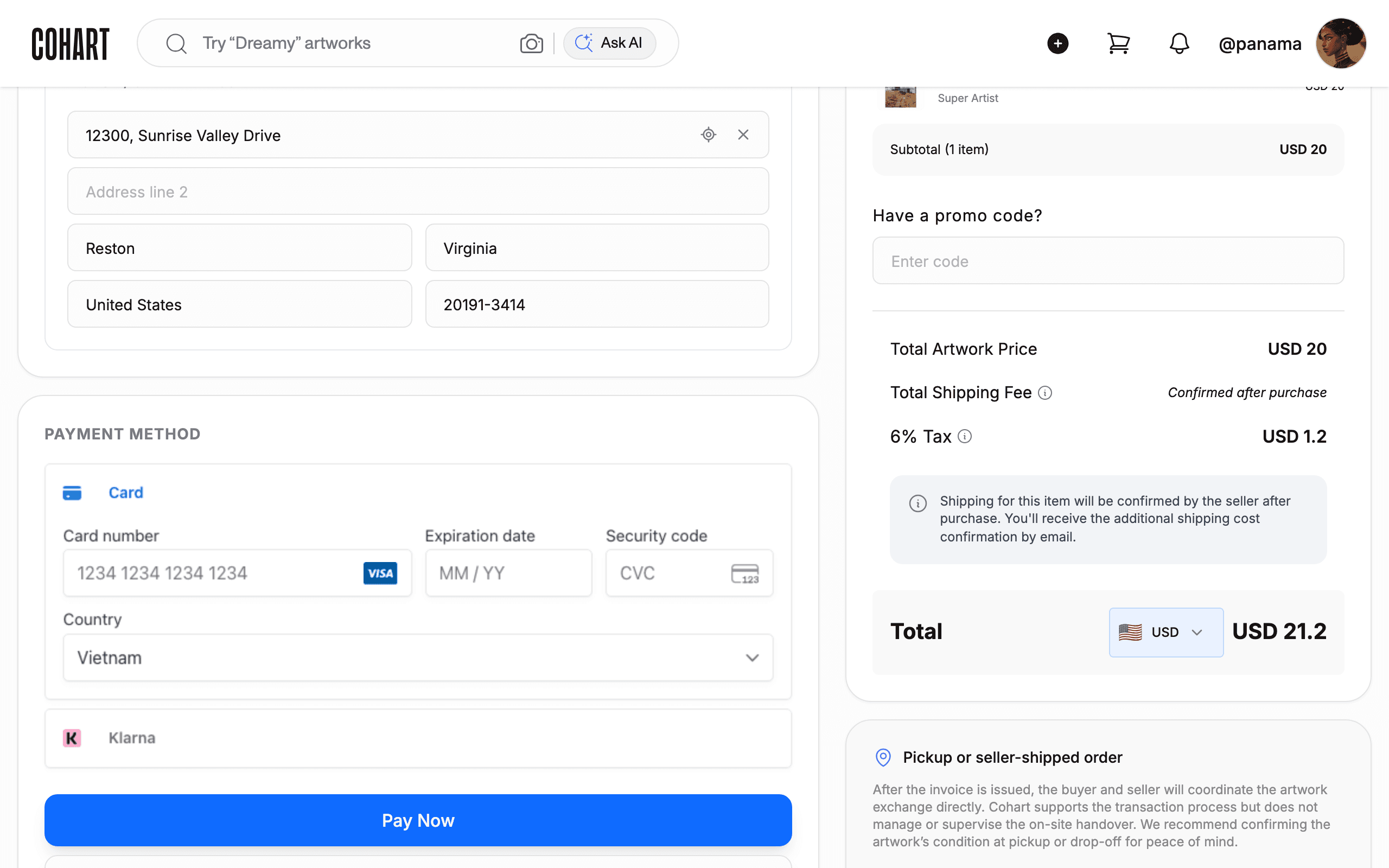
Click Card, then enter your Card number, Expiration date, Security code, and billing Country. Cohart accepts major cards, including Visa, Mastercard, and others Stripe supports. Click Pay Now to complete the order.
4. Pay with Klarna instead
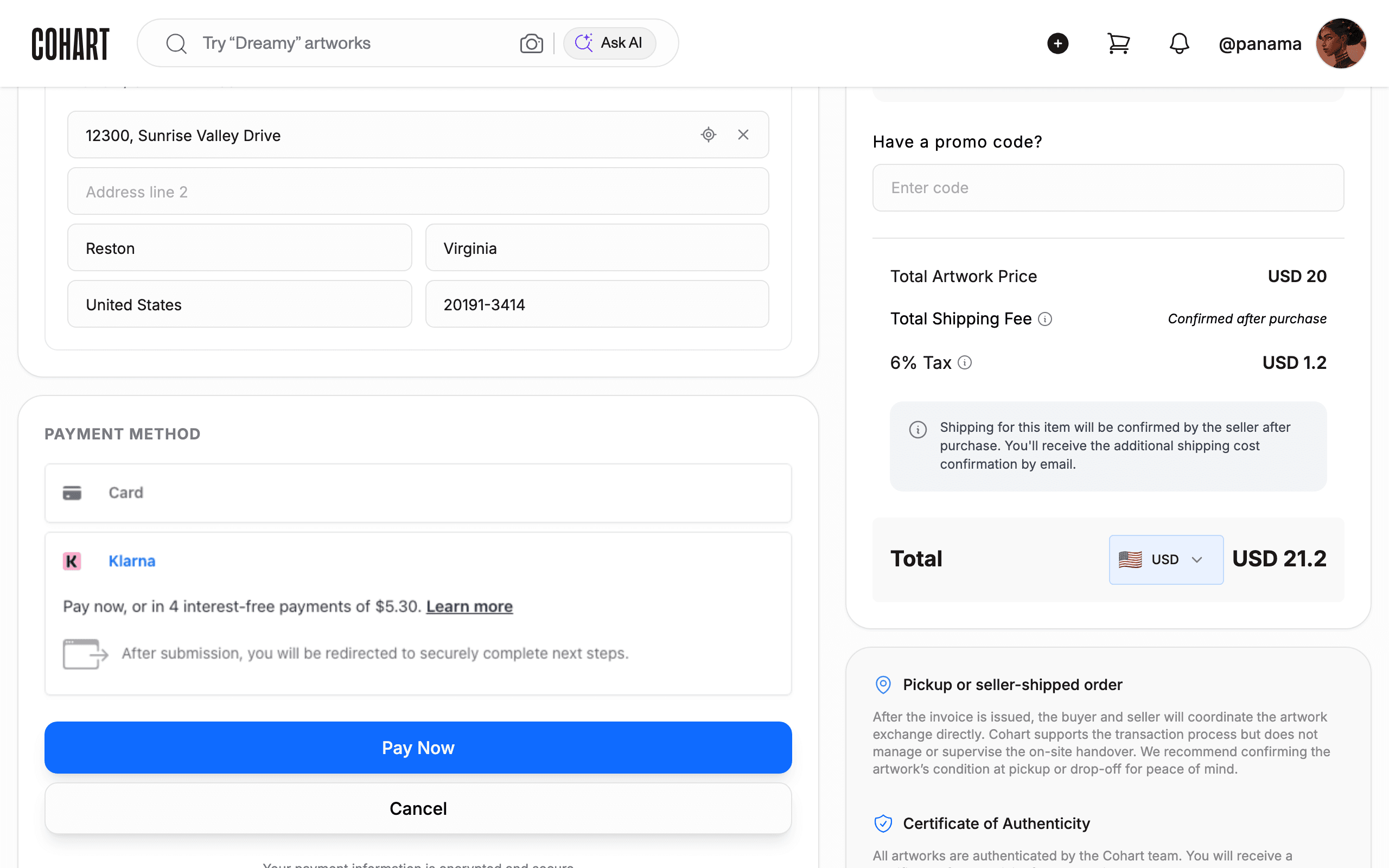
Click Klarna to pay through Klarna’s “Buy Now, Pay Later” plans — pay now, or split the total into 4 interest-free payments. Click Learn more to read Klarna’s terms before you continue. Click Pay Now and you’re redirected to Klarna to finish setting up the plan.
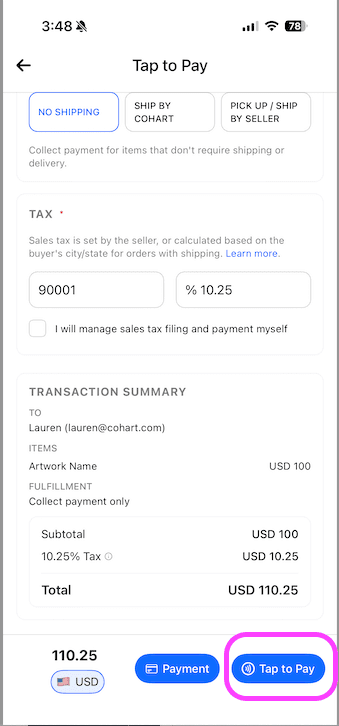
5. Pay in person with Tap to Pay
Tap to Pay isn’t part of the PAYMENT METHOD section above. It’s for in-person sales, such as at an art fair, gallery, or studio: the seller opens Tap to Pay in the Cohart Business App, and you tap your card or phone against their phone to pay. It isn’t available from a web browser — see How to Accept In-Person Payments with Tap to Pay for how sellers use it.
Tips
- Apple Pay and Google Pay can appear as an extra button above Card and Klarna when your browser and device support them (for example, Safari with Apple Pay set up, or Chrome with Google Pay set up) — if you don’t see one, your browser or device doesn’t support it, or a digital wallet isn’t set up yet.
- Only one payment method per order. To split a purchase across multiple payments in a different way than Klarna offers, ask the seller to set up a custom payment plan using Cohart’s Invoice tool.
- Klarna’s own fees apply if you’re late. Klarna doesn’t charge anything extra as long as you keep to the plan; check Klarna’s terms for details on late fees.
- Every payment is processed securely through Stripe, which encrypts your card details end to end.
Troubleshooting
- Your card is declined at checkout → the card issuer blocked the charge or the details don’t match → double-check the card number, expiration date, and security code, confirm the card is enabled for online purchases, or try a different payment method.
- You want to switch payment methods after placing an order → orders can’t be edited once placed → cancel the order first, if it hasn’t been processed yet, then place a new order with the correct payment method.
- Card fields never finish loading → the payment section can take a few seconds to initialize after you choose a delivery method → wait a moment, or refresh the checkout page and re-enter your delivery details.
- Klarna redirect doesn’t complete → the Klarna session may have expired → return to checkout and click Klarna again to start a fresh session.