How to Organize Artworks into Folders
You will create folders in Inventory, rename them, and move artworks in and out of them.
1. Sign in to Cohart
Go to the sign-in page. Enter your EMAIL ADDRESS and PASSWORD. Click SIGN IN.
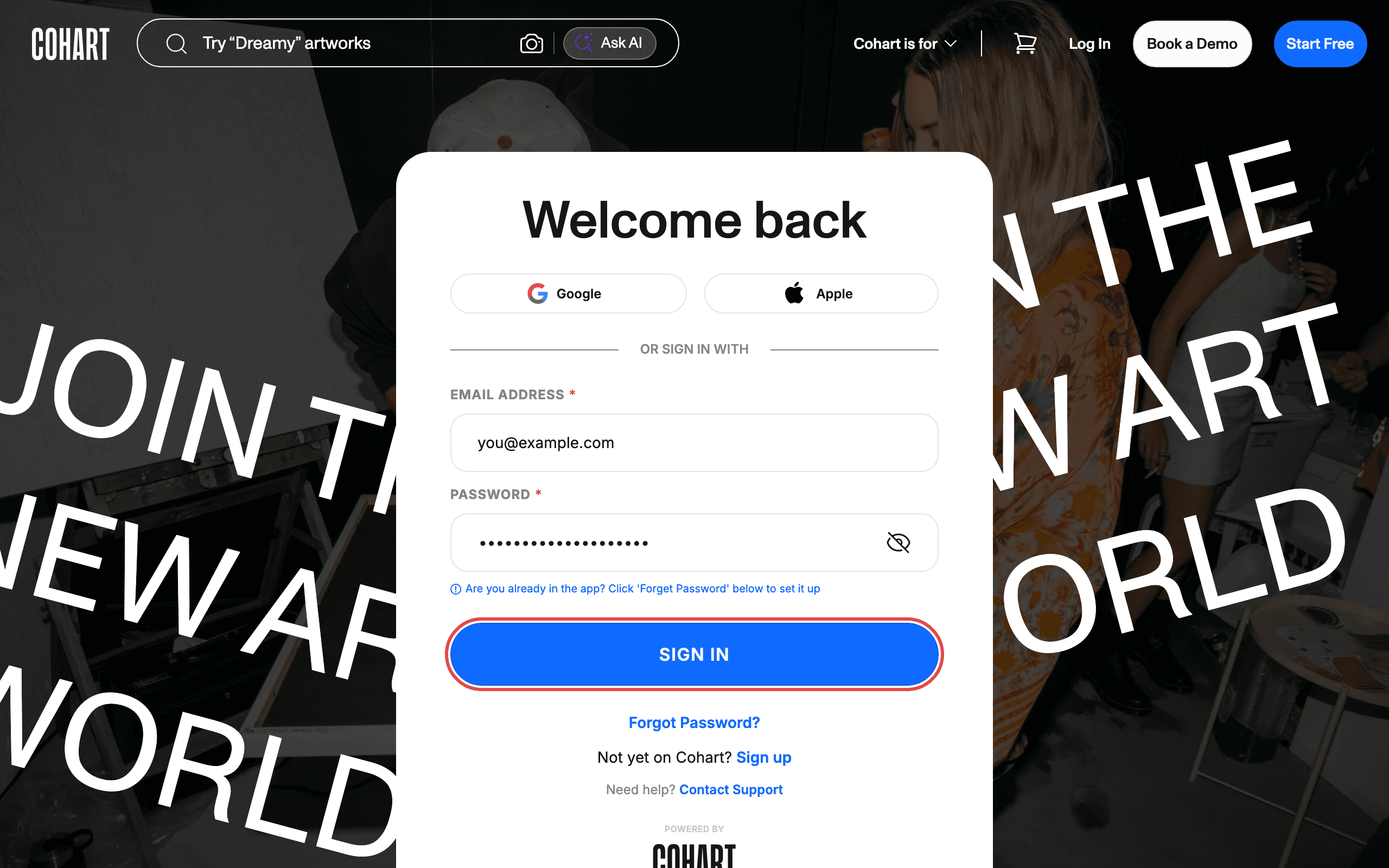
You can also sign in with Google or Apple. If you do not have an account yet, click Sign up. If you forget your password, click Forgot Password?.
2. Open Inventory and find your folders
After sign-in you land on Inventory. Your folders appear as cards above the artwork list. Each card shows the folder name and a HIDDEN ON PROFILE badge when the folder is not visible on your public profile.
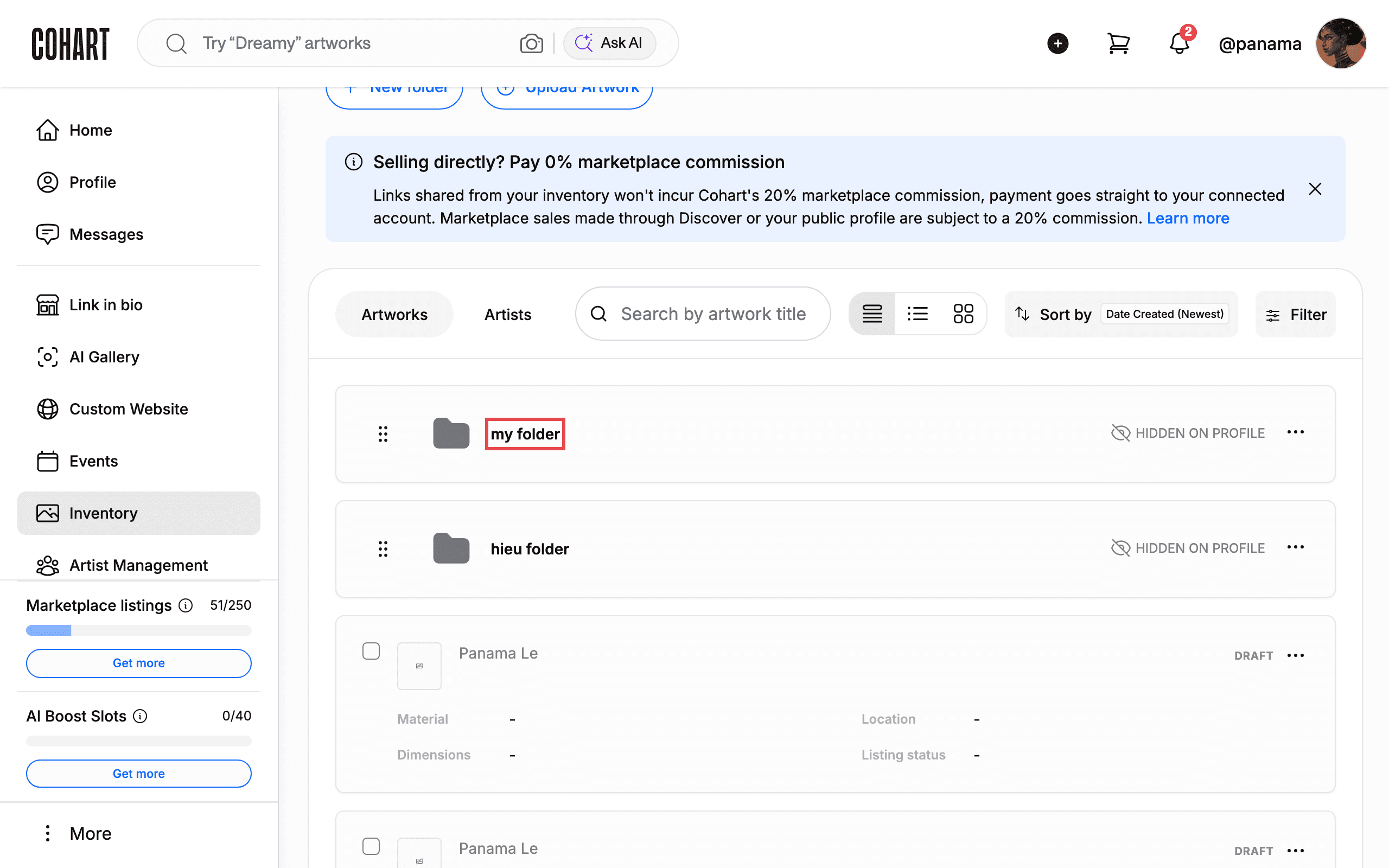
Use the Artworks and Artists tabs, Search by artwork title, Sort by, or Filter to narrow the list.
3. Create a new folder
Click New folder at the top of the Inventory page. Type a name in FOLDER NAME. Names are limited to 80 characters. Click Create.
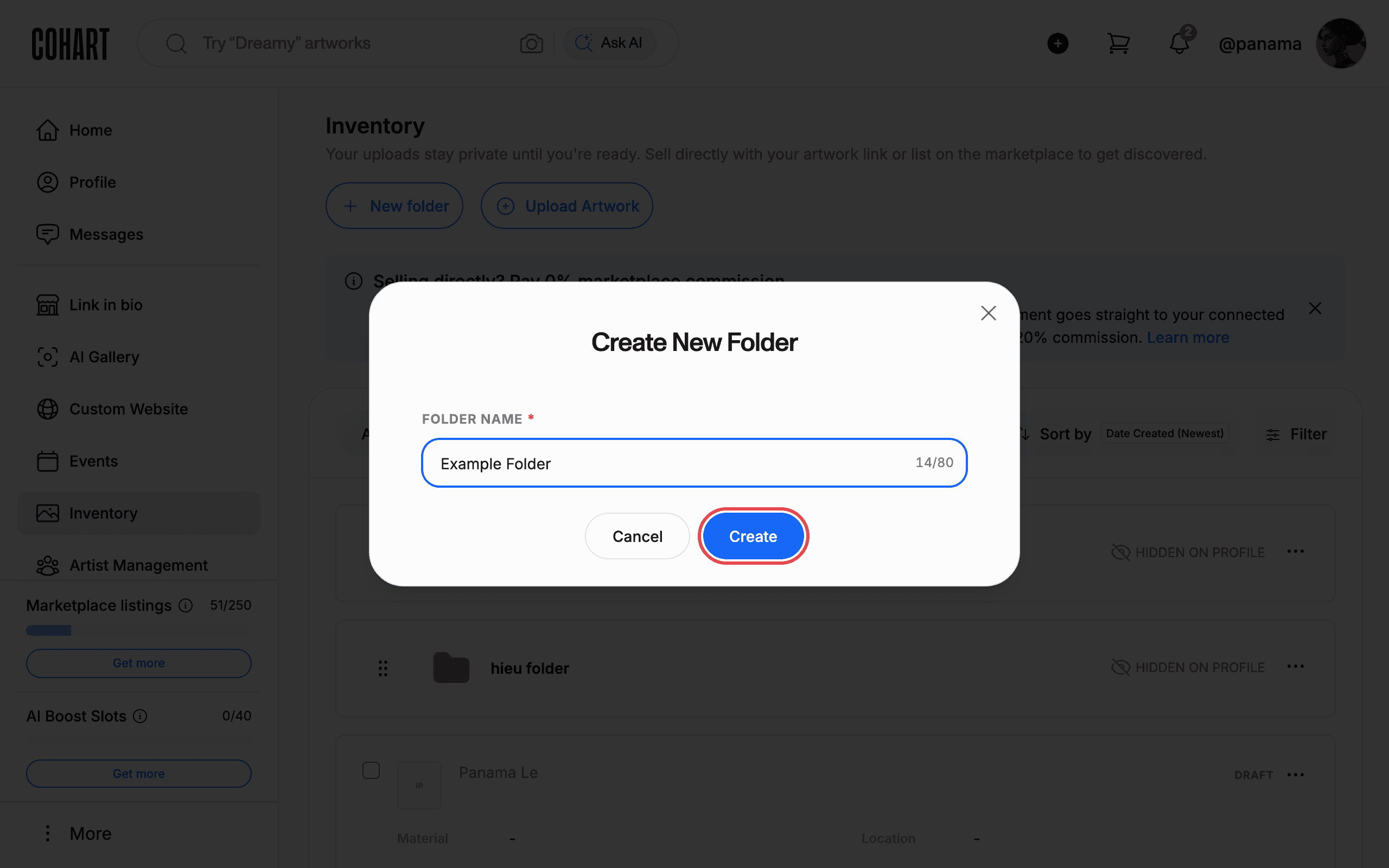
Click Cancel or the Close button to leave without creating the folder.
4. Open a folder’s menu
Click the three-dot menu on a folder card. The menu offers Rename, Delete folder, and Show folder on profile.
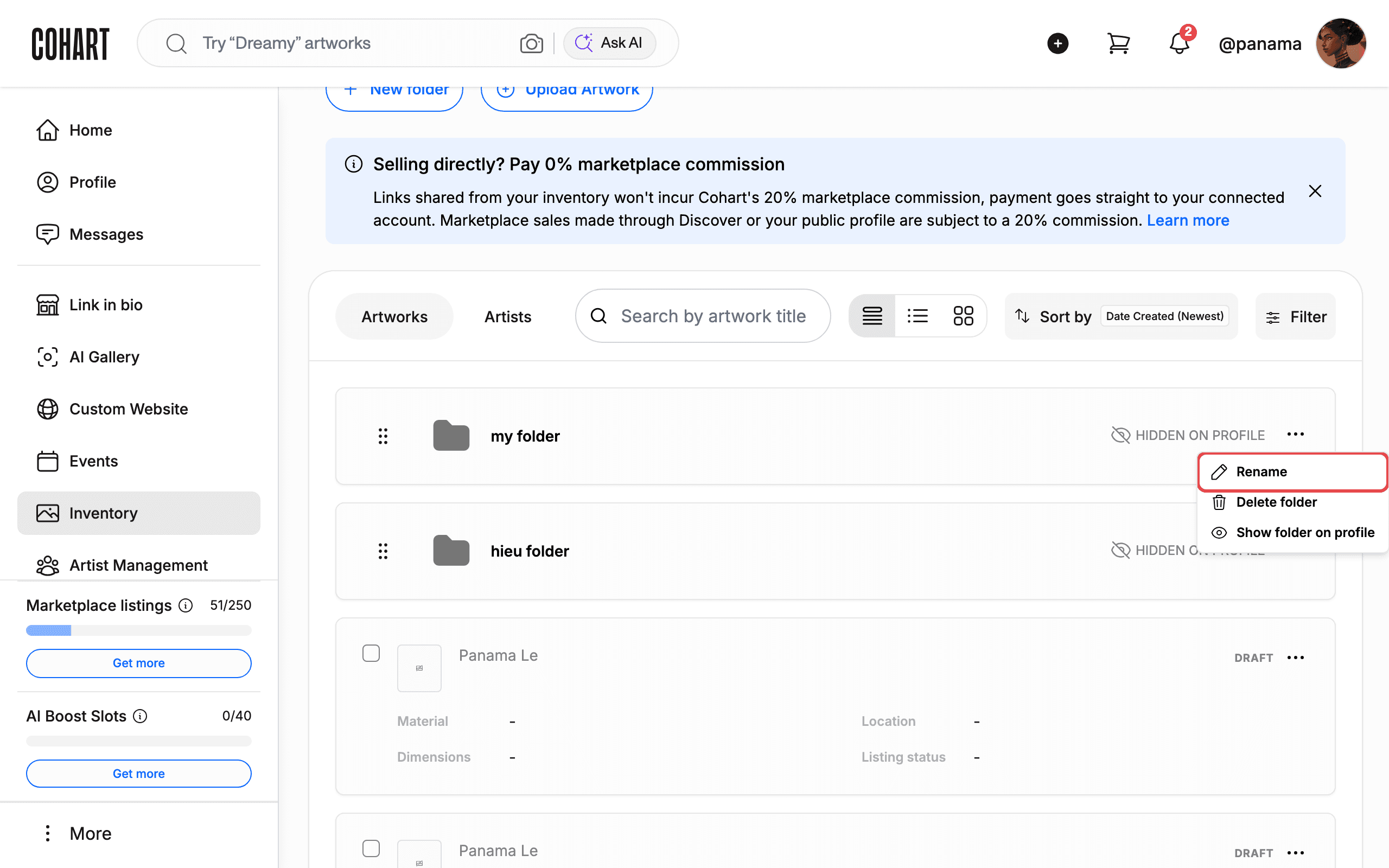
5. Rename a folder
Click Rename in the folder menu. Edit the name in FOLDER NAME. Click Save.
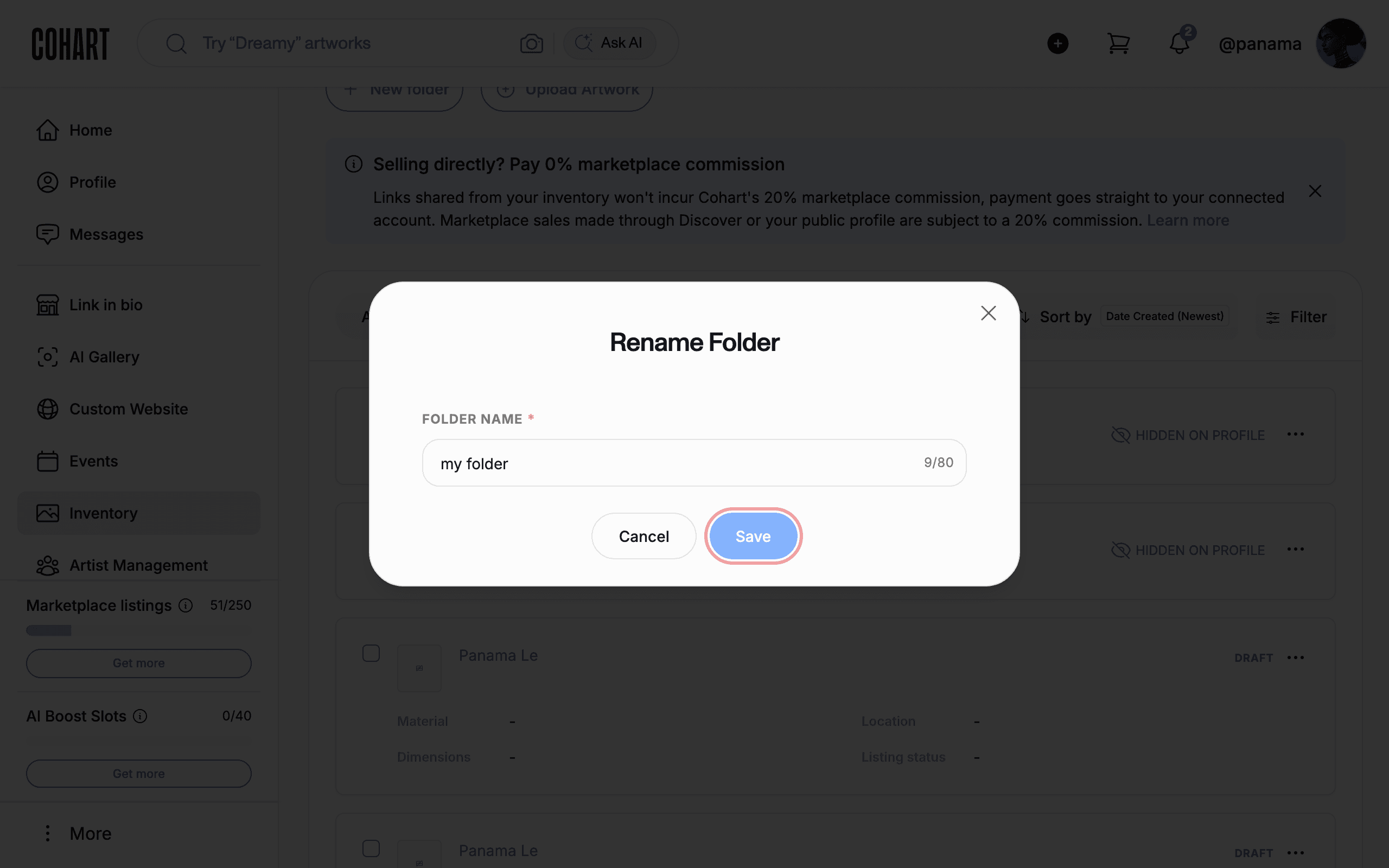
Click Cancel or Close to keep the current name.
6. Select artworks to move
Tick the checkbox on an artwork card. A selection menu appears showing how many artworks are selected (for example, 1 selected). It offers Select All, Move to folder, Export as, Create private view, Publish, List on marketplace, and Boost for CocoAI Curator.
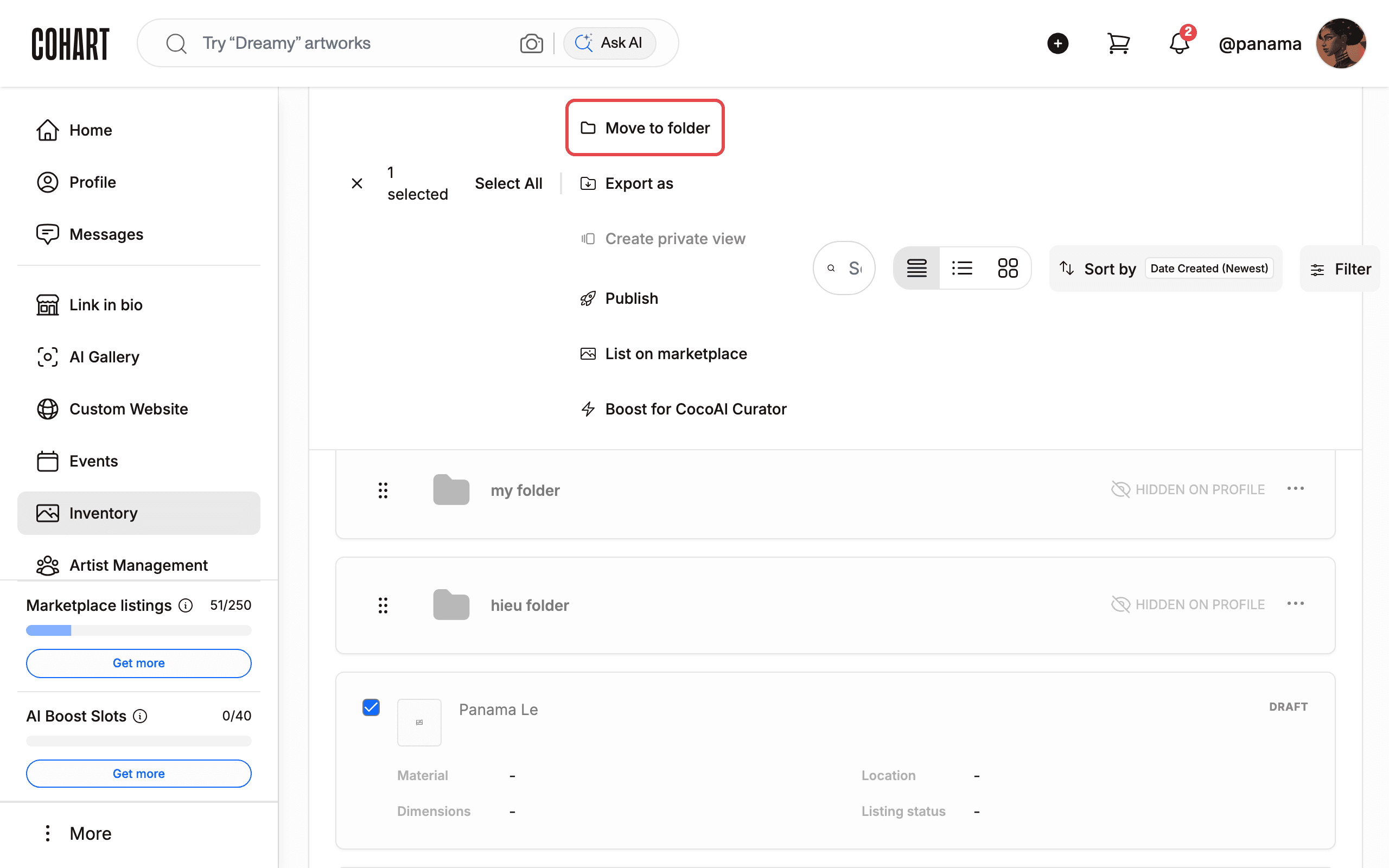
Click Move to folder to continue organizing.
7. Move artworks into a folder
In the Move “Draft artwork” dialog, choose a destination under SELECT DESTINATION. Pick one of your folders, or pick Inventory to move artworks back out of a folder. Click Move.
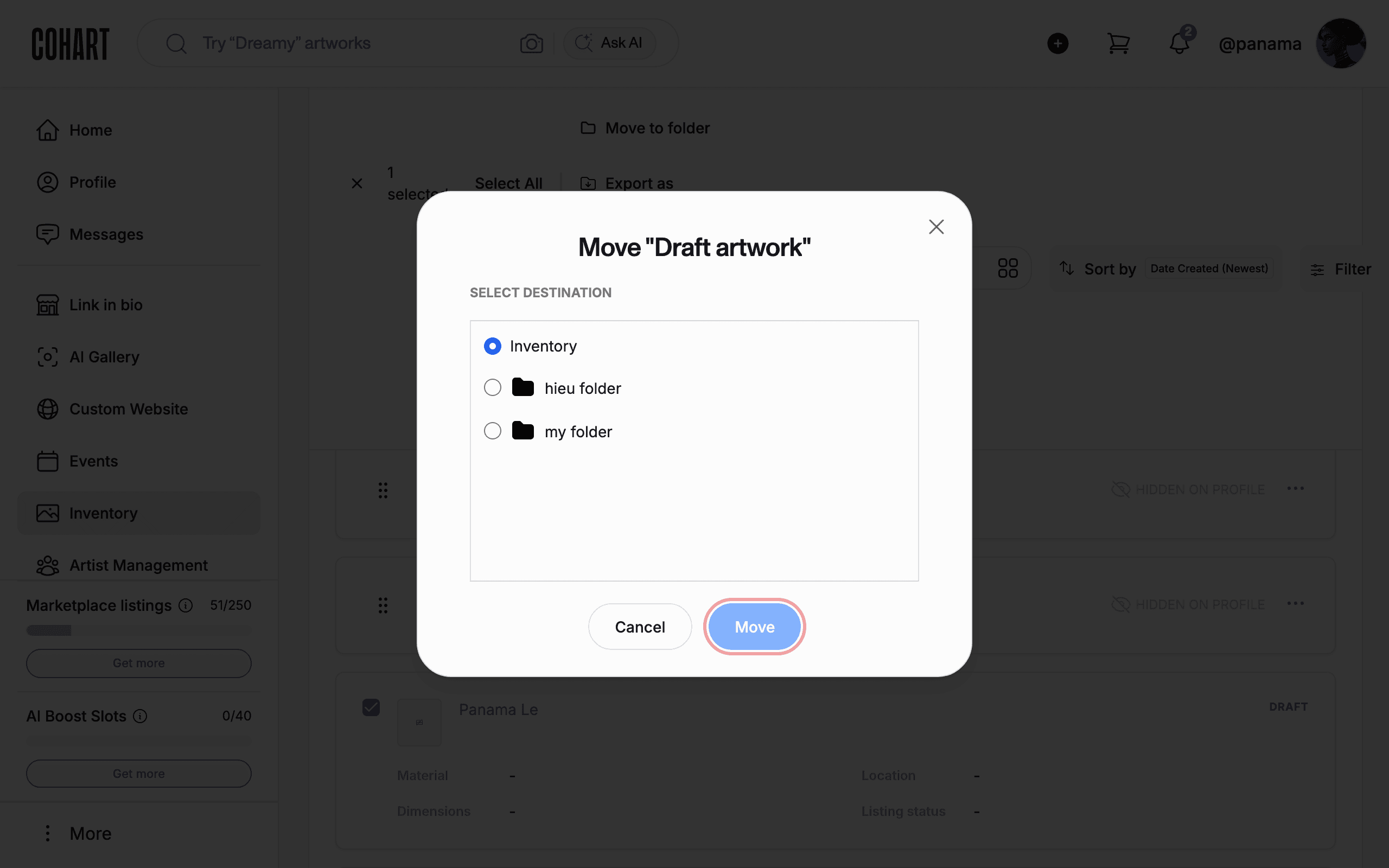
Click Cancel or the Close button to leave everything where it is.
8. Open a folder to review its contents
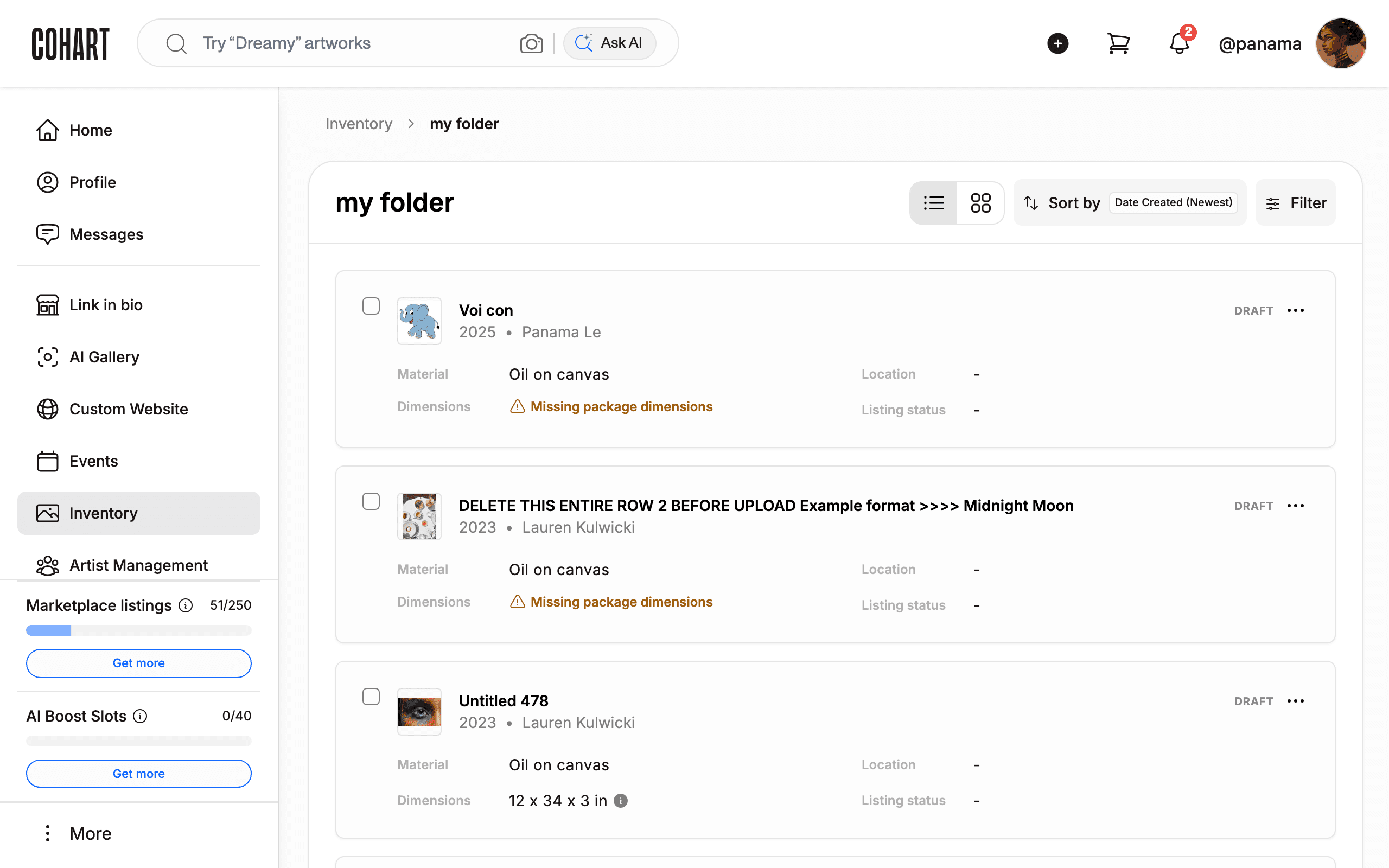
Click a folder name to open it. The breadcrumb shows Inventory followed by the folder name. The folder page lists every artwork inside it, with the same Sort by and Filter controls as the main Inventory page.
Tips and troubleshooting
- Each folder card has a six-dot drag handle on its left edge. Drag it to reorder your folders.
- New folders start hidden from your public profile. Use Show folder on profile in the folder menu to change this.
- The Move to folder option only appears after you tick at least one artwork checkbox. To move everything at once, tick one artwork and then click Select All.
- To take an artwork out of a folder, select it inside the folder and move it to the Inventory destination.
- The FOLDER NAME field caps names at 80 characters. The counter next to the field shows how many characters you have used.
- [UNVERIFIED — check manually] The exact behavior of Delete folder (whether its artworks return to Inventory or are affected) was not tested, since deleting is destructive. Confirm the confirmation dialog text before relying on it.
Screenshots are regenerated automatically from the live site. Last captured: September 7, 2026.