How to Accept In-Person Payments with Tap to Pay
Overview
Tap to Pay turns your phone into a card reader so you can accept contactless card payments for in-person art sales without buying a separate card reader.
- What it is — a checkout tool inside the Cohart Business App that lets a buyer pay by tapping their card on your phone. It is best for custom sales, like bundling several works into one checkout or working out a negotiated price on the spot, and it is the easiest way to sell when your inventory isn’t fully uploaded yet.
- Who it’s for — artists and galleries selling in person at fairs, studios, galleries, and pop-up events.
- What it affects — the sale flow inside the Cohart Business App only: adding an item, collecting buyer information, choosing shipping or pickup, applying sales tax, and taking payment. It does not add anything to the Cohart website.
- What you end up with — a completed in-person sale recorded in your Sales Record, a receipt emailed to the buyer whenever you collect their address, and a payout that lands in your connected bank account. If a buyer’s valid card keeps getting declined, see Troubleshooting: their bank is usually holding the charge for extra verification.
Before you start
- Connect your bank account through Cohart Connect. This is required before any in-person payout can reach you. Set it up from Financial Accounts in your dashboard sidebar — see How to Connect Your Bank Account and Manage the Currencies You Sell In for the full walkthrough.
- Download the Cohart Business App on iPhone or Android. See How to Download the Cohart Business App. Tap to Pay only runs inside this app, not on the Cohart website.
- Be on a paid Cohart membership plan. Tap to Pay is not available on the free plan; on the free plan you can still complete a sale by entering the buyer’s card details manually.
- Have your event details ready. If you’re selling at a fair or pop-up, know the venue’s ZIP code ahead of time so sales tax can be calculated automatically.
Steps
1. Connect your bank account through Cohart Connect
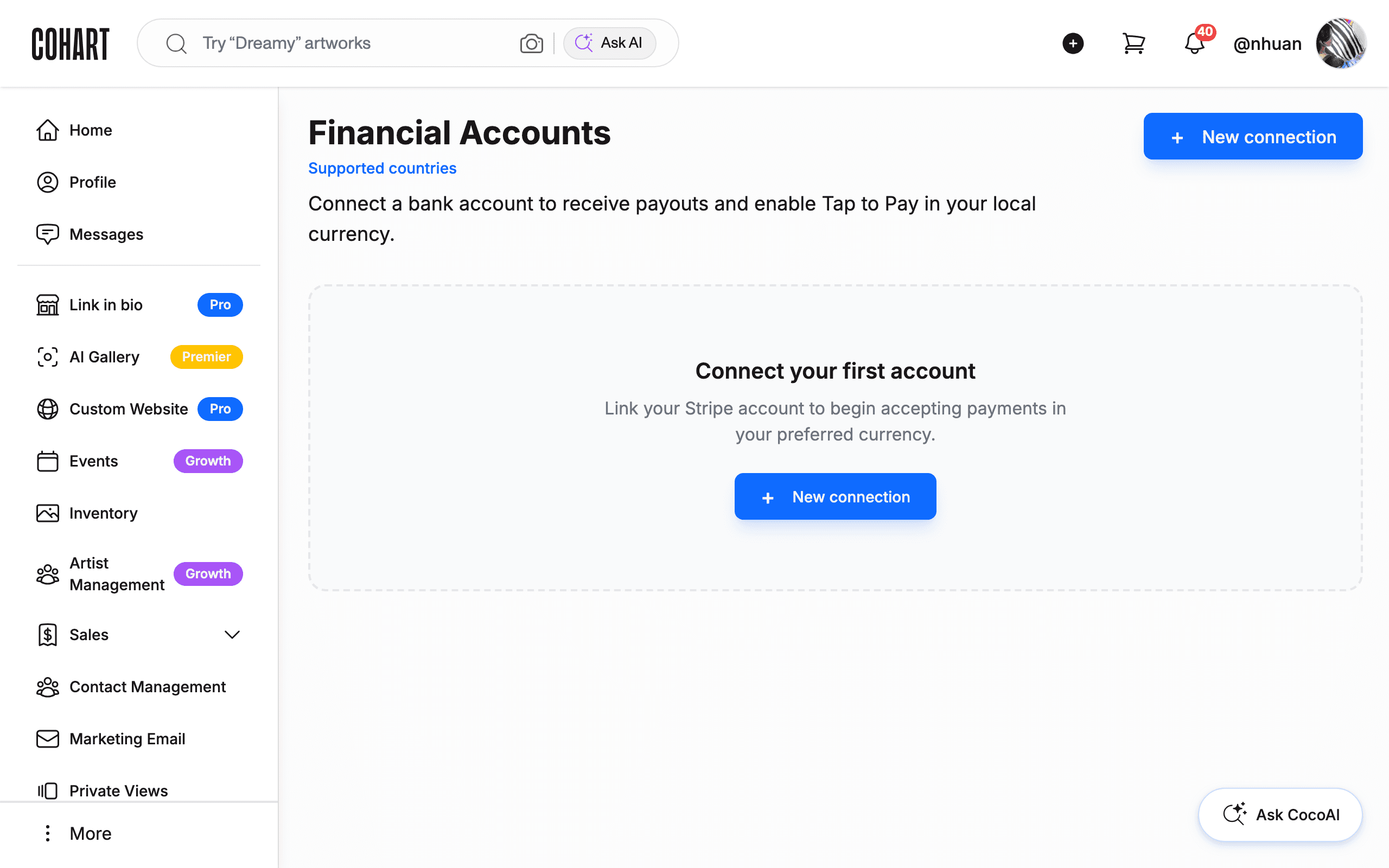
Before your first sale, open Financial Accounts from your dashboard sidebar (below Manage Plan) and follow the prompts to link your bank account through Stripe. Without a connected account, Tap to Pay can take a payment but cannot pay you out.
2. Open the app and select Tap to Pay
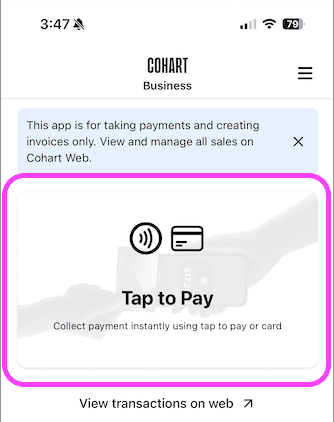
Open the Cohart Business App and log in with your Cohart account. The home screen shows a Tap to Pay card with the description Collect payment instantly using tap to pay or card; tap it to start the checkout flow. The first time you open it, an introduction screen explains how tapping a card works — tap Continue to dismiss it.
3. Add an item to the sale
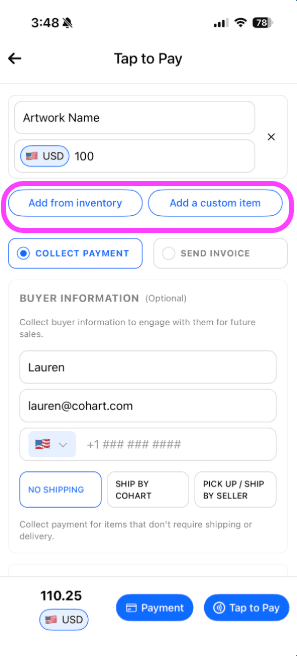
Choose Add from inventory to select an existing artwork — you can adjust the price or apply a discount before checkout, and because the sale links to that listing, your buyer automatically receives a digital Certificate of Authenticity after purchase. If the piece isn’t uploaded yet, choose Add a custom item and enter the artwork title and price on the spot. Then pick whether you’re taking payment now (Collect Payment) or sending an invoice to be paid later (Send Invoice).
4. Add the buyer’s information and choose shipping or pickup
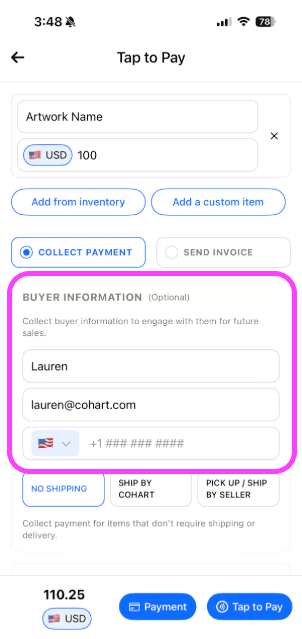
Under Buyer Information, enter the buyer’s Full name and Email address (a phone number field is also available). Providing an email lets Cohart automatically email the buyer a receipt, save them to your Contact Management list, and record the sale in your Sales Record. Then choose a fulfillment option: No shipping for a straight digital/in-hand transaction, Ship by Cohart, or Pick up / ship by seller — for in-person events, buyers usually take the artwork with them on the spot, so pickup is the common choice. If you do ship, see How to Ship Sold Artwork on Cohart for the available shipping options.
5. Set sales tax for the sale
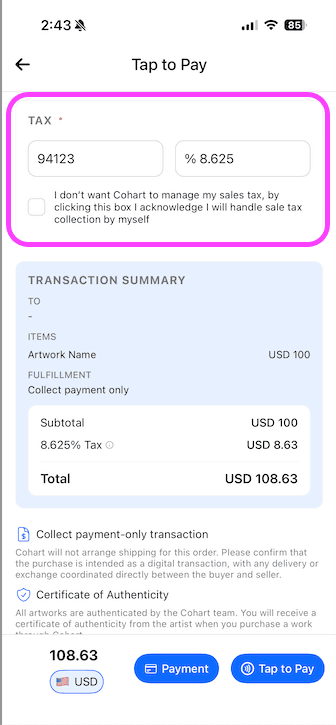
For U.S. sales, enter the event’s ZIP code in the Tax section and Cohart calculates the local sales tax rate automatically, since in-person sales tax is based on where the sale takes place. If you’d rather handle your own sales tax, check I don’t want Cohart to manage my sales tax, by clicking this box I acknowledge I will handle sale tax collection by myself. For sales outside the U.S., enter 00000 as the ZIP code or use the same checkbox to turn tax off. [UNVERIFIED — check manually] You may also be able to pre-save your event’s ZIP code ahead of time from the app’s menu, and on desktop from your profile’s Edit Profile settings, so it’s applied automatically at checkout — confirm the current menu path before relying on it.
6. Accept payment
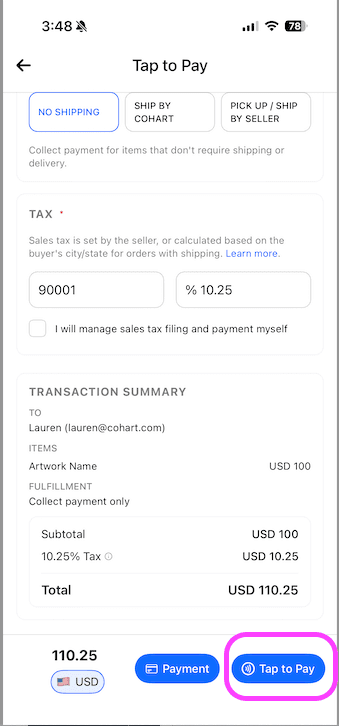
Once the summary looks correct, tap Tap to Pay; your phone becomes the payment terminal and the buyer holds their card over the scan icon to pay. This tap feature is only available with certain currencies and Cohart membership plans. If Tap to Pay isn’t available on your device, in your country, or for the sale’s currency, tap Payment instead to enter the buyer’s card details manually.
7. Show the price in another currency
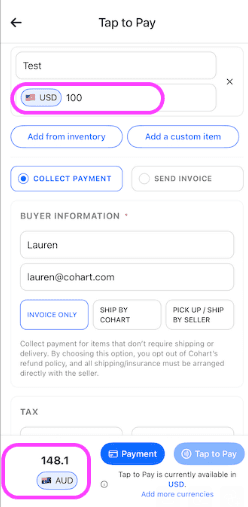
[UNVERIFIED — check manually] When speaking with a buyer in their own currency, you can use the currency selector next to a price field to display a live converted amount without changing your own listing or payout currency. The buyer always sees the final charge amount before paying, and if Tap to Pay isn’t available in the sale’s current currency, the checkout shows which currency is currently supported and offers to add more.
Tips
- Buying in person as a collector? You don’t need the app or a paid plan — the seller opens Tap to Pay in the Cohart Business App and you tap your card or phone against their phone to pay.
- You don’t need a card reader. Your phone is the card reader — nothing else to carry or charge.
- You don’t need inventory uploaded to sell. Create a custom item during checkout with just a title and price.
- Tap to Pay doesn’t work on tablets or laptops — the tap feature needs phone hardware. On those devices, enter the buyer’s card manually with the invoice tool instead.
- Your payout currency follows your connected bank account, not the currency the buyer paid in — Stripe converts automatically before the payout.
- Supported currencies differ by platform. Android currently supports Australia, Austria, Belgium, Denmark, Finland, France, Germany, Ireland, Italy, Malaysia, Netherlands, New Zealand, Poland, Singapore, Sweden, Switzerland, United Kingdom, and United States. iPhone currently supports Australia, Austria, Belgium, Canada, Czech Republic, Denmark, France, Germany, Ireland, Italy, Netherlands, New Zealand, Poland, Singapore, Sweden, Switzerland, United Kingdom, and United States. If your currency isn’t listed, you can still take the sale by entering the card manually.
- Prefer invoicing in USD instead? You can convert an artwork’s price to USD when creating an invoice, even if your bank account is in another currency — exchange rates move daily, so build in a small buffer when converting.
- Other ways to take payment if Tap to Pay doesn’t fit the moment: a QR code artwork scan for buyers to pay themselves, a custom invoice, or a “Buy Now” online listing.
- Find your completed sales afterward under Sales Record for finished sales, Transactions for payment activity, and Invoices for sent and paid invoices.
Troubleshooting
- Tap to Pay button doesn’t respond or the tap screen never appears → the phone’s Bluetooth, Location Services, or NFC may be off → turn on Bluetooth and Location Services, allow the Cohart Business App to access your location, and confirm NFC is on (Android only; iPhone enables NFC automatically), then update to the latest version of the app.
- Tap to Pay is blocked even though permissions look correct → Screen Time content restrictions can block Wallet/NFC access → go to Settings → Screen Time → Content & Privacy Restrictions and confirm those permissions aren’t restricted.
- Checkout gets stuck mid-sale → a temporary app or connection glitch → close the Cohart Business App completely, reopen it, and start the checkout again.
- Tap to Pay option isn’t offered at all → your country, currency, or membership plan doesn’t currently support it → enter the buyer’s card manually with the Payment button, or send a payment link or custom invoice instead.
- Buyer’s card is valid but the payment declines → the buyer’s bank is holding the charge for extra verification, common on higher-value art purchases → have the buyer approve the purchase (PIN, a one-time code by text/email, or a call to their bank), then retry the payment; most transactions succeed on the second attempt, so stay with the buyer while they confirm.
- Still stuck after trying the above → email support@cohart.com with your phone type (iPhone or Android), a screenshot or video of the issue, and a brief description; expect a reply within 1-3 business days.