How to Signup
This guide shows you how to create a free Cohart account and verify your email so the account becomes active.
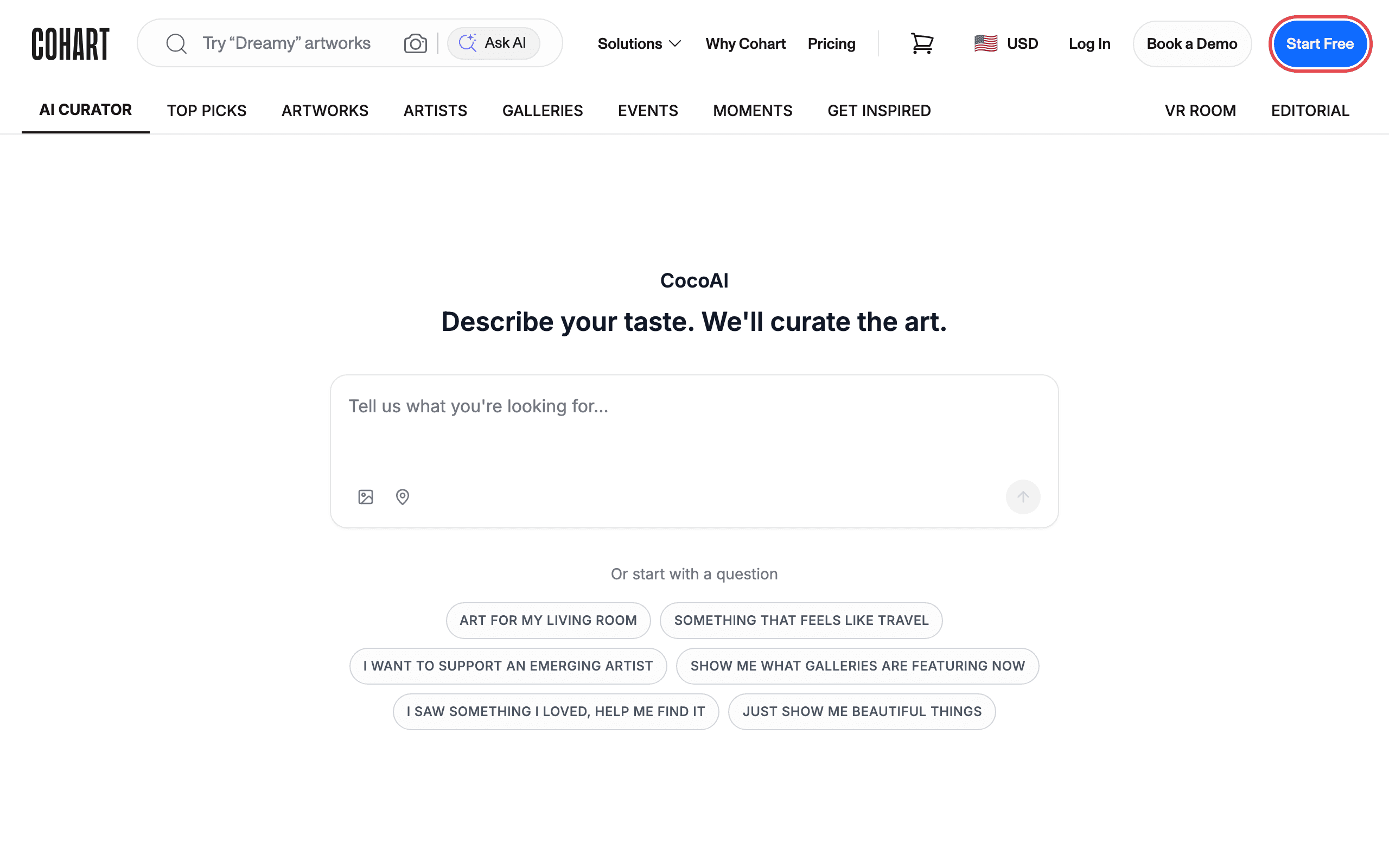
1. Open cohart.com and click Start Free
Go to www.cohart.com . Click Start Free in the top-right corner of the header.
2. Choose how to sign up
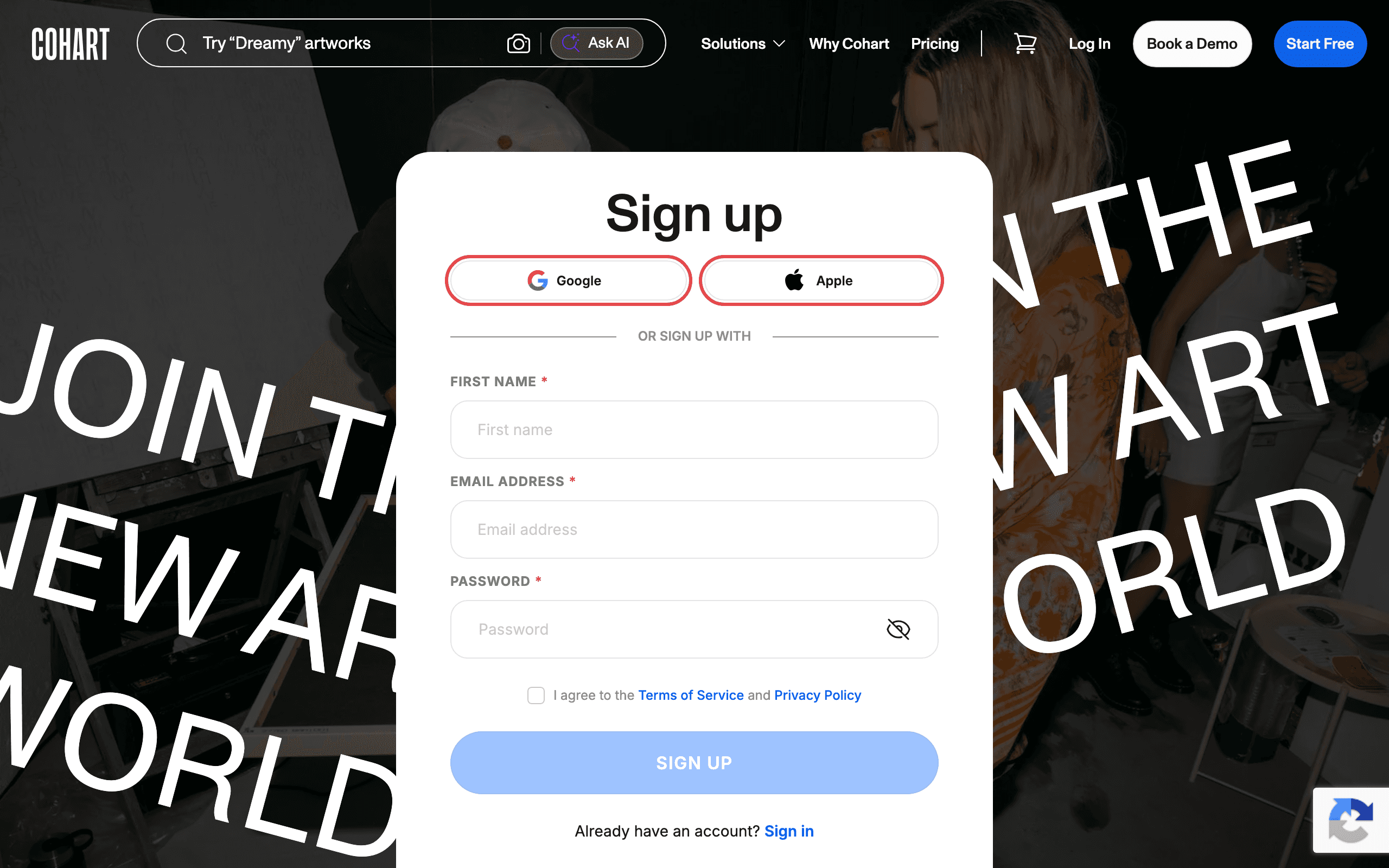
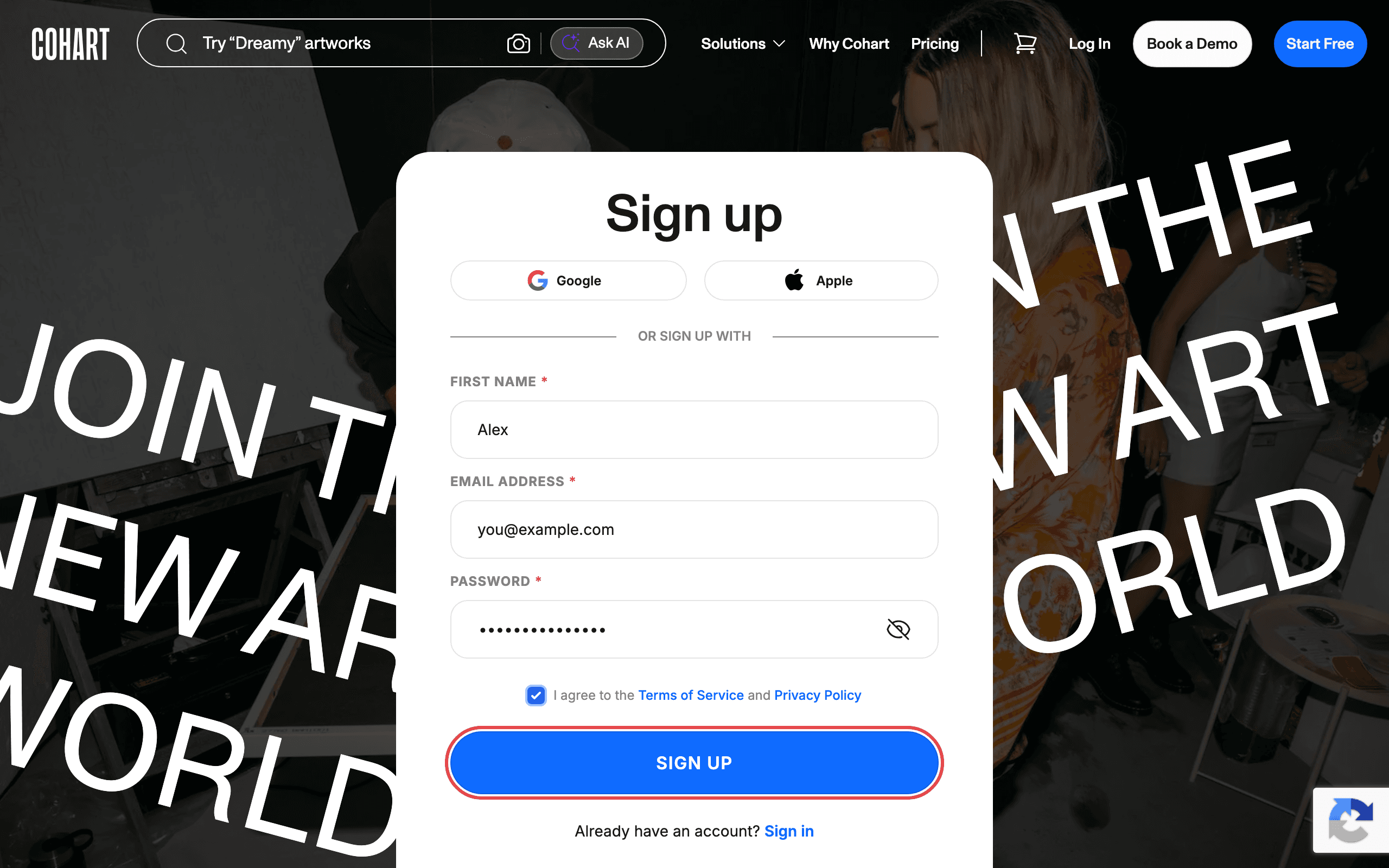
The Sign up page opens. You can sign up in one click with Google or Apple, or scroll to the form under OR SIGN UP WITH to use your email address. The steps below follow the email option.
If you already have an account, click Sign in at the bottom of the card instead.
3. Fill in your details
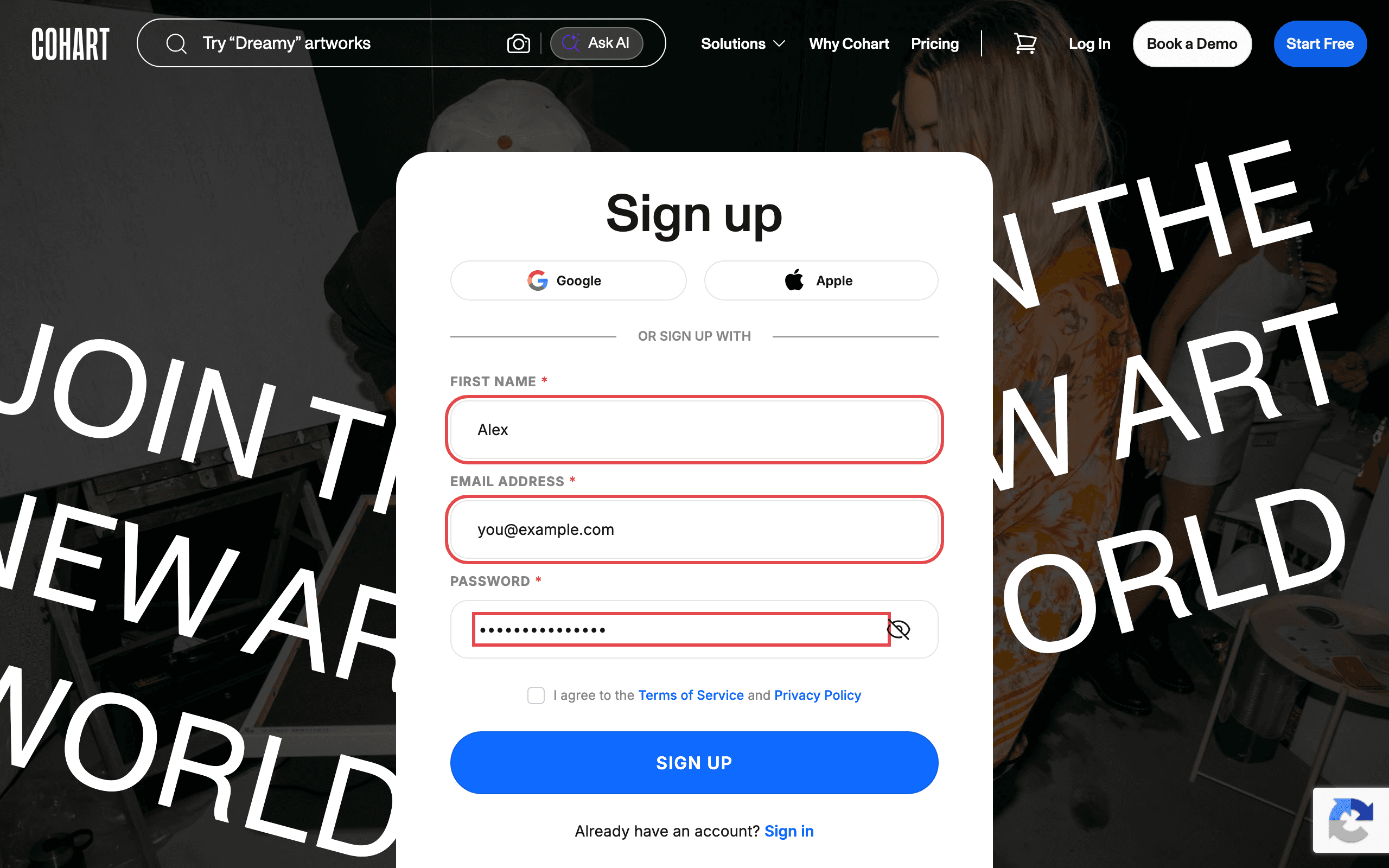
Enter your FIRST NAME, EMAIL ADDRESS, and PASSWORD. All three fields are required. Your password must be at least 6 characters. Use the eye icon next to the password field to show what you typed.
4. Agree to the terms
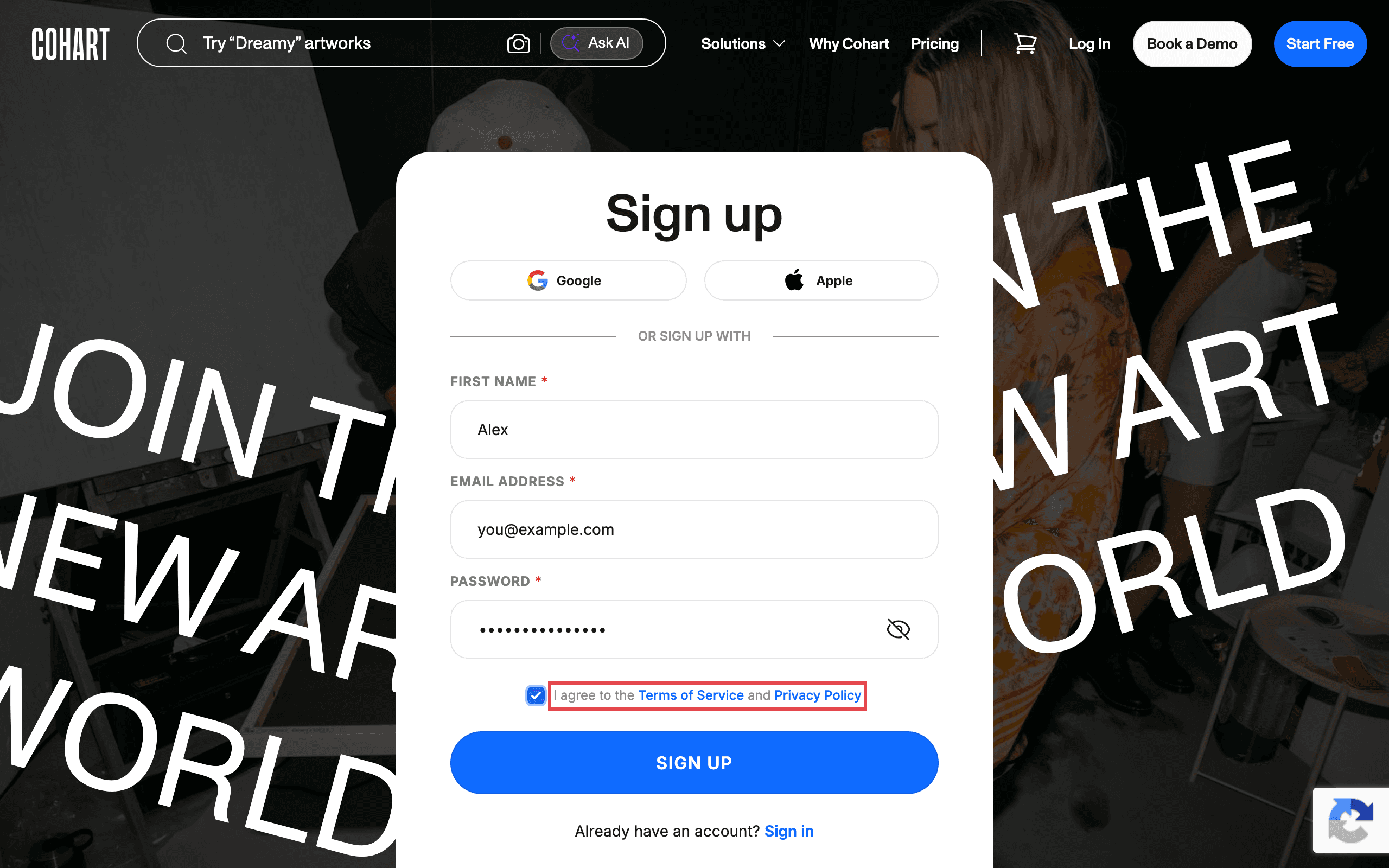
Tick the box next to I agree to the Terms of Service and Privacy Policy. Click either link to read the documents first.
5. Click SIGN UP
Click the blue SIGN UP button.
6. Verify your email
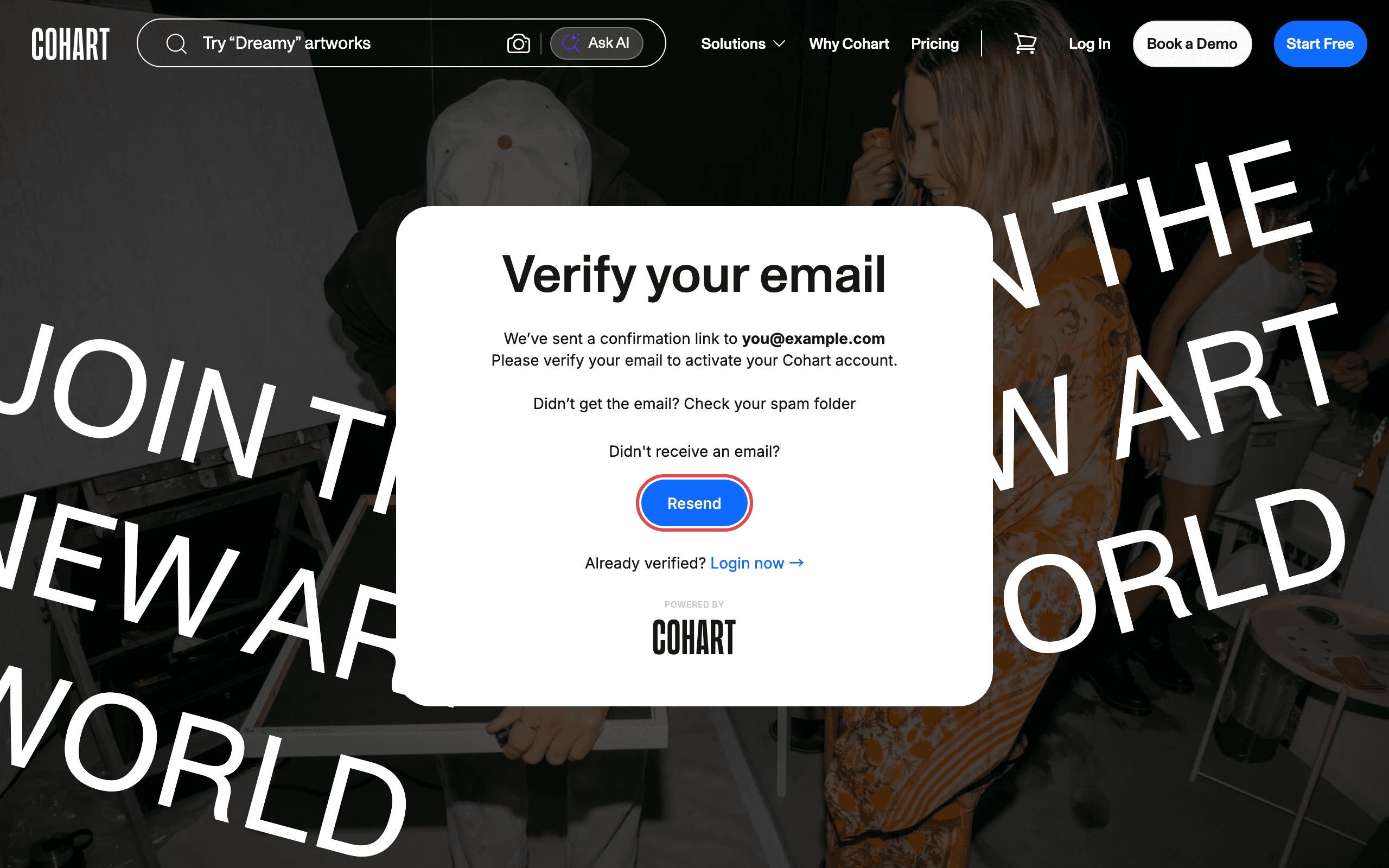
Cohart shows a Verify your email screen: “We’ve sent a confirmation link to your email address. Please verify your email to activate your Cohart account.” Open the email and click the confirmation link. Once verified, click Login now → on this screen to log in.
Troubleshooting
- “Password is too short! Minimum 6 characters” — this message appears under the password field after you click SIGN UP. Enter a password with at least 6 characters and try again.
- “Email address already in use” — an account already exists for that address. Click Sign in below the form (or Log In in the header) instead.
- Nothing happens when you click SIGN UP — check that the I agree to the Terms of Service and Privacy Policy box is ticked. The button looks clickable even when the box is empty, and the page shows no error message in that case.
- The verification email never arrives — the screen reminds you: “Didn’t get the email? Check your spam folder”. If it is not there, click Resend.
- You can’t log in right after signing up — your account is not active until you click the confirmation link. The verify screen states: “Please verify your email to activate your Cohart account.”
- The form is protected by Google reCAPTCHA (badge in the bottom-right corner of the page). If your browser or an extension blocks Google scripts, allow them for cohart.com before signing up.
Screenshots are regenerated automatically from the live site. Last captured: 2026-08-10.