How to Get Started Selling on Cohart
Overview
Getting started on Cohart means setting up the handful of tools that power everything else you do on the platform — your profile, inventory, contacts, sales tools, and marketing — and this guide walks through that path in order, whether you’re setting up your everyday art business or preparing for a fair or event. If you’re brand new to Cohart and not sure where to start, start here.
- Who it’s for — new artists and galleries, including sellers preparing for an in-person fair or exhibition.
- What it covers — completing your profile, uploading inventory, generating labels and Certificates of Authenticity, collecting subscribers, sending campaigns, building a website, sharing Private Views, accepting payments, processing sales, selling in person, setting up sales tax, shipping, running events, and staying visible on Discover.
- Where it happens — each stage lives in its own area of your dashboard sidebar, linked from the matching step below.
- What you end up with — a complete seller setup: a published profile, listed inventory, a connected payout account, and every sales tool ready to use.
Before you start
- A Cohart account. Create one for free, then work through the stages below in order — later stages (invoicing, shipping, sales tax) depend on having inventory and a connected payout account first.
- If you’re preparing for a fair or event, sales tax can be handled for you. For U.S. events, Cohart can calculate, collect, and file sales tax on transactions processed through the platform — see the sales tax step below.
- Questions along the way are answered at support@cohart.com for general support, and for fair-specific onboarding at lauren@cohart.com, or by booking a live demo (see How to Book a Demo of Cohart).
Steps
1. Sign in to Cohart
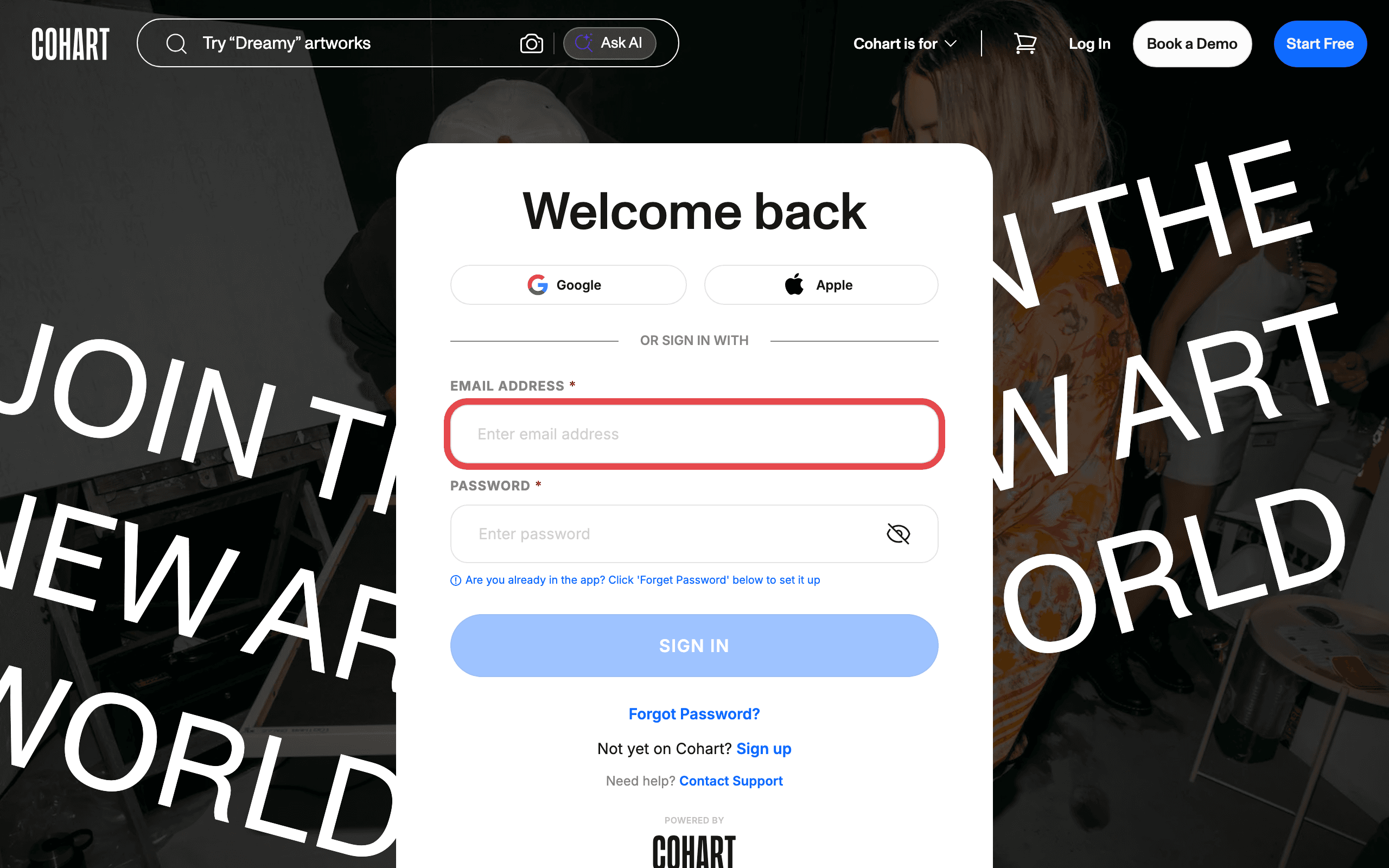
Sign in with your email address and password, or use Google or Apple.
2. Complete your profile
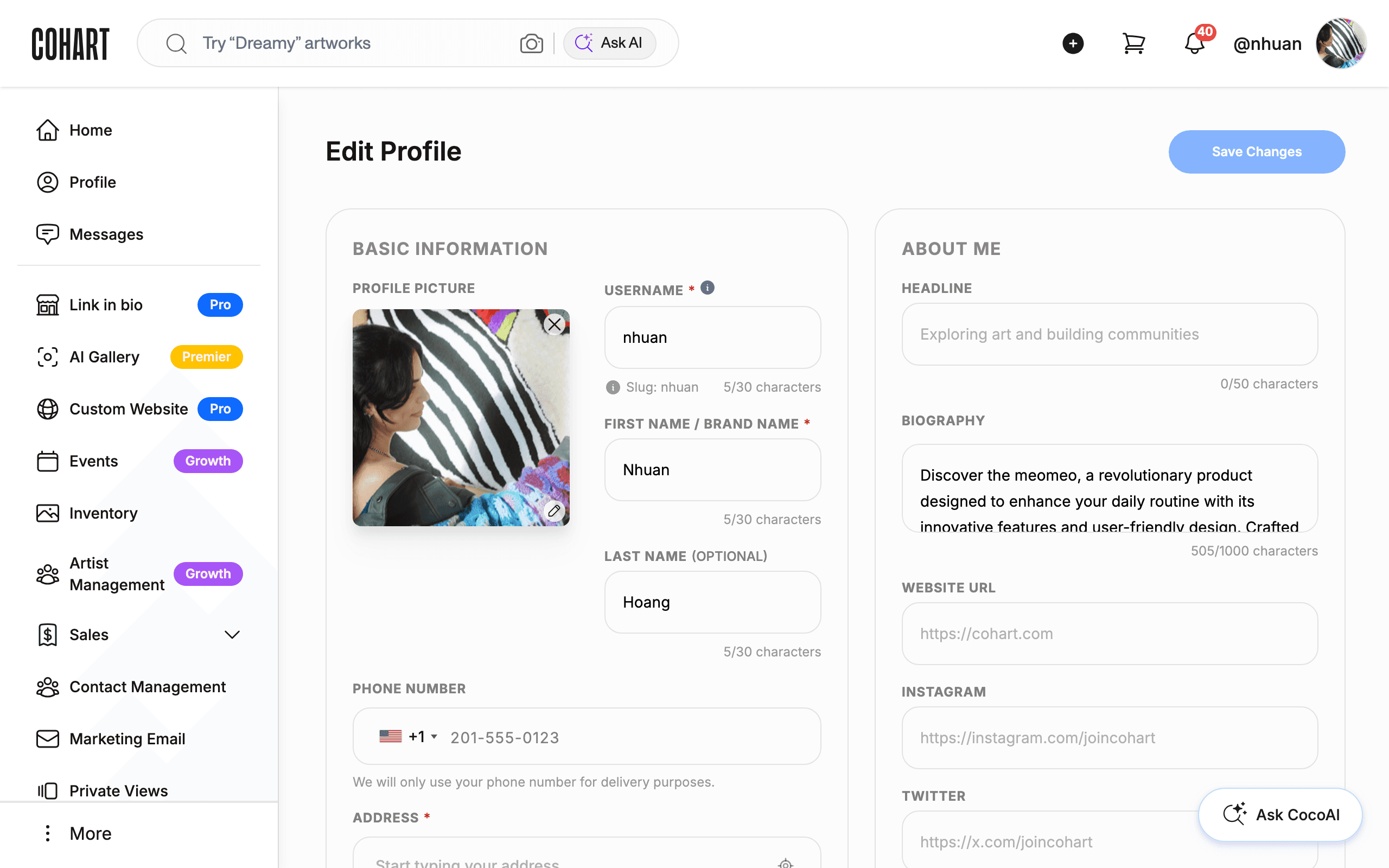
Add your profile photo, username, and address, and publish at least one artwork to earn your Verified badge. A complete profile is what lets collectors recognize and find you, and it powers your website, Link in Bio, labels, COAs, Private Views, and Discover listings. See How to Manage Your Public Profile for the full walkthrough.
3. Upload your inventory
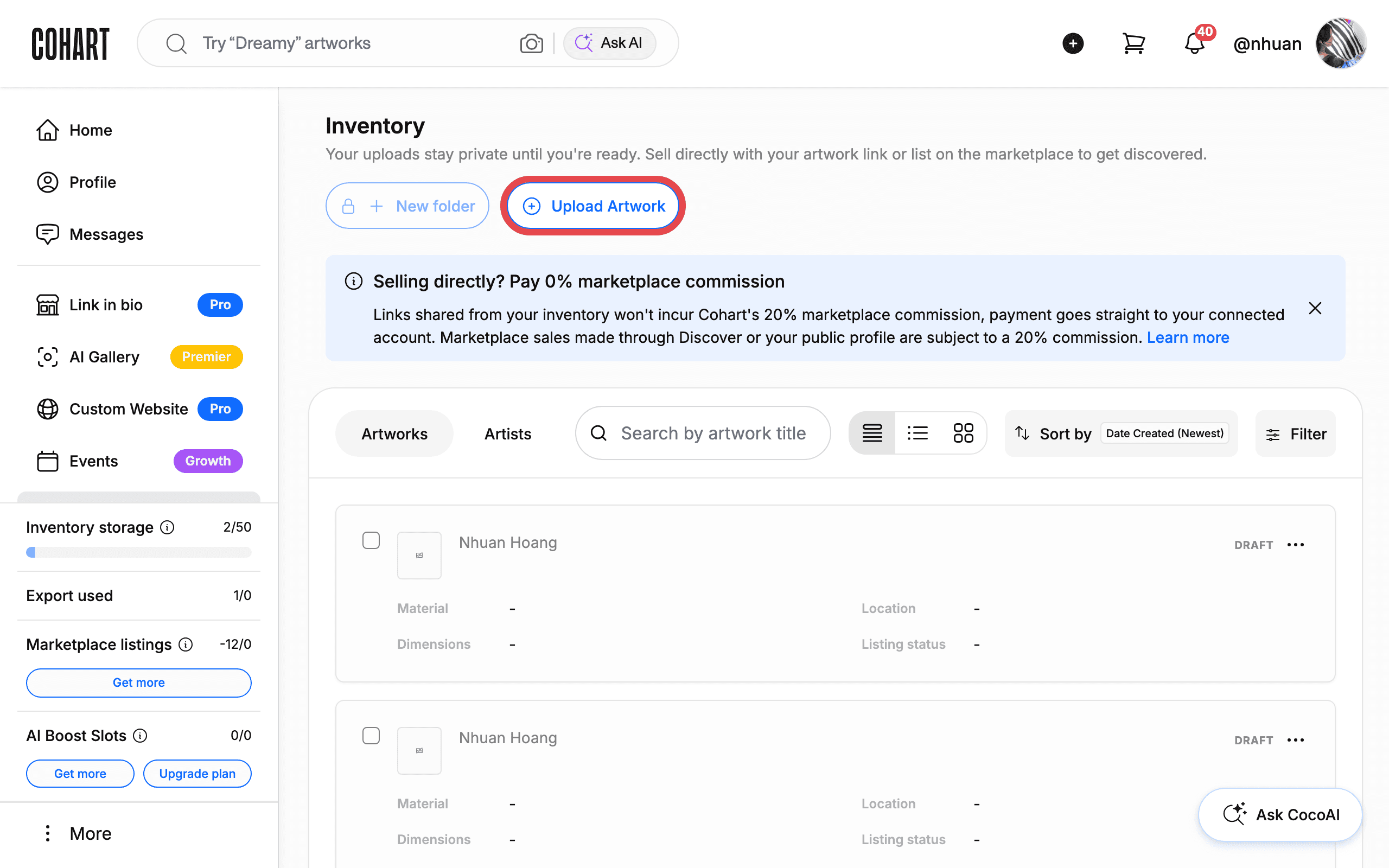
Add the works you’re selling from your Inventory dashboard — available, sold, or inquiry-only pieces all belong here. Once uploaded, your inventory powers your website, Link in Bio, Discover listings, labels, COAs, Private Views, and every sales tool. See How to Upload an Artwork for a single piece, or How to Bulk Upload Artworks to Your Inventory from a Spreadsheet for many at once. Cohart also offers a paid one-time Artwork Migration service — see How to Buy Additional Support Services.
4. Create labels, price lists, tear sheets, and COAs
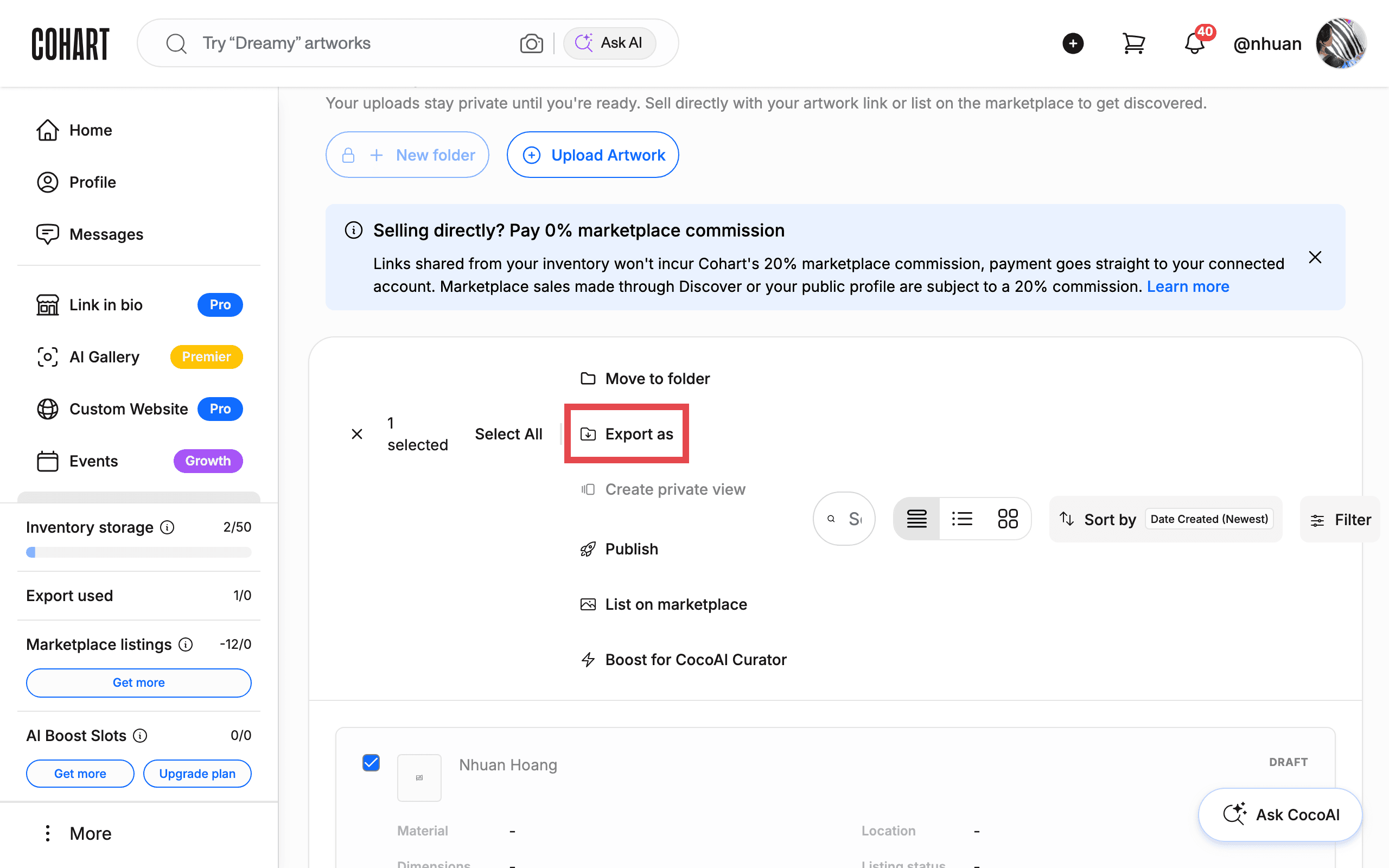
Once your inventory is uploaded, select artworks with the checkbox and click Export as to generate artwork labels with QR codes for a booth, price lists for collectors, tear sheets for presentations, and Certificates of Authenticity (COAs). For sales made through a Cohart listing, a digital COA is generated automatically and emailed to the buyer after purchase. See How to Use Other Artwork Features for the full menu of export and listing actions.
Video: Cohart’s Digital Certificate of Authenticity
5. Collect email subscribers with your Link in Bio
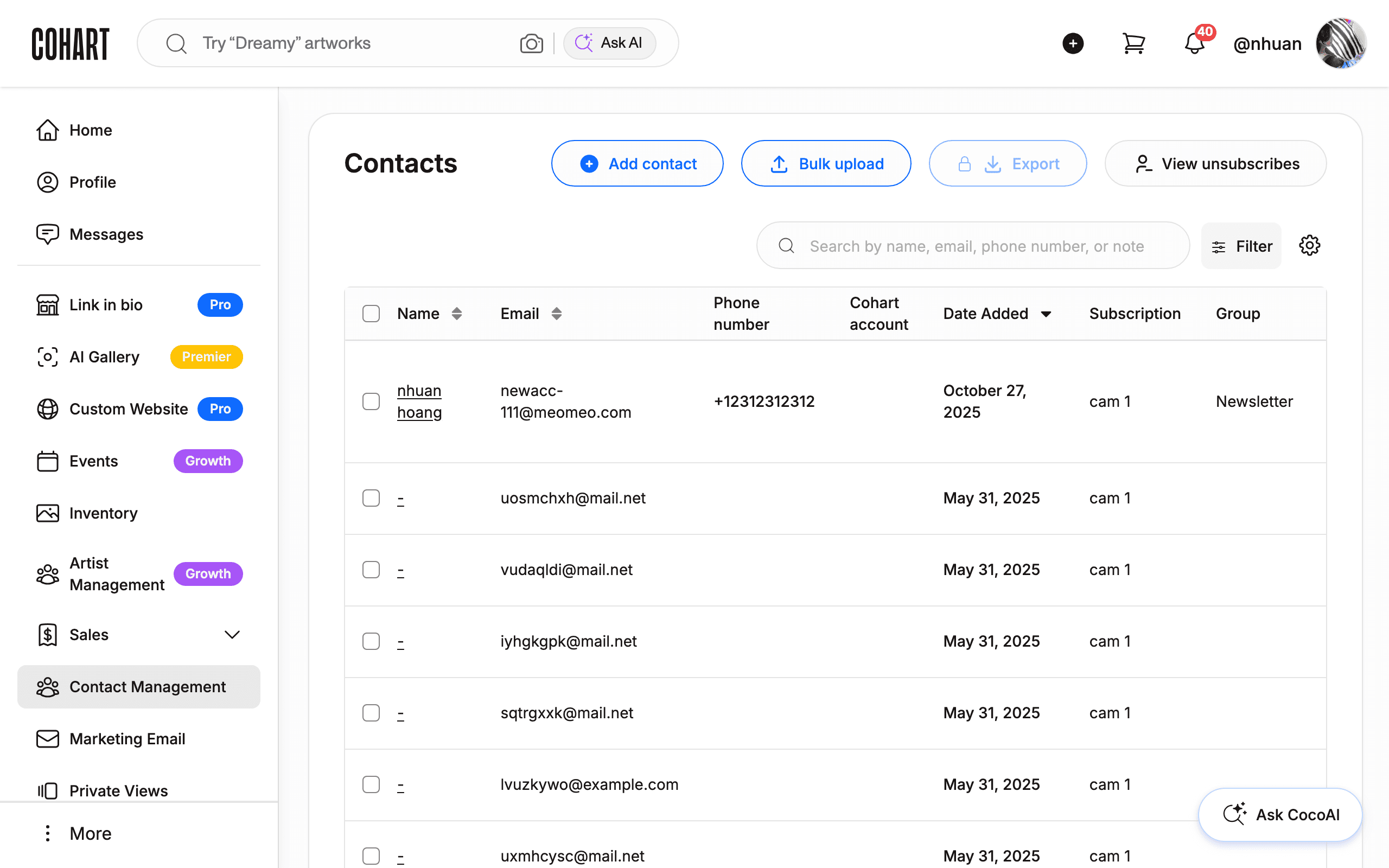
Your Link in Bio includes a unique QR code you can display at your booth, studio, or exhibition — visitors scan it to browse your work and subscribe to your mailing list in a few taps. Every new subscriber is added automatically to Contact Management, so you can follow up with exhibition announcements or new work without a paper sign-up sheet. See How to Manage Your Public Profile for your Link in Bio, and How to Manage and Export Your Contacts for the contacts it feeds.
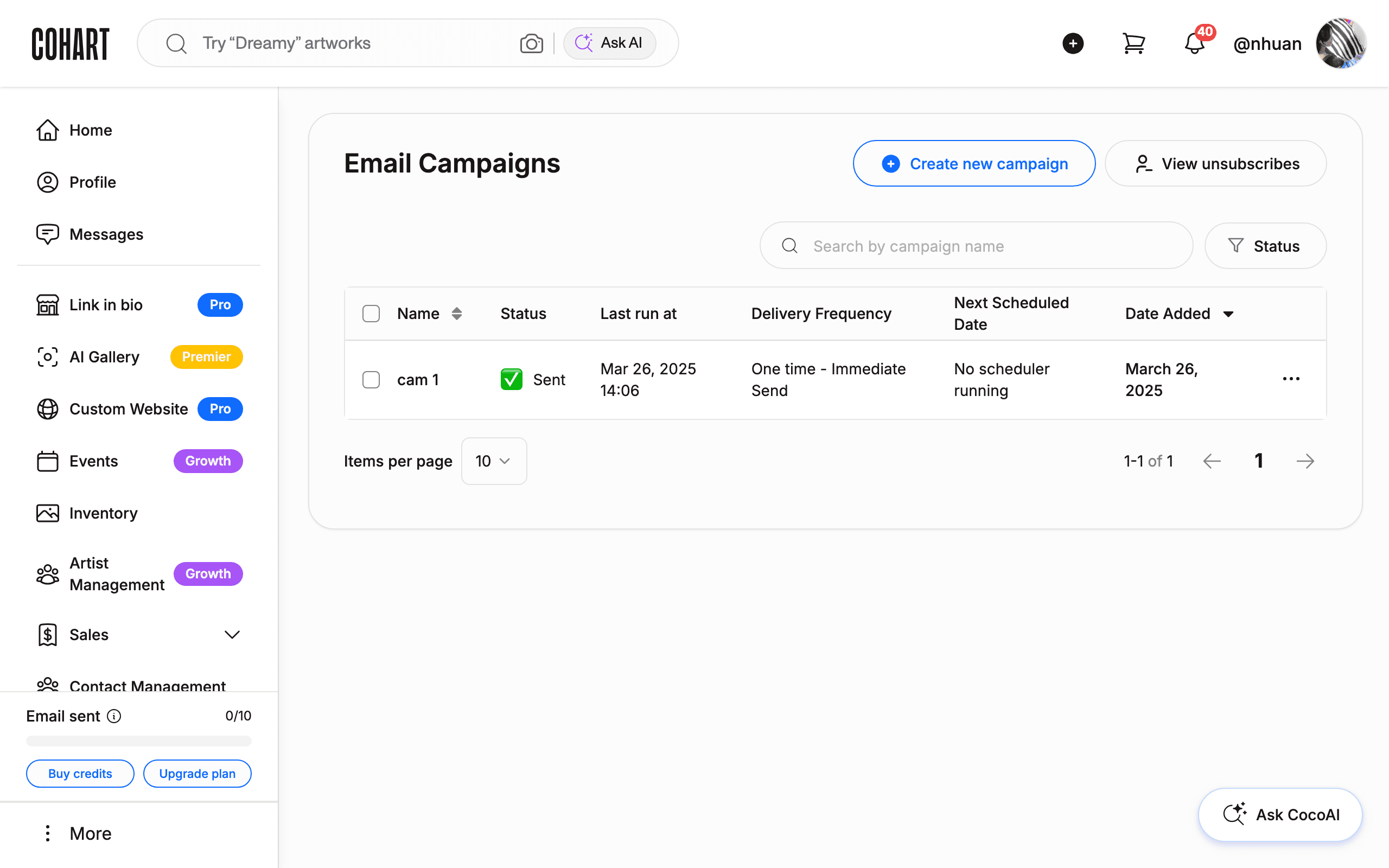
6. Send email campaigns and use promo codes
Use Marketing Email to stay in touch with collectors, subscribers, and contacts — announcing new work, exhibition news, event invitations, or a thank-you after a fair. Contacts collected through your Link in Bio QR code appear here automatically, ready for your next campaign. You can also create promo codes for a limited-time discount or collector-exclusive incentive and include them in a campaign. See How to Create a Marketing Email Campaign and How to Create and Send Promotion Codes.
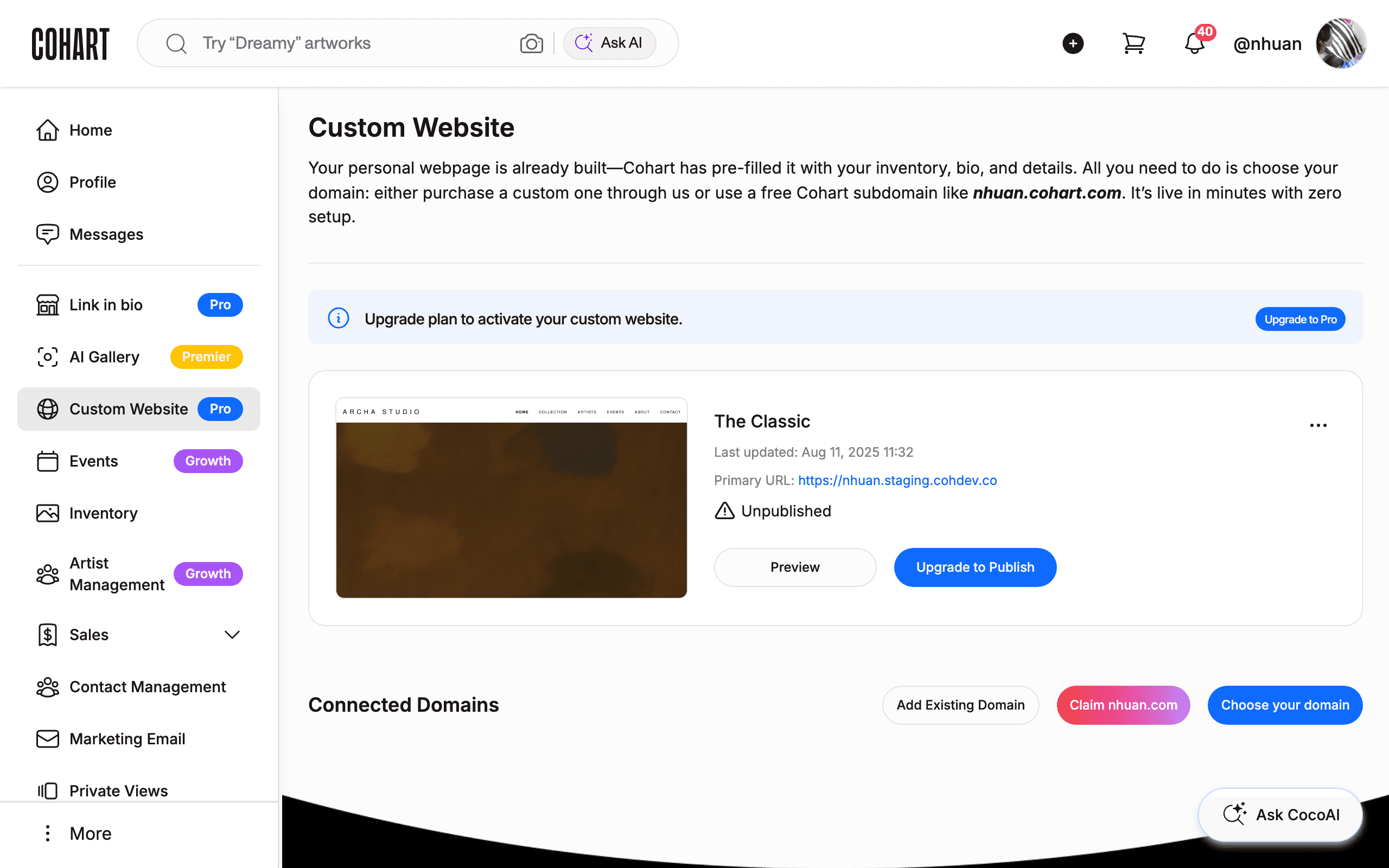
7. Build your website
Turn the inventory you’ve uploaded into a professional Cohart-powered website that updates automatically as your artworks change — since your website and Link in Bio sync with your inventory, you only update your work in one place. See How to Set Up and Publish Your Custom Website, and How to Connect a Custom Domain to Your Custom Website if you want a custom domain.
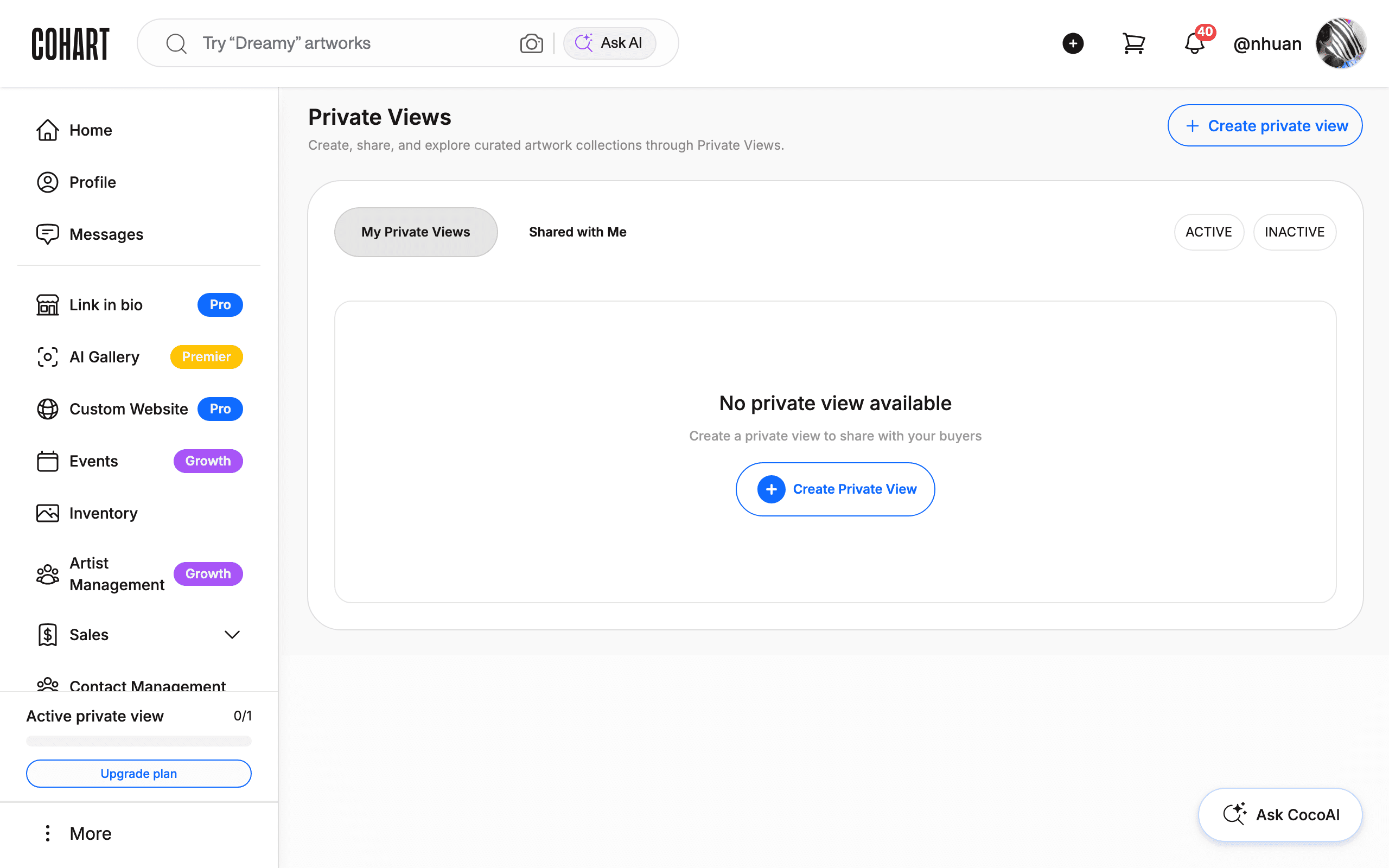
8. Use Private Views for collector conversations
Create a curated selection of works to share privately with a collector, advisor, or interested buyer — a more personal way to present artworks, or to show inventory they didn’t see on-site. See How to Create a Private View and How to Edit, Manage, and Share an Existing Private View.
9. Accept payments and use Tap-to-Pay
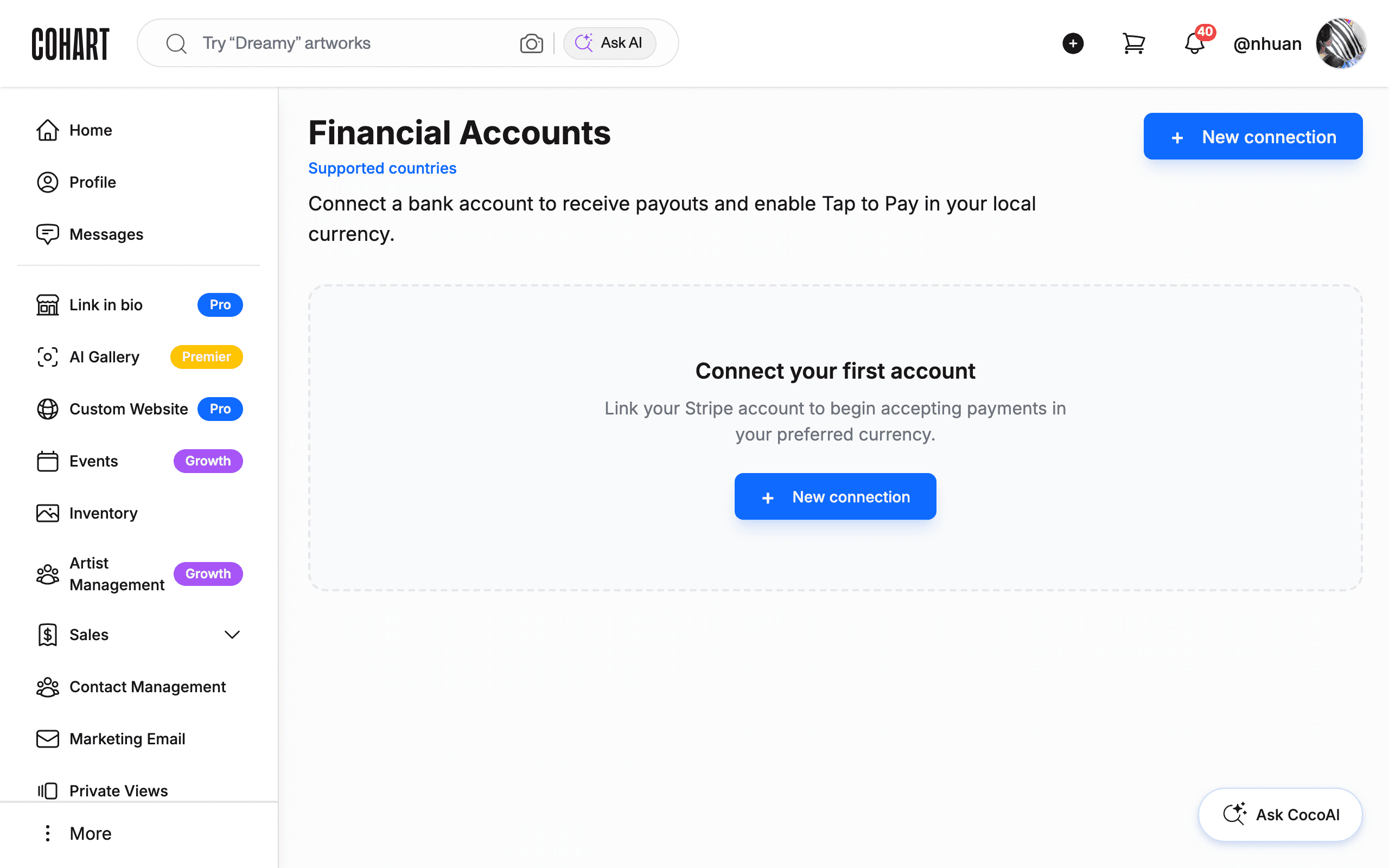
Complete Cohart Connect and link a bank account under Financial Accounts before you start selling in person — this is required for payouts. A connected account lets payments arrive immediately, sends payouts to your bank within days, lets you accept your buyer’s preferred currency (Stripe converts it automatically), and enables Tap-to-Pay in a supported connected currency. Tap-to-Pay itself runs from the Cohart Business mobile app (iPhone or Android), which turns your phone into a card reader — no hardware needed; on the free plan, enter the customer’s card details manually instead. See How to Connect Your Bank Account and Manage the Currencies You Sell In for the full setup. [UNVERIFIED — check manually: Tap-to-Pay itself runs in the mobile app and isn’t shown here; this step only covers the web-based Financial Accounts setup it depends on.]
10. Process sales and manage invoices
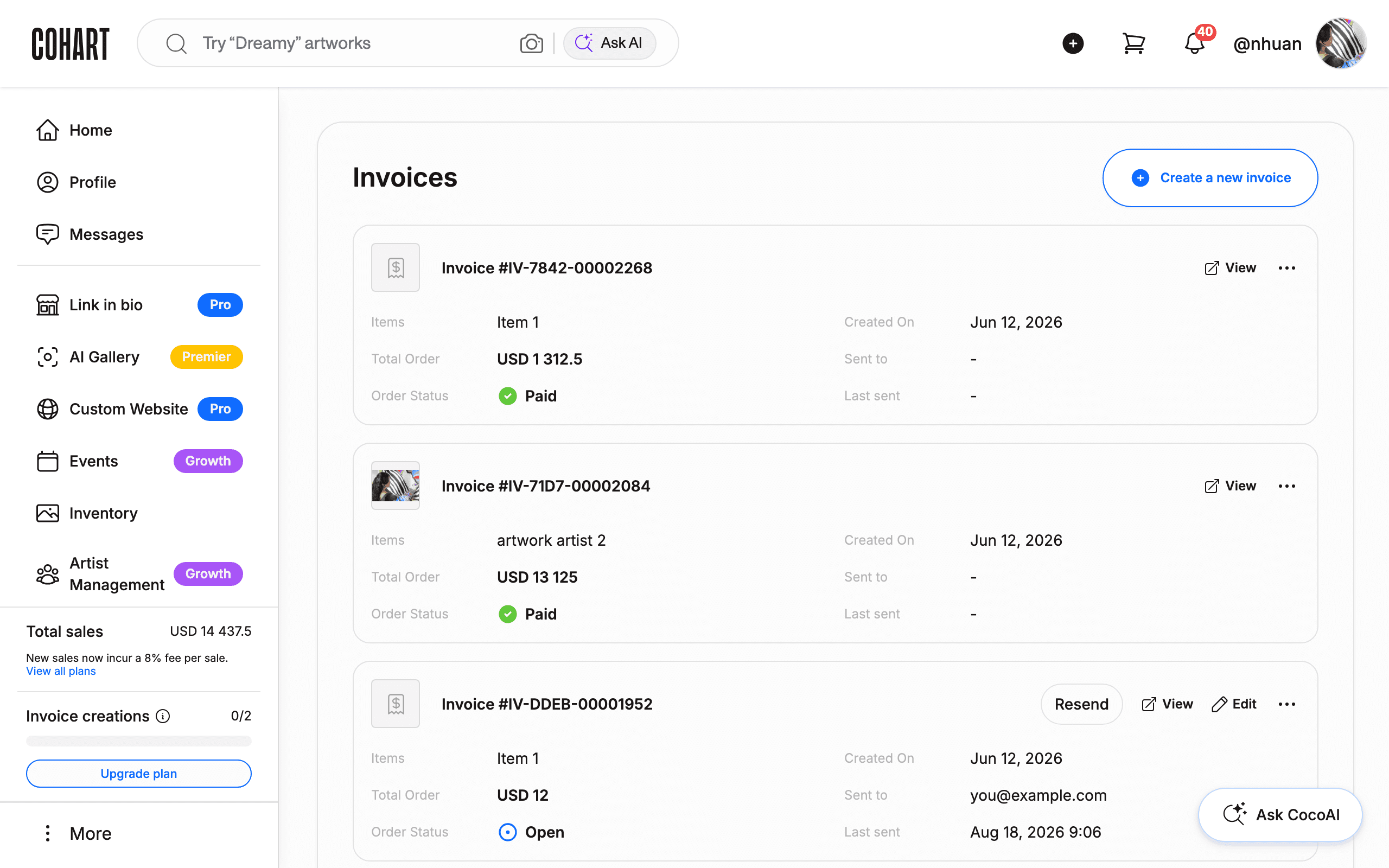
Buyers can purchase directly through a Cohart listing with Buy Now, or you can process a sale yourself with Tap-to-Pay, a QR code, or a custom invoice. Create invoices for specific artworks, shipping, deposits, commissions, or other custom needs — invoices track payment automatically once completed, and you can review sales anytime from Sales Record and Transactions. See How to Create an Invoice on Cohart, How to Manage Invoices, and How to Manage Sales.
11. Sell artworks with a QR code
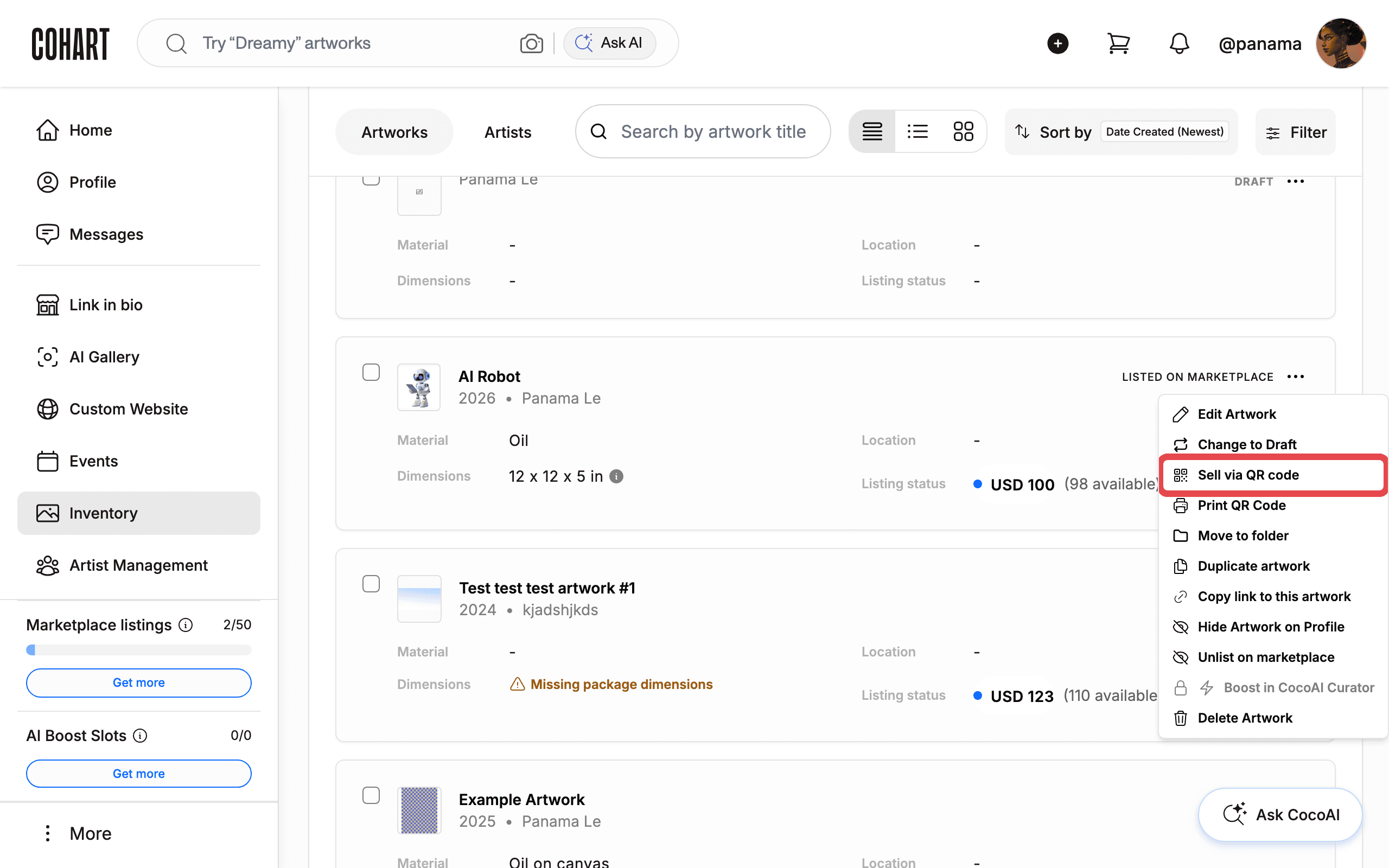
For fixed-price work you want buyers to check out on their own, open an artwork’s ”…” menu and choose Sell via QR code or Print QR Code to generate one for self-service checkout — every listing needs a price set first. See How to Use Other Artwork Features for the rest of the artwork menu.
12. Set up U.S. sales tax
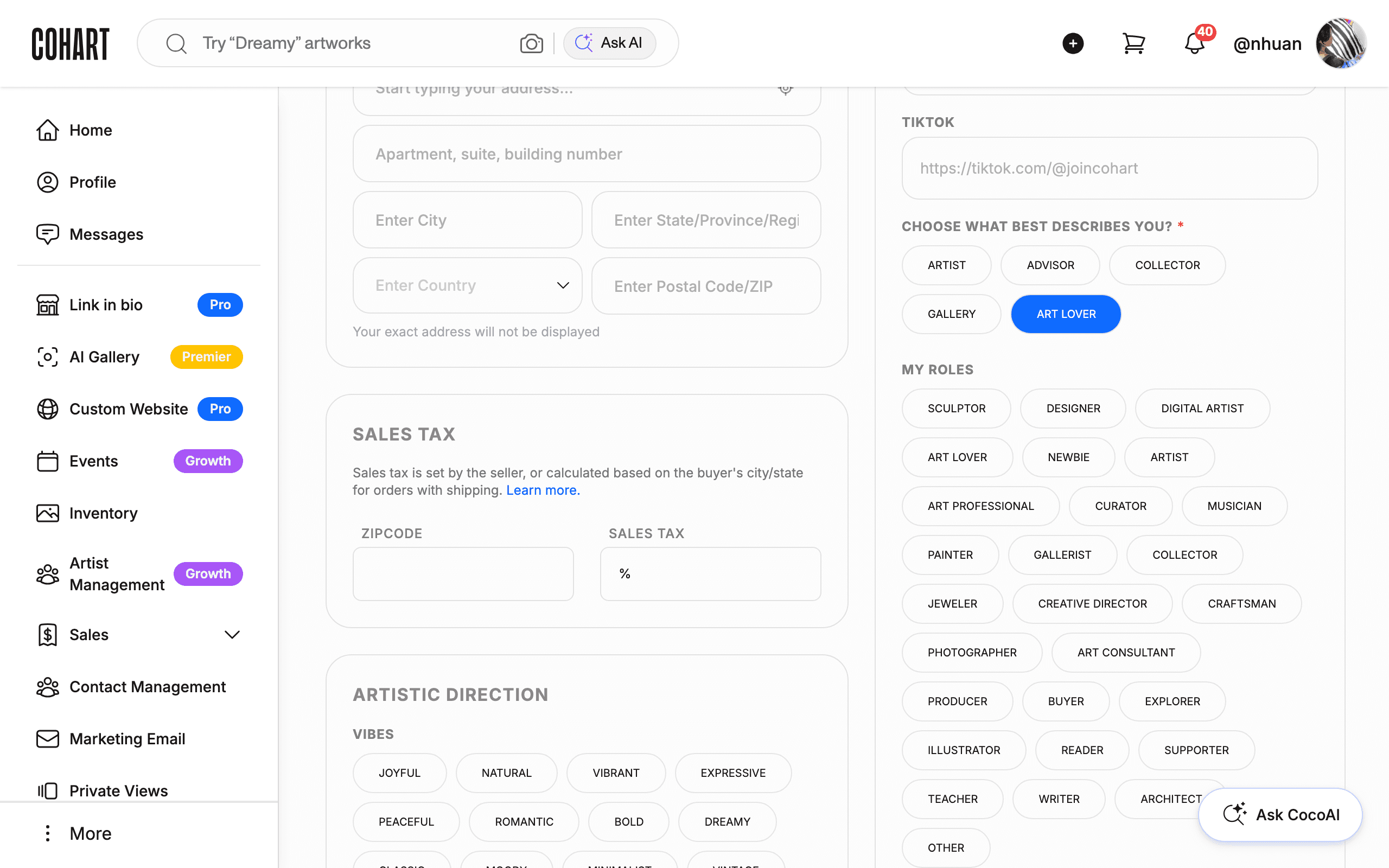
As an online platform, Cohart can automatically calculate and file U.S. sales tax with no seller’s permit required, for sales processed through the platform — added on top of the artwork price and paid by the buyer, so it doesn’t reduce your payout. Sales tax doesn’t apply outside the U.S. (unless shipping there); online sales use the buyer’s address, and in-person sales use the location of the sale. Open Edit Profile, scroll to Sales Tax, and enter your business, fair, or event zip code — remove it afterward if that isn’t your usual location, or manage tax yourself by leaving it blank or entering 00000 at checkout. See How to Manage Your Account Settings for the rest of Edit Profile.
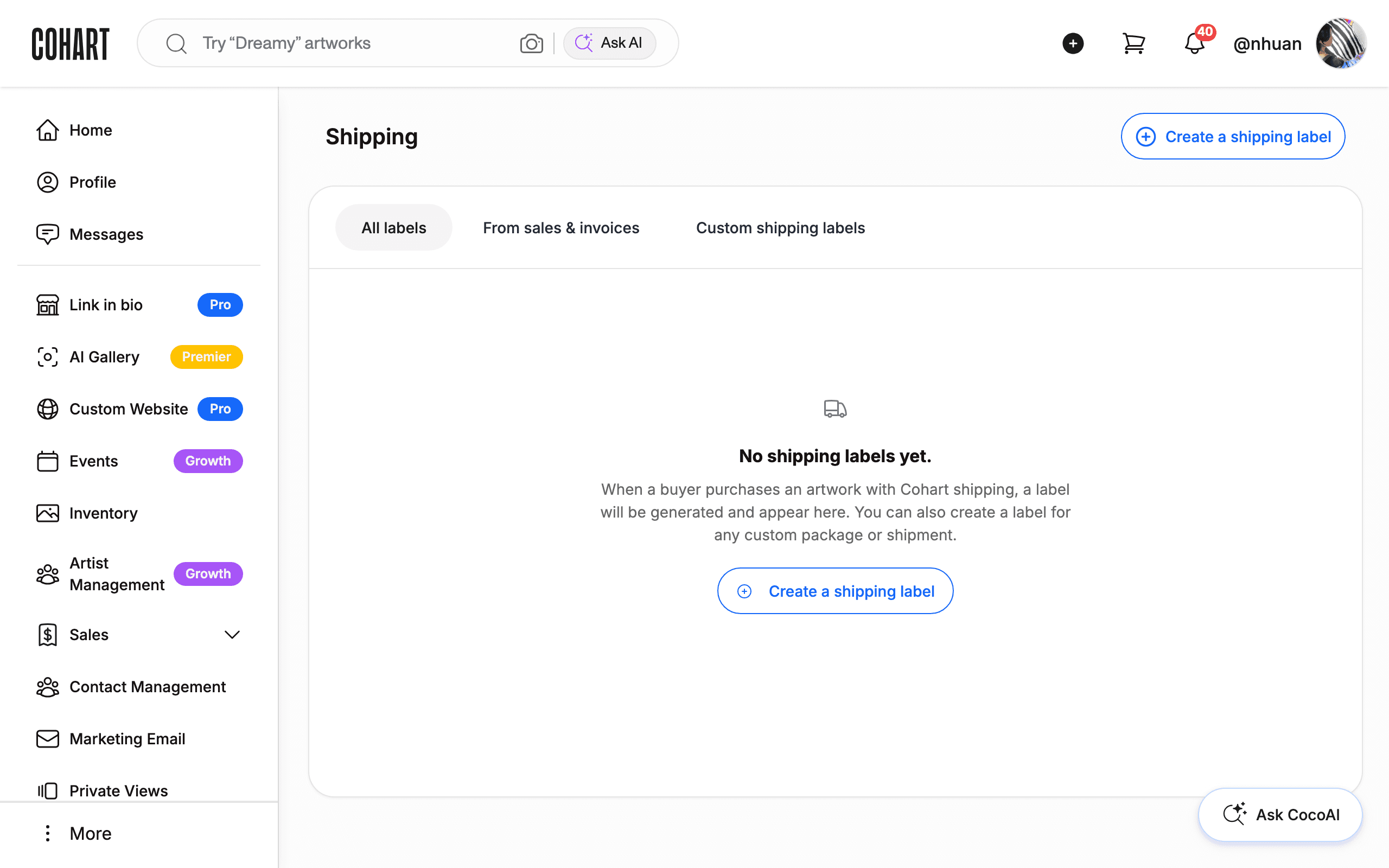
13. Ship a sold artwork
For sales that need shipping, Cohart can generate a label from the artwork’s packaged dimensions, weight, and destination. With Ship by Cohart, the buyer pays shipping at checkout and you download and print the label; choose Ship by Seller / Pickup or Invoice Only instead if you’d rather arrange shipping yourself, hand off in person, or quote shipping after the sale. See How to Prepare Shipping Products and How to Create a Custom Shipping Label.
Video: How to Ship a Sold Artwork
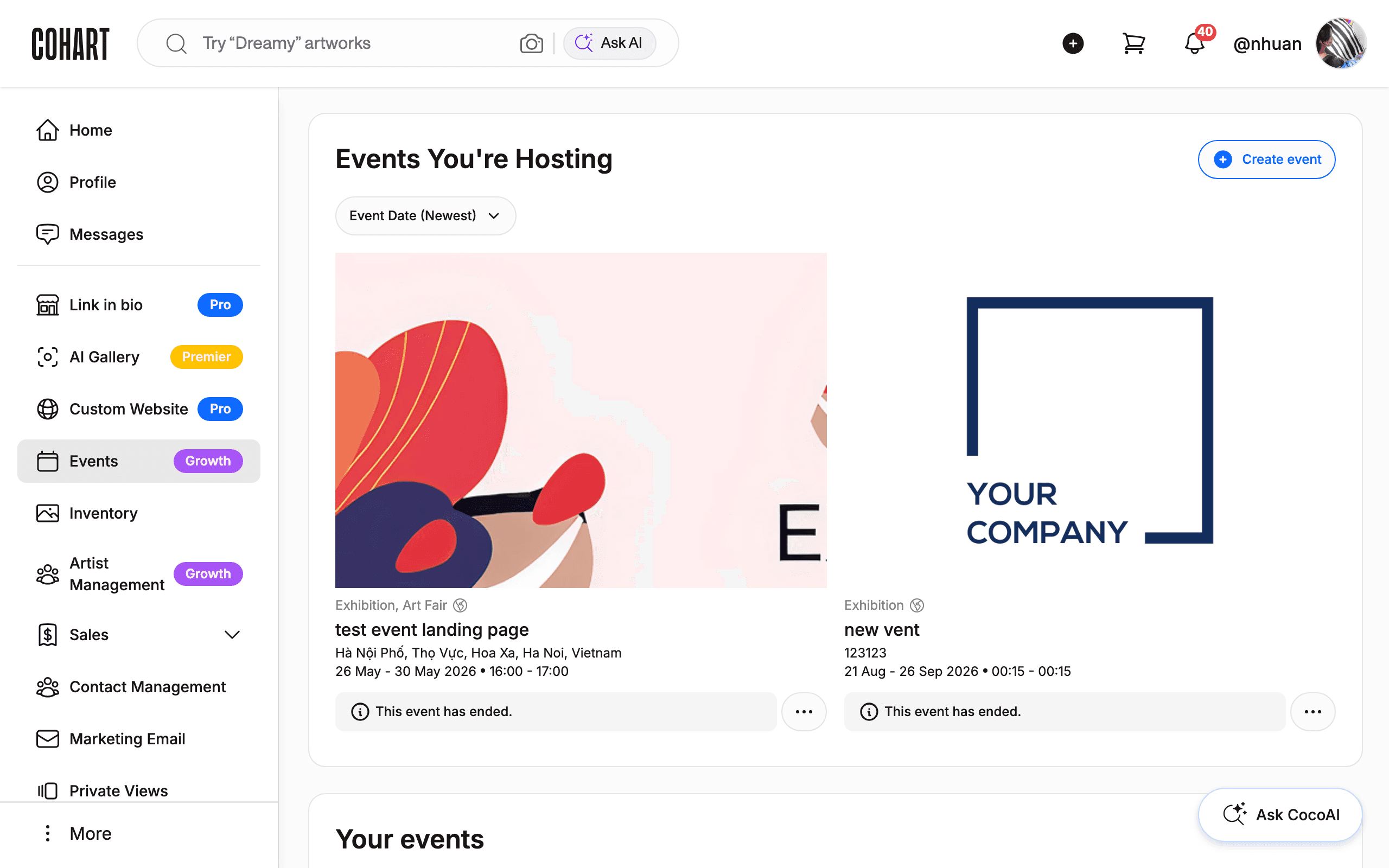
14. Create and share events
Create an event and invite your collectors to attend, then share it through your Link in Bio, an email campaign, or social media to keep your audience informed. See How to Create a New Event on Cohart: Gallery Openings, Exhibitions, Art Fairs, and Talks.
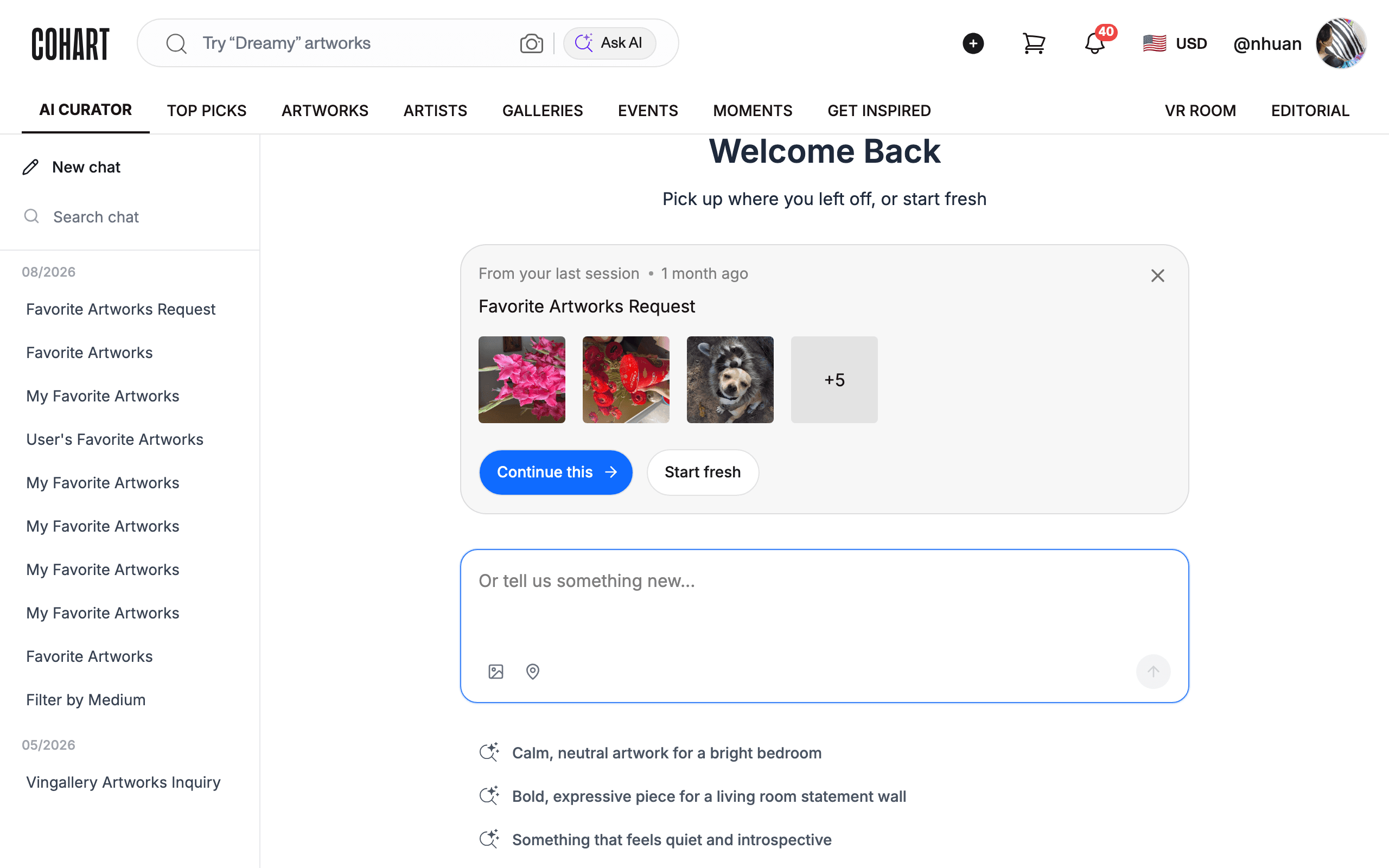
15. Keep selling on Cohart Discover
Keep your work visible after a fair or launch by listing it on Cohart Discover, where collectors browse year-round and CocoAI recommends artworks based on their interests. Manage your marketplace listings anytime from Inventory, with optional listing and AI boost credits if you want extra visibility for specific works. See How to List Artworks in the Marketplace and Get Them on the Discover Page.
Tips
- Inventory upload isn’t required to start selling. If you’re short on time, use Custom Item during Tap-to-Pay or invoice checkout to enter a title and price on the spot instead of uploading in advance.
- Work through the stages roughly in order. Later stages — invoicing, shipping, QR checkout — all draw on the profile, inventory, and connected payout account you set up first.
- Remove a one-off event zip code afterward. If you set a Sales Tax zip code for a specific fair, remove it once the event ends so it doesn’t keep applying to your regular sales.
- A promo code works best paired with a campaign. Create the code first, then include it in an email campaign to encourage a follow-up purchase.
Troubleshooting
- You can’t accept Tap-to-Pay or process payouts → your bank account isn’t connected yet → complete Cohart Connect and link a bank account under Financial Accounts first; payouts and Tap-to-Pay both depend on it.
- A QR checkout or marketplace listing isn’t available for an artwork → the artwork needs a set price and, for marketplace listing, must be published → check the artwork’s price and publish status in Inventory before generating a QR code or listing it.
- Sales tax isn’t applying at an event → the zip code under Edit Profile → Sales Tax doesn’t match the event location → update it to the fair, event, or in-person sale zip code, then remove it afterward if it isn’t your usual location.
- You’re not sure which guide covers a specific stage → every stage above names its detailed guide by title → search the support center for that title, or contact support@cohart.com if you can’t find it.