How to Book a Demo of Cohart
Overview
You can book a live demo of Cohart with the Cohart team from the demo booking page . The demo walks you through how inventory, your website, sales tools, and collector outreach work together on Cohart, so you can see the platform in action before or after you pick a plan.
- Who it’s for — anyone: artists, galleries, art advisors, art dealers, and collectors. You can book a demo whether or not you have a Cohart account, and whether or not you are signed in.
- Where to find it — the Book a Demo button at the top of cohart.com/pricing and cohart.com/pricing/cohart-vs-others . The button only shows in the header when you are signed out. If you are signed in, open web.cohart.com/book-a-demo directly. It is the same form.
- What you end up with — a demo request sent to the Cohart team with your name, email, company, team size, and role.
Steps
1. Open the demo booking page
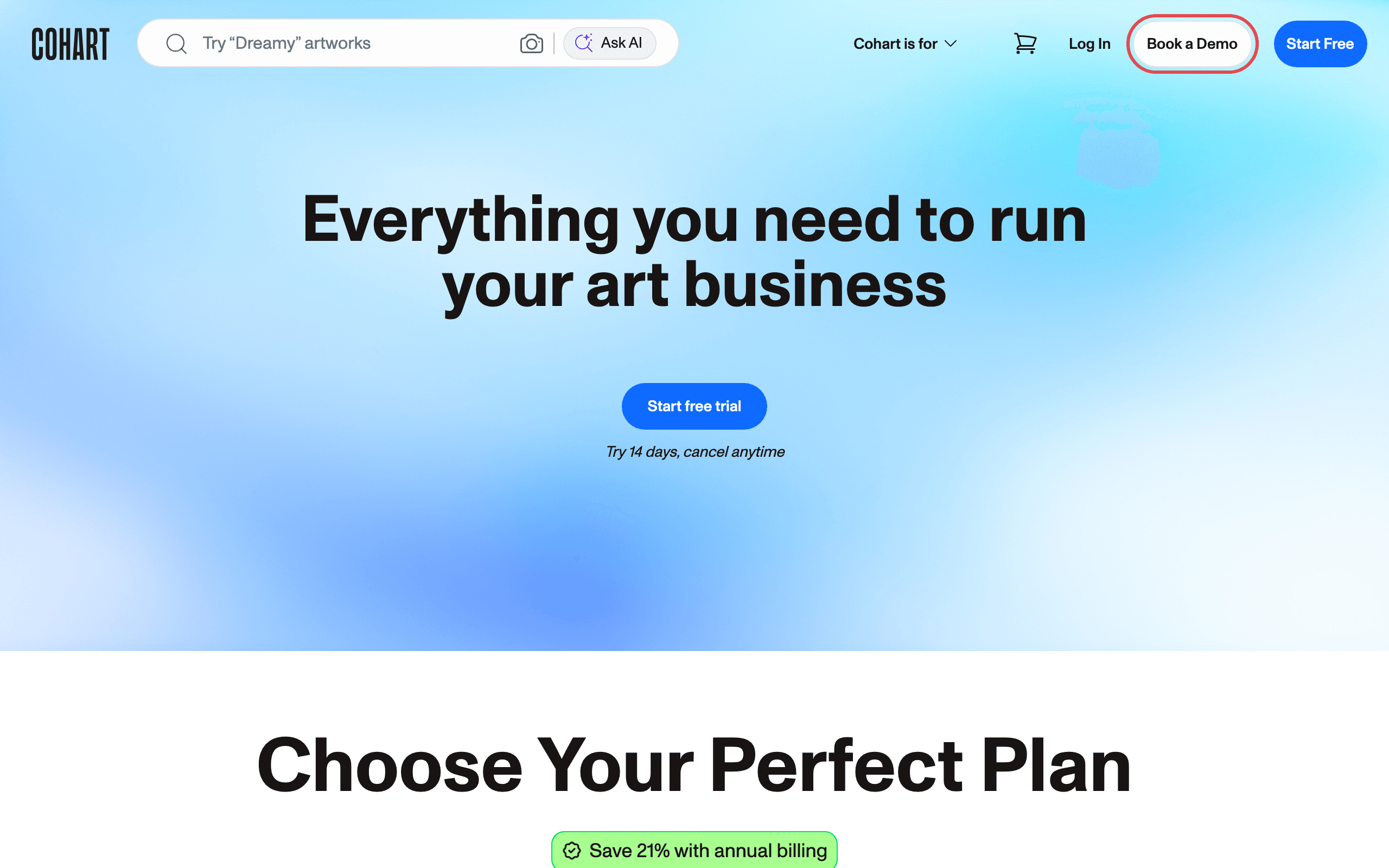
Go to cohart.com/pricing and click Book a Demo in the top-right corner, next to Log In and Start Free. The same button is on cohart.com/pricing/cohart-vs-others . If you are signed in, the button is hidden, so open web.cohart.com/book-a-demo directly.
2. Review the demo booking form
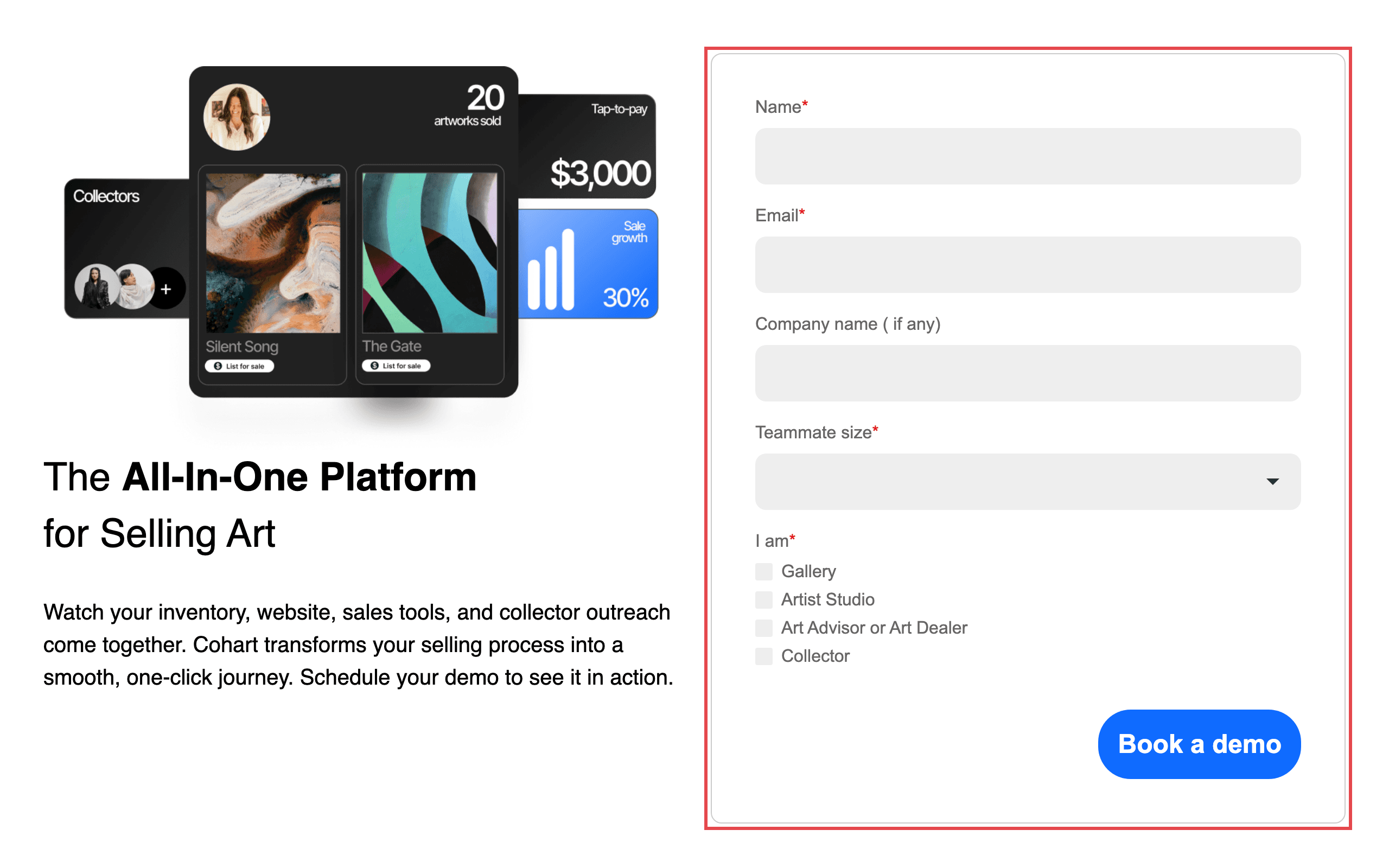
The Demo Booking page opens with the form on the right. It asks for:
- Name — required.
- Email — required.
- Company name ( if any) — optional.
- Teammate size — required. Pick 1-5, 5-25, 25-50, 50-100, 100-500, 500-1000, or 1000+.
- I am — required. Tick Gallery, Artist Studio, Art Advisor or Art Dealer, or Collector.
3. Fill in the form and click Book a demo
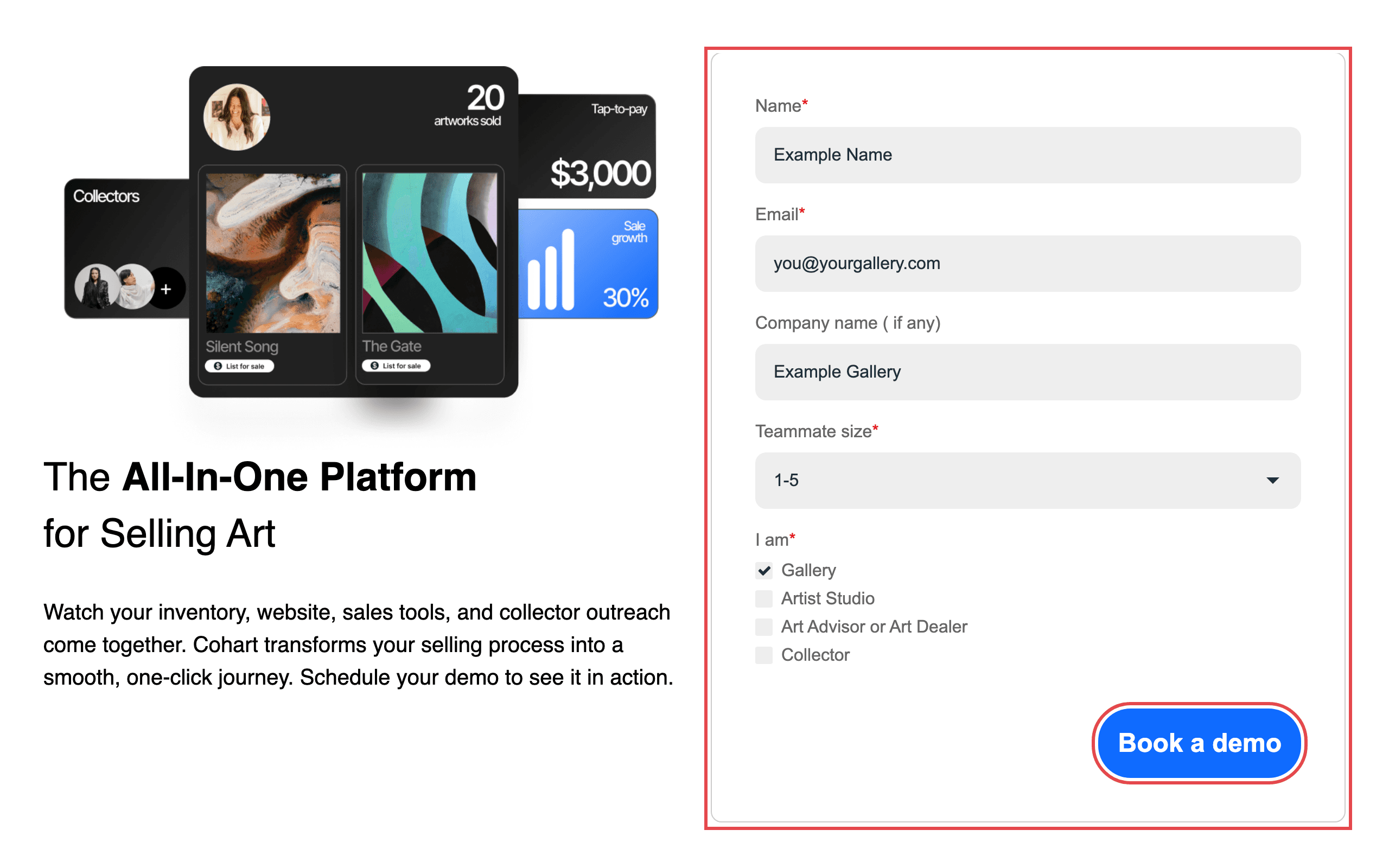
Enter your details, choose your Teammate size, tick the option under I am that describes you, and click Book a demo.
Tips
- Use an email address you check. The Cohart team uses it to reach you about the demo.
- Want to explore Cohart on your own first? Click Start Free on cohart.com/pricing to try it for 14 days.
- To compare what each plan includes before the demo, see cohart.com/pricing and cohart.com/pricing/cohart-vs-others .
Troubleshooting
- “Please enter a valid email address.” under Email → the form did not accept the address → check it for typos and use a real mailbox, such as your work or personal email.
- You don’t see Book a Demo in the header → the button only shows when you are signed out → open web.cohart.com/book-a-demo directly. It works whether or not you are signed in.