How to set up an AI gallery
This guide walks you through creating an AI-powered 3D gallery on Cohart, where an AI sales agent answers visitor questions about the artworks you place on display.
Before you start
- You need a Cohart artist or gallery account.
- Your artworks must be uploaded to your inventory (the artwork picker shows all uploaded works).
Steps
1. Sign in to your Cohart account
Open staging.cohdev.co/auth/login?authType=password . Enter your email address in the Enter email address field and your password in the Enter password field, then click Sign In.
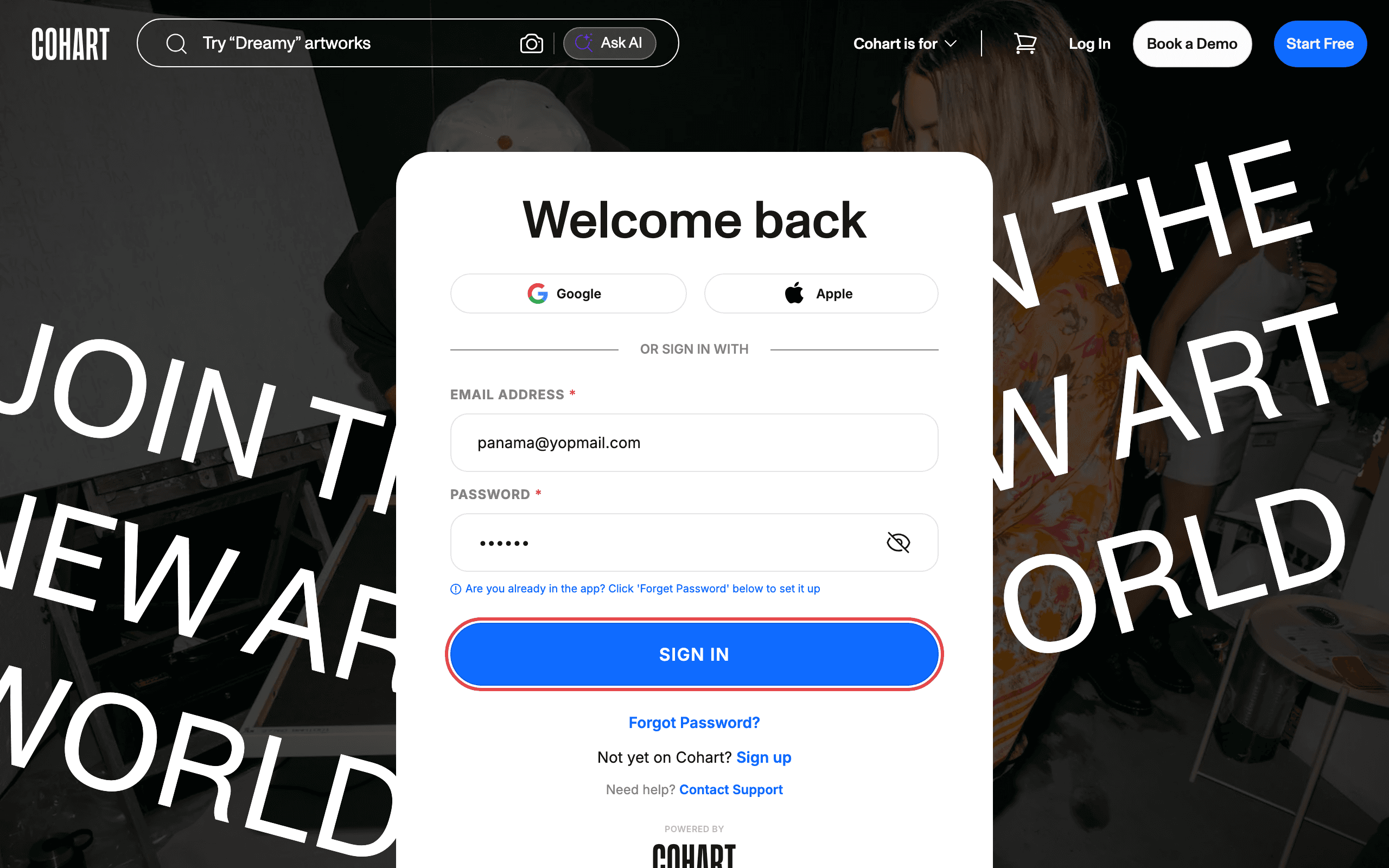
You can also sign in with Google or Apple using the buttons above the form. If you do not remember your password, use Forgot Password?; if you are new, use Sign up.
2. Open AI Gallery from the sidebar
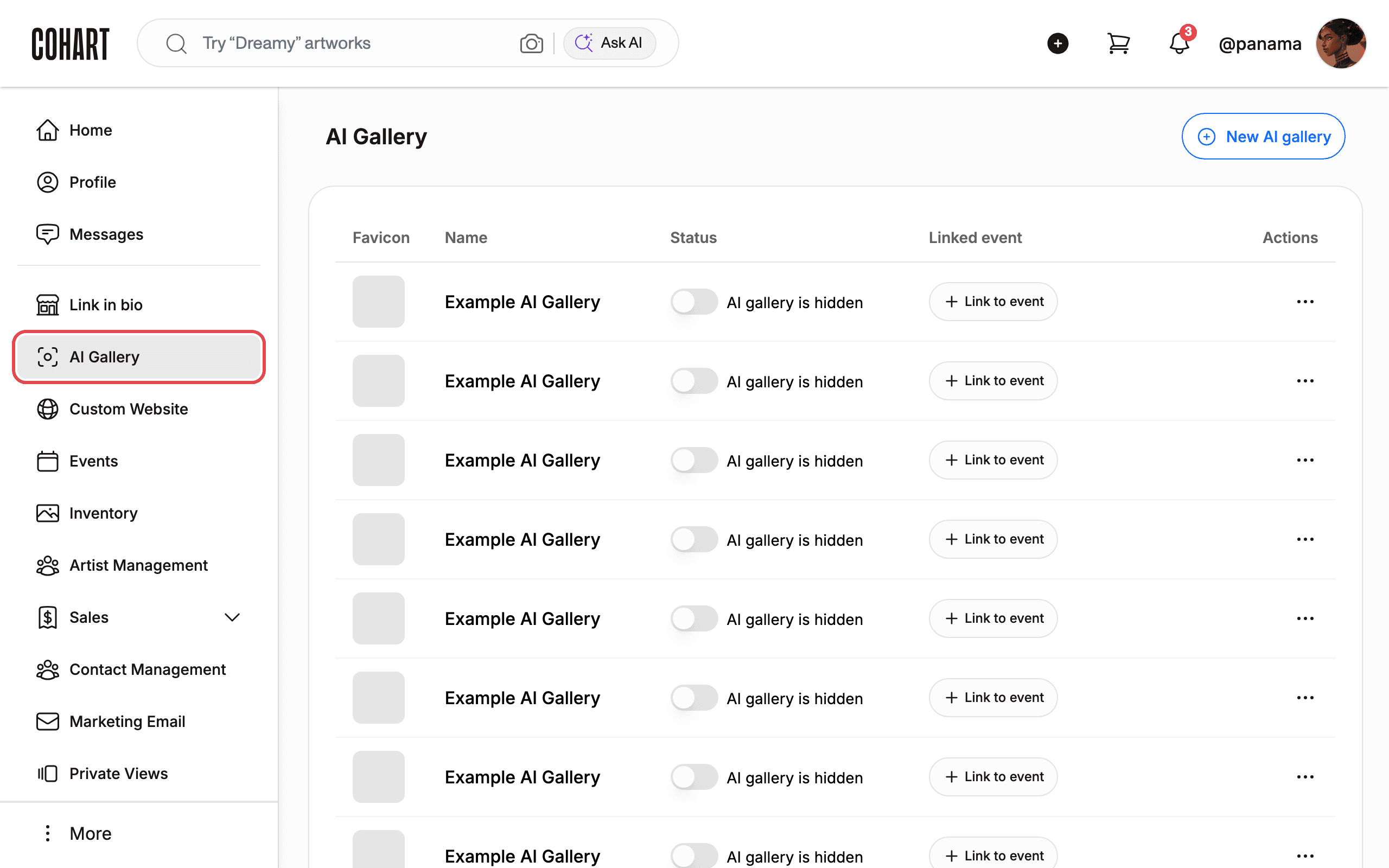
After signing in, click AI Gallery in the left-hand sidebar. The page title changes to “AI Gallery | Cohart”.
3. Review your galleries and start a new one
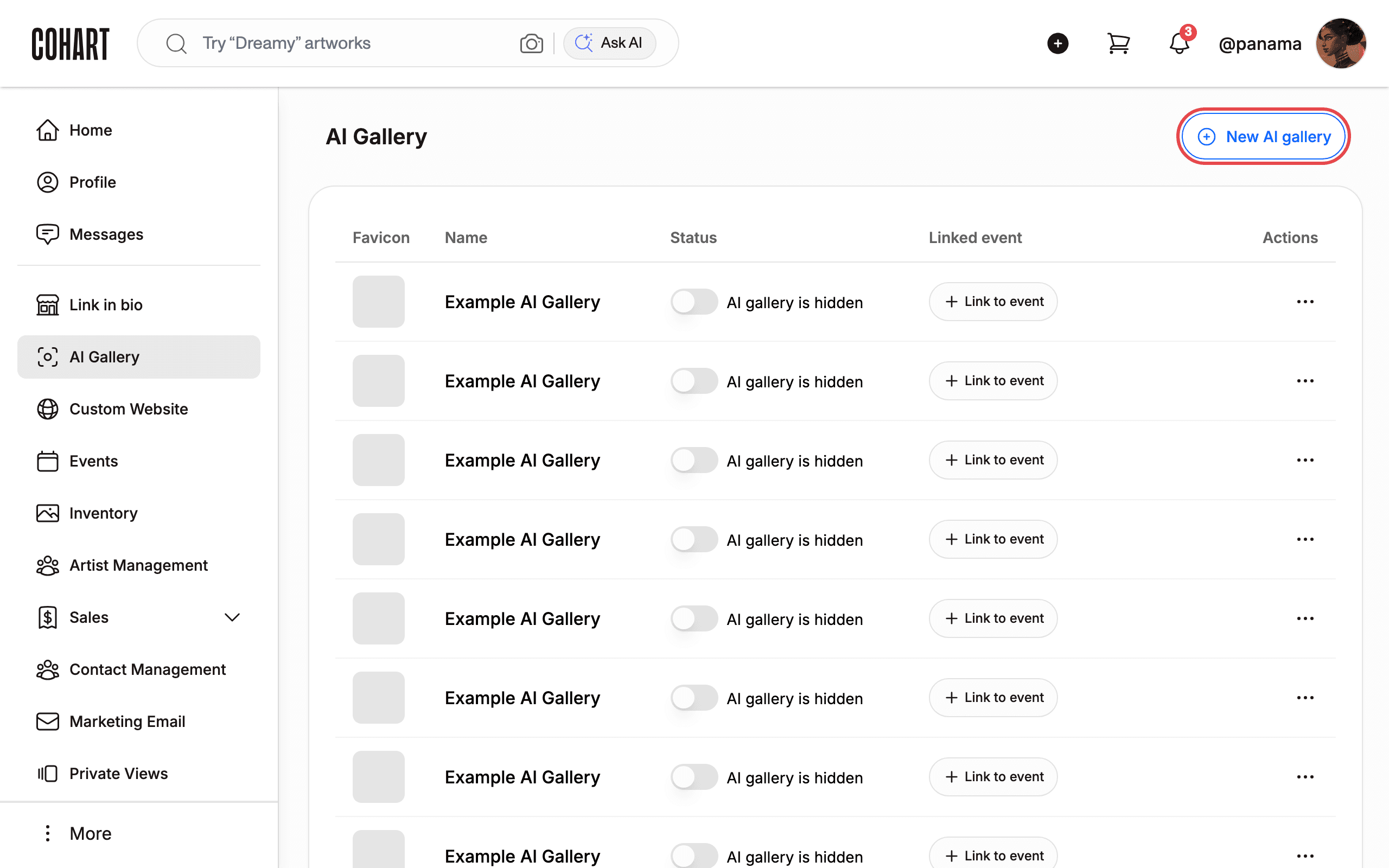
The AI Gallery page lists all your galleries in a table with the columns Favicon, Name, Status, Linked event, and Actions. Each gallery shows a status — AI gallery is public or AI gallery is hidden — and is either linked to an event or shows a Link to event action.
Click New AI gallery to start setting up a new gallery.
4. Enter the gallery name
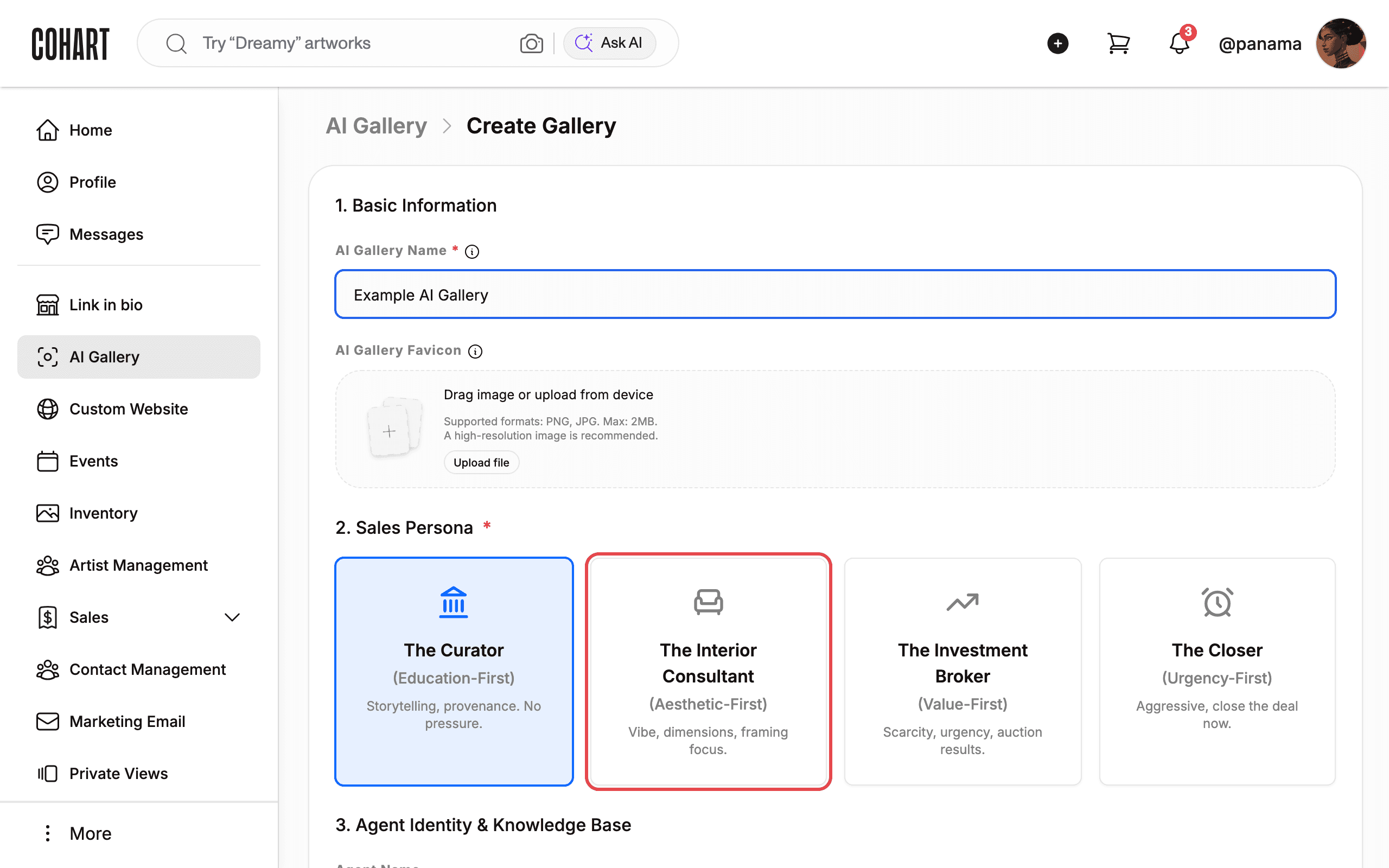
The “Create Gallery” form opens with the section 1. Basic Information. The AI Gallery Name* field is pre-filled with your profile name — replace it with the name you want visitors to see, for example “Example AI Gallery”.
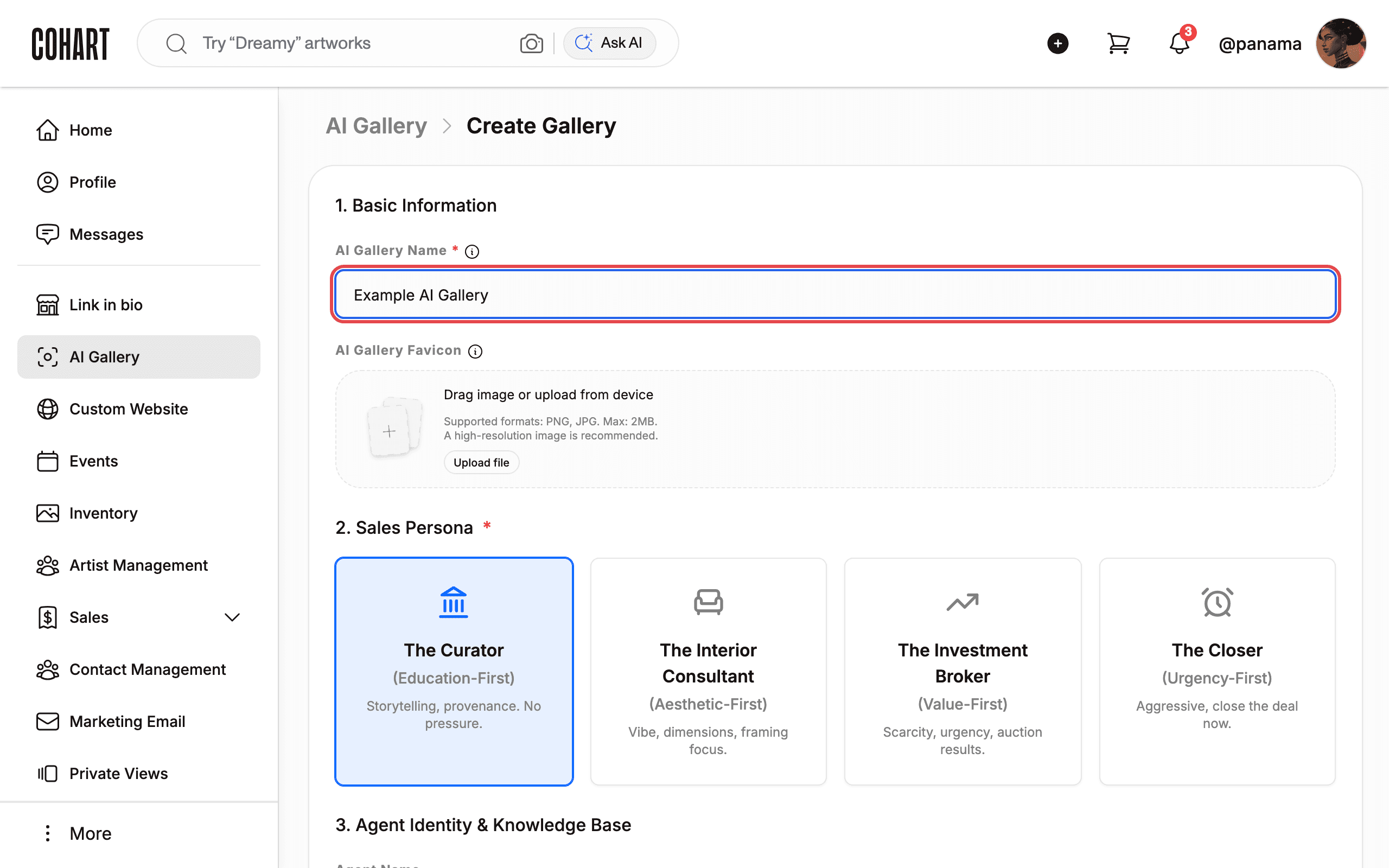
Optionally upload an AI Gallery Favicon: click Upload file (or drag an image onto the drop zone). Supported formats are PNG and JPG, max 2MB; a high-resolution image is recommended.
5. Choose the sales persona for your AI agent
In the section 2. Sales Persona *, click the card that matches the personality you want your AI agent to have:
- The Curator (Education-First) — storytelling, provenance, no pressure. Selected by default.
- The Interior Consultant (Aesthetic-First) — vibe, dimensions, framing focus.
- The Investment Broker (Value-First) — scarcity, urgency, auction results.
- The Closer (Urgency-First) — aggressive, closes the deal now.
6. Give your AI agent a name and backstory
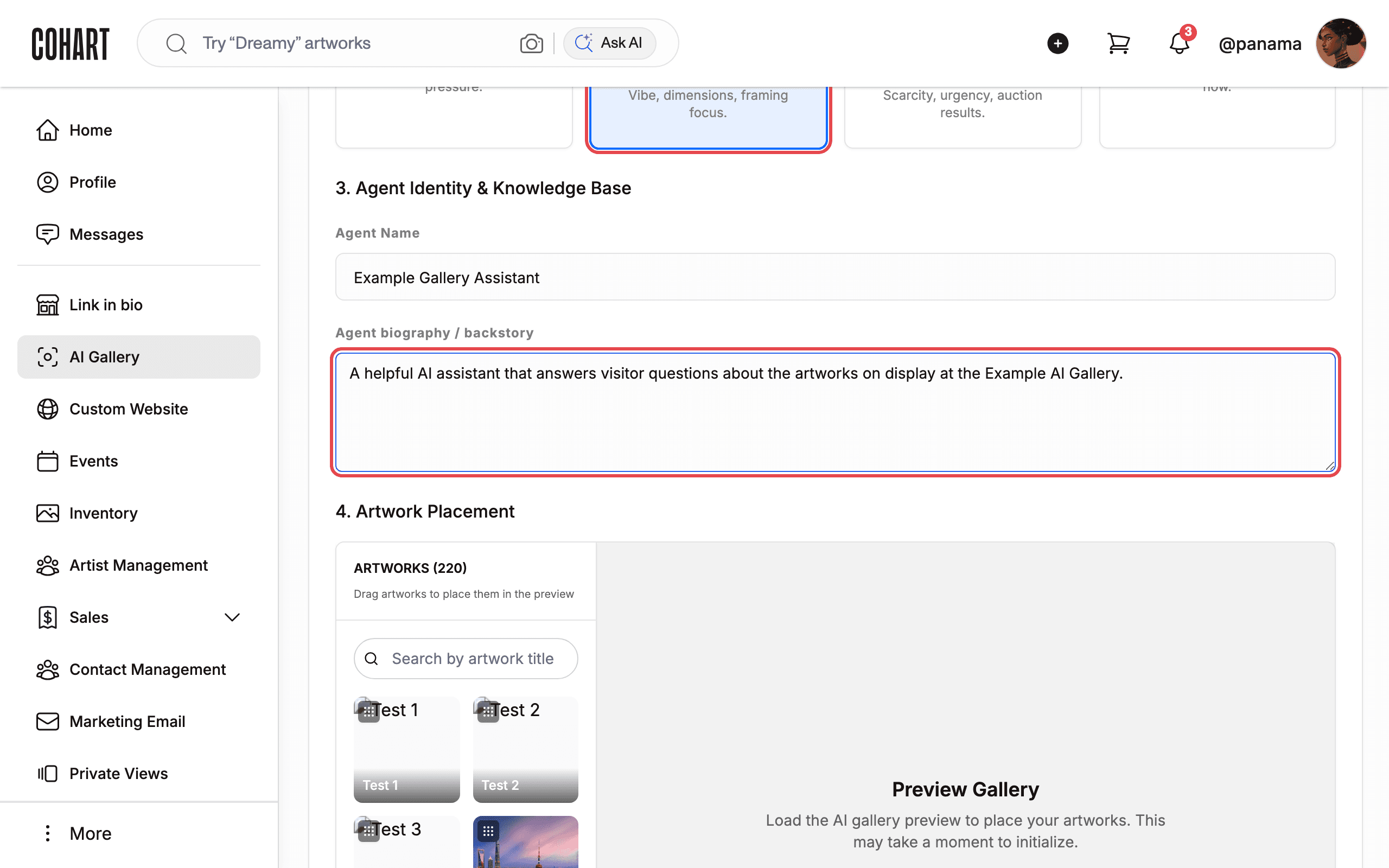
In the section 3. Agent Identity & Knowledge Base, the Agent Name and Agent biography / backstory fields are pre-filled from your profile. Edit them to define how your agent introduces itself and what it knows — for example, an agent named “Gallery Assistant” with a short biography describing your gallery.
7. Load the 3D preview
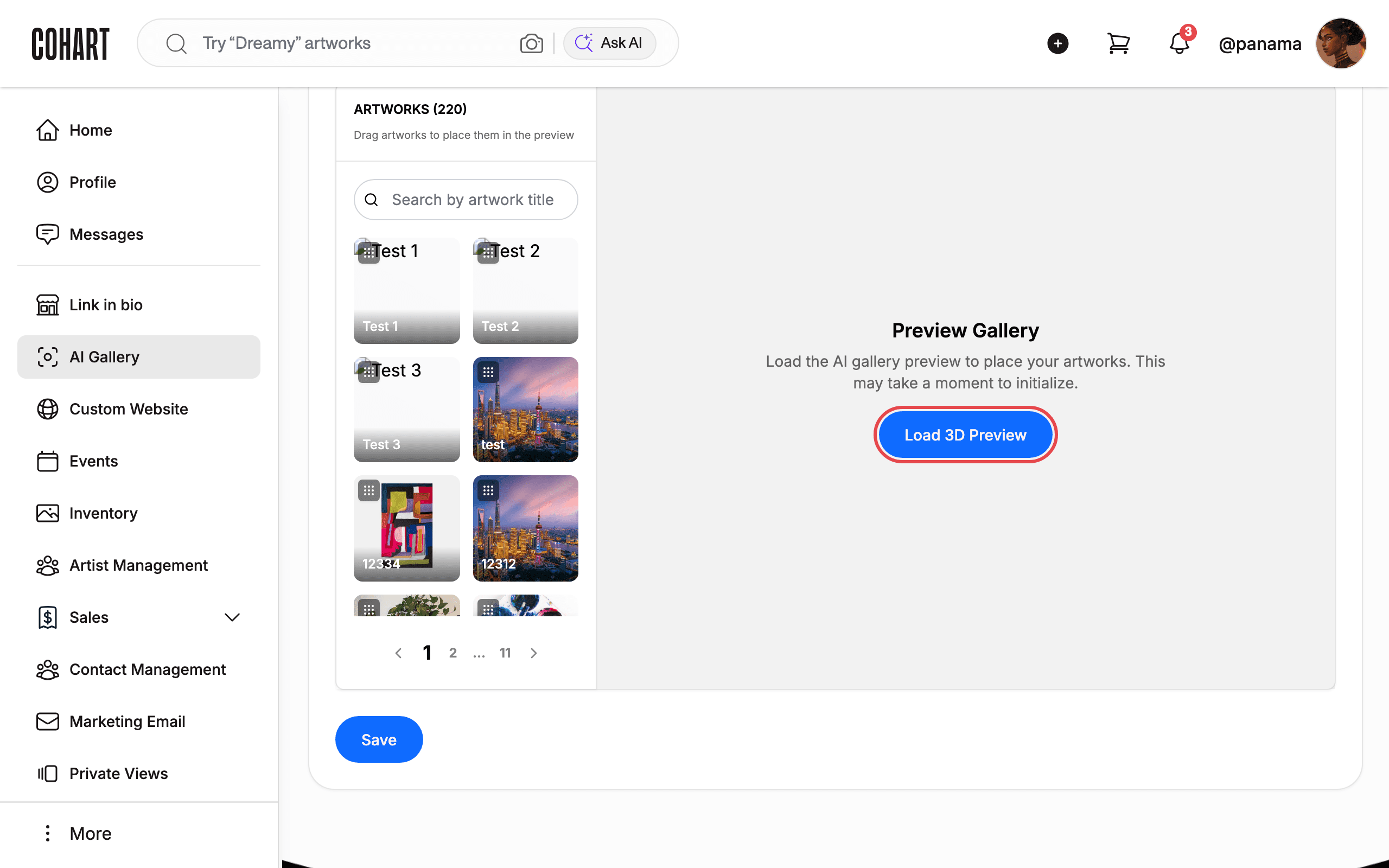
Scroll to 4. Artwork Placement. On the right, the Preview Gallery panel shows your empty gallery space. Click Load 3D Preview to initialize it. This may take a moment — the panel shows a loading percentage while the 3D scene loads.
8. Drag artworks into the gallery preview
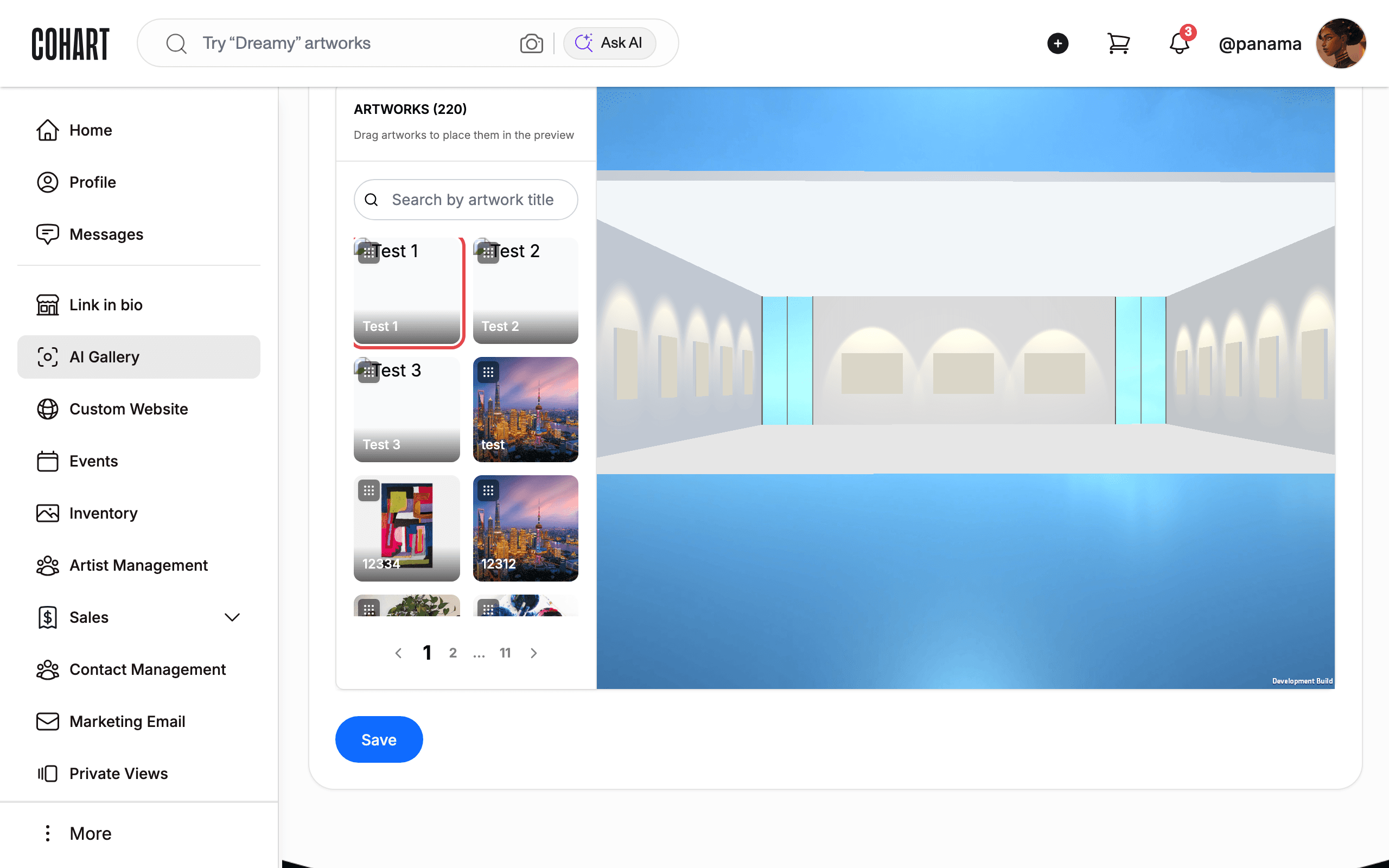
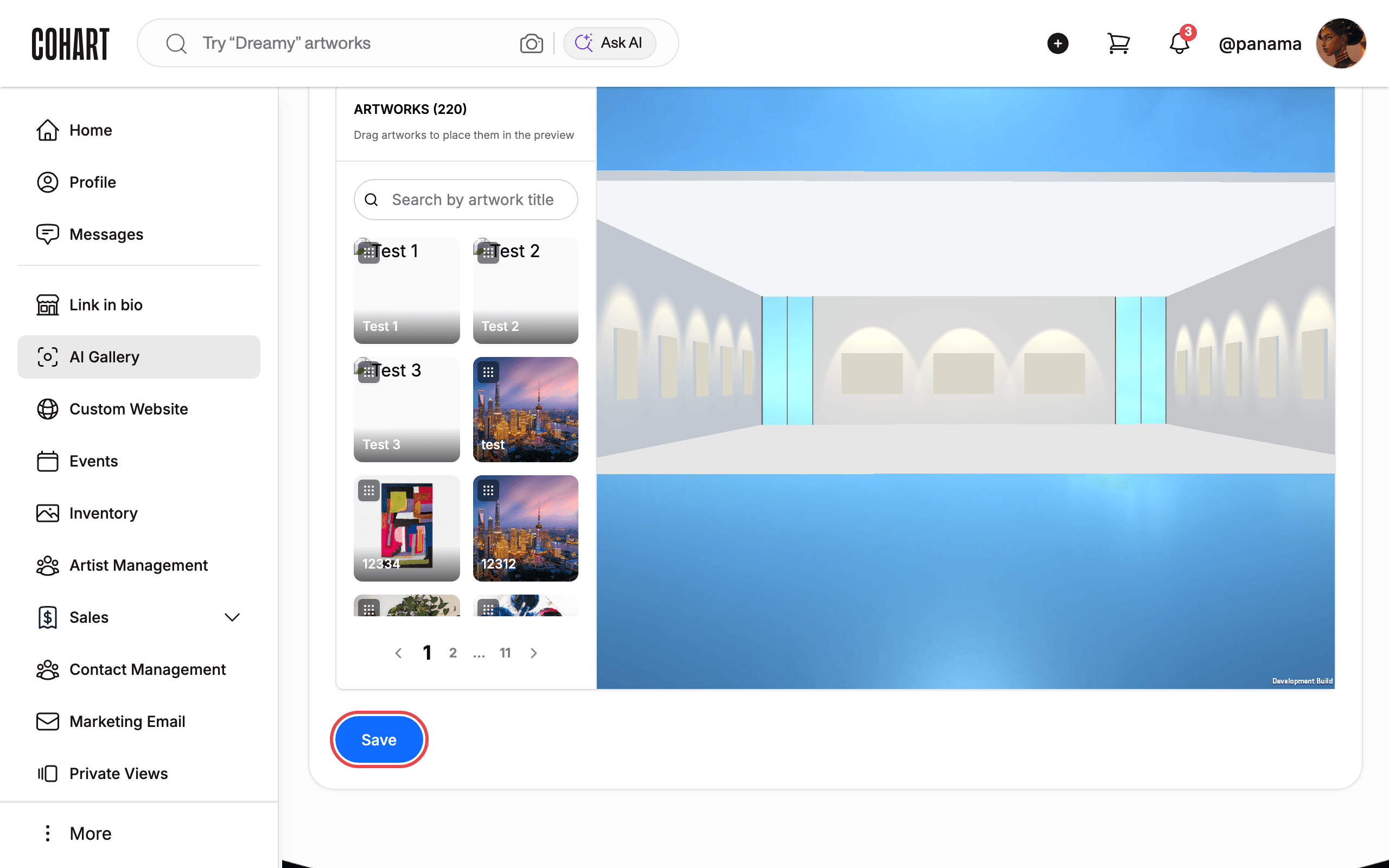
When the preview finishes loading, the panel becomes the 3D gallery. Drag artwork tiles from the artwork list (ARTWORKS (220), searchable with the Search by artwork title field) into the preview to place them on the gallery walls.
9. Save your AI gallery
Click Save. A toast notification appears at the top of the screen: “AI gallery created successfully!”, and you are returned to the AI Gallery list.
10. Verify the gallery in your list
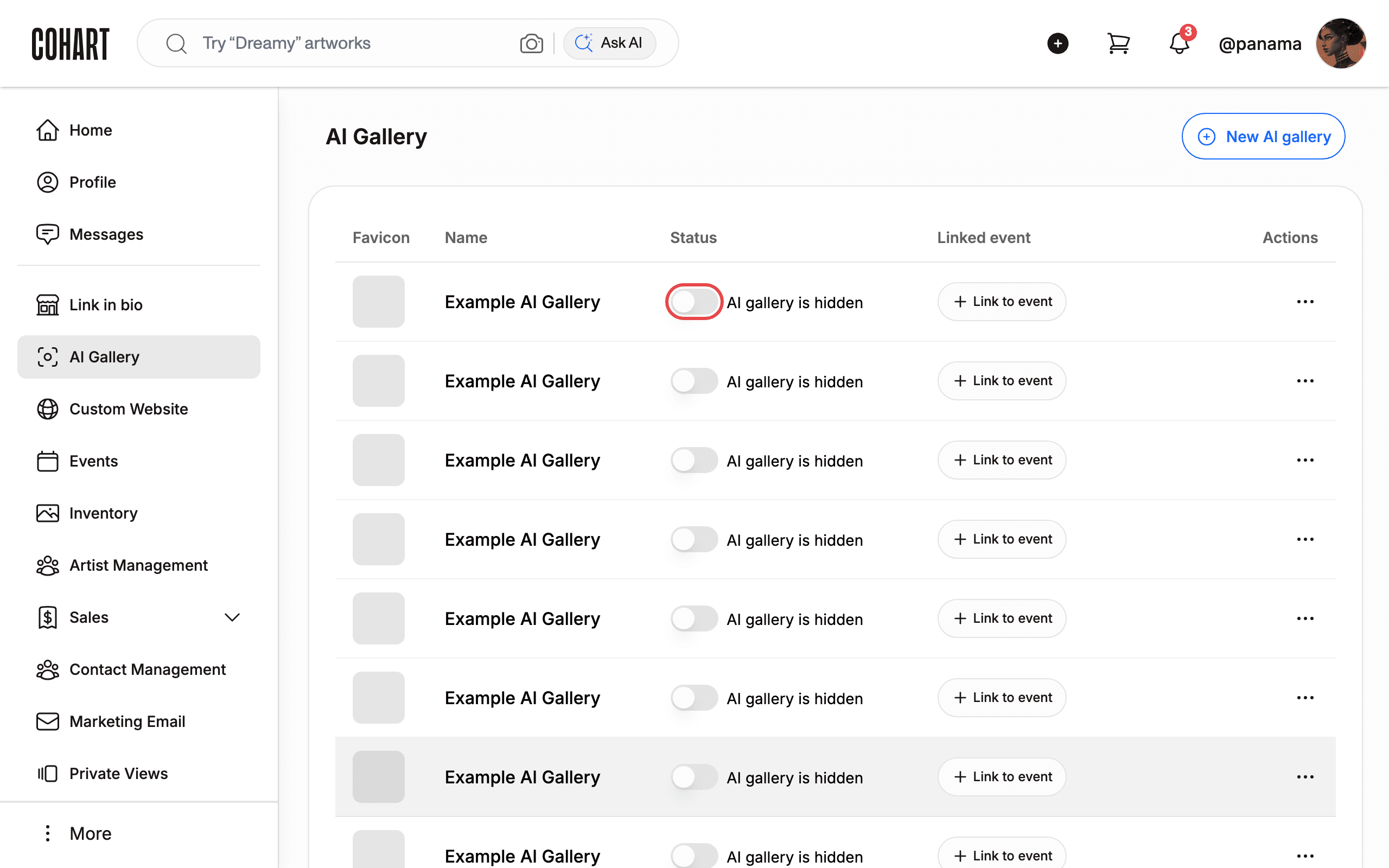
Your new gallery appears as the first row in the table. New galleries are created as AI gallery is hidden. Use the toggle switch in the Status column to make the gallery public — the status changes to AI gallery is public and a Visit gallery action appears.
11. Link the gallery to an event (optional)
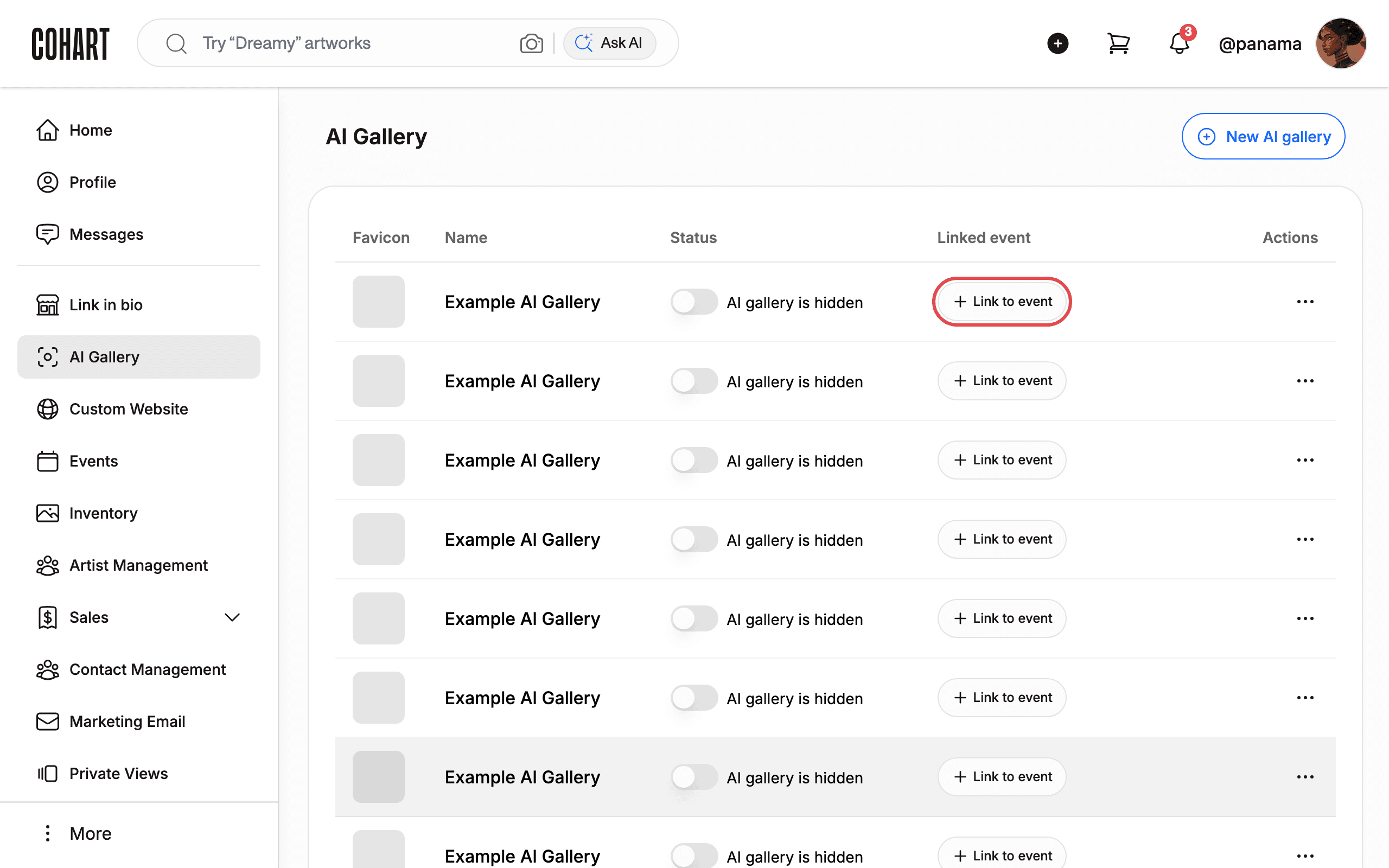
Click Link to event on your gallery row to connect it to an art fair or event. A dialog opens listing your upcoming events.
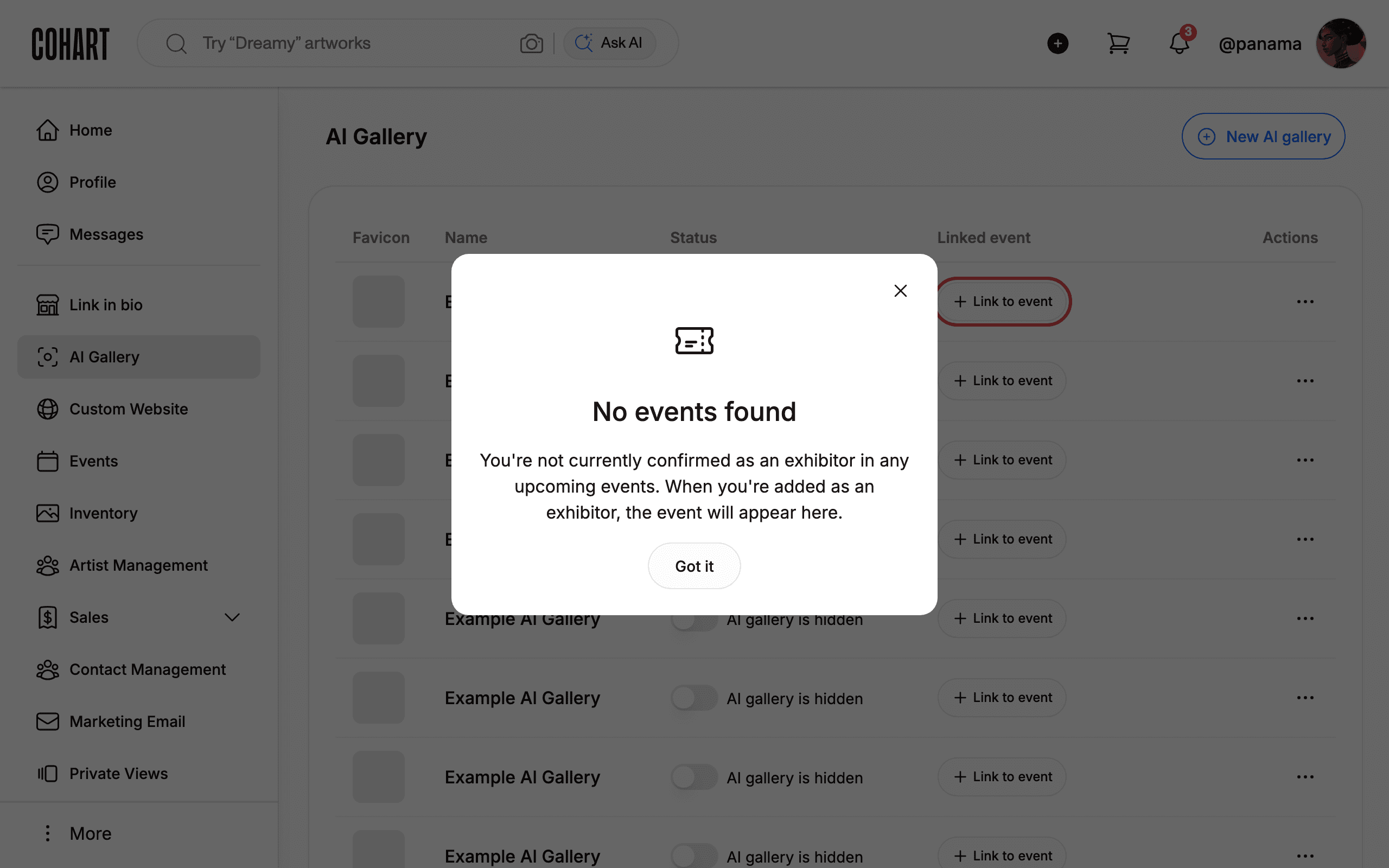
If you are not confirmed as an exhibitor in any upcoming event, the dialog shows No events found with the message: “You’re not currently confirmed as an exhibitor in any upcoming events. When you’re added as an exhibitor, the event will appear here.” Click Got it to close it.
12. Visit your public gallery
Once the gallery is public, click Visit gallery. The gallery opens in a new tab at your gallery subdomain (yourname.cohart.com/ai-gallery/...) — a full-screen 3D gallery experience where visitors can browse your placed artworks and chat with your AI agent.
Tips
- The form pre-fills the gallery name, agent name, and biography from your profile. If you save without changing them, a gallery with your default name and agent persona is created — check the fields before saving if you want a custom setup.
- The 3D preview can take 30–60 seconds to load the first time. The artwork tiles stay draggable while it loads.
- A hidden gallery is not reachable by visitors; only public galleries show a Visit gallery link.
- Event linking only works if the event organizer has confirmed you as an exhibitor — you cannot link a gallery to an event you created yourself or are not part of.
Troubleshooting
- The 3D preview stays on “Loading…” — wait a little longer; the Unity engine takes time to initialize on slower connections.
- “No events found” when linking — you are not an exhibitor in any upcoming event yet. Ask the event organizer to add you as an exhibitor.
- Gallery not visible to visitors — check the toggle in the Status column; it must read AI gallery is public.
Screenshots are regenerated automatically from the live site. Last captured: August 21, 2026.