How to add and manage testimonials
This guide shows you how to add customer testimonials to your Cohart artist or gallery account, and how to edit or remove them later.
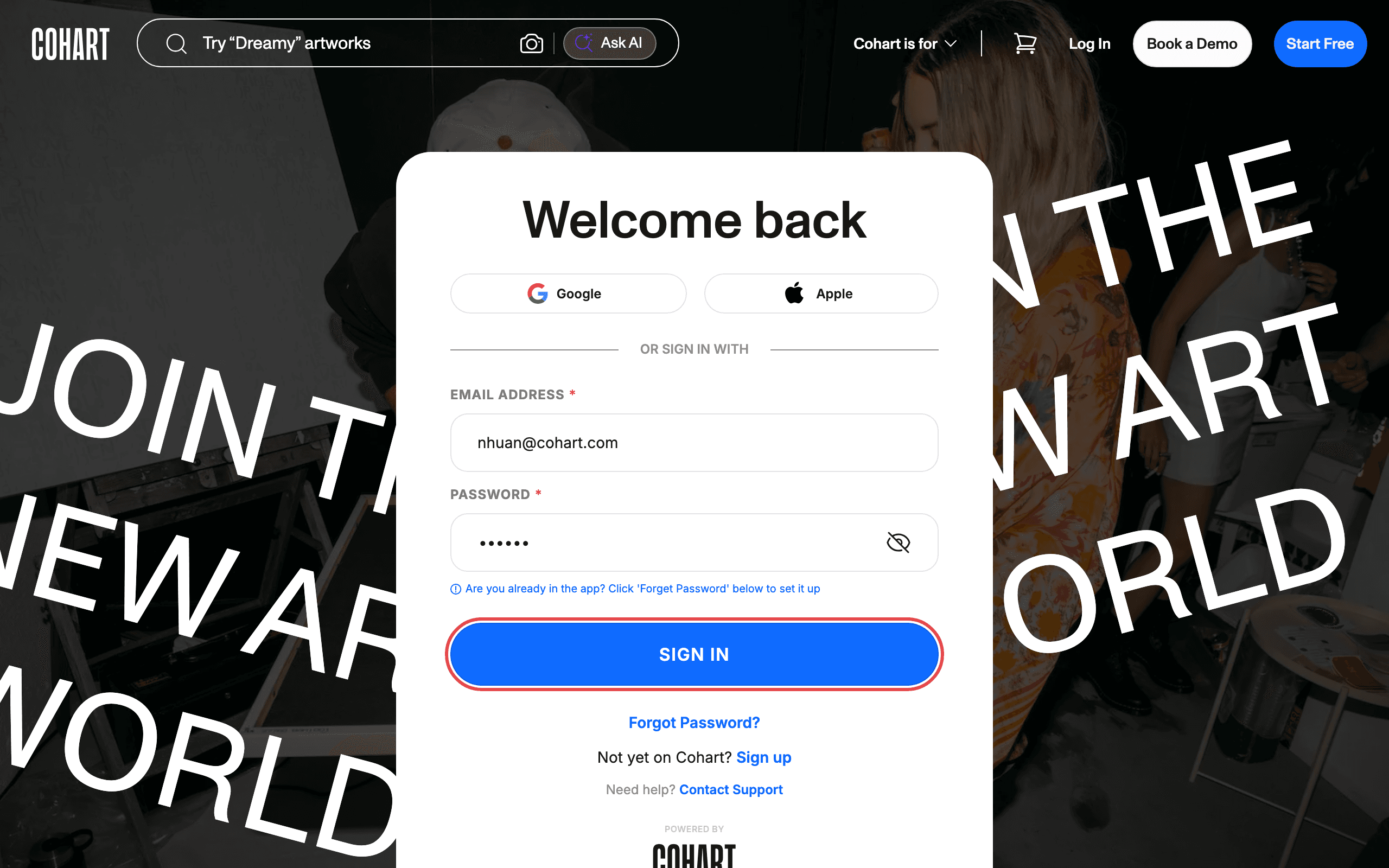
1. Sign in to your account
Open https://staging.cohdev.co/auth/login?authType=password , enter your email and password, then click SIGN IN.
You can also sign in with Google or Apple instead. If you cannot remember your password, click Forgot Password?. New to Cohart? Click Sign up to create an account first.
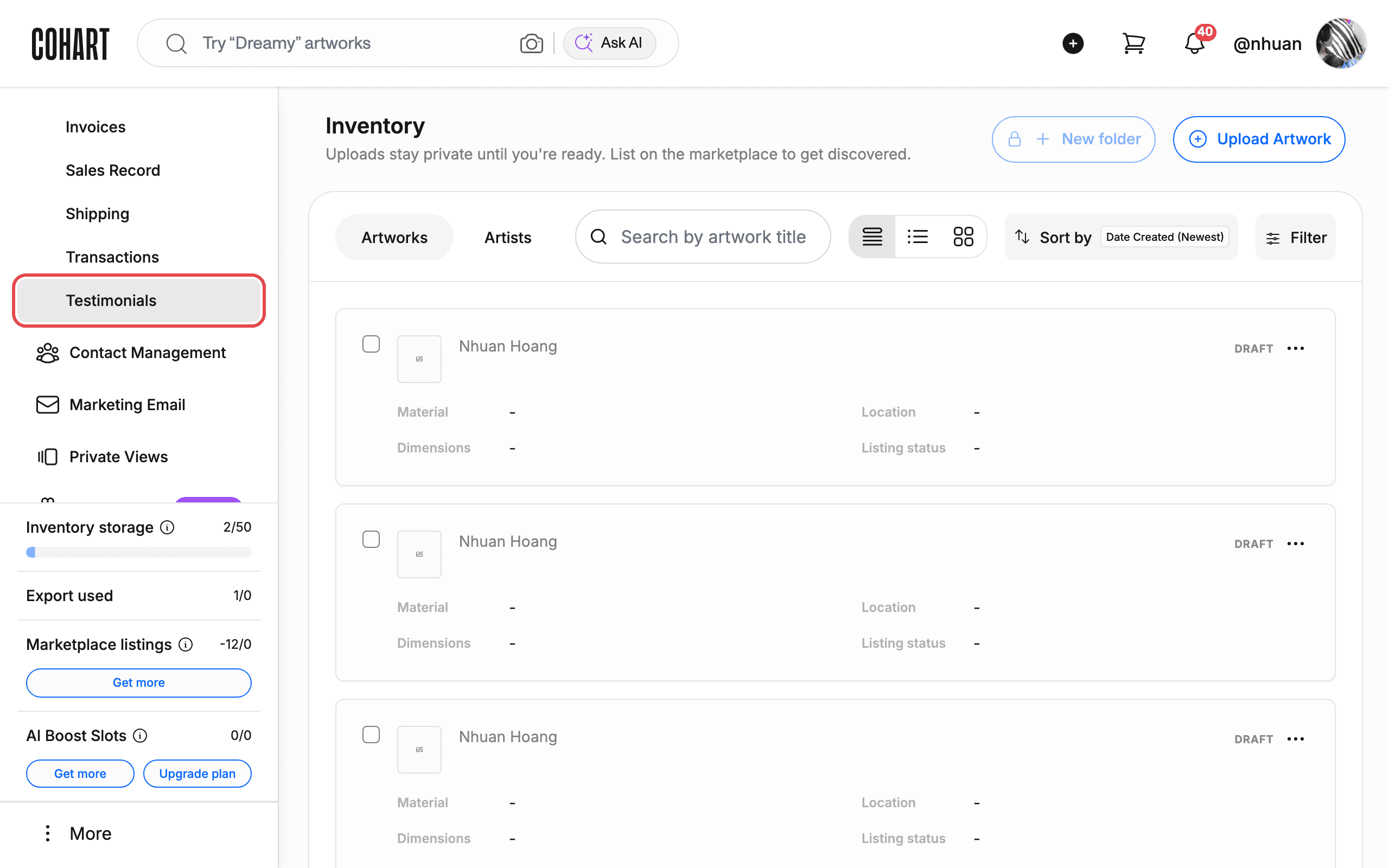
2. Open the Sales menu and go to Testimonials
In the sidebar of your artist dashboard, click Sales to expand the menu, then click Testimonials.
The Sales menu also contains Invoices, Sales Record, Shipping, and Transactions.
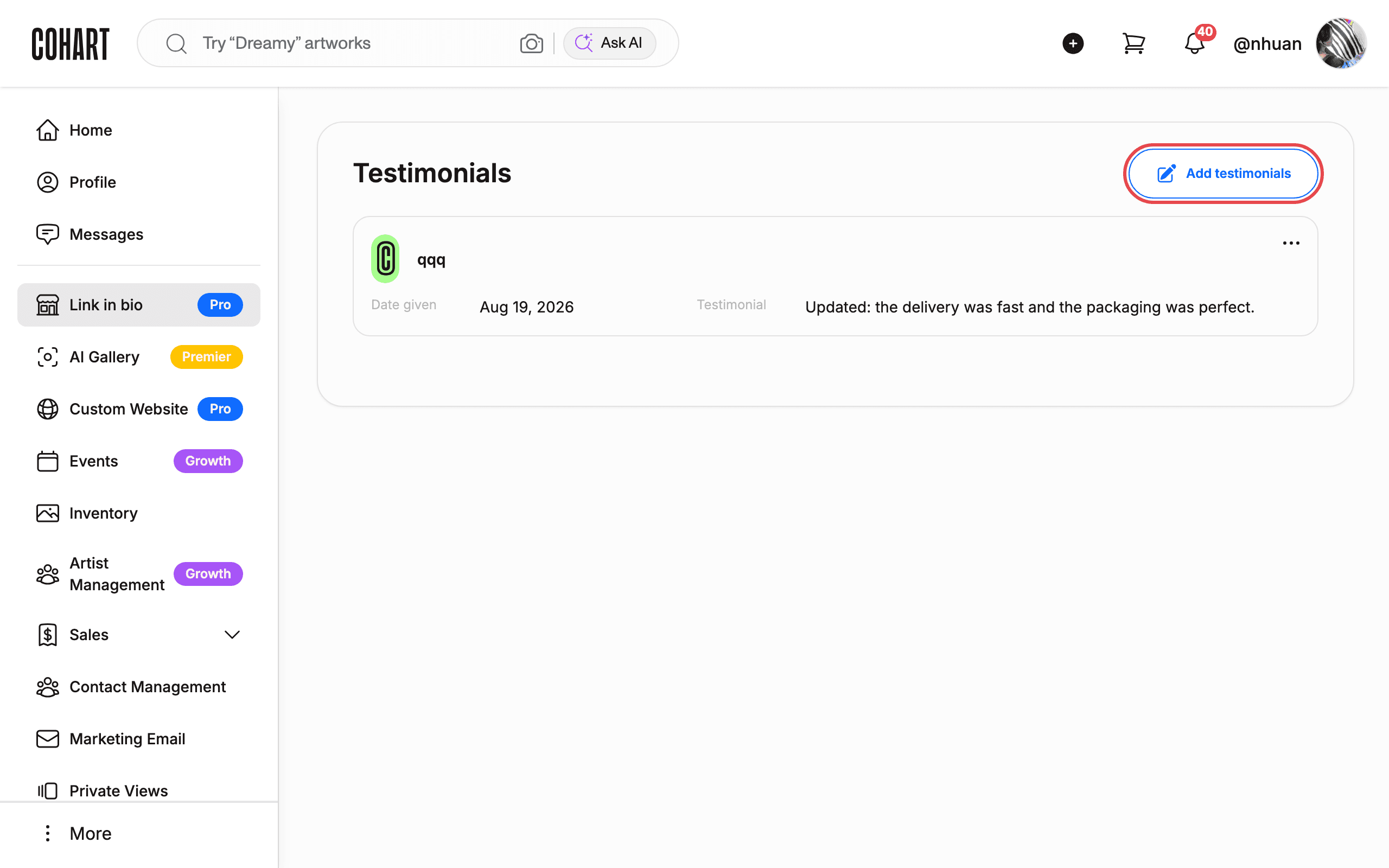
3. Open the Testimonials page
The Testimonials page lists every testimonial customers have left on your profile. Click Add testimonials to create a new one.
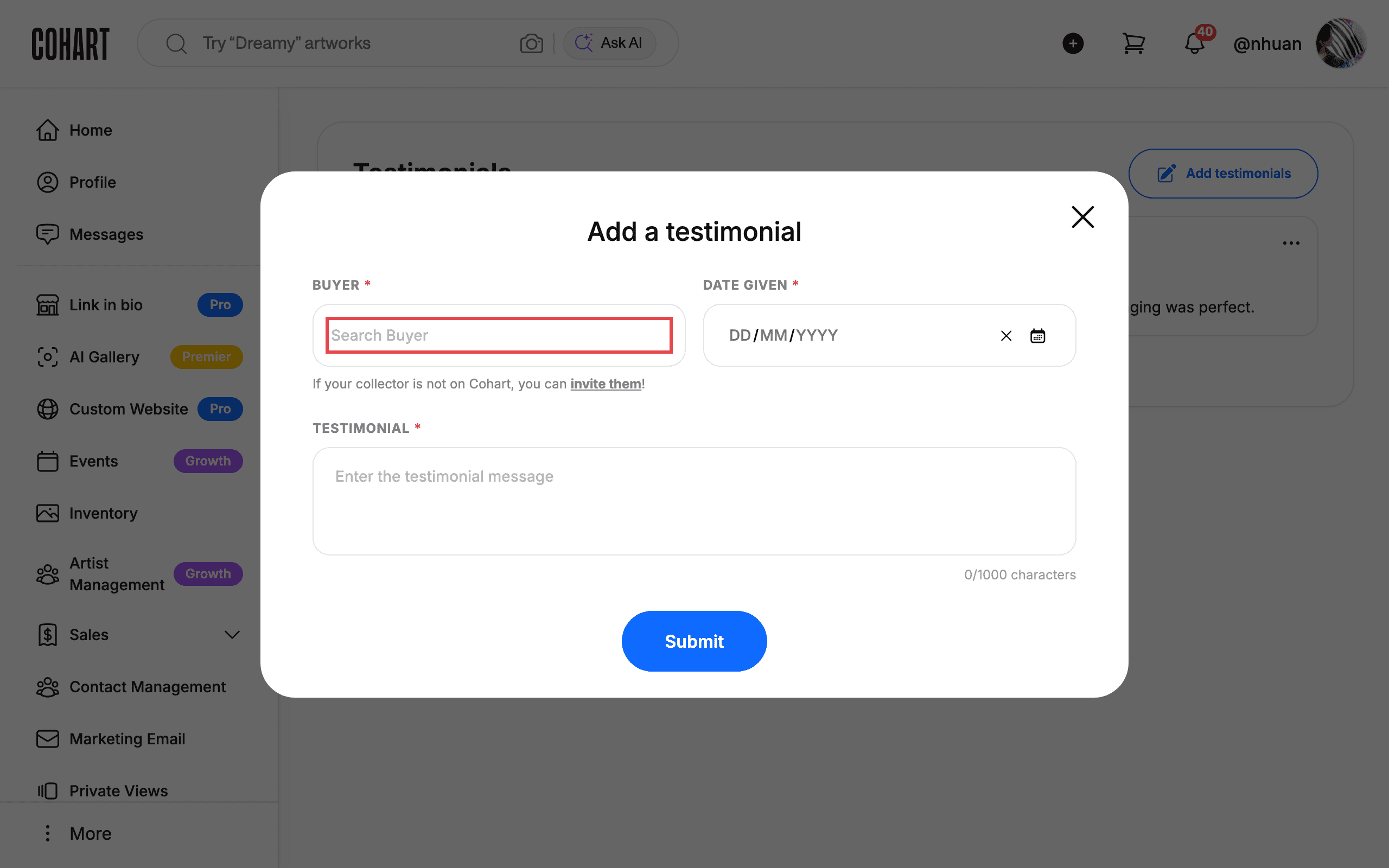
4. Open the “Add a testimonial” form
A dialog opens with three required fields:
- BUYER — search for the collector who gave the testimonial.
- DATE GIVEN — the date the customer gave you the testimonial.
- TESTIMONIAL — the testimonial text, up to 1000 characters.
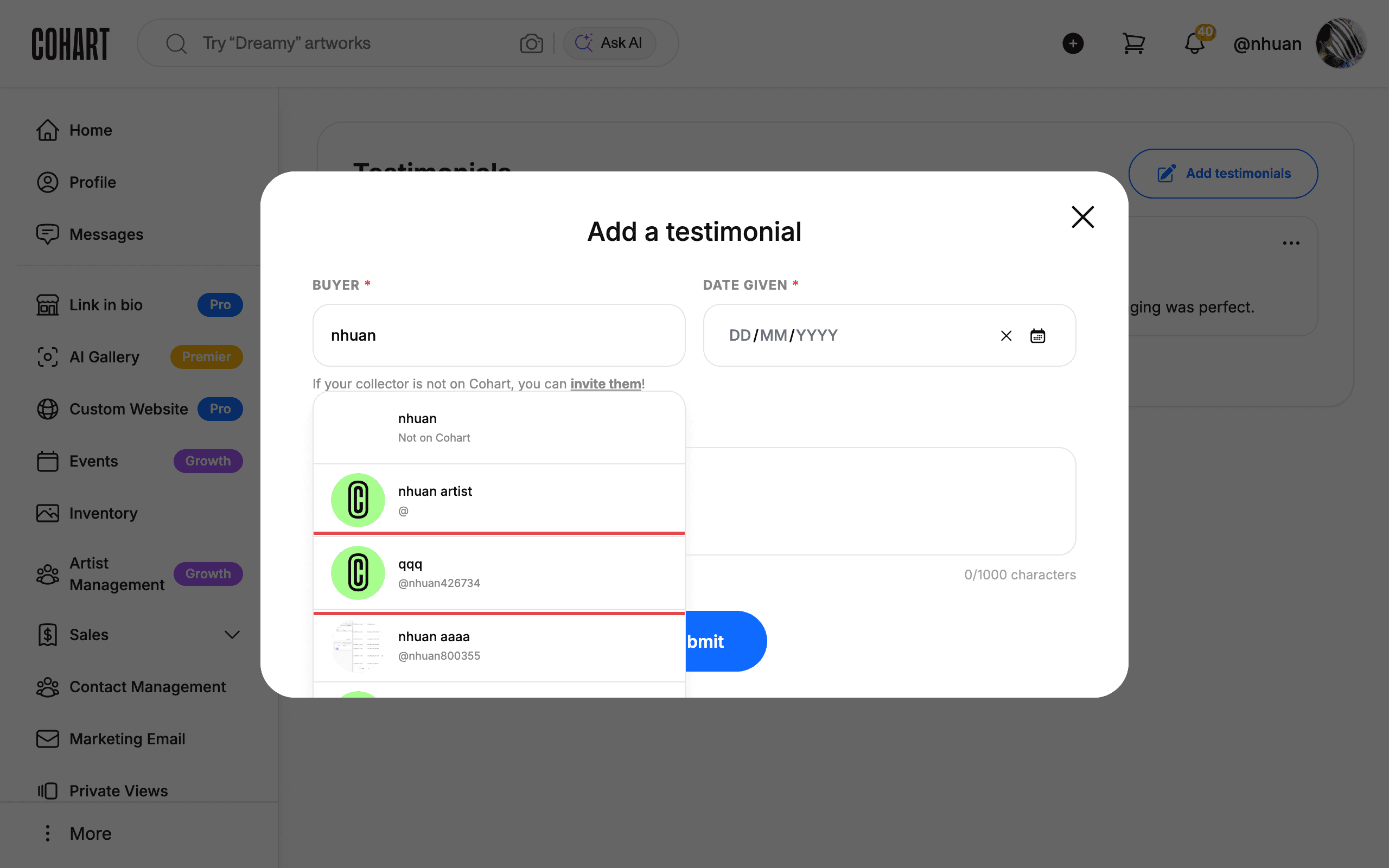
5. Search for the buyer
Click the Search Buyer field and type the buyer’s name or handle. Matching Cohart users appear in a list with their name and @handle. The first row shows the exact name you typed with the note Not on Cohart — use it only if your collector has no Cohart account.
6. Select the buyer
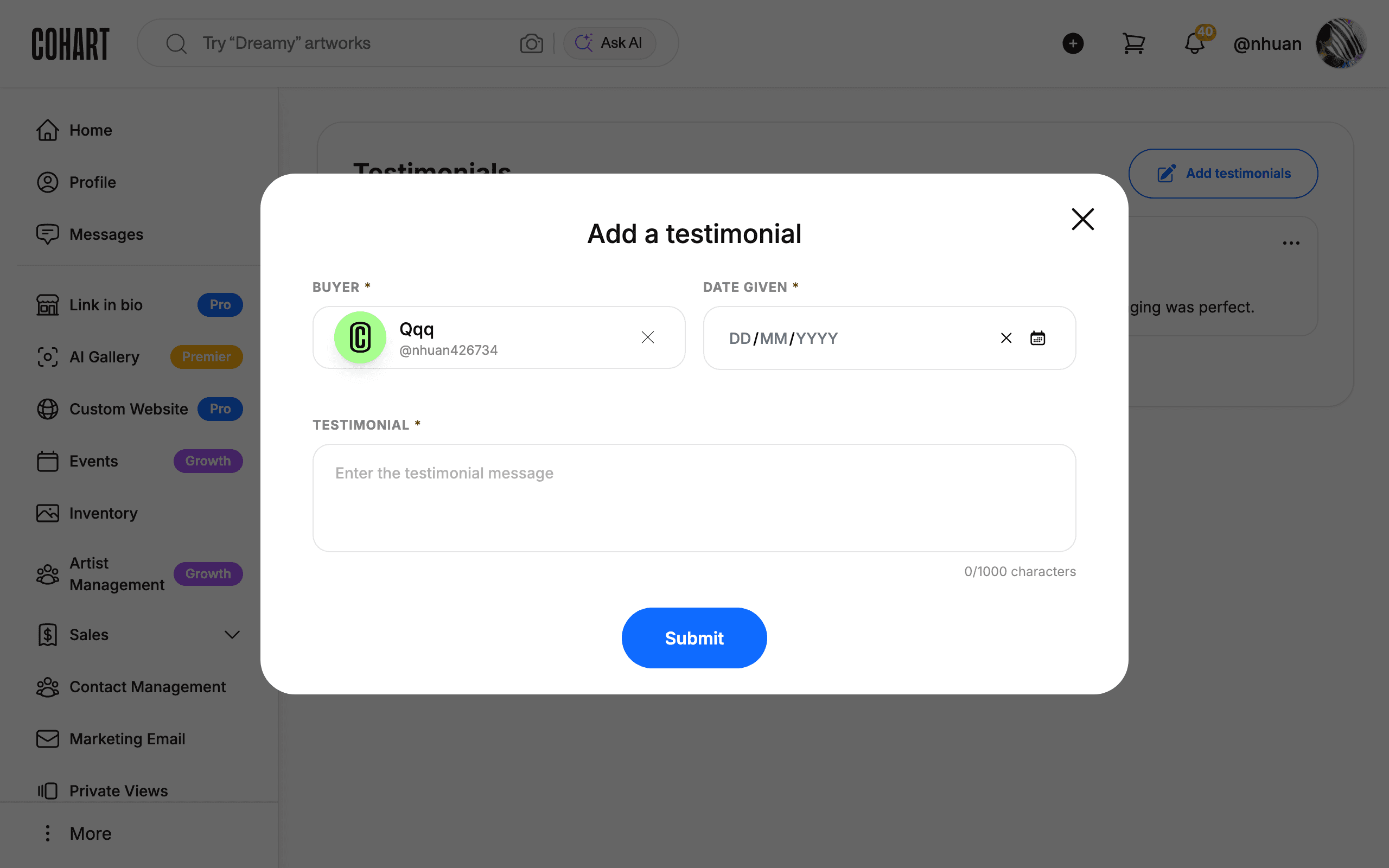
Click the suggestion that matches your collector. The buyer is now attached to the testimonial.
7. Set the date the testimonial was given
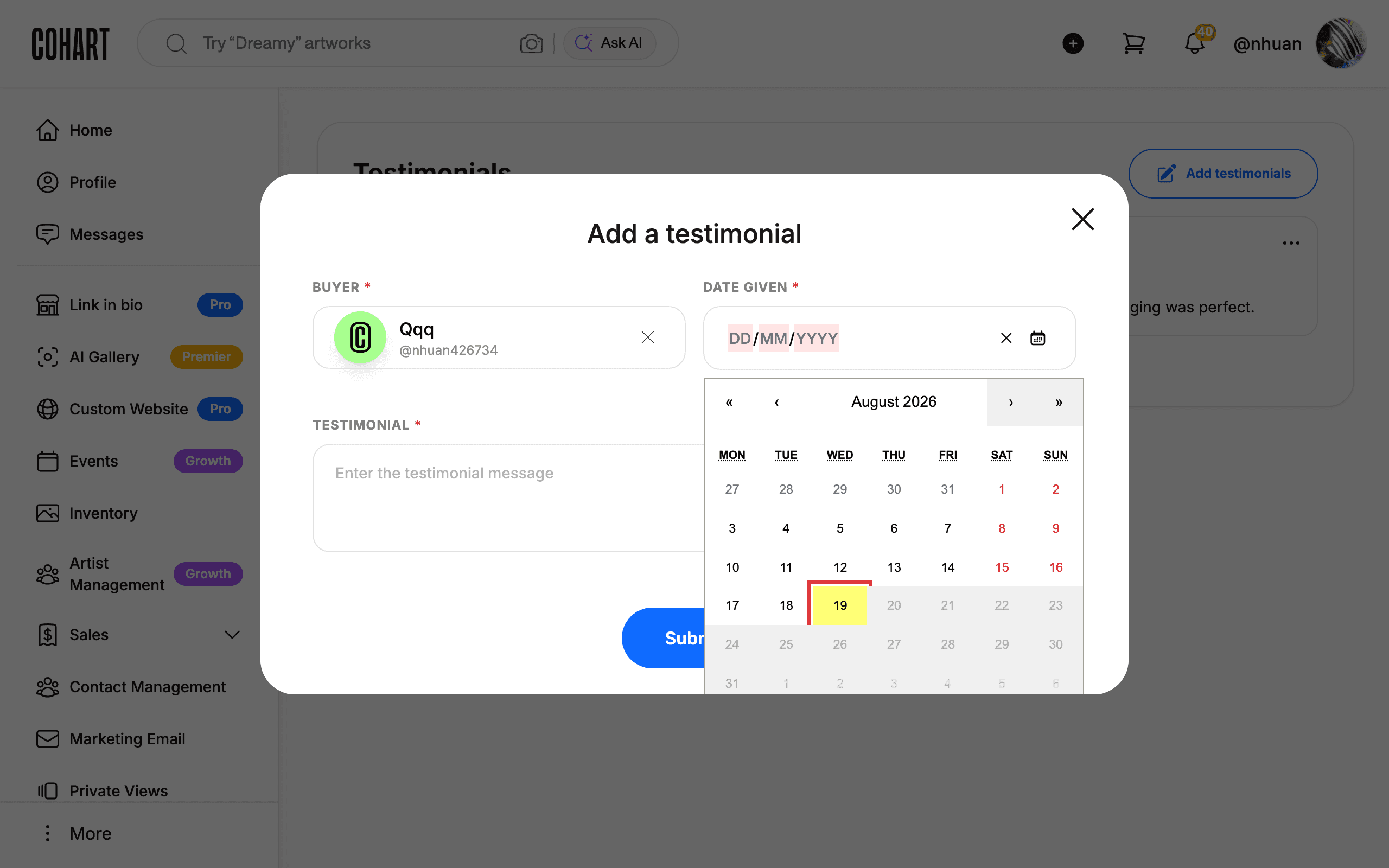
Click the DATE GIVEN field to open the calendar, then click the day the customer gave the testimonial.
8. Enter the testimonial text
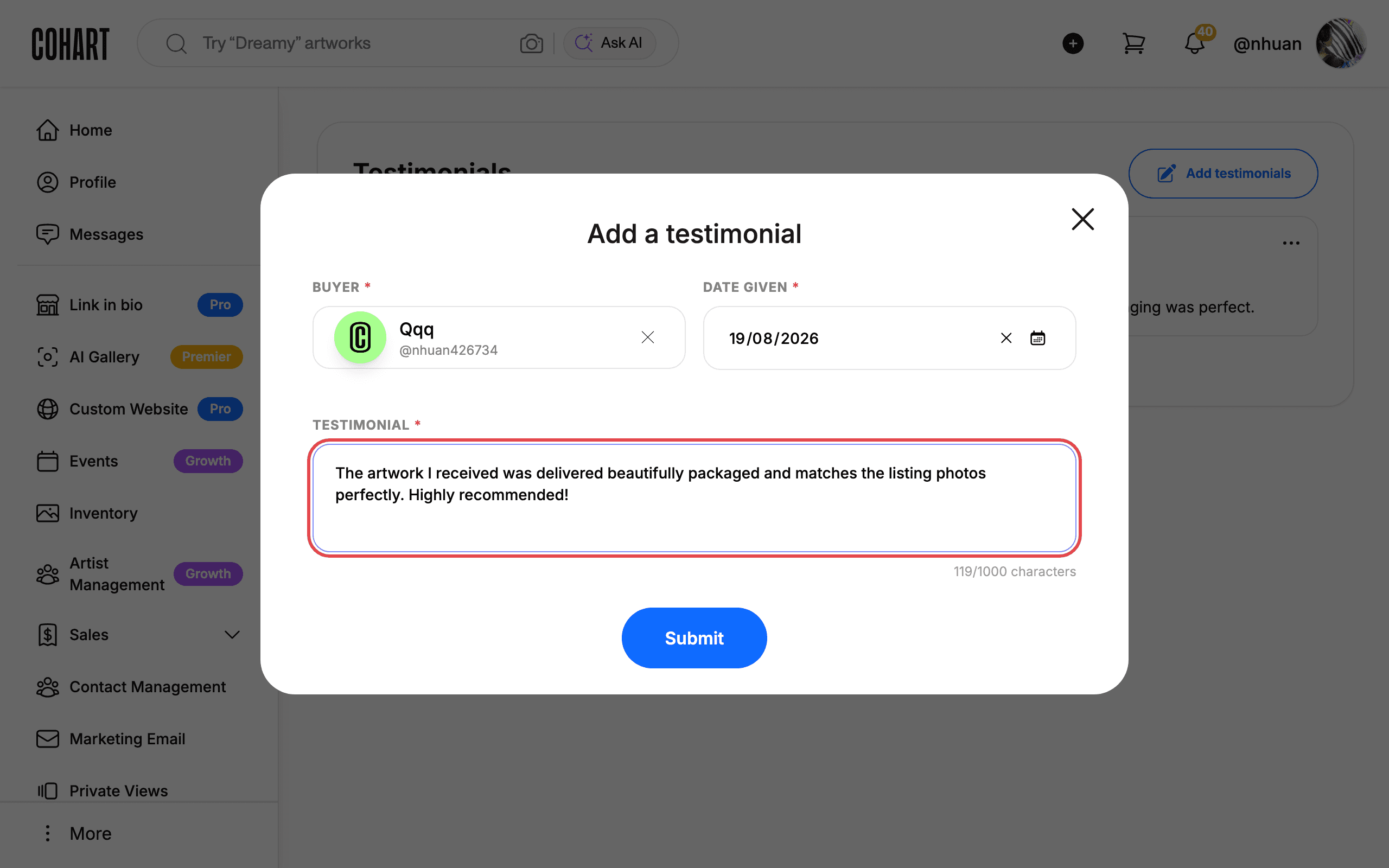
Type the customer’s testimonial in the TESTIMONIAL field. A counter below the field shows how many of the 1000 allowed characters you have used.
9. Submit the testimonial
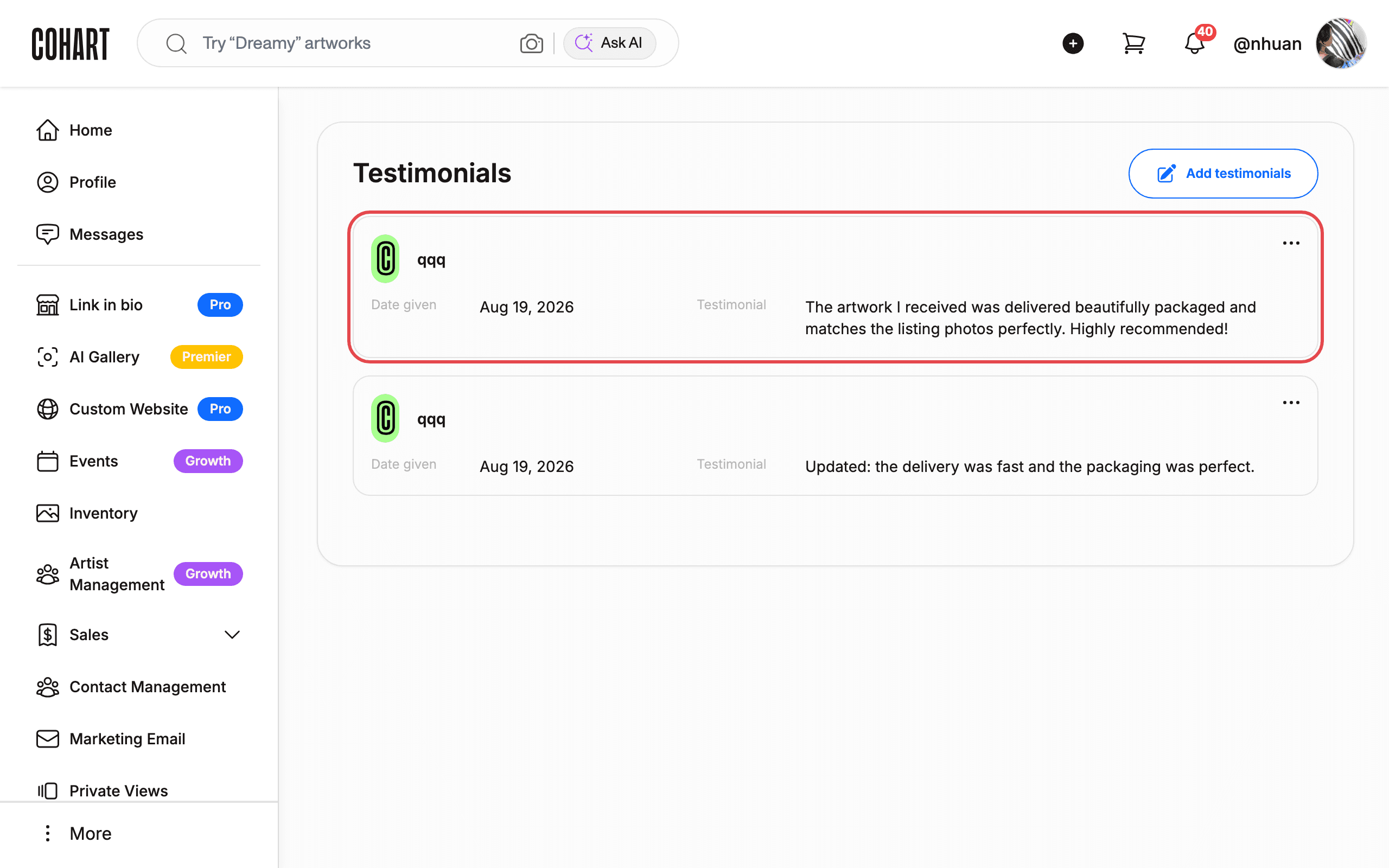
Click Submit. The testimonial appears as a card on the Testimonials page, showing the buyer’s name, the date given, and the testimonial text. Click the buyer’s name on the card to open their profile.
10. Edit a testimonial
Click the three-dot menu (⋯) on the testimonial card and click Edit testimonial. Change the text in the TESTIMONIAL field, then click Save changes. A “Testimonial updated” confirmation appears. Click Cancel to leave the testimonial unchanged.
11. Delete a testimonial
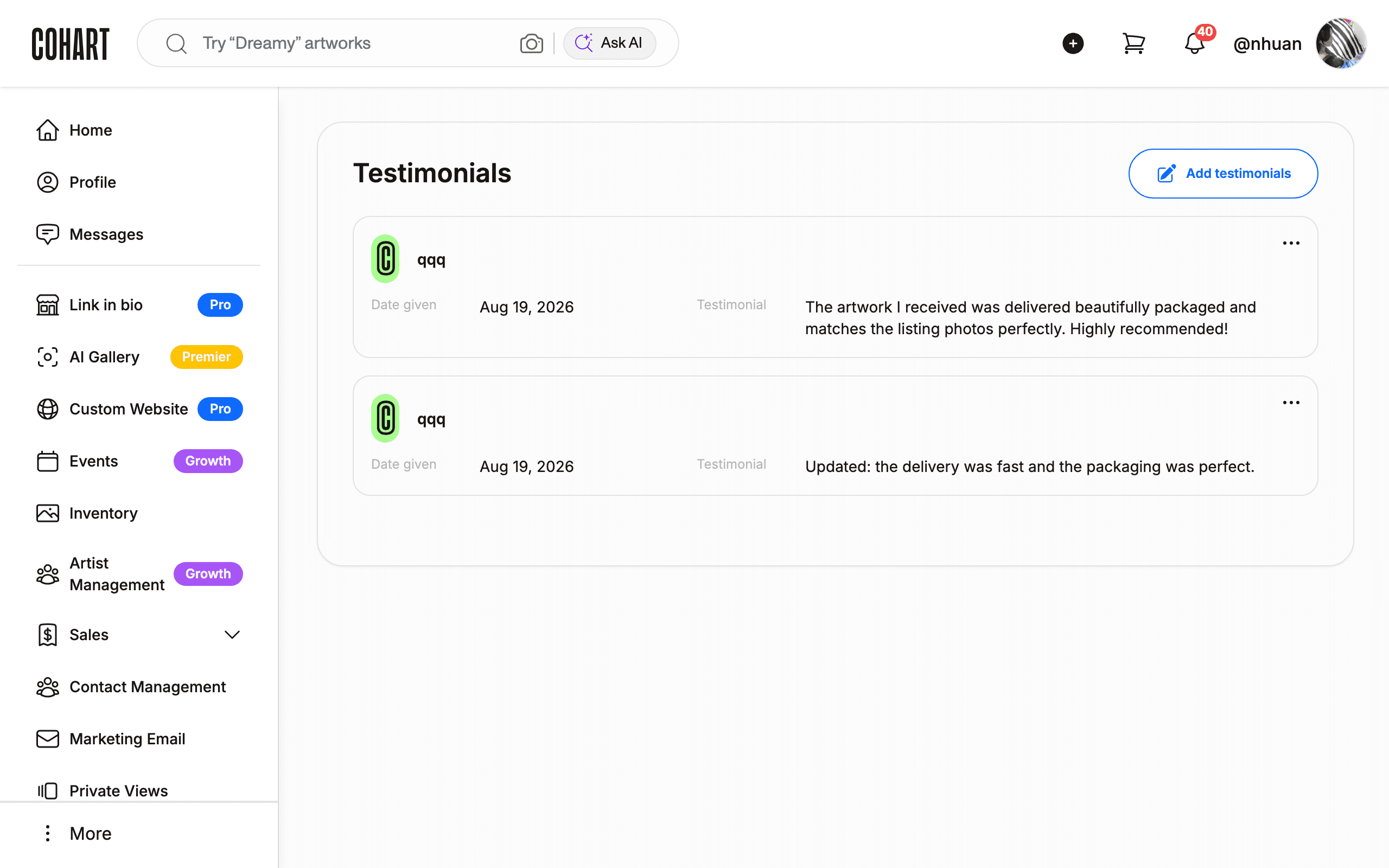
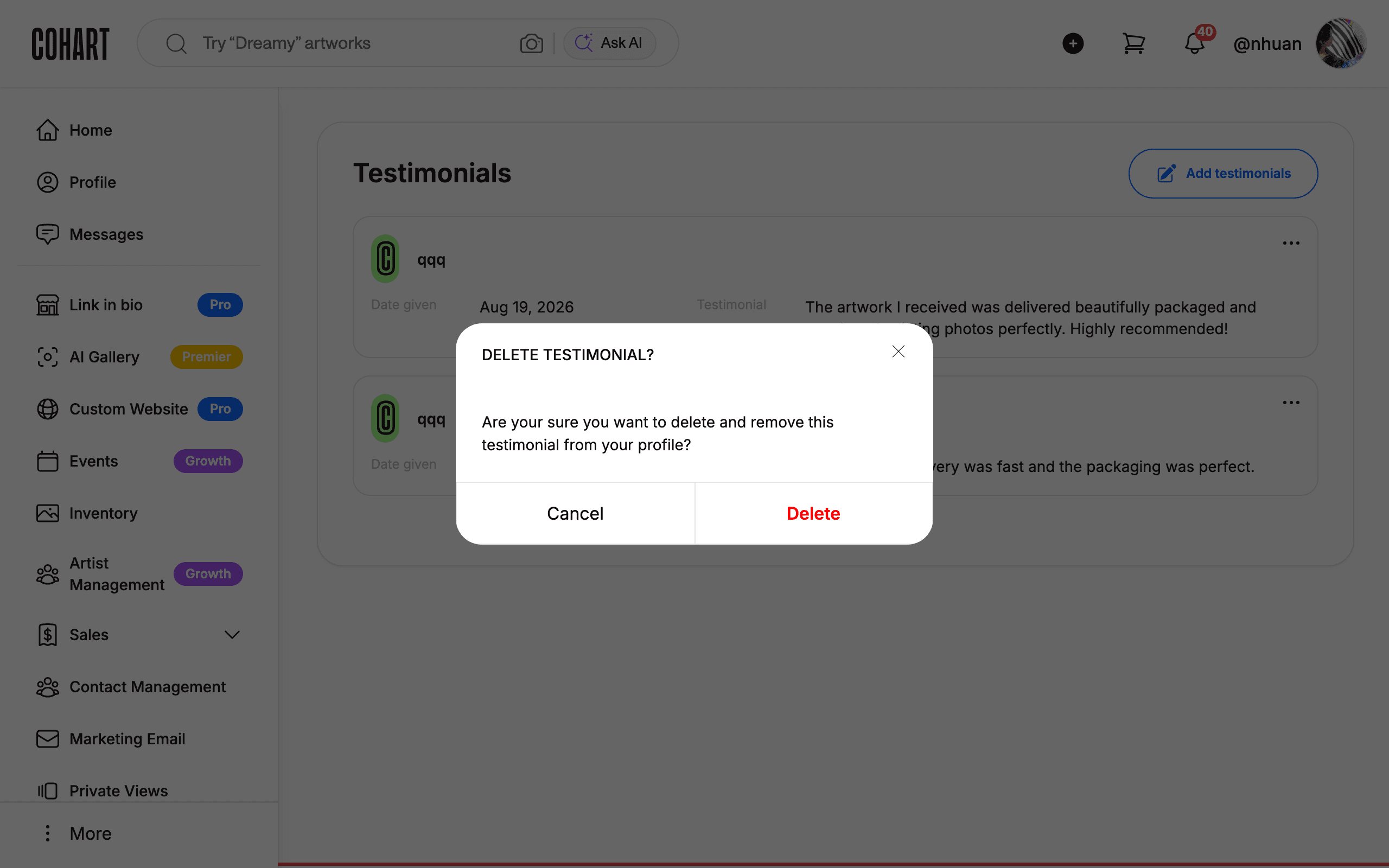
To remove a testimonial, click the three-dot menu (⋯) on the card and click Delete testimonial. A confirmation dialog asks “DELETE TESTIMONIAL?” — click Delete to remove it permanently, or Cancel to keep it. [UNVERIFIED — check manually] The confirmation dialog was observed but the delete action itself was not completed during capture, so the final removal step should be checked manually.
12. Invite a buyer who is not on Cohart
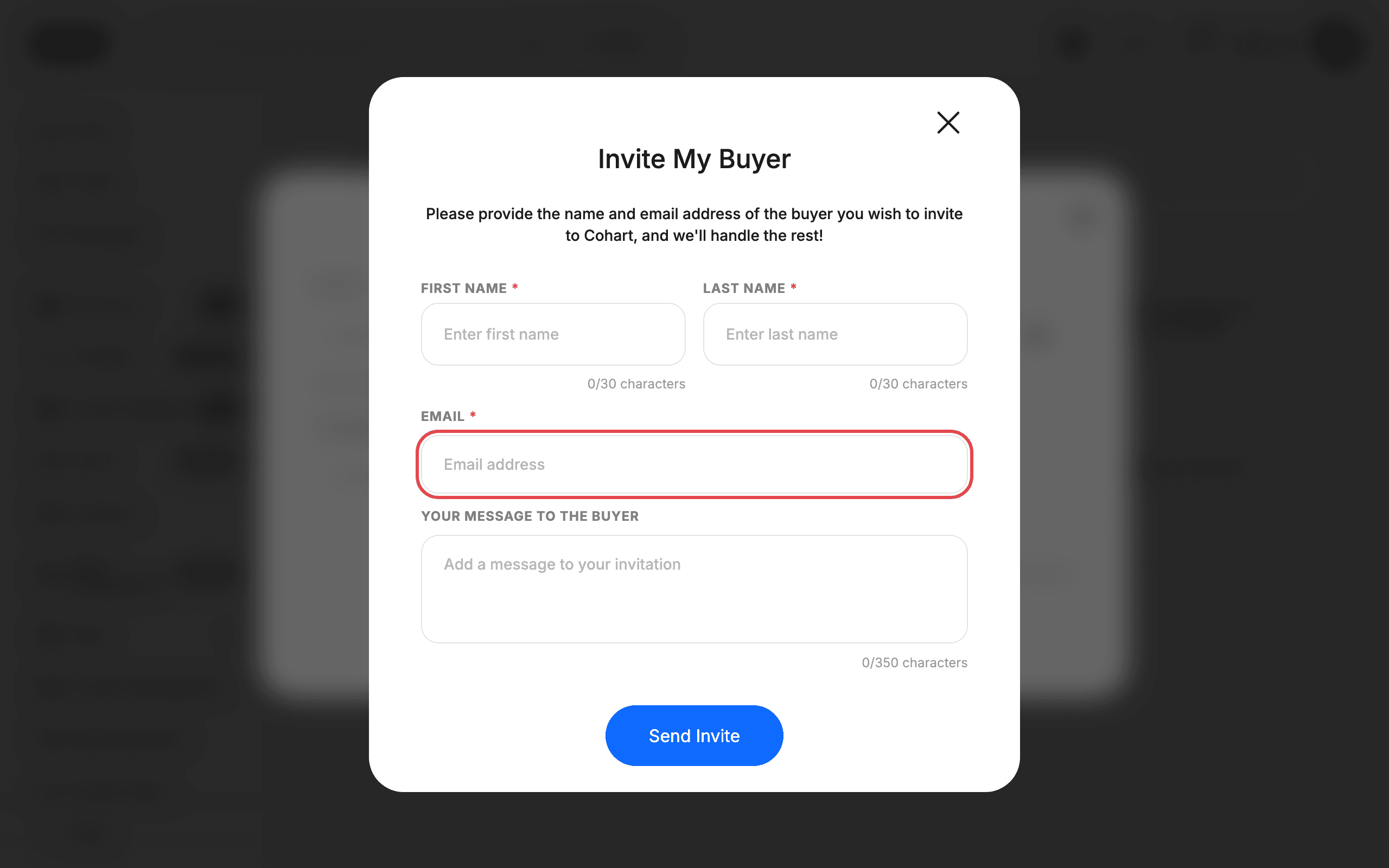
If your collector does not have a Cohart account, click invite them next to the BUYER field. In the Invite My Buyer dialog, enter the buyer’s FIRST NAME, LAST NAME, and EMAIL, optionally add a YOUR MESSAGE TO THE BUYER (up to 350 characters), then click Send Invite. The buyer receives an invitation to join Cohart. [UNVERIFIED — check manually] The dialog was observed but the invitation was not sent during capture.
Tips
- When your account has no testimonials yet, the page shows the empty state: “Showcase your testimonials” with the note that testimonials help build trust with future buyers.
- A testimonial must come from a Cohart user. The Search Buyer field only returns users with Cohart accounts; the Not on Cohart row at the top of the results is the entry point for inviting a new buyer.
- Limits to remember: testimonial text 1000 characters, invite first/last name 30 characters each, invite message 350 characters.
- Deleting a testimonial is permanent — the confirmation dialog does not offer an undo.
Screenshots are regenerated automatically from the live site. Last captured: August 19, 2026.