How to Use Other Artwork Features
Use the ”…” (more) menu on any published artwork in your Inventory to edit it, share it, organize it, list it, or delete it.
1. Sign in to your Cohart account
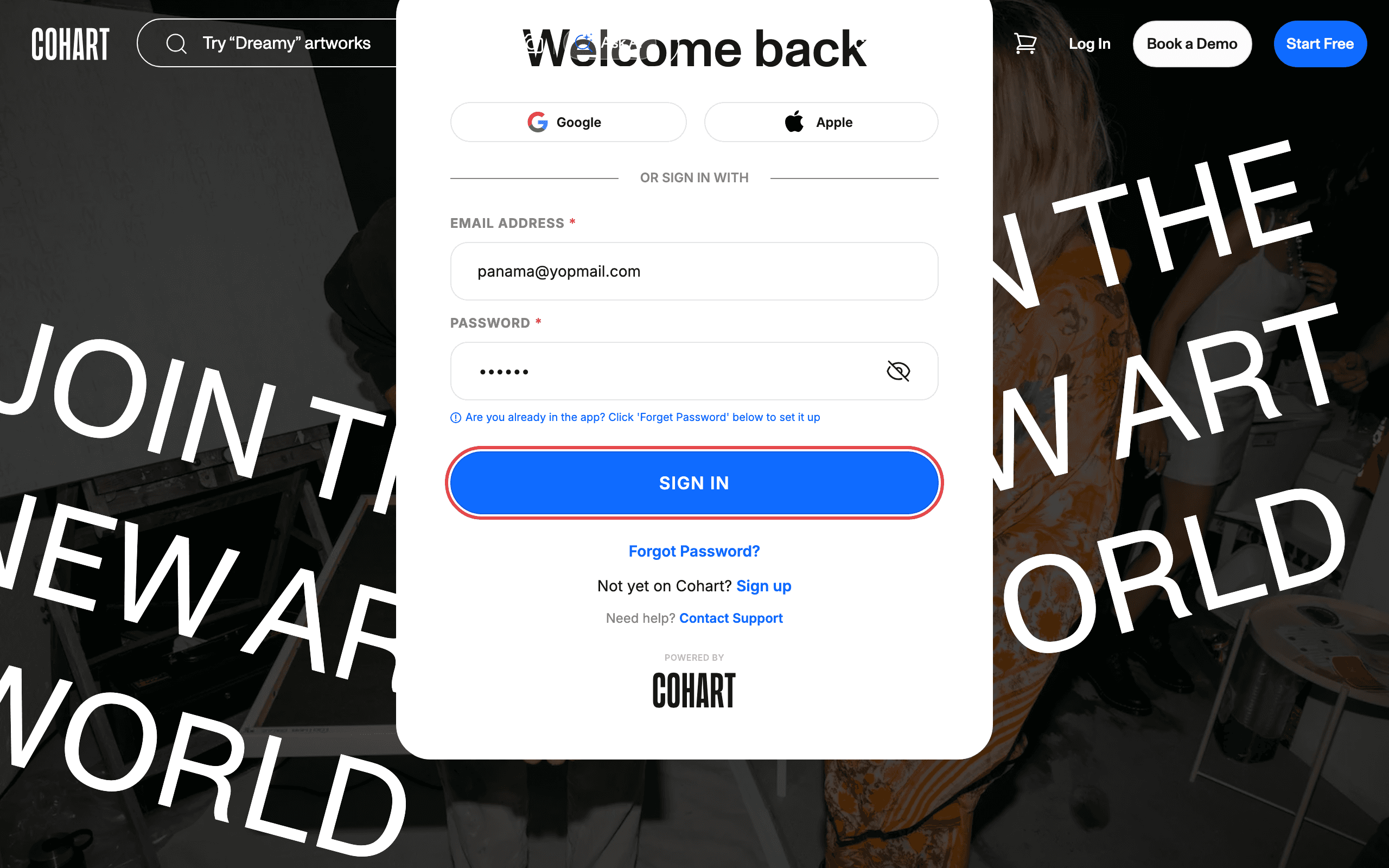
Go to the Cohart login page . Enter your email address in the EMAIL ADDRESS field and your password in the PASSWORD field, then click SIGN IN.
You can also sign in with Google or Apple using the buttons above the email field. If you forgot your password, click Forgot Password?. If you don’t have an account yet, click Sign up.
2. Open Inventory and find your artwork
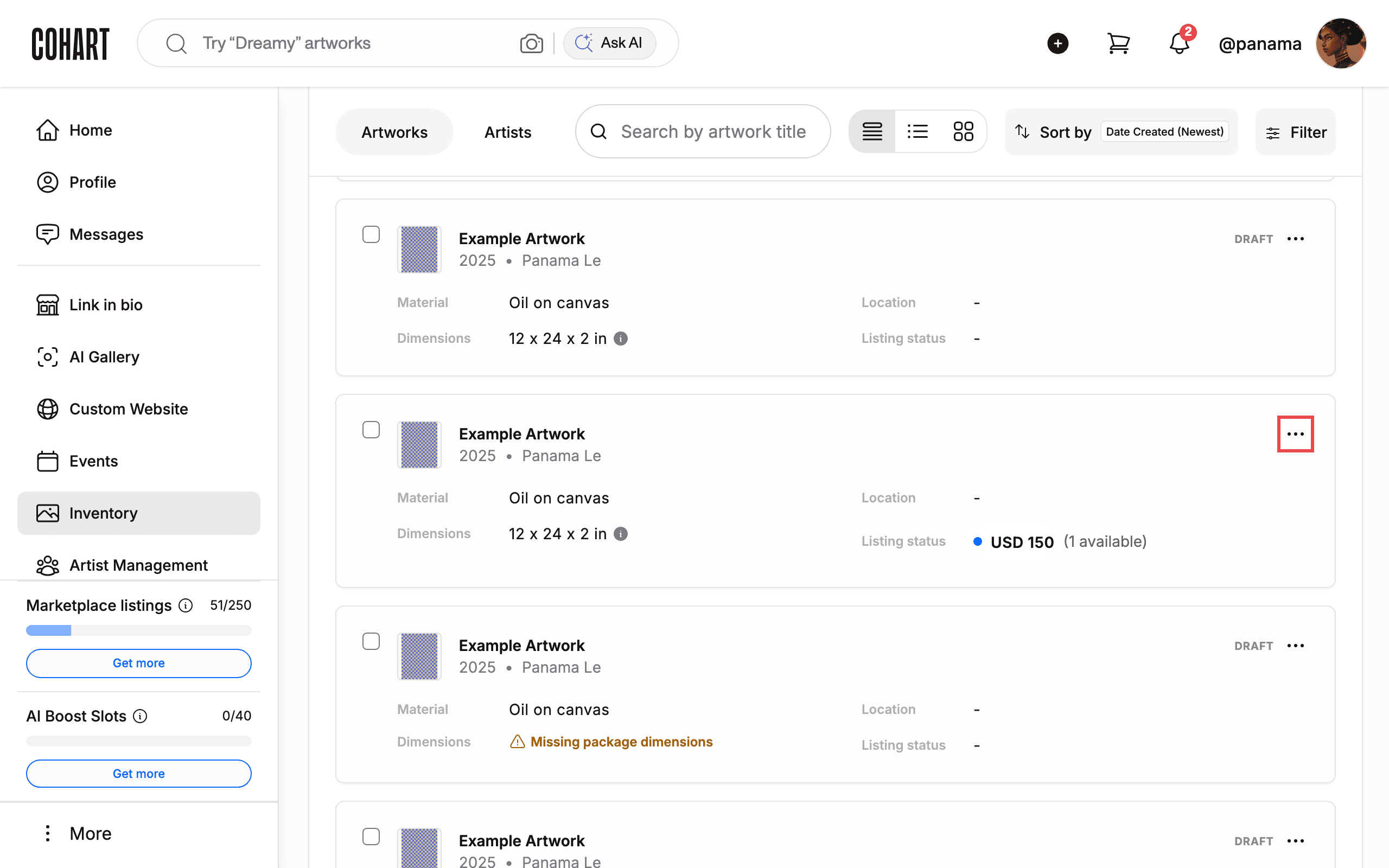
After signing in, click Inventory in the left sidebar. Your artworks appear as a list of cards showing the title, artist, material, dimensions, location, and listing status.
Each card has a checkbox on the left (for bulk selection) and a ”…” menu button on the right. If you have many works, use Search by artwork title, Sort by (for example Date Created (Newest)), or Filter to find the one you want.
3. Open the artwork menu
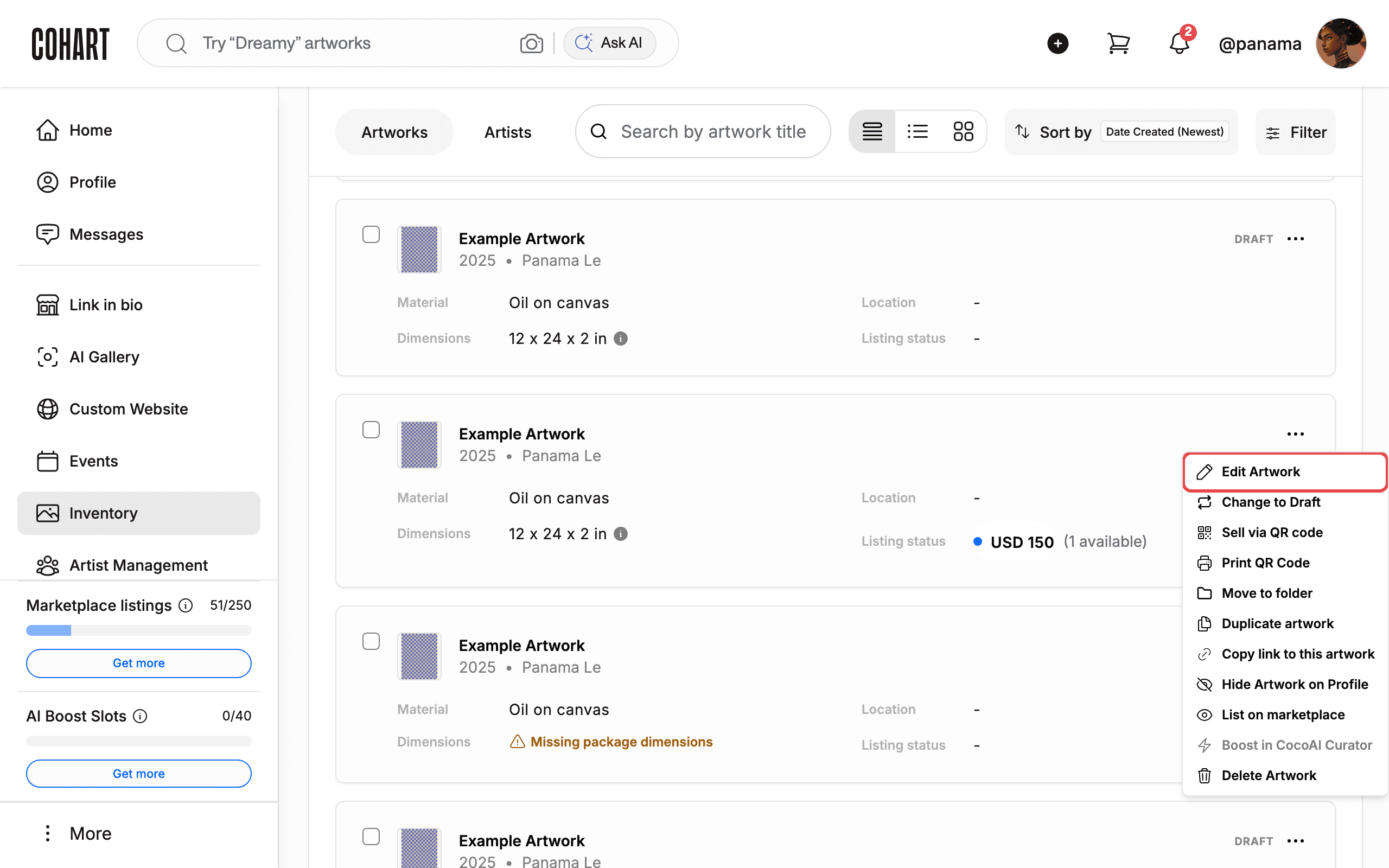
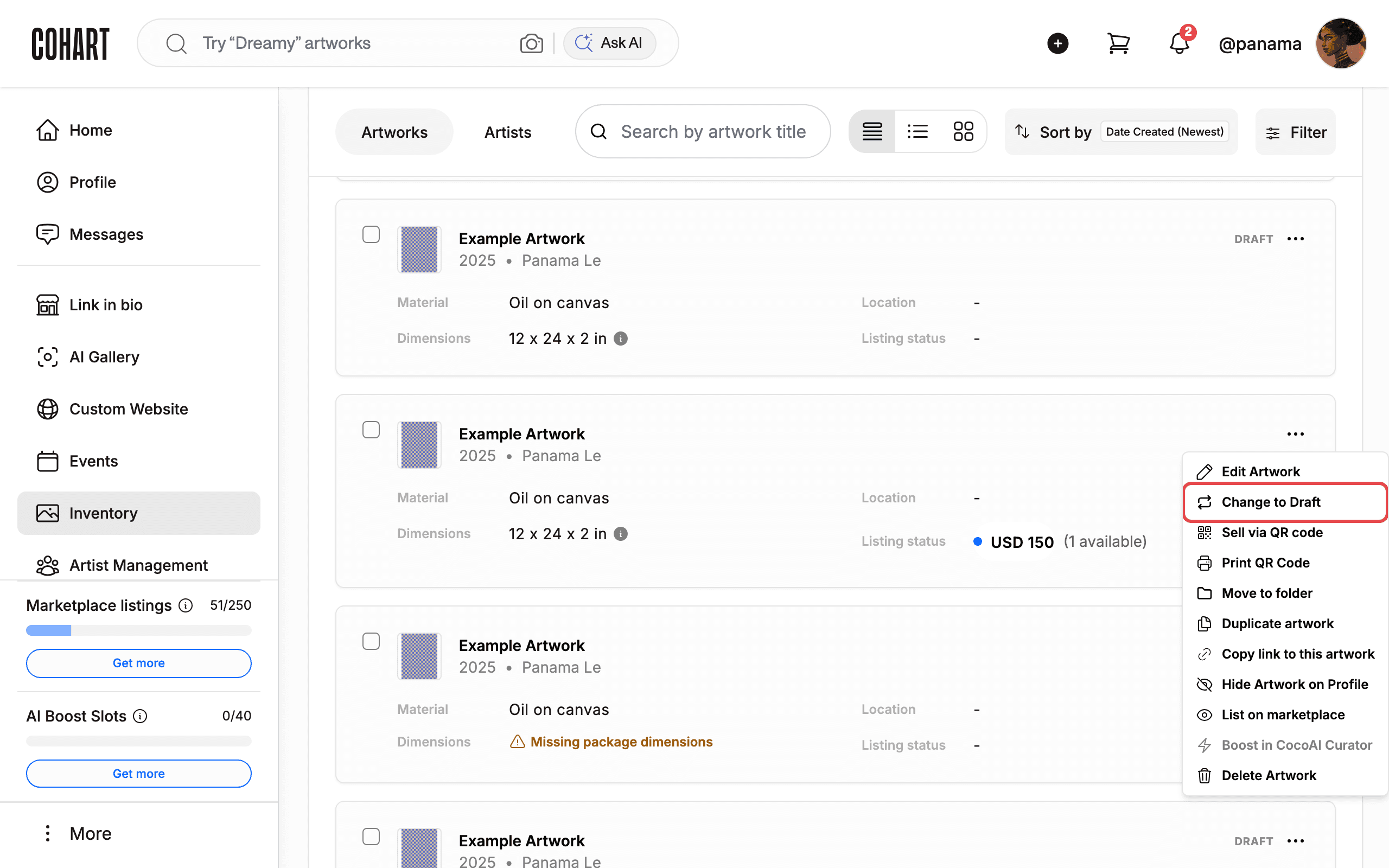
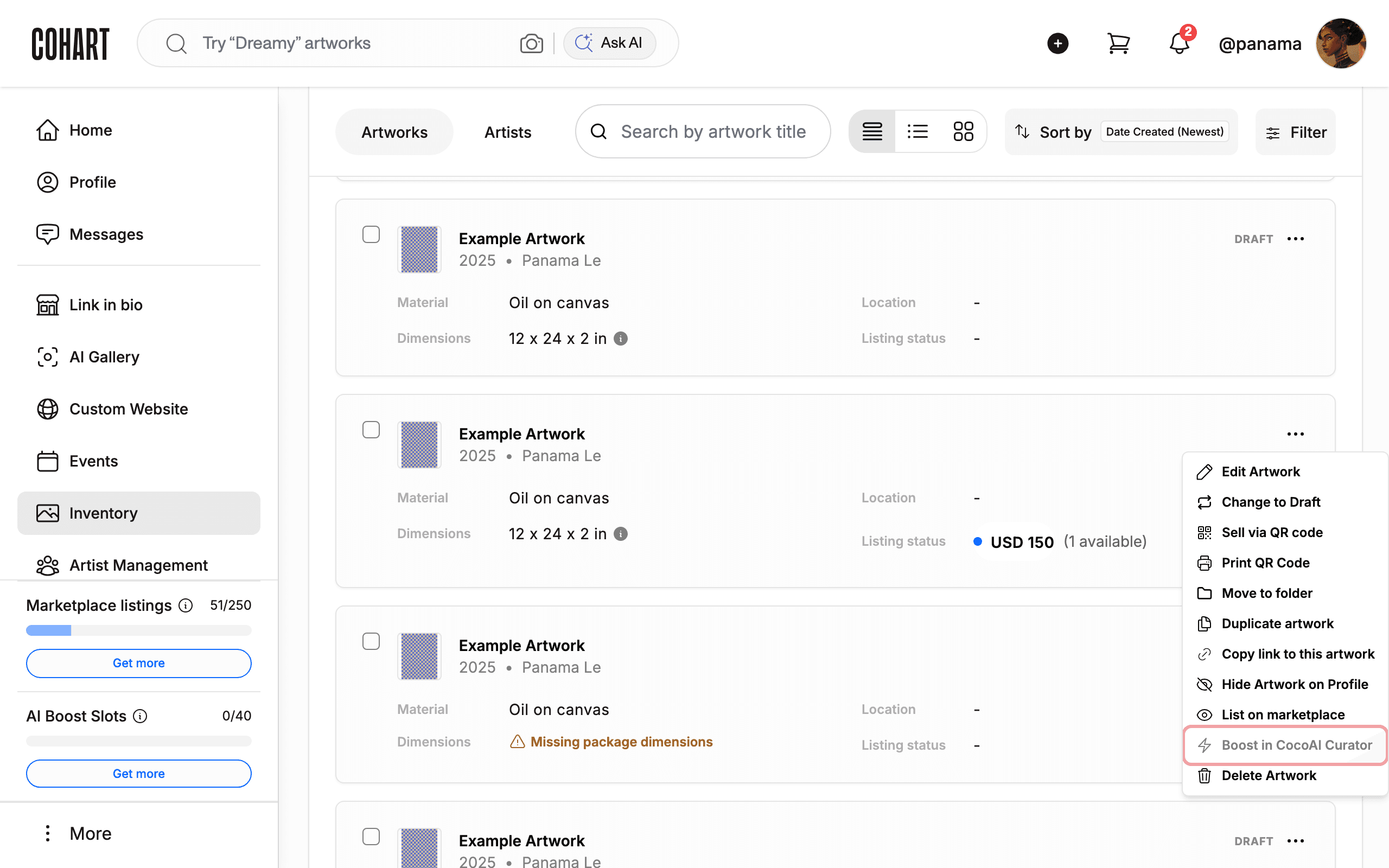
Click the ”…” button on a published artwork card. The menu shows these actions: Edit Artwork, Change to Draft, Sell via QR code, Print QR Code, Move to folder, Duplicate artwork, Copy link to this artwork, Hide Artwork on Profile, List on marketplace, Boost in CocoAI Curator, and Delete Artwork.
Draft artworks show a DRAFT badge and a shorter menu (Edit Artwork, Change to Publish, Move to folder, Delete Artwork). Artworks managed for another artist or marked SOLD can show a different menu (with items such as Share artwork, Authenticate certificate, Re-sell, Provenance, Set up insurance, and Request appraisal).
4. Edit the artwork
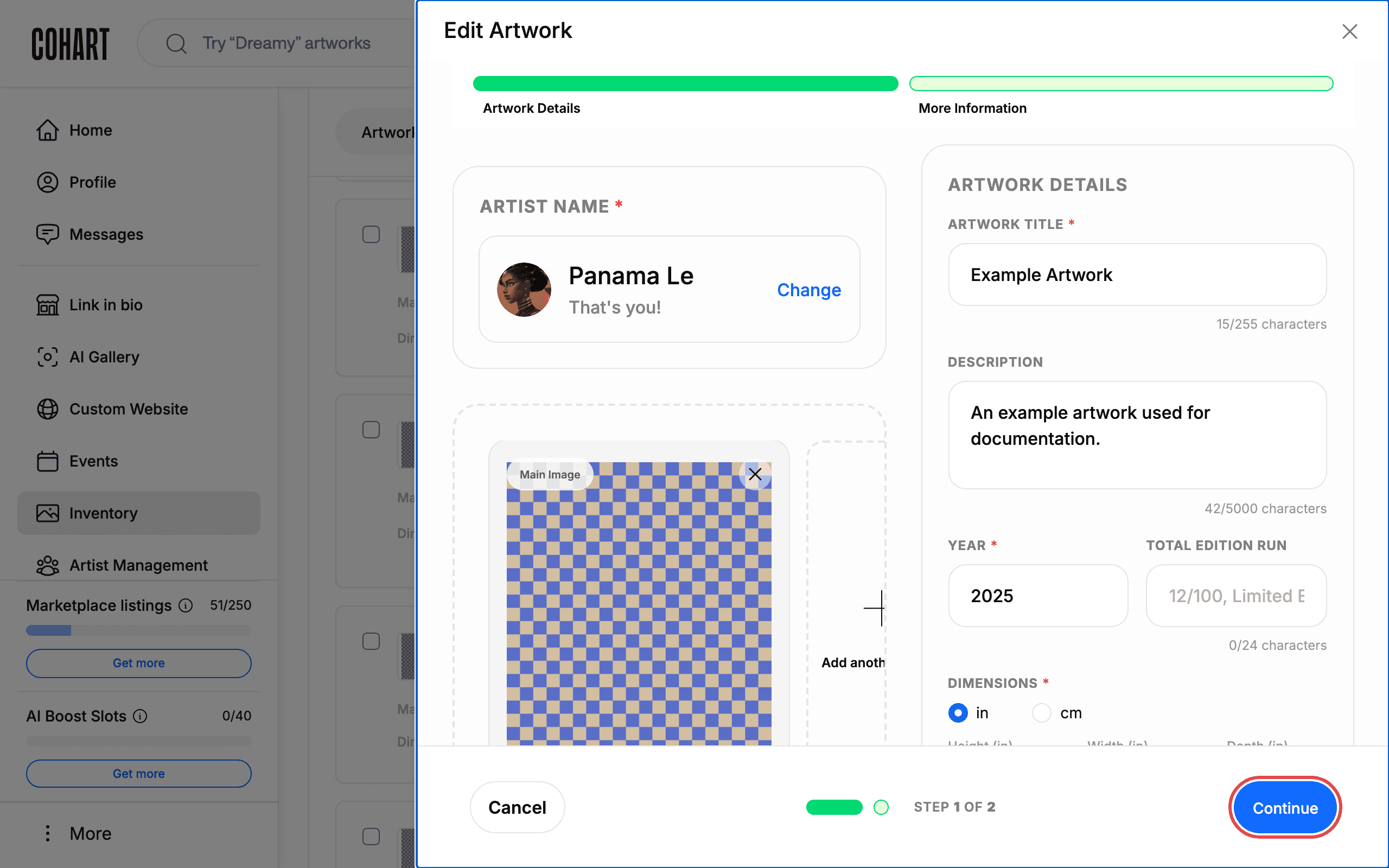
Click Edit Artwork. A drawer opens with two sections, Artwork Details and More Information: artist name (with a Change option), main image (you can Add another image, up to 5), artwork title, description, year, total edition run, dimensions (in or cm), and more below.
Click Continue (STEP 1 OF 2) to go to the next step, or click Cancel (or the X) to close the drawer without saving.
5. Change a published artwork to Draft
Click Change to Draft to unpublish the artwork. This acts immediately with no confirmation dialog — a toast reading Artwork updated! confirms the change.
To publish it again, open its menu and click Change to Publish. (The capture script only highlights this item without clicking it, so the documented artwork stays published.)
6. Sell via QR code
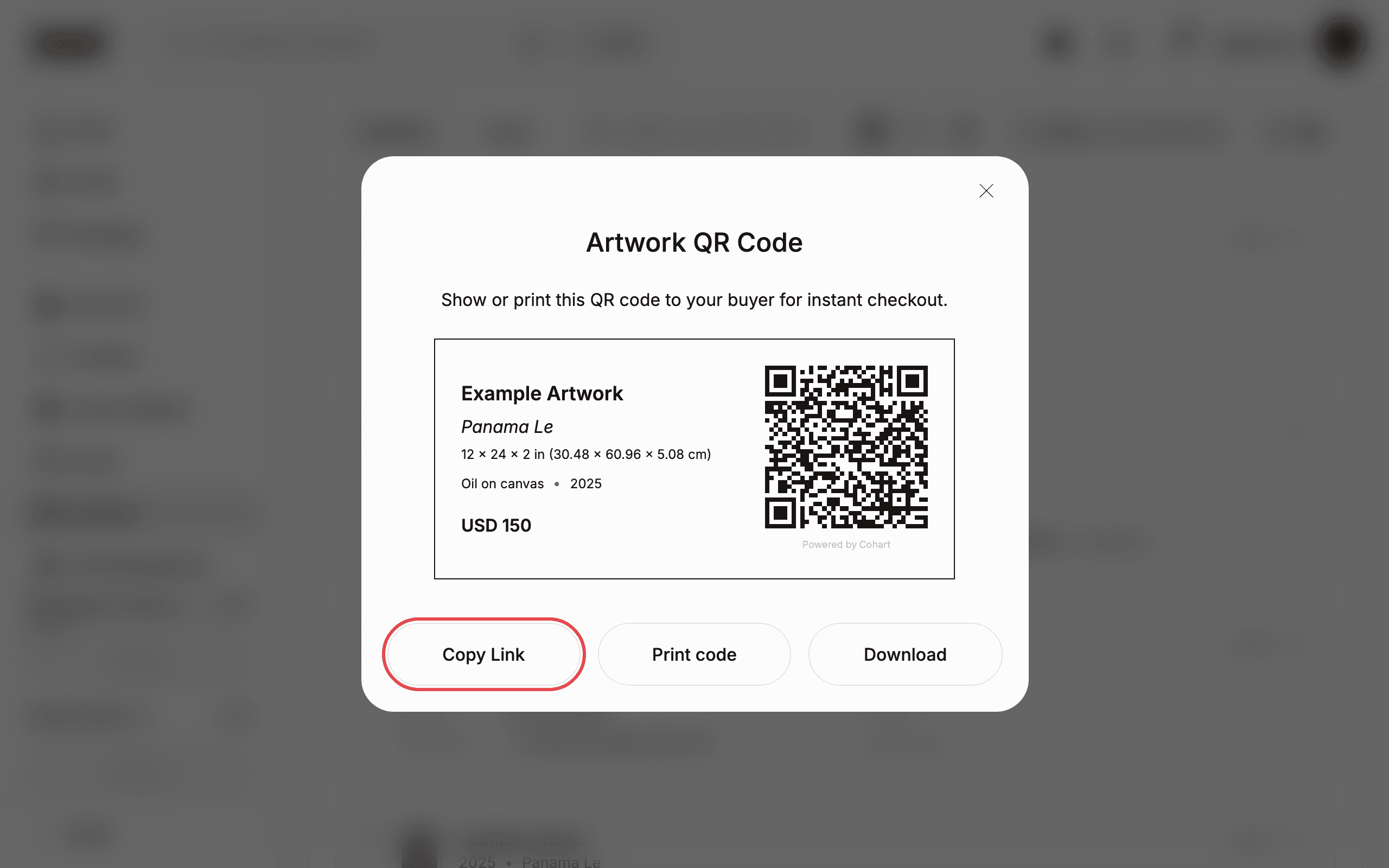
Click Sell via QR code. The Artwork QR Code dialog opens with the text “Show or print this QR code to your buyer for instant checkout.” It shows the artwork card (title, artist, size, medium, year, and price, for example USD 150) next to the QR code, plus three buttons: Copy Link, Print code, and Download.
Click Copy Link to copy the checkout link, or close the dialog with the X when you are done.
7. Print the QR code
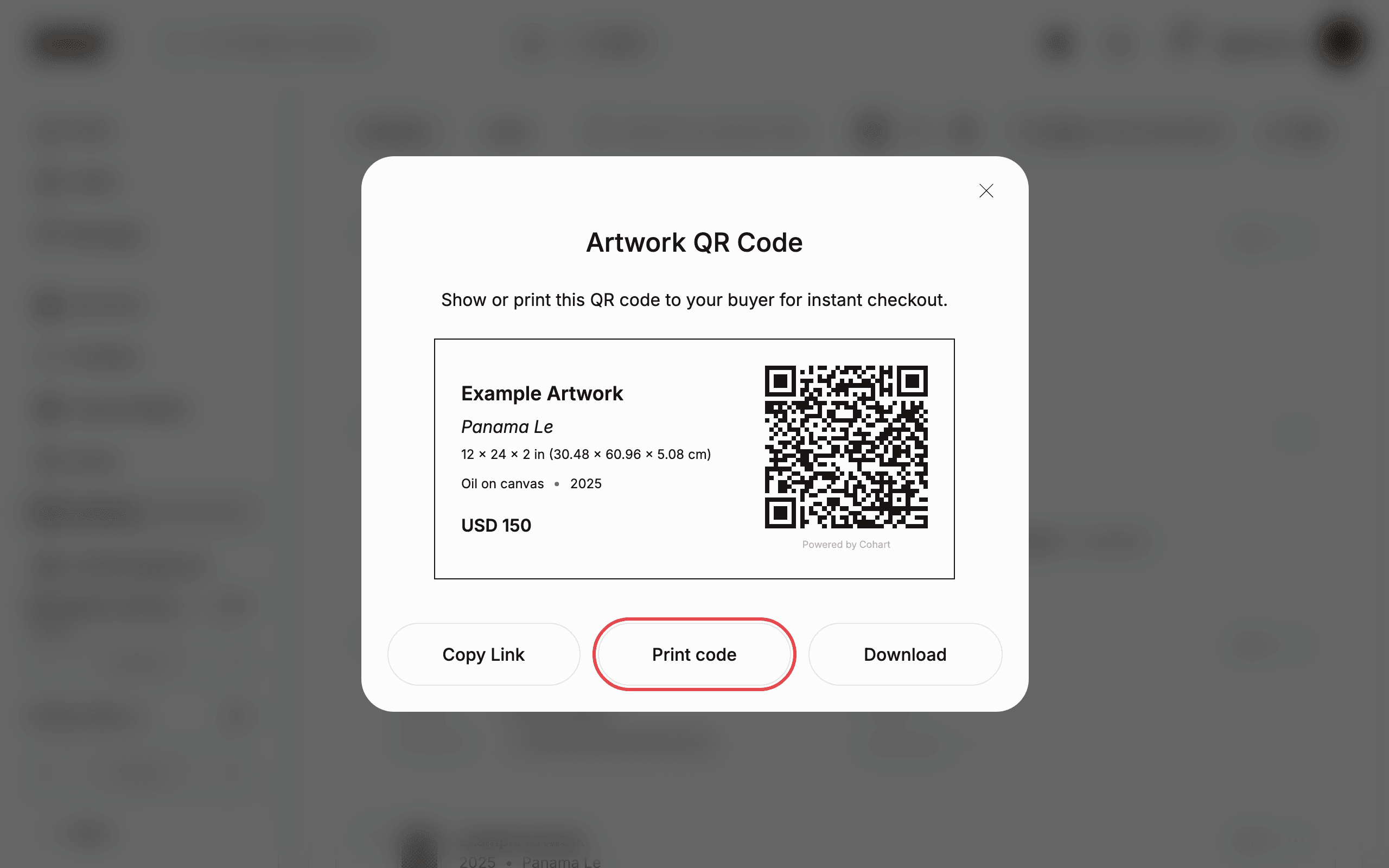
Click Print QR Code. The same Artwork QR Code dialog opens. Click Print code to print the code for in-person selling, or Download to save it.
8. Move the artwork to a folder
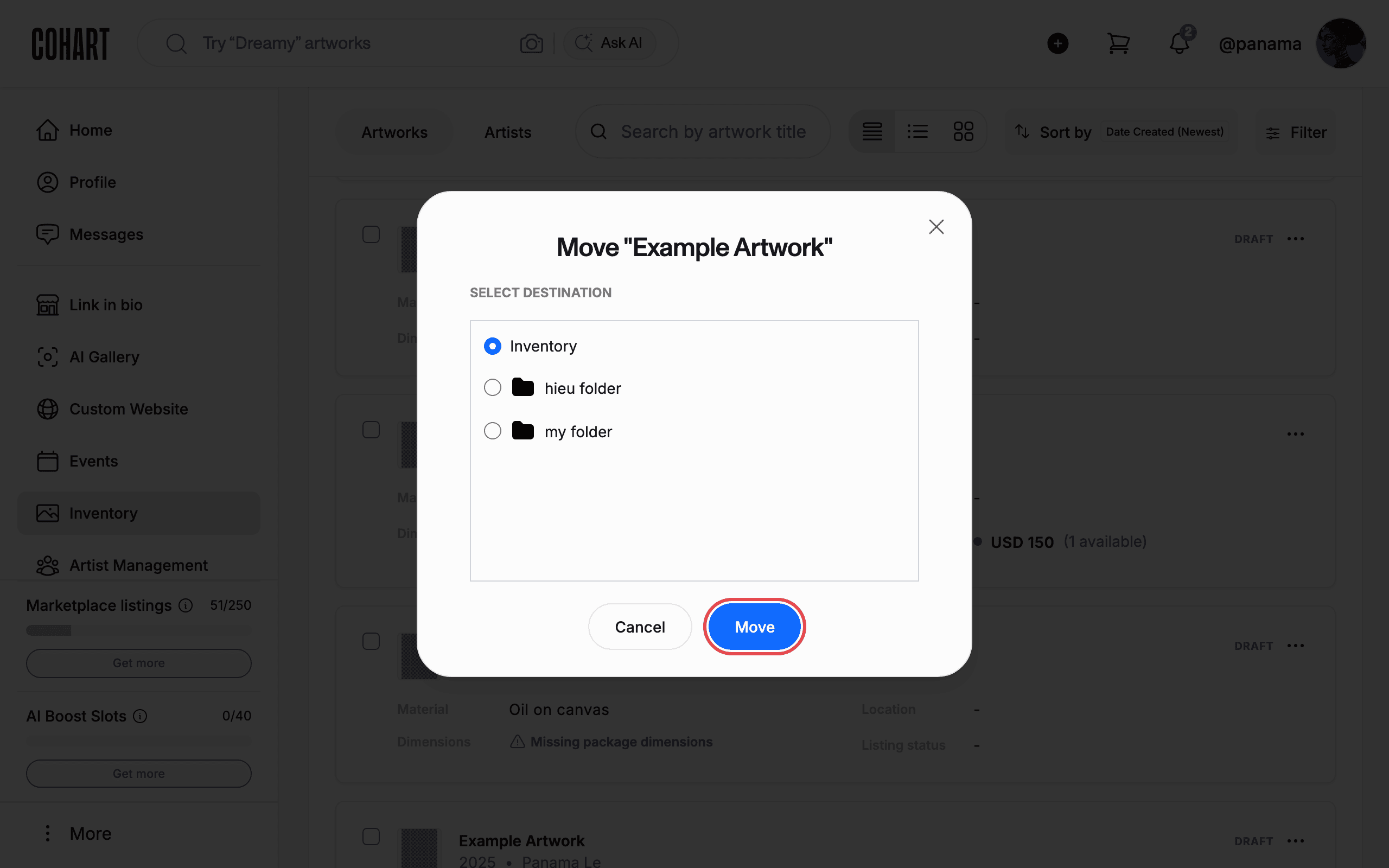
Click Move to folder. The Move “Example Artwork” dialog opens with SELECT DESTINATION and your folders (for example Inventory, hieu folder, my folder).
Select the destination folder, then click Move. Click Cancel (or Close) to leave the artwork where it is.
9. Duplicate the artwork
Click Duplicate artwork to create a copy. This acts immediately with no confirmation dialog — a toast reading Duplicating artwork… confirms the action, and the copy appears in your Inventory as a draft (for example titled Example Artwork (Duplicated)). (The capture script only highlights this item without clicking it, so no extra copies are created.)
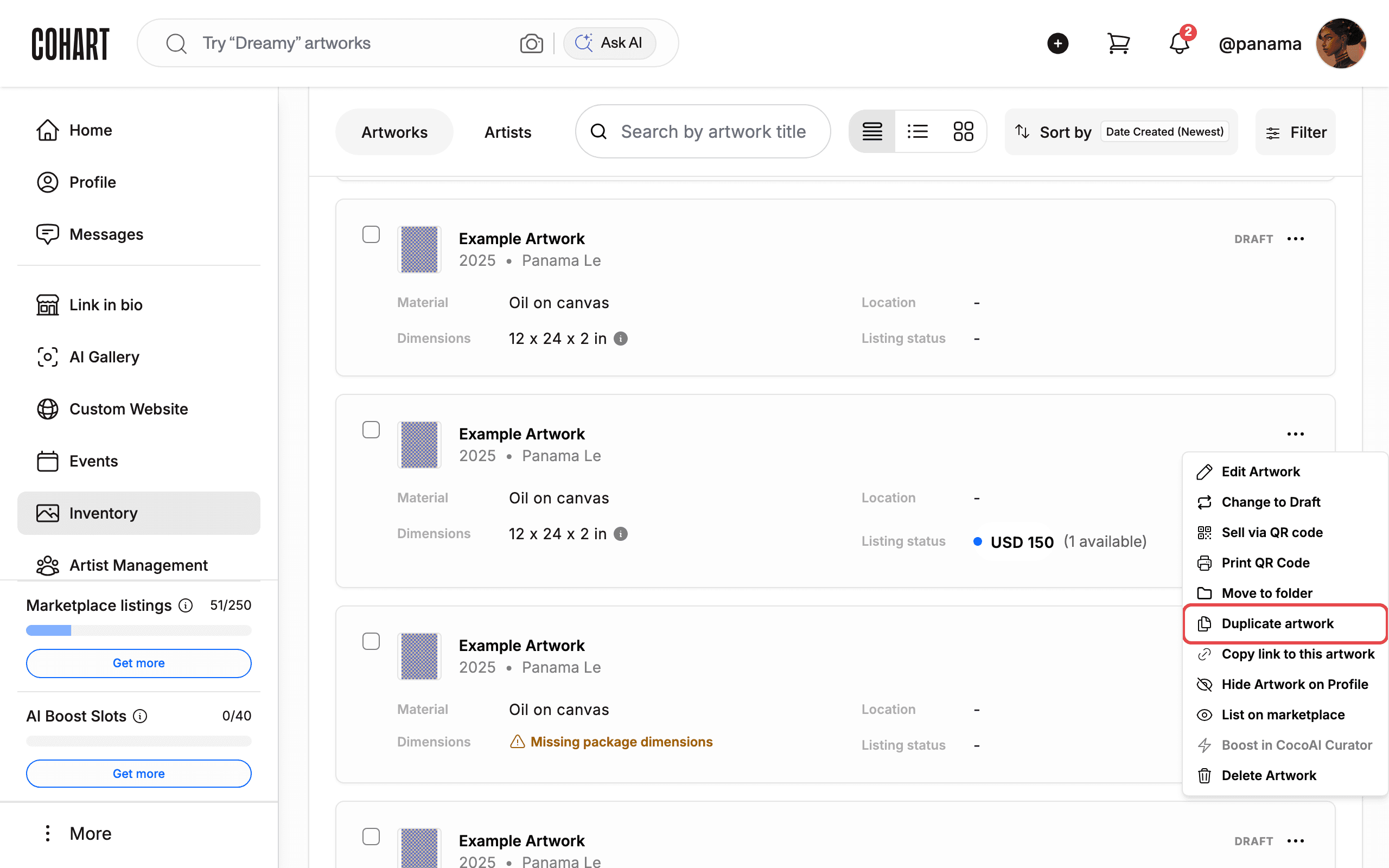
10. Copy the direct-sale link
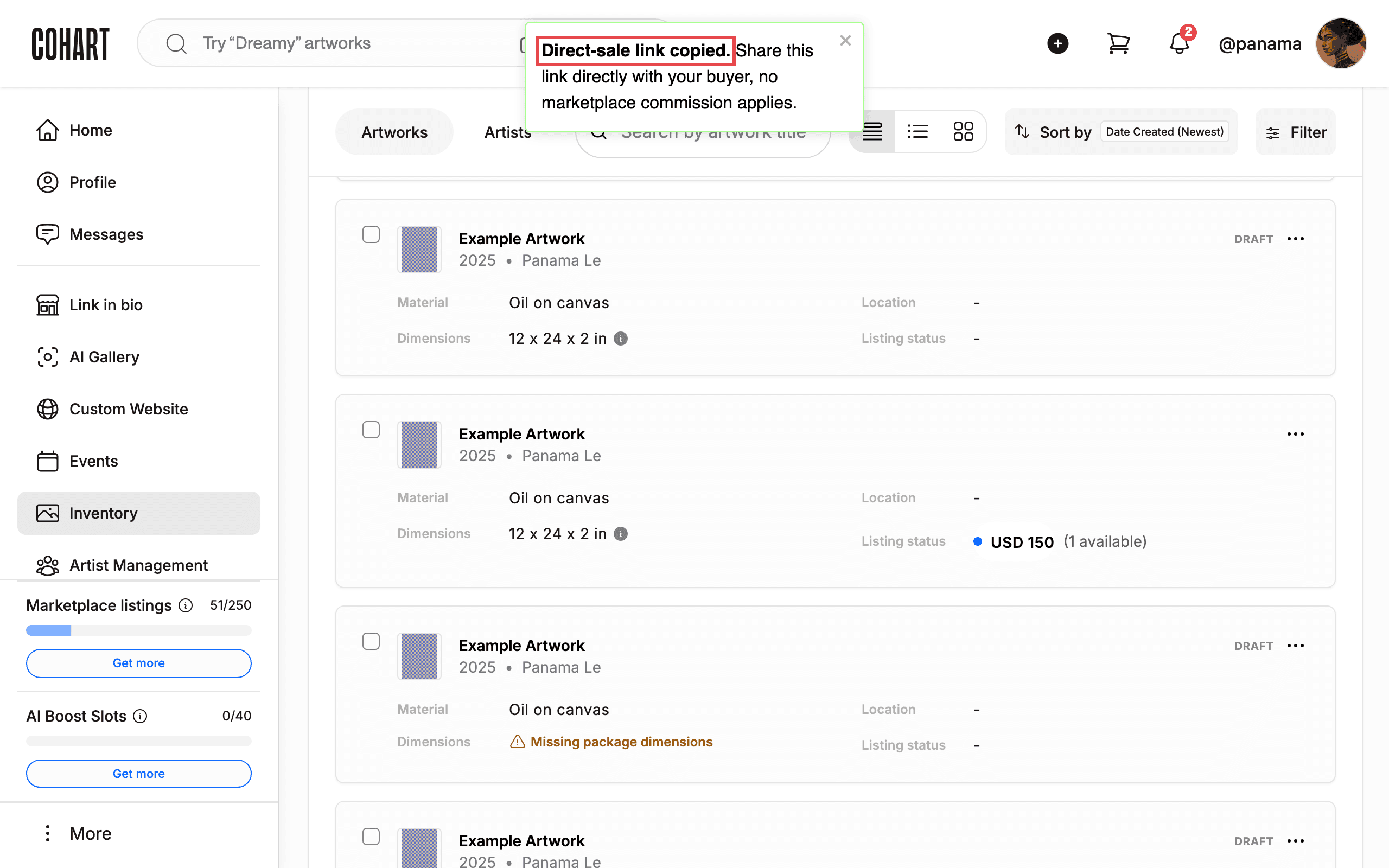
Click Copy link to this artwork. A toast reading Direct-sale link copied. Share this link directly with your buyer, no marketplace commission applies. confirms the link is on your clipboard.
Send that link to your buyer directly. Links shared from your Inventory carry 0% marketplace commission — payment goes straight to your connected account (see the banner at the top of the Inventory page).
11. Hide the artwork from your profile
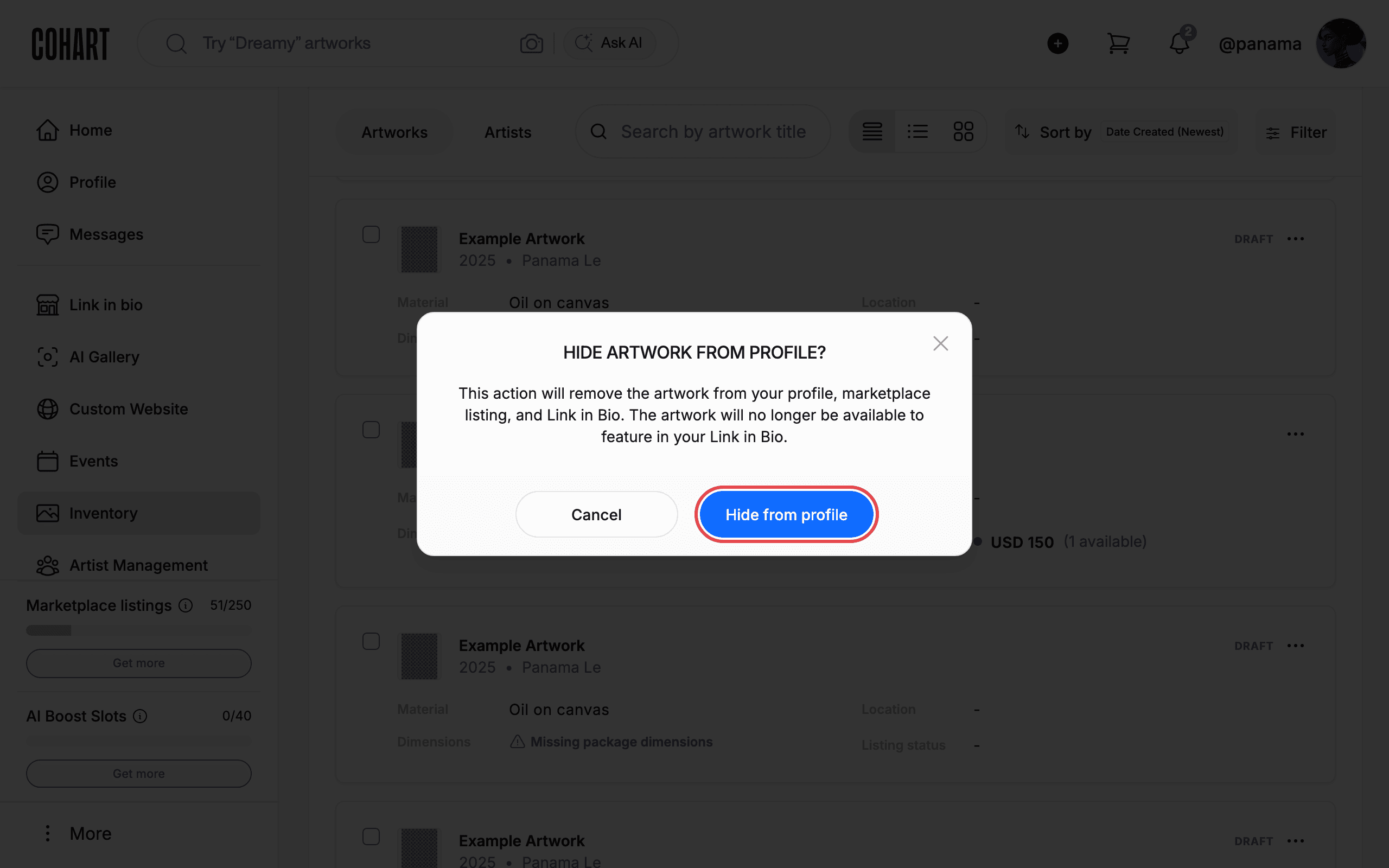
Click Hide Artwork on Profile. A confirmation dialog titled HIDE ARTWORK FROM PROFILE? explains: “This action will remove the artwork from your profile, marketplace listing, and Link in Bio. The artwork will no longer be available to feature in your Link in Bio.”
Click Hide from profile to confirm, or Cancel to keep it visible. (The capture script always clicks Cancel.)
12. List the artwork on the marketplace
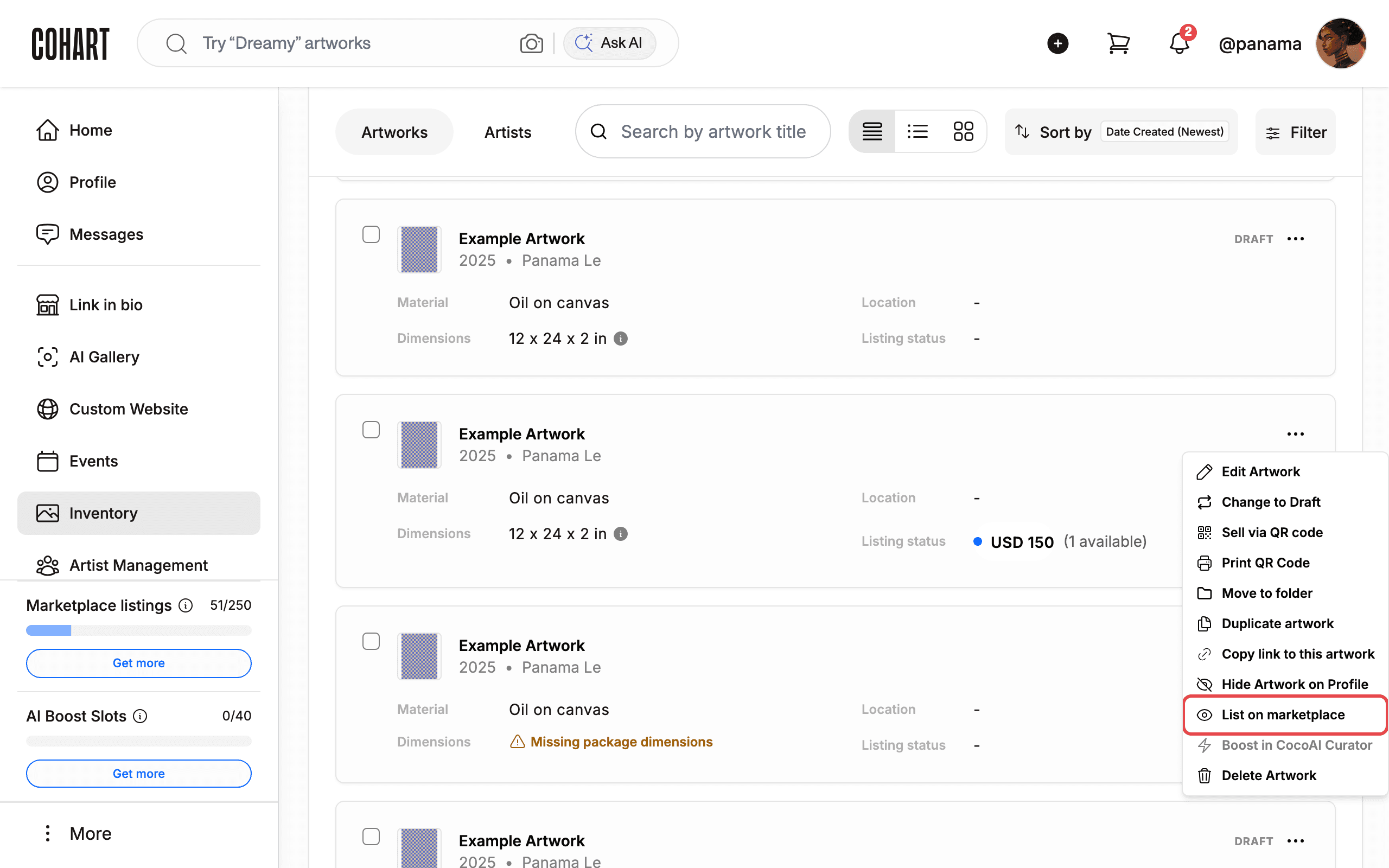
Click List on marketplace to feature the artwork on Cohart’s Discover page and your public profile. This acts immediately with no confirmation dialog — a toast reading This artwork will appear on Cohart’s Discover page confirms it. (The capture script only highlights this item without clicking it.)
Once listed, the card shows a LISTED ON MARKETPLACE badge, the sidebar Marketplace listings counter (for example 51/250) goes up by one, and this menu item becomes Unlist on marketplace. Marketplace sales made through Discover or your public profile are subject to a 20% commission.
13. Boost the artwork in CocoAI Curator
Click Boost in CocoAI Curator to promote the artwork in the AI curator. This acts immediately with no confirmation dialog — a toast reading This artwork will be boosted in Coco AI Curator confirms it. (The capture script only highlights this item without clicking it.)
Once boosted, the card shows an AI BOOSTED badge, the sidebar AI Boost Slots counter (for example 0/40) goes up by one, and this menu item becomes Remove boost from CocoAI Curator. If you have no slots left, click Get more next to AI Boost Slots in the sidebar.
14. Delete the artwork
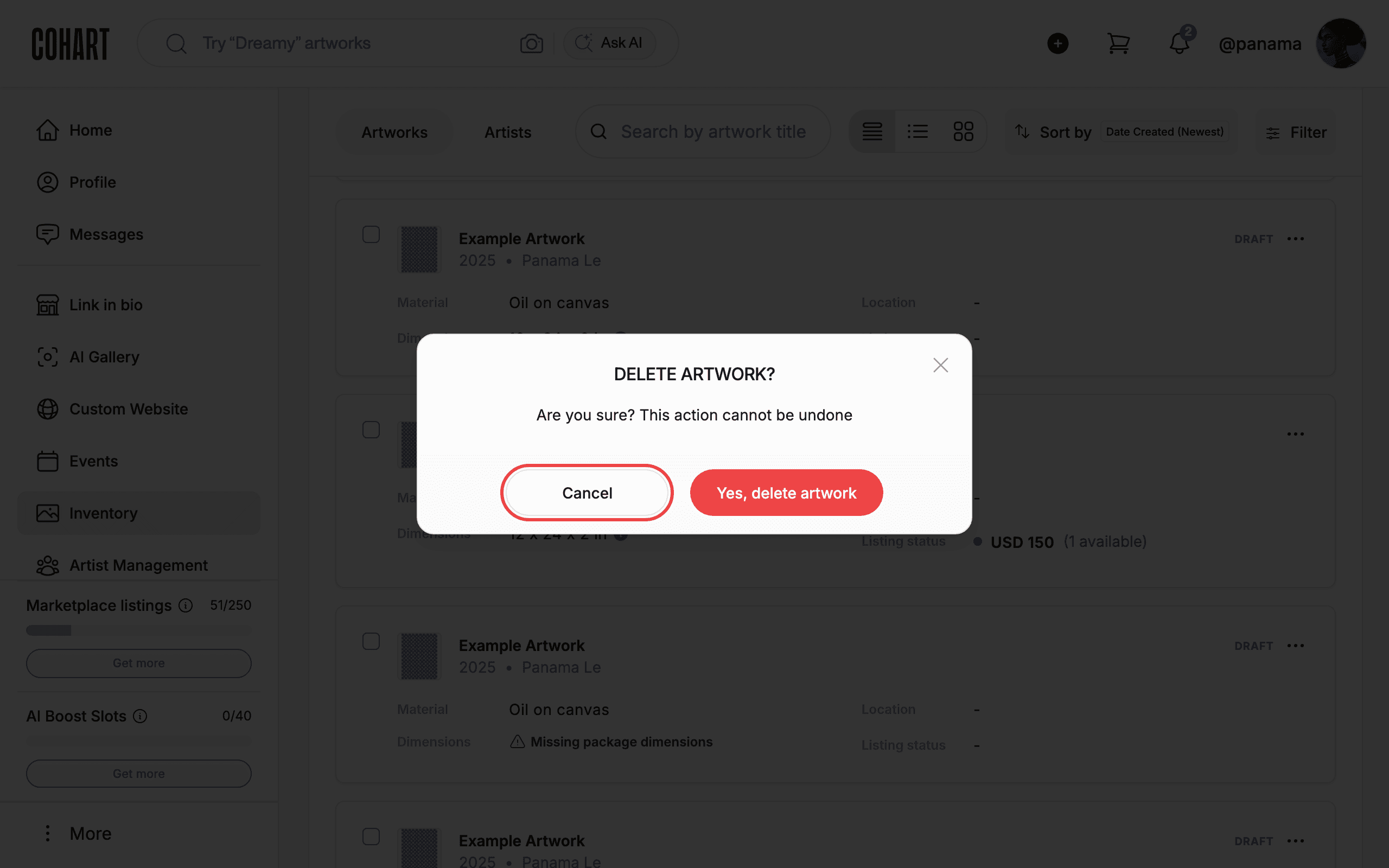
Click Delete Artwork. A confirmation dialog titled DELETE ARTWORK? warns “Are you sure? This action cannot be undone”.
Click Yes, delete artwork only if you are sure, or click Cancel to keep the artwork. (The capture script always clicks Cancel — nothing is ever deleted during documentation.) Drafts show a similar DELETE DRAFT? dialog (“Are you sure you want to delete and remove this from your saved drafts?”) with Cancel and Delete. [UNVERIFIED — check manually]
Tips
- Published vs. draft: only published artworks show the full 11-item menu. Drafts (marked with a DRAFT badge) show Edit Artwork, Change to Publish, Move to folder, and Delete Artwork.
- No-confirmation actions: Change to Draft, Duplicate artwork, Copy link to this artwork, List on marketplace, and Boost in CocoAI Curator act the moment you click them. Watch for the confirmation toast each time.
- Toggle labels: after listing, the item reads Unlist on marketplace; after boosting, it reads Remove boost from CocoAI Curator. Clicking Unlist on marketplace also removes the boost and frees both the listing slot and the boost slot.
- Track your quotas: the sidebar shows Marketplace listings (for example 51/250) and AI Boost Slots (for example 0/40). Use the Get more buttons when you run out.
- Fix shipping warnings: a Missing package dimensions warning on a card means the listing lacks package size or weight. Open Edit Artwork and complete the package dimensions and weight so shipping fees calculate correctly at checkout.
- Find artworks faster: combine Search by artwork title, Sort by Date Created (Newest), Filter, and the Artworks / Artists tabs. The pager at the bottom shows Items per page 20 with page numbers.
Troubleshooting
- The menu only has 4 items: the artwork is a draft. Click Change to Publish to publish it, then reopen the menu for the full list.
- The menu shows Share / Authenticate / Re-sell options: the artwork belongs to a managed artist or is sold. Those rows use a different action set — the 11 standard actions above do not apply.
- Copy link shows no toast: your browser blocked clipboard access. Allow clipboard permissions for the site and try again. (The automated capture grants
clipboard-read/clipboard-writefor this reason.) - Boost does nothing visible: check the AI Boost Slots counter — with 0/40 used you may have no slots left. Click Get more.
- Hide vs. Delete: hiding removes the artwork from your profile, marketplace listing, and Link in Bio but keeps it in Inventory. Deleting removes it permanently and cannot be undone.
- Delete dialog for drafts differs: deleting a draft asks DELETE DRAFT? with Cancel / Delete instead of Yes, delete artwork. [UNVERIFIED — check manually]
Screenshots are regenerated automatically from the live site. Last captured: 2026-09-07.