How to Use AI Chat to Search Favorite Artworks
Use Cohart’s AI chat (CocoAI) to find the artworks you’ve saved to your favorites — describe what you’re looking for in plain language, and the AI curates a list of your favorite artworks for you.
1. Sign in to your Cohart account
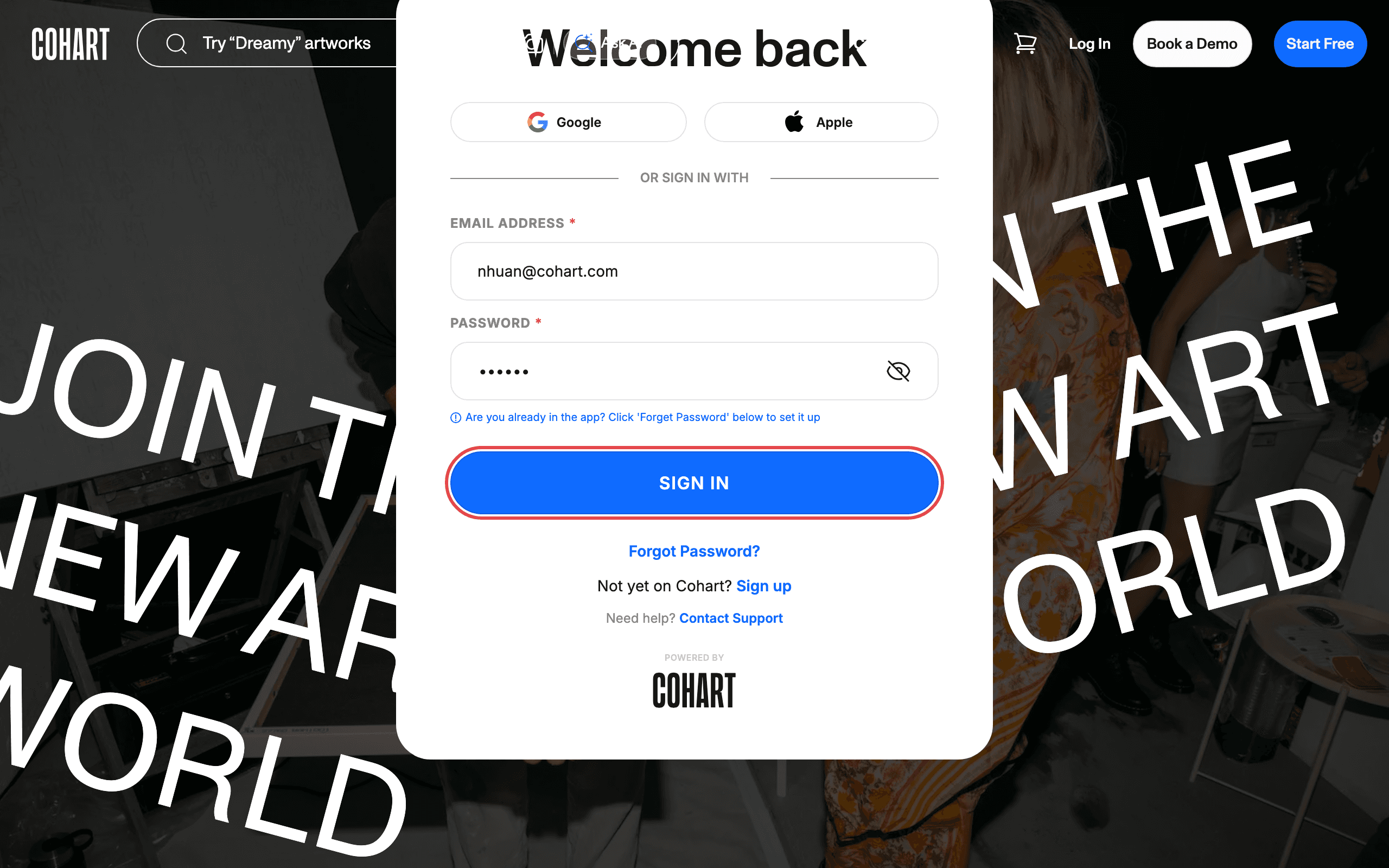
Go to the Cohart login page . Enter your email address in the Enter email address field and your password in the Enter password field, then click SIGN IN.
You can also sign in with Google or Apple using the buttons on the login page. If you don’t have an account yet, click Sign up or Start Free.
2. Open the AI chat on the home page
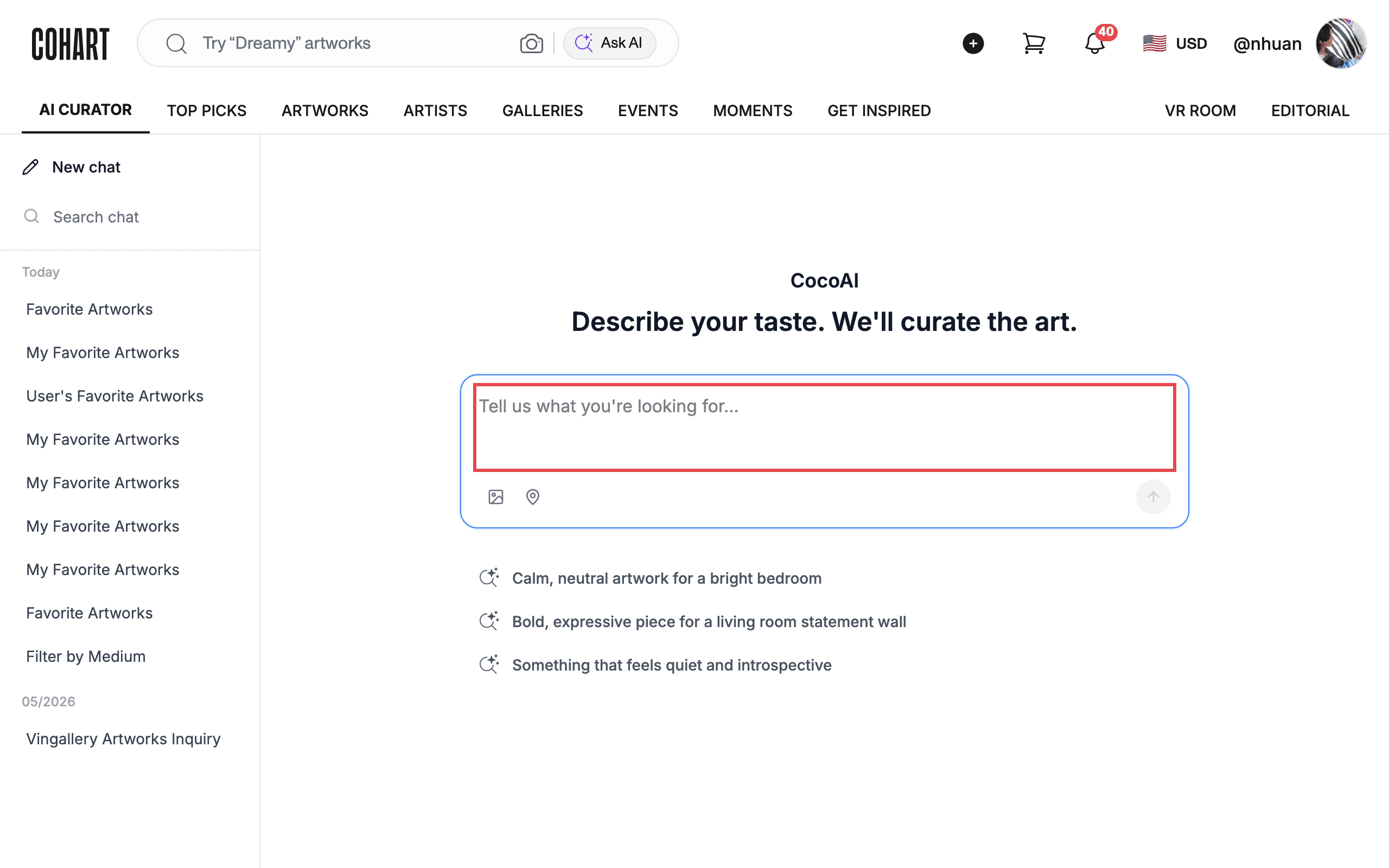
After signing in, go to the Cohart home page . The AI chat opens directly on this page. If you have chatted before, you’ll see Welcome Back with options to Continue this or Start fresh — click Start fresh (or New chat in the top-right of the chat panel) to begin a new conversation.
Type your request in the message box at the bottom of the chat. The box shows the placeholder “Tell us what you’re looking for…”.
3. Type your request
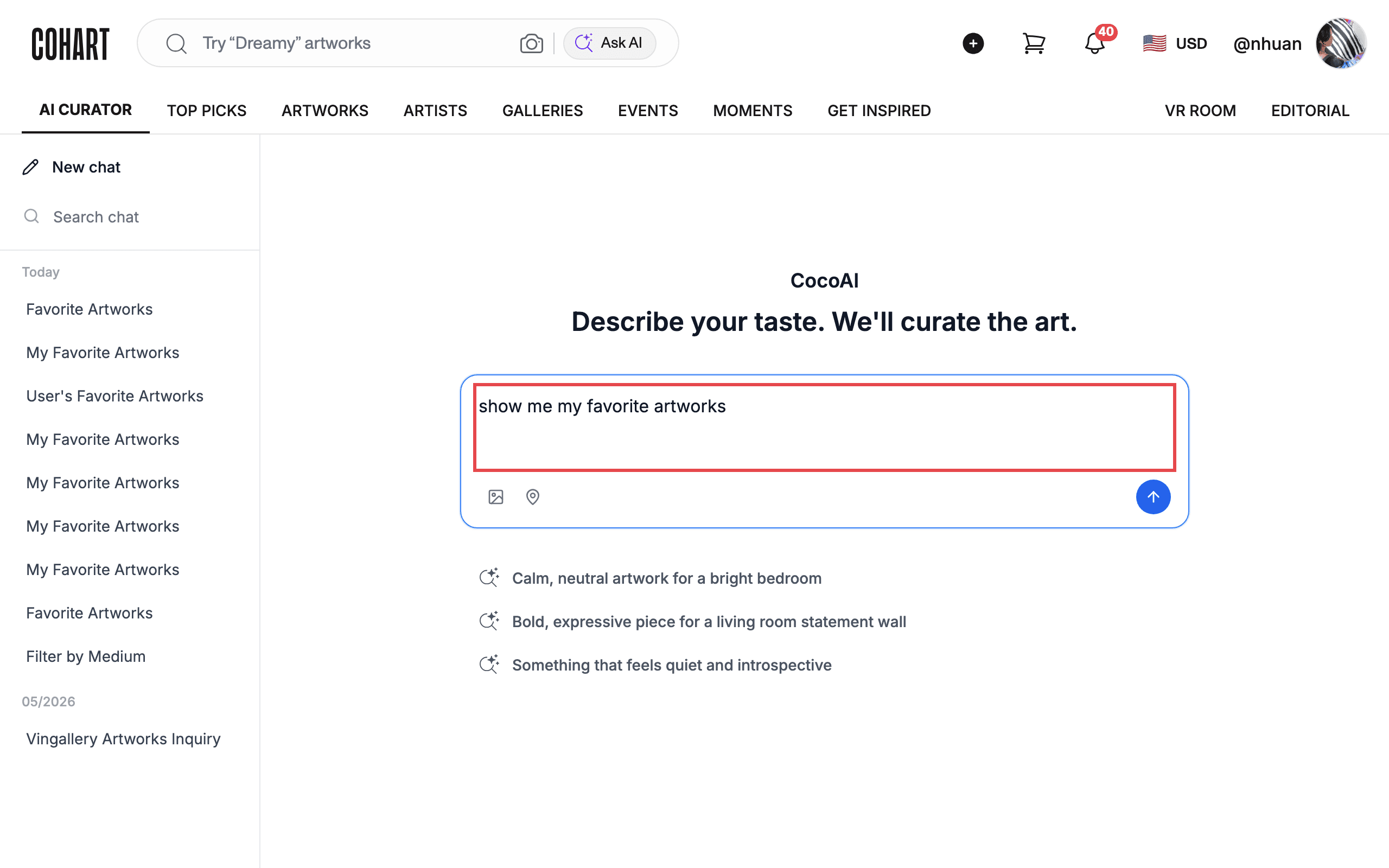
Type a request in plain language, for example: show me my favorite artworks.
You can also click a suggested prompt if you’re not sure what to ask. The chat offers suggestions like I’M DECORATING A ROOM, I’M LOOKING FOR A GIFT, I WANT SOMETHING FOR A SPECIFIC MOOD, SHOW ME WHAT’S NEW THIS WEEK, and FIND ME AN ARTIST I’LL LOVE.
4. Send the message
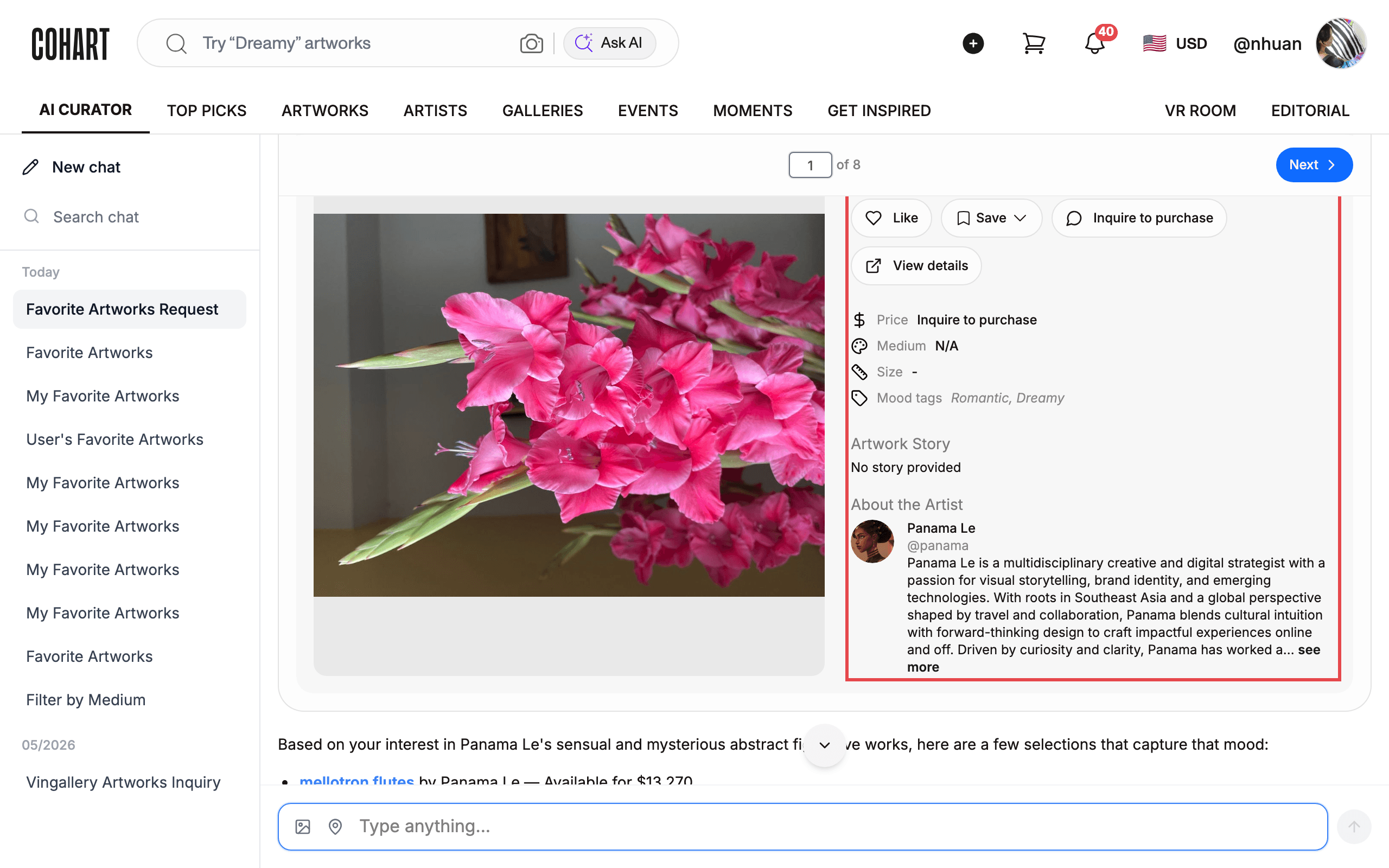
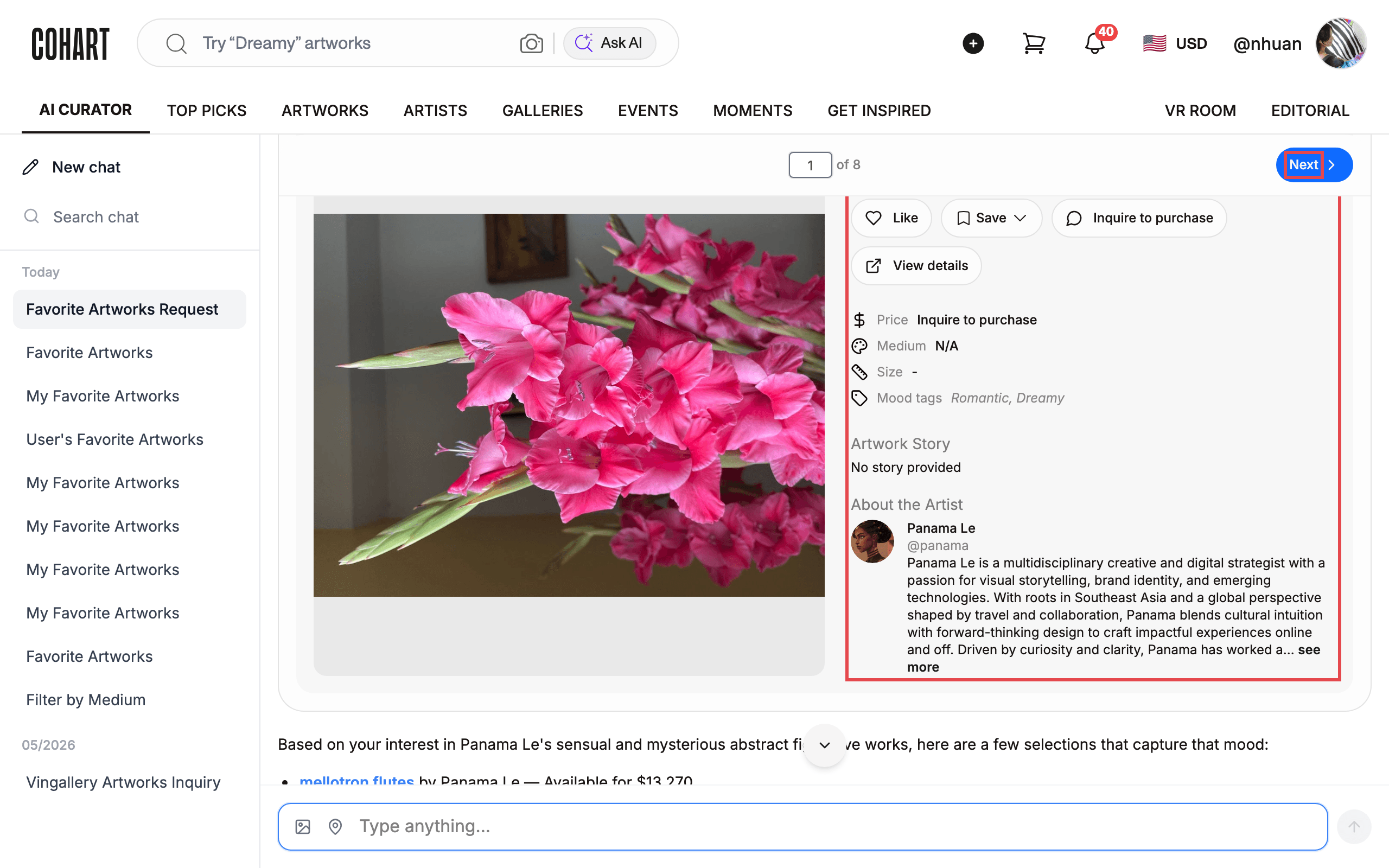
Press Enter on your keyboard to send the message. The AI responds with a short summary of what it found, followed by artwork cards from your favorites, for example: “Based on your interest in abstract figurative works with a sensual and mysterious mood, here are some highlights from your favorites.”
5. Browse and interact with the results
Each artwork card shows the artwork, the artist, price, medium, size, and mood tags. Use the buttons on each card to:
- Like — mark an artwork as liked
- Save — save the artwork (the button changes to Saved once it’s saved)
- Inquire to purchase — ask about buying the artwork
- Buy now — go to checkout (if the artwork is available for purchase)
- View details — open the artwork’s full page
Use the Next button to see more results (the counter at the top shows how many results you have, for example “of 8”).
Tips
- Returning visitors: the chat remembers your last session. Click Continue this to pick up where you left off, or Start fresh to begin a new chat.
- Not sure what to type? Click one of the suggested prompts under “Or start with a question”, or the example prompts like “Calm, neutral artwork for a bright bedroom”.
- Shortcut: the Ask AI button in the top bar focuses the chat.
- Find past chats: use the Search chat field to look through your previous conversations.
- Search without signing in: an AI search box with the placeholder “Try “Dreamy” artworks” is available on the login page — but sign in to search your saved favorites.
Troubleshooting
- No favorite artworks appear: your favorites list must contain saved artworks (use the Save button on any artwork page to add one). If the list is empty, the AI has nothing to show. [UNVERIFIED — check manually]
- The chat input placeholder changes: after a conversation starts, the message box reads “Type anything…” instead of “Tell us what you’re looking for…”. This is normal.
- You landed on a different page after signing in: some accounts go straight to a section like the dashboard. Navigate to the home page to reach the AI chat.
Screenshots are regenerated automatically from the live site. Last captured: August 20, 2026.