How to Participate in a Cohart Event as an Exhibitor
Overview
Participating in an event as an exhibitor lets you join another organizer’s event, accept the invitation, and choose which of your artworks appear on that event’s page. It gives sellers and artists extra visibility around gallery openings, exhibitions, and art fairs without having to organize an event themselves.
- Who it’s for — sellers and artists who have been invited by an event organizer to exhibit; you need your own Cohart account, but you don’t organize anything yourself.
- What it’s for — accepting an exhibitor invitation and picking which artworks from your inventory are featured on the event.
- Where it shows — your Events page, where invitations and your own events both appear, and the event’s Artworks to Exhibit box, where the pieces you choose end up on the event’s Exhibitors and Artworks tab.
- What you end up with — your selected artworks listed alongside the event’s other exhibitors, discoverable by anyone who visits the event page, while your Cohart profile and inventory stay yours after the event ends.
Before you start
- A Cohart account. Create one and complete your profile if you don’t have one yet — see How to Sign Up and Join Cohart as an Artist, Gallery, or Collector. Anyone with a free profile can be listed as an exhibitor.
- An invitation from the event organizer. You can only accept an invitation the organizer has already sent. If you don’t see one, ask the organizer to invite you — they do this from their event page, covered in How to Manage an Event.
- Artwork listings in your inventory (optional but recommended). Accepting an invitation does not add any artwork automatically. Upload the pieces you want to feature first — see How to Upload an Artwork. You don’t need to upload your whole inventory, only the works you want to show at this event.
Steps
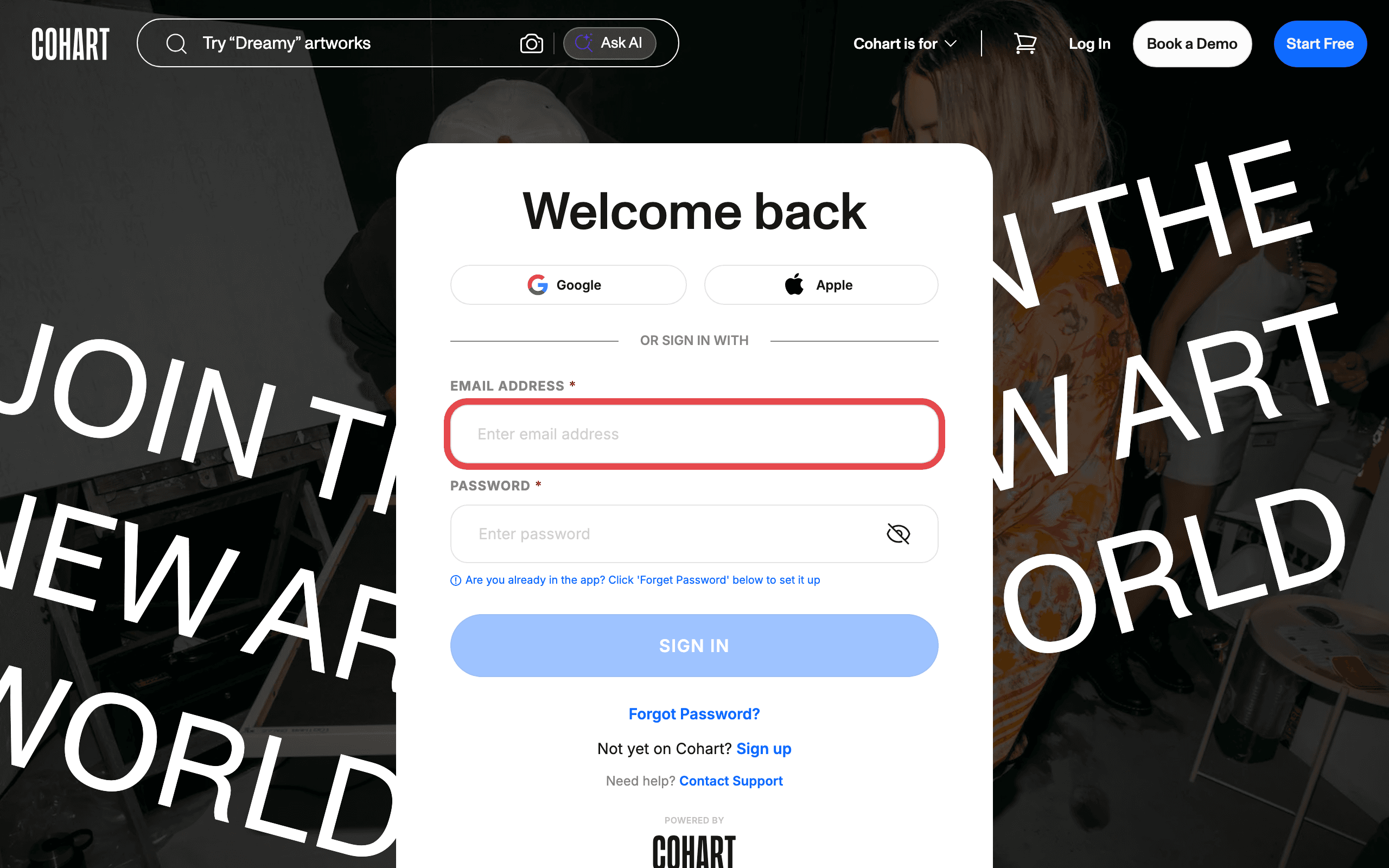
1. Sign in to Cohart
Sign in with your email address and password, or use Google or Apple.
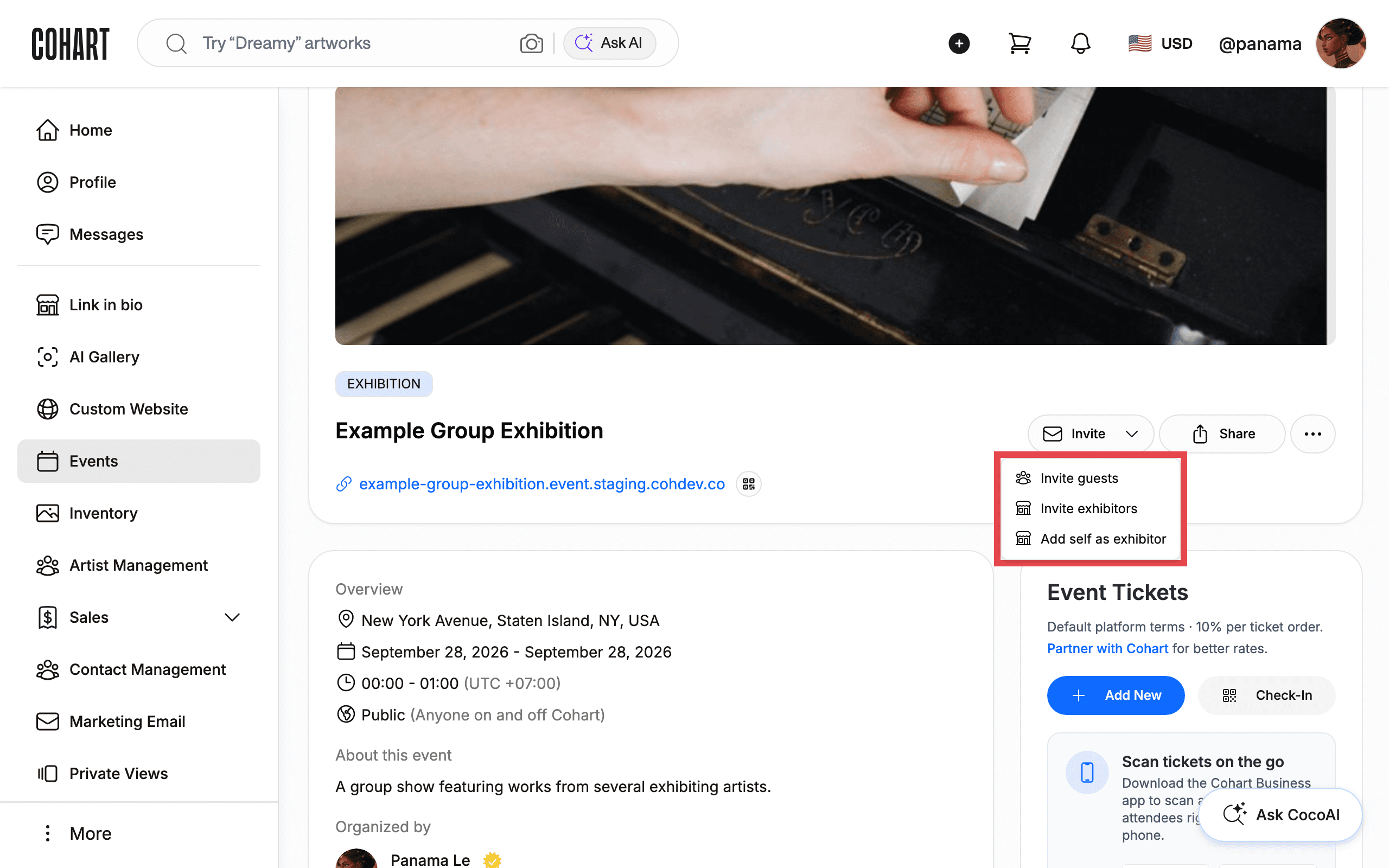
2. Wait for the event organizer to invite you to exhibit
The organizer sends your invitation from their event page, using Invite → Invite exhibitors. That option sits in the same dropdown as Invite guests; if it shows a lock icon for the organizer, exhibitor invites require a specific plan tier on their side [UNVERIFIED — check manually]. You can also receive the invitation directly by email.
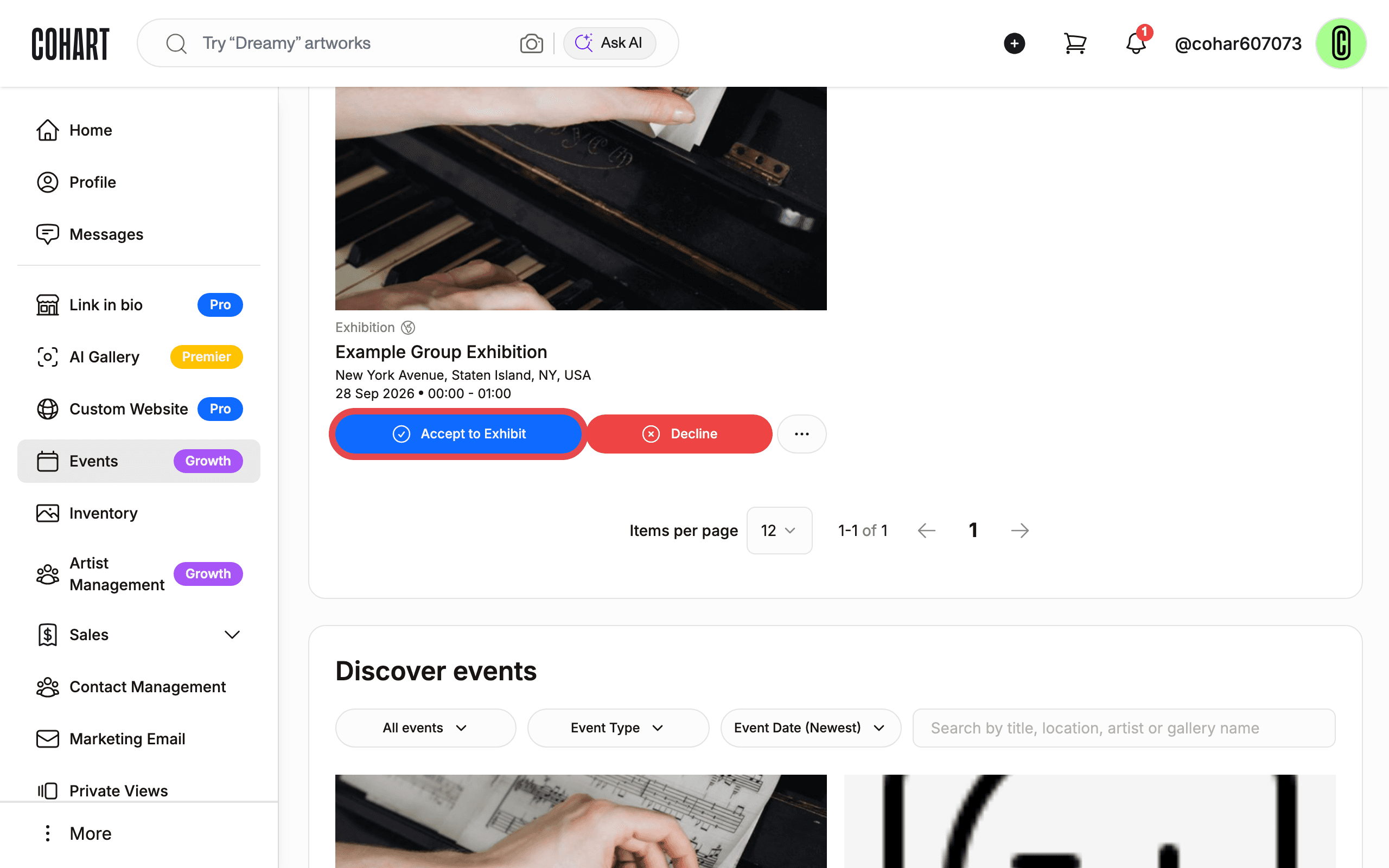
3. Accept your invitation from the Events page
On your Events page, events you’ve been invited to exhibit at show an Accept to Exhibit button [UNVERIFIED — check manually]. Once you’ve accepted, you can reach the event any time by clicking its name from this page.
4. Open the Artworks to Exhibit box
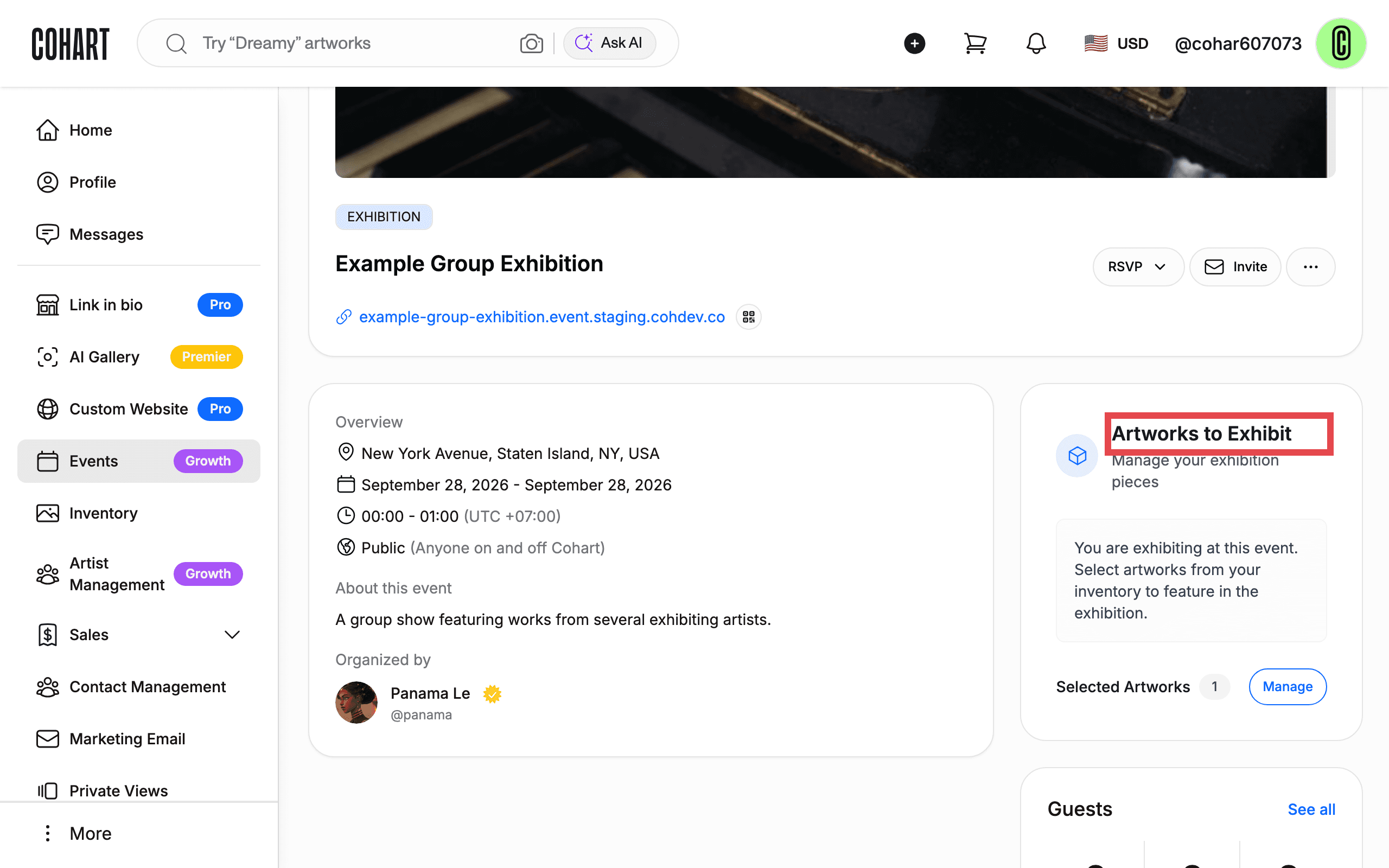
On the event page, find the Artworks to Exhibit box. It confirms you’re exhibiting at the event and is where you select artworks from your inventory to feature.
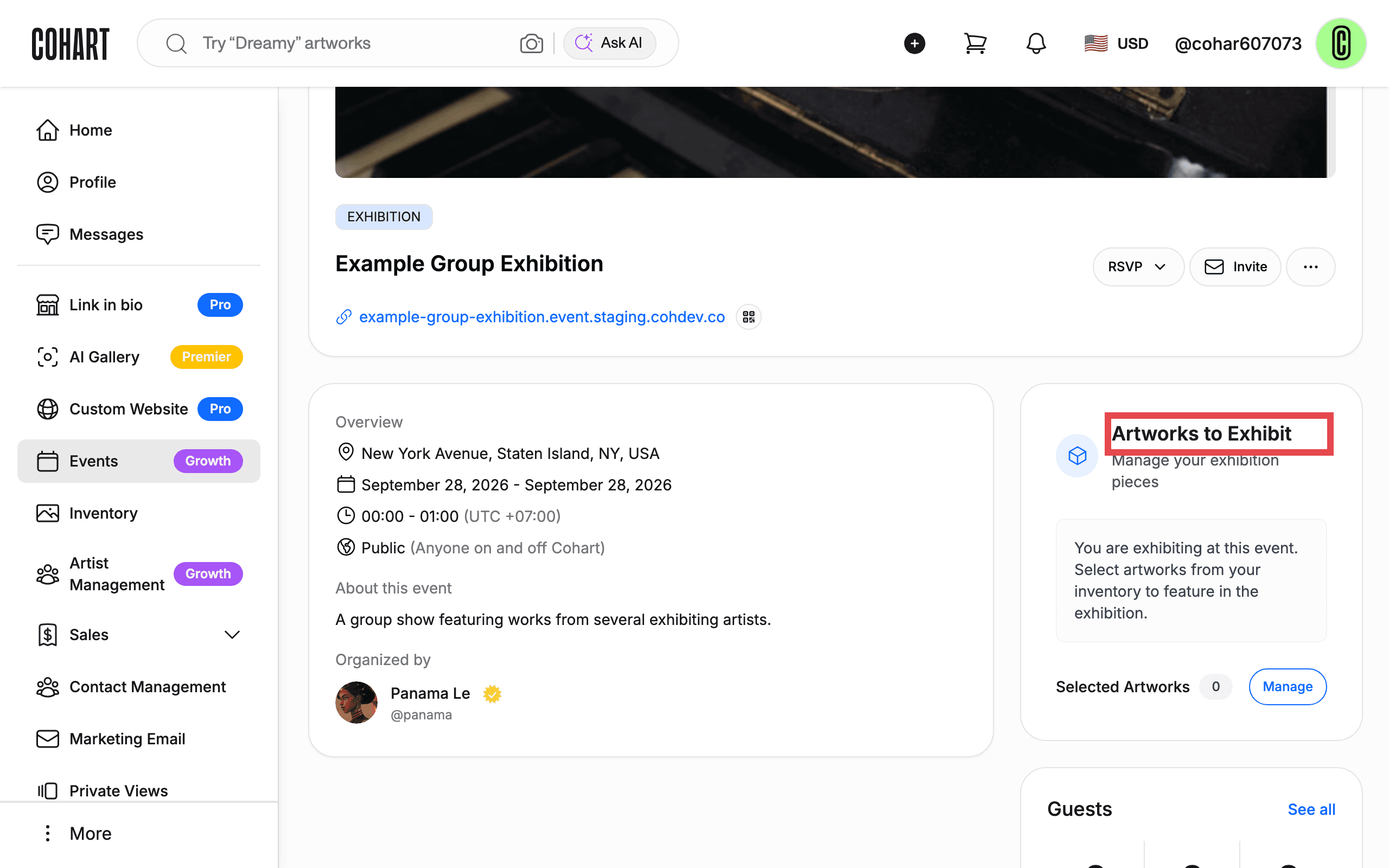
5. Click Manage to choose your artworks
Click Manage next to Selected Artworks to open the artwork picker.
6. Select the artworks you want to feature
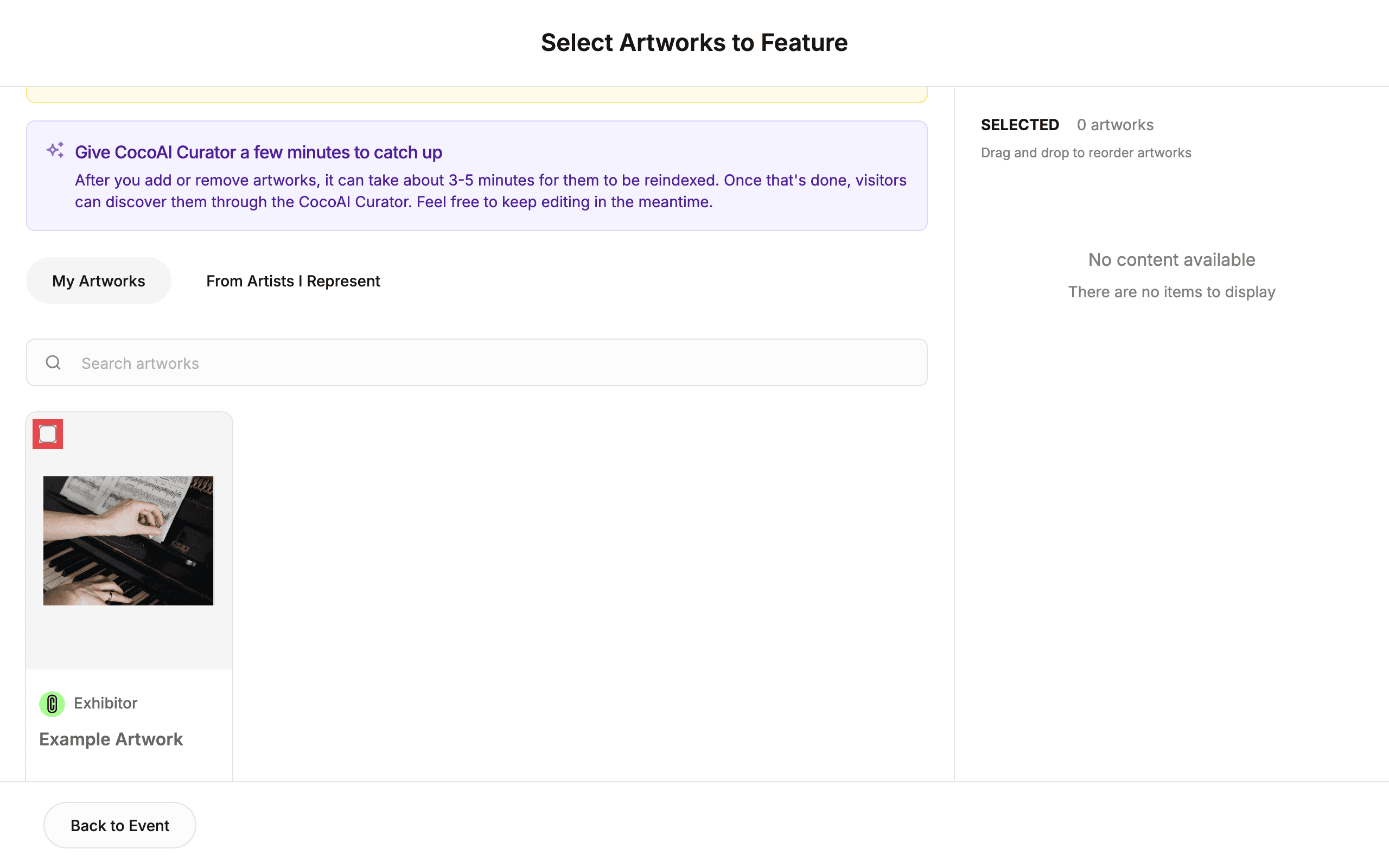
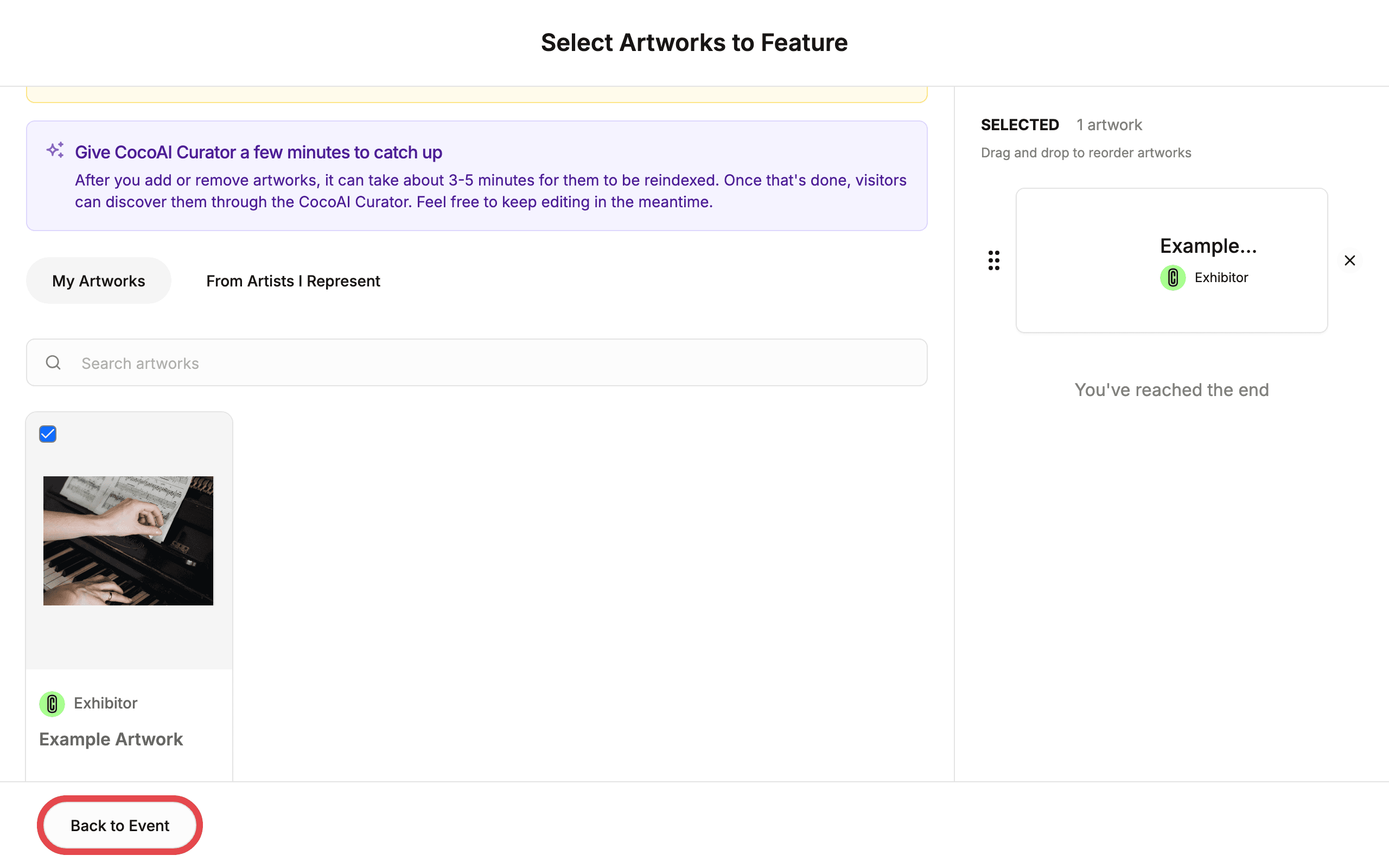
On the Select Artworks to Feature page, check the box on each artwork under My Artworks (or From Artists I Represent, if you manage other artists) that you want to include. The organizer sets a maximum number of artworks per exhibitor, shown at the top of the page. Selected pieces appear in the SELECTED panel on the right, where you can drag them to reorder.
7. Return to the event to confirm your selection
Click Back to Event. The Artworks to Exhibit box updates its Selected Artworks count, and your chosen pieces appear under the event’s Exhibitors and Artworks tab, where visitors can see them. You can come back and add or remove artworks at any time.
Tips
- You don’t need to upload your entire inventory. Only add the artworks you want to feature at this event; other listings stay on your profile without being shown here.
- Selections aren’t permanent. Return to the event’s Artworks to Exhibit box any time to add or remove artworks.
- Cohart-powered digital storefronts. Some fairs partner with Cohart for a dedicated public storefront that mirrors selected exhibitors’ artworks. If the event has one, the same Manage selection also puts your work on that storefront. Cohart sets these storefronts up with the fair, so there is nothing extra for you to do.
- Keep building on the exposure. After the event, keep sharing your profile through How to Set Up Your Storefront Profile, feature works with How to Boost Artworks in CocoAI Curator, send How to Create a Private View invitations to individual collectors, and keep track of buyers with How to Manage and Export Your Contacts.
Troubleshooting
- I don’t see an event I can accept → the organizer hasn’t sent your invitation yet → ask the organizer to invite you, or contact Cohart support if you believe you should already have one.
- I accepted but my artworks aren’t showing on the event → accepting an invitation doesn’t add artwork automatically → upload artwork listings first (see How to Upload an Artwork), then open the event’s Artworks to Exhibit box and click Manage to select them.
- Invite exhibitors shows a lock icon for the organizer → the event’s plan doesn’t include exhibitor invites → the organizer needs to upgrade their plan before they can invite you [UNVERIFIED — check manually].
- I want to create my own event instead → go to your Events page and click Create event → see How to Create a New Event on Cohart: Gallery Openings, Exhibitions, Art Fairs, and Talks.