How to Choose the Right Way to Accept Payments
Overview
Cohart offers several ways to take payment for an artwork, and the right one depends on where and how you’re selling.
- Who it’s for — artists and galleries deciding how to process a sale, whether at an in-person event or online.
- What it covers — the four main payment tools: Tap to Pay, QR code checkout, custom invoices, and Buy Now listings on your website, Link in Bio, or the Discover marketplace.
- What it affects — nothing changes automatically; each tool is something you actively choose per sale, and you can mix them (for example, Tap to Pay at a fair and Buy Now on your website at the same time).
- What you end up with — a clear sense of which tool fits fast in-person sales, self-service checkout, follow-up or custom billing, and public online sales, plus where to track every sale afterward.
Before you start
- A connected payout account. Every payment tool needs your bank account linked before it can pay you out. Connect it from your account’s payment settings.
- Artworks uploaded to Inventory, for QR checkout and Buy Now. These two tools need an existing Inventory listing with a price; Tap to Pay and custom invoices can be used without one.
Steps
1. Use Tap to Pay for fast, flexible in-person sales
Tap to Pay turns your phone into a card reader inside the Cohart Business App. It’s best for art fairs, galleries, studios, custom pricing, and bundling several works into one sale, especially when your inventory isn’t fully uploaded yet. See How to Accept In-Person Payments with Tap to Pay for the full walkthrough.
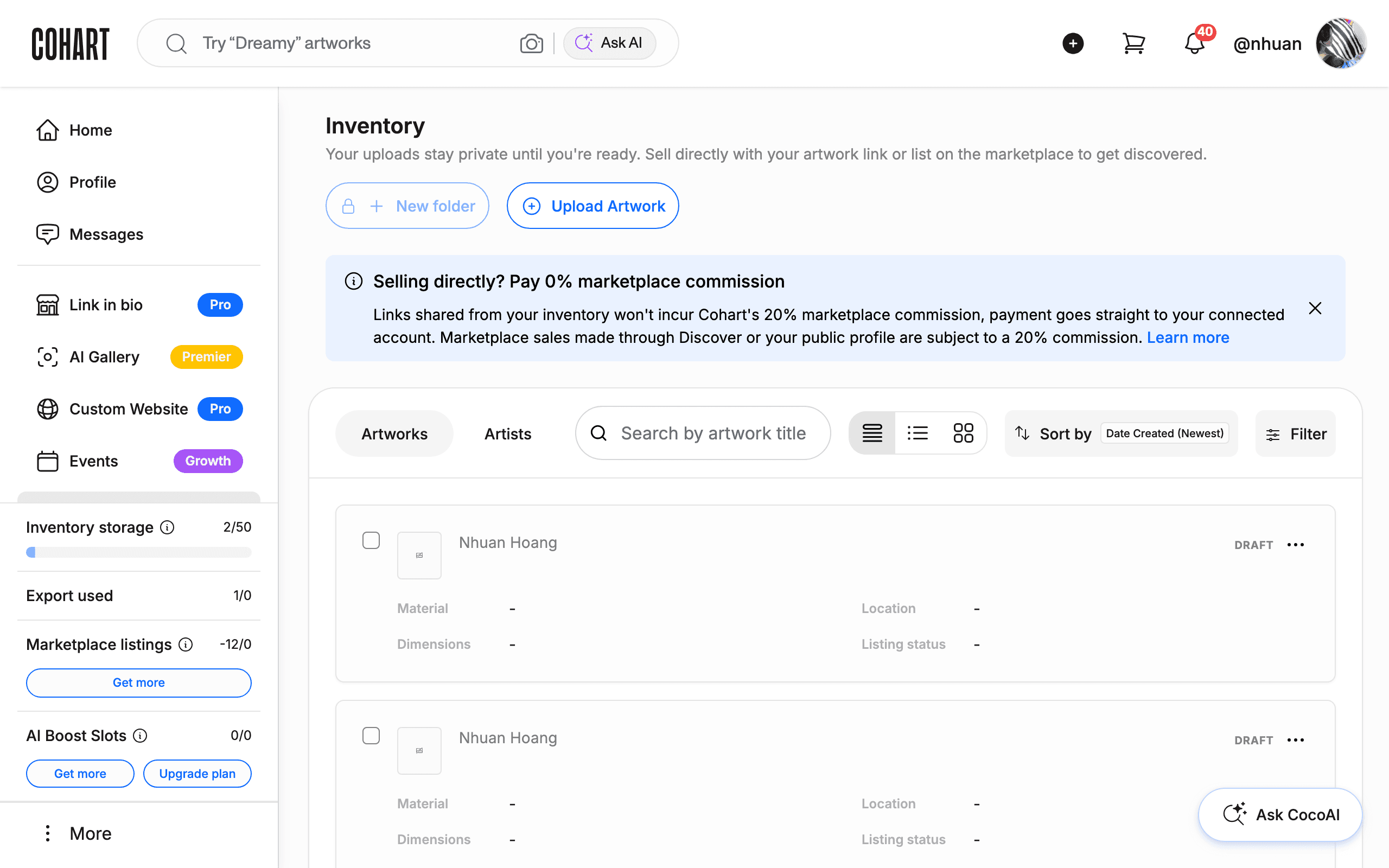
2. Use QR code checkout for self-service, fixed-price sales
QR code checkout lets a buyer scan a code next to an artwork and pay on their own device, without needing your help. It’s best for booth displays, fixed-price works, and minimal-staff situations. It doesn’t support price changes, bundled sales, or custom items — use Tap to Pay for those instead. See How to Sell Artworks with QR Code Checkout for the full walkthrough.
3. Use custom invoices for follow-up, phone, or custom billing
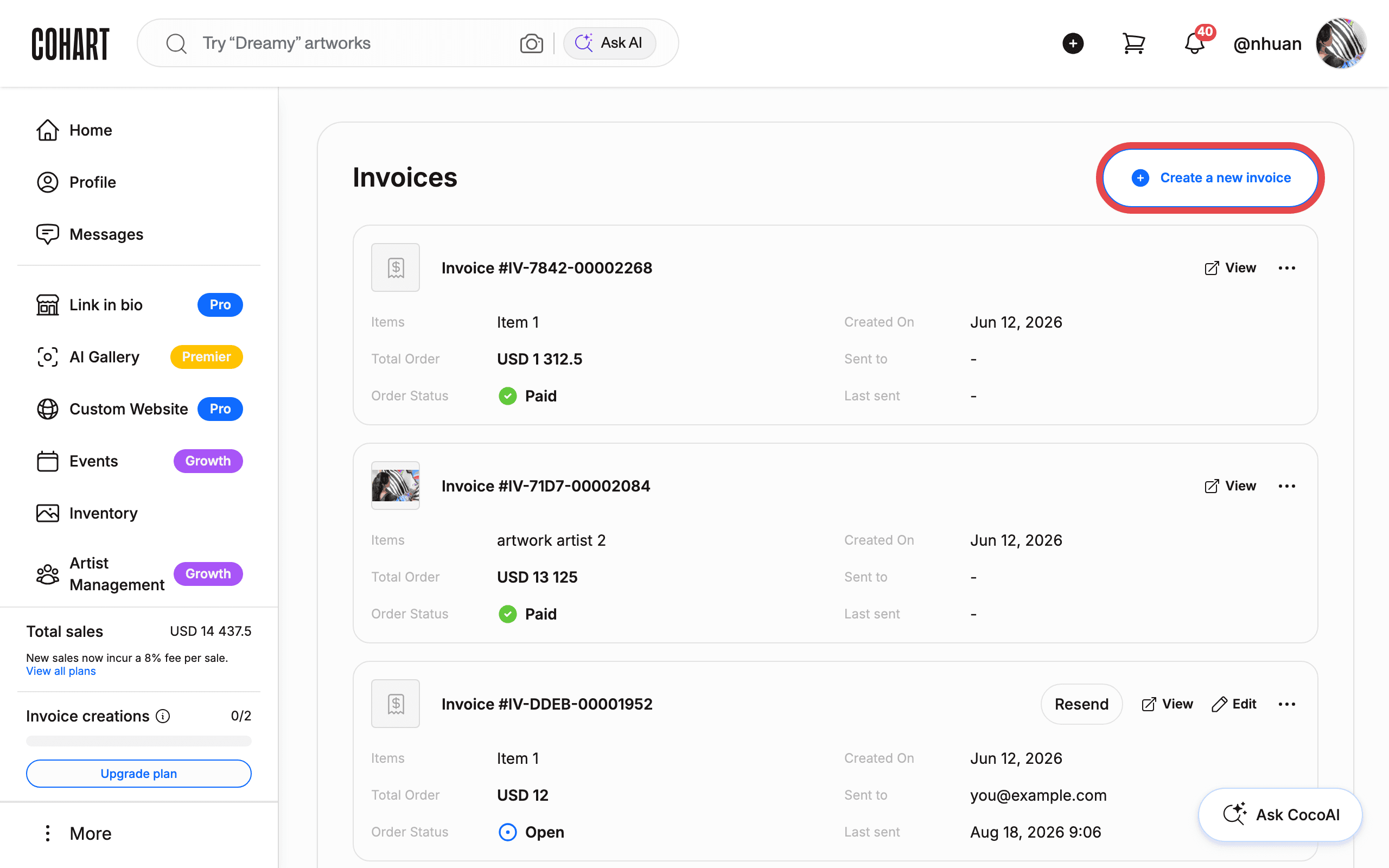
Create an invoice for an artwork, a deposit, shipping, a commission, or any custom payment. It’s best for follow-up sales after an event, phone or email sales, and gallery invoicing. See How to Create an Invoice on Cohart for the full walkthrough.
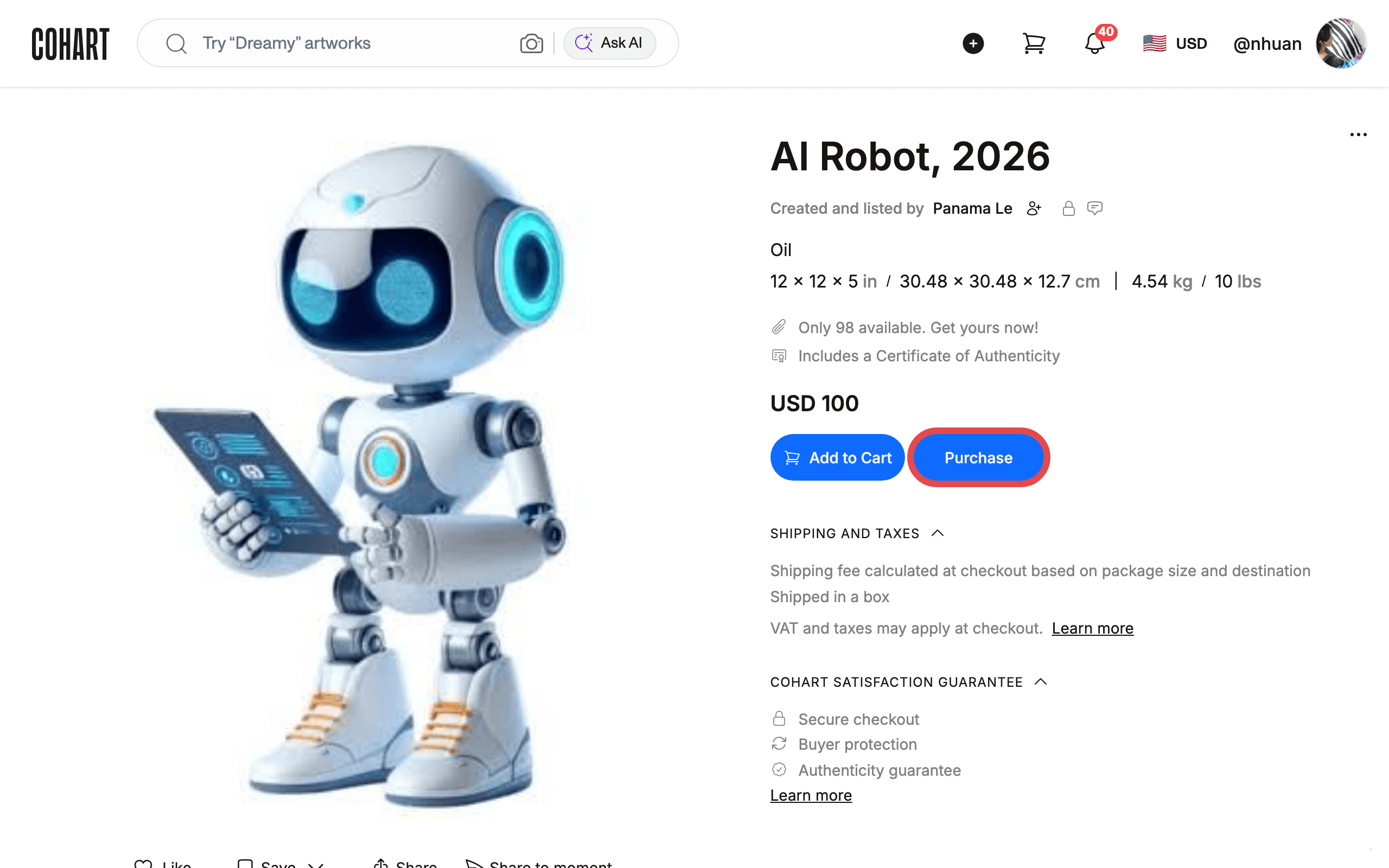
4. Use Buy Now listings for online and marketplace sales
Every artwork listing can include a Buy Now button so collectors can purchase directly online through your website, your Link in Bio, or the public Discover marketplace. It’s best for website sales and public marketplace exposure. See How to Browse Discover to see how buyers find listed work.
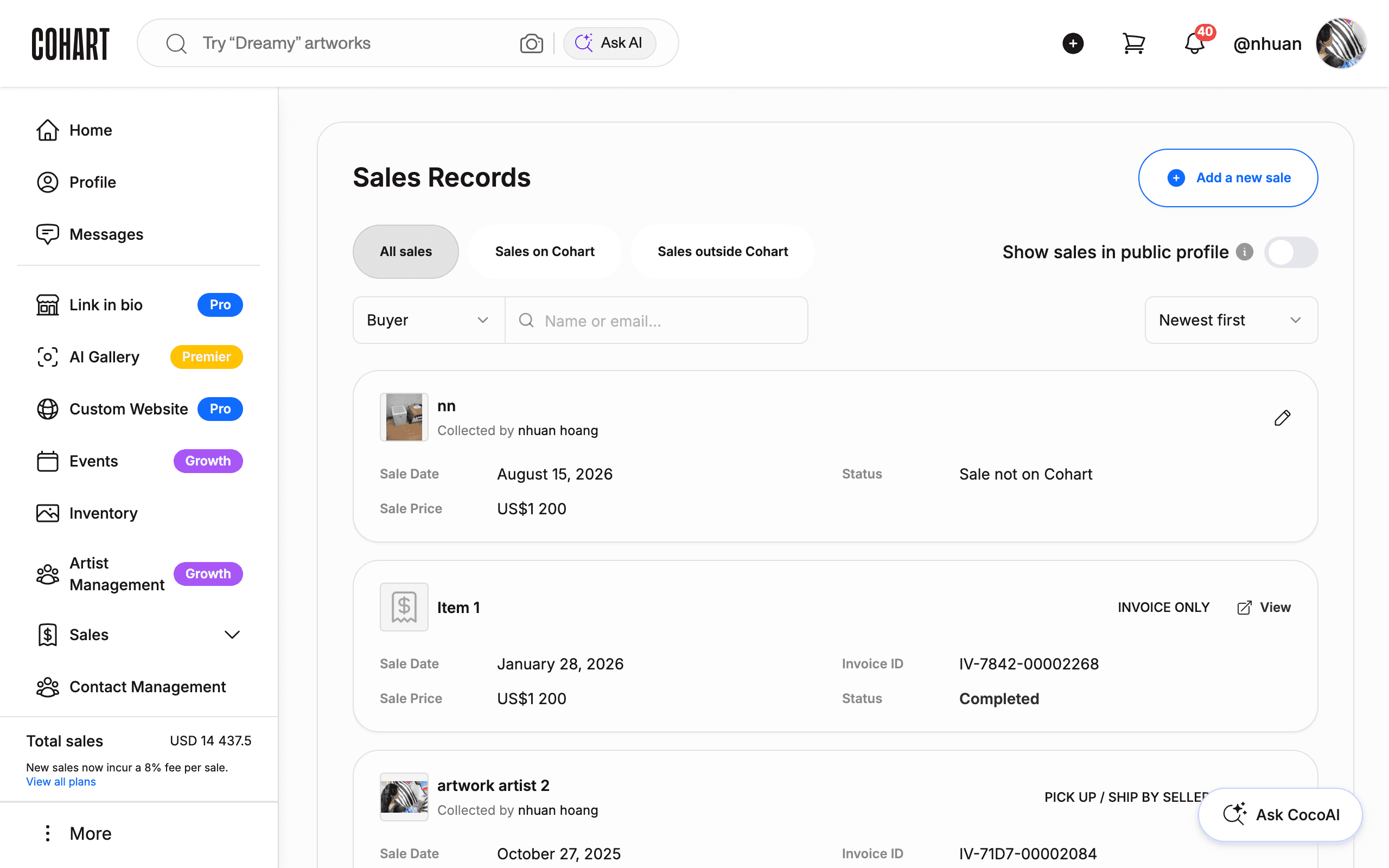
5. Track every sale in your Sales Record
After each sale, whatever tool you used, view it in your dashboard’s Sales Records section alongside Transactions and Invoices, so payments, payouts, and buyers all stay in one place.
Tips
- Combine tools. Nothing stops you from using Tap to Pay at a fair and Buy Now on your website at the same time; each sale just needs one payment tool.
- Receipts and certificates. If you collect a buyer’s email at checkout, they automatically receive a digital receipt, and a Certificate of Authenticity is generated whenever the sale is linked to an Inventory listing. Sales using a custom item (no listing) don’t generate a Certificate of Authenticity automatically — create a listing afterward if you need to send one retroactively.
- Cash sales stay outside Cohart. Cohart can only calculate, collect, and remit sales tax for payments processed through its own tools (Tap to Pay, QR checkout, invoices). A cash sale doesn’t create a digital transaction record, so it isn’t reported or taxed through Cohart — you’re free to accept cash, but you handle that transaction’s tax reporting yourself. You can still mark the artwork as sold in Inventory afterward so it shows as sold on your profile.
- Sharing account access for an event. If a team is working an event together, set a temporary password through the forgot-password flow and share the login, or have each team member log in to their own copy of the Cohart Business App with the shared login for Tap to Pay. QR code checkout needs no login at all for the buyer — just print the codes and let buyers check out on their own phones.
Troubleshooting
- A collector’s American Express card doesn’t work → Amex is disabled by default across Cohart accounts, because Amex disputes are more likely to favor the buyer and can cost you both the artwork and the payout → have the buyer use Visa, Mastercard, or another supported card, or contact Cohart support to discuss enabling Amex on your account.
- You’re not sure which tool to use at an event → for a fixed price with no staff involved, use QR code checkout; for custom pricing, bundles, or unlisted inventory, use Tap to Pay → see each tool’s guide for the exact steps.
- A buyer wants to pay after the event → send them a custom invoice instead of trying to complete an in-person payment tool remotely → see How to Create an Invoice on Cohart.
- Shipping at an in-person event is unclear → in-person sales usually use pickup or seller-arranged shipping rather than Cohart-arranged shipping → check your shipping settings before the event so the right option is available at checkout.