How to Manage Artists
This guide shows a gallery how to add a new artist to your roster and update an existing artist profile in Cohart’s Artist Management.
Prerequisites
- A Cohart account on the Growth plan or higher (the Artist Management menu item is labeled Growth in the sidebar).
- Your artists do not need a Cohart account: every card in the roster is labeled Not on Cohart until the artist joins.
Steps
-
Open the sign-in page at
https://staging.cohdev.co/auth/login?authType=password. Enter your email and password, then click SIGN IN. You can also continue with Google or Apple, use Forgot Password?, or Sign up for a new account. If the cookie banner appears, choose Accept all, Reject all, or Preferences first.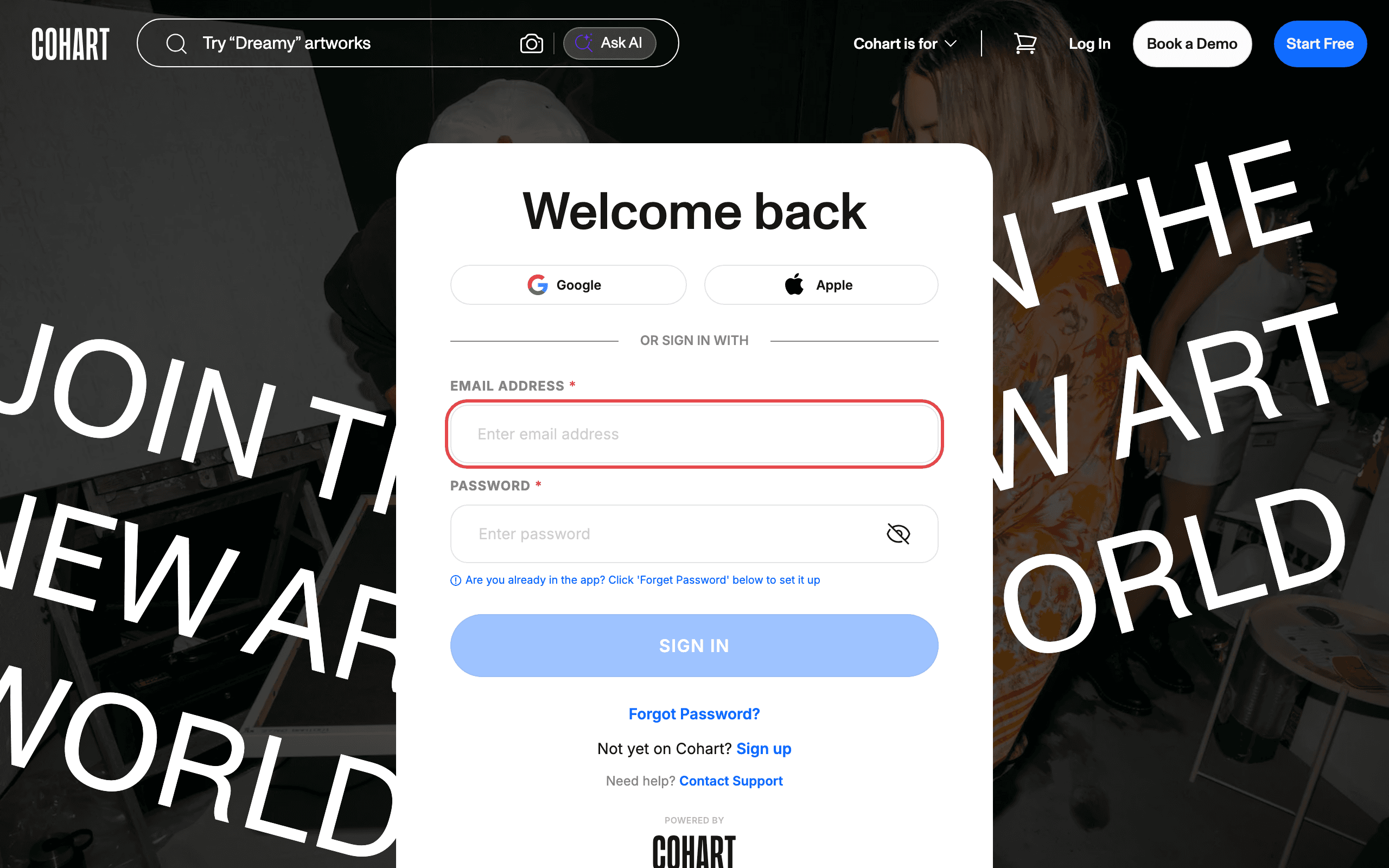
-
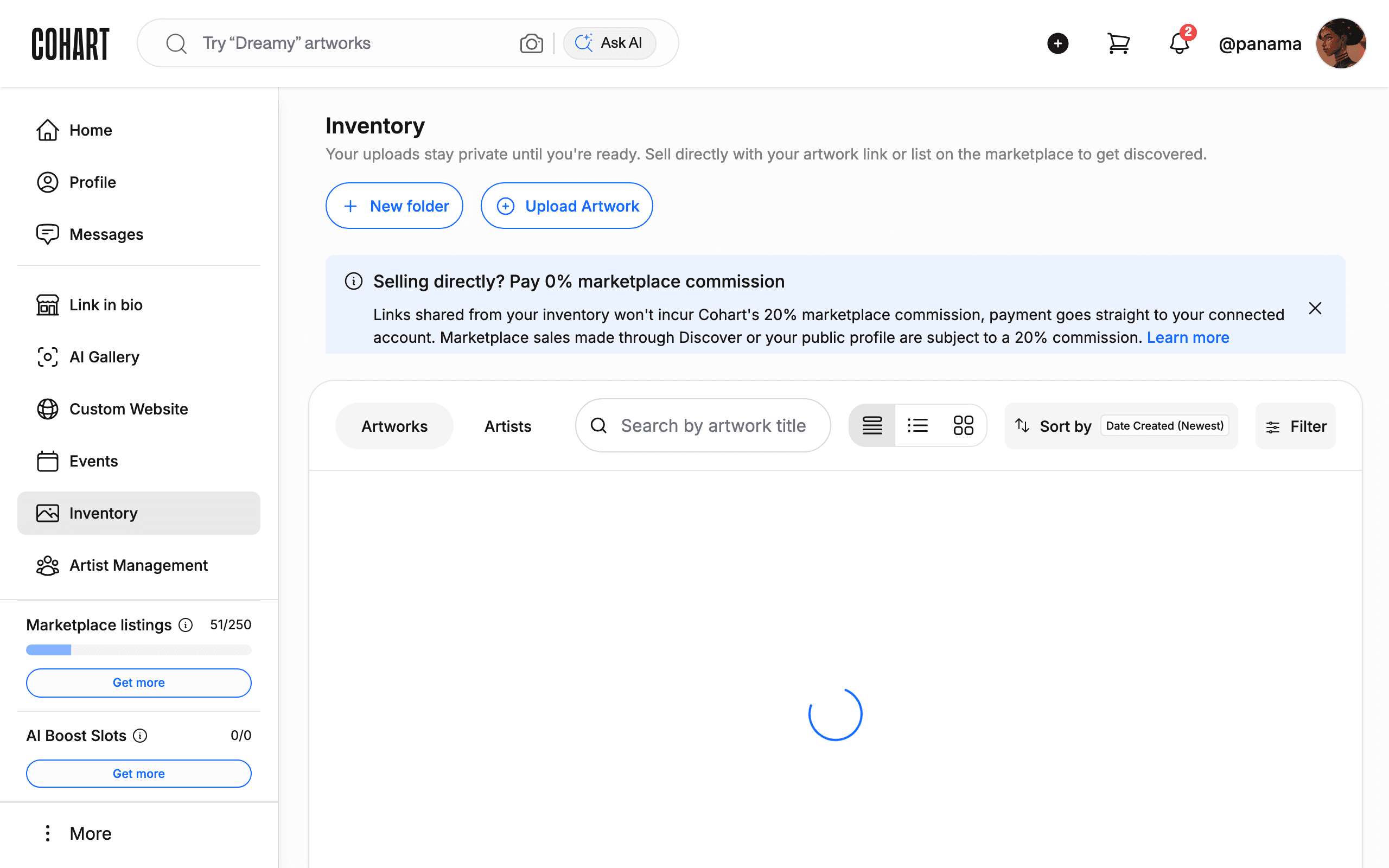
After you sign in, you land on your Inventory page.
-
In the left sidebar, click Artist Management.
-
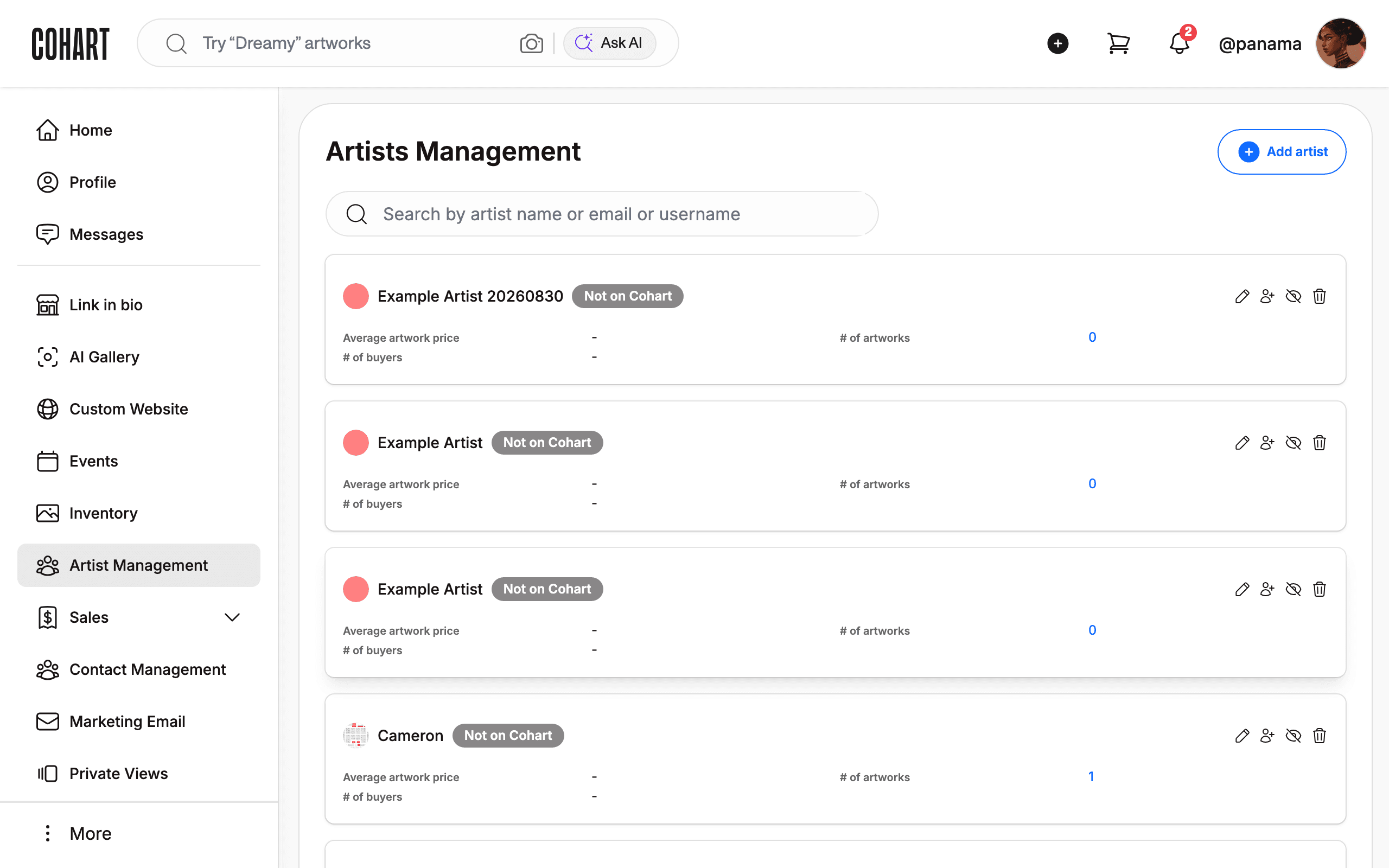
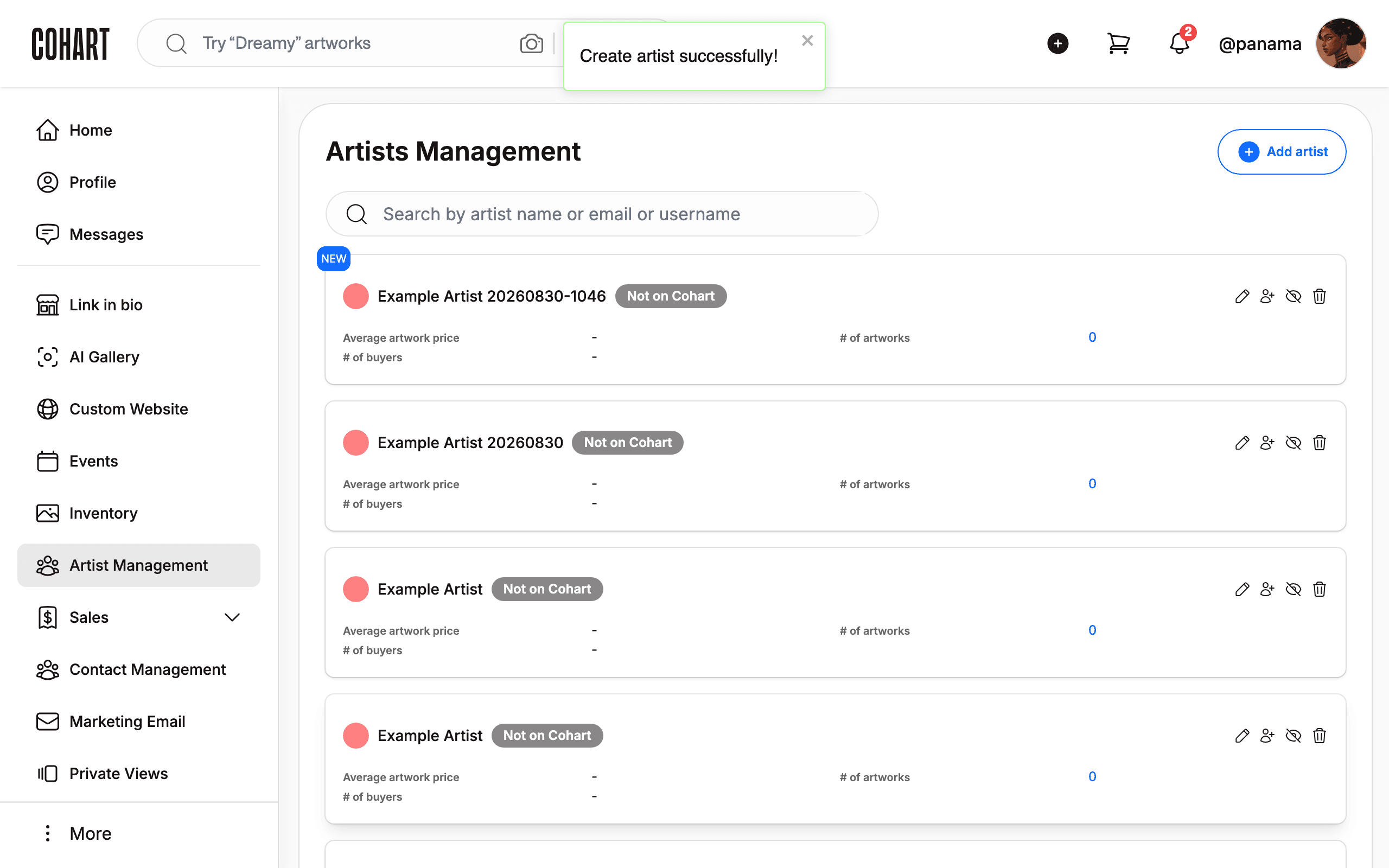
The Artists Management page lists your roster as cards. Each card shows the artist name, the Not on Cohart badge, Average artwork price, # of artworks, and # of buyers. Use the search box (“Search by artist name or email or username”) and the pagination controls to find artists.
-
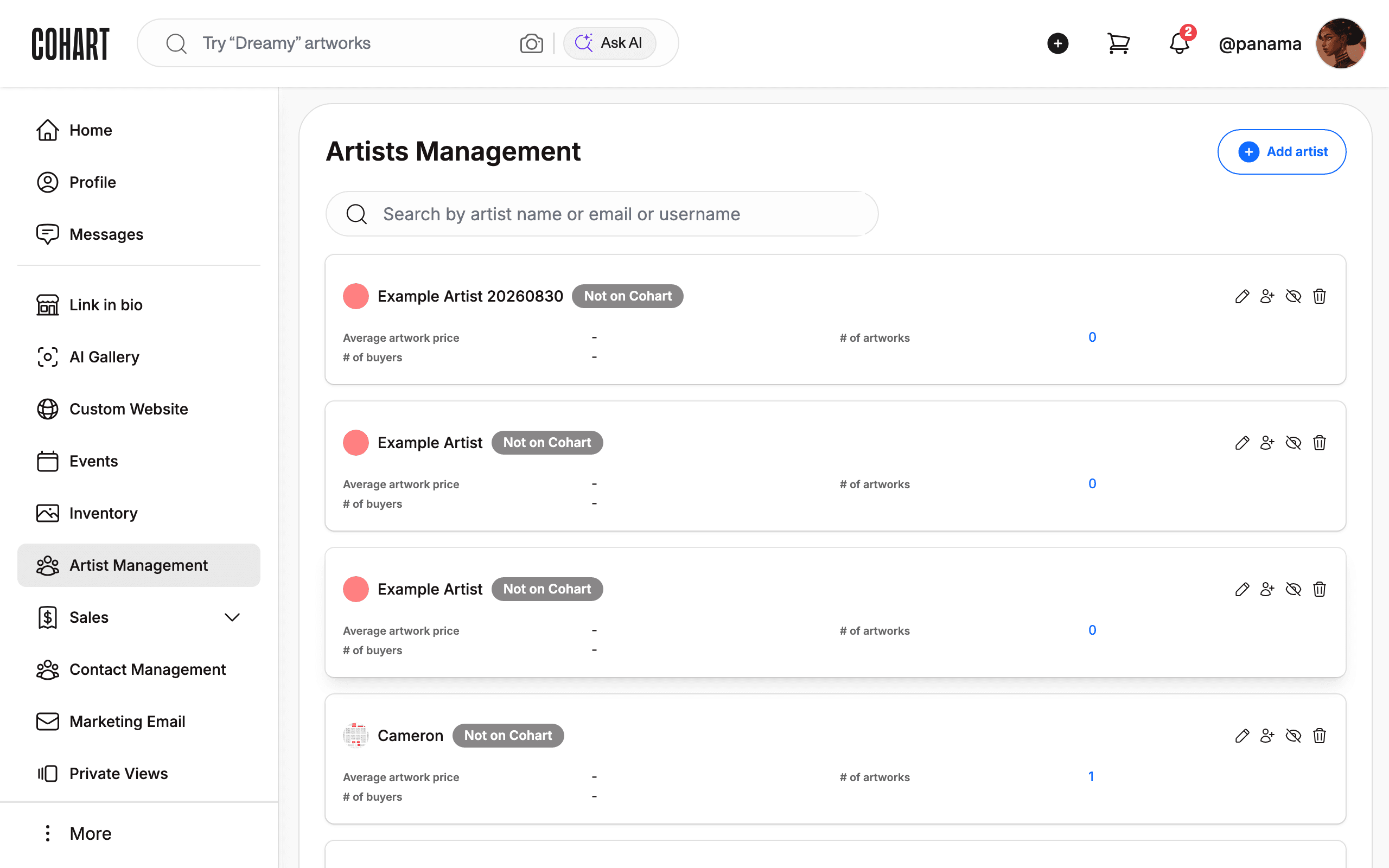
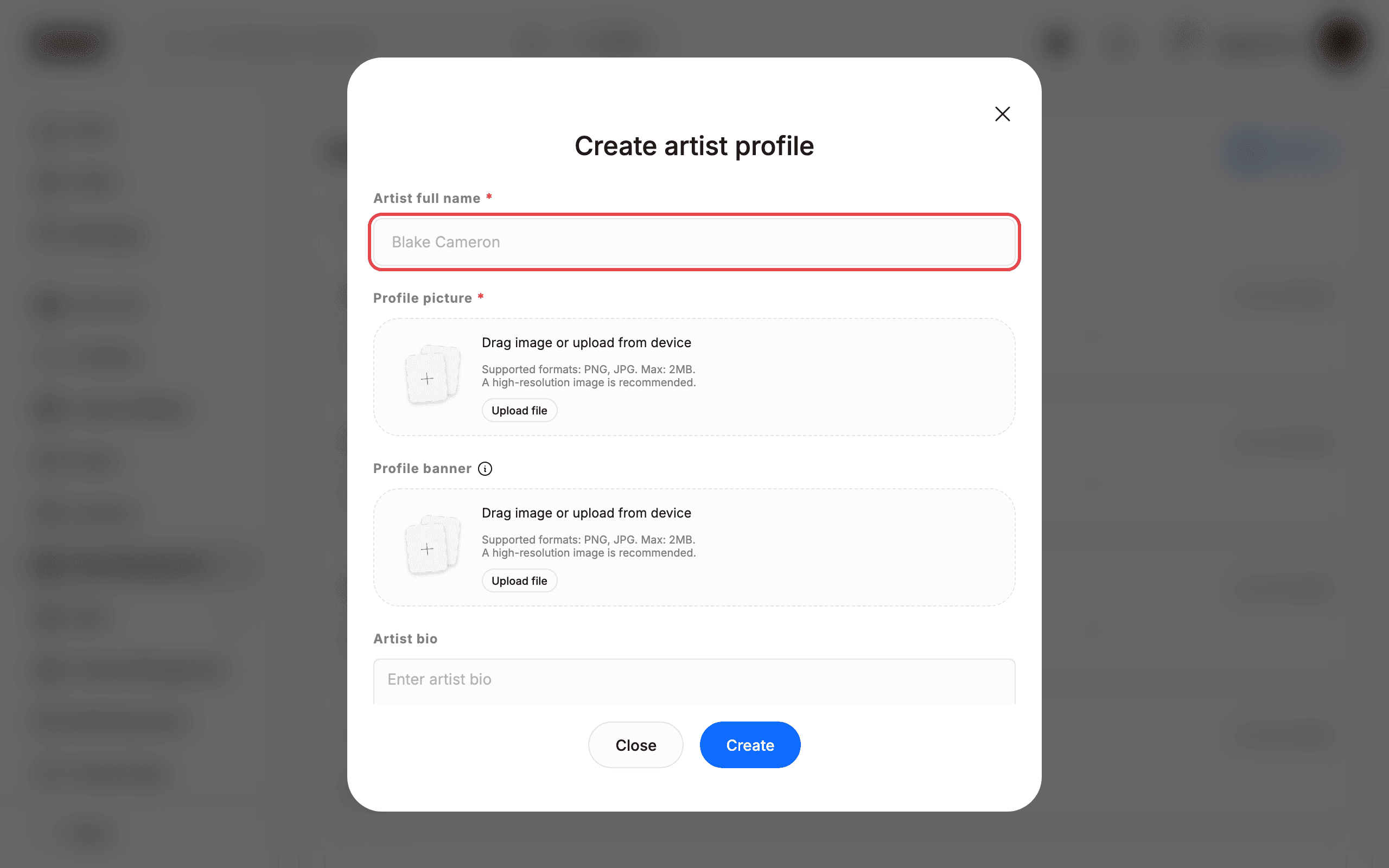
Click Add artist. The Create artist profile dialog opens.
-
Fill in the profile. Artist full name is required (marked with
*). Optional fields: Artist bio, Average artwork price, # of collectors, # of Instagram followers, # of Twitter followers, # of TikTok followers, Website URL, Instagram, Twitter, and TikTok.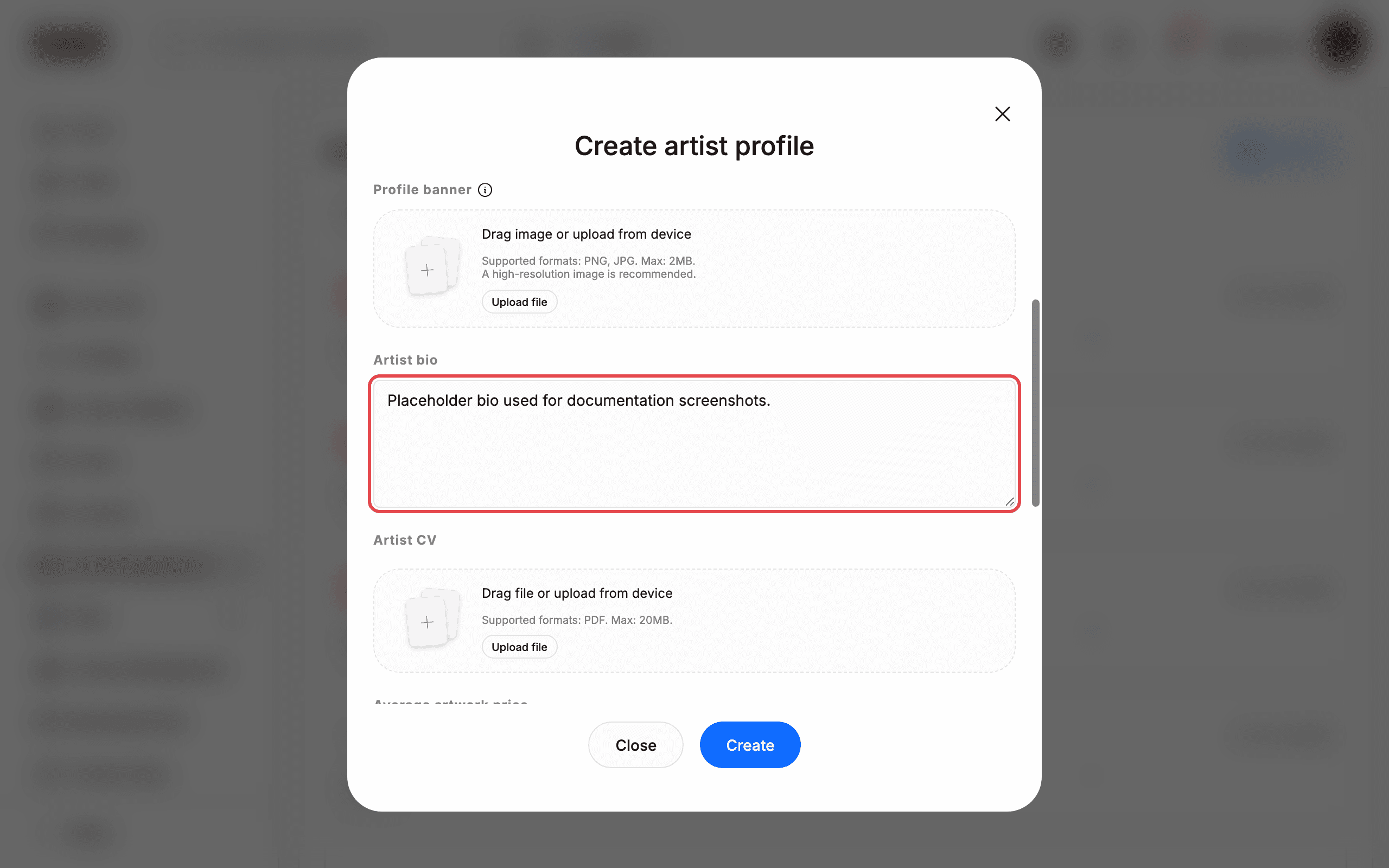
-
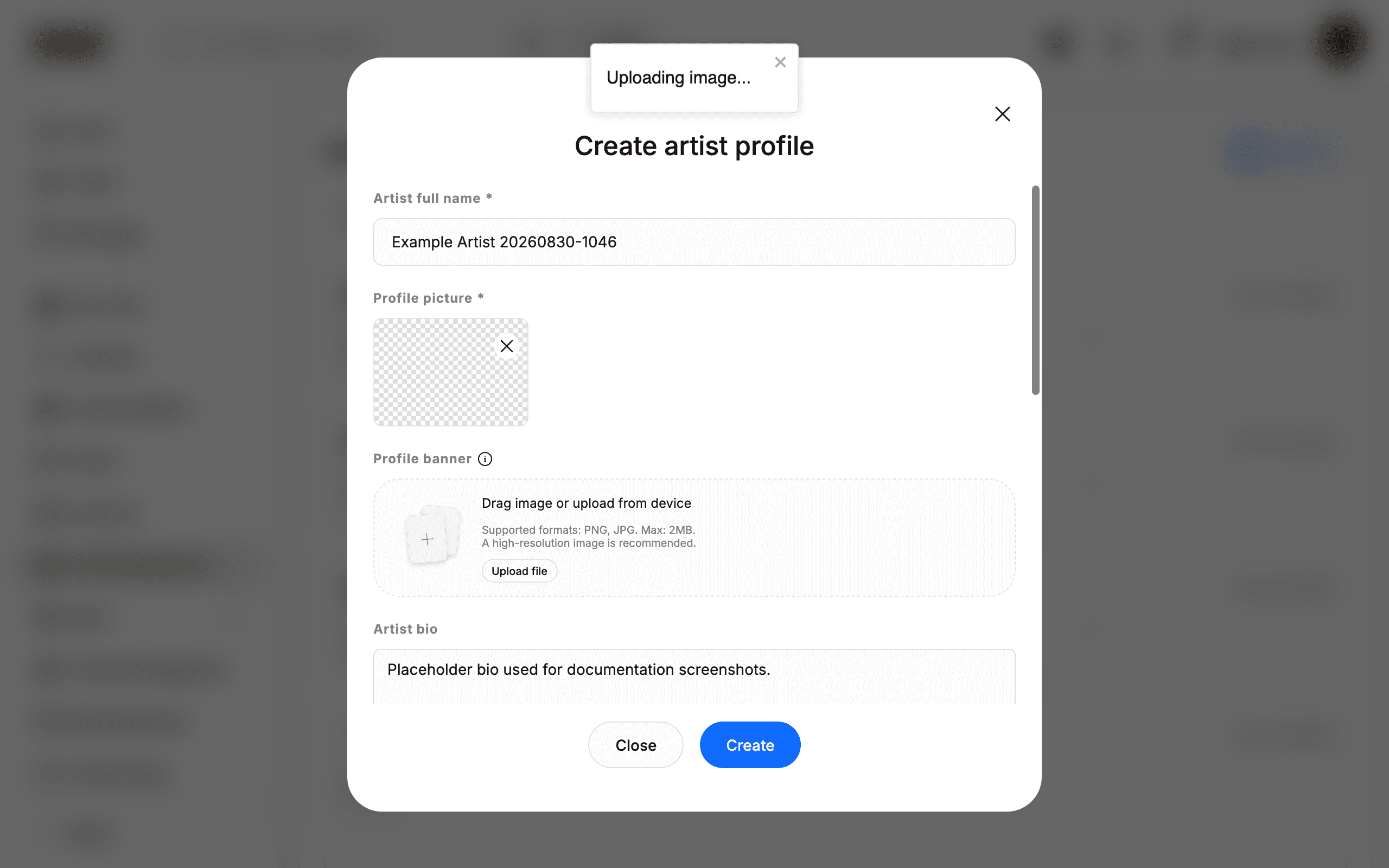
Upload a Profile picture (required) and an optional Profile banner by clicking Upload file or dragging an image onto the drop area. Supported formats: PNG, JPG. Max: 2MB. A high-resolution image is recommended. You can also attach an Artist CV as a PDF (max 20MB). Wait until the uploaded image preview appears before continuing.
-
Click Create to save the new artist profile.
-
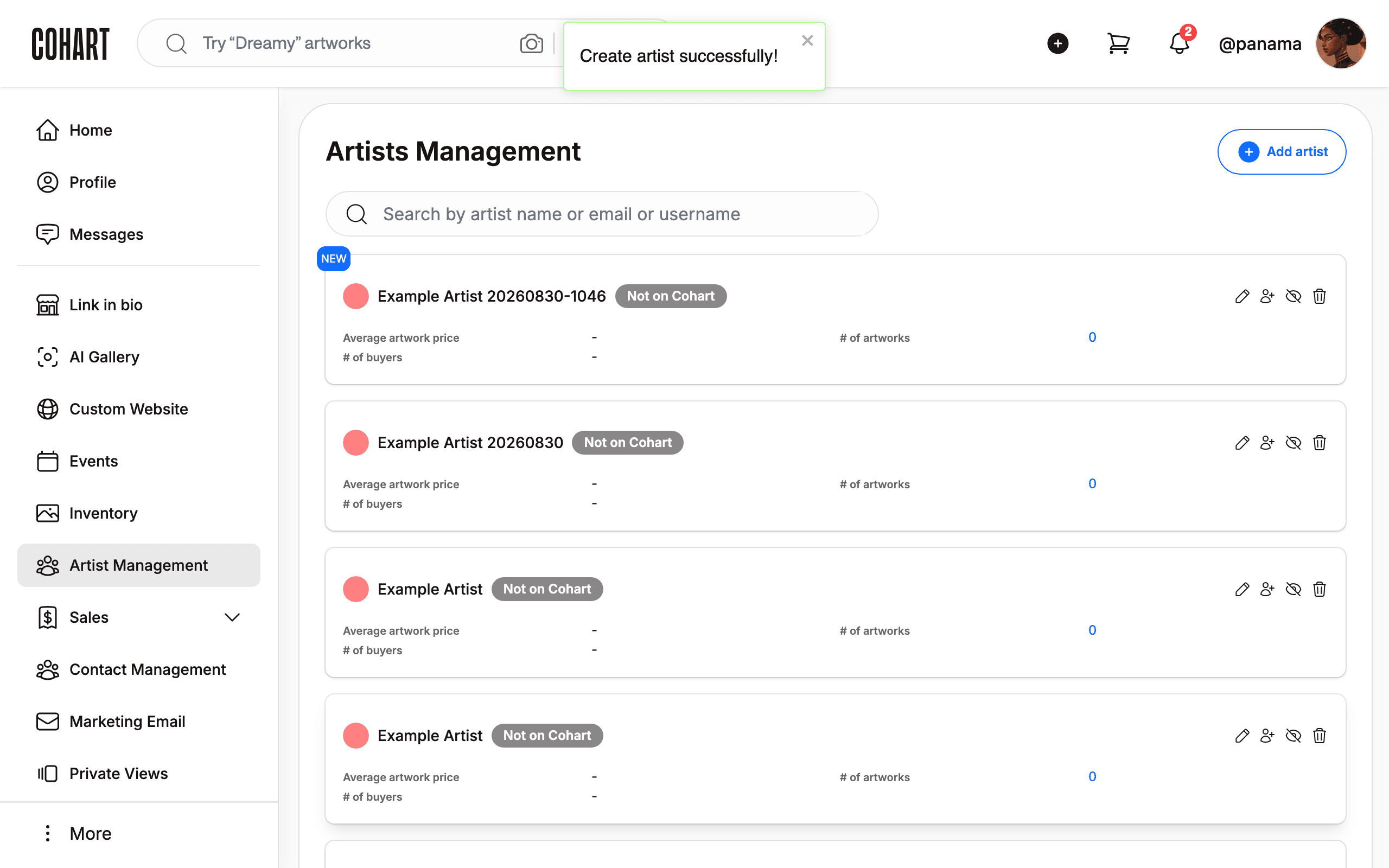
The dialog closes and the new artist appears at the top of the list with a NEW badge.
-
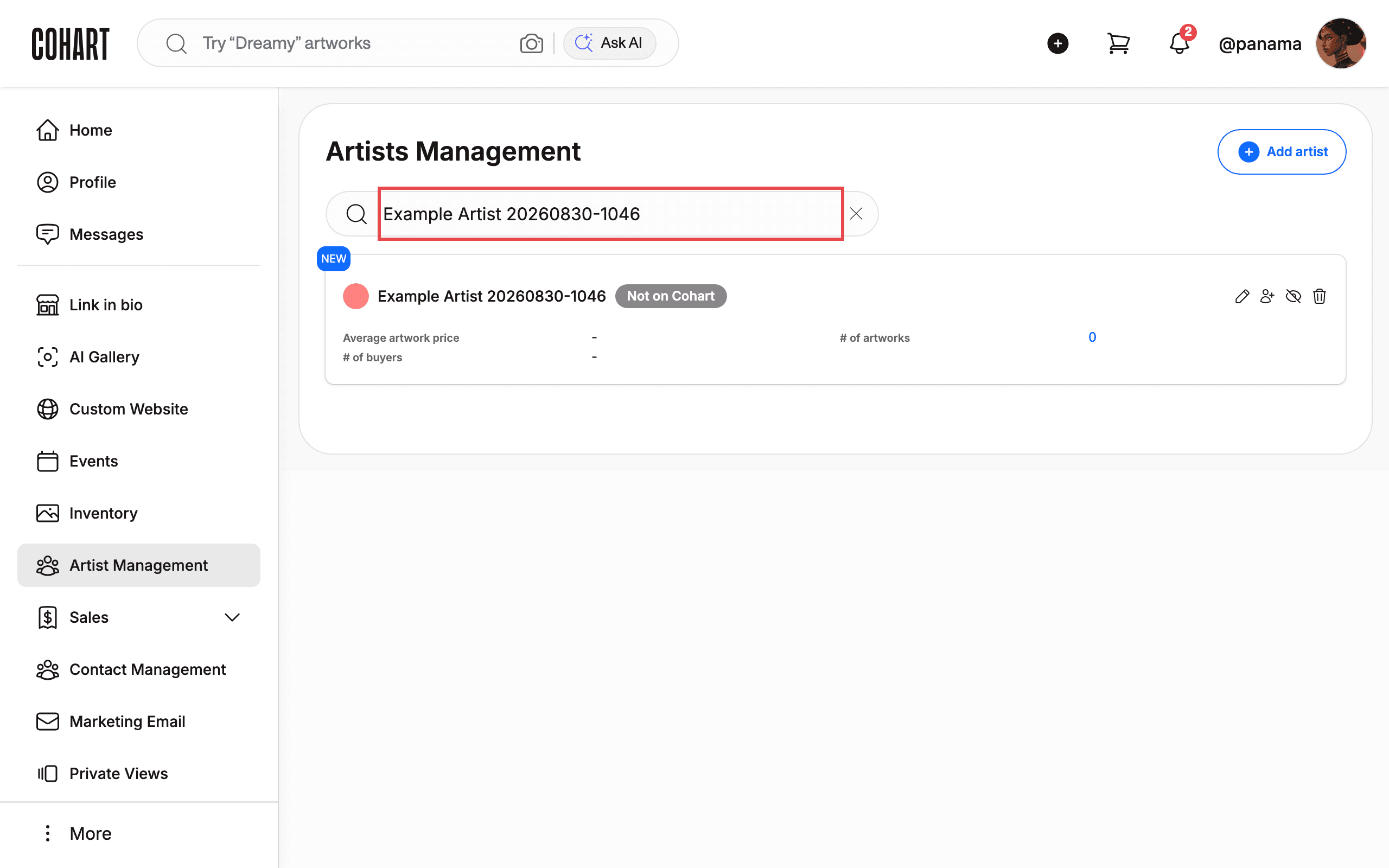
To find an artist later, type their name, email, or username in the search box. The list filters as you type.
-
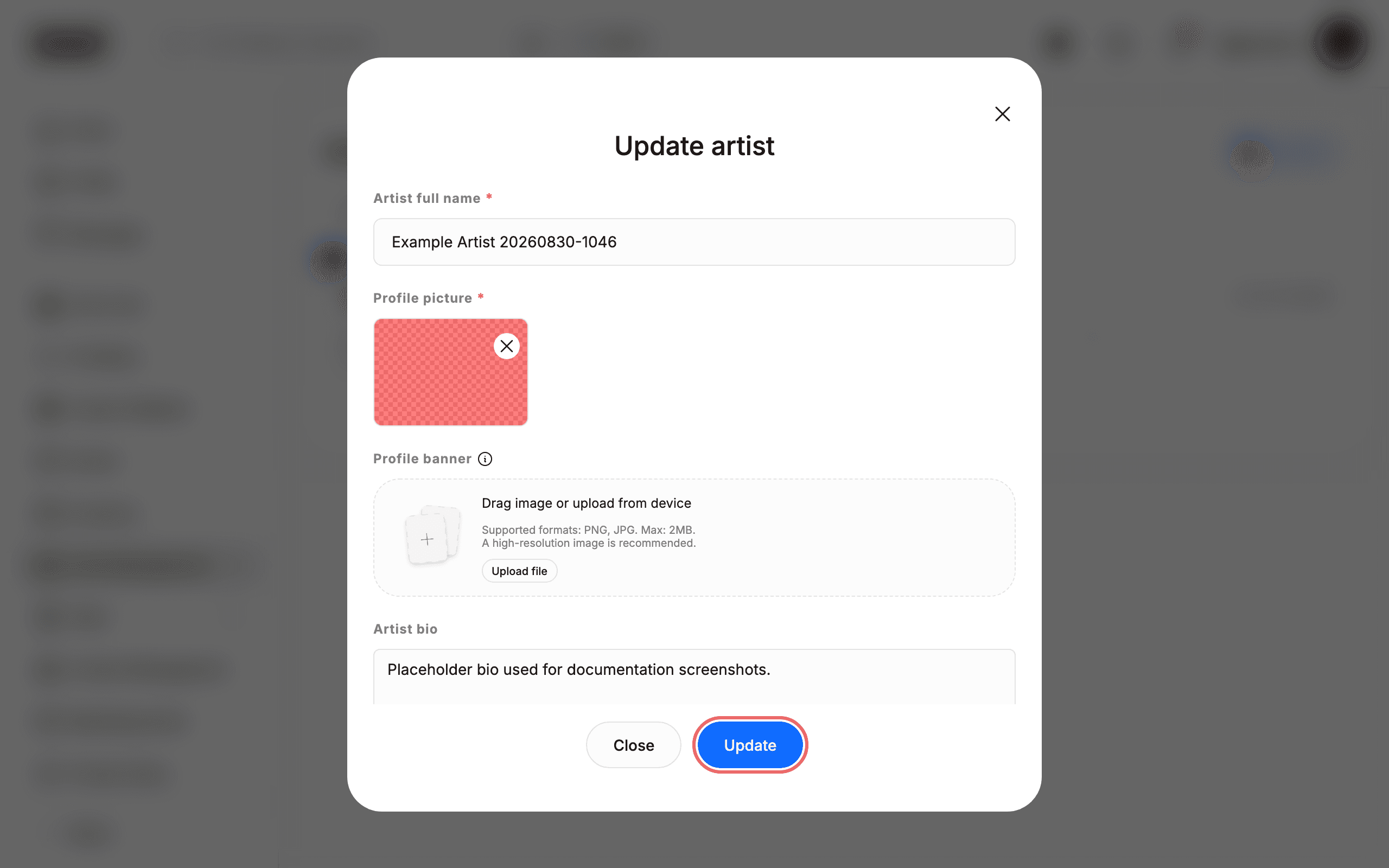
To edit an artist, click their card. The Update artist dialog opens with the same fields, pre-filled with the current values.
-
Click Update to save changes, or Close to leave the artist unchanged.
Tips and troubleshooting
- The artist card shows “HIDDEN IN PROFILE”. Some roster artists carry this badge; it indicates the artist’s profile is not publicly visible.
[UNVERIFIED — check manually]how to toggle this setting: no control for it was found on the Artists Management page or in the Update artist dialog. - No error message if the profile picture has not finished uploading. During capture, clicking Create before the upload completed closed the dialog silently and the artist was not added — no toast or validation error appeared. If a new artist does not show up in the list, reopen Add artist and try again, waiting for the image preview first. This looks like a product bug worth filing.
- Empty roster when not signed in. Visiting the page without an active session shows “No artist available” and a Request to manage an artist link instead of the roster. If the list looks empty, confirm you are signed in (your account handle appears at the bottom of the sidebar).
- Required fields. Only Artist full name and Profile picture are marked required (
*); everything else can be left blank and added later via the Update artist dialog. - Pagination. The roster is paginated (20 per page). A newly added artist appears on page 1; if you do not see it, check the page controls at the bottom.
Screenshots are regenerated automatically from the live site. Last captured: 2026-08-30.