How to boost artworks in CocoAI Curator
Buy CocoAI Curator Boost slots and apply them to your listed artworks so they rank ahead when collectors search with matching prompts in the AI Curator chat.
Steps
-
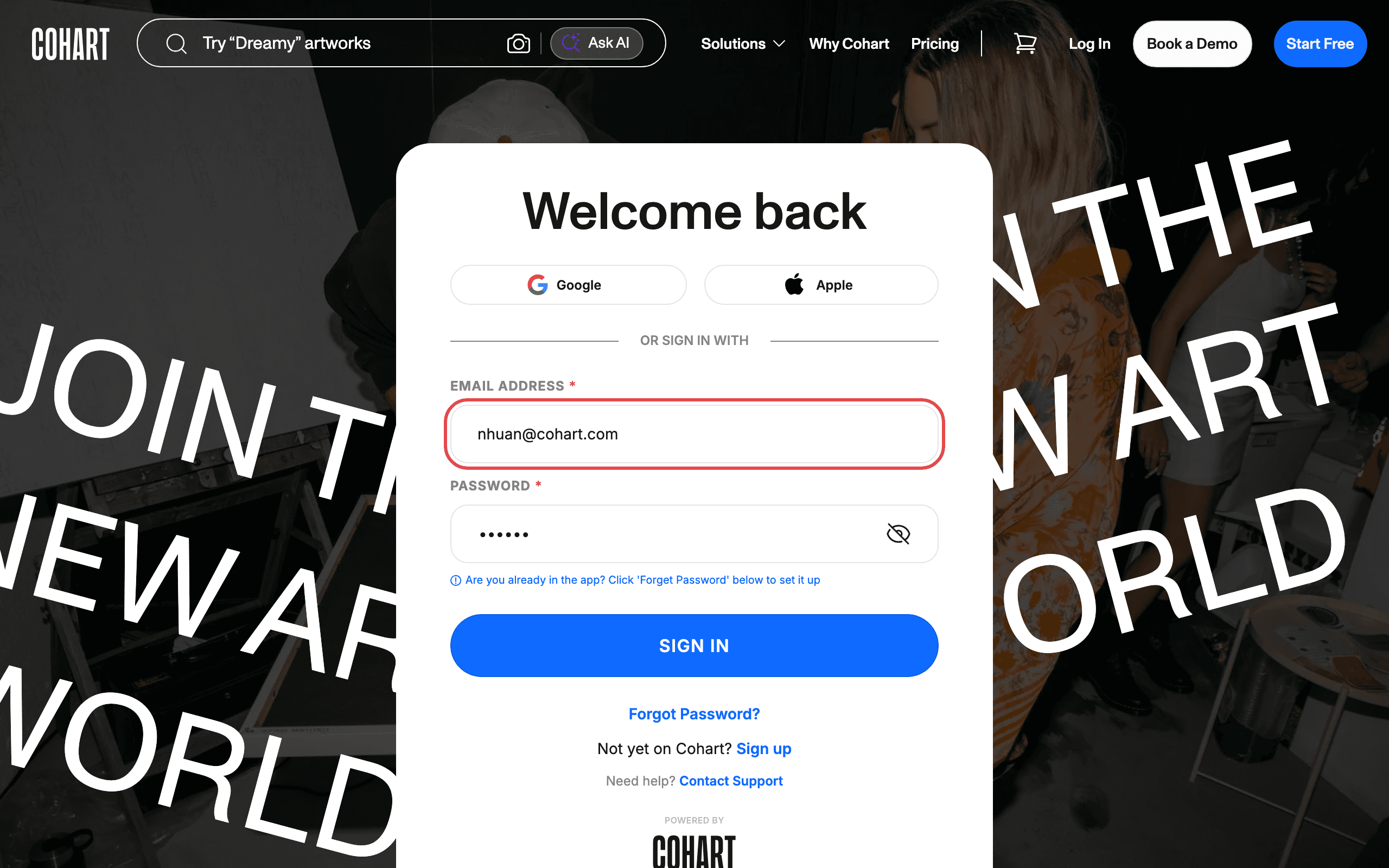
Open the sign-in page and enter your email address and password. You can also sign in with Google or Apple. Use Forgot Password? if you cannot remember your password, or Sign up if you do not have an account yet. Need help? Use Contact Support.
-
In the left sidebar, click Manage Plan (under Settings). You can also open it directly from
Settings → Manage Planin your account menu.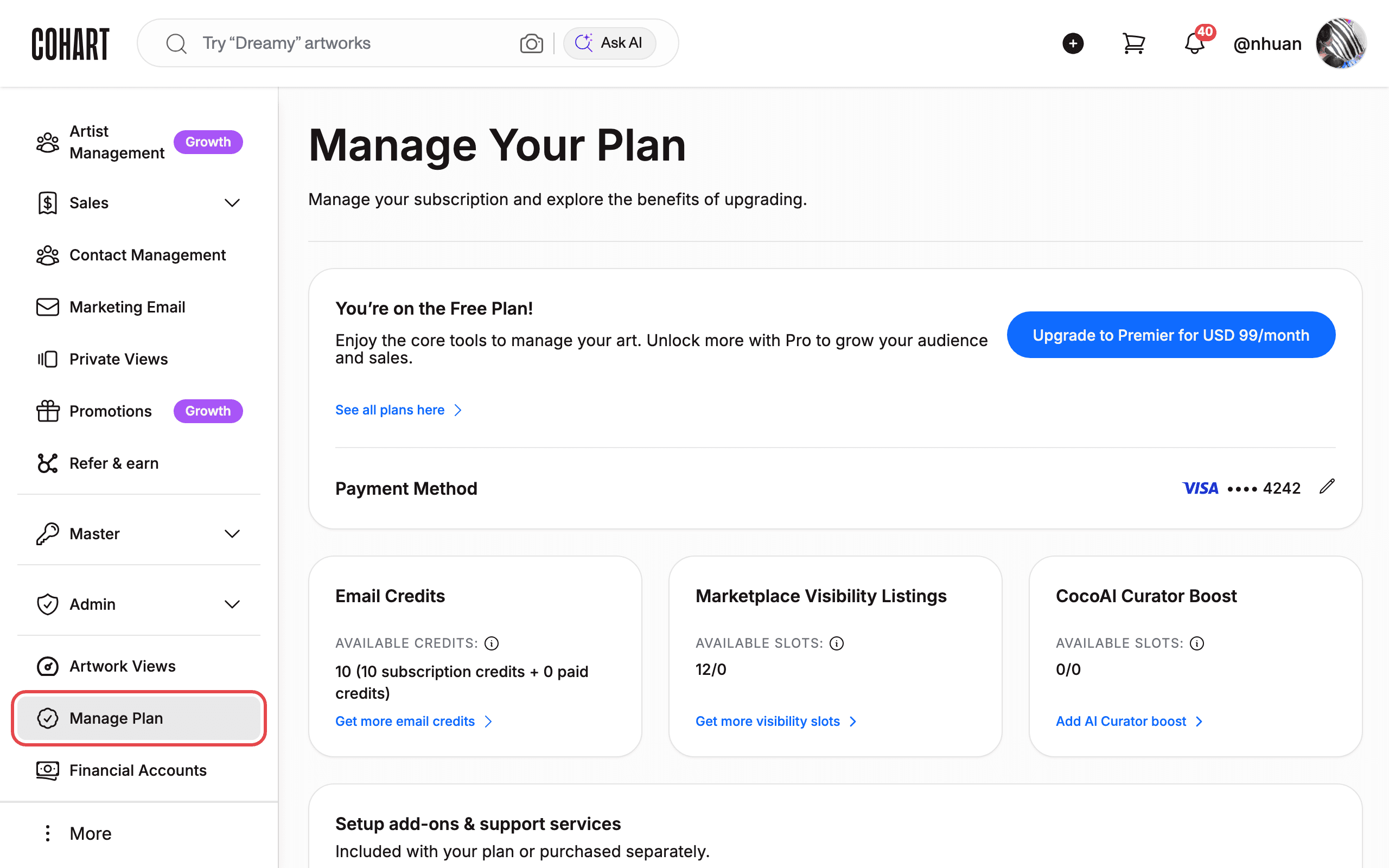
-
Scroll to the CocoAI Curator Boost card. It shows your Available slots (for example
0/0). Click Add AI Curator boost to buy slots. If you run out later, the button still reads Add AI Curator boost — you can use it anytime to add more.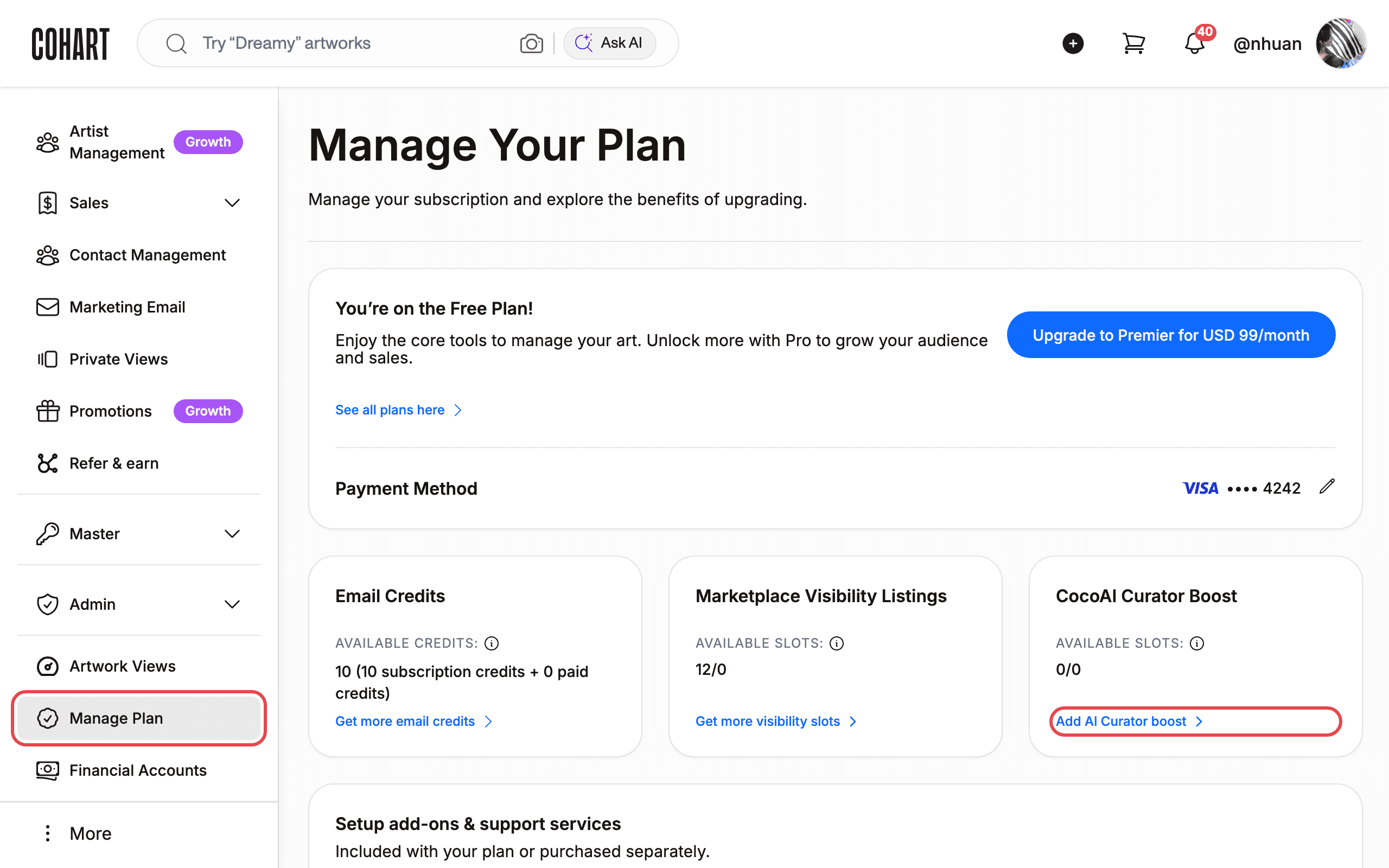
-
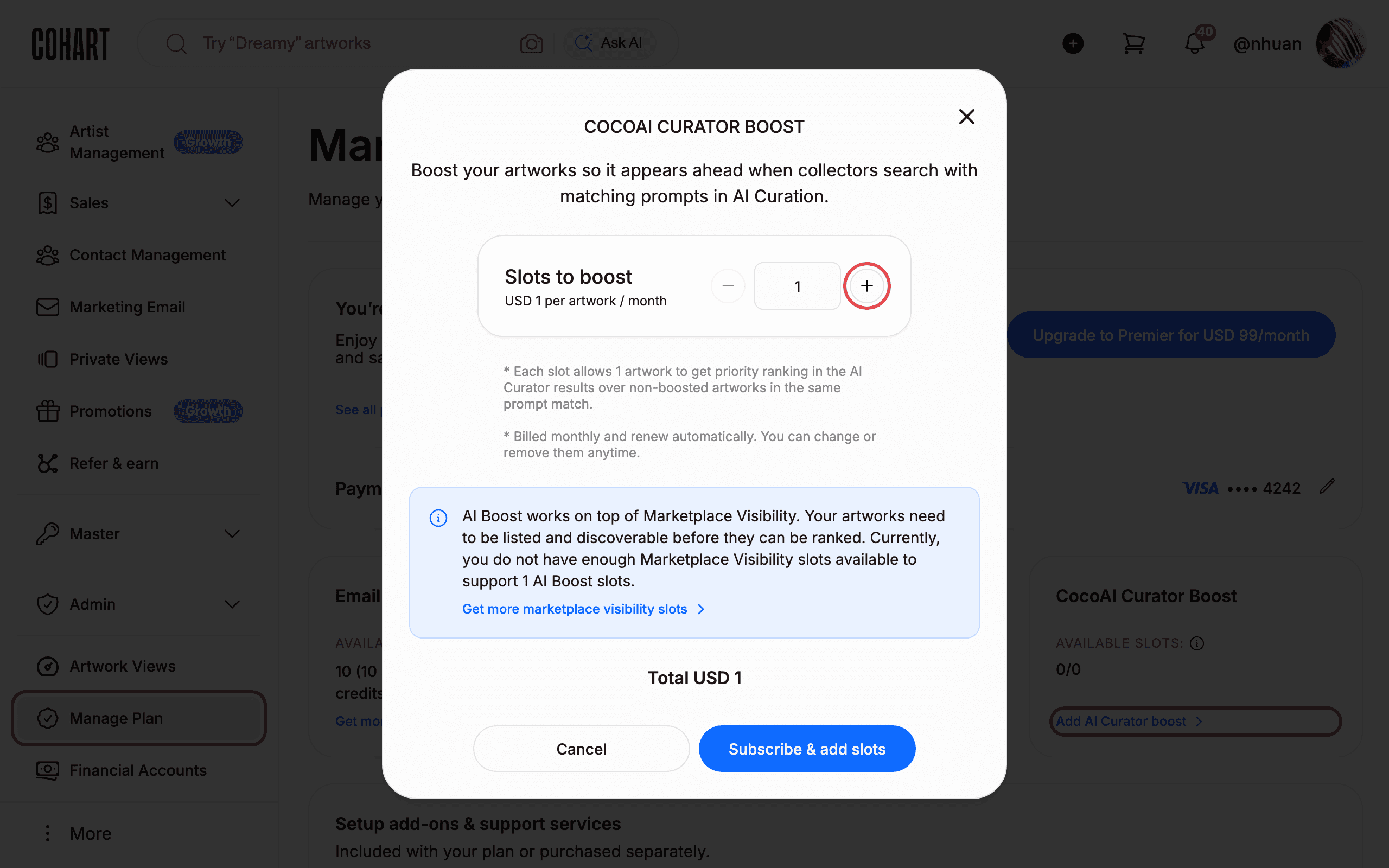
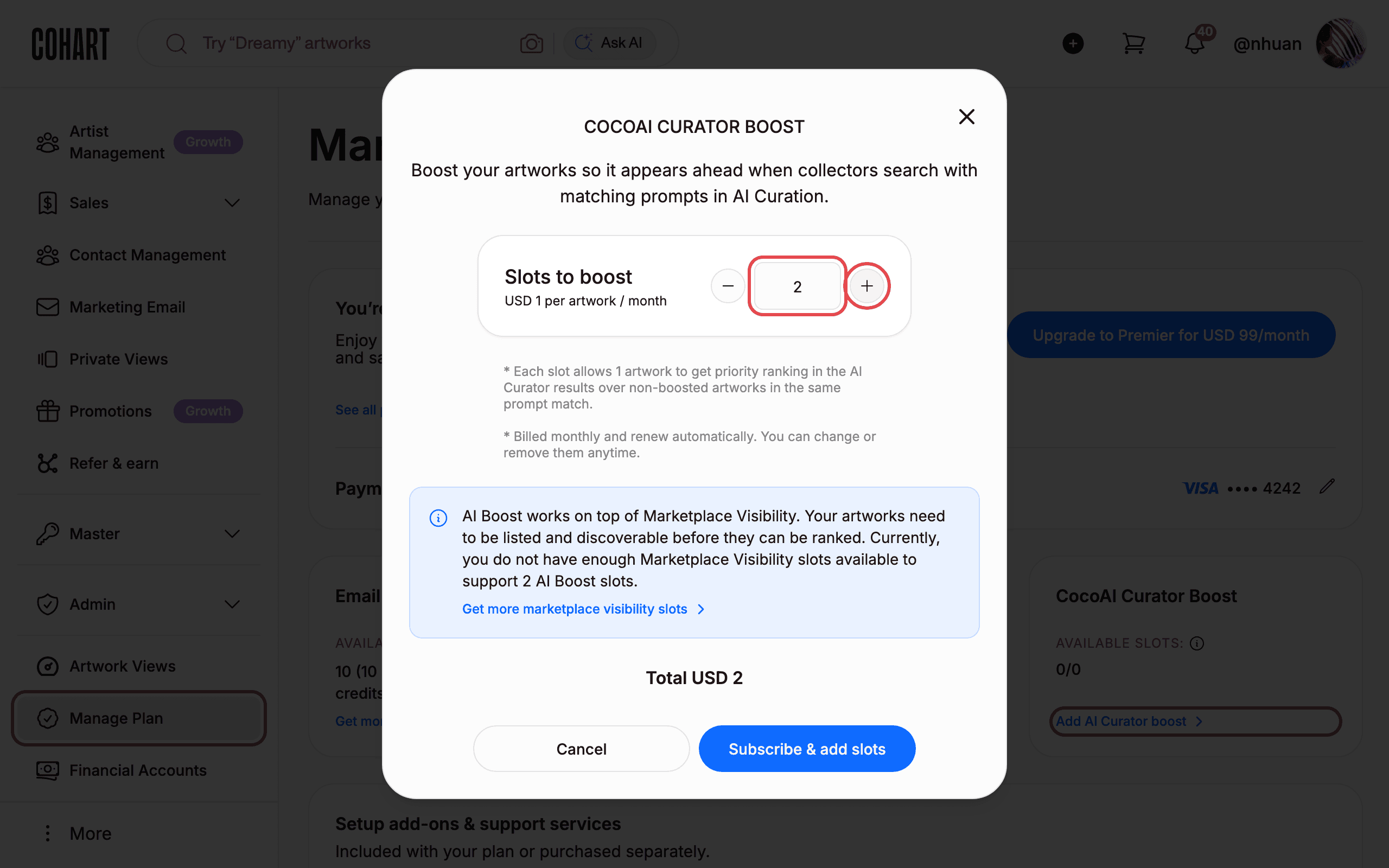
In the CocoAI Curator Boost dialog, choose how many Slots to boost. Each slot costs USD 1 per artwork / month and allows one artwork to get priority ranking in the AI Curator results over non-boosted artworks in the same prompt match. Use the Increase value button to add slots. Decrease value is greyed out while the count is 1.
-
Click Increase value again to add more slots. The Total updates automatically (for example Total USD 2 for two slots).
-
Review the total, then click Subscribe & add slots. You can close the dialog anytime with Cancel or the X button.
[UNVERIFIED — check manually]What happens after subscribing: billing runs monthly and renews automatically; you can change or remove slots anytime.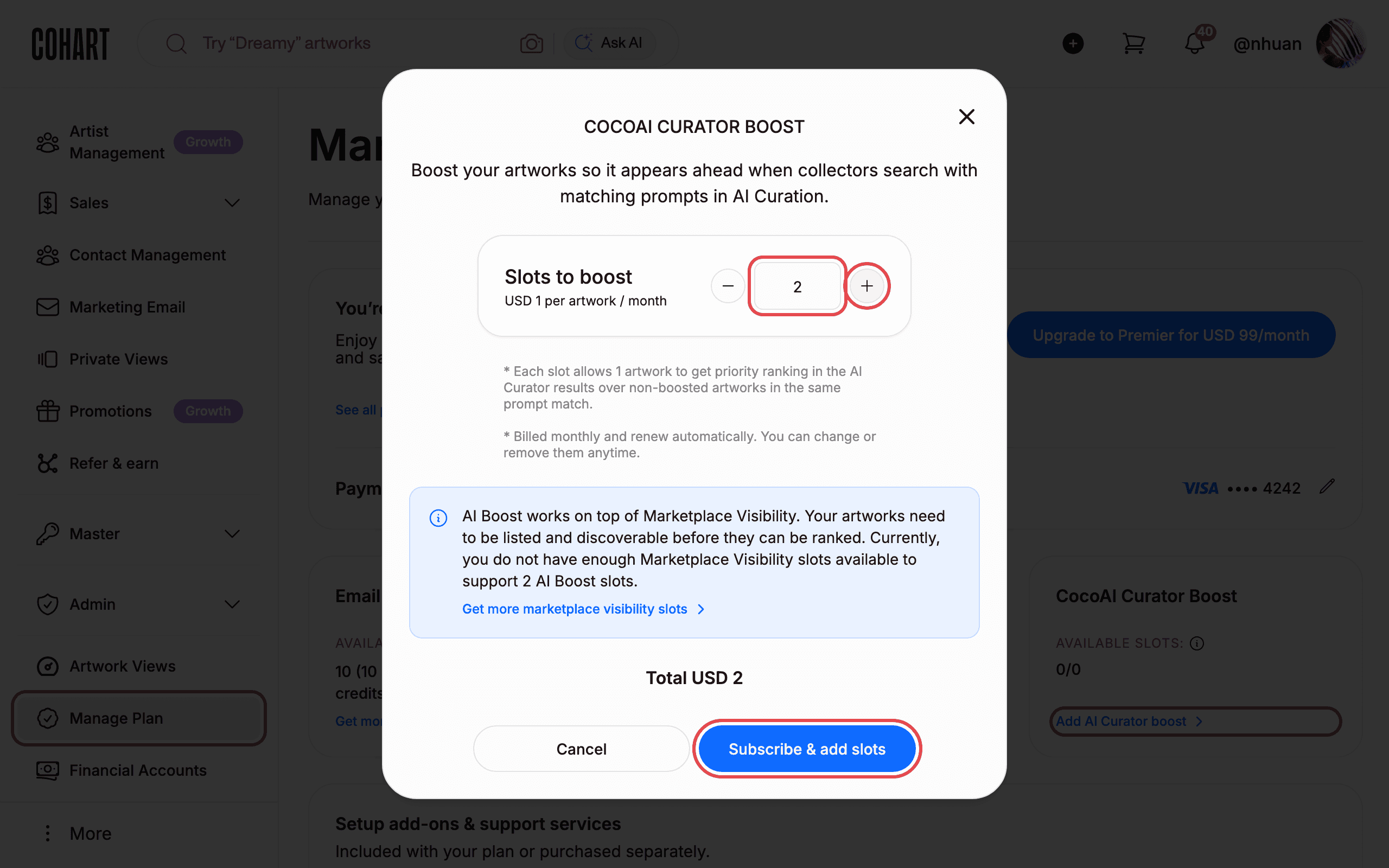
-
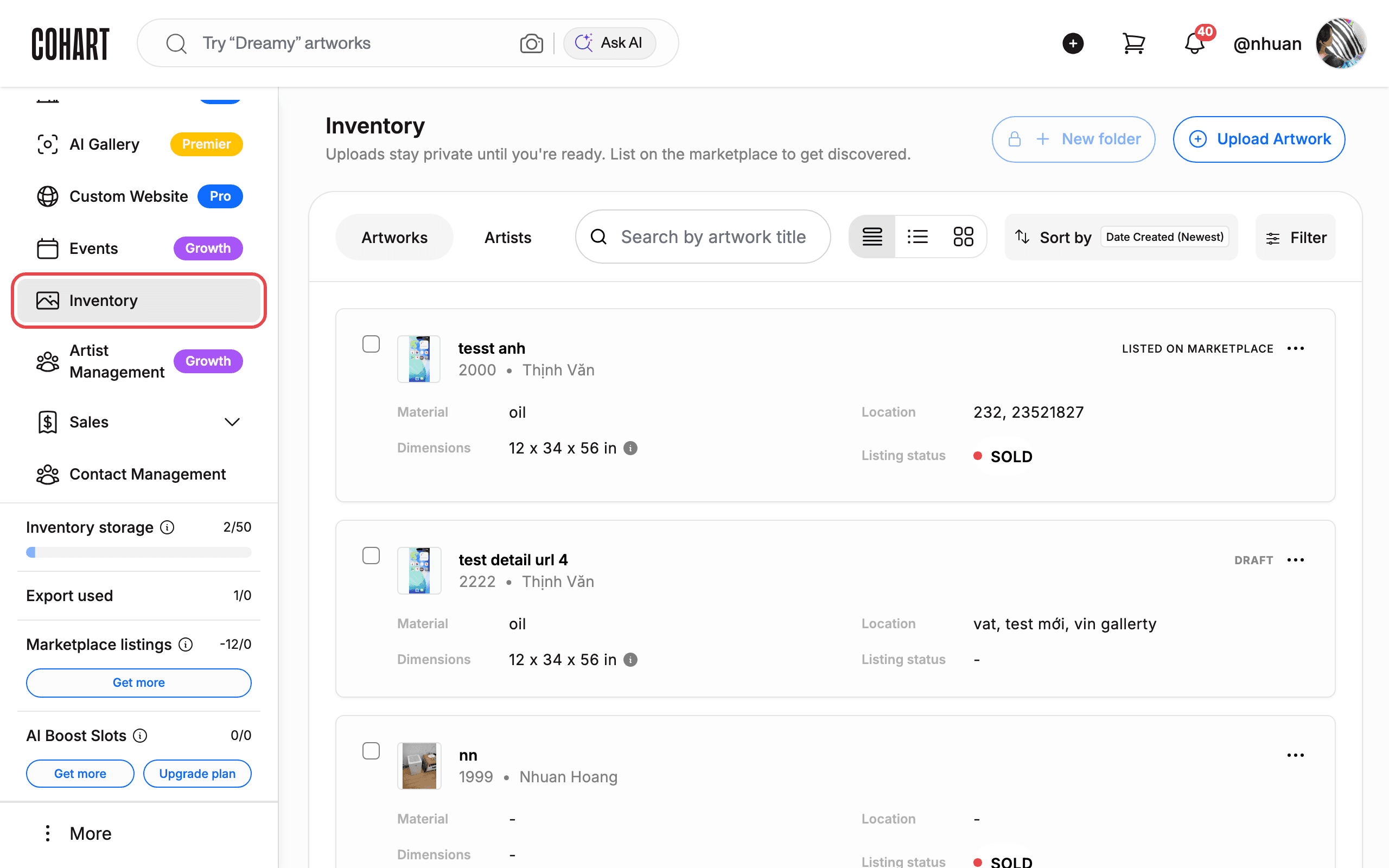
In the left sidebar, click Inventory. Find the artwork you want to boost — it must be listed on the marketplace.
-
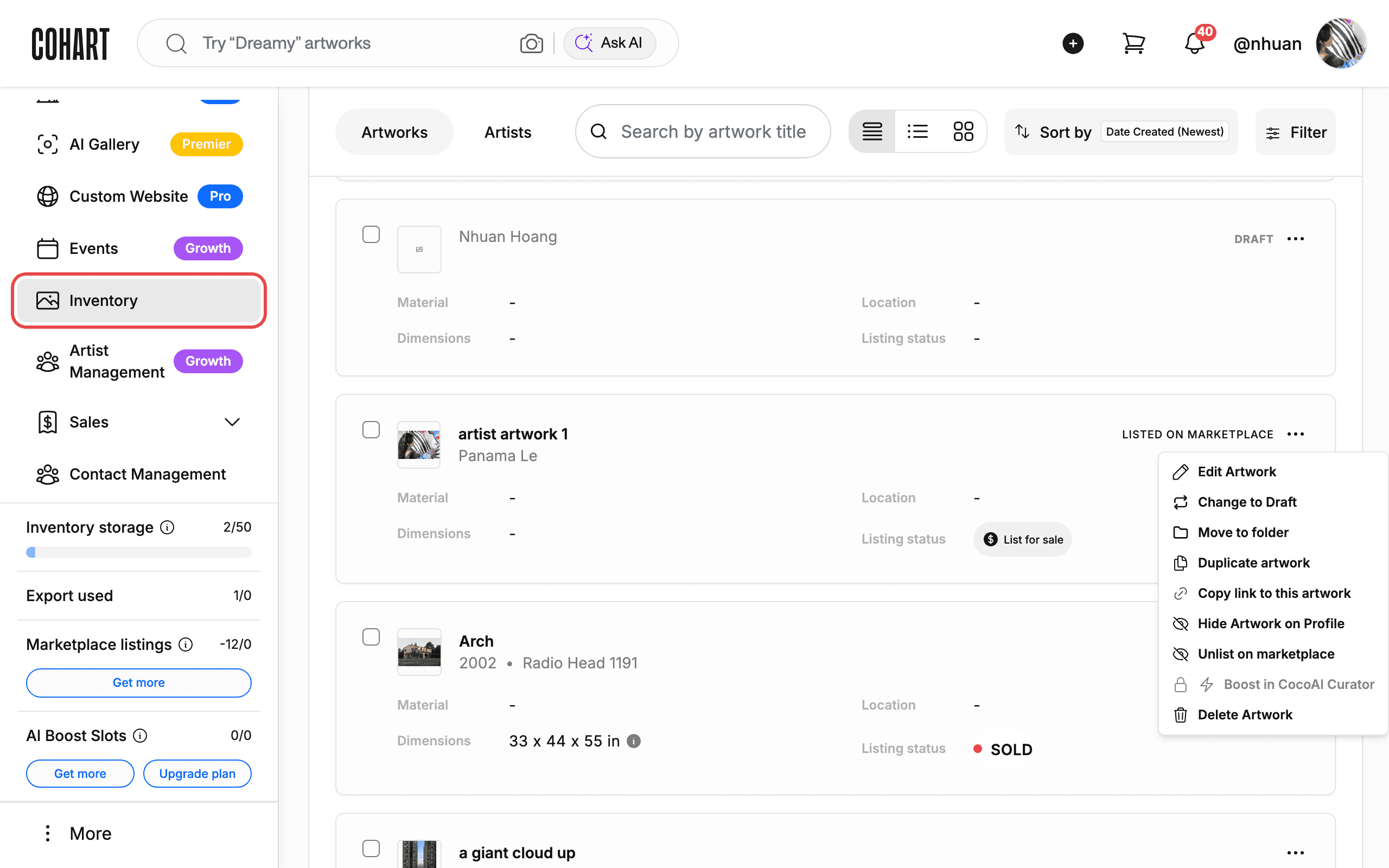
On the artwork card, click the ⋮ (three-dot) menu button.
-
Click Boost in CocoAI Curator in the menu. When you have no boost slots left, this item is greyed out with a lock icon — buy more slots first (steps 3–6).
[UNVERIFIED — check manually]What happens after you boost an artwork: confirmations, active-boost indicators, and the ability to remove a boost.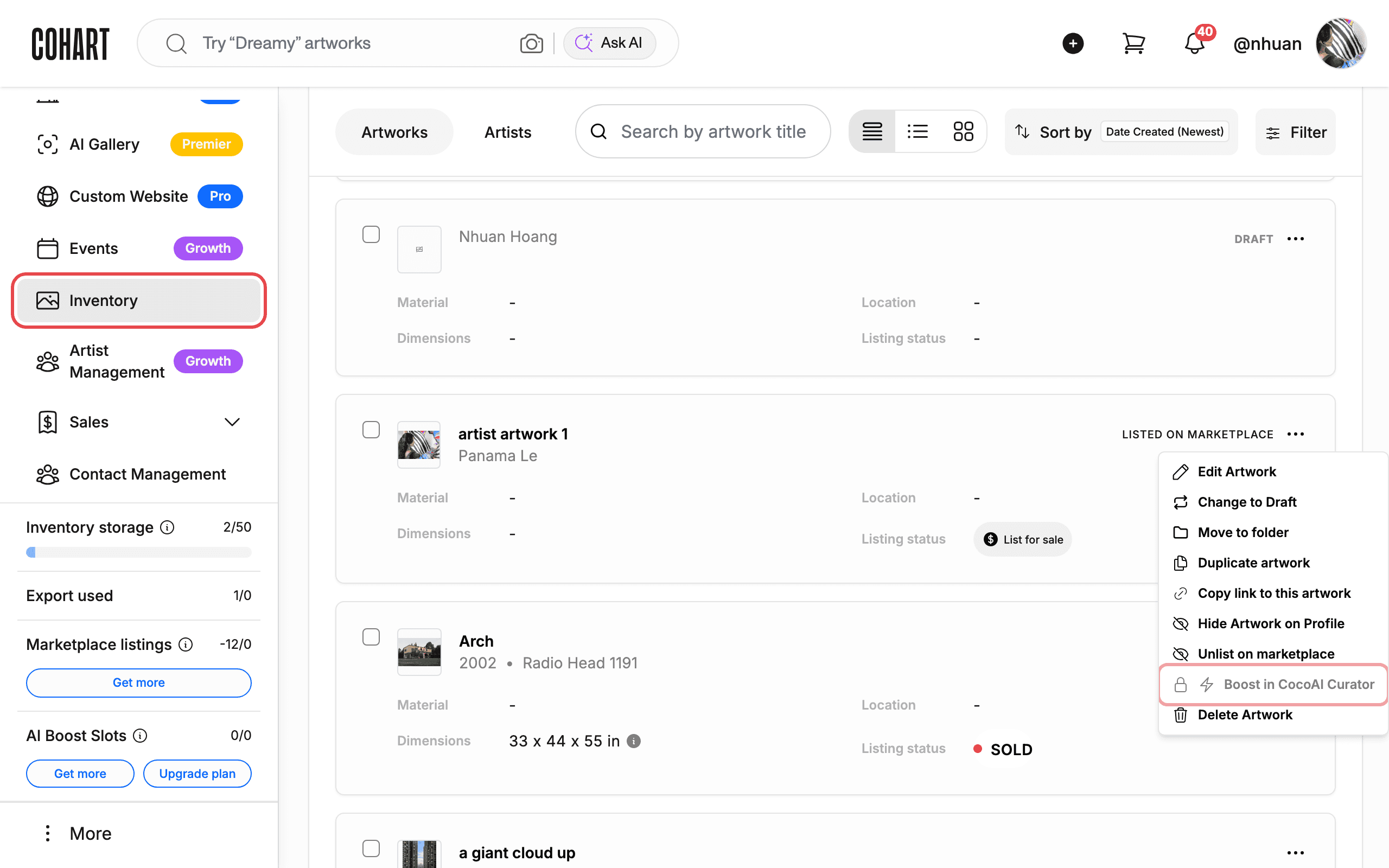
-
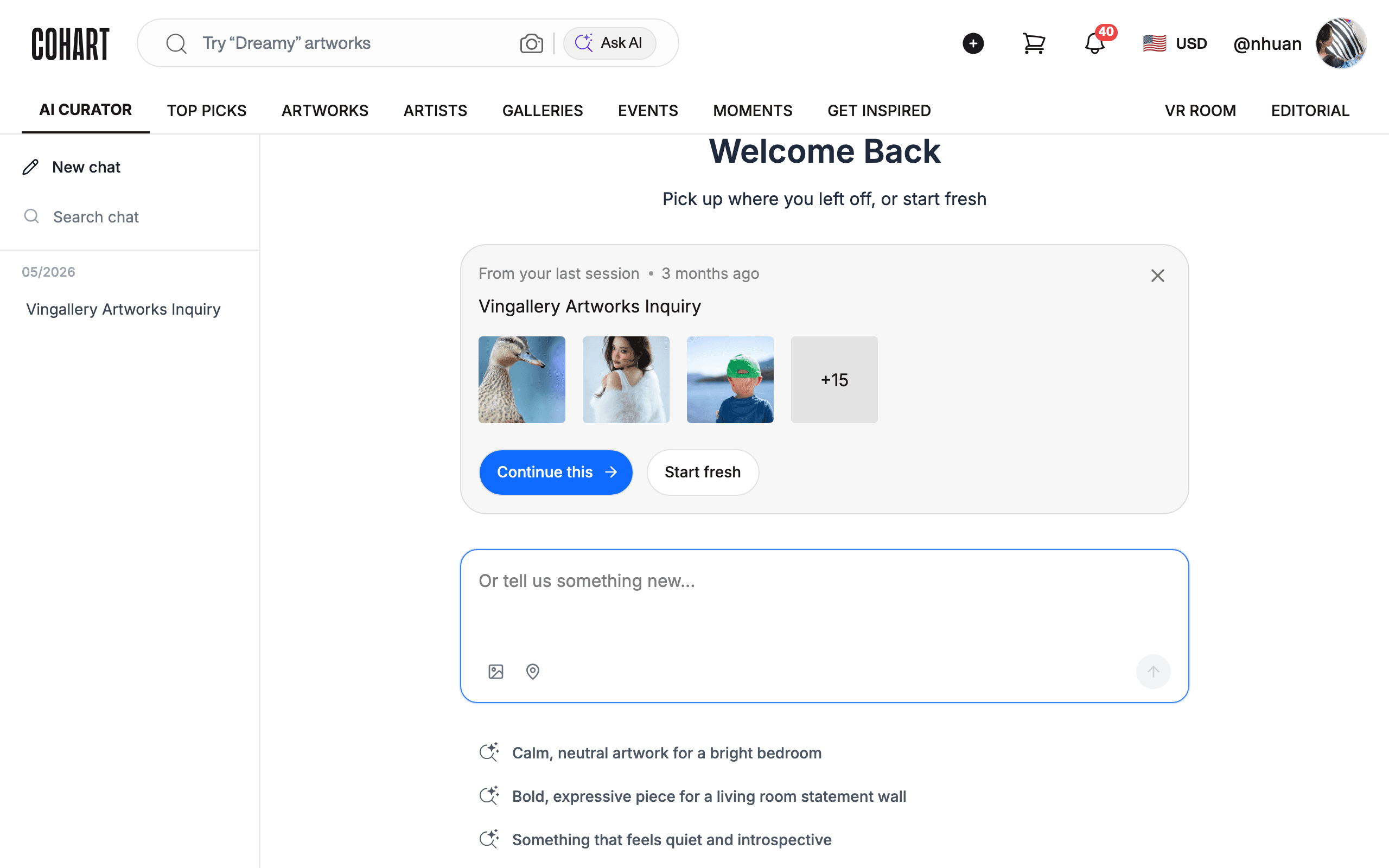
Your boosted artwork now ranks ahead of non-boosted artworks when collectors search the AI Curator chat with matching prompts.
Tips
- Boost requires a marketplace listing. AI Boost works on top of Marketplace Visibility — an artwork needs to be listed and discoverable before it can be ranked.
- The Boost menu item only appears for listed artworks. If your artwork is not listed, its menu shows List on marketplace instead of Boost in CocoAI Curator. Sold artworks show Re-sell instead.
- Shortcut on the inventory page. The AI Boost Slots counter on Inventory shows your slots and has a Get more button that takes you to the same purchase flow.
- Billing. USD 1 per artwork per month, billed monthly, renews automatically. You can change or remove slots anytime.
Troubleshooting
- “Boost in CocoAI Curator” is greyed out in the menu. You have no available boost slots. Buy slots on the Manage Plan page first.
- Blue notice in the purchase dialog: “you do not have enough Marketplace Visibility slots available”. Your artworks need marketplace visibility slots to be ranked. Click Get more marketplace visibility slots inside the dialog (USD 0.05 per artwork / month) to add them, then boost.
- Artwork does not show the Boost option at all. Make sure the artwork is listed on the marketplace and not sold.
Screenshots are regenerated automatically from the live site. Last captured: August 14, 2026.