How to Ship Sold Artwork on Cohart and How Shipping Cost Is Calculated
Overview
Cohart lets you ship artwork your way: have Cohart generate a carrier label, arrange shipping yourself, or coordinate a pickup, and the buyer sees one of three methods at checkout based on how you’ve set up the sale.
- Who it’s for — artists and galleries fulfilling sold artwork.
- What it controls — which shipping method a buyer can pick at checkout: Ship by Cohart (real-time carrier rates from UPS, USPS, or FedEx, calculated from your package dimensions and weight and the buyer’s address), Invoice Only (shipping is worked out after purchase — commissions, deposits, oversized or custom-crated work, or off-platform delivery), or Pick up / Ship by seller (you handle the carrier and fees yourself, with no shipping fee added at checkout).
- Where it starts — your shipping address under Edit Profile, and the Shipping information section on each artwork listing.
- Why it matters — the package dimensions and weight you enter (or leave blank) directly decide the rate a buyer pays, and whether checkout can show a live rate at all or falls back to Shipping TBC (to be confirmed).
- What you end up with — an accurately quoted shipment for the buyer and, after a sale, a downloadable carrier label you print and attach yourself, or a custom label you generate independently for pickup and off-platform orders.
Before you start
- An artist or gallery seller account. Shipping setup lives on your artwork listings and under Edit Profile; buyers choose the method at checkout.
- A shipping address on file. Cohart uses the address under Edit Profile as the ship-from origin for calculating Ship by Cohart rates.
- A sense of your package size before you list. Package dimensions and weight — not the artwork’s own dimensions — drive accurate rates. If you’re not ready, you can save the listing as a draft, or leave the fields blank and let Cohart estimate; see How to Prepare Shipping Products for packing guidance that will help you measure the final packed size.
- Awareness of the effects. Shipping labels are purchased against the dimensions and weight on record at the time you create them. If the real package is bigger or heavier, the carrier can apply an additional charge that Cohart and Shippo do not control, and you — the seller — are responsible for it.
Steps
1. Sign in to Cohart
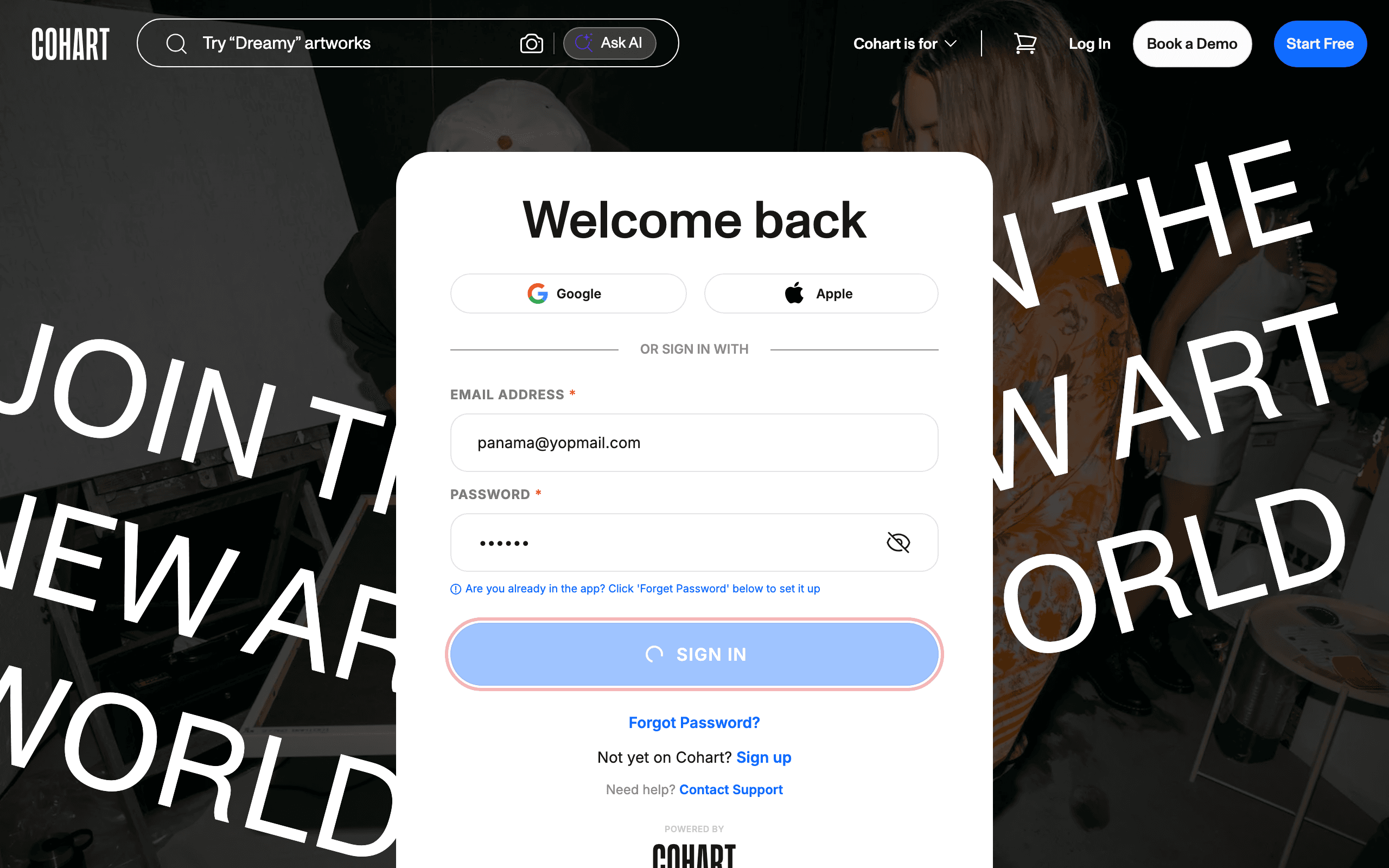
Sign in with your email address and password, or use Google or Apple.
2. Add your shipping address
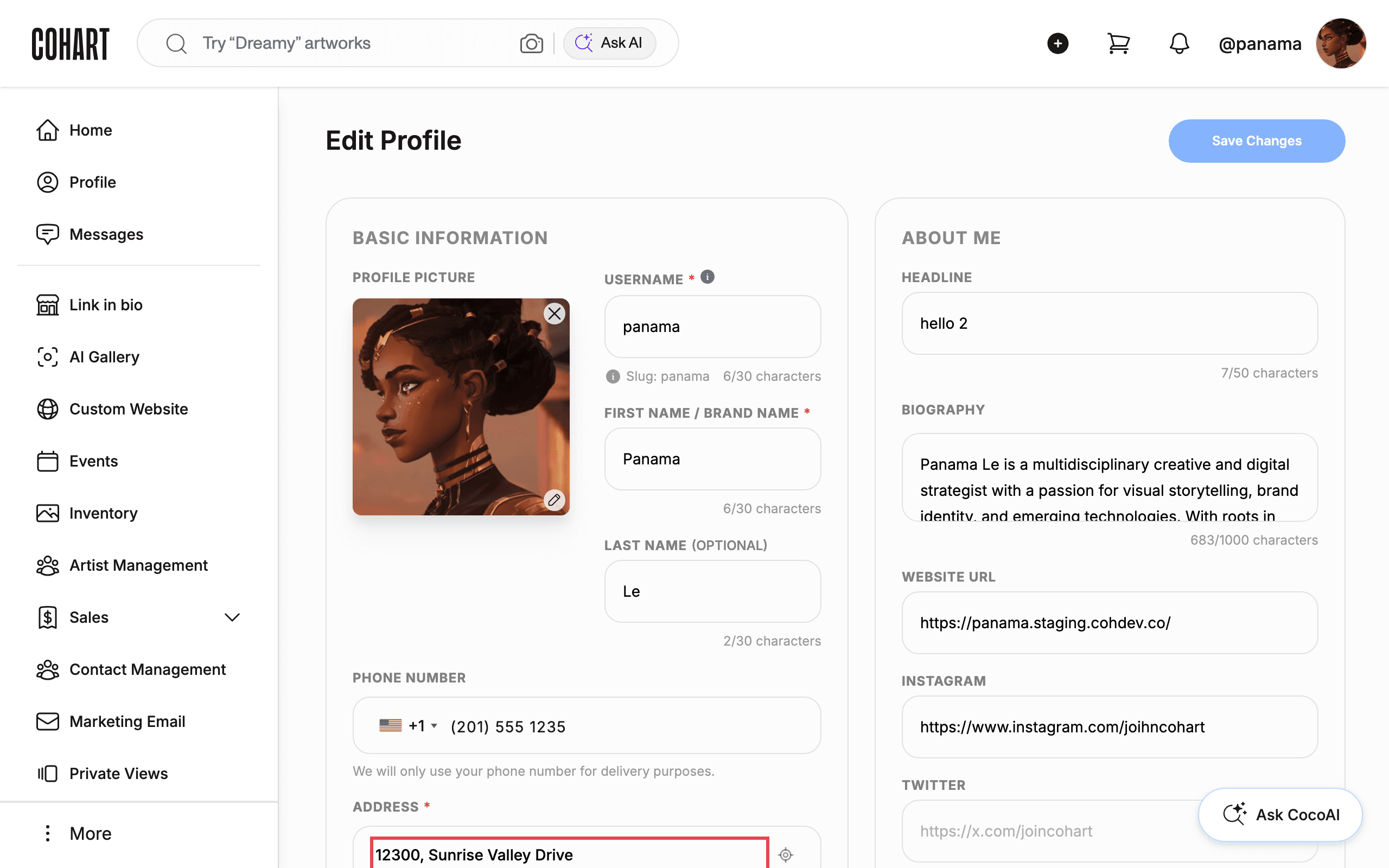
Cohart uses your saved address as the origin for every Ship by Cohart rate calculation. Go to Edit Profile and scroll to the Address fields — Address, city, state, country, and postal code — and keep them up to date.
3. Choose how each artwork ships and set its package size
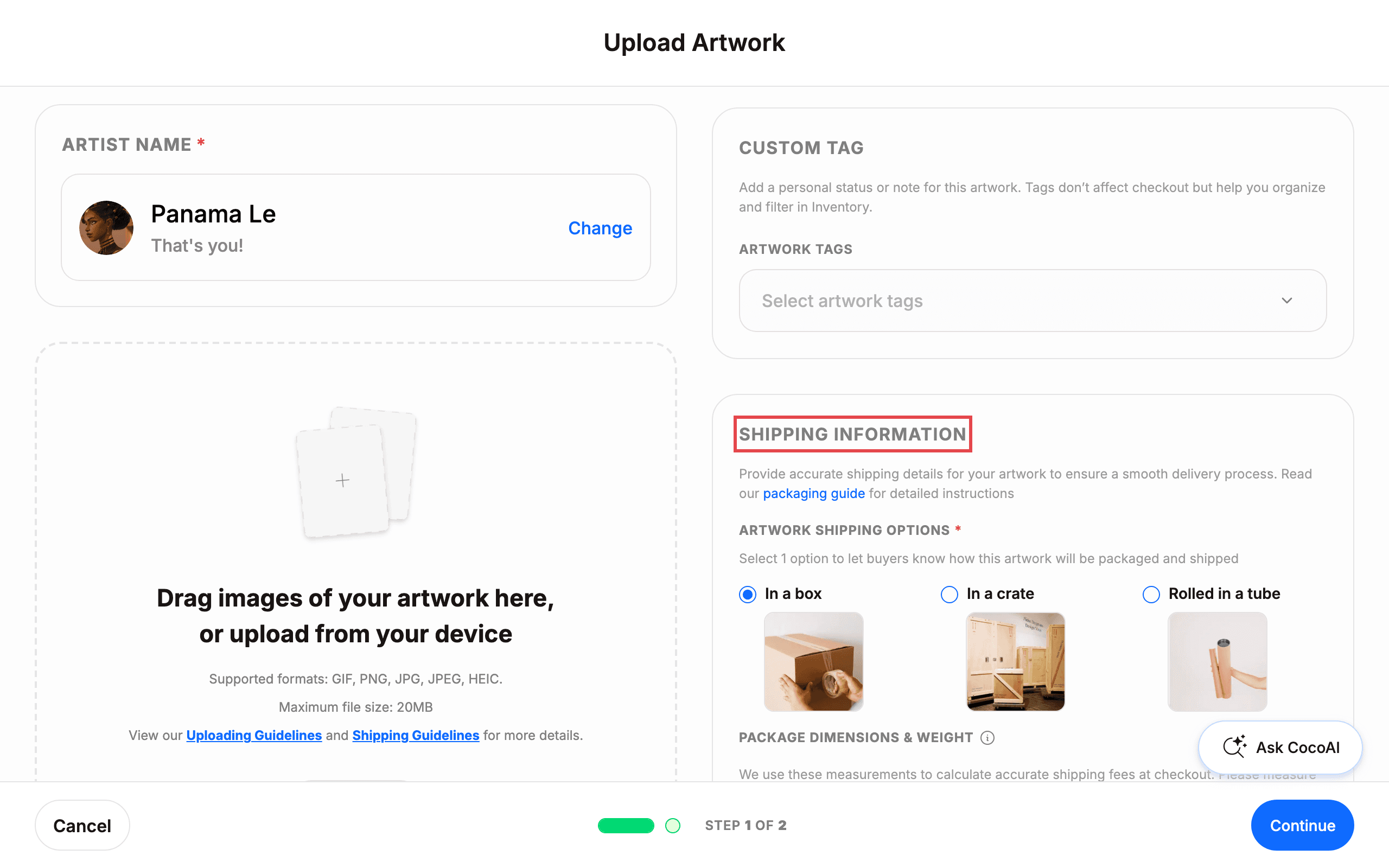
On an artwork listing, open the Shipping information section. Under Artwork Shipping Options, pick In a box, In a crate, or Rolled in a tube so buyers know how the piece will be packaged. Then fill in Package dimensions & weight — height, width, and depth in in or cm, and weight in lbs or kg — measuring the artwork as packaged for shipping, not the artwork alone. If you leave this blank, Cohart estimates a package size using a 35% size adjustment and triples the weight to account for packaging materials; add exact measurements later for the most accurate rate.
4. Open your Shipping dashboard
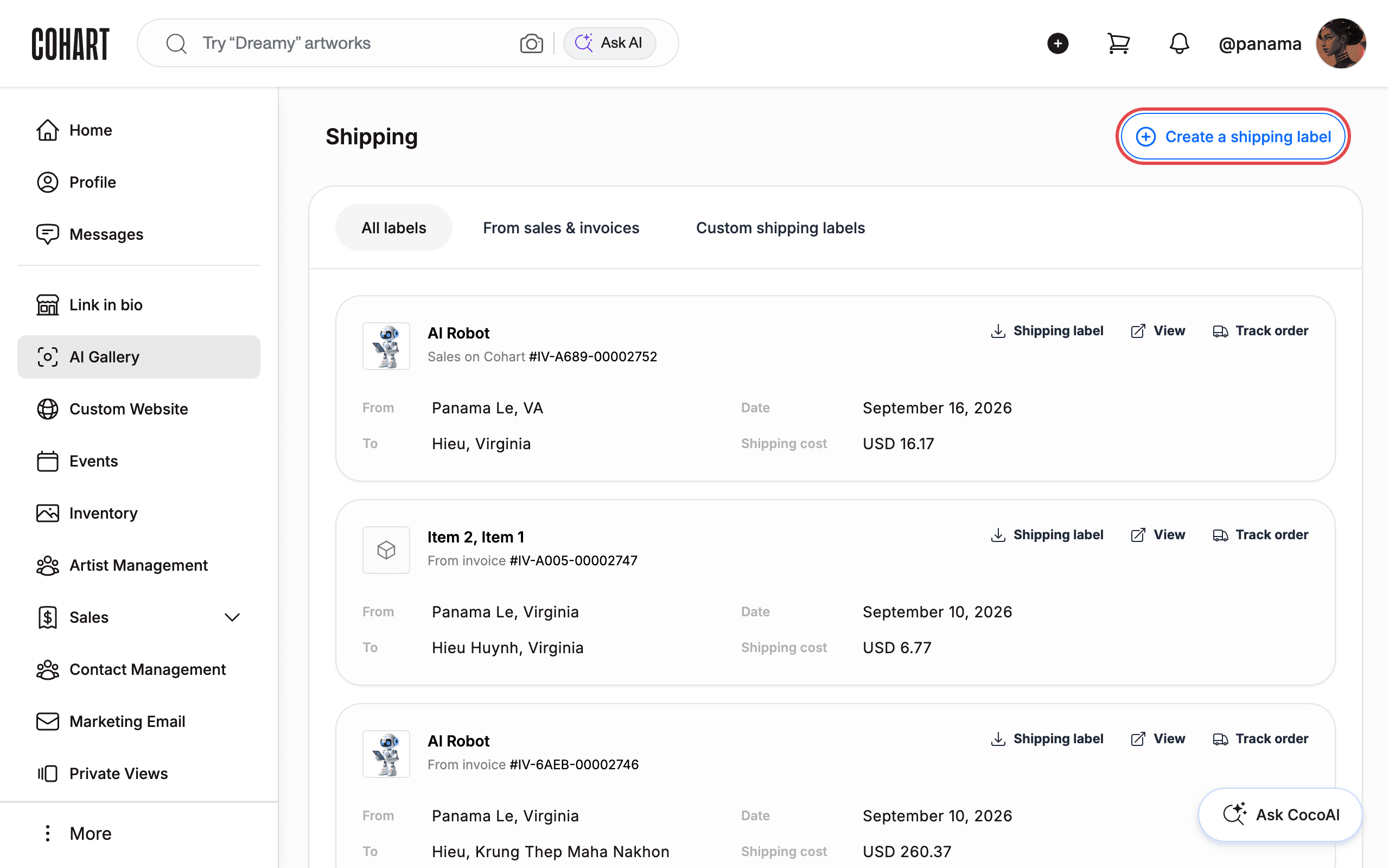
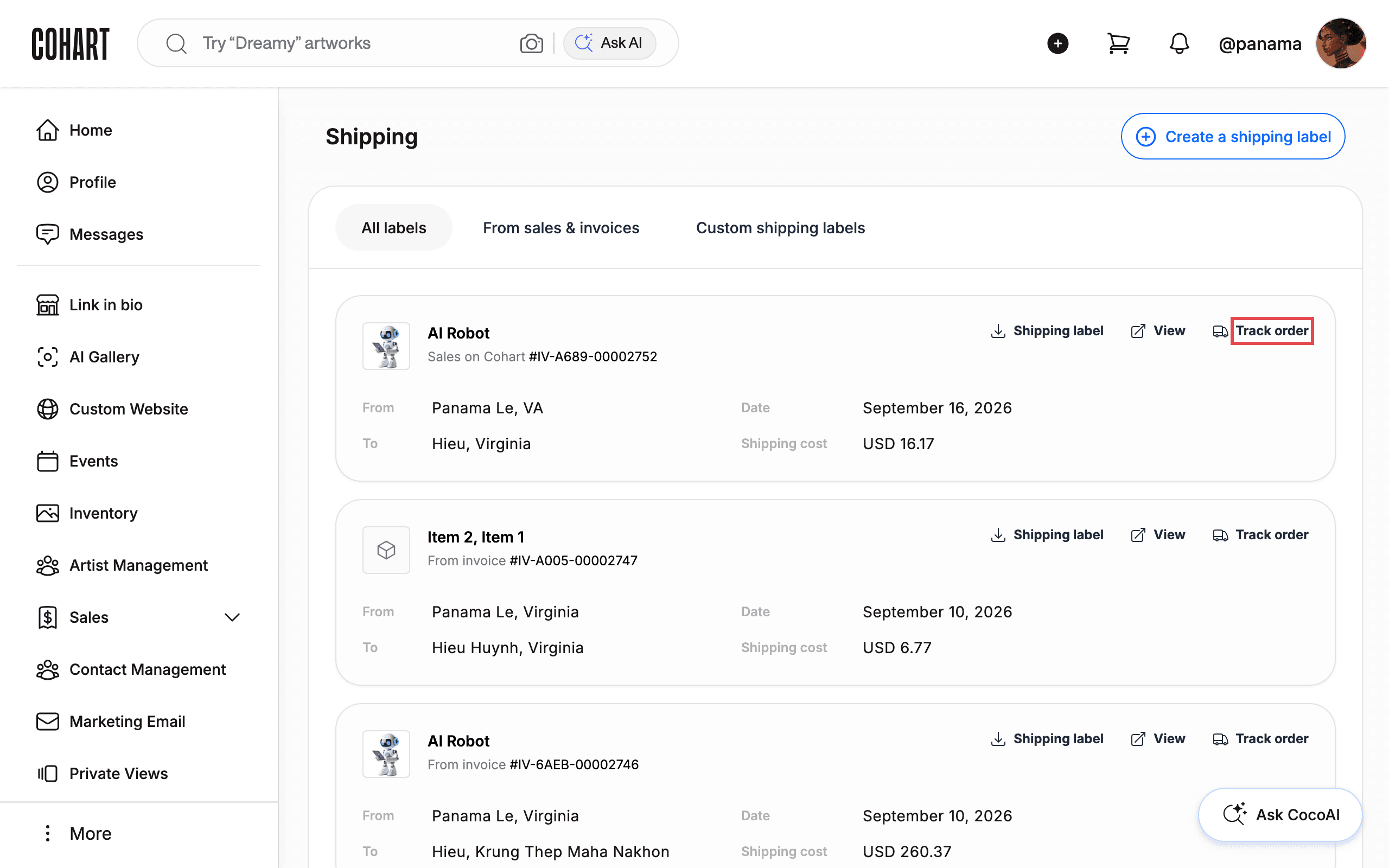
After a sale, click Sales in the left sidebar, then Shipping. The dashboard lists All labels, From sales & invoices, and Custom shipping labels. From a paid, shippable invoice you download and print the ready-made label — see How to Prepare Shipping Products for that step-by-step. To ship something that isn’t linked to a Cohart sale — for example a Pick up / Ship by seller order you’re billing separately, or an off-platform shipment — click Create a shipping label instead; see How to Create a Custom Shipping Label for the full form walkthrough.
5. Track a shipment
From the Shipping dashboard, open All Labels, find the shipment, and click Track Order. Both you and the buyer can use the same carrier tracking number to follow delivery on the carrier’s own tracking page.
Tips
- Round package measurements up, not down, and measure the artwork as it will actually ship — box, crate, or tube plus padding — not the bare artwork. Add roughly 3 in (7–8 cm) of protective space per side and expect packed weight to run about three times the artwork’s own weight; see How to Prepare Shipping Products for full packing guidance.
- If you plan to bill shipping separately (custom crating, white-glove delivery, or a price you can’t finalize until the piece is packed), say so in the artwork description and ask buyers to choose Pick up / Ship by seller or Invoice Only at checkout, then send a Cohart Invoice for the shipping cost once you know it.
- A label is meant to be used soon after you create it. Shipping labels should be used within 30 days of creation — download, print, and drop the package off with the carrier as soon as it’s packed, rather than holding onto a purchased label.
- Shipping labels come from Shippo, which compares carriers such as UPS, USPS, and FedEx; which carriers appear depends on the destination.
- International shipments may need extra customs paperwork (for example a commercial invoice) depending on the carrier and destination. Contact support@cohart.com before shipping if you’re unsure what’s required.
- Cohart does not pack or ship artwork for you. You’re responsible for packaging, printing and attaching the label, and drop-off; many carriers, including USPS, offer free shipping supplies.
- Buyers automatically receive a Digital Certificate of Authenticity when they purchase through a Cohart listing, and you can generate a printable one from Inventory.
- Cohart collects U.S. sales tax on qualifying sales — see How to Manage Sales Tax on Your Sales — and payouts for completed sales are covered in Seller Payouts on Cohart.
Troubleshooting
- An artwork shows “Missing package dimensions” in Inventory → the listing has no package size on file → open Inventory, click the artwork’s ⋮ menu, choose Edit Artwork, and complete Package dimensions & weight. Cohart estimates a size from the artwork’s own dimensions until you do, but an exact measurement gives buyers a more accurate rate.
- A buyer’s shipping shows as “Shipping TBC” (To Be Confirmed) → Shippo couldn’t return a live rate, usually because the buyer’s or seller’s shipping details are incomplete or invalid, or the package dimensions are missing → the buyer can still complete checkout; after purchase you’re prompted to create a custom shipping label, the buyer is notified shipping is being arranged, and you coordinate the final cost directly — a Cohart Invoice works well for charging it.
- The final packed artwork is bigger or heavier than what you entered → the carrier may apply an additional adjustment charge in transit, which Cohart and Shippo don’t control → as the seller you’re responsible for the difference, so re-measure and update the package information before creating the label whenever you can.
- You want to schedule a carrier pickup → Cohart doesn’t currently support scheduling a pickup → print the label, attach it, and drop the package off with the carrier yourself.
- No packing slip appears in Sales Records → Cohart currently provides the tracking number and downloadable label only, not a separate packing slip → for international orders that need extra documentation, contact support@cohart.com before shipping.
- You’re not sure whether tracking updates get pushed to you → a tracking number is generated when the label is created, and both buyer and seller use it on the carrier’s own site; whether Cohart also sends push notifications for tracking changes is [UNVERIFIED — check manually].
- Customs duties aren’t included in the shipping cost → import duties and local taxes are set by the destination country and are the buyer’s responsibility, not something Cohart calculates or collects.