How to Manage Offers and Inquiries
Overview
Buyers who don’t check out right away can still reach you through Make an Offer or Inquire to Purchase, and both land as a tagged conversation in your Messages. An offer is a buyer proposing a price below your listed price; an inquiry is a buyer asking about the piece, confirming availability, or requesting details, with no price attached.
- Who it’s for — sellers who let buyers negotiate or ask questions instead of buying outright.
- What it covers — finding a new offer or inquiry in Messages, reading the offer amount against the artwork’s original price, and replying to accept, decline, counter, or answer.
- What it affects — only artworks where you’ve turned on Make an Offer; Inquire to Purchase can appear on any artwork that isn’t sold or listed for direct checkout.
- What you end up with — a conversation with the buyer that ends in a completed sale, a declined offer, or answered questions — Cohart doesn’t move money or change the listing on its own; you and the buyer agree on next steps through the conversation, then complete the sale the same way as any other purchase.
Before you start
- A Cohart seller account signed in to the dashboard. Offers and inquiries appear only in your own Messages, not on the public artwork page.
- Make an Offer only shows up if you turn it on. Check Allow offers when you set the artwork’s price — see How to Upload an Artwork; Inquire to Purchase appears automatically on artwork that isn’t yet sold or set up for direct checkout.
- A messaging-capable plan. Replying inside a conversation requires a paid plan at the Growth tier or higher — on a lower plan, the message box shows Upgrade to Growth or higher to send messages and you can only read what came in.
Steps
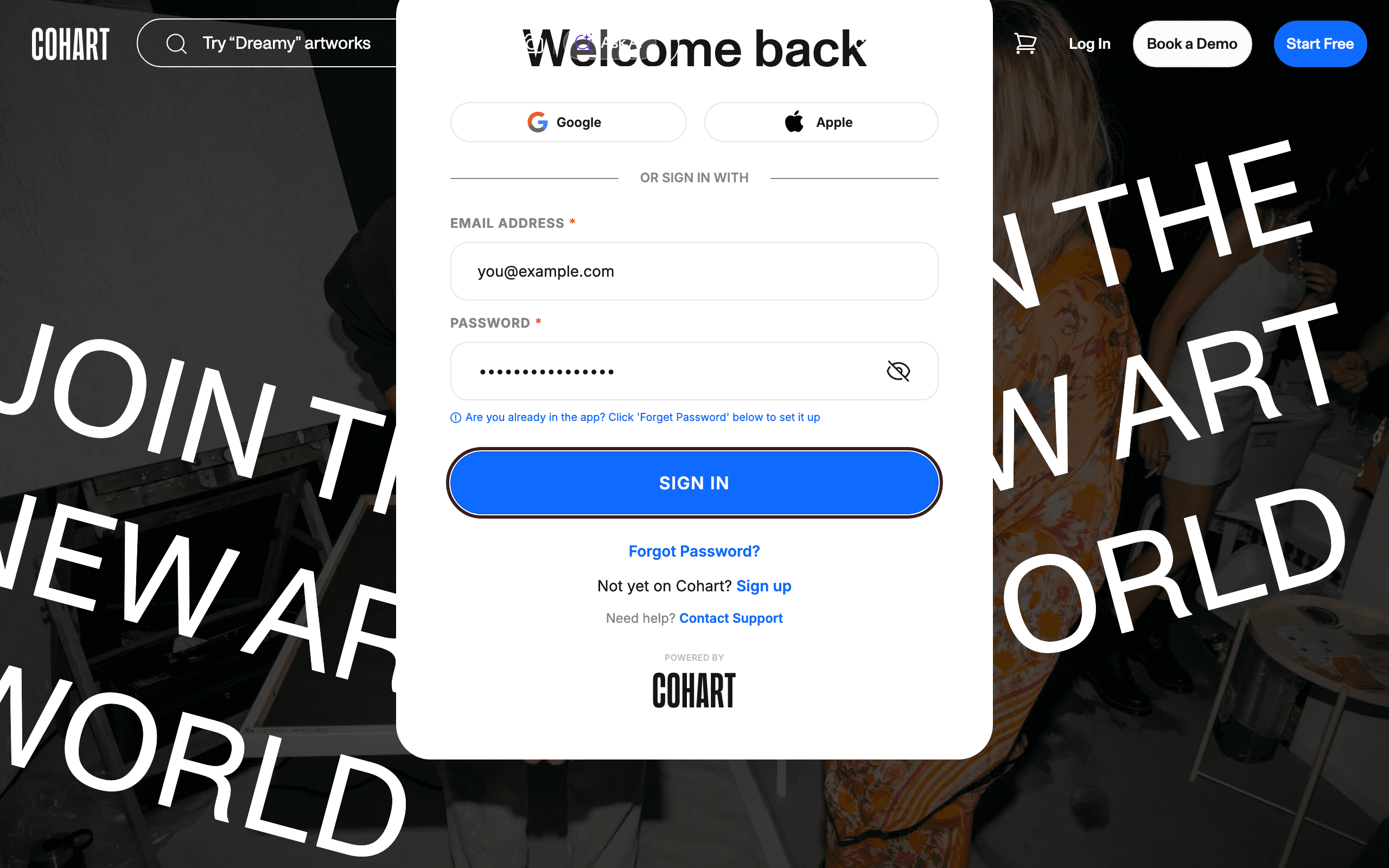
1. Sign in to Cohart
Sign in with your email address and password, or use Google or Apple.
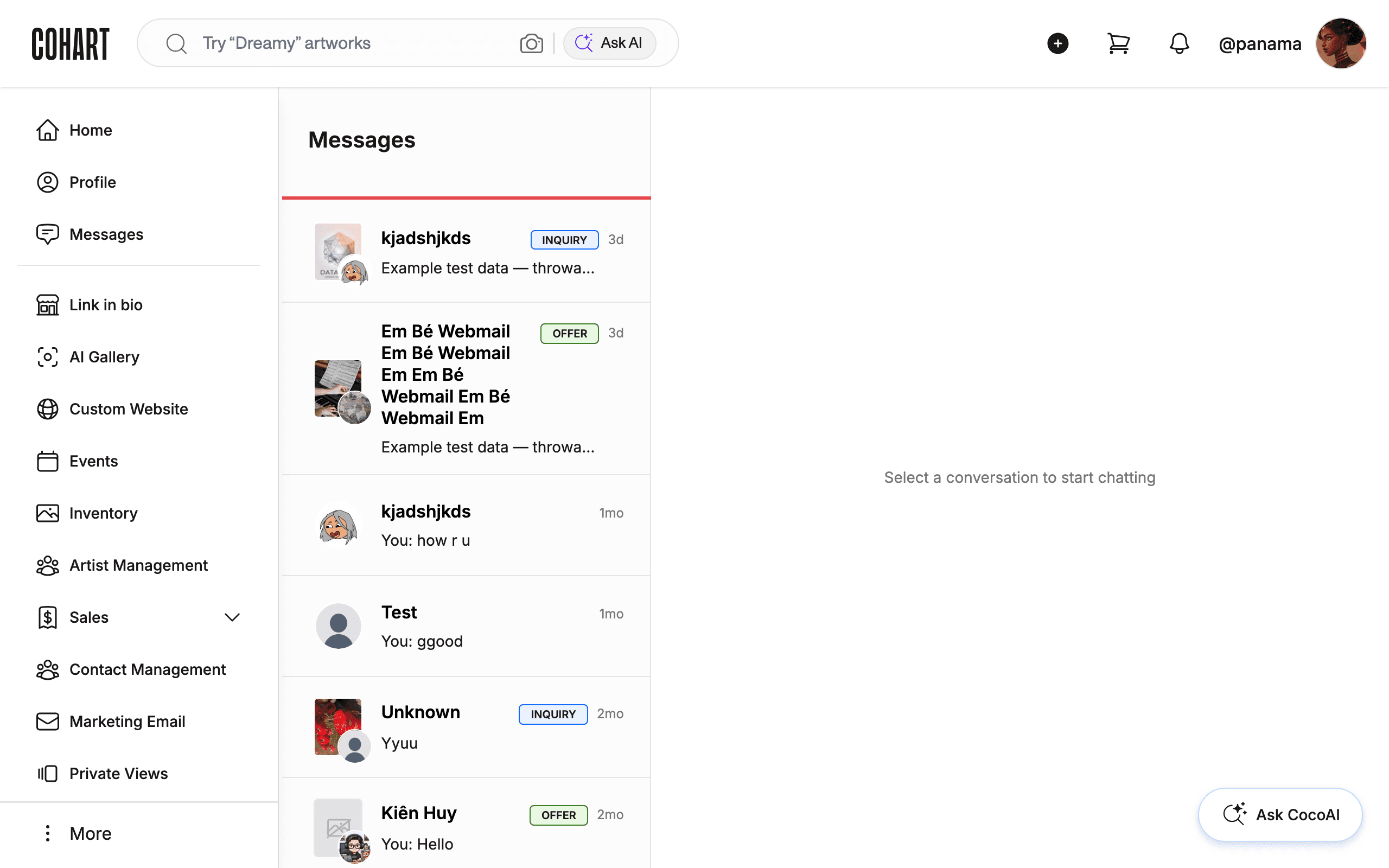
2. Open Messages
Click Messages in the sidebar. Each conversation started by an offer or inquiry shows an OFFER or INQUIRY tag next to the buyer’s name, with a preview of the latest update (for example Your offer has been sent su… on the buyer’s side, or New inquiry from a buyer on yours) and how long ago it happened.
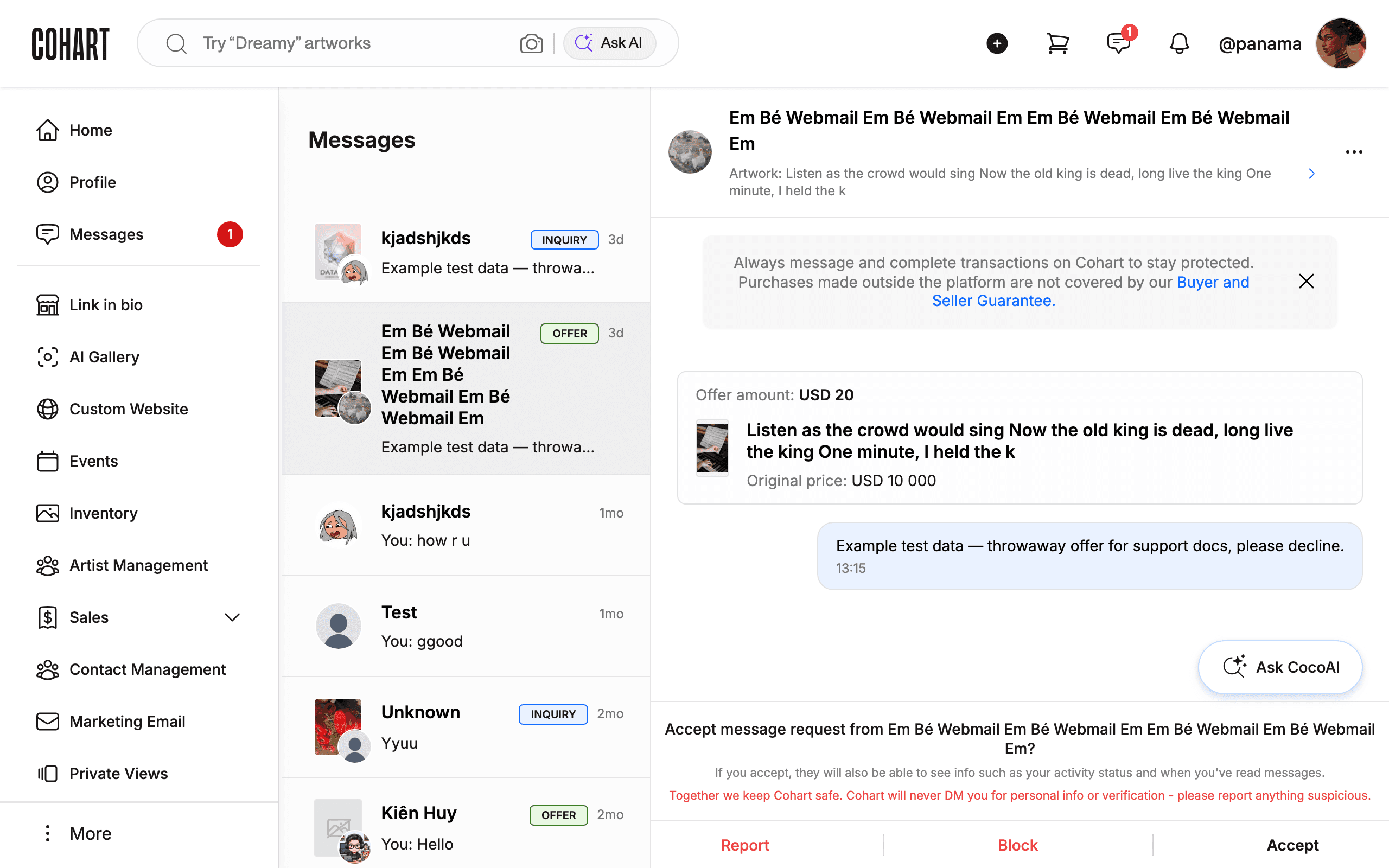
3. Read an offer
Click a conversation tagged OFFER. The conversation shows the artwork’s name and a card with the Offer amount next to the artwork’s Original price, so you can see the gap at a glance before you reply.
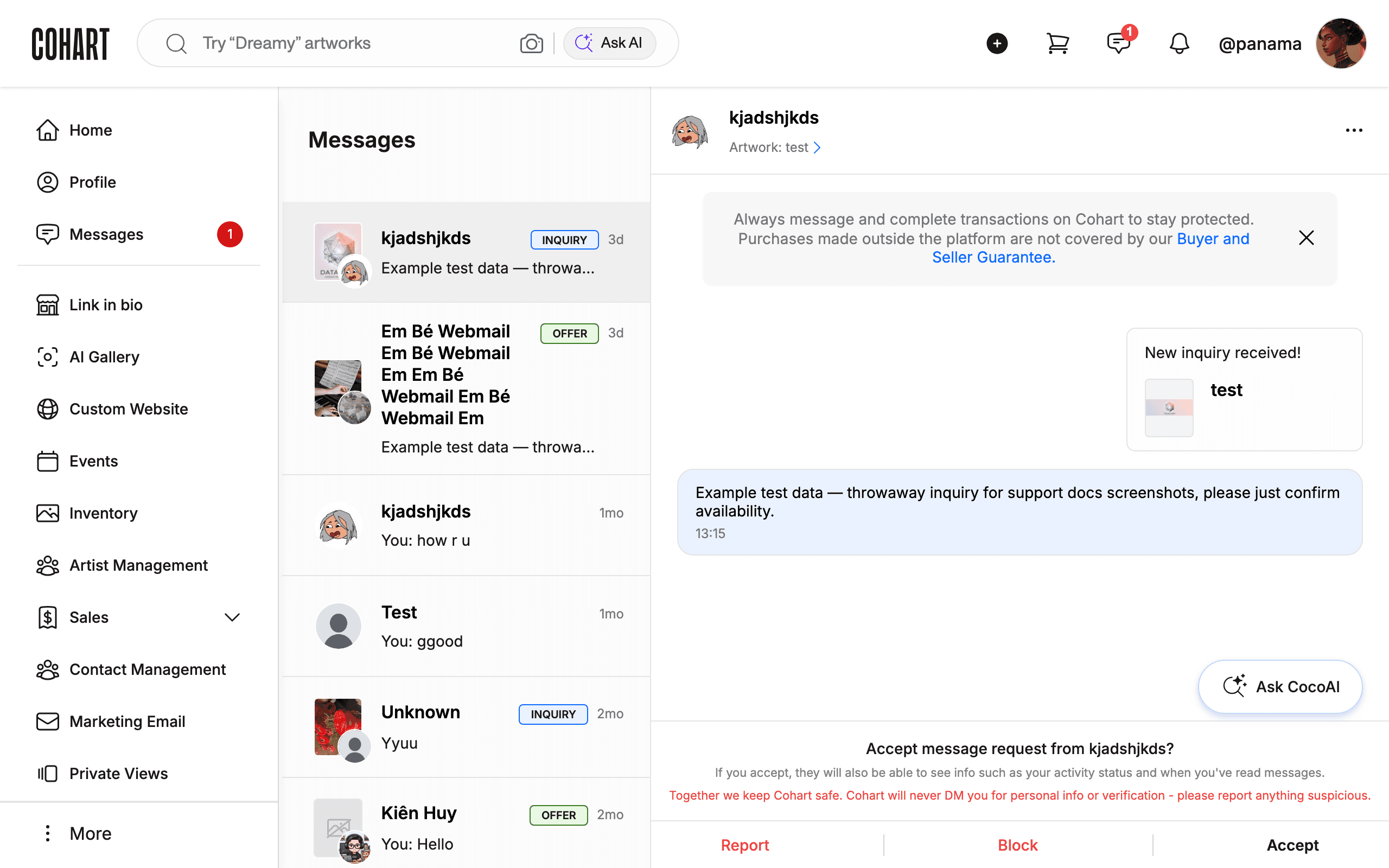
4. Read an inquiry
Click a conversation tagged INQUIRY. It shows a New inquiry received! card naming the artwork, with no price attached — the buyer is asking about the piece rather than proposing one.
5. Accept, decline, or counter an offer
Reply in the conversation to tell the buyer your decision — Cohart doesn’t have separate Accept, Decline, or Counter buttons; the offer is negotiated through the message thread itself. To accept, confirm the price and next steps, then complete the sale the same way as any other purchase — see How to Create an Invoice on Cohart or How to Add a Sale Record to move the buyer to payment and shipping. To decline, tell the buyer directly. To counter, reply with the price you’d accept instead and continue the conversation until you agree or the buyer stops responding.
[UNVERIFIED — check manually: confirm whether accepting an offer also updates the artwork's status automatically, or whether that always requires a manual invoice or sale record.]
6. Answer an inquiry
Reply to confirm the artwork’s availability and share whatever details the buyer asked for. An inquiry never commits the buyer to buy — if they decide to proceed, follow up the same way you would for an accepted offer.
Tips
- The offer card shows both numbers together. Compare Offer amount to Original price right in the conversation before you reply, without opening the artwork separately.
- Turn Make an Offer on or off per artwork. If you don’t want to negotiate on a piece, leave the option off — the button never appears to buyers, and you’ll only get inquiries on it. See How to Upload an Artwork.
- Reply promptly. Buyers are told an offer “is not a final charge” and expect a response; a quick decline or counter keeps the conversation moving instead of leaving them waiting.
- Old conversations stay in the list. Offers and inquiries from months ago remain in Messages with their original tag, so you can revisit the history of a negotiation at any time.
Troubleshooting
- You can’t send a reply → your plan doesn’t include messaging → the message box reads Upgrade to Growth or higher to send messages; upgrade your plan to reply directly, or contact the buyer through the details they left.
- The conversation shows “Related artwork has been deleted” → the listing was removed after the buyer’s message → you can still read the conversation, but there’s nothing to sell against it anymore; let the buyer know if they’re still interested in something else.
- No OFFER tag on a conversation you expected → the buyer sent an inquiry, not an offer, or the artwork doesn’t have offers turned on → check How to Upload an Artwork to confirm the setting.
- A buyer says they never heard back → check Messages for a conversation you may have missed — new offers and inquiries don’t always surface as a separate notification, so review the list directly if you’re expecting one.