How to Prepare Shipping Products
After a sale, download your shipping label from your invoice and get the package ready for drop-off.
1. Sign in to your seller account
Go to the login page and enter your email address under EMAIL ADDRESS and your password under PASSWORD. Then click SIGN IN.
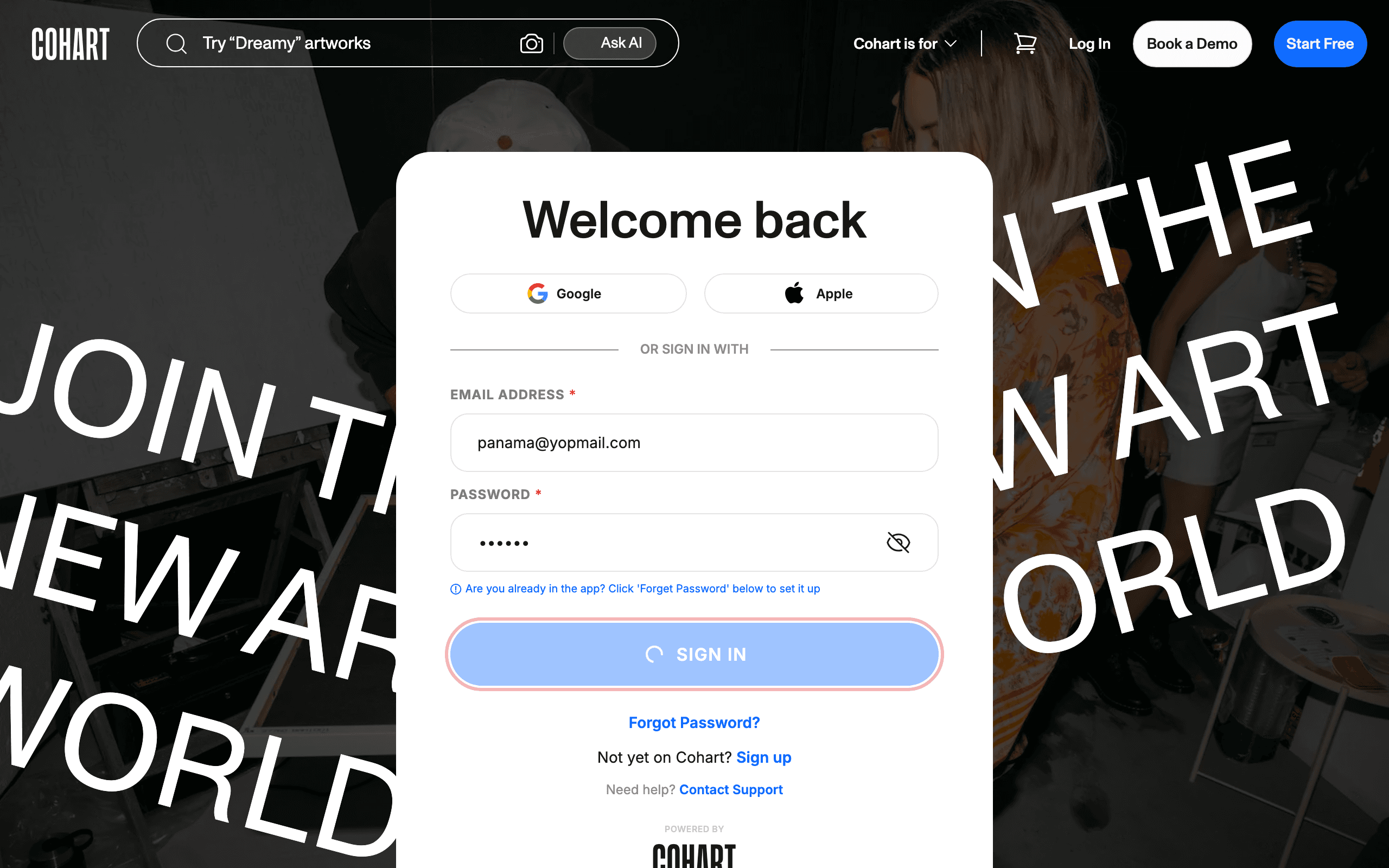
You can also sign in with Google or Apple using the buttons above the email form. If you cannot remember your password, click Forgot Password?. If you do not have an account yet, click Sign up. If you need help, click Contact Support.
2. Open the Sales menu in the sidebar
After signing in, you land on the Inventory page. In the left sidebar, click Sales to expand it.
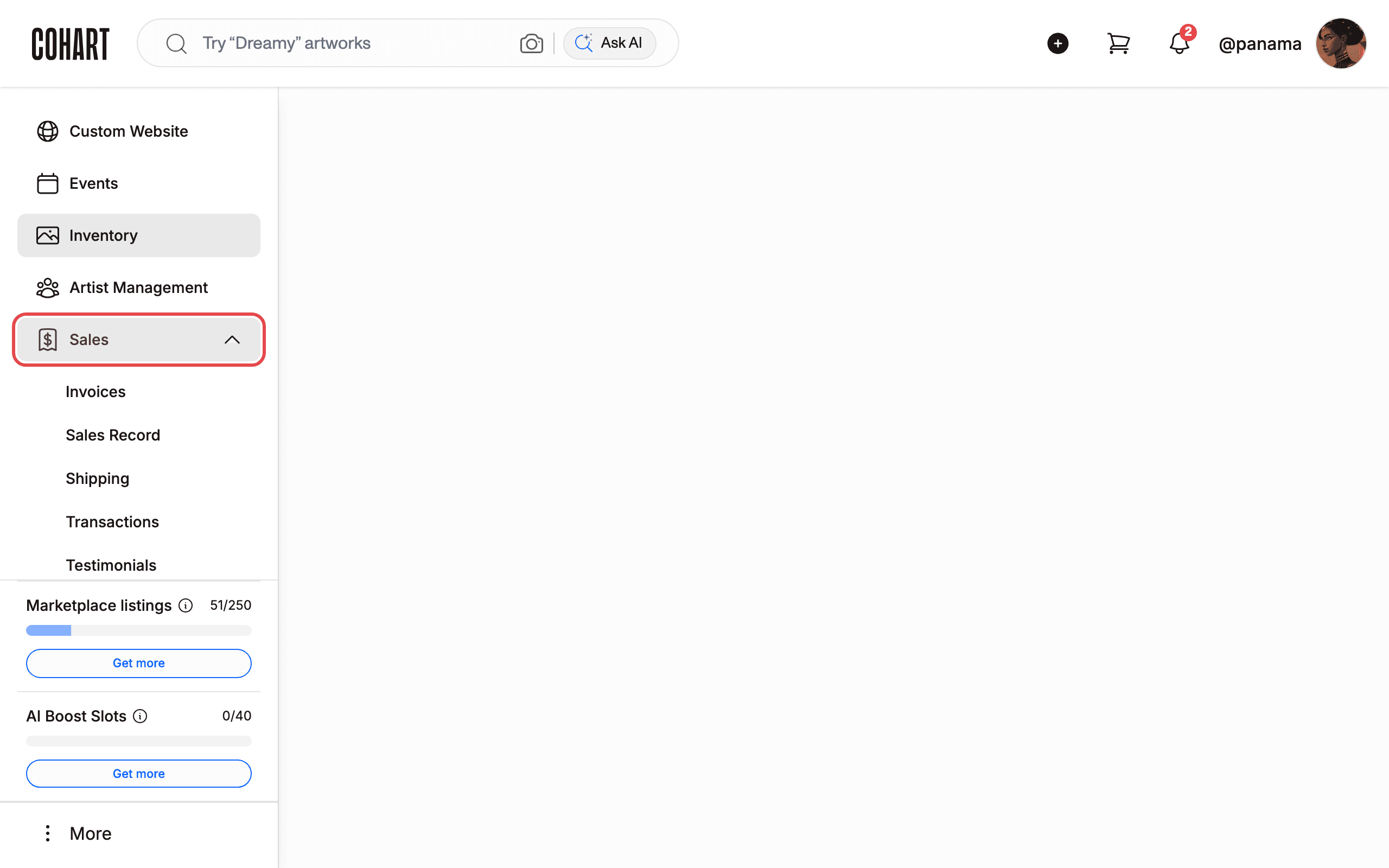
The Sales menu contains Invoices, Sales Record, Shipping, Transactions, and Testimonials.
3. Go to Invoices
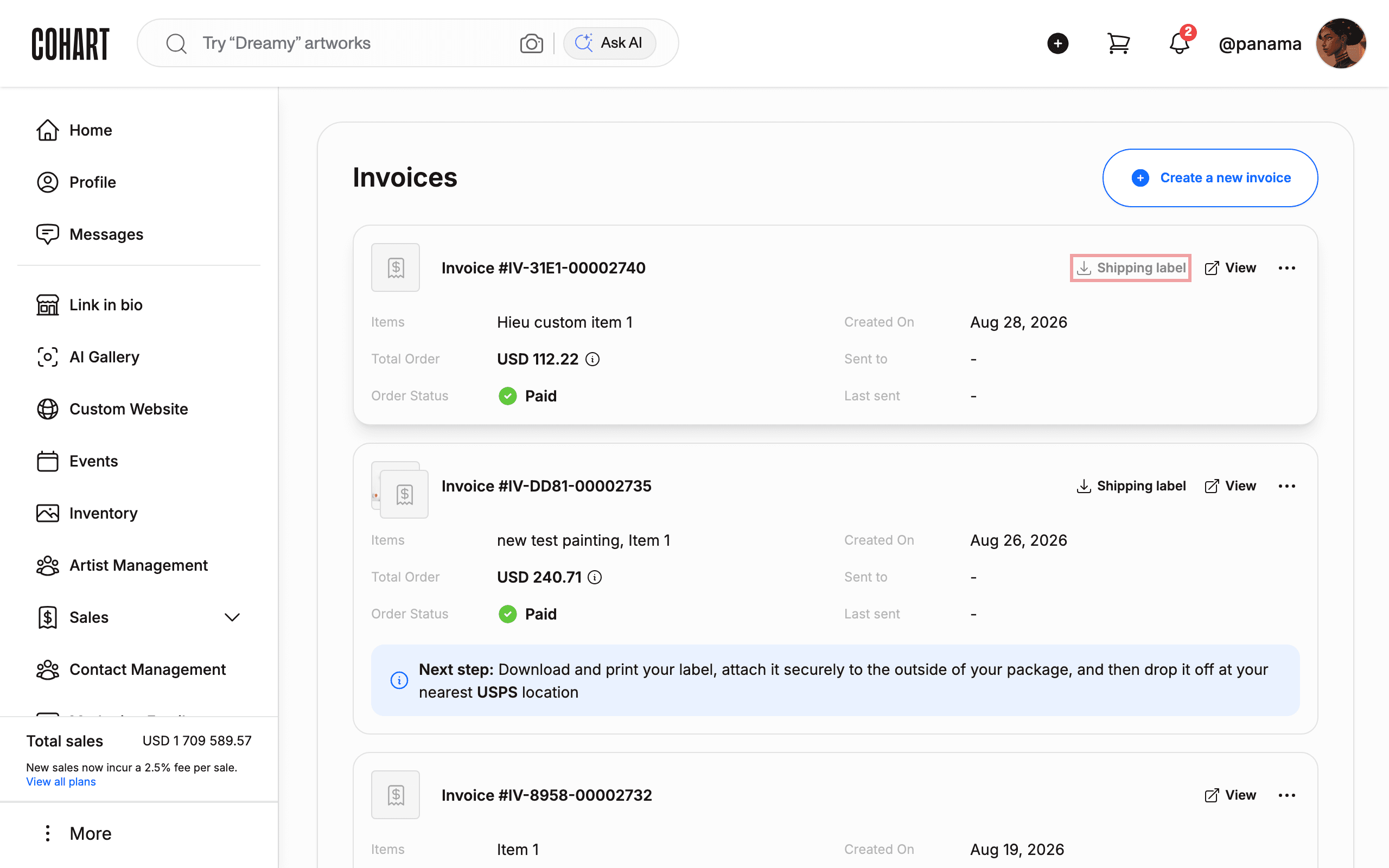
Click Invoices in the expanded Sales menu. The Invoices page lists every invoice with its Items, Total Order, Created On, Order Status, Sent to, and Last sent details.
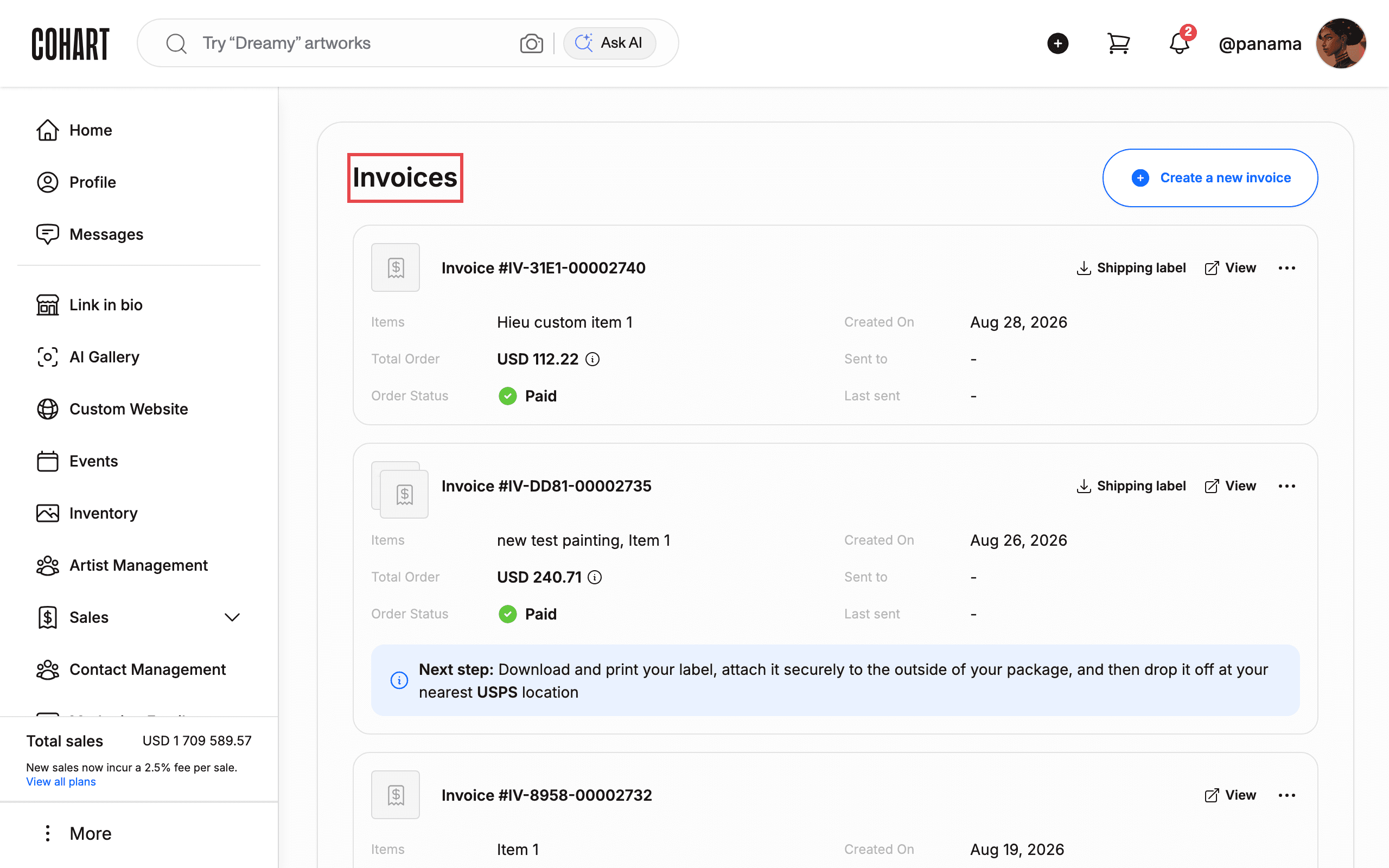
To bill a buyer from scratch instead, click Create a new invoice in the top-right corner. To open a single invoice, click View on its card.
4. Find the paid invoice and its Shipping label button
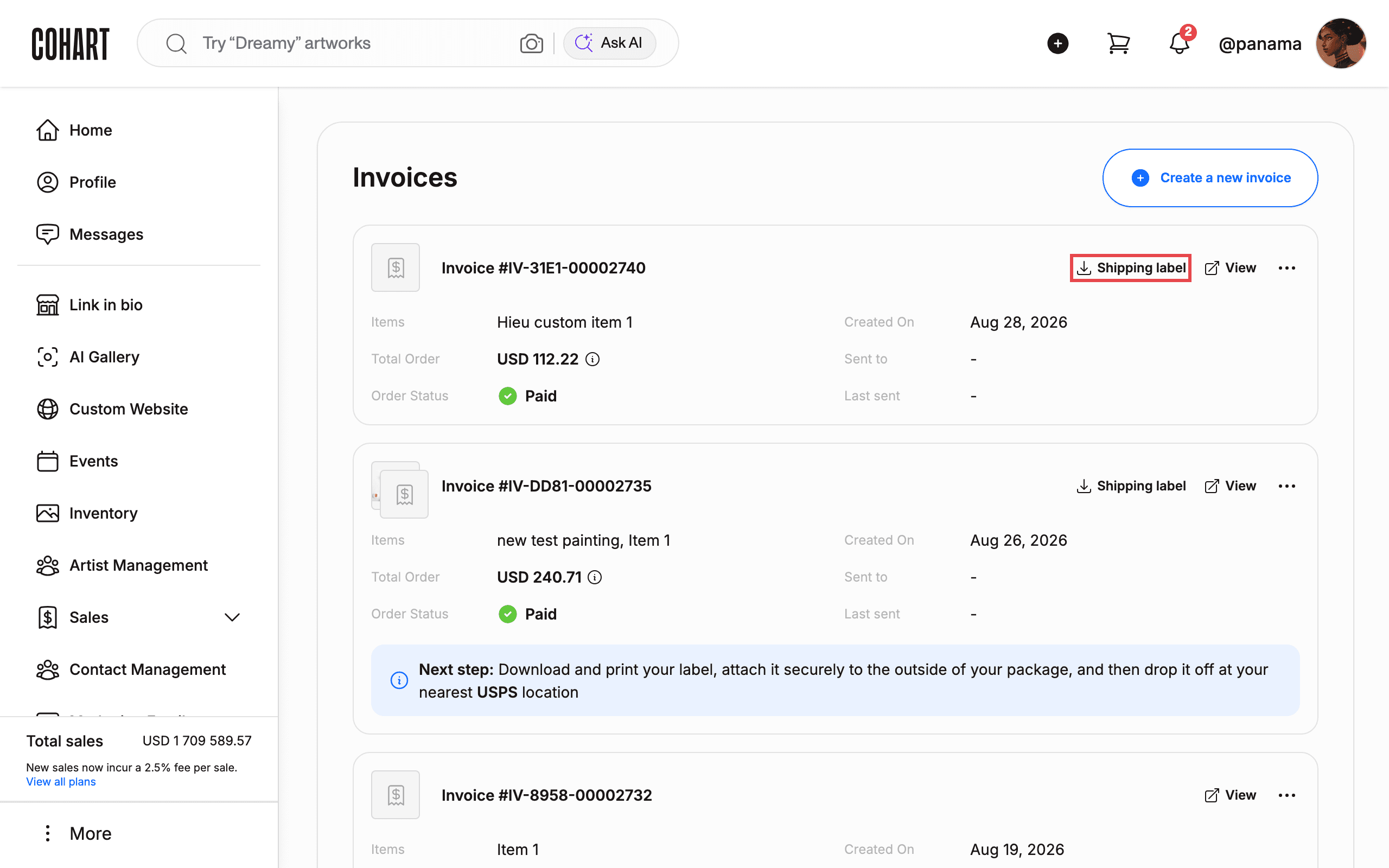
Look for the sold order you want to ship. A ready-to-ship invoice shows Order Status as Paid and offers a Shipping label button on its card, next to View.
5. Click Shipping label to download the label (PDF)
Click Shipping label on the paid invoice card. The label downloads immediately as a PDF file — no confirmation dialog appears.
6. Follow the Next step packaging and drop-off instructions
Paid shipping orders show a Next step: banner on the invoice: “Download and print your label, attach it securely to the outside of your package, and then drop it off at your nearest USPS location.”
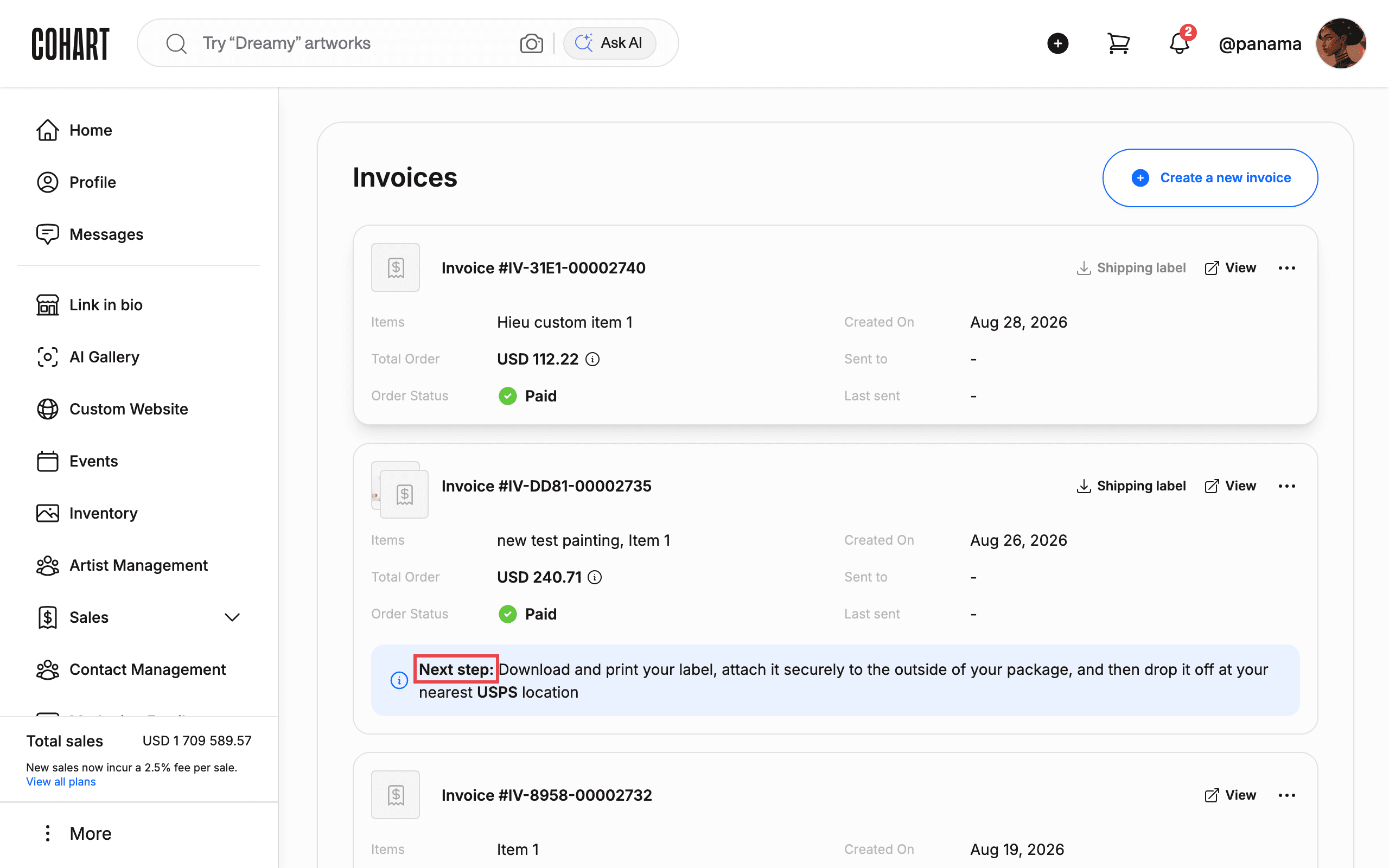
Print the downloaded PDF, attach it securely to the outside of your package, and drop the package off at your nearest USPS location.
7. Print the downloaded label
Open the downloaded PDF. It is a one-page USPS GROUND ADVANTAGE label (postage paid via shippo).
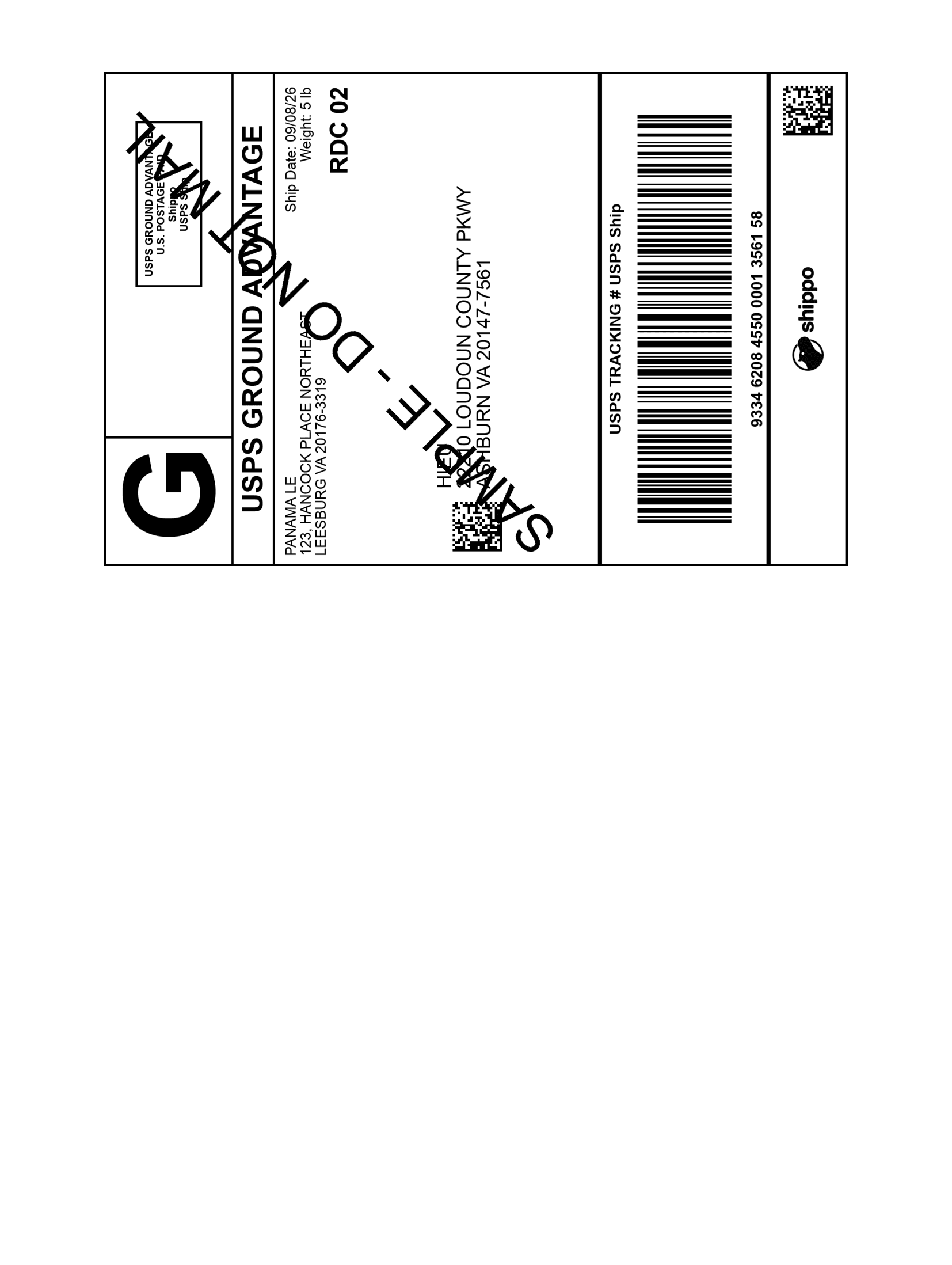
Check that the label shows your return address, the buyer’s delivery address, the ship date and weight, and the USPS TRACKING # USPS Ship barcode. Print it as-is — the file is an image with no selectable text. Then attach it securely to the outside of your package and drop the package off at your nearest USPS location.
Tips and troubleshooting
- The Shipping label button only appears on paid invoices (Order Status shows Paid). Invoices without a label show only View. Open (unpaid) invoices instead show Resend, View, and Edit.
- Each invoice card also has a … (more options) menu next to View.
- The same Shipping label action is also available per sale on the Sales Record page, which additionally offers Track order per sale. [UNVERIFIED — check manually]
- The Sales menu also lists a Shipping page, which may offer another way to manage shipments. [UNVERIFIED — check manually]
- The site can load slowly: after signing in you may see a loading spinner before the sidebar appears. Wait for the content to finish loading before clicking.
- Dismiss the cookie banner with Reject all if it covers the login form.
- After signing in you land on the Inventory page, not the sales pages — use the sidebar to navigate to Sales → Invoices.
Screenshots are regenerated automatically from the live site. Last captured: September 8, 2026.